API Portal
Portal Settings is the central settings page where you manage the basic configuration, security settings, email notifications, features, and legal regulations of your API Developer Portal. Changes made on this page directly affect the overall behavior of the portal and the user experience.

Portal Settings controls the portal's basic settings and behavior. Portal Appearance controls visual elements (logo, colors, HTML content).
İçindekiler
General Settings
The image containing the Portal Settings is provided below:
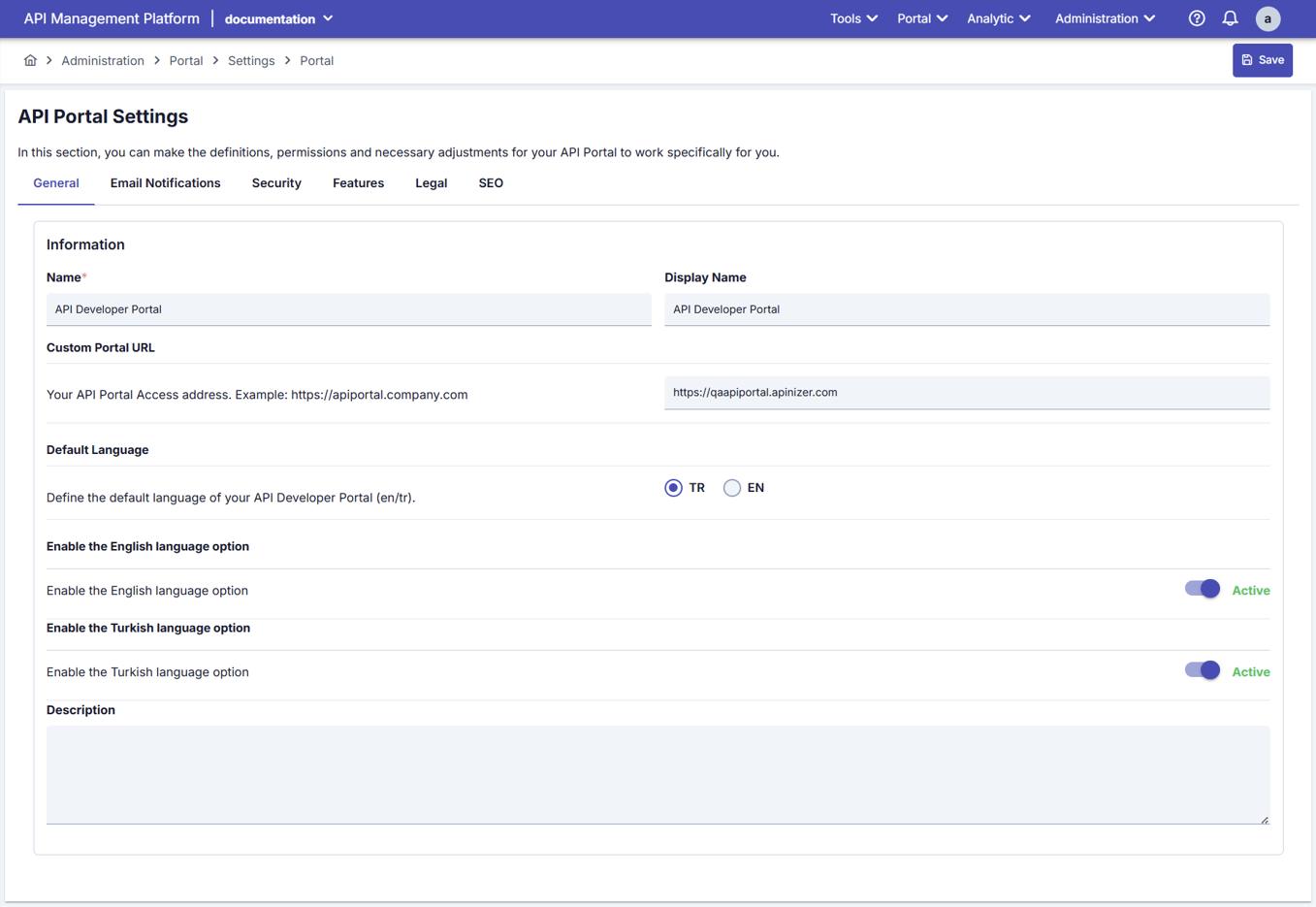
The fields used for Portal Settings configuration are shown in the table below.
Field | Description | Use on the Portal Interface |
|---|---|---|
Name | Used to define the API Portal within the system. Used as a technical identifier. The portal is defined in system logs and reports. Required, unique field. e.g.: <companyName>-developer-portal | Technical identity within the portal; it is not directly visible in the interface, but this value appears in logs and reports. |
Display Name | The portal is given a more understandable and user-friendly name. It is used in marketing and communication. It ensures that users remember the portal more easily. Optional, user-friendly. e.g.: <companyName> API Developer Portal | Used as the title displayed in the portal top menu and email templates. |
Custom Portal URL | It is used as the access address for the API Portal. It is specified as the base address for all portal URLs, in links in email notifications, and in API key activation links. The corporate domain is used. It must be in full URL format (http:// or https://). Example: https://apiportal.company.com | The base address for all portal links; buttons in registration/confirmation emails, redirects such as “Forgot Password” are created according to this URL. |
Default Language | When the user first enters the API Portal, it is displayed in the default language.
| Automatic language selection at the portal login; determines which options are listed in the language switcher component. |
Enable the English language option | When this feature is enabled, the English language option becomes active. It is used as a language switcher in the portal. It determines whether English content is displayed or not. It controls the multilingual feature. | It is determined whether English content will be displayed or not. |
Enable the Turkish language option | When this feature is enabled, the Turkish language option becomes active. It is used as a language switcher on the portal. It determines whether Turkish content is displayed or not. It controls the multilingual feature. | It is determined whether Turkish content will be displayed or not. |
Description | It is defined as explanatory information for system administrators. It is used to explain the purpose and scope of the portal. A note is left for other administrators. e.g.: This portal has been created for our external partner companies to access our APIs. All APIs that require access to customer data are published here. The portal is configured in accordance with GDPR and ISO 27001 standards. | Administrative note only; not displayed in the portal user interface. |
When both the Turkish Language Option and the English Language Option are enabled in the portal settings, the system automatically switches to Multilanguage mode.
If the Multi-Language feature is enabled in Portal Settings, the interface and form fields will be displayed in both English and Turkish, and separate data entry can be made in each language.
Email Notifications
Automatic emails sent to users from the Portal are configured in this tab. Automatic emails are sent for user registration, confirmation, rejection, API subscription, and similar processes.
Images and explanations containing Email Settings are provided below:
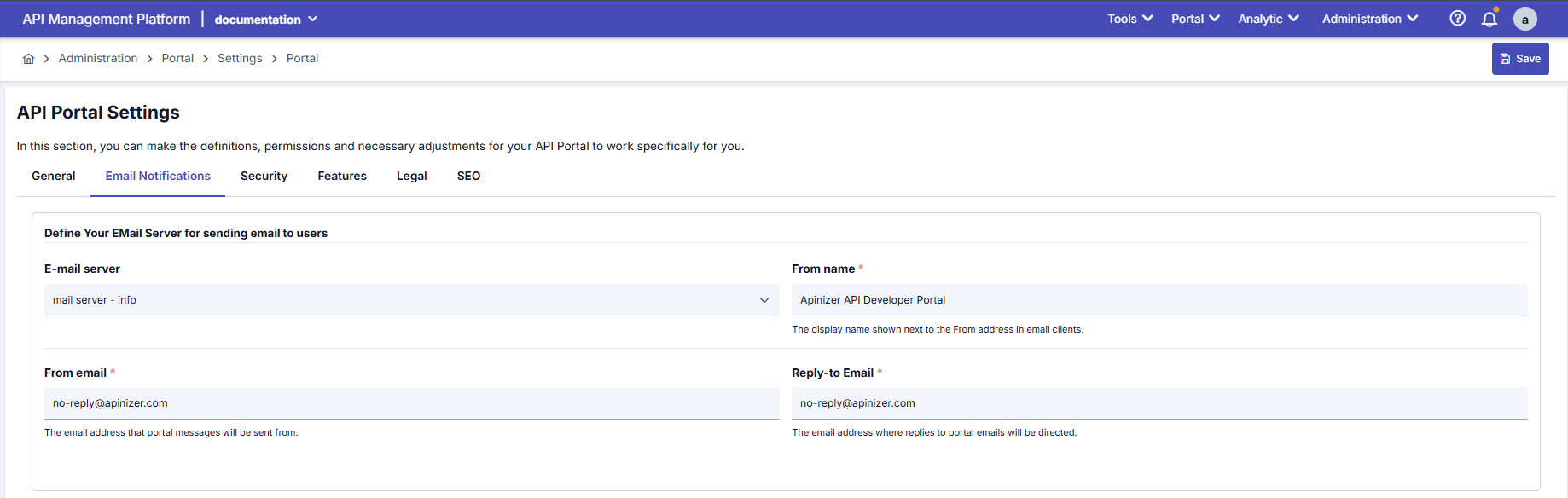
The fields used for Email Settings are shown in the table below.
Field | Description |
|---|---|
The address of the email server used by the API Portal to send emails. Predefined email server settings are selected. A selection is made from the Connection Config Email list. This setting contains the SMTP server information. | |
Displayed Name | Determines the name under which email messages will be sent. Users see this name and understand where the email came from. |
Sender Email | Specifies the address from which emails sent from the API Portal will be sent. For example, “no-reply@apinizer.com”. Emails will be sent from this address. |
Reply Email | The address to which the user will be directed when they click the “Reply” button is specified. Example: “support@acmecorp.com” It must be a real support email address. |
Email Templates
There are 8 different types of emails automatically sent from the Portal. Each one can be customized separately.
The templates and their purposes are explained in the table.
| Template | When is it sent? | Impact on the portal | Email Triggering Steps | |
|---|---|---|---|---|
Confirm Your Email Address | When a new user registers on the portal When the user needs to verify their email address | The account will not be active until the user clicks on the link in this email. You cannot log in to the portal without email confirmation (depending on settings). | STEP 1: User Registers, clicks the “Register” button on the Portal, fills out the registration form, clicks the “Sign Up” button STEP 2: System Sends Email, the “Confirm Email Address” email is sent automatically, the email reaches the address entered by the user, contains a special confirmation link STEP 3: User Receives Email, Subject: Your chosen subject, Title: Your chosen title, Body: Your chosen content, Button: Your chosen button text (e.g., “Confirm My Email”) STEP 4: User Clicks the Link, clicks the confirmation link/button in the email, is redirected to the Portal, email address is verified STEP 5: Next Step (Depending on Settings), [if Auto Approve Account = ACTIVE], account is automatically approved, a Welcome email is sent, The user can log in to the portal. [If Auto Approve Account = INACTIVE], Administrator approval is pending, the “Your account is being reviewed” message is displayed, and the Welcome email is sent after the administrator approves. |
|
Welcome | When the user's account is approved After manual approval by the administrator or in case of automatic approval | Informs the user that their account is active Tells them they can now log in to the portal | STEP 1: User has confirmed their email address. The user clicked the link in the “Confirm Email Address” email, and the email address has been verified. STEP 2: Account is Approved (Two Scenarios), [SCENARIO 1: Auto Approve Account = ACTIVE], The account is automatically approved, and a “Welcome” email is sent immediately [SCENARIO 2: Auto Approve Account = INACTIVE], Administrator receives notification, Administrator logs into Manager, goes to Portal Management → Developer Accounts section, sees Pending user, clicks [Approve] button, “Welcome” email is sent STEP 3: User Receives Email, Subject: Your chosen subject, Title: Your chosen title, Body: Your chosen content, Button: Your chosen button text (e.g., “Go to Portal”) STEP 4: The user can access the Portal, log in to the portal, review APIs, and register applications. |
|
| Reset Password | When the user clicks the “Forgot My Password” button When the administrator initiates the password reset process for the user | The user sets a new password by clicking on the link in this email. The link expires after a certain period of time (security). | STEP 1: User Forgets Password, clicks the “Forgot Password?” link on the portal login page, enters their email address, clicks the “Reset Password” button STEP 2: System Sends Email, The “Reset Password” email is automatically sent, The email contains a unique reset link, The link is valid for a specific period (e.g., 24 hours) STEP 3: User Receives Email, Subject: Your chosen subject, Title: Your chosen title, Body: Your chosen content, Button: Your chosen button text (e.g., “Reset My Password”) STEP 4: User clicks the link, clicks the reset link/button in the email, is redirected to the password reset page on the portal, enters their new password (twice) STEP 5: Password is updated, New password is saved, “Your password has been successfully updated” message, User can log in with their new password |
|
Account Access Has Been Rejected | When the administrator rejects the user's registration request When the user is deemed unsuitable during the manual approval process | The user cannot log in to the portal The account is not created or deleted | STEP 1: User Has Registered and Verified Email, User has registered on the portal, verified their email address, and is awaiting manual approval (Auto Approve Account = INACTIVE) STEP 2: Administrator Reviews Request, Administrator logs into Manager, goes to Portal Management → Developer Accounts section, views pending users with the “Pending Approval” filter, reviews the relevant user STEP 3: Administrator Rejects Request, clicks the [Reject] button, enters the reason for rejection (optional), approves STEP 4: The system performs the action, the user account is deactivated or deleted, and an “Account Access Rejected” email is sent. STEP 5: The user receives the email. Subject: The subject you set. Title: The title you set. Body: The content you set. STEP 6: The user cannot access the portal. If they attempt to log in, they receive an error and see the message “Your account is not active.” | 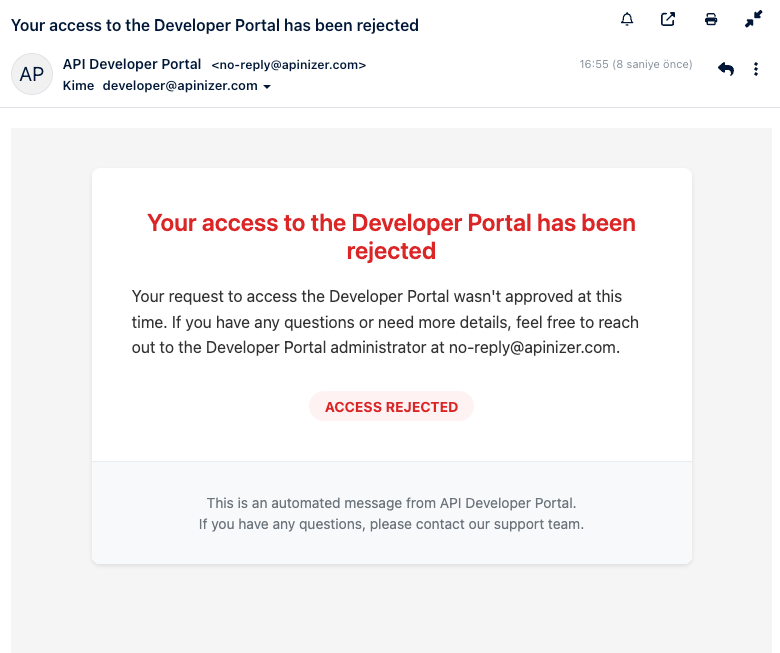 |
Account Access Has Been Revoked | When a previously active user's access is revoked When a user is disabled by an administrator In case of a security or policy violation | The user can no longer log in to the portal Current sessions are closed API keys are disabled | STEP 1: The user has an active account, the user has been previously approved, is actively using the Portal, and has access to APIs STEP 2: A reason for cancellation arises, a security breach is detected, usage policy is violated, contract/membership expires, manual administrator decision STEP 3: Administrator Revokes Access, Administrator logs into Manager, goes to Portal Management → Developer Accounts section, finds the relevant user, selects [Revoke Access], enters the cancellation reason (optional), confirms STEP 4: System Performs Action, User account is immediately disabled, All active sessions are closed, API keys are deactivated, “Account Access Revoked” email is sent STEP 5: User Receives Email, Subject: Subject you set, Title: Title you set, Body: Content you set. STEP 6: User Effects: Immediate logout (if there is an active session), Cannot log in again, API calls return 401 Unauthorized, All application registrations become inactive | 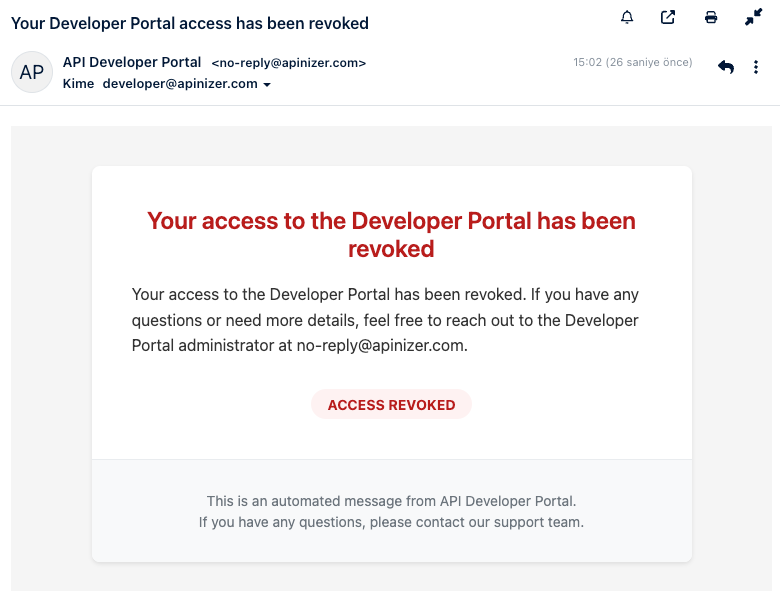 |
Application Registration Approved | When the user's app registration request to an API is approved When the administrator gives manual approval or in the case of automatic approval | The user can start using the API API keys become active The user can access the API documentation | STEP 1: The user wants to subscribe to the API. The user logs into the portal, reviews the API catalog, selects the relevant API, and clicks the “Subscribe” or “Register App” button. STEP 2: The User Enters Application Information, enters the Application Name, adds a Description, selects a Plan (Free, Basic, Premium, etc.), and clicks the “Submit” button. STEP 3: The system processes the request (Two Scenarios). [SCENARIO 1: Auto Approve API Subscribe = ACTIVE], The registration is automatically approved, API keys are generated instantly, and an “App Registration Approved” email is sent. [SCENARIO 2: Auto Approve API Subscribe = INACTIVE], The administrator receives a notification, logs into Manager, goes to API Management → Subscriptions, views pending requests with the “Pending Approval” filter, reviews the relevant request, clicks the [Approve] button, API keys are generated, and an “App Registration Approved” email is sent STEP 4: User Receives Email, Subject: Subject you set, Title: Title you set, Body: Content you set (enriched with variables), Button: Button text you set (e.g., “API Documentation”) STEP 5: User Begins Using the API, Goes to the “My Apps” section in the Portal, Sees the API keys (Client ID, Secret), Reads the API documentation, Makes the first API call, Tests it, and Deploys it to the production environment |
|
Application Registration Rejected | When the user's app registration request to the API is rejected When the administrator does not approve the request | The user cannot use that API API keys are not generated The user can reapply | STEP 1: The user has submitted a request to subscribe to the API. The user has subscribed to the API, entered the application details, and is awaiting manual approval (Auto Approve API Subscribe = INACTIVE). STEP 2: The administrator reviews the request. The administrator logs into Manager, navigates to API Management → Subscriptions, and views pending requests using the “Pending Approval” filter. STEP 3: The administrator rejects the request, selects [Reject], enters the reason for rejection (optional, not shown to the user), and approves. STEP 4: The system performs the operation, the subscription request is marked as rejected, API keys are not generated, and an “App Registration Rejected” email is sent. STEP 5: User Receives Email, Subject: Your set subject, Title: Your set title, Body: Your set content, Button: Log In STEP 6: User Options, Sees that the request was rejected in the Portal, Can try again with a different plan, Can contact Support, Can subscribe to another API |
|
Application Registration Revoked | When a previously approved app registration is canceled In case of API usage policy violation When access is revoked by the administrator | The user's API access is terminated Current API keys are disabled API calls fail (401 Unauthorized) | STEP 1: The user has an active subscription, the user's app registration has been previously approved, the API is actively being used, and the API keys are working. STEP 2: A cancellation reason occurs: API usage policy violation, rate limit violations (persistent), payment issues (for paid plans), security breach detected, abuse detected, contract termination, manual administrator decision. STEP 3: Administrator Cancels Subscription, Administrator logs into Manager, goes to API Management → Subscriptions section, finds the relevant subscription in the Active subscriptions list, selects [Revoke], enters the cancellation reason (optional), confirms STEP 4: The system performs the operation, the subscription is canceled immediately, all API keys are disabled, rate limiter keys are cleared, and an “App Registration Revoked” email is sent STEP 5: User Receives Email, Subject: Your specified subject, Title: Your specified title, Body: Your specified content, Button: Sign In STEP 6: User and API Effects: From that moment on, API calls fail, returning HTTP 401 Unauthorized or 403 Forbidden, the user sees the “Revoked” status in the portal, and an “Access Revoked” warning appears on the Application page |
|
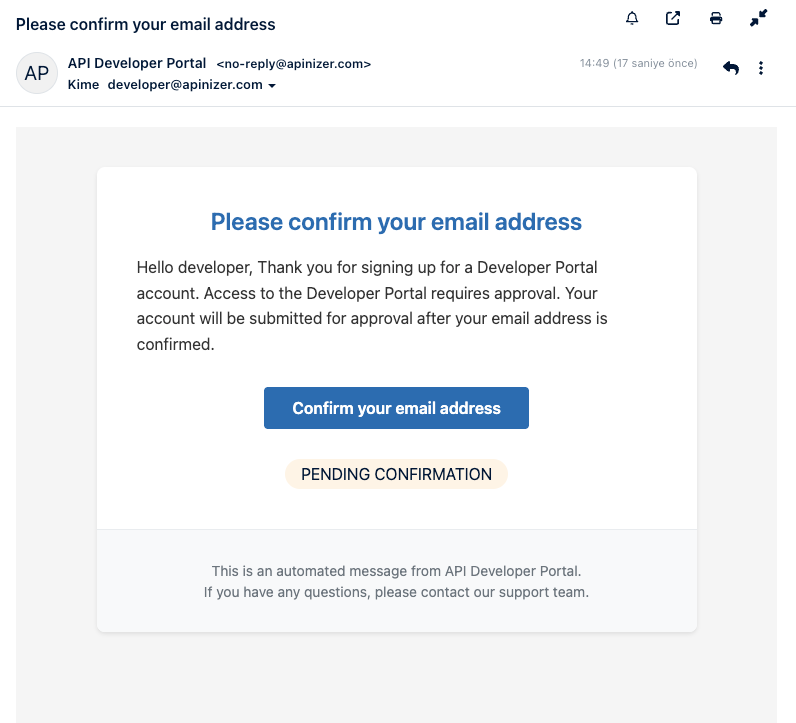
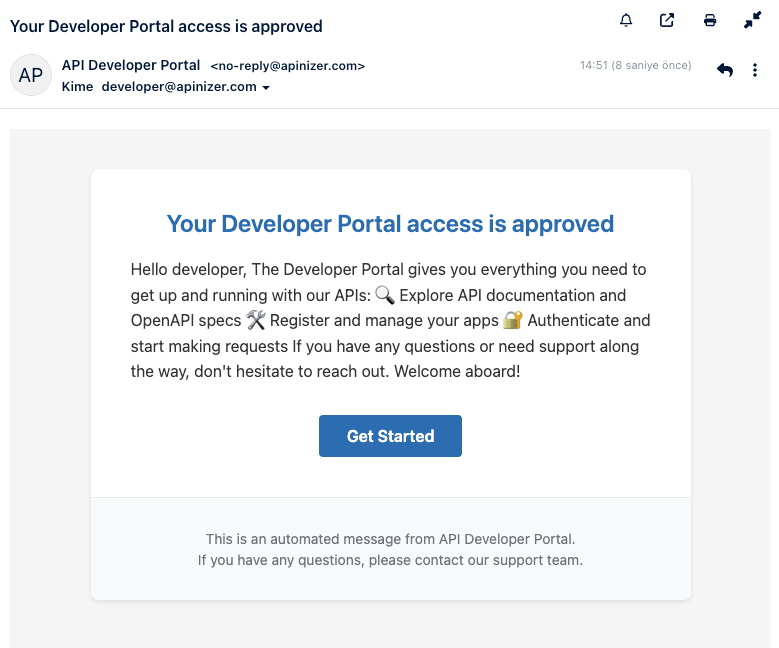
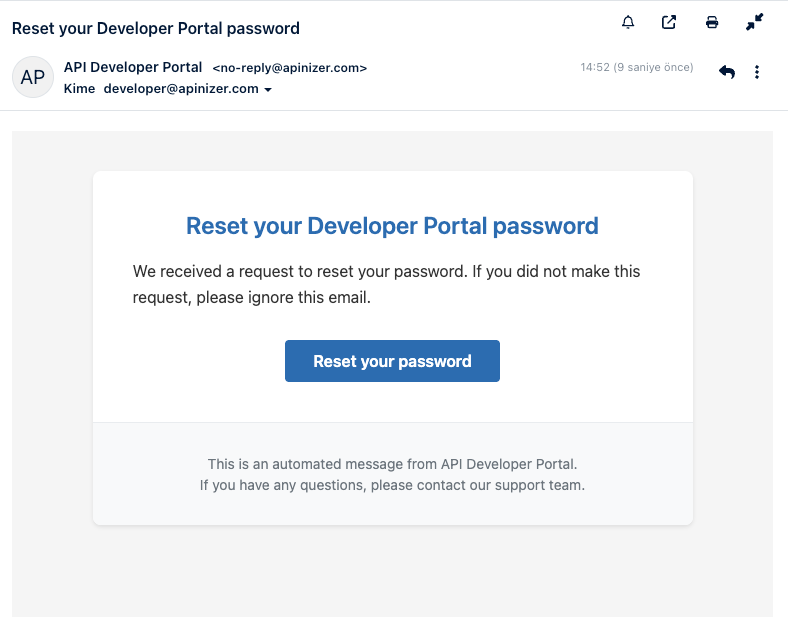
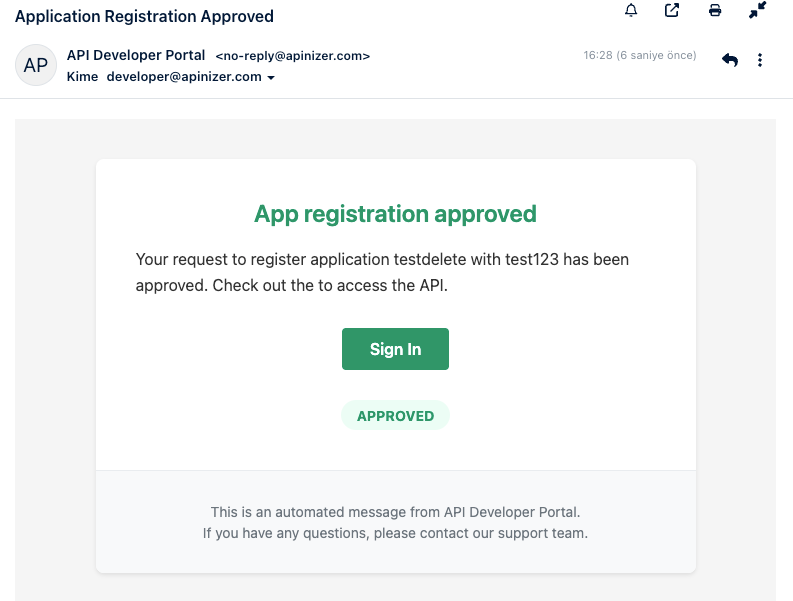
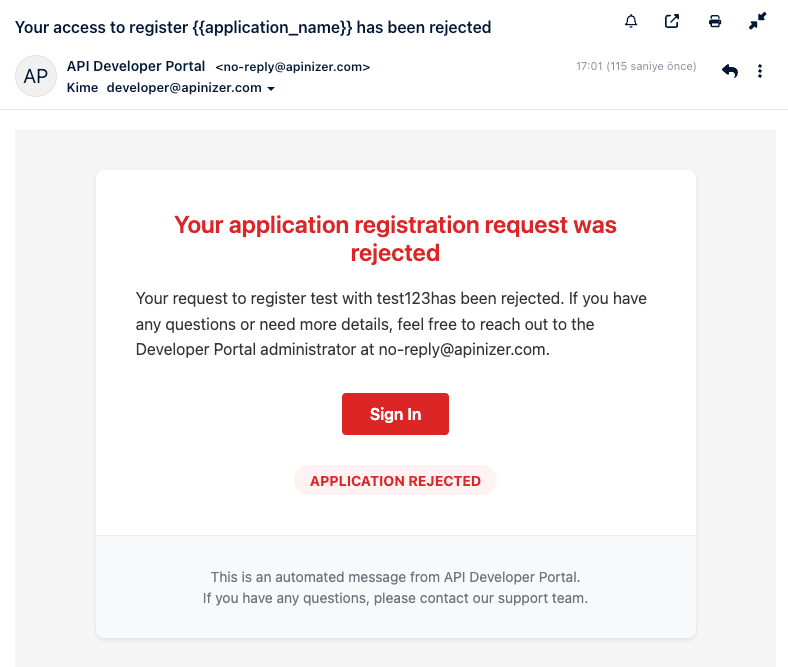
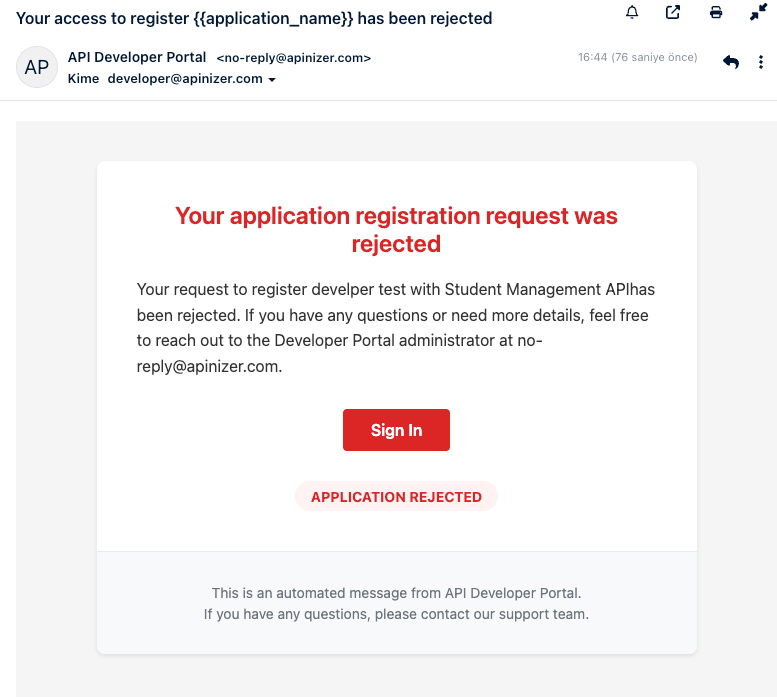
The template shown in the image below should be used for emails regarding email address confirmation, welcome messages, account access denied, account access canceled, application registration approved, application registration denied, application registration canceled, and password reset.
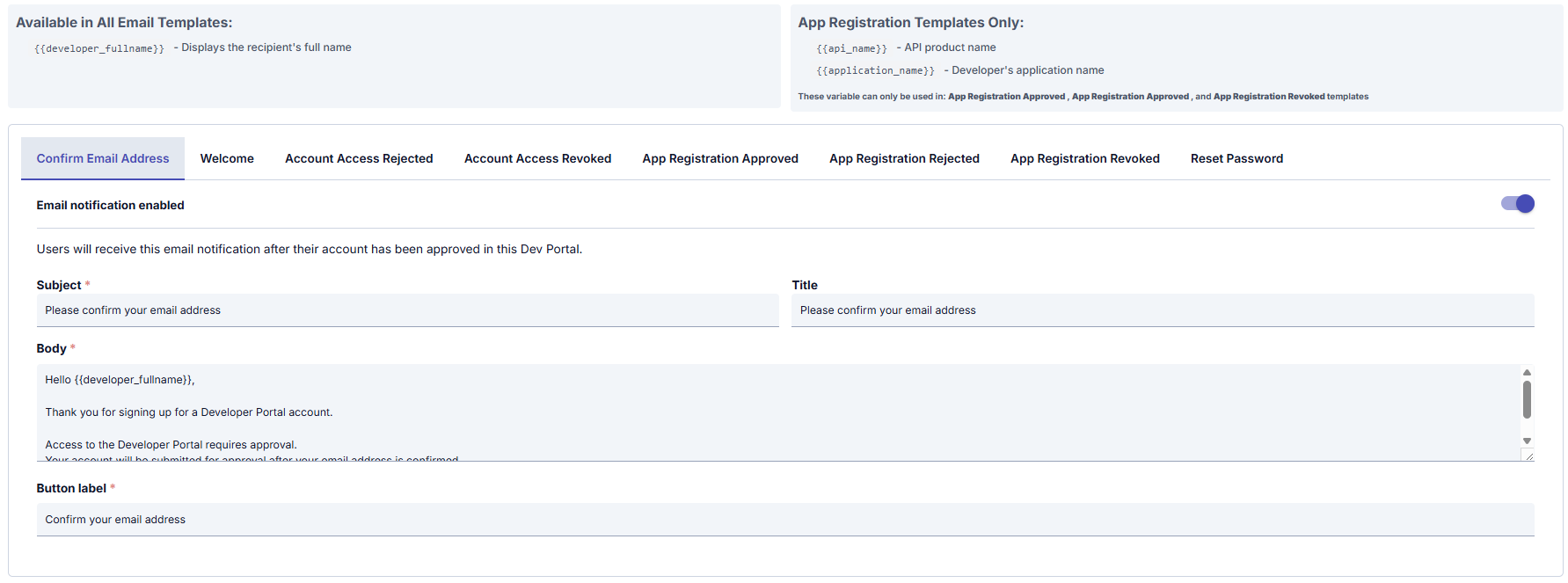
In all email templates:
{{developer_fullname}}
- If {{developer_fullname}} is used in the email template → The name of the user who will receive the notification is automatically written in that place. This ensures a personalized greeting in the emails sent.
Application Registration Approved, Application Registration Approved, and Application Registration Cancelled In email templates:
{{api_name}} - API product name
{{application_name}} - Developer's application name
If {{api_name}} is used in the email template → The name of the API product to which the notification relates is automatically inserted there.
If {{application_name}} is used in the email template → The name of the application to which the notification relates is automatically inserted in that place.
This way, the user can see which API the notification is for. If they have multiple applications, they can easily understand which application the notification is related to.
The fields used for configuring Email Settings are shown in the table below.
Field | Description |
|---|---|
Email notification enabled | Determines whether email notifications are active. If active, emails are sent to the user. This setting can be customized for each email. |
Subject | Specifies the text that will appear in the subject line of the email. It is usually a title that summarizes the content of the email. |
Title | Specifies the subject line of the email content. It is the subject line text visible to the user in the email. |
Content | Email content. Contains the detailed text of the message to be sent to the user. It can be personalized in email templates using placeholders (e.g., {{developer_fullname}}). |
Button label | Specifies the text that will appear on the button in the email content. Users click this button to perform an action. For example, “Confirm your email address.” |
Security
Privacy settings to be used on the API Developer Portal are managed through this screen.
Images and explanations regarding Security Settings are provided below:
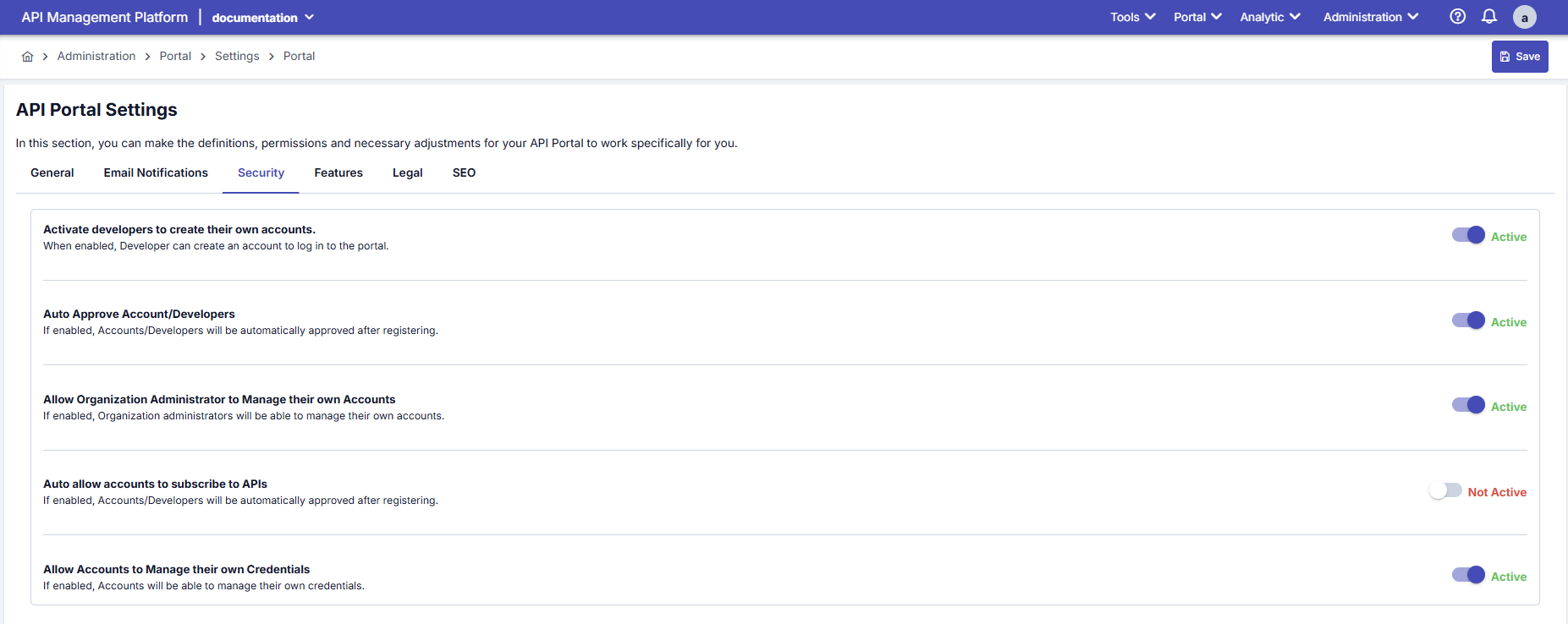
The fields used for Security Settings configuration are shown in the table below.
Field | Description | Use on the Portal Interface |
|---|---|---|
Activate developers to create their own accounts | Security tab → Enable Account Registration This is used to enable or disable new user registration on the portal and to control the self-service registration feature. When enabled, users can register themselves on the portal, the “Register” button is visible, and the registration form is accessible. | Determines the visibility of the “Sign Up/Register” button on the portal login page; if inactive, self-signup is disabled. |
Auto Approve Account/Developers | Security tab → Auto Approve Account Used to automate or make the user approval process manual, set the security level, and provide access control. When active, users are automatically approved upon registration. They can immediately access the portal after email verification, no administrator intervention is required, and a welcome email is automatically sent. | Determines whether users who confirm their email after registration are automatically activated; if inactive, manual approval from the Manager is required. |
Allow Organization Administrator to Manage their own Accounts | Security tab → Organization Manager Account Manage Manages whether the Organization Manager role can be assigned when creating a new record via the Account/Developer menu. This assignment allows the account/developer to create their own account/developer on the API Portal side. When enabled, only portal administrators (admins) can manage users; organization managers can only view their own accounts, ensuring centralized control. | Controls whether organization administrators can manage users/accounts within the Portal (affects permissions on the Portal → Accounts screen). |
Auto allow accounts to subscribe to APIs | Security tab → Auto Approve API Subscribe When a developer or account registers with the API portal, subscription permission is automatically granted to APIs. This means there is no need for manual approval by an administrator. If enabled, when a user registers an app for an API, it is automatically approved, API keys are immediately generated and activated, the user can start using the API immediately, and an App Registration Approved email is automatically sent. | When the user subscribes/registers the app, it ensures that the plan is automatically approved and API keys are immediately defined; in passive mode, the manual approval flow runs in Manager. |
Allow Accounts to Manage their own Credentials | Security tab → Enable Credential Management This is used to grant or deny users permission to manage their own API keys, or to restrict credential management as required by security policy. When enabled, users can view their own API keys, create new credentials, delete or renew existing credentials, and view API secrets. | Enables/disables developers' permission to generate, regenerate, or delete client ID/secret in the My Apps section of the Portal. |
Features
The features to be used on the API Developer Portal are managed through this screen.
The images and descriptions containing the Feature Settings are provided below:
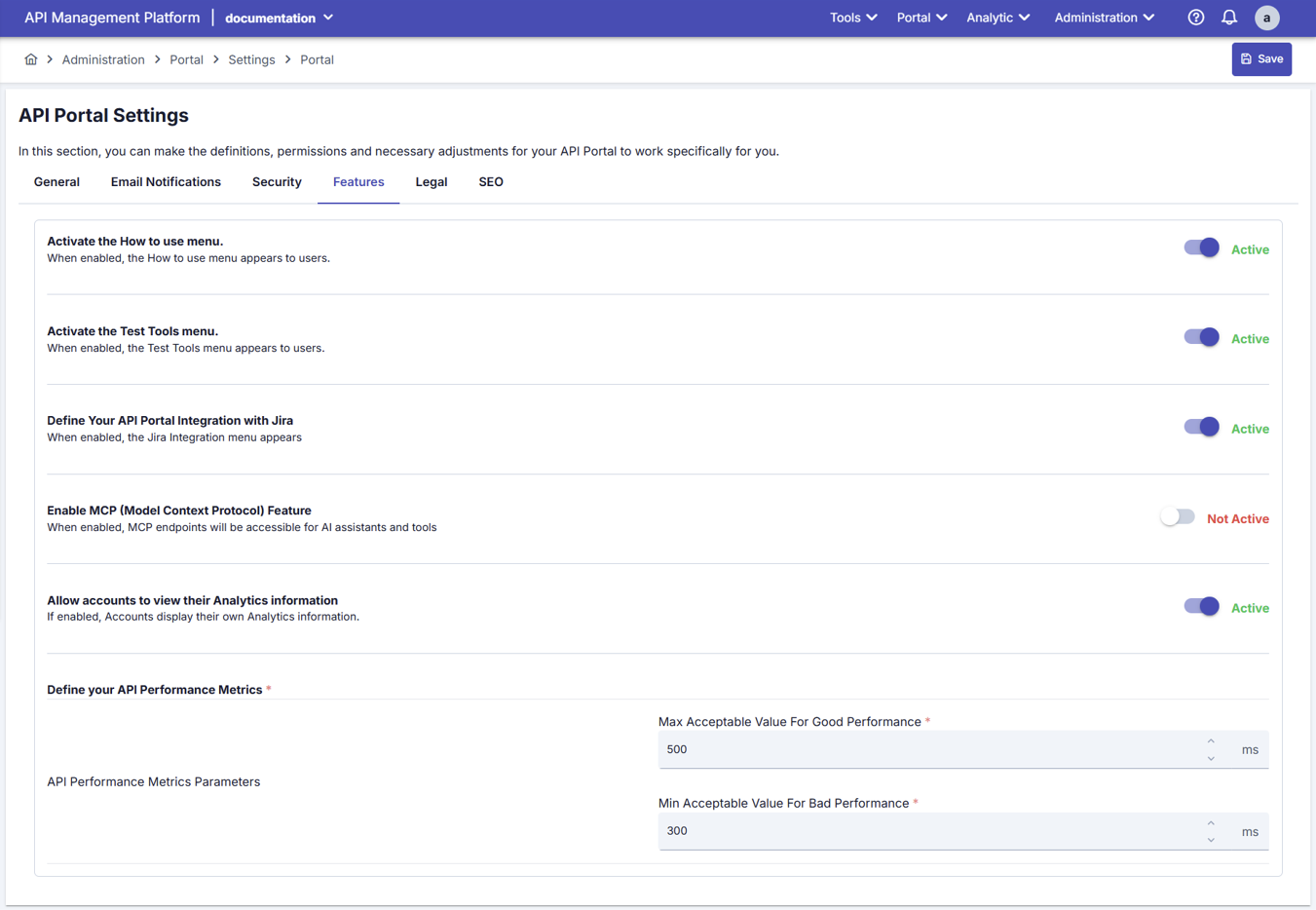
The fields used for configuring Feature Settings are shown in the table below.
Alan | Açıklama |
|---|---|
Activate the How to use menu | Features tab → Enable How It Works The How It Works menu becomes visible to users. It is used to show or hide a page that will guide users in the Portal. When enabled, the “How It Works” link appears in the Menu, the How It Works HTML content defined in Portal Appearance is displayed, and users can access this page. |
Activate the Test Tools menu | Features tab → Enable Test Tools Makes the Test Tools menu visible to users. Used to enable users to test APIs through the portal and provide a Swagger UI-like testing interface. When enabled, a “Try It” button appears in the API documentation, allowing users to make API calls through the portal, and the Request/Response preview becomes active. |
Define Your API Portal Integration with Jira | Features tab → Enable Jira Integration The Jira Integration menu appears. This feature is used to create Jira tickets through the portal and automate the support process. When enabled, users can open Jira tickets from the portal. The “Report Issue” or “Request Feature” buttons appear, and the Jira integration works. |
Enable the MCP (Model Context Protocol) Feature | Features tab → Enable MCP AI assistants and tools can access and use the system's contextual data. MCP features are available when enabled. |
Allow accounts to view their Analytics information | Features tab → Enable Analytics Accounts display their own analytics information. Used to show users API usage statistics and activate Dashboards. When enabled, the Analytics dashboard is visible to users, API call statistics are displayed, and Charts and reports are active. |
Define your API Performance Metrics | Features tab → Performance Metrics In this section, configurations are made for the following fields:
|
Legal
Legal settings to be used on the API Developer Portal are managed through this screen.
The images and explanations containing the Legal Settings are provided below:
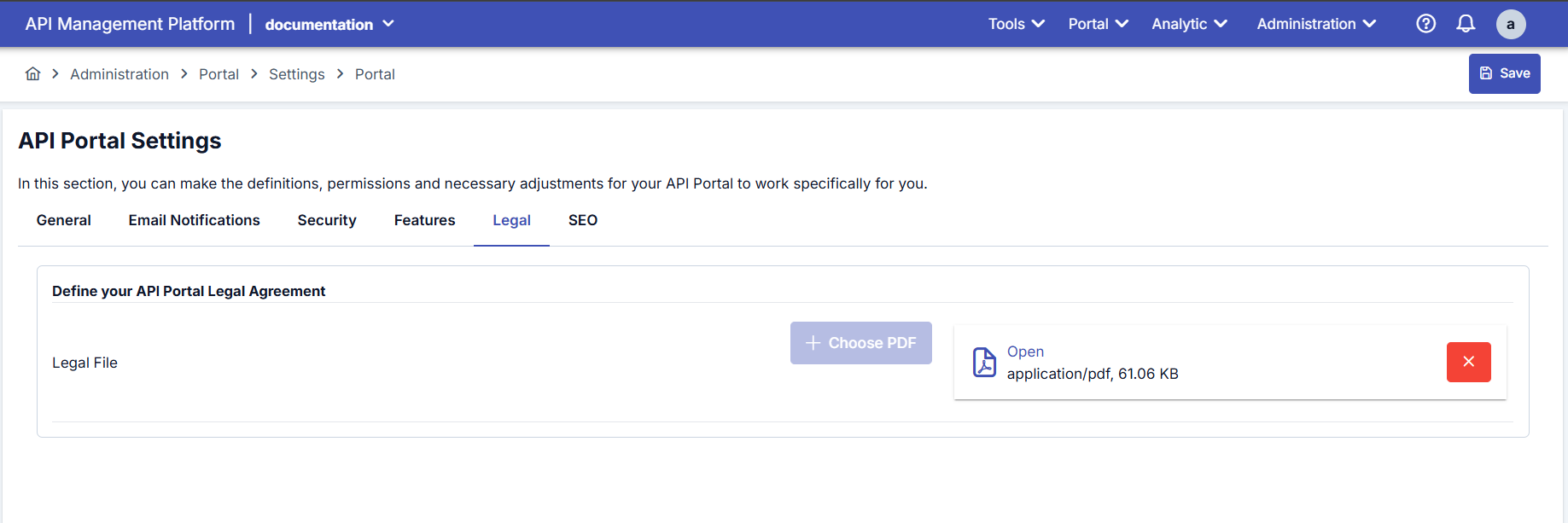
The field used for configuring Legal Settings is shown in the table below.
| Field | Description |
|---|---|
Legal File (Define your API Portal Legal Agreement) | This document outlines the terms of use, privacy policy, and legal obligations applicable when using the API Portal.
|
SEO
The SEO settings to be used on the API Developer Portal are managed through this screen.
Images and descriptions containing SEO settings are provided below:
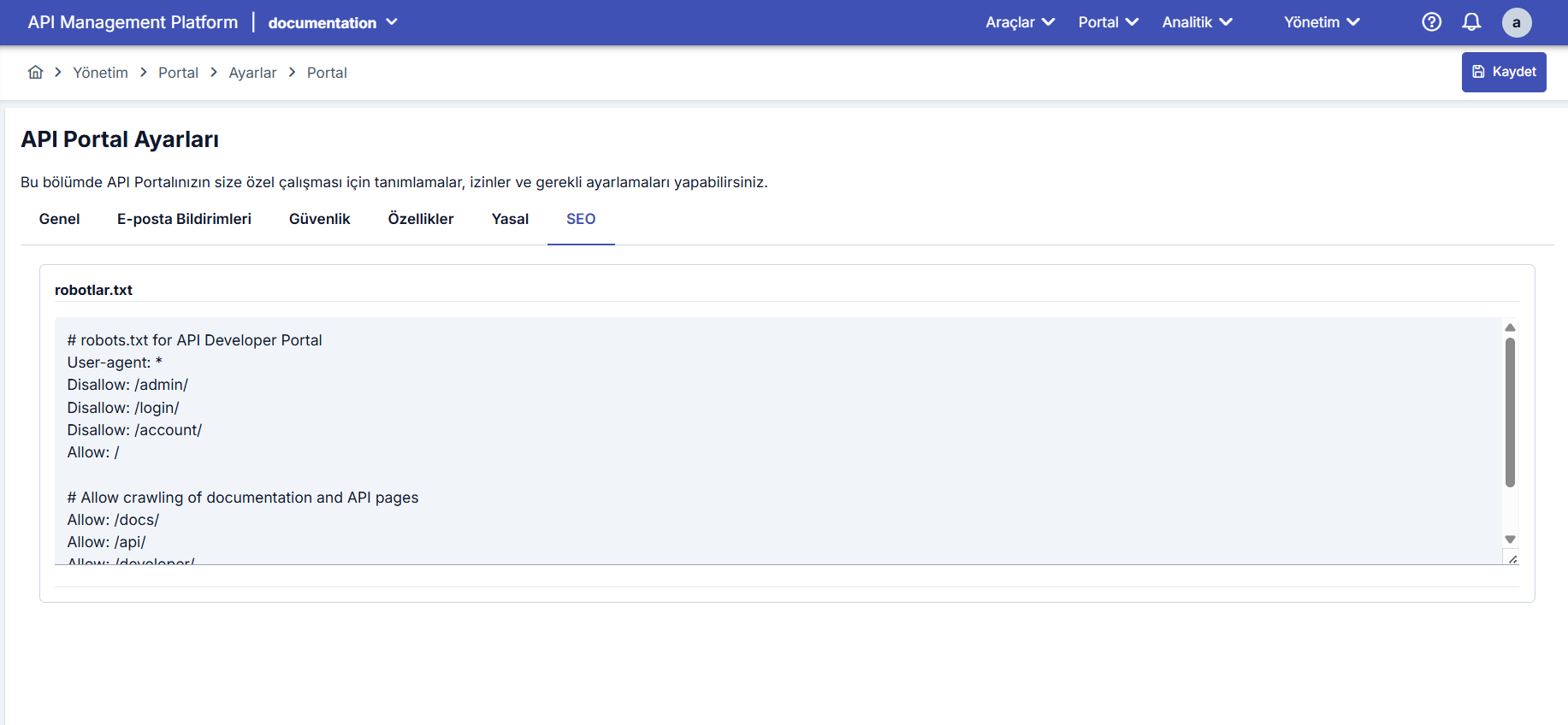
The field used for configuring SEO settings is shown in the table below.
Field | Describe |
|---|---|
SEO | It is a text file that tells search engine bots which pages on your site they can crawl and index, or which pages they cannot access. This allows site owners to ensure search engines crawl their sites more efficiently and in a controlled manner. |