Support Package Requests
Content
Overview
The Support Package Requests page is a module located in the management panel (Manager) of the Apinizer platform.
This screen displays a list of support package requests created by API Portal users, where they are either approved or rejected.
- This screen is used to manage the support packages that portal users wish to purchase.
- All applications are listed in a table; authorized users can approve or reject the application.
- Applications are not deleted. The system only changes the status between PENDING, APPROVED, or REJECTED.
Roles and Access
- Menu path: Portal Management → Support Package → Requests.
- Access: Users with portal management permissions (e.g., PORTAL_MANAGER) can view and perform actions.
- Portal end users do not access this screen; actions are performed only from the management panel.
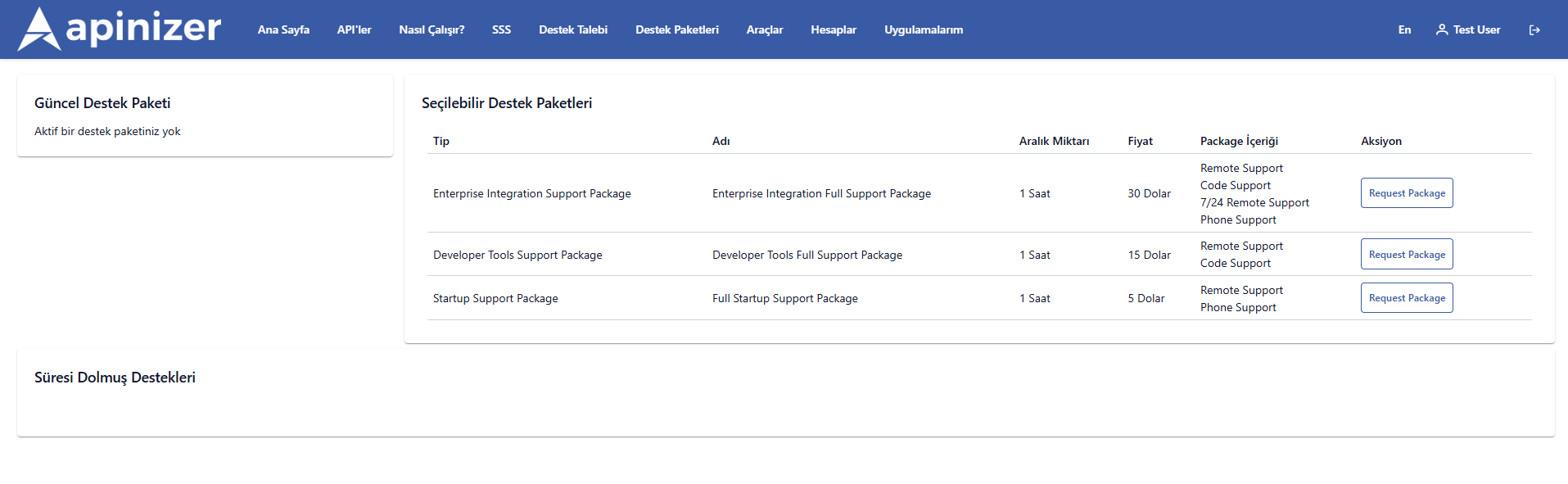
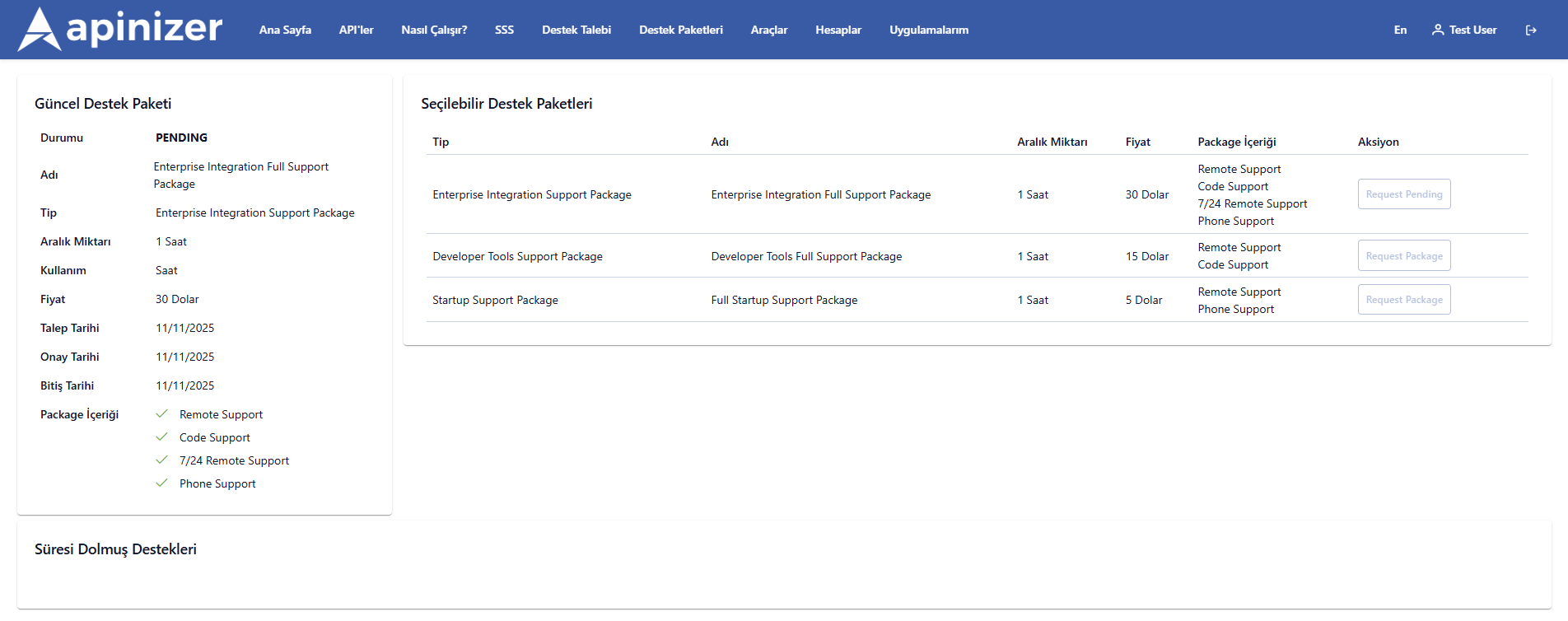
To submit a request to the Support Package Requests screen, the user performs the following steps on the API Portal:
| Step | Action | Description / Details |
|---|---|---|
| 1 | The user logs into the API Portal | The developer or project member logs into their API Portal account using their username and password. |
| 2 | Goes to the Support Package page | Click on the Support Packages tab in the portal menu. |
| 3 | Selects the appropriate support package | Select one of the following sample packages:
|
| 4 | Creates a support package request | Click the “Request Support Package” button for the selected package and submit the request. |
| 5 | Pending approval status | The created request changes to PENDING status and appears in the Apinizer Manager panel. |
| 6 | Notification | The user receives an email notification when the request status changes (approved or rejected). |
The administrator checks the support package requests received in the Apinizer Manager interface by following these steps:
| Step No | Step Name | Description / Process |
|---|---|---|
| 1 | Administrator Login | The admin logs into the Apinizer Manager Panel with user credentials. |
| 2 | Accessing the Relevant Menu | Follow this path via the menu: Administration → Portal → Support Packages → Support Package Requests |
| 3 | Viewing Support Package Requests | All support package requests created by users are listed in a table. |
| 4 | Table Review | The administrator can view the details, status, and dates of each request in the table. (Table details are provided below.) |
| 5 | Performing the Transaction | The administrator can perform actions in the Actions field for each request row: ✅ Approve – Updates the status to APPROVED. ❌ Reject – Updates the status to REJECTED. |
| 6 | Post-Approval Process | The Approved Date and Expired Date information for the approved request is automatically updated. |
| 7 | User Notification | When the process is complete, the system sends an email or portal notification to the user (the person who created the request). |
Approval and Rejection Flow
Approve
- Click the Approve button (only visible when the status is PENDING or REJECTED).
- A confirmation dialog opens.
- If you approve, supportPackageRequestService.approve(id, currentUserId) is called.
- After the operation, the list is automatically refreshed; the status becomes APPROVED.
Reject
- Click the Reject button (only visible when the status is PENDING or APPROVED).
- The RejectDialogComponent opens for entering the reason.
- The reason is required; if left blank, the button remains inactive.
- When you save, supportPackageRequestService.reject(id, currentUserId, reason) is called.
- The list is refreshed; the status is updated to REJECTED.
Business Rules
- There is no deletion process. Manual intervention via API/DB is required if necessary.
- PENDING records can be either approved or rejected.
- APPROVED records can be rejected again (e.g., if approved by mistake).
- REJECTED records can be approved again (e.g., if the user request has been reevaluated).
- After the process, the entire list is reloaded; there is no need to refresh the page.
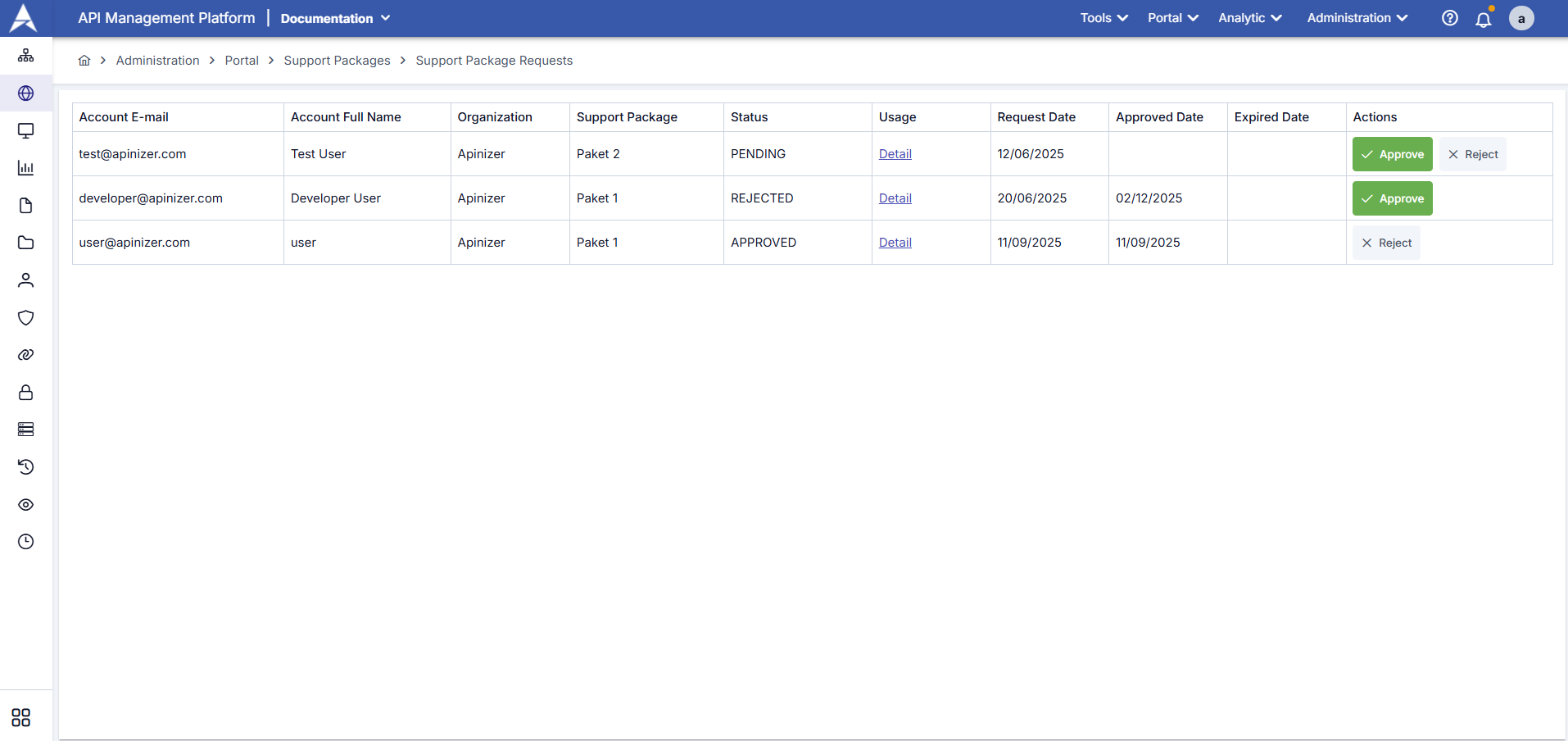
| Column Name | Description |
|---|---|
| Account E-mail | The email address of the user who created the request |
| Account Full Name | The user's full name |
| Organization | The name of the organization or project the user is affiliated with |
| Support Package | The type of support package requested (e.g., Enterprise Integration Full Support Package) |
| Status | The current status of the request (e.g., PENDING, APPROVED, REJECTED) |
| Usage (Detail) | Link to the package usage details page |
| Request Date | Date the request was created |
| Approved Date | If the request was approved, the date it was approved |
| Expired Date | Expiration date of the support package's validity period |
| Actions | Actions that can be performed by the administrator (✅ Approve / ❌ Reject) |
Frequently Asked Questions
| Question | Answer |
|---|---|
| Can I delete records on this screen? | No. Only approval and rejection actions are supported. |
| Is the reason for rejection shown to the user? | Red dialog records the reason. Displaying the reason in external systems depends on backend/portal integration. |
| Can I approve a rejected application later? | Yes. The “Approve” button appears for rejected records; you can re-evaluate them. |
| Why can't the details dialog be edited? | This page is only for package request management; package definitions are made on other screens in portal management. |