Application Management
İçindekiler
Overview
Portal App (Application) refers to the applications created by API Portal users to access API products. Each application:
- Is linked to a portal account (Portal Account)
- Has a unique reference ID
- May have one or more API Keys
- May be registered to one or more API Products
Portal App Usage Purposes
- To provide secure access to APIs
- To monitor and report API usage on an application basis
- To manage API Keys
- To manage API Product subscriptions
- API Manager'da Portal App Yönetimi
In API Manager, administrators can view and manage all portal applications.
Creating a New Portal App
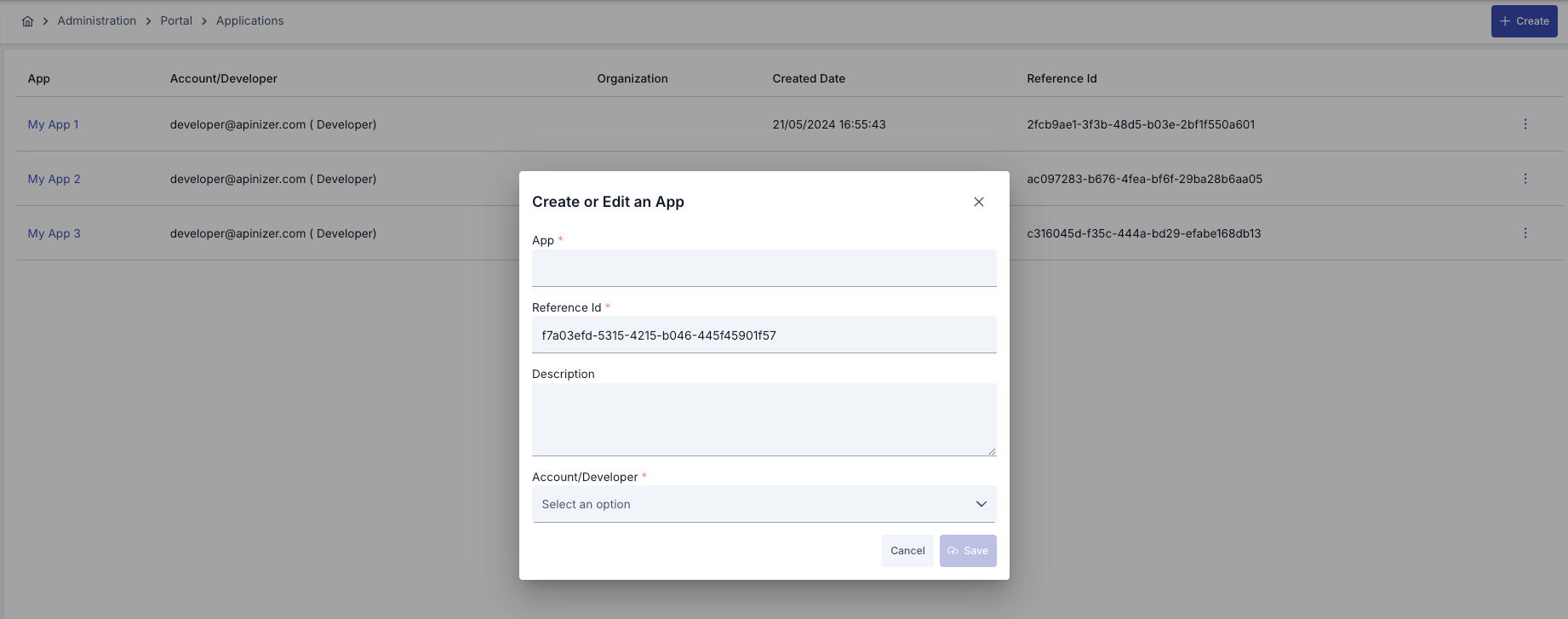
| Step | Description/ Process |
|---|---|
| Step 1 | Click the “+ Create” button in the upper right corner of the Portal App list page. |
| Step 2 | Fill in the following information in the dialog box that opens:
|
| Step 3 | Click the “Save” button |
| Step 4 | The success message is displayed and the list is updated. |
Portal App Details Page
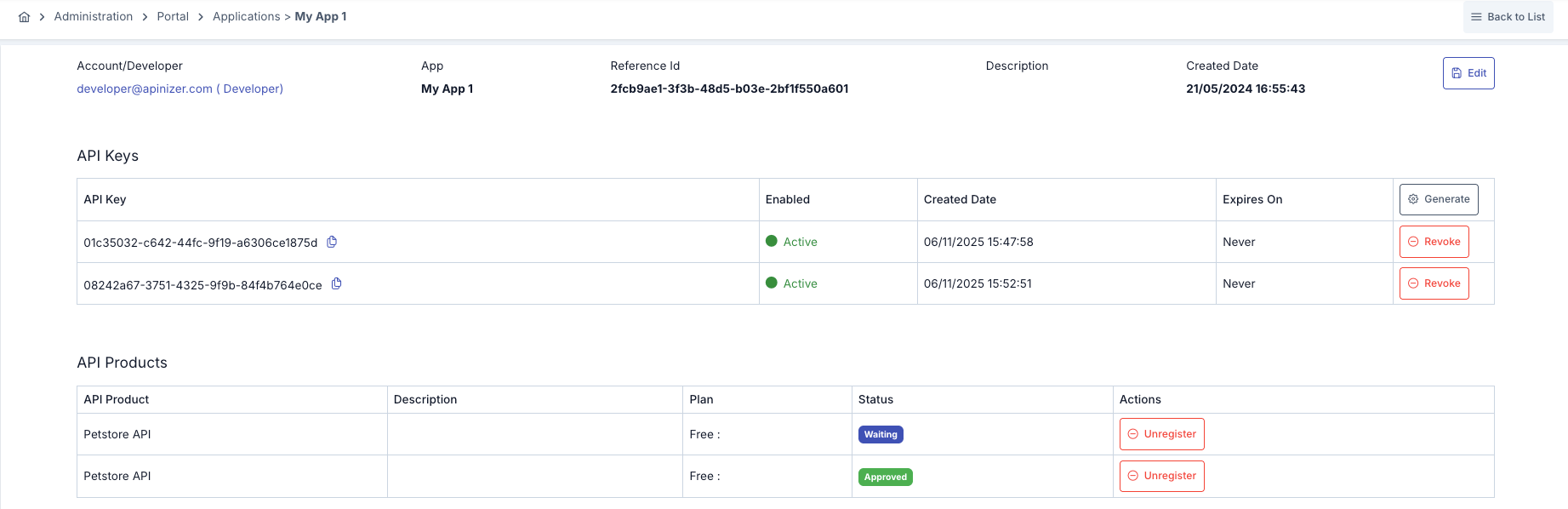
| Section | Information | Description/ Process |
|---|---|---|
Header Section | Information is displayed in card format at the top of the page. |
|
API Keys Section | This section lists all API Keys for the application. |
API Key Creation:
Revoke API Key:
|
API Products Sections | This section lists the API Products that the application is registered with. | API Product: Product name Description: Product title/description Plan: Selected plan details (Free, Subscription, Metered, Tiered) Status: Registration status (APPROVED, WAITING, REJECTED, UNSUBSCRIBED) Actions: Unregister button |

API Product added to API Product statuses
🟢 APPROVED: Approved, in active use
🟡 WAITING: Awaiting approval
🔴 REJECTED: Rejected
⚫ UNSUBSCRIBED: Registration canceled
The statuses are described on the Approval Requests page.
Canceling an API Product Registration:
- Click the “Unregister” button on the row of the product you wish to cancel.
- The registration status will be updated to UNSUBSCRIBED.
- The application will no longer be able to access this API Product.
Note: This process is performed from the API Manager. Portal users cannot cancel their registrations on the details page.
My Applications in the API Portal Interface
In the API Portal, users can only view and manage their own applications.
Creating an Application from the Portal
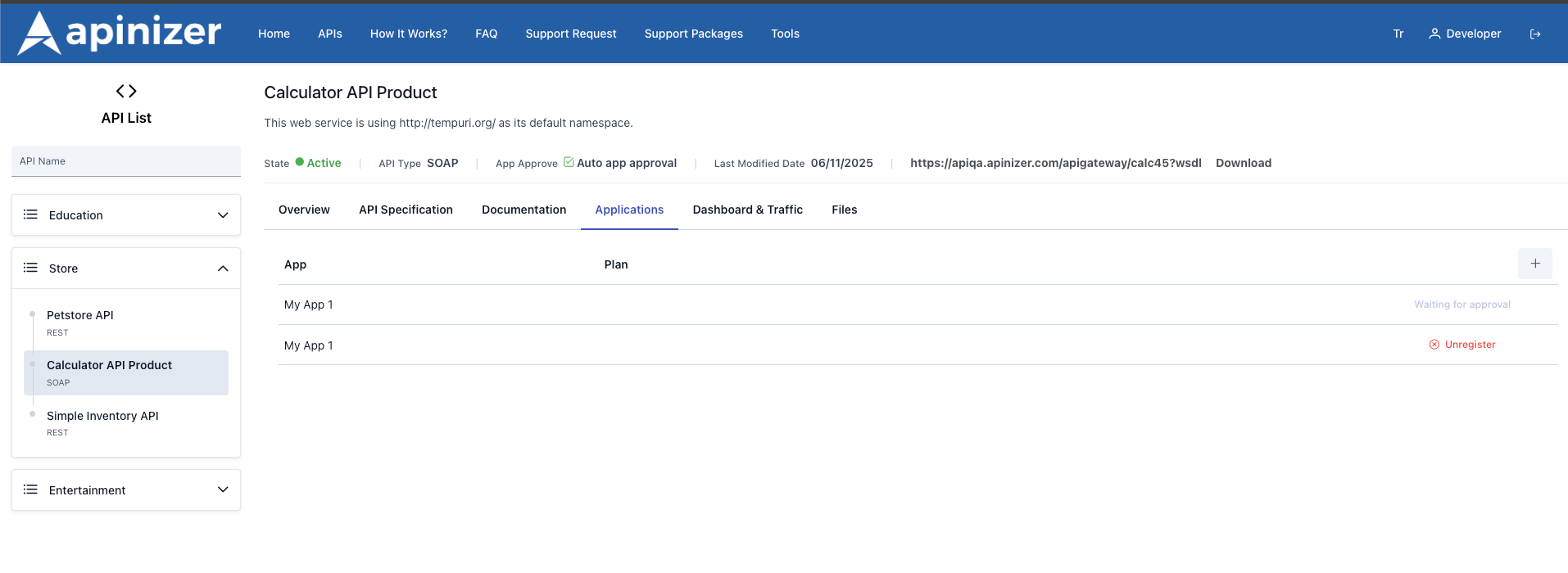
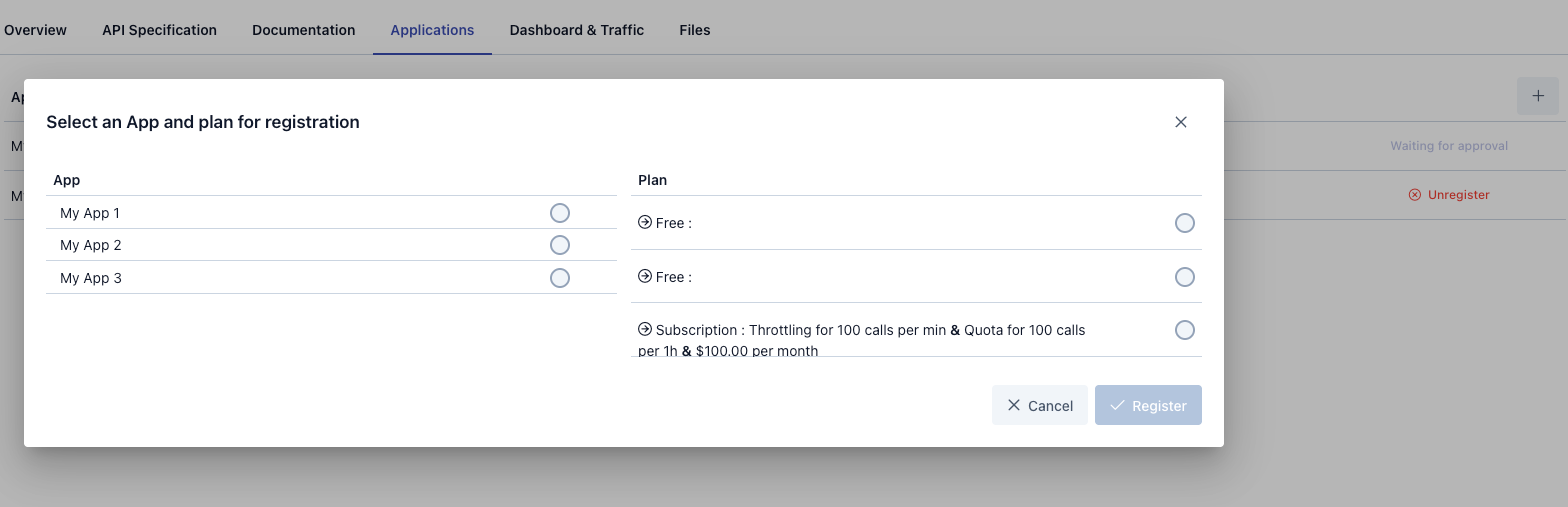
| Scenario | Step | Function |
|---|---|---|
Scenario A: User with No Application | Step 1: If an empty list card and the message “You don't have any apps yet” appear when the My Apps page opens: | Click the “+ Create” button Fill in the information in the dialog box that opens |
| Step 2: | Click the “Save” button. Once the registration is complete, your first automatically generated application will be added to the list and your first API Key will be prepared. | |
Scenario B: Users with Existing Applications | Step 1: If the applications are listed on the list page in a card/table: | The “+ Create” button in the upper right corner is always visible; clicking this button allows you to add a new application. |
| Step 2: | Select the app and plan, then register. |
After the registration process is complete, the steps to be taken based on the status of the API Product are explained in detail in the API Product Access Settings section on the Approval Requests page.
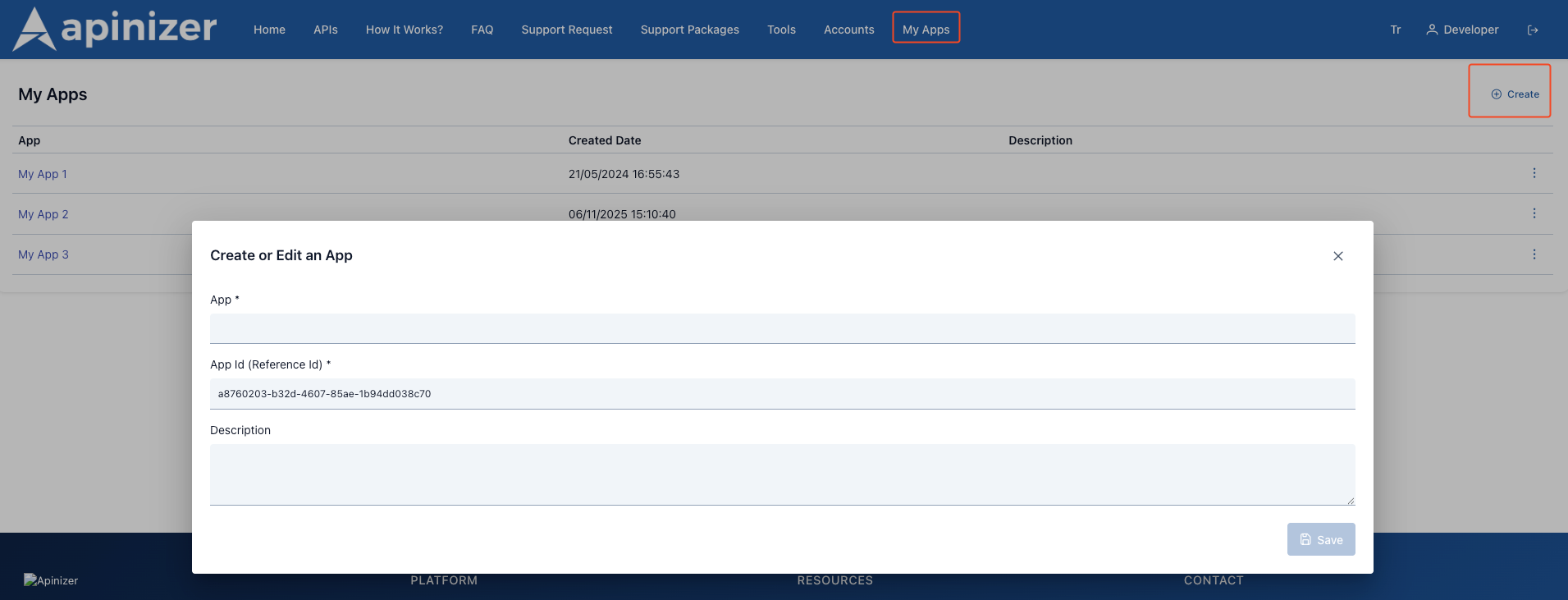
Another way to create an application in the API Portal interface is to use the “My Applications” page. This page is the central hub for all management steps, such as creating new applications, editing existing applications, or deleting them.
On the API Product details screen, you can only add an existing application to the relevant API Product; editing or deleting applications is not possible here.
Additionally, when creating an application on the API Manager side, the Account/Developer section must be entered. However, since the user is already logged in with verified credentials on the Portal side, applications created through the Portal are automatically saved as belonging to the relevant user.
Below is an example of the Portal My Applications page interface.
API Key (Credential) Management in the API Portal Interface
API Key Structure
Each API Key has the following properties:
| Özellik | Açıklama |
|---|---|
| Username | Key used in API calls (in UUID format) |
| Password | Secret key (in UUID format) |
| App Id | Application ID it belongs to |
| Account Id | Account ID it belongs to |
| Organization Id | Organization ID it belongs to |
| Enabled | Active/Inactive status (true/false) |
| Created | Creation date |
| Expire Date | Validity period (optional) |
| Account Credential | Whether it is an account-based credential (true/false) |
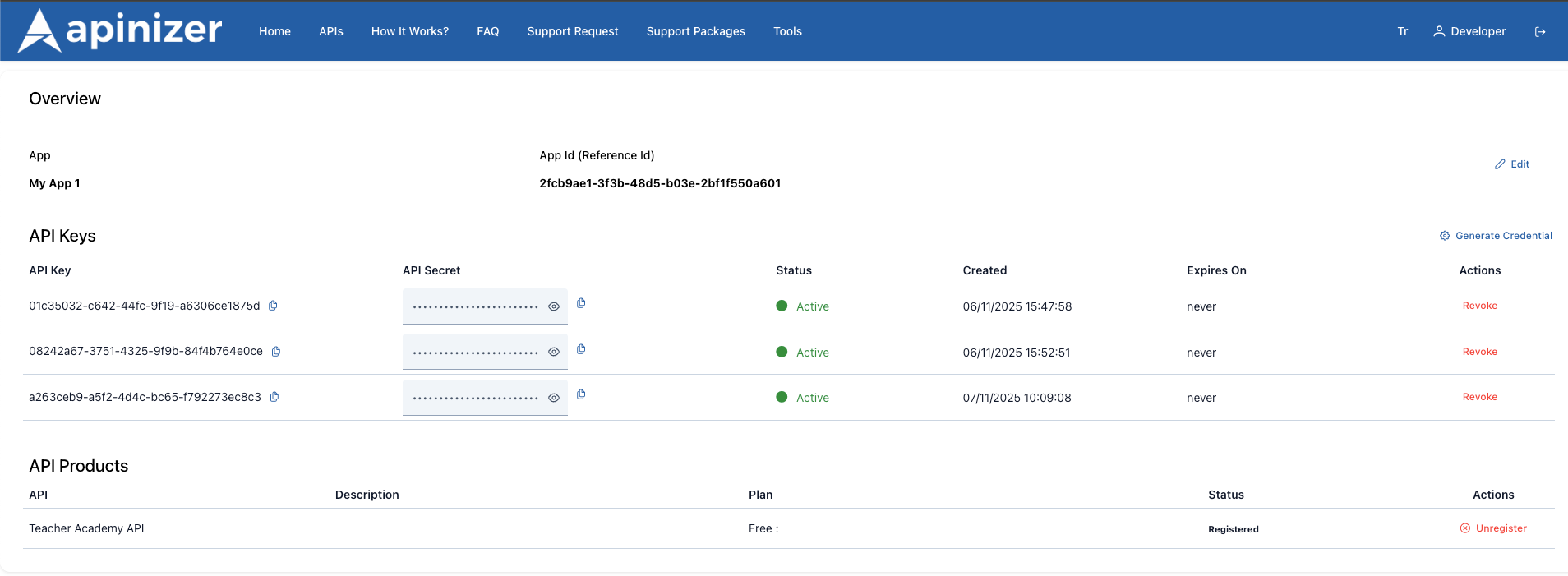
API Key Creation Flow | API Key Revocation Flow |
|---|---|
1-The user clicks the “Revoke” button. 1-The user clicks the “Generate Key” button. | 1-The user clicks the “Revoke” button |
2-A username is generated in UUID format for the system. | 2-The credential object is updated:
|
3-A password is generated in UUID format for the system. | 3-CredentialUpdateDTO is created |
4-Credential object is created:
| 4-A PUT request is sent to the backend |
5-CredentialUpdateDTO oluşturulur:
| 5-A successful response is received |
6-A POST request is sent to the backend | 6-Credential list is updated |
7-A successful response is received | 7-Key appears in passive mode (red dot) |
8-Credential list is updated | |
9-A success message is displayed to the user. |
API Product Registration Statuses
Status Descriptions:
| Status | Açıklama | Badge Rengi | Kullanım |
|---|---|---|---|
| WAITING | Awaiting approval | Yellow | The registration has been created, awaiting admin approval. |
| APPROVED | Approved | Green | Application APIs can be used |
| REJECTED | Rejected | Red | Registration denied, application cannot be used |
| UNSUBSCRIBED | Registration canceled | Gray | Registration rejected, application cannot be used. User or admin canceled the registration. |
Usage Scenarios
| Scenario | Step |
|---|---|
Scenario 1: Creating a New Application (Portal User) |
Result:
|
Scenario 2: Registering and Using the API Product |
Result:
|
Scenario 3: API Key Management and Rotation |
Result:
|
Senaryo 4: Uygulama Silme ve Temizlik |
Result:
|
Scenario 5: Application Management by the Administrator |
Result:
|
Sık Sorulan Sorular
About | Question | Answer |
|---|---|---|
About the Portal App | What is the Portal App and why is it necessary? | The Portal App is an application created to access APIs. Each API call is made using an API Key belonging to an application, allowing usage to be tracked and controlled. |
| How many applications can a user create? | A user can create as many applications as they want. There is no limit. | |
| Can I create two applications with the same name? | Yes, multiple applications with the same name can exist under the same account. The Reference ID is unique in every case. | |
About the API Key | What happens if I forget my API Key password? | The password is displayed once and is not stored in the system. If forgotten, the key must be revoked and a new key generated. |
| How many API Keys can there be in one application? | You can generate as many API Keys as you want in an application. There is no limit. | |
| Can I reactivate a canceled key? | No, a revoked key cannot be reactivated. A new key must be generated. | |
About API Product Registrations | Can an application register for more than one API Product? | Yes, an application can register for as many API Products as it wants. |
| When will my registration in WAITING status be approved? | Registrations are usually manually approved by the admin. The approval time varies according to system policies. | |
| Can I reapply for a rejected (REJECTED) registration? | Yes, you can delete the registration and create it again. However, it is recommended that you contact the admin to find out the reason for the rejection. | |
About Management and Security | What is the difference between API Manager and API Portal? | API Manager is where administrators manage all applications. API Portal is where users manage only their own applications. |
| Can the Admin interfere with my application? | Yes, the admin can view, edit, and delete all applications. |