Approval Requests
Overview
The Approval Requests module is the section where API product access requests and new memberships in the Portal interface are managed, and it is examined under two main headings:
By default, API Product Application Registration and Account/Developer requests are automatically approved. To include these modules in the manual approval process, API Product Access Settings and Approval Requests configurations must be implemented.
Contents
API Product Access Settings
Users do not access the API directly; they first create an application and request access to the API product through that application.
API products are configured as public by default. In this case, when a user requests access to the API through an application, the request is automatically approved and the user gains access immediately.
However, the product owner can change the “Access requests from applications” setting for each product by configuring it on the Apinizer API Manager > Administration > Portal > API Products page. This setting is shown in the image below:

This setting is configured on a product basis, and each API product can be managed independently. Changes to one product do not affect other products.
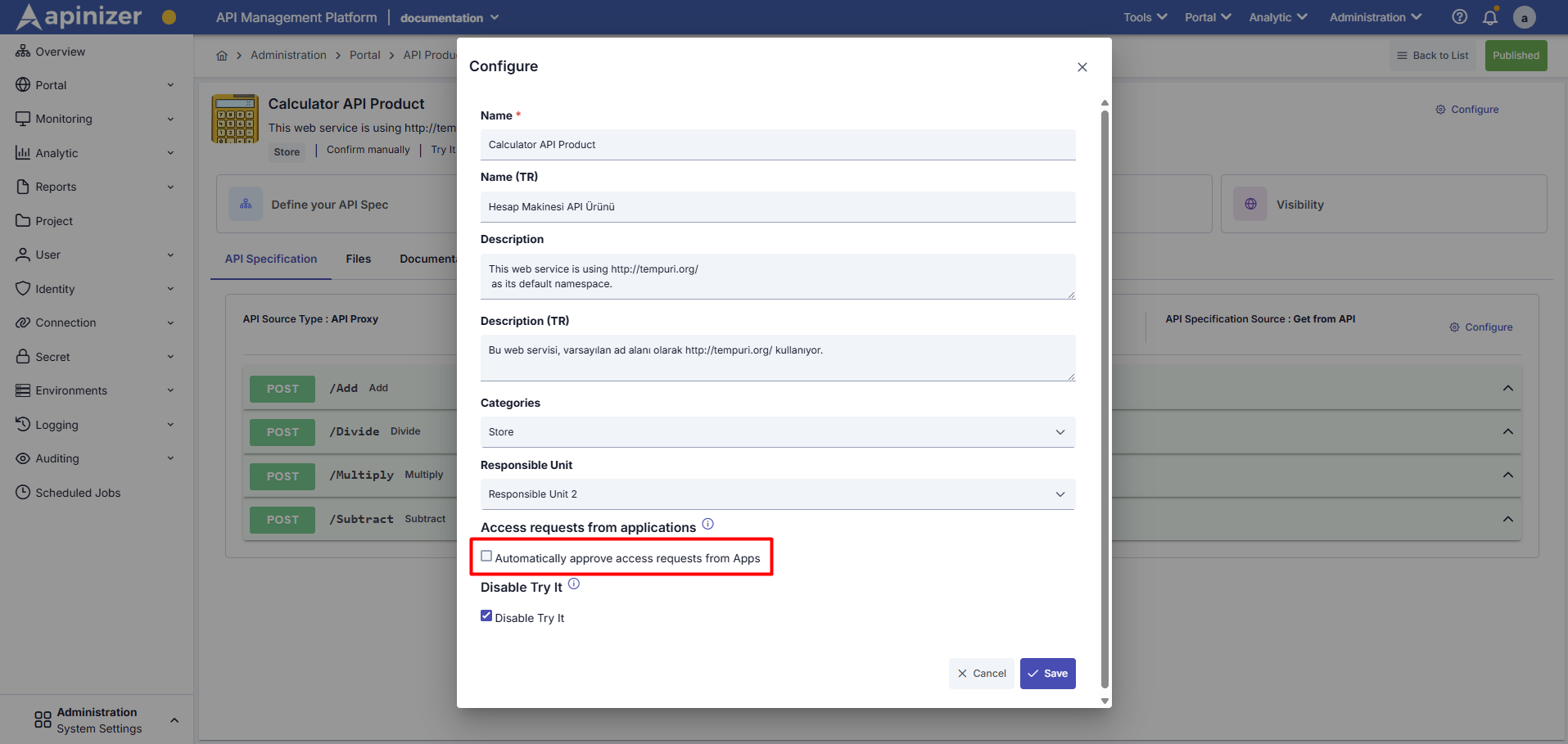
- When the option is selected: Access requests from applications are automatically approved (default state).
- When the option is not selected: Users cannot grant automatic access. In this case, the user requests access through their application and must wait for the product owner's manual approval.
This setting allows the product owner to manage who can access the API product in a controlled manner.
Use in the Portal Interface
After disabling and saving the automatic application approval, it can be tested from the Portal as follows.
On the API Portal screen, select APIs to open the relevant product and perform the following steps.
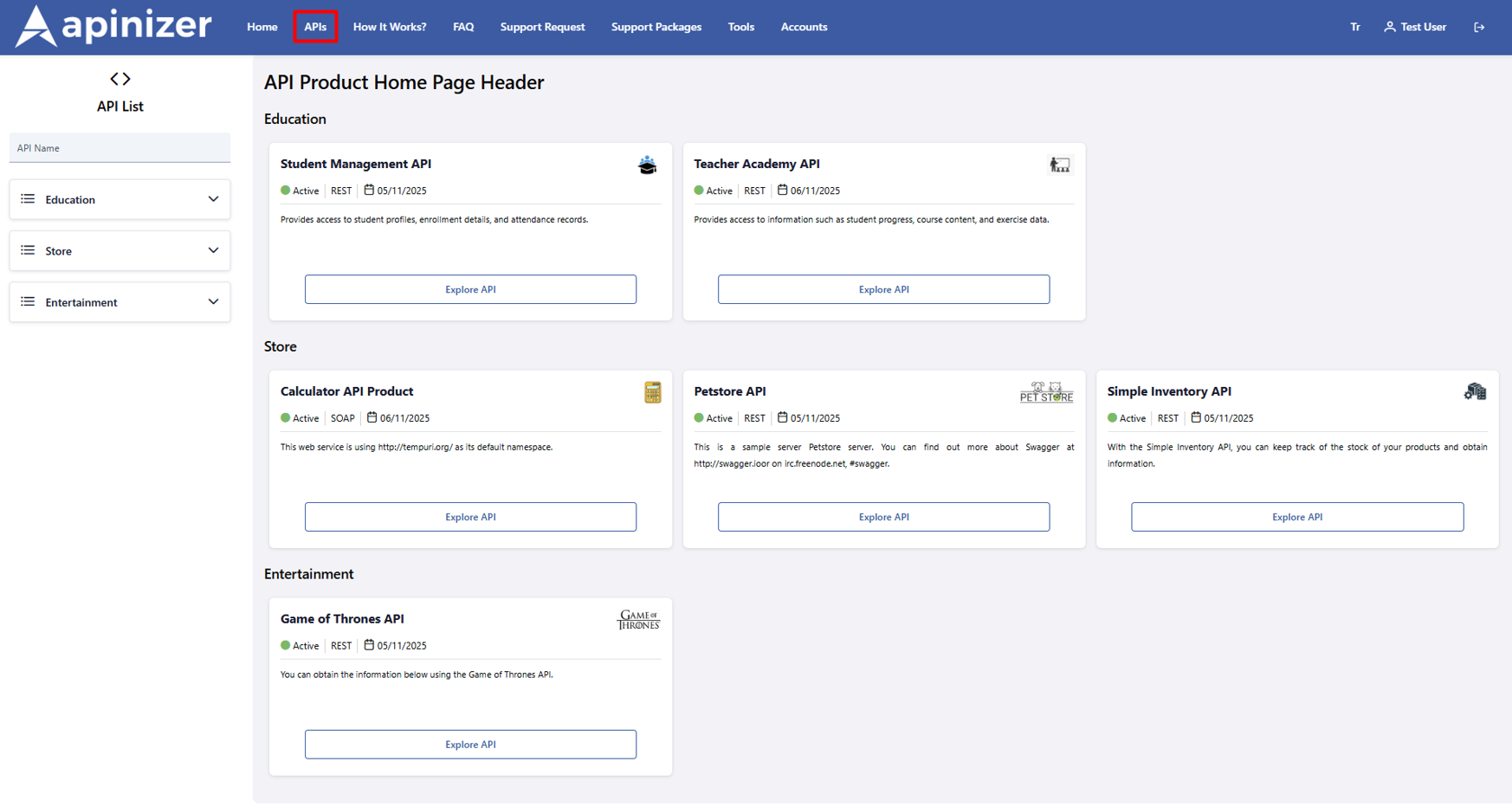
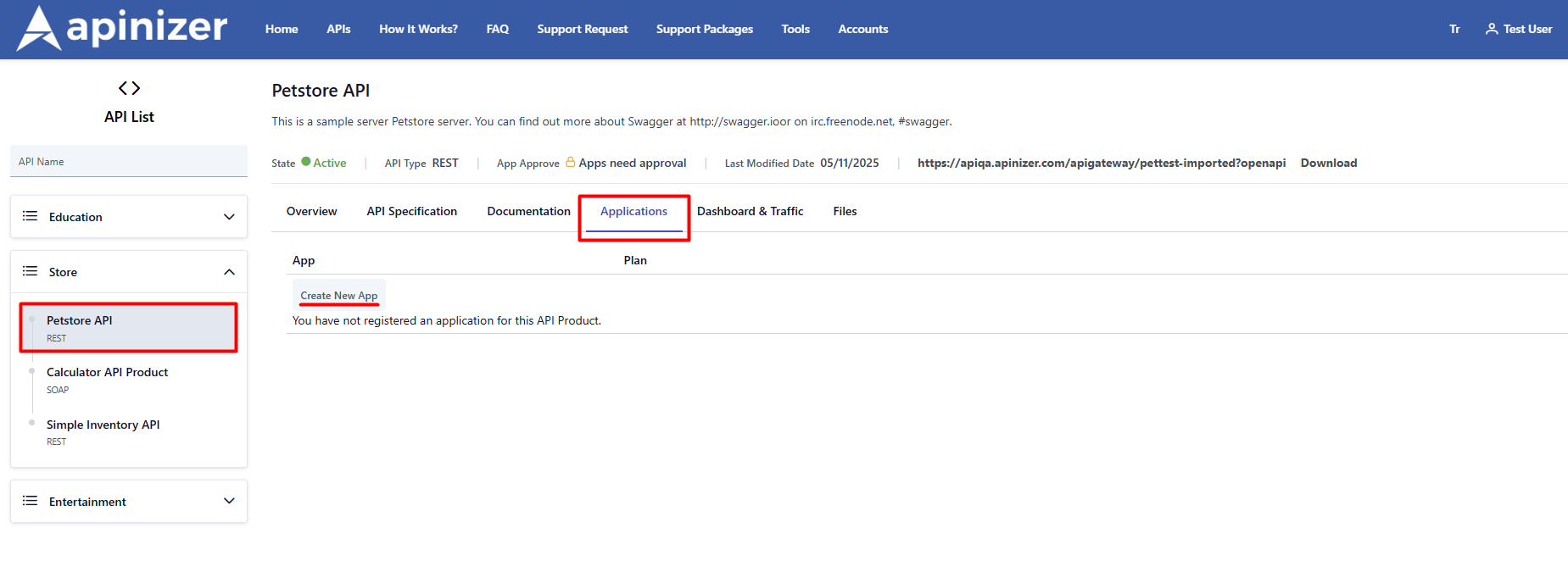
A request to add an application is submitted.
The application name and information are created or edited as shown in the example image.
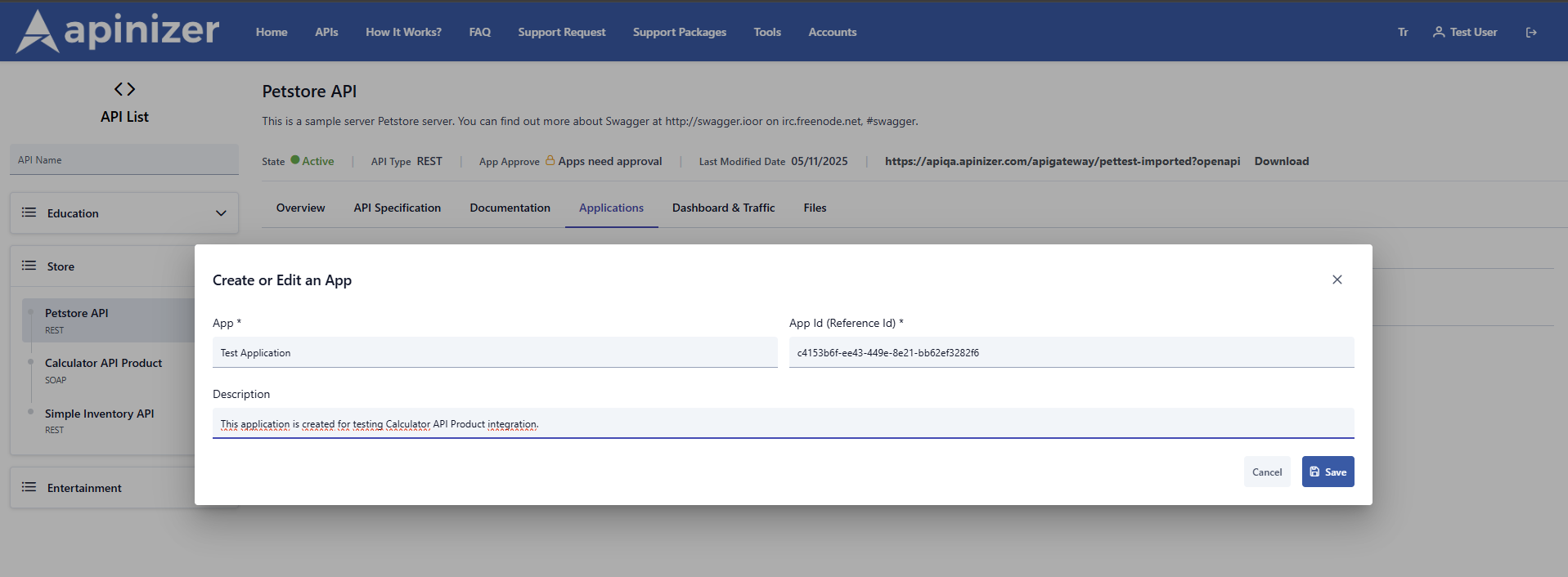
After entering the app, click the save button to view applications and plans.
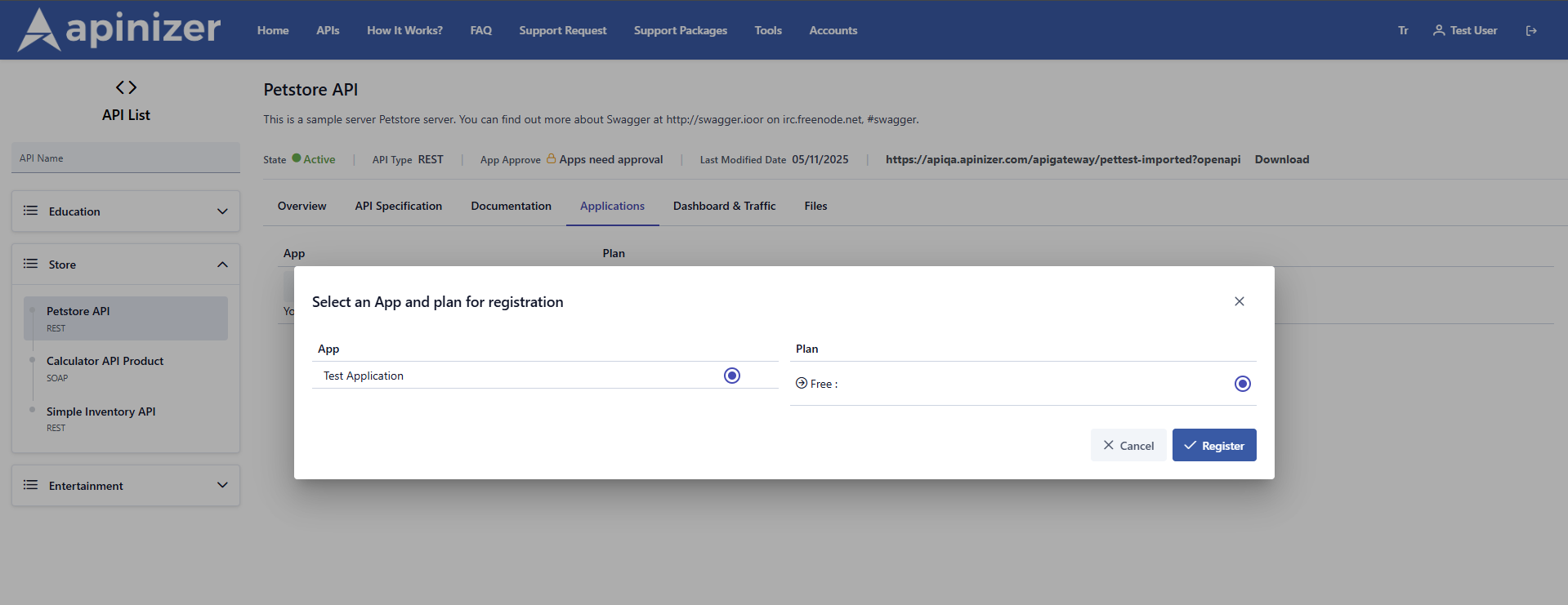
You register by selecting the relevant application and the relevant plan.
To configure plan options, you can review the APIs Visibility by Organization APIs Visibility by Organization page on the API product page.
The steps to be taken are explained below in order.
| Step | Description / Process |
|---|---|
Step 1: Logging into the API Portal Page and Selecting a Product | Users who want to use the API log in to Portal > APIs page. On this page, API products are listed grouped by category (Education, Store, Entertainment, etc.). The user selects the API product they want to use and clicks the “Explore API” button. |
Step 2: API Product Details Page and Creating an Application | On the API product details page, they click the “Applications” tab. If there is no registered application, the message “You have no registered applications for this API product” appears. By clicking the “Create New App” button, the following pop-up appears:
|
Step 3: Signing Up | In the “Select an app and plan to register” popup:
|
Step 4: Viewing Registration Status | The registration status is displayed in the “Applications” section:
|
When a user creates an access request, this request is forwarded to the Apinizer API Manager > Administration > Portal > Approval Requests page on the Apinizer interface. On this page, product owners can view and review the access requests they receive and approve or reject them as they see fit. This page is described in detail below.
Approval Requests API Product Application Registration
When automatic approval for API product access is disabled, user registration requests are listed on the Apinizer API Manager > Administration > Portal > Approval Requests page.
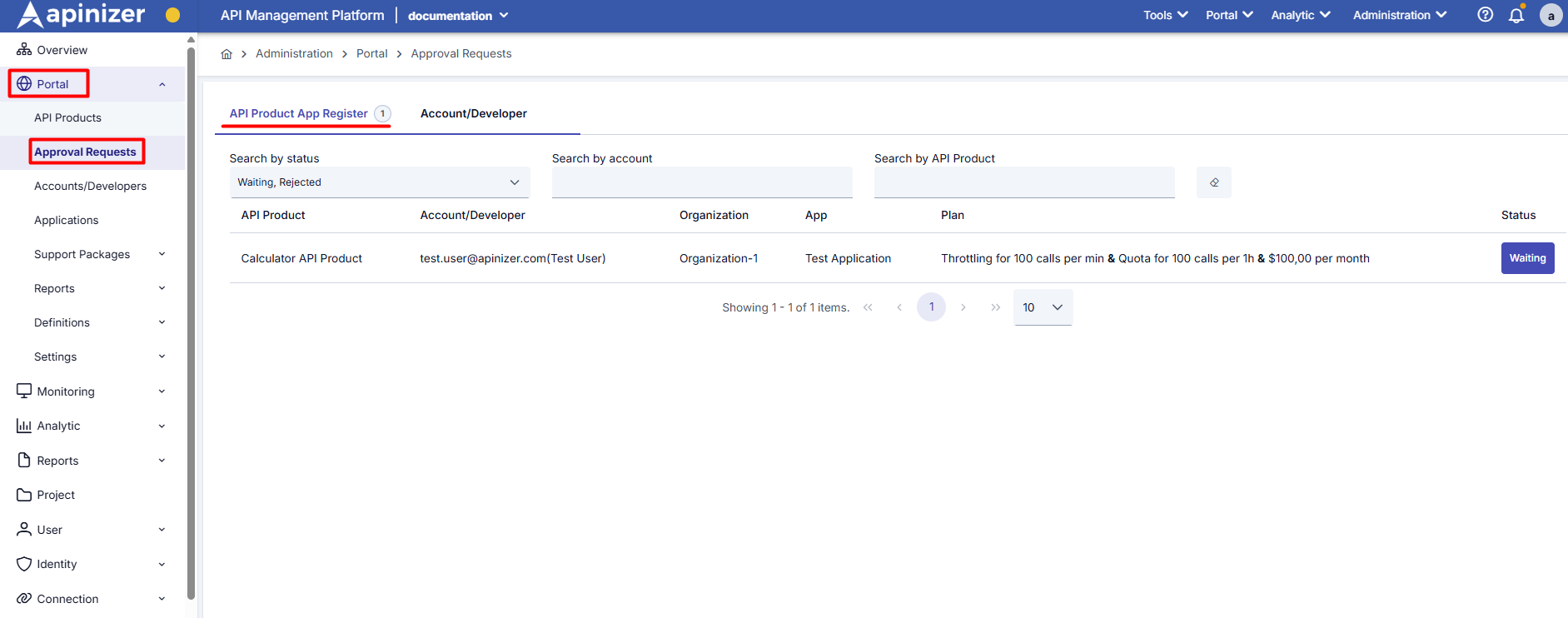
| Field | Description |
|---|---|
API Product | Which API product access was requested |
Account/Developer | The email address and name of the user making the request |
Organization | The organization the user is affiliated with |
Application | Which application was used to register |
Plan | The selected subscription plan and details |
Status | The status of the request (Waiting, Approved, Rejected) |
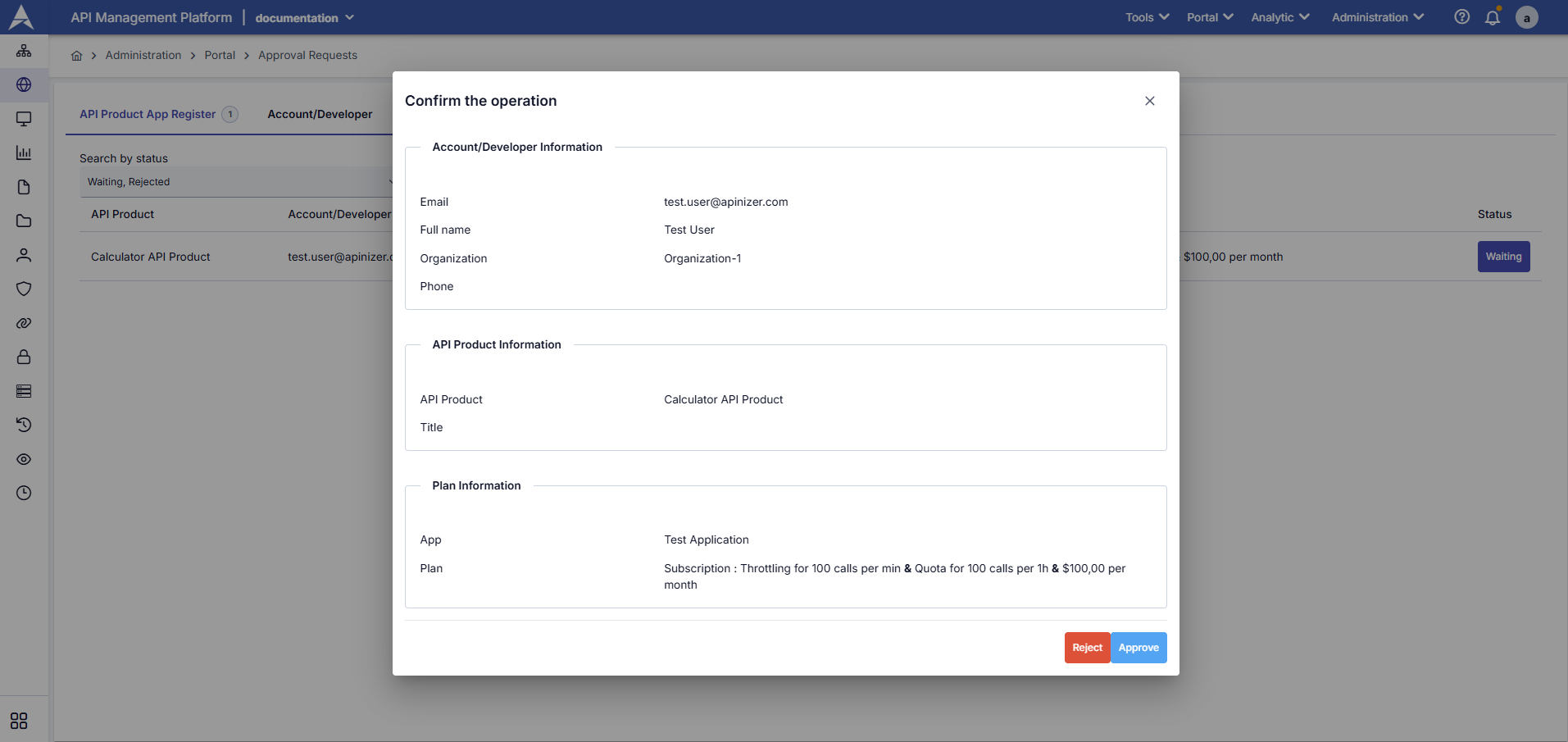
| Field | Description / Process |
|---|---|
Step 1: Select the Pending Request | Click the “Waiting” button in the Status column. |
Adım 2: Talep Detaylarını Görüntüleme | The “Confirm the operation” popup opens and displays the request details:
|
Step 3: Make a Decision | The admin reviews the request and makes a decision:
|
In both cases, an informational email is automatically sent to the user.
Auto-Approval Setting
The API Portal is configured by default for automatic approval. To manage this process, follow the steps below.
To control the approval process for users who want to become new members of the Portal, check the “Auto Approve Account/Developers” setting in Apinizer API Manager > Administration > Portal > Settings > Portal > Security.
If this setting is enabled, users can log in directly to their account using email verification without requiring admin approval.
If this setting is disabled, users must first verify their email address. Then, the registration request will appear in the Apinizer API Manager > Administration > Approval Requests > Account/Developer screen.
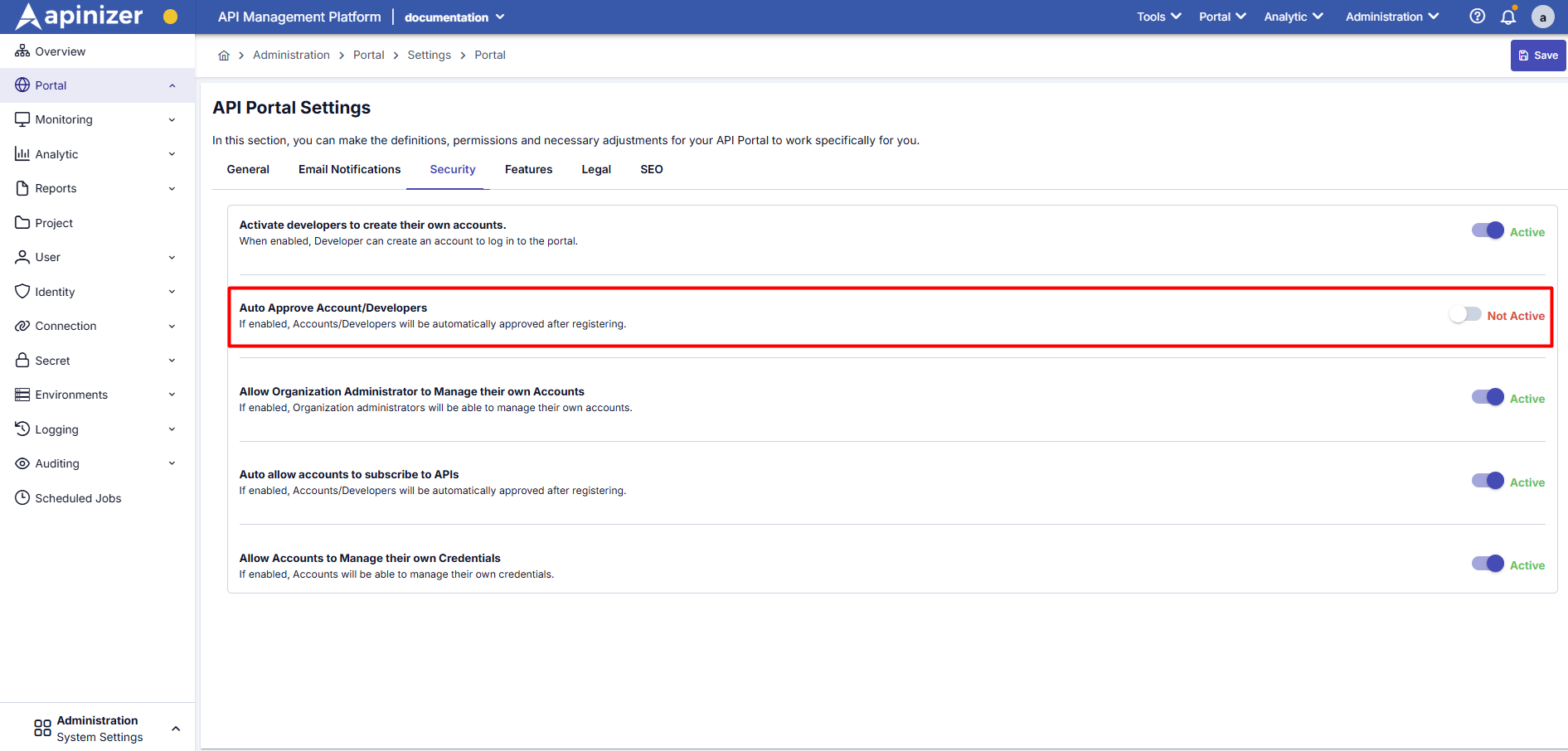
| Field | Description / Process |
|---|---|
Auto Approve Accounts/Developers Setting Off (Not Active): | The user fills out the registration form. The system sends a verification email to the user. The user completes the email verification. The registration request is listed in Apinizer API Manager > Administration > Approval Requests > Account/Developer tab. The admin manually approves or rejects the request. |
Auto Approve Accounts/Developers Setting On (Active): | The user fills out the registration form. After email verification, the account is automatically approved. The user can immediately log in to the Portal. No admin approval is required. Apinizer API Manager > Administration > Approval Requests > The request is not visible in the Account/Developer tab. It is automatically approved. |
Approval Requests Account/Developer
When automatic approval is disabled, the admin views pending registration requests in the Apinizer API Manager > Administration > Approval Requests > Account/Developer tab. The following information is listed for each request:
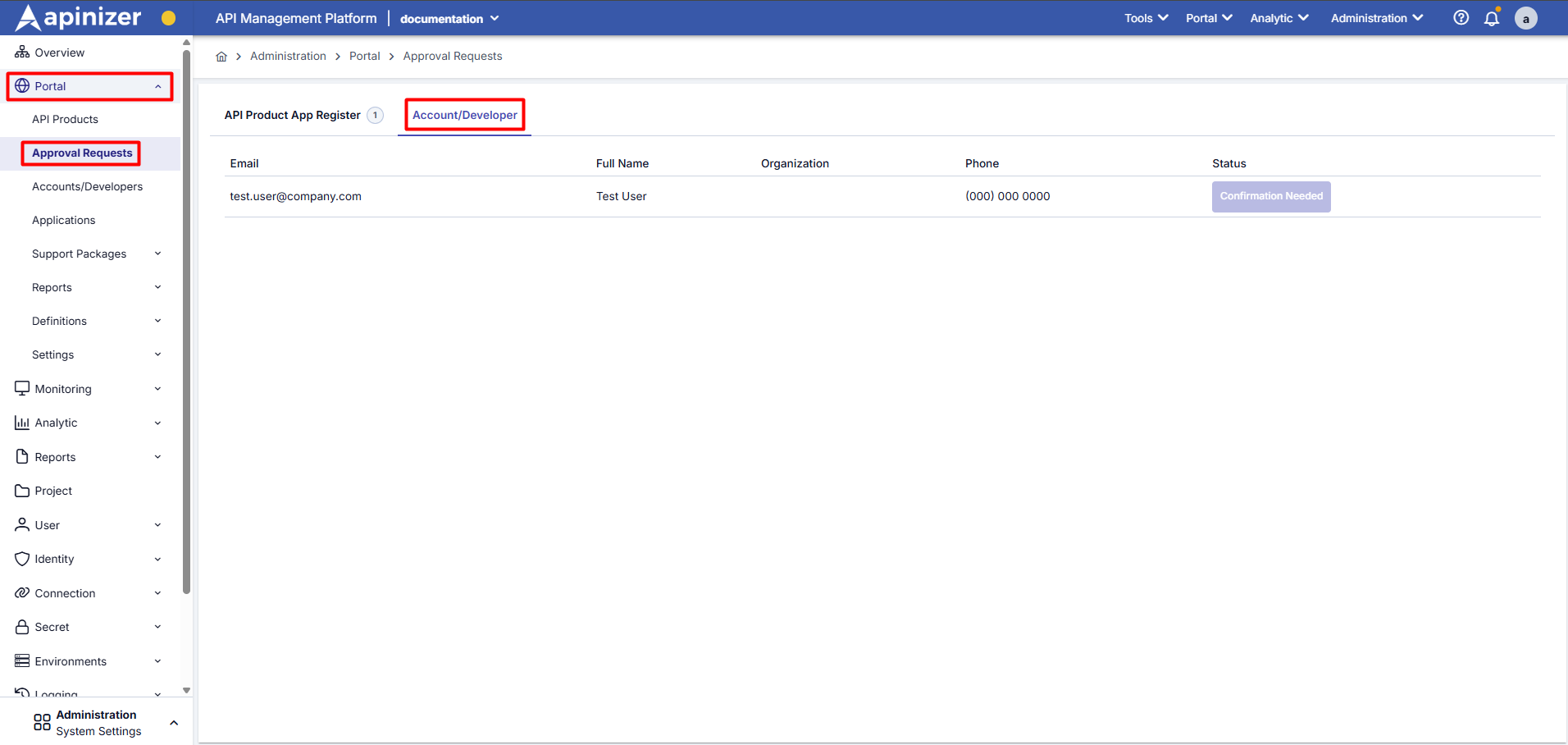
| Field | Description / Action |
|---|---|
The email address of the user registered on the Portal is displayed. | |
Full Name | The first and last name of the user registered on the Portal is displayed. |
Organization | The institution to which the user registered on the Portal belongs is displayed. |
Phone | The phone number of the user registered on the portal is displayed. |
status | After the user verifies their email address, the “Account Confirmation Required” section is enabled. Then, one of the statuses ‘Approved’ or “Rejected” is selected. (Confirmation Needed, Approved, Rejected) |
After verifying the user's email address, the administrator clicks the Status button to approve or reject the user registration.
In both cases, an informational email is automatically sent to the user.
To customize automated notification emails, you can review the Email Templates link.