API Product Categories
API Products can be classified by category. This allows API Developer Portal users to easily find APIs based on their subject matter or use case. Categories enable API Products to be grouped in an organized manner, making them easier to filter and manage on the portal. The Categories screen allows you to view the list of existing categories, add a new category, or edit an existing category.
This structure facilitates the organized and sustainable management of numerous APIs developed within the organization.
Contents
Category Management
On the Categories screen:
Existing categories are listed,
You can filter by category name using the search box,
Editing or deletion operations can be performed on each category row.
The image below shows the list screen details for the categories:

Field | Description |
|---|---|
Name | This is the English name of the category that will be displayed in the system. When creating or listing API Products, the category can be selected using this name. |
Name(TR) | If multilingual support is enabled in the portal settings, this field will also be displayed. The Turkish equivalent of the category is entered here. If the user portal is displayed in Turkish, the category name will be shown based on the value in this field. |

When both the Turkish Language Option and the English Language Option are enabled in the portal settings, the system automatically switches to Multilanguage mode.
If the Multi-Language feature is enabled in Portal Settings , form fields will be displayed in both English and Turkish, and separate data entries can be made in each language.
Creating a New Category
Used to define a new category for API Products. A new category record is created by filling in the fields on the form. Once the required information is complete, click the Save button to save the category to the system.
The image below shows the screen details for the categories:
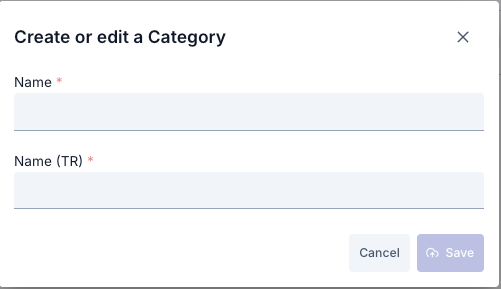
The fields used for category creation configuration are shown in the table below.
Step | Açıklama/İşlev |
|---|---|
Step 1: Open the list screen | Description/Function Expand the Portal Management heading in the left menu. Click on API Products → Categories. |
Step 2: Open the new category form | Click on the New Category button in the top right. The api-product-category-update form opens as a modal/panel. |
Step 3: Enter the category information | Enter the name of the category in the Name field (example: Payments). Add a description (optional) to the Description field to help users understand this category. If the form contains sorting or icon fields, fill them in according to how you want them to appear in the catalog. |
Step 4: Select Related API Products | Open the Related API Products multi-select field. Select the API products you want to include in this category. Check your selections; each selection is automatically added to the list. |
Step 5: Save | Ensure that the required fields are filled in (Name). Click the Save button. The request is sent to the POST /api/api-product-categories endpoint (PUT for updates). |
Using the Created Categories
It can be selected from the “Category” field on the API Product creation or editing screen.
An API Product is classified as belonging to one of the defined categories.
This allows:
API Developer Portal users to easily find APIs by filtering them according to specific categories.
Organization administrators to report on APIs according to subject matter or functional areas.
Category-based statistics, access counts, or subscription distributions become more meaningful on the portal.
For example:
APIs under the Education category: May include services related to educational institutions or certification systems.
APIs under the Finance category: May cover financial transactions such as banking, payments, and accounting.
Store category: May group APIs related to e-commerce or inventory management.
You can visit the relevant link to use the created categories in API Products.
Appearance on the Portal Interface
The categories you create in Manager are automatically listed in a tree structure on the left side of the portal's API catalog page. Users can view the relevant API products by clicking on the category headings.
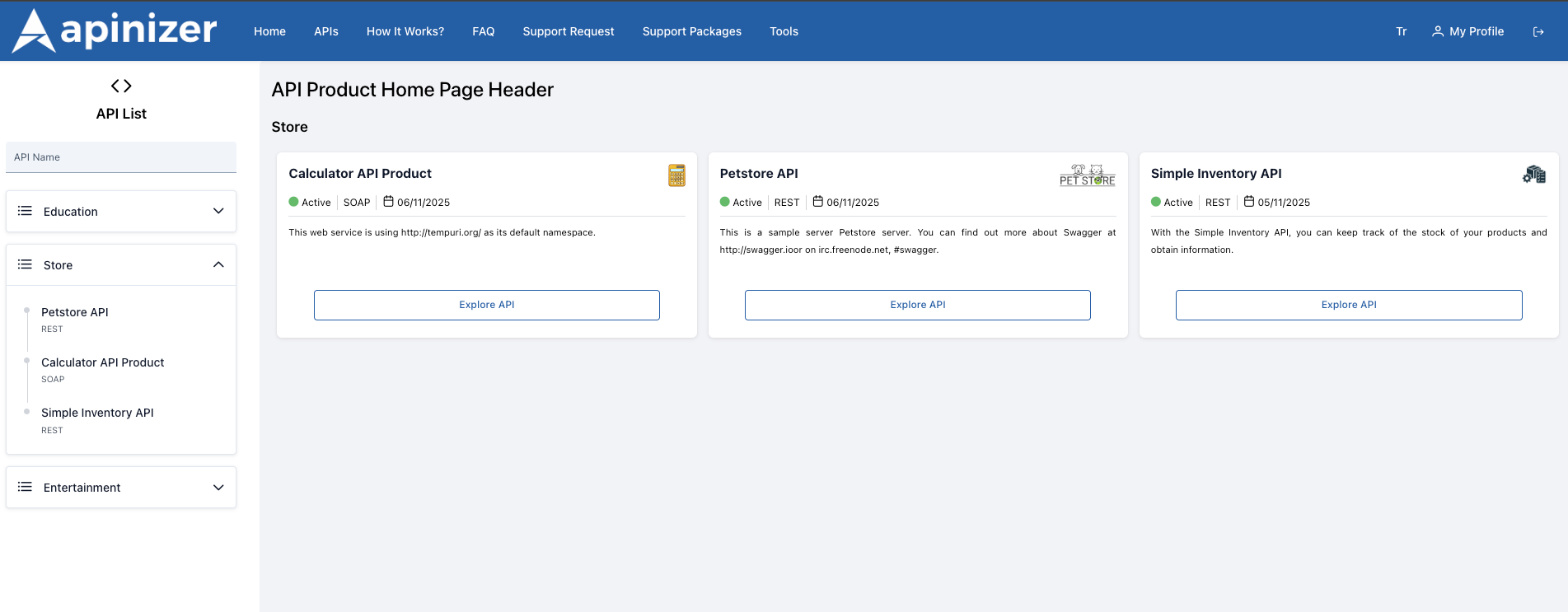
- Left Navigation: Main categories such as “Store” and “Education” are displayed in the left panel as collapsible headers. Each category you define in Manager appears here with the same name.
- API Card Area: When a category is selected, API cards associated with that category are displayed on the right. The card title, short description, protocol tag, and “Explore API” button come from the API product information in Manager.
- Instant Update: When the category name, description, or API relationship is changed in Manager, the new structure is immediately visible when the portal page is refreshed; no additional deploy/publish step is required.
- Multi-Language Support: If you change the portal language, the category headings in the left menu are displayed with their translations. For multilingual portals, make sure you fill in each language field in Manager.
How Does Data Flow Work in the Portal Application?
Manager → Portal Synchronization
- When the Portal User Opens the Catalog: When the APIs page is opened in the API Portal, the catalog component in the portal application runs and begins requesting the latest category information.
- Retrieves Categories and APIs: The component calls the services that provide the categories active in Manager and the API products associated with these categories. This ensures that all your current data is transferred to the portal.
- Sol Menü Kurgulanır: Gelen kategori listesi kullanılarak sol taraftaki ağaç yapı (kategori → API isimleri) otomatik oluşturulur. Manager’daki hiyerarşi birebir ekrana yansır.
- Left Menu Configuration: Using the incoming category list, the tree structure on the left (category → API names) is automatically generated. The hierarchy in Manager is reflected exactly on the screen.
- Refresh Cycle: Any changes you make to the category or API relationship in Manager will be displayed with a new service response when the portal page is reopened or refreshed; no additional publishing step is required.