API Developer Operations on API Portal
You can view, test, and start using API Products published through the API Portal according to the settings made. For this, an API Portal Developer account is needed.
This document explains how an API Developer account is opened and how a published API Product
- How is it viewed?
- How is it tested?
- How is it started to be used?
topics will be covered.
Reference pages: API Product, Portal Membership and Invitation, Application Promote, Support Tickets.
To create and start using an API Developer account, you need to go to the relevant API Portal address via browser. In this section, explanations and examples will be made through Apinizer API Portal.
Creating API Developer Account
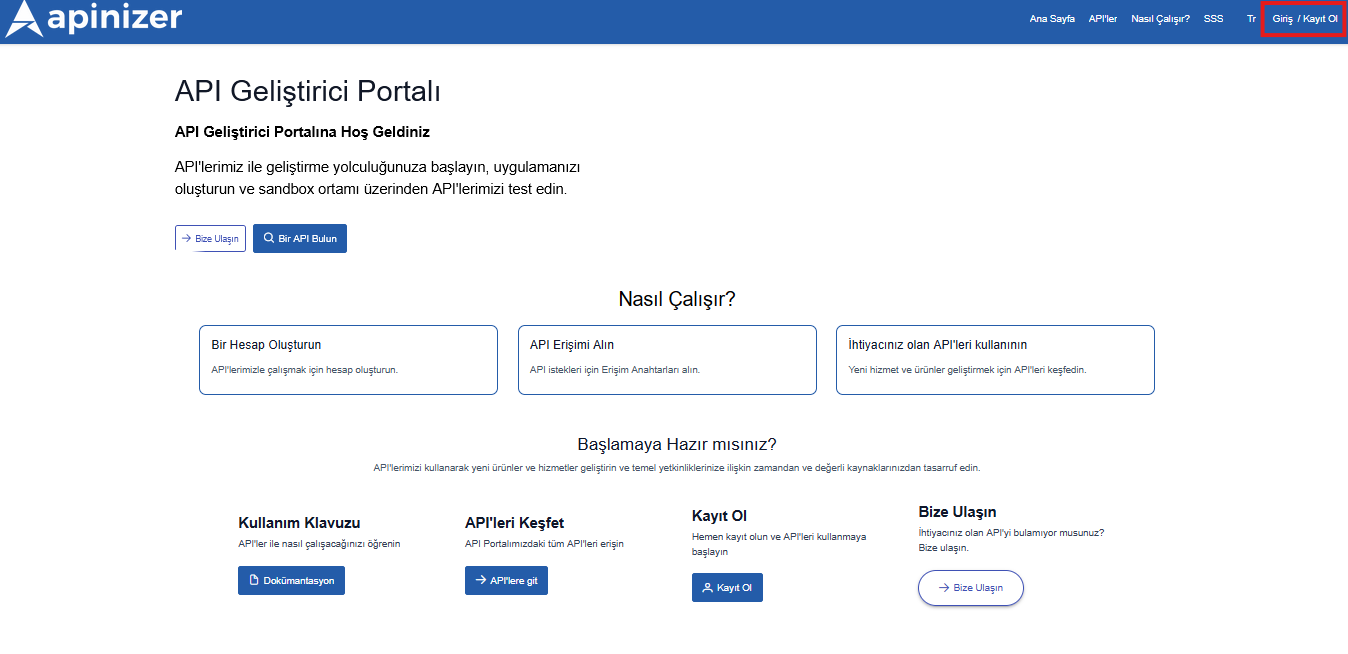
To create a new API Developer account, you can click the sign up button in the top right, or if you have an account, you can log in by clicking the login button.
After filling in the relevant fields, you can complete your registration by pressing the sign up button.
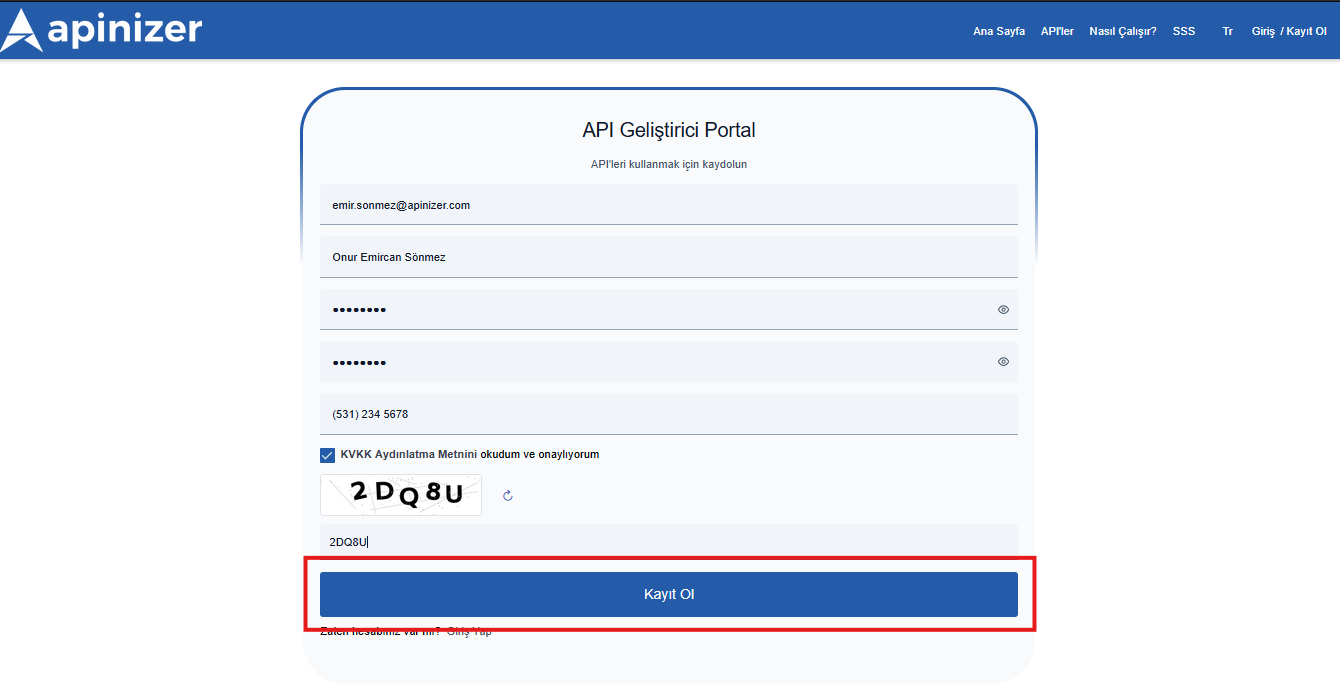
If the automatic user registration request approval option is not activated by the API Portal owner in the API Portal configuration, the API Portal owner must approve the registration request to be able to log in.
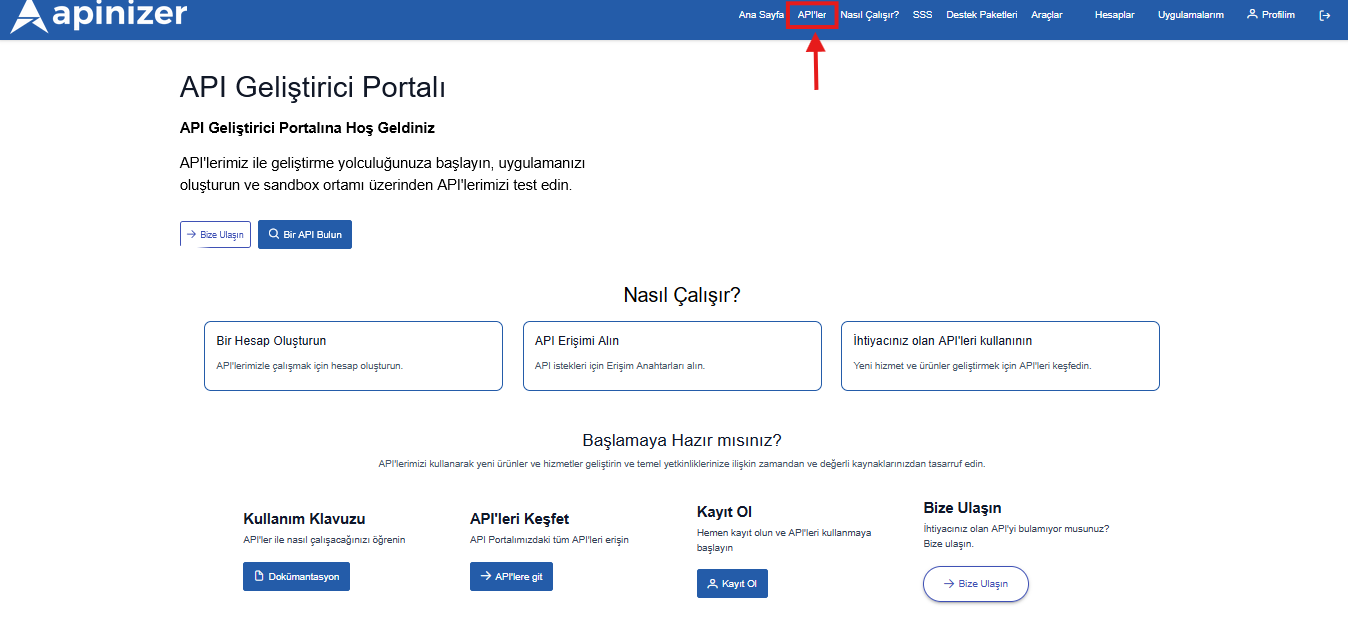
After logging in, you can view published APIs from the "APIs" page on the navbar on the API Portal Homepage.
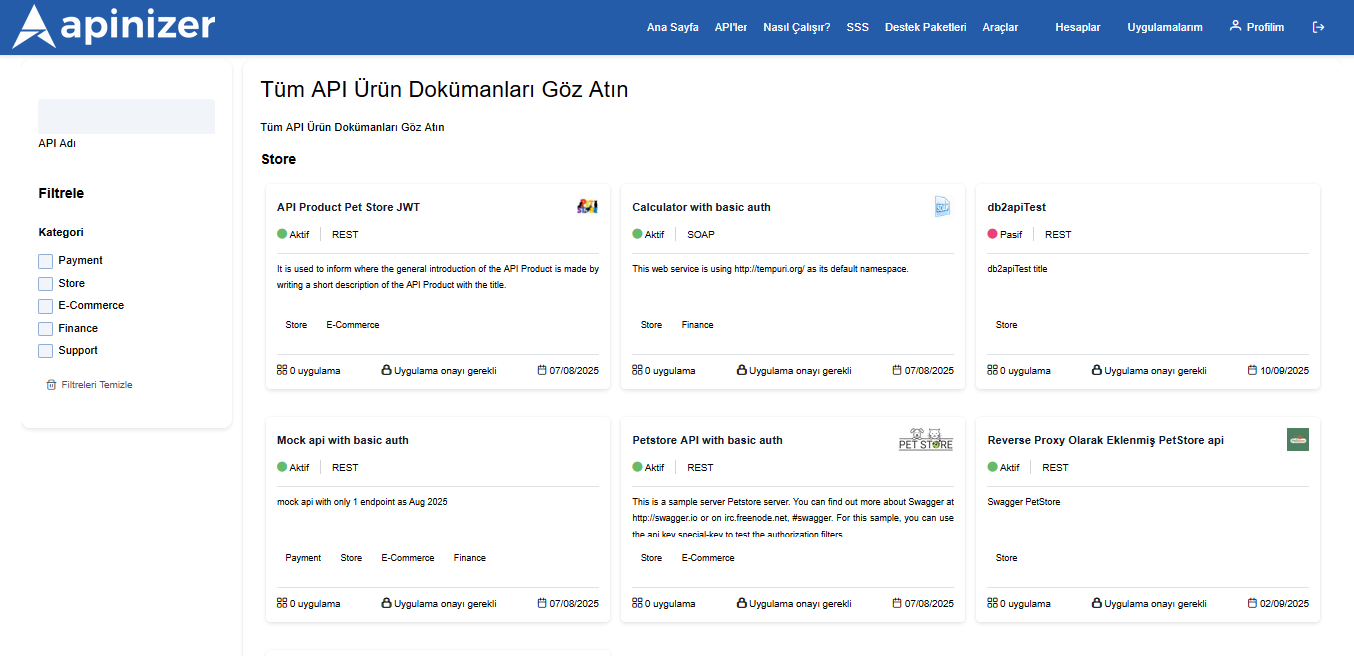
From this page, you can filter APIs by their names and categories to access the APIs you want more easily, go to the details of the relevant API to access its details, test if test requests are allowed in the API Product definition, and learn about their usage and accepted requests.
When you go to the detail page of the API you want to review, Overview welcomes you. Typical tabs:
Overview, product description and plan cards.
API Specification, endpoints and (if allowed) the Try It test console.
Documentation / Files, product documents and downloadable files.
Applications & Plans, after sign-in: application+plan subscription (Register / Add plan / Unregister).
Dashboard & Traffic, usage summary when Analytics is enabled in Features.
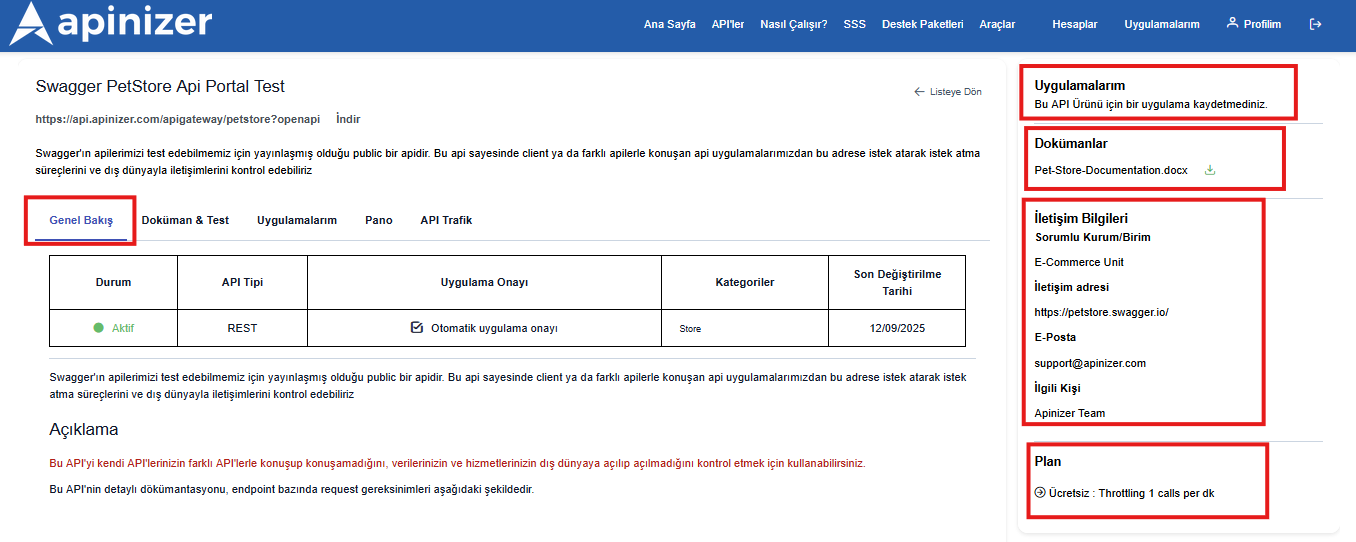
From Overview you can learn the product purpose and plans; from API Specification you can inspect endpoint request shapes.
If the relevant API has Open API documentation or a Spec file is defined on the Apinizer side, you can see its methods/endpoints in the API Specification tab, and if the API Product has test permission, you can test the relevant endpoint by pressing the try button.
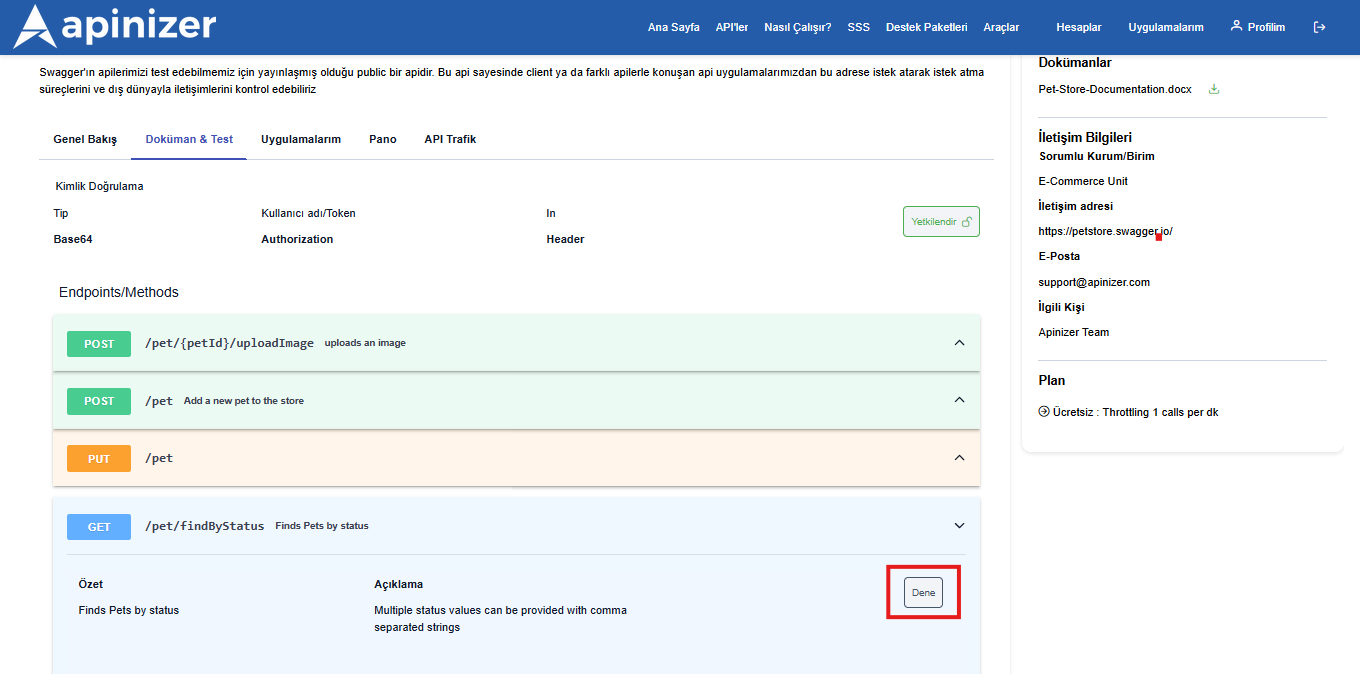
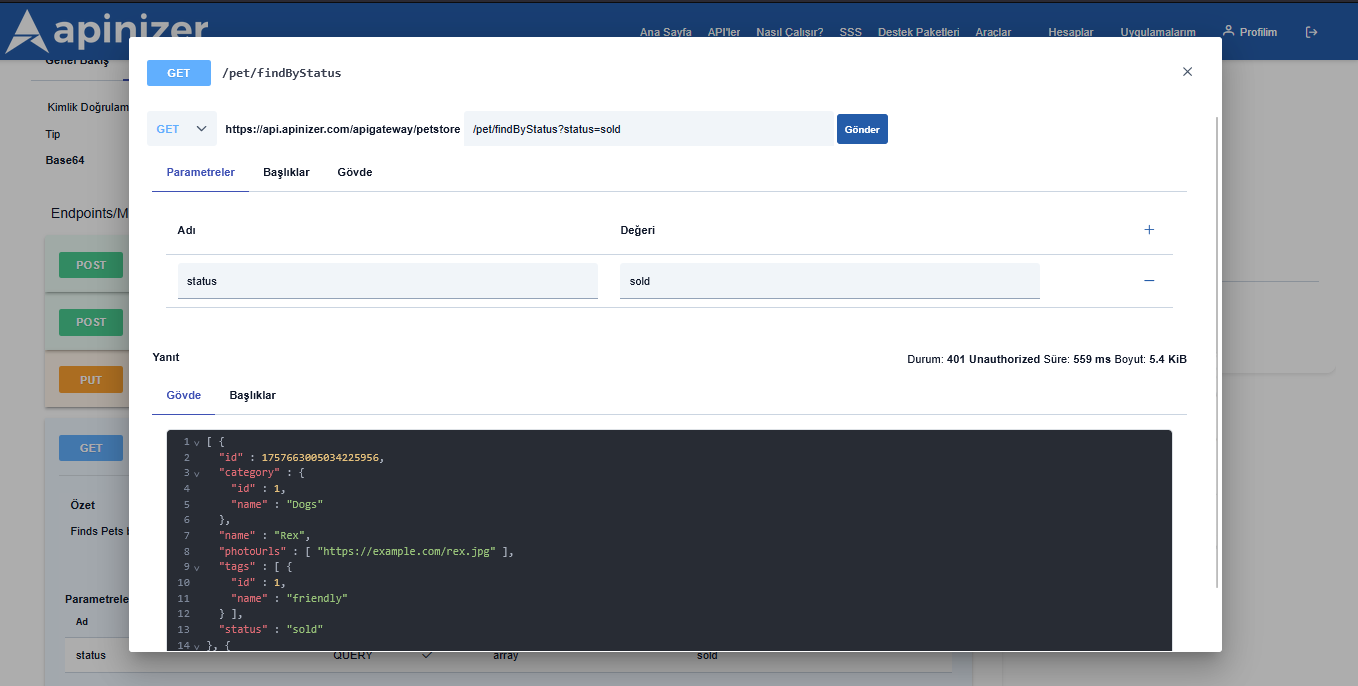
After pressing the Try button, you can send your request to the API by entering the necessary parameters and body on the opened page and pressing the send button.
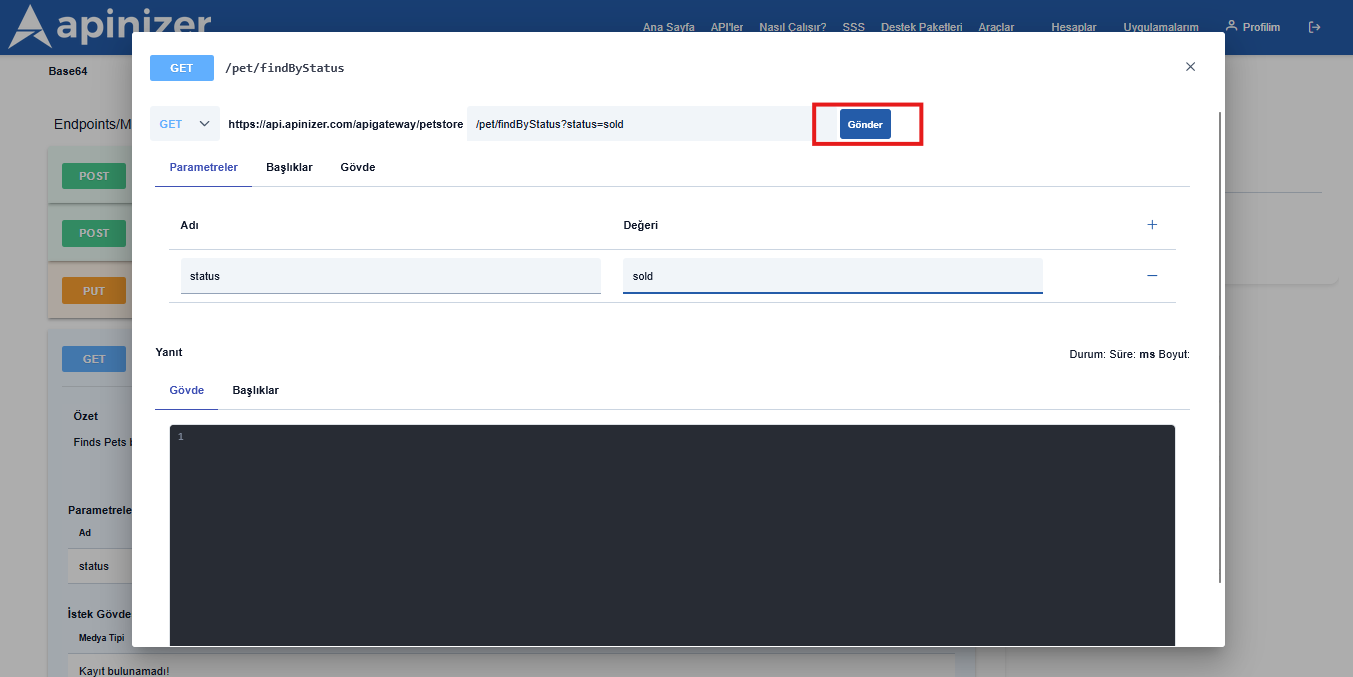
To test an API product from the test console, you must first create an application and subscribe to that API product through a plan. If you have no application or no active subscription, the test request send button is disabled.
In addition, if you are making a request to an API protected by a security policy, you must authorize with the application you created during the testing phase to test the API endpoints. Otherwise, you will encounter the following error.
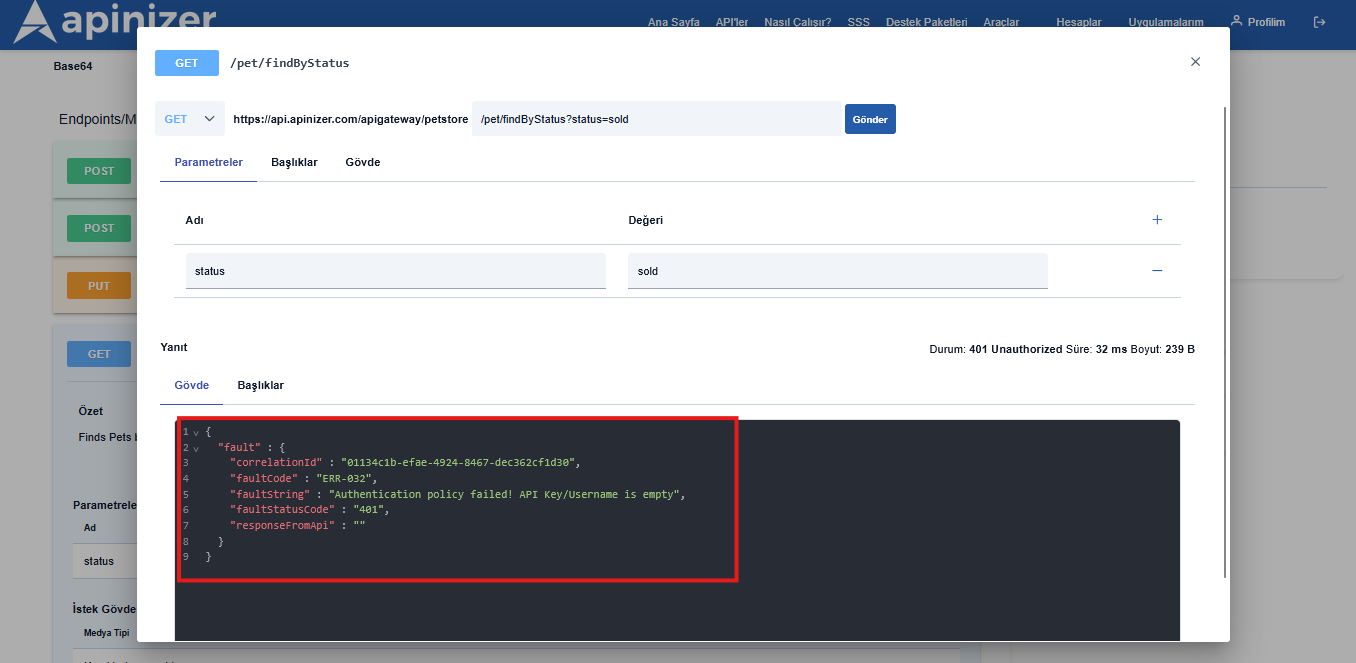
Creating Application and Registering Application to API
Applications belong to an organization. Before creating an app, your account must belong to an organization with a suitable role (Owner / Developer). Details: Portal Membership and Invitation, Portal Organizations.
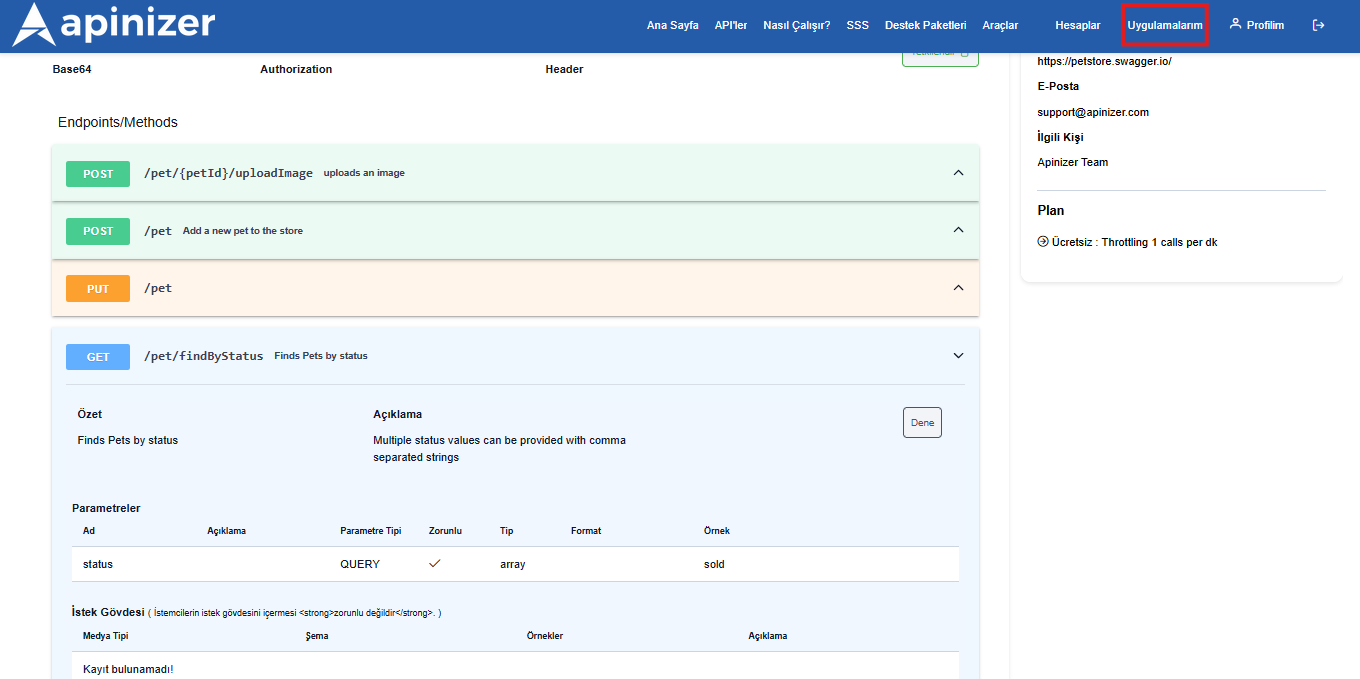
To create an application, go to the application page via the My Apps menu in the top right. From this page you can view, edit, delete your applications, or add a new one.
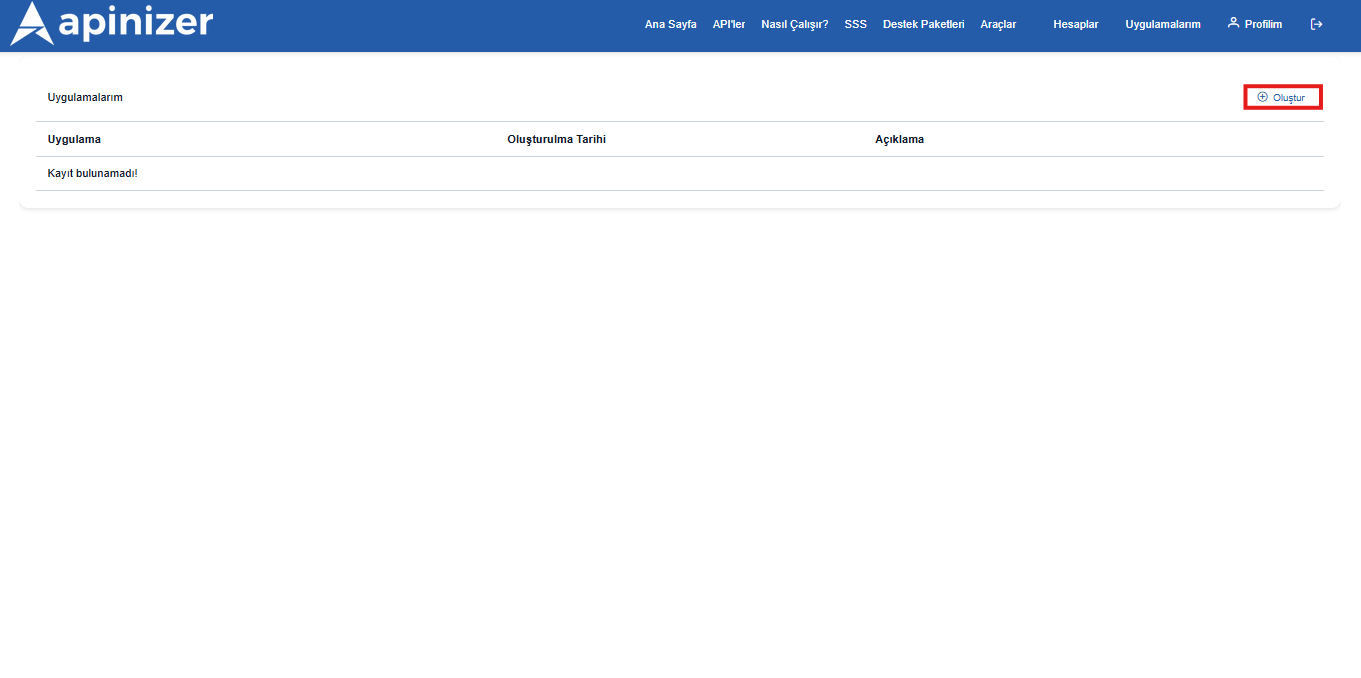
After going to the My Applications page, a new application registration can be created by triggering the create button in the top right corner in the opened popup.
After pressing the save button here, the application registration will be made.
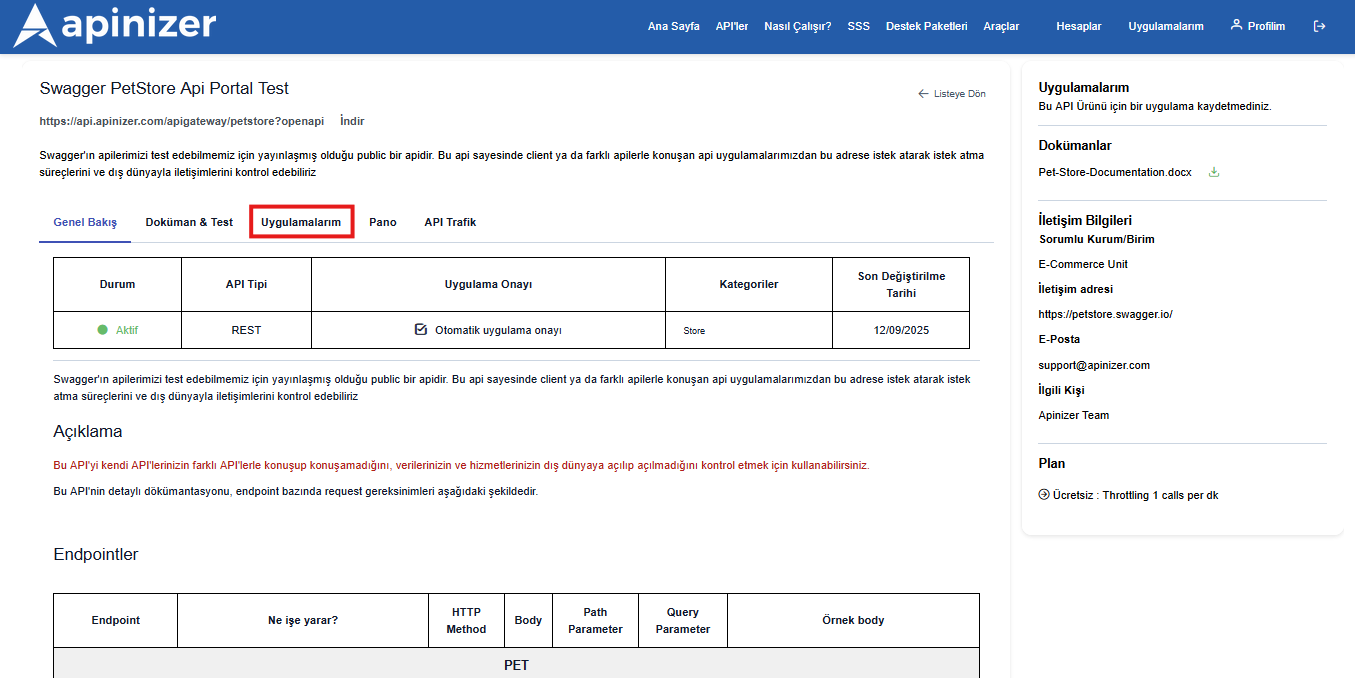
After creating the application, you must register it to the APIs you want to use. Open the API Product detail and switch to the Applications & Plans tab.
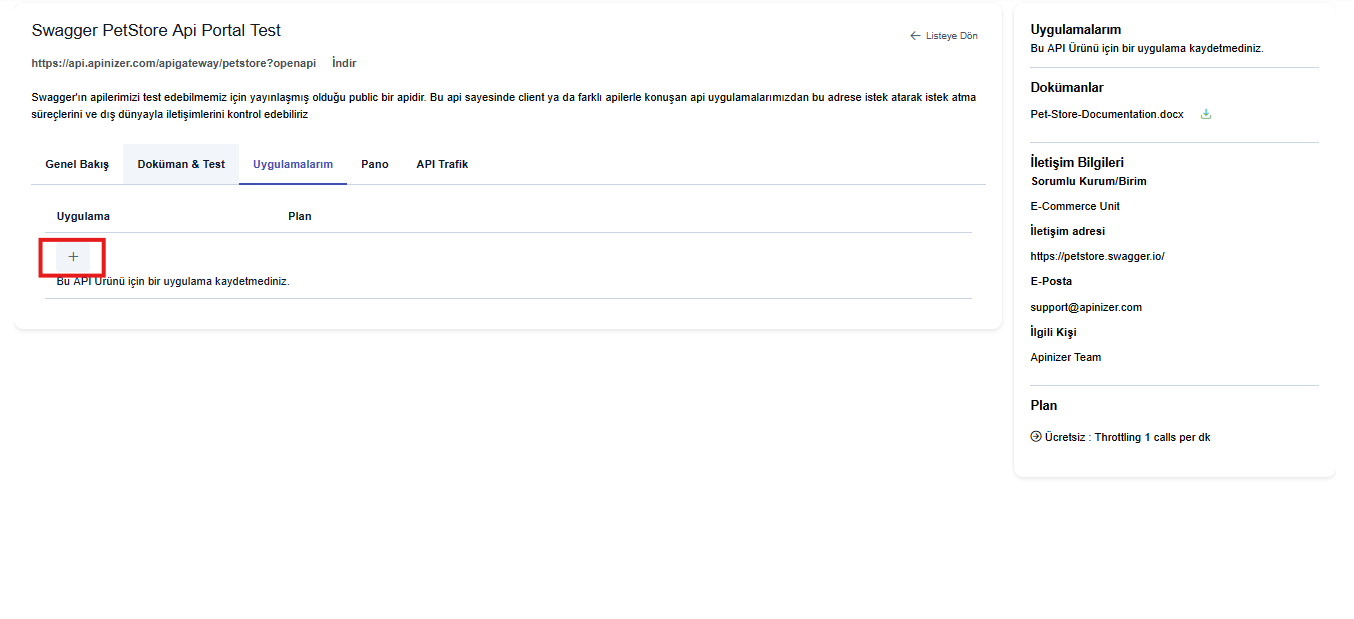
To register a new application to an API Product, use Register / "+" on this tab, select your application and a plan, then submit the subscription request.
In the opened popup, after selecting the application you created and the one suitable for your request from the plans created by the API Product owner and pressing the save button, we send an application registration request for the API Product.
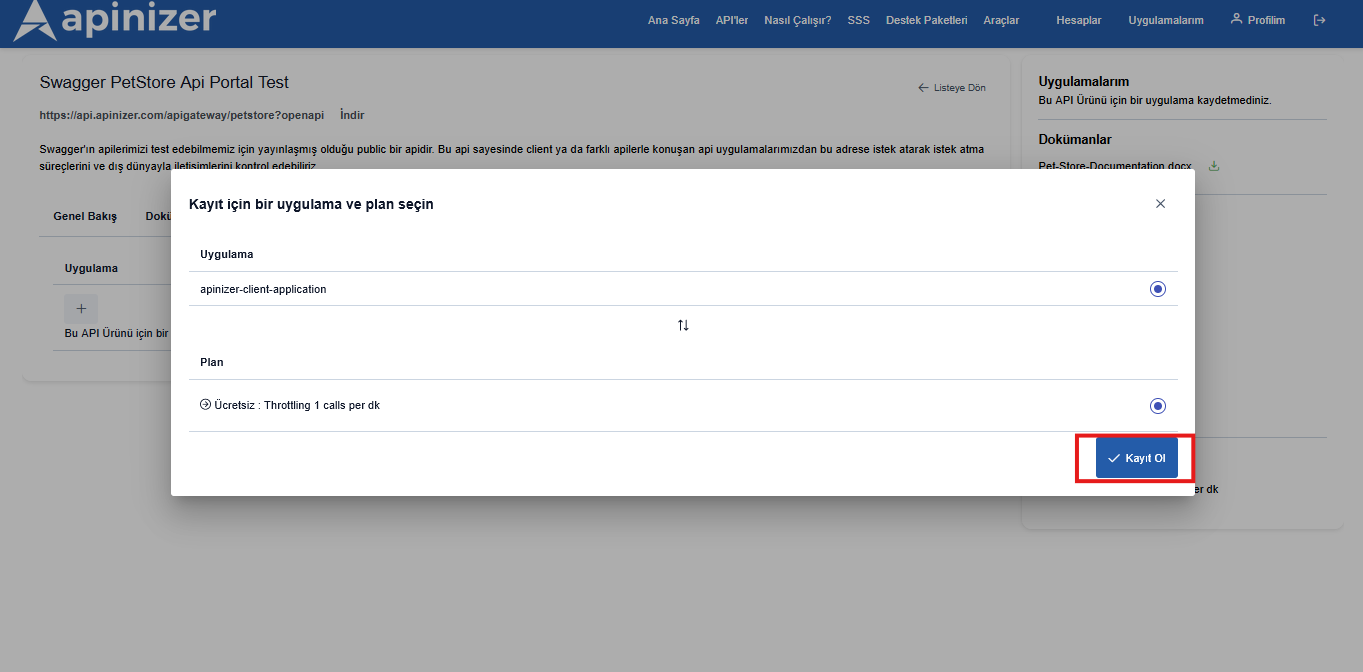
Subscription approval depends on the selected plan (Auto approval or Approval Required). If approval is required, wait for Manager to approve the registration request. Details: API Product.
Application Authorization and Sending Test Request After Application Registration
After the application registration is successfully completed, the registered application will now be authorized to use the relevant API Product within the scope of the plan it has.
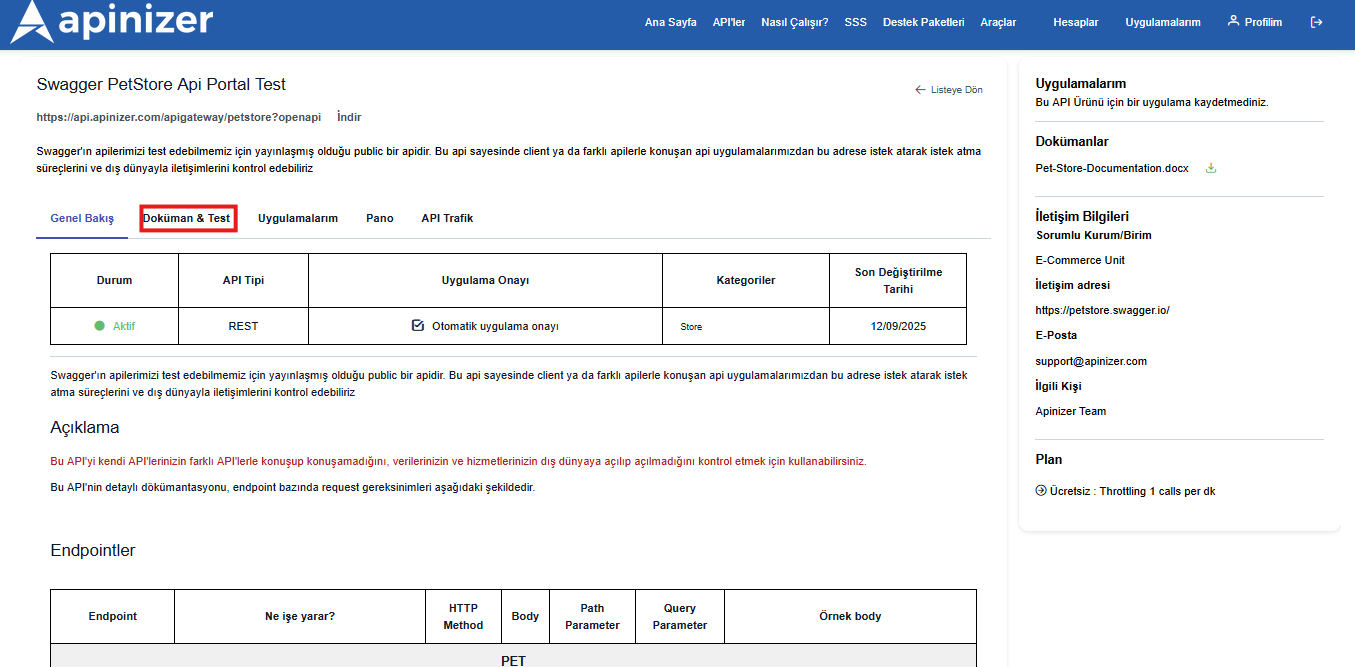
After the application registration is made, to try the API Product by sending a test request, go to the relevant API detail and switch to the API Specification tab.
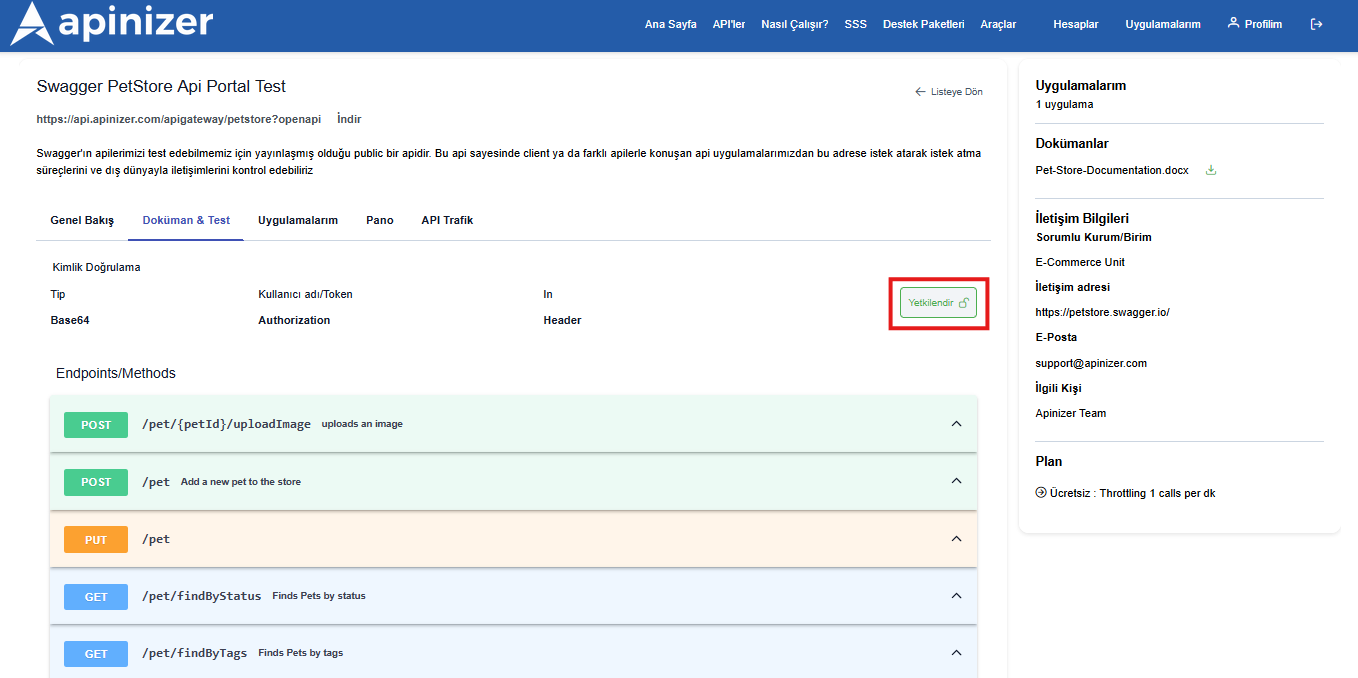
To be able to make a successful request and pass Authentication policies successfully, click the authorize button.
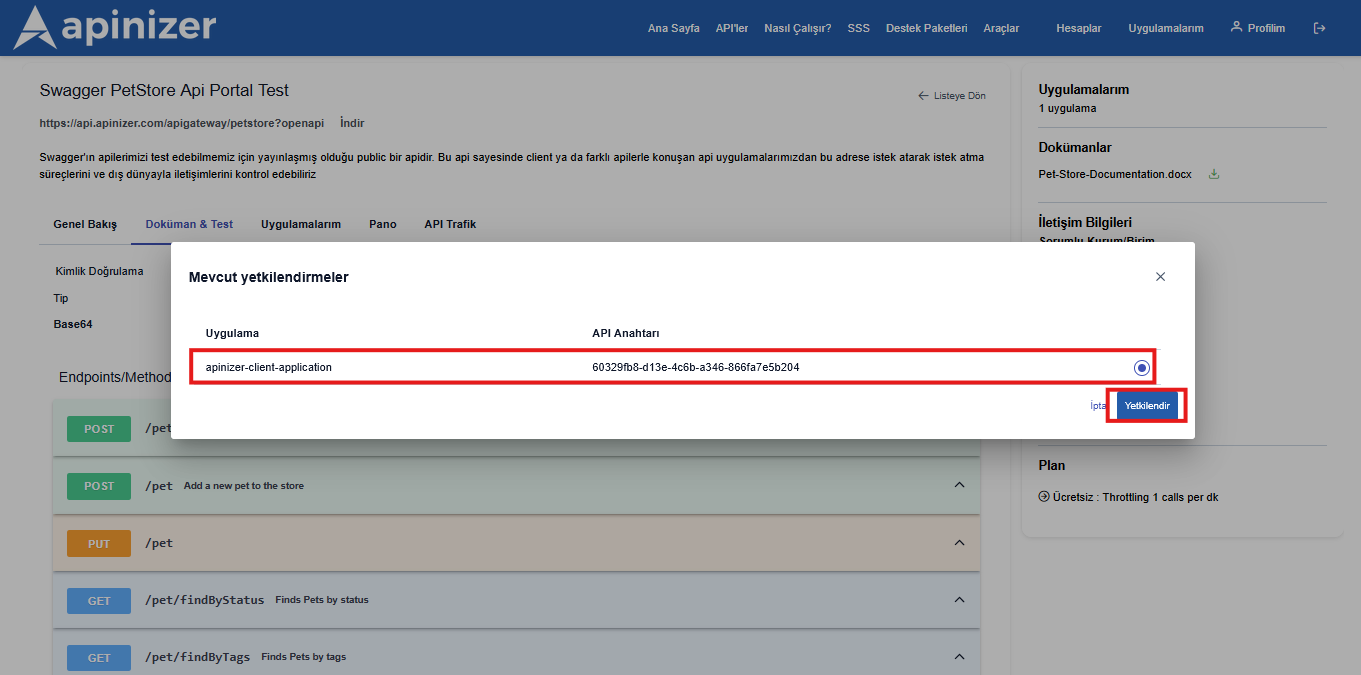
After selecting the application to be authorized in the opened popup, the authorization process is performed by clicking the authorize button. This way, the Authentication information expected by the API Product is automatically added to the request in the background for the application registration, ensuring authorization.
If the credential you select is an API Client (Client ID / Secret), the popup also lists the secrets of that client. Select the secret you want to use. The portal never shows the secret value on this screen. When you click the authorize button, the portal fetches the selected secret securely and uses it in the test requests. If the client has no usable secret, go to My Apps → the application → Credentials and add a new secret to the API client.
Then we can test by making a request to the endpoint we want to try.
Next steps
- For Test→Prod moves see Application Promote
- For Support (Built-in or Jira) see Support Tickets
- For usage summaries see Dashboard & Traffic on the product page or Manager Traffic & Usage