Disk Expansion on Linux
Warning
Very Important: This is a risky operation and is not recommended if the server does not have a backup.
Checking Disks
To list disks in the system:
lsblk
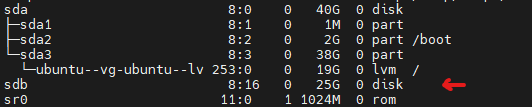
As seen in the image, the added disk appears as /dev/sdb. Example commands will proceed with /dev/sdb.
Creating Partition on New Disk
sudo fdisk /dev/sdb
Follow the steps below in the fdisk interface:
Add New Partition
Press n key and create a new partition.
Select Type
Press p key to create a primary partition.
Enter Partition Number
Type 1 to specify the partition number.
Use Default Settings
Press Enter key (twice) to accept all default settings.
Write and Exit
Press w key to save changes.
Creating Physical Volume
sudo pvcreate /dev/sdb1
Listing Volume Groups
vgdisplay

Adding New Disk to Existing Volume Group
You can use the following command to add the /dev/sdb1 disk to the volume group in your system:
sudo vgextend <VG-NAME> /dev/sdb1
Listing Logical Volumes
lvdisplay

Expanding Logical Volume
To expand the logical volume named ubuntu-lv in the volume group named ubuntu-vg with 100% free space, you can run the following command:
sudo lvextend -l +100%FREE /dev/ubuntu-vg/ubuntu-lv
Expanding File System
sudo resize2fs /dev/ubuntu-vg/ubuntu-lv