API Manager LDAP Integration
This document explains how to add LDAPs login information in Apinizer and how to login to Apinizer with your LDAP users as an example.
Both the LDAP connection page and the LDAP login settings page now offer an [Apply Preset] menu (Active Directory, OpenLDAP, 389 Directory Server / FreeIPA, or Active Directory with groups kept as organizational units) that fills in matching field defaults, and a [Test connection (step by step)] button that breaks the connection test into individual steps with suggestions. See LDAP/Active Directory and LDAP Login Settings for details.
1) Adding LDAPs Connection Information
Open Connection Management → LDAP/Active Directory page and add your information.
In the Server Address field, start with ldaps:// and add ldap domain and then 636 port.
An example image containing LDAPs connection settings is provided below:
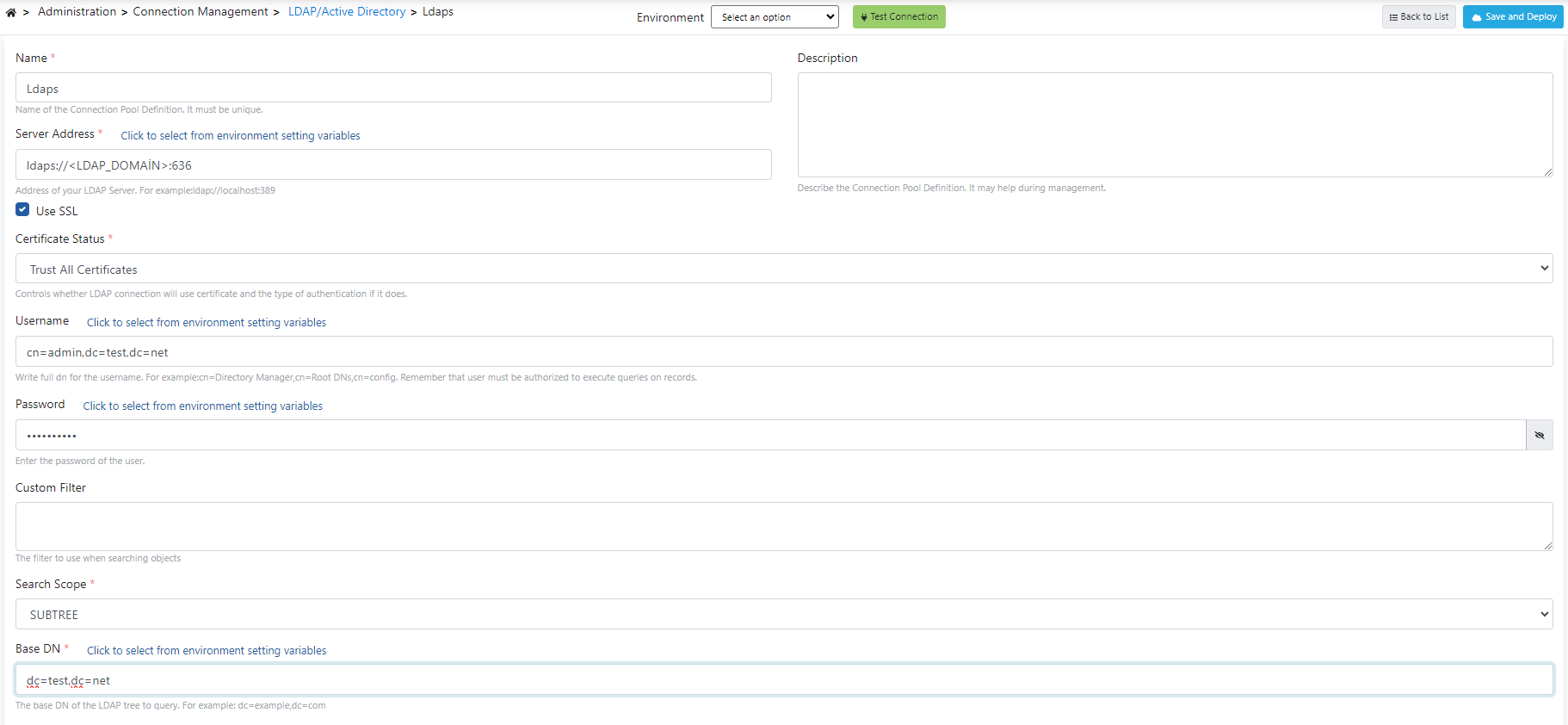
Check the Use SSL button for SSL usage.
If Certificate Required is selected in the Certificate Status field, see this address to add certificate.
You can also make a limitation in the search by using the Custom Filter field.
For example, the filter (&(objectClass=inetOrgPerson)(mail=example@example.com)) will work for users belonging to "inetOrgPerson" class and with email address "example@example.com".
In LDAP, users and groups are usually stored under different organizational units.
Therefore, different base DN addresses can be given for users and groups:
- Base DN for users:
ou=Users,dc=example,dc=com - Base DN for groups:
ou=Groups,dc=example,dc=com
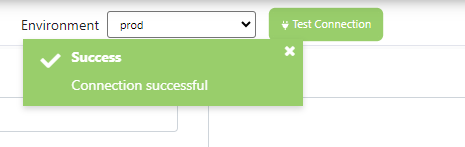
After completing the entry of your LDAP information, select one from the Environment field on the same page and click the Test Connection button, and when the operation is successful, an output like in the example image below will be seen.
You can complete adding LDAPs information to your system by clicking the Save and Deploy button.
2) LDAPs Login Settings
This section contains LDAP connection configurations that will enable integration with identity management systems in organizations that can be accessed via LDAP connection so that users can login to Apinizer.
Open Administration → System Settings → LDAP Settings page.
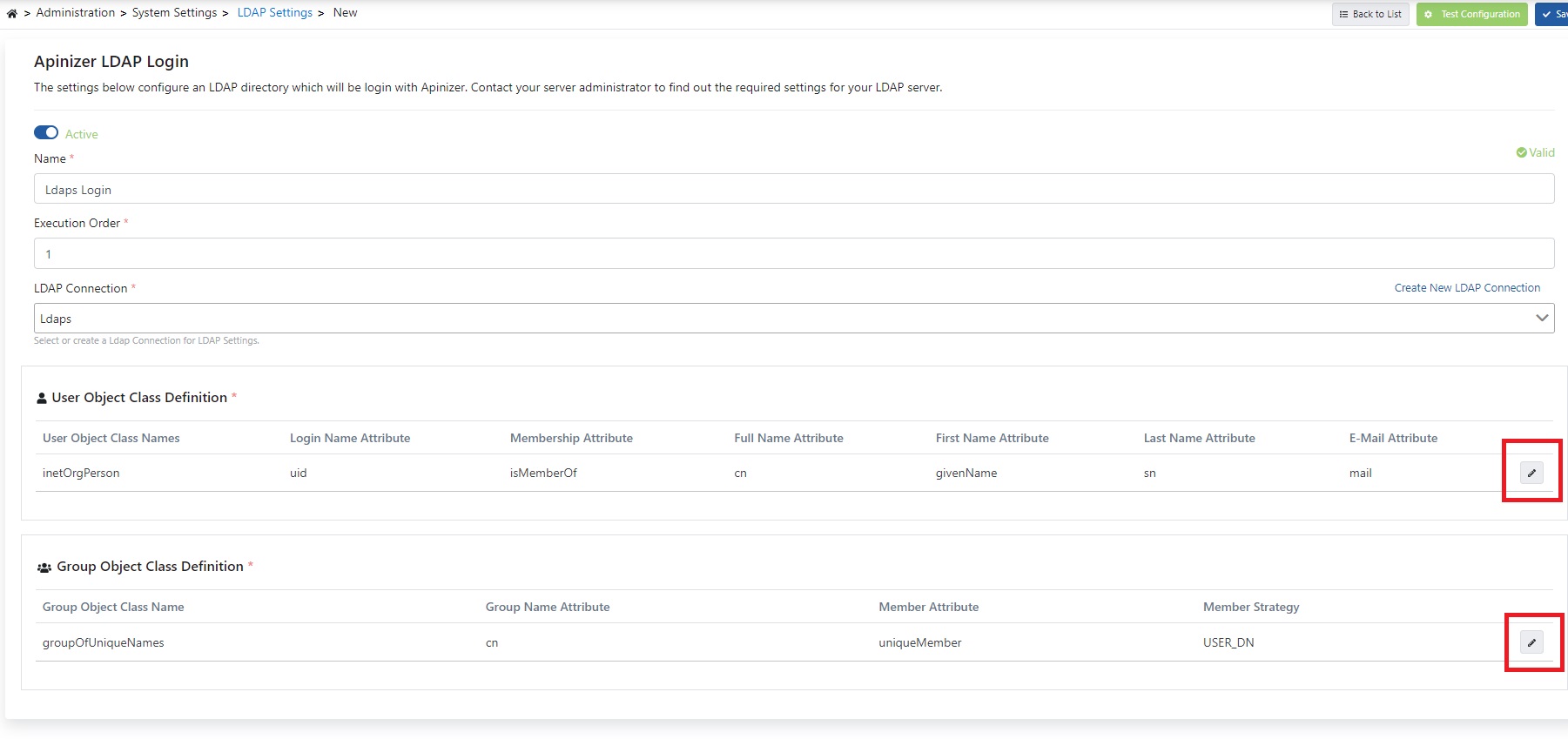
Give a name to the connection as in the image above and select the LDAP connection you added in the previous step from the LDAP Connection section. Click the edit button marked with red areas and enter the relevant information.
Example usage for the User Object Class Definition popup page is shown in the image below:
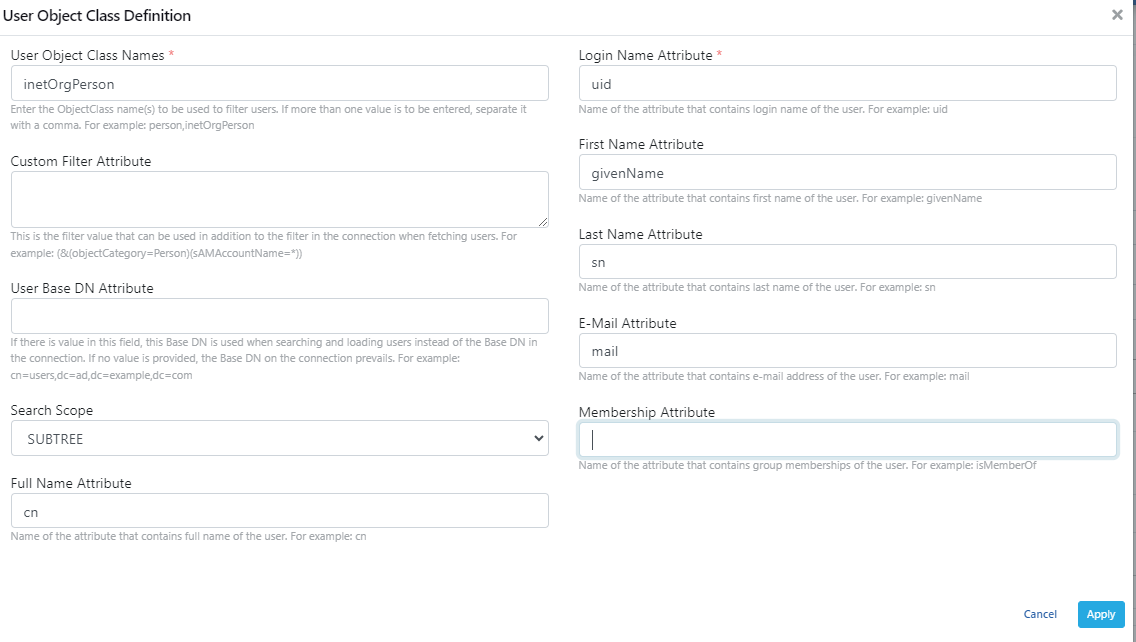
You can view how to fill the relevant fields for User in the example image above by connecting to your existing LDAP application.
One of the parts to pay attention to is that object class value is written in the User Object Class Name field.
Only attribute expression is written in other fields specified as Attribute.
For this example, you can make an LDAP connection using the JXplorer application and examine its usage from the image below.
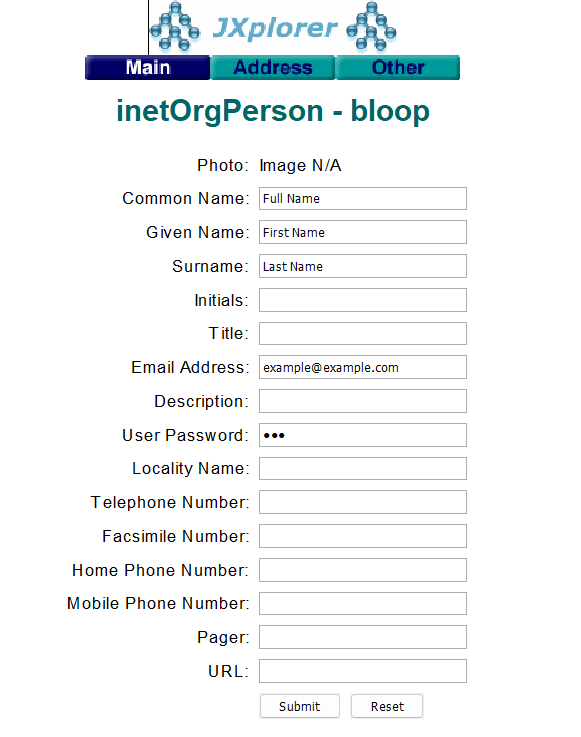
According to the example image above, you can see that Object Class Name is inetOrgPerson for user. This information may vary according to your relevant LDAP application.
Example usage for the Group Object Class Definition popup page is shown in the image below:
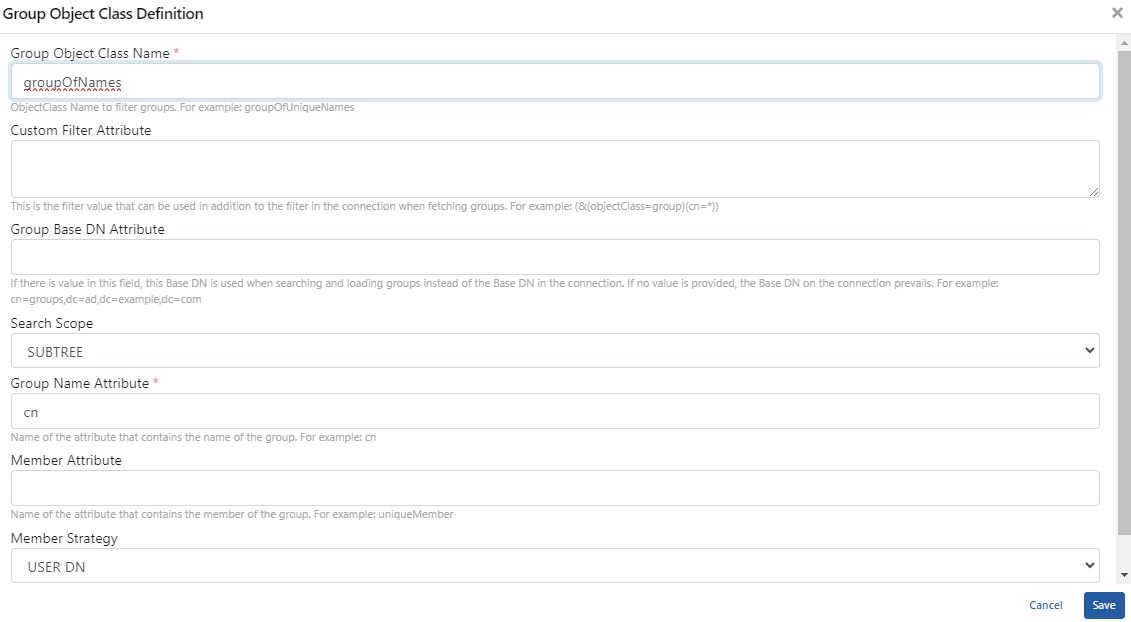
You can view how to fill the relevant fields for Group in the example image above by connecting to your existing LDAP application.
One of the parts to pay attention to is that object class value is written in the Group Object Class Name field.
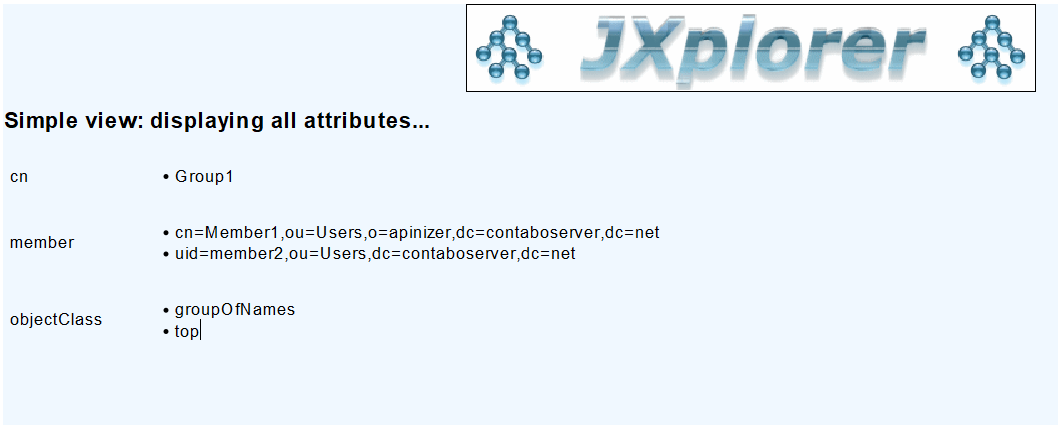
After entering the information, click the Test Configuration button located at the top right corner as in the image below.
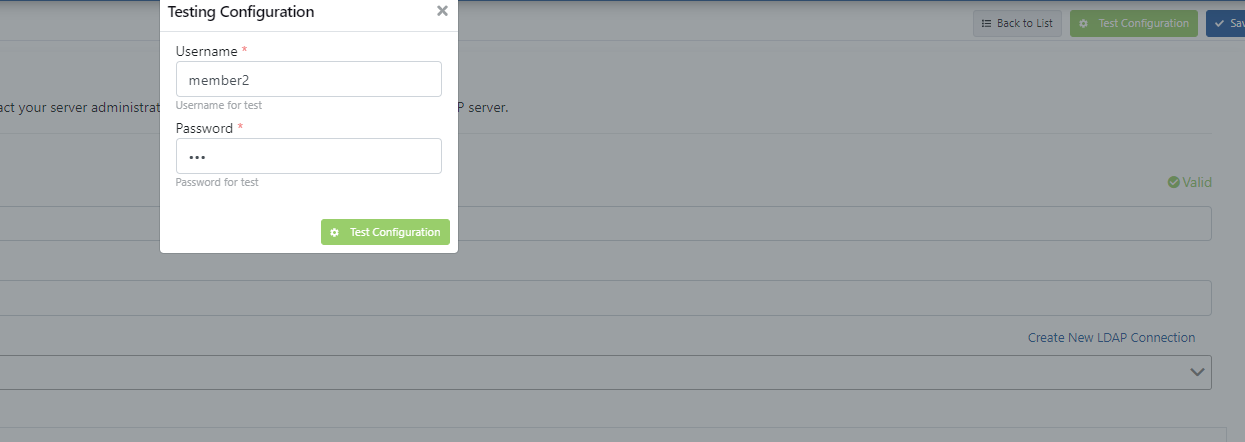
When test login is performed with the LDAP user whose uid value is member2 as specified in the example image above and their password as login information on the opened page, it will return Success response.
Test with your user information in your LDAP application.
After seeing the successful response, save the information by clicking the Save button.
3) Authorizing LDAP Users or Group Members in Project
This section explains authorization operations for LDAP users and groups on a project basis.
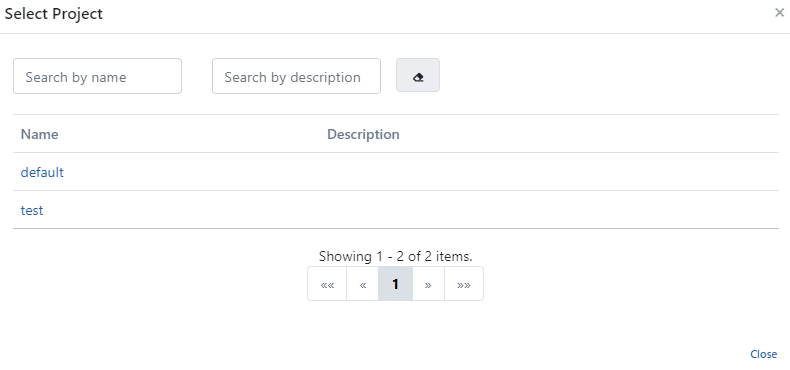
Select a project from the area where your projects are located as in the image below.
After selecting a project, to give user permission to your project:
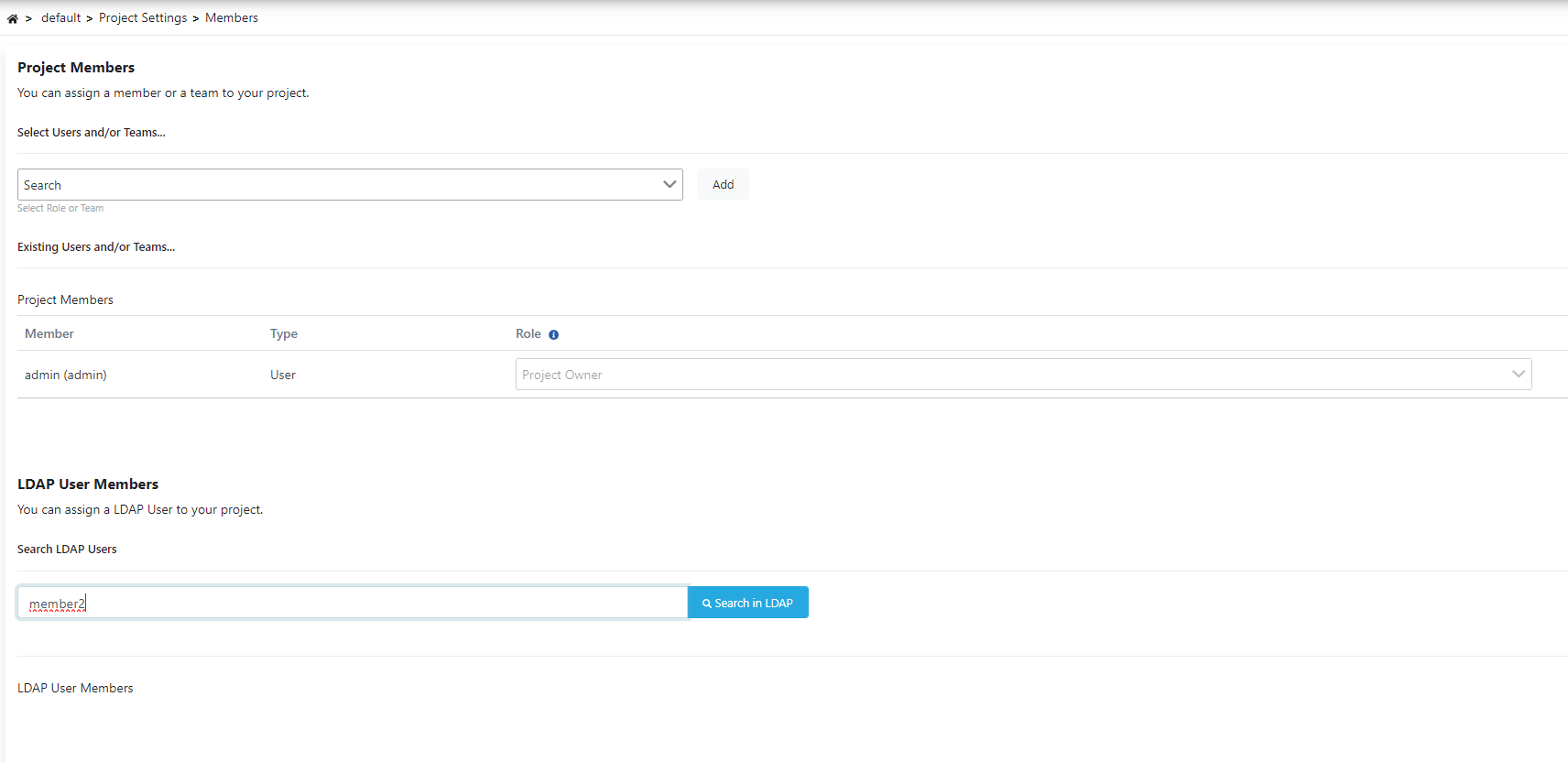
Open Project Settings → Members page.
Write your LDAP user in the LDAP User Members field as in the image below and click the Search in LDAP button.
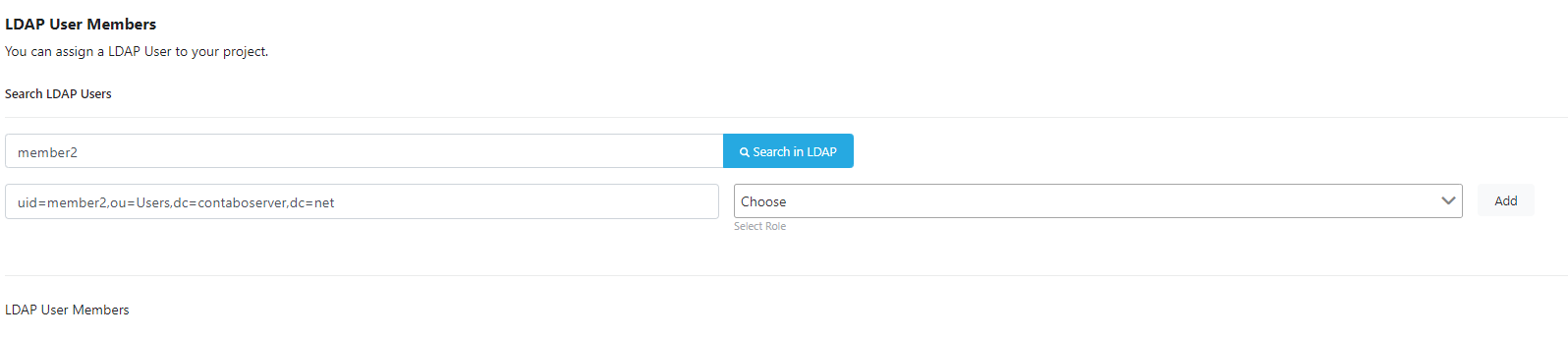
Your LDAP user will appear on the screen as in the image below, you can select a permission in the Choose field and add it with Add.
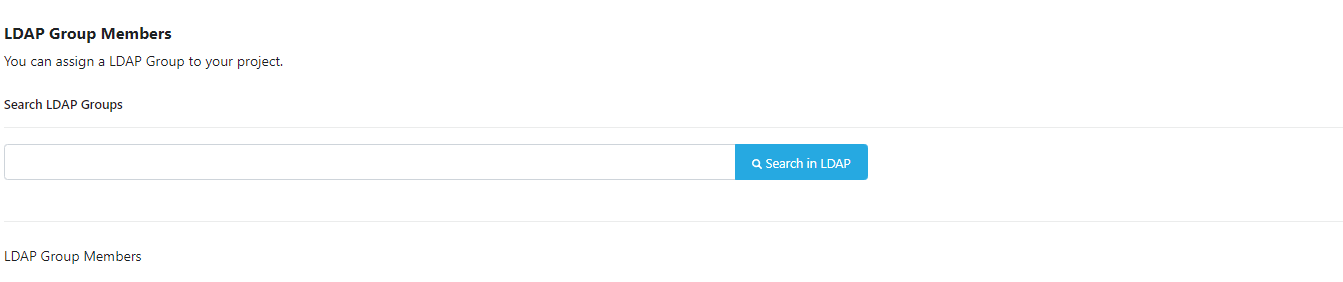
You can add permissions within group members in the field shown in the image below.
After completing the permission granting operations, you can complete the saving operation by clicking the Save Changes button located at the top right of the page.
After this stage, the relevant users or groups will have the permissions you specified in your project.