Documentation Index
Fetch the complete documentation index at: https://docs.apinizer.com/llms.txt
Use this file to discover all available pages before exploring further.
License Check
The Elasticsearch license must be Elastic Basic License. Apinizer uses the simple authentication method supported by the X-Pack security plugin included in this license.
To check the Elasticsearch license information, make the following request:
curl -X GET "http://<ELASTICSEARCH_IP_ADDRESS>:<PORT>/_xpack/license?pretty"
Enabling Security
By default, Elasticsearch security settings are not enabled. To enable the security option, add the following property to the config/elasticsearch.yml file.
If there are multiple nodes, this property must be enabled on all of them.
xpack.security.enabled: true
After this operation, the Elasticsearch application must be restarted.
Encrypting Communication Between Nodes in the Cluster (TLS Settings)
If you encounter the following error after Elasticsearch restarts, or if there are multiple nodes, the settings in this section should be configured. When security is enabled and running in a production environment, communication between Elasticsearch nodes must be encrypted. This communication occurs at the transport layer.
Transport SSL must be enabled for setups with production licenses. Please set [xpack.security.transport.ssl.enabled] to [true] or disable security by setting [xpack.security.enabled] to [false]
If there are multiple nodes, this setting must be configured on all of them.
# Nodes must have a unique name to find the cluster.
cluster.name: ApinizerEsCluster

# Since multiple nodes on the same machine may have the same ip/host information, the certificate location can be determined based on this node name.
node.name: <ELASTICSEARCH_IP_ADDRESS>

# If there is a single node, this setting can postpone the TLS error. But if there are multiple nodes, it should be removed.
# If cluster.initial_master_nodes is in the yaml file, do not add discovery.type.
discovery.type: single-node

# If there are multiple master-eligible nodes
cluster.initial_master_nodes: ["<ELASTICSEARCH_IP_ADDRESS>"]
Certificate Creation
Creating CA certificate
Use the following command to create a certificate:./bin/elasticsearch-certutil ca
This file does not need to be password-protected, but it is not recommended.
Creating certificate
Create a certificate using the CA certificate:./bin/elasticsearch-certutil cert --ca elastic-stack-ca.p12
Moving certificates
Create the config/certs directory and move the certificates there:mkdir config/certs/
mv elastic-certificates.p12 config/certs/
mv elastic-stack-ca.p12 config/certs/
Before proceeding, ensure that these certificate files have the same privileges as the Elasticsearch files.
If you get the error “could not find java in JAVA_HOME at /tools/java/home/bin/java”, use the following two commands to set the environment variables required for Java applications to run correctly.export JAVA_HOME=/opt/elasticsearch/elasticsearch-7.9.2/jdk
export PATH=$JAVA_HOME/bin:$PATH
xpack.security.transport.ssl.enabled: true
xpack.security.transport.ssl.verification_mode: certificate
xpack.security.transport.ssl.keystore.path: certs/elastic-certificates.p12
xpack.security.transport.ssl.truststore.path: certs/elastic-certificates.p12
After this operation, the Elasticsearch application must be restarted.
curl -X GET -u <USERNAME>:<PASSWORD> "http://<ELASTICSEARCH_IP_ADDRESS>:<PORT>/_xpack?pretty"
...
"security" : {
  "available" : true,
  "enabled" : true
},
...
curl -X GET "http://<ELASTICSEARCH_IP_ADDRESS>:<PORT>"
{
  "error": {
    "root_cause": [
      {
        "type": "security_exception",
        "reason": "missing authentication credentials for REST request [/]",
        "header": {
          "WWW-Authenticate": "Basic realm=\"security\" charset=\"UTF-8\""
        }
      }
    ],
    "type": "security_exception",
    "reason": "missing authentication credentials for REST request [/]",
    "header": {
      "WWW-Authenticate": "Basic realm=\"security\" charset=\"UTF-8\""
    }
  },
  "status": 401
}
Creating Built-in User Passwords
Elasticsearch’s default built-in username is elastic. However, there is no password created for this username.
When assigning passwords, all built-in users’ passwords will be changed.
# To automatically update passwords, run the following command in the Elasticsearch installation directory.
./bin/elasticsearch-setup-passwords auto

# Example output:
# Changed password for user elastic
# PASSWORD elastic = dd6mjMiemZlAKfOXkUAm

# To manually update passwords, run the following command in the Elasticsearch installation directory.
./bin/elasticsearch-setup-passwords interactive
This step is necessary to create a new user after enabling Elasticsearch security. These credentials can also be defined in Apinizer API Manager.
Adding Users
To add or update a new user, make the following request. In the request, a new user with username apinizer_es_cluster, password apinizer, and role superuser has been added.
If user information is updated, it will return as “created” : false.
# For Windows;
curl -X POST -u <USERNAME>:<PASSWORD> "http://<ELASTICSEARCH_IP_ADDRESS>:<PORT>/_security/user/apinizer_es_cluster?pretty" -H "Content-Type:application/json" -d "{\"password\":\"apinizer\", \"roles\":[\"superuser\"], \"full_name\":\"Apinizer Elasticsearch Cluster\",\"email\" : \"apinizer@mail.com\"}"

# For Linux;
curl -X POST -u <USERNAME>:<PASSWORD> "http://<ELASTICSEARCH_IP_ADDRESS>:<PORT>/_security/user/apinizer_es_cluster?pretty" -H "Content-Type:application/json" -d '{"password":"apinizer", "roles":["superuser"], "full_name":"Apinizer Elasticsearch Cluster","email" : "apinizer@mail.com"}'
Password Reset
To change the password:
bin/elasticsearch-users passwd <USERNAME>
bin/elasticsearch-users useradd <NEW_USERNAME> -p <NEW_PASSWORD> -r superuser

curl -X POST "http://<ELASTICSEARCH_IP_ADDRESS>:<PORT>/_security/user/<OLD_USERNAME>/_password?pretty" -H 'Content-Type: application/json' -d' {
  "password" : "<OLD_USERNAMES_NEW_PASSWORD>"
} '
-
When sending requests through API testing tools like Postman, Authorization: Basic <base64 encoded username:password> information must be added to the request’s header field.
# For example;
Authorization: Basic YXBpbml6ZXJfZXNfY2x1c3RlcjphcGluaXplcg==
-
To manage users through Kibana, go to Stack Management > Security > User from the menu. The following fields must be added to the Kibana configuration file /config/kibana.yml.
elasticsearch.username: "apinizer_es_cluster"
elasticsearch.password: "apinizer"
Additional commands;
# Getting information about the authenticated user
curl -X GET -u apinizer_es_cluster:apinizer "http://<ELASTICSEARCH_IP_ADDRESS>:<PORT>/_security/_authenticate?pretty"

# Users can be enabled or disabled.
curl -X PUT -u apinizer_es_cluster:apinizer "http://<ELASTICSEARCH_IP_ADDRESS>:<PORT>/_xpack/security/user/apinizer_es_cluster/_enable"
curl -X PUT -u apinizer_es_cluster:apinizer "http://<ELASTICSEARCH_IP_ADDRESS>:<PORT>/_xpack/security/user/apinizer_es_cluster/_disable"
Apinizer Configuration
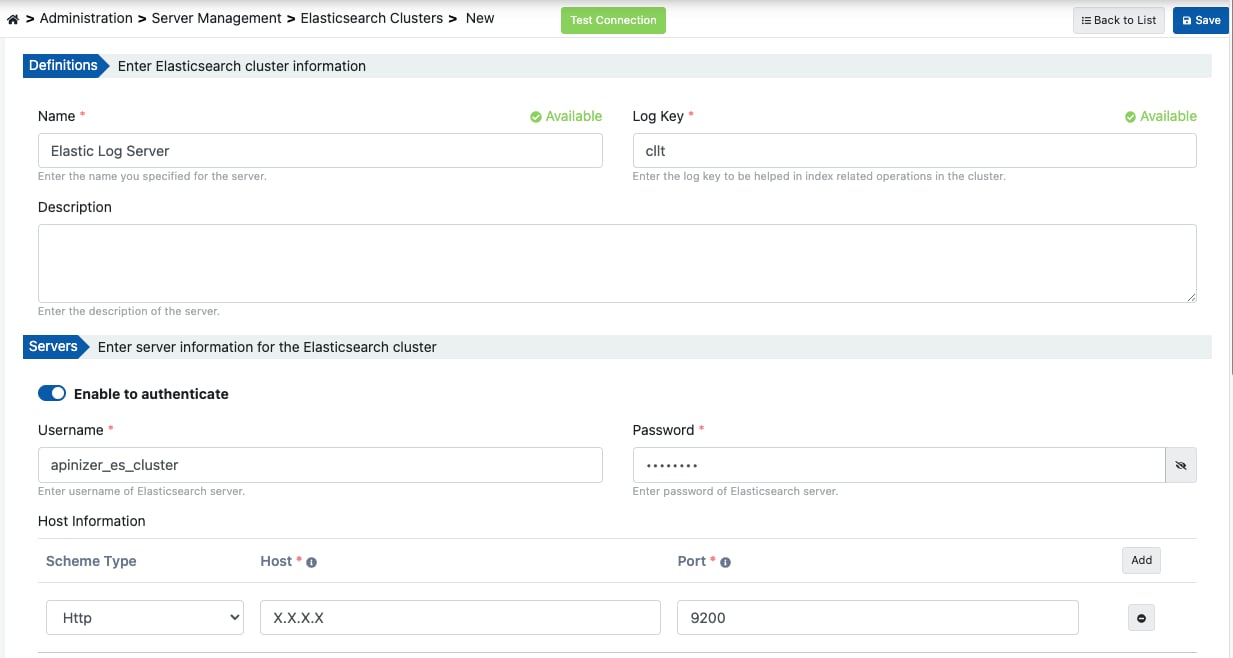
The username and password of the defined user are configured from the Elasticsearch Clusters page in Apinizer Manager Console.
Enabling authentication
Enable the authentication switch button.
Entering credentials
Enter the username and password information.