

Introduction
Apinizer consists of five components, three of which are basic, running on Kubernetes Platform: API Manager (Management Console), API Gateway and API Cache Server.API Manager (Management Console)
API Manager is a web-based management interface where APIs, Policies, Users, Credentials and configurations are defined, and API Traffic and Analytics data are viewed and analyzed.API Gateway
It is the most important component of Apinizer. It is the point where requests from clients are received. It also serves as a Policy Enforcement Point. It processes the incoming request according to the defined policies and routes it to the relevant Backend API/Service. It can work as a load balancer when routing. TLS/SSL termination is done here. It also processes the response returned from the Backend API/Service according to the defined policies and sends it to the client. It records all operations performed during this process and sends them asynchronously to the log server. It handles the recording of sensitive data according to the determined rules (deletion, masking, encryption). Each Gateway belongs to an Environment, and its settings change according to the Environment it runs in. There can be multiple Environments in Apinizer and multiple Gateways in each Environment.API Cache Server
API Cache Server manages the data shared by its components by storing it in distributed cache, and also provides performance improvement.After Apinizer images are deployed to Kubernetes environment, you need to add the License Key provided to you by Apinizer to the database.
Pre-Installation Steps
Before starting Apinizer installation, Kubernetes Cluster, Replicaset MongoDB, and optionally Elasticsearch if API Traffic and Analytics data will be managed through Apinizer must be installed on your servers.Kubernetes Installation
Learn Kubernetes cluster installation
MongoDB Installation
Learn MongoDB installation
Elasticsearch Installation
Learn Elasticsearch installation
Cloud Installation
Install on cloud environments
Offline Installation
Perform offline installation
Installation and Configuration
Defining Kubernetes Permissions and Creating Namespaces
Kubernetes API permissions need to be defined for Apinizer to access pods in the created Namespace. In Kubernetes, ClusterRole and ClusterRoleBinding provide role and role assignment mechanisms at the Kubernetes cluster level. These two resources enable cluster administrators and application developers to manage access and permissions to Kubernetes resources. If Environment management will be done through API Manager, permissions need to be defined for Apinizer to access Kubernetes APIs and perform create, delete, update and watch operations on Namespace, Deployment, Pod, Service.If Kubernetes management is done with Apinizer
In the following step, Roles and RoleBindings are created on Kubernetes and permissions are defined. Permission is granted for all environments that will be created in this step.If Kubernetes management is not done with Apinizer
Here, permissions are set only for the manager application in the Apinizer namespace.API Manager (Management Console) Installation
API Manager is a web-based management interface where APIs, Policies, Users, Credentials and configurations are defined, and API Traffic and Analytics data are viewed and analyzed. Configure the following variables according to your environment before deploying API Manager to Kubernetes.- APINIZER_VERSION - Parameter indicating which Apinizer version you will install. Click here to see current versions. It is recommended to always use the latest version in new installations. Click here to review release notes.
- MONGO_DBNAME - Database URL information to be used for Apinizer configurations. It is recommended to use the name “apinizerdb” by default.
- MONGOX_IP and MONGOX_PORT - IP and port information of MongoDB servers. MongoDB default port is 25080. Apinizer uses port 25080 by default.
- MONGO_USERNAME and MONGO_PASSWORD - Information about the user defined for Apinizer in your MongoDB application, who is authorized on the relevant database or has the authority to create that database.
- YOUR_LICENSE_KEY - License key sent to you by Apinizer.
- K8S_ANY_WORKER_IP - An IP from your Kubernetes Cluster is required for you to access the Apinizer Management Console interface from any web browser after Apinizer installation is completed. This is usually preferred as one of the Kubernetes Worker servers and it is recommended to be placed behind a Load Balancer and DNS later.
Creating secret with MongoDB information
It is recommended that your MongoDB database connection information be stored in an Encoded form in kubernetes deployments. For this, apply the following steps in the terminal of a Linux-based operating system.API Manager Kubernetes deployment
Modify the following example yaml file according to your systems and load it to your Kubernetes Cluster.If Environments Will Not Be Managed Through Apinizer, Manager’s Deployment is ChangedTo enable Deployment objects to bind to the required ServiceAccount, the serviceAccountName field is added to the spec field as follows:
Environment VariablesApinizer API Manager runs on Spring Boot infrastructure. In Spring Boot, Environment variables are usually expressed using underscore (
_) and uppercase. Therefore, for example, when setting spring.servlet.multipart.max-file-size and spring.servlet.multipart.max-request-size properties as environment variables, you may need to use underscore.Example: You can define SPRING_SERVLET_MULTIPART_MAX_FILE_SIZE and SPRING_SERVLET_MULTIPART_MAX_REQUEST_SIZE as environment variables.If you are using a proxy server like NGINX and want to increase the file upload limit, you need to add the following setting to the NGINX configuration file:Environment VariablesDeployment operations are performed synchronously to ensure data integrity. The WORKER_DEPLOYMENT_TIMEOUT parameter indicates how many seconds after the deploy operation performed through API Manager or Management API will timeout.
When API Manager is deployed on Kubernetes, it creates a Kubernetes service named manager and of type NodePort. This service is necessary for accessing API Manager from outside kubernetes. However, you can delete this service and adapt it according to the structure you use for connection method in your organization, such as Ingress.
Entering API Manager license key
The License Key provided to you by Apinizer can be updated in a.js file as follows and the license information in the database can be updated.
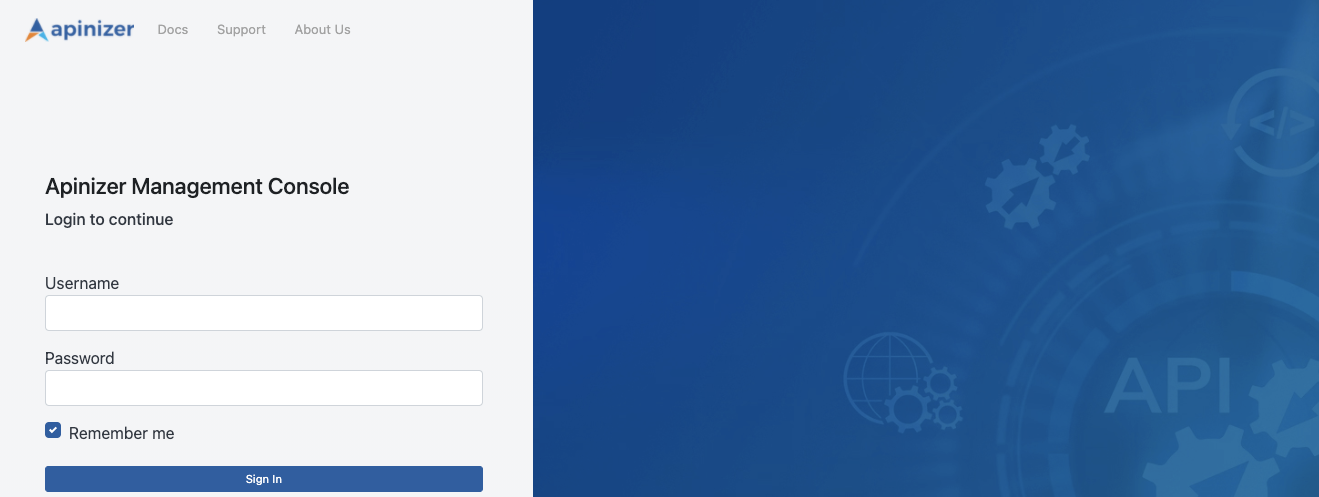
Starting Apinizer Manager with SSL
You can perform this from the guide at Starting Apinizer Modules with SSL/TLS.Settings to be Made in Connection Management Pages
Information about where traffic logs flowing through Apinizer will be sent needs to be defined to Apinizer. This definition is made through Connectors on the Connection Configurations page. If you do not have a specific choice, you can use an Elasticsearch connector so that data management is also set from Apinizer to fully benefit from Apinizer’s Analytics and Monitoring capabilities. You can make connection definitions for the applications you will use for these operations from the pages allocated to connectors under System Settings → Connection Management tab. If you will manage your API Traffic and API Analytics data with your own Log systems, you can define those you find suitable from the integration settings suitable for you.Settings to be Made in General Settings (System Settings) Page
By going to System Settings → General Settings page, here;- Whether a value will be added to the end of the addresses you define to the relevant Worker environments when serving the services you will serve through the system,
- Whether you will manage the kubernetes environment where Apinizer is located through Apinizer,
- Whether logs of error messages will be sent to connected connectors even if log settings are closed,
- Settings related to login and session duration for Management Console interface,
- Number of rollback points to be kept in each proxy,
- Applications where application logs and token logs will be kept/sent
Settings to be Made in Gateway Environments Page
At least one environment must be created and published on the System Settings → Gateways page. By giving an appropriate environment name, settings are entered to containers with resources suitable for your license and server quantity. This environment name will also be the kubernetes namespace where the applications in the relevant environment will run. Then, Connector definitions are made to the environments where you want to write logs, enabling the environments to write logs.If Kubernetes management is done with Apinizer
Click here for detailed information about Gateway Runtimes page and Distributed Cache page. Here, on the Gateway Runtimes page opened with the new environment option, general settings such as which namespace you will create the environment in, which address you will open it from, which connectors you will connect, and the resources and JVM parameters of worker applications are set and the environment is published. Cache server configuration is done separately on the Distributed Cache page.If Kubernetes management is not done with Apinizer
When creating a Gateway Runtime, you can define existing Kubernetes definitions to the Apinizer platform by selecting the Remote Gateway option. For detailed information, see the Gateway Runtimes page. In the necessary role assignments, the namespace where worker and cache will run is created and permissions are set within this namespace, two deployment files named worker and cache and kubernetes services must be created for access to pods that will be created after these deployments.Creating roles and rolebindings for Worker and Cache
The names of the environments to be created should be determined in advance and<WORKER_CACHE_NAMESPACE> variables should be set in this way, and the following steps should be applied for each environment to be created.
Creating Worker and Cache deployments
Worker uygulaması HTTPS ile sunulmak istenilirse yukarıdaki yaml’da livenessProbe, readinessProbe ve startupProbe’ların altındaki port değeri 8443, scheme değeri HTTPS olarak verilmelidir.
Environment VariablesThese environment variables are added to the YAML file to configure Tomcat’s thread and connection management and Hazelcast’s data loading, backup and write-behind behaviors.Tomcat Settings:
SERVER_TOMCAT_MAX_THREADS: Maximum number of concurrent threads (threads) that Tomcat can handleSERVER_TOMCAT_MIN_SPARE_THREADS: Minimum number of idle threads that Tomcat keeps readySERVER_TOMCAT_ACCEPT_COUNT: Maximum number of connections that can be queued when all threads are busySERVER_TOMCAT_MAX_CONNECTIONS: Maximum number of connections that Tomcat can accept at the same timeSERVER_TOMCAT_CONNECTION_TIMEOUT: Connection timeout duration (milliseconds)SERVER_TOMCAT_KEEPALIVE_TIMEOUT: Timeout duration for keep-alive connections (milliseconds)SERVER_TOMCAT_MAX_KEEPALIVE_REQUESTS: Maximum number of requests that can be processed over a keep-alive connectionSERVER_TOMCAT_PROCESSOR_CACHE: Maximum number of processors in the processor cache
HAZELCAST_IO_WRITE_THROUGH: Whether Hazelcast write-through mode is enabledHAZELCAST_MAP_LOAD_CHUNK_SIZE: Chunk size to be used in map loadingHAZELCAST_MAP_LOAD_BATCH_SIZE: Batch size to be used in map loadingHAZELCAST_CLIENT_SMART: Whether Hazelcast client will use smart routingHAZELCAST_MAPCONFIG_BACKUPCOUNT: How many backup copies of Hazelcast map data will be keptHAZELCAST_MAPCONFIG_READBACKUPDATA: Will reading be done from backup copies?HAZELCAST_MAPCONFIG_ASYNCBACKUPCOUNT: Asynchronous backup copy countHAZELCAST_OPERATION_RESPONSEQUEUE_IDLESTRATEGY: Hazelcast response queue idle strategy (for example: block, busyspin, backoff)HAZELCAST_MAP_WRITE_DELAY_SECONDS: Delay duration for Map write-behind feature (seconds)HAZELCAST_MAP_WRITE_BATCH_SIZE: Batch size for Map write-behind featureHAZELCAST_MAP_WRITE_COALESCING: Will coalescing be done in write-behind operations?HAZELCAST_MAP_WRITE_BEHIND_QUEUE_CAPACITY: Maximum capacity of write-behind queue
Creating services for Worker and Cache
If Worker is desired to be served with HTTPS, in the above yaml, port and targetPort values should be given as 8443.
Copying MongoDB secret from Apinizer namespaces to newly created namespaces
Since Gateway and Cache Server applications will also connect to MongoDB, the secret created for the Manager application is copied to other namespaces. The following example copies a secret in the apinizer namespace to the relevant namespace.Adding Log Connector to created environments
At least one Log connector must be connected to the created environments. Click here for detailed information about adding Log Connector to environments. After completing the above steps, go to the Server Management section on API Manager again and update the Environment you have defined as published.Settings to be Made in Backup Management/Configuration Page
Backup of the database where Apinizer configuration data and, if you have set them on the General Settings page, log and token records are kept can be done by extracting a dump file on the relevant (if there are more than one, the one specified in this setting) server. It is recommended that this file be backed up to a secure server by your organization’s system team employees in any case. Click here for detailed information about this page.Other Settings
Please change the password of the “admin” user account you logged into Apinizer Management Console at the first login from the Change Password page under the quick menu at the top right and note it securely. Click here for detailed information about the Users page where user management is done. If you want users to use passwords found in LDAP/Active Directory when logging into the management console, click here for detailed information. Many features you will use in Apinizer write their logs to the database where configuration data is kept. If these information are logs that are not necessary according to your organization’s policies, click here for detailed information about what these data are and how this growth will be kept under control. If you are using Elasticsearch managed by Apinizer for Apinizer traffic logs and prefer that its backup be done by taking snapshots at certain intervals, click here to perform these operations in detail. It is strongly recommended that DNS routing be done to the ports where Worker environments are opened in Apinizer installation and the servers they run on. For this, your organization’s employees should be informed about which server and ports Apinizer is opened from and which DNSs should be used to access these addresses. If your organization is part of the kamunet network and Apinizer will directly access the kamunet network, Apinizer servers’ exits should be able to exit as if they were your kamunet IP. This operation called NAT’ing needs to be set up by your organization’s firewall administrators. If your organization wants to use the KPS (Identity Sharing System) services offered by the General Directorate of Population and Citizenship Affairs through Apinizer, your organization’s kps information should be entered into the management console from the KPS Setting page.Congratulations! If you have successfully reached this point, it means that Apinizer installation and settings are completed.
Next Steps
API Portal Installation
Learn API Developer Portal installation
API Integration Installation
Learn API Integration installation
Multi-Region Installation
Learn Multi-Region installation
Kubernetes Installation
Learn Kubernetes installation