Users
In Apinizer, users who will work in roles such as API Developer, API Analytics, Project Owner, System Admin or manage the platform need to be defined in Apinizer.
Importance of User Management
User management plays a critical role for the Apinizer platform to work securely and efficiently. With correct user definitions and role assignments:
- Security: Each user can only perform operations they are authorized for
- Efficiency: Users can focus on their areas of responsibility
- Traceability: User-based operations can be tracked and reported
- Scalability: Centralized user management is provided in large organizations
User Types
There are two types of user types system-wide; User and System Admin.
User only has login permission in Apinizer and is authorized to perform operations within the scope of their role/roles in the project they are added as a member. These users can use the platform within the scope of their assigned projects and roles.
Users with System Admin role have permission to perform all operations in Apinizer. They can perform all management operations in the Administration menu and have full control authority platform-wide.
User Roles and Project Membership
A user can have different roles in different projects. For example, while having the API Developer role in project A, they can be API Analytics in project B, and API Developer and API Analytics in project C.
Similarly, different roles can be defined for a user in different teams.
Flexible Role Management
There is a flexible role management system for users in Apinizer:
- Project-Based Roles: Each user can work with different roles in different projects
- Team-Based Roles: Users can be in different teams with different roles
- Multiple Role Support: A user can have more than one role in the same project
- Dynamic Authorization: Roles can be managed dynamically on a project and team basis
Usage Scenarios
Users are added as members to projects and roles are assigned on a project basis. For example:
- API Developer in E-Commerce project
- API Analytics in Payment project
- Both Developer and Analytics in Reporting project
Users are added as members to teams and roles are assigned on a team basis. When a team is added to projects, team members are automatically added to the project.
To learn how to add a user as a member to any project, click here .
User Roles Details
The roles that can be assigned to users in Apinizer and the permissions of these roles are explained in detail below:
System Admin
Can manage all operations that can be performed on the Apinizer Management Console. Especially, only users with this permission can perform management-based operations of the application in the Administration menu. This role:
- Has full authority in all projects
- Can manage system settings
- Can perform user and team management
- Can access all API Proxies
API Portal Manager
Users with this permission can perform operations related to API creation, accounts, consumers and portal settings on the Portal Management basis on the console. Has all necessary permissions for portal management.
Analyzer
Users with this permission manage operations such as creating graphs, usage summaries, queries and preparing reports in the Analytics module. Can view analytics data, create custom queries and prepare reports.
Project Admin
Users with this permission are authorized in all projects and can manage all operations. Can perform all project-based operations and manage project settings.
API Portal Business User
Users with this permission can view APIs on the Portal, manage operations related to users, and perform operations related to organizations. Has portal user management and organization management permissions.
API Portal Developer User
Users with this permission can perform operations related to API creation and portal settings on the Portal Management basis on the console. Has API development and publishing permissions on the Portal.
Promotion Manager
Users with this permission can manage Promotion instances, mappings and executions under Administration → Promotion Manager, and are also treated as a project's promotion manager on every project's own Promotion menu.
The built-in admin account ships with System Admin, Analyzer, API Portal Manager, Promotion Manager, API Portal Business User and API Portal Developer User. On an installation upgraded from an earlier version, the last three are added to the admin account automatically; a capability an administrator had deliberately unchecked beforehand is not re-enabled. The Project Admin role is not part of this addition. No other user is changed by an upgrade.
Creating a New User
An image containing user creation settings is shown below:
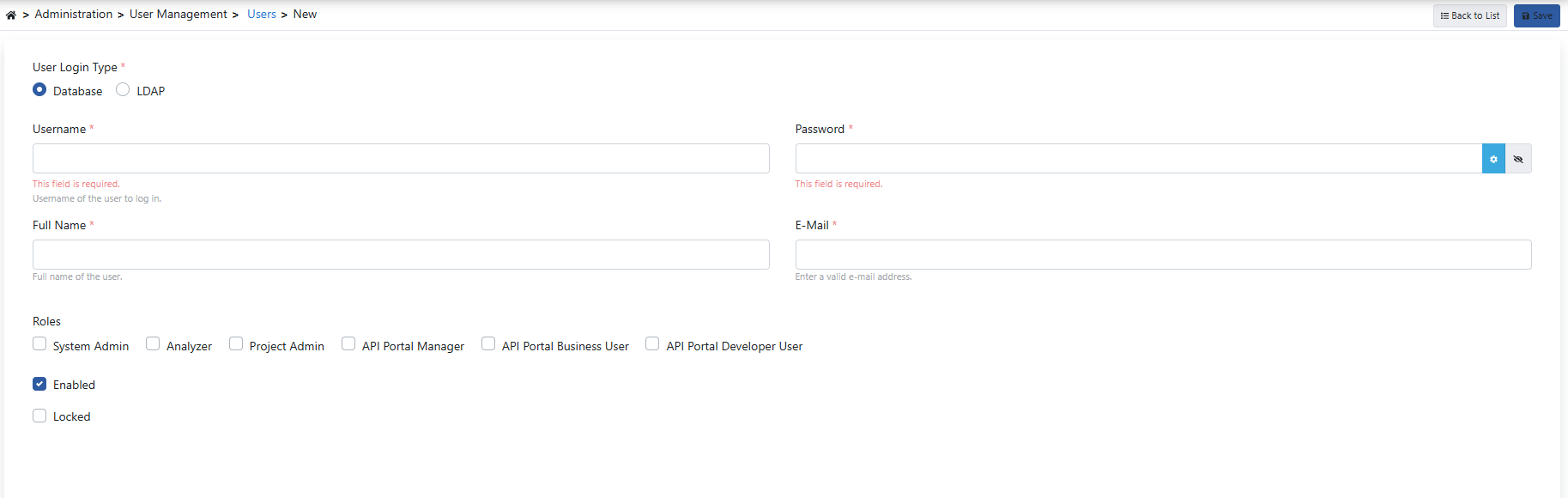
The fields used for user creation configuration are shown in the table below.
| Field | Description |
|---|---|
| User Login Type (User Login Type) | Selection of the source where the user will log in. If the value is "Database", it means that all information will be defined in the Apinizer user pool. If the value is "LDAP", it means that the "username and password" information will be verified through the selected LDAP connection during login, and other information will be kept in the database. The fact that LDAP-type users are also kept in the Apinizer database, even partially, is necessary to be able to define roles for the user and give project access permission. Users in this situation must be registered in this list with their username in the LDAP pool. For detailed information on how LDAP login settings are activated, click here. |
| Username (Username) | Username information used to log in. |
| Password (Password) | This field becomes visible when User Login Type is database. Password defined for the user, following the rules configured on the Password Policy section of General Settings. The panel below the field lists the current rules and marks each one as it is met while typing. For an existing user the field is replaced by a Change Password button that opens a dialog. The new password is entered twice there; the dialog cannot be saved until the two entries match. The generate button fills both fields with the same generated value. |
| Search in LDAP (Search in LDAP) | This field becomes visible when User Login Type is LDAP. Matching user information is automatically retrieved by searching in LDAP according to the entered username value. |
| Distinguished Name (Distinguished Name) | The LDAP entry the account is bound to, together with the LDAP connection that holds it (recorded with the entry, not shown as a separate field). Both are filled in automatically: Search in LDAP records the entry and the connection it was found in; saving a user without a Distinguished Name searches the username in every active connection and records the match, provided every connection could be searched and the username was found in exactly one of them (otherwise the save is refused with a message saying whether it was not found, was found in several connections, or a connection was unreachable). At sign-in only the recorded connection is asked, and the entry that accepts the password must be this one. An account with the same username in another LDAP connection is never consulted, and an entry elsewhere in the same directory does not obtain this account's session; such an attempt is recorded under Login Records with the reason LDAP_IDENTITY_MISMATCH.An ordinary edit of the user (roles, e-mail, activation) keeps the recorded connection. Typing a different Distinguished Name by hand records it only after it has been verified in the directory: the previously recorded connection is checked first, and if it does not hold that entry the entry must be found in exactly one active connection; otherwise the save is refused with a message that says whether the entry was not found, was found in more than one connection (use Search in LDAP), or a connection could not be searched. Changing or clearing the Distinguished Name also discards the LDAP group information kept for the account: project rights granted through LDAP groups end at once and return with the account's next successful sign-in (roles assigned directly to the user are unaffected, and an already open session keeps them until it expires). Accounts that cannot be tied to one entry are refused at sign-in with the reason LDAP_IDENTITY_UNRESOLVED until an administrator saves them: an empty Distinguished Name, a recorded connection that was removed or disabled, or — after upgrading to this version on an installation with more than one LDAP connection — an account whose connection is not recorded yet (installations with a single connection are bound automatically during the upgrade). If the entry moves within the directory (for example to another organizational unit), open the account, clear the field and save: it is looked up again from the directory. On an installation where an LDAP connection is disabled rather than removed, an account whose connection is not recorded yet is refused as well: a disabled connection is never searched, so it cannot be shown which one holds the entry, and the binding is written only once. Save the account (which records its connection) or enable the connection. While the directory cannot be searched the save is refused and the account is left as it was; retry when the directory is reachable. Recording a different connection for the same entry counts as a change of identity too: it is verified the same way and also discards the group information. |
| Full Name (Full Name) | User's first and last name information. |
| E-Mail (E-Mail) | User's e-mail address. |
| Roles (Roles) | Selection of roles to be given to the user. Checkbox must be checked to give system administrator permission to the user. System Admin: Can manage all operations that can be performed on the Apinizer Management Console. Especially, only users with this permission can perform management-based operations of the application in the Administration menu. API Portal Manager: Users with this permission can perform operations related to API creation, accounts, consumers and portal settings on the Portal Management basis on the console. Analyzer: Users with this permission manage operations such as creating graphs, usage summaries, queries and preparing reports in the Analytics module. Project Admin: Users with this permission are authorized in all projects and can manage all operations. API Portal Business User: Users with this permission can view APIs on the Portal, manage operations related to users, and perform operations related to organizations. API Portal Developer User: Users with this permission can perform operations related to API creation and portal settings on the Portal Management basis on the console. |
| Locked (Locked) | Whether the user's sign-in is locked. An account is locked automatically after the allowed number of consecutive failed sign-in attempts (the sum of the captcha attempts and user lock attempts settings, 10 by default); the lock is lifted from here. The sign-in screen itself never tells the user that the account is locked. A lock blocks every new sign-in, HTTP Basic authentication, APIops token issuance and JWT refresh. An already issued JWT or personal API token keeps working until its own expiry or revocation, so an automatic password lock does not interrupt running automation. Clear Activated, revoke the personal token, or sign out/revoke the session when an immediate cut-off is required. |
Deleted users are also deleted from the teams they are in and the projects they are members of by the system. This operation cannot be undone, so care should be taken before the deletion operation.
How Users Sign In
Besides the sign-in screen, the Management API accepts HTTP Basic credentials, and both are subject to the same rules.
Database users can use HTTP Basic. LDAP users cannot: only the directory can vouch for their password, and Apinizer never stores it. The public DUMMY placeholder stored for LDAP accounts is never accepted as a password, including on a legacy record incorrectly marked as Database. LDAP, inactive, locked, unknown and wrong-password requests share the same generic 401 response. Scripts and integrations that authenticate as an LDAP user should obtain an APIops access token instead, or use a database user.
A locked or deactivated account is refused on every one of these paths.
Sessions and Signing Out
A session lasts until its token expires (24 hours, or 30 days when Remember Me was used) unless the user signs out, the session is revoked, the account is deleted, or an administrator deactivates the account. Automatic password lock does not terminate an existing session, but that session cannot be refreshed while the lock remains.
After upgrading to 2026.09.2, existing Manager JWTs do not contain the immutable user identifier required by the strengthened identity binding. They are rejected once and users must sign in again. New tokens bind the signed username to the user's immutable record identifier, so deleting and recreating the same login cannot inherit the old session.
Signing out is recorded so the session cannot be resumed with the same token. Cleanup requires both the configured retention and that token's signed expiry plus clock-skew allowance to have passed. Legacy records without a readable expiry are not removed automatically; see blacklist cleanup.
Password Rules and Forced Password Changes
The password rules — length, allowed and required character types, expiry, and reuse — are configured once for the whole installation on the Password Policy section of General Settings, and apply the same way whether a user sets their own password or an administrator sets it for them. They do not apply to LDAP users.
Switching an existing user from LDAP to Database login requires entering a new password in the same save: an LDAP account has no password of its own, so without one the account would be left without a usable secret. The save is refused until a password is provided.
Password set by an administrator. When Force Password Change After Administrator Reset is on, a password an administrator assigns — when creating the user or from a later update on this screen — must be replaced by its owner at their next sign-in. This does not apply when an administrator changes their own password.
Management Console users have no self-service, e-mail based password reset of their own. If a user forgets their password, an administrator sets a new one for them on this screen, as described above.
Forced change at sign-in. A user whose password must be changed — because it expired, or because of the setting above — still signs in successfully, but is taken straight to the password-change page with a banner explaining why, and every other action is refused until a new password is set. Once the change is saved, the session signs out automatically and the user signs back in with the new password. The restriction is not limited to the browser session: a user whose password must be changed cannot obtain an APIops access token with the old password (the token request is refused with an "unauthorized_client" error), and requests authenticated with HTTP Basic credentials are checked against the same rule. Access tokens issued before the password was flagged remain valid until they are revoked.
Expiry warning. When a Password Validity Period is configured, a user whose password will expire within the configured warning window is warned right after signing in, with the number of days remaining.
Reuse. When Password History Size is greater than zero, a new password cannot match any of that many of the user's most recent passwords, including the one currently in use.