Kubernetes Workloads
Deployment & Pods
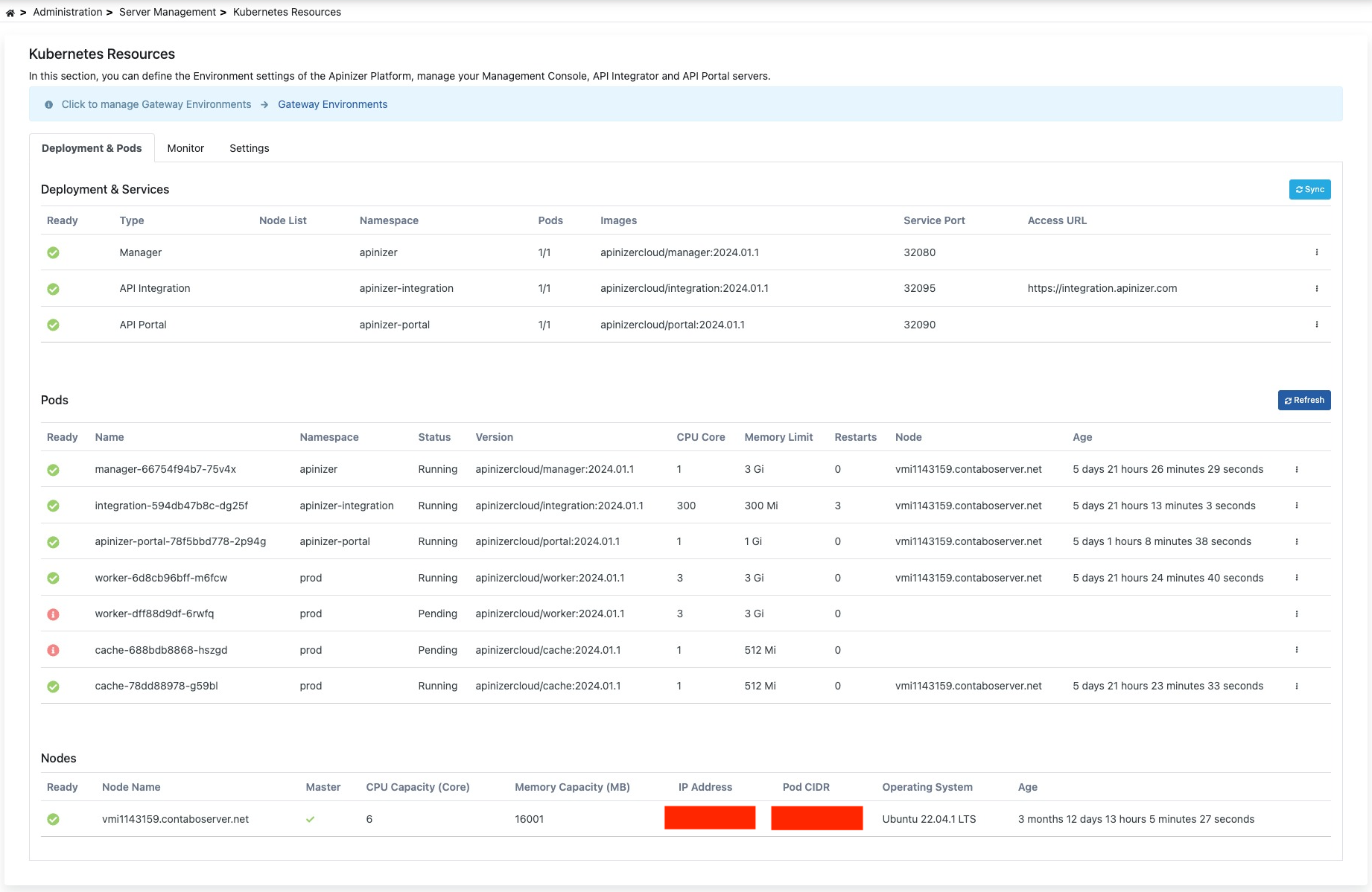
In this tab, control and management of deployments and services loaded to Kubernetes can be performed. Pods can be viewed and deleted from the Pods list.
An image containing the Deployment & Pods tab is shown below:
Deployment Operations
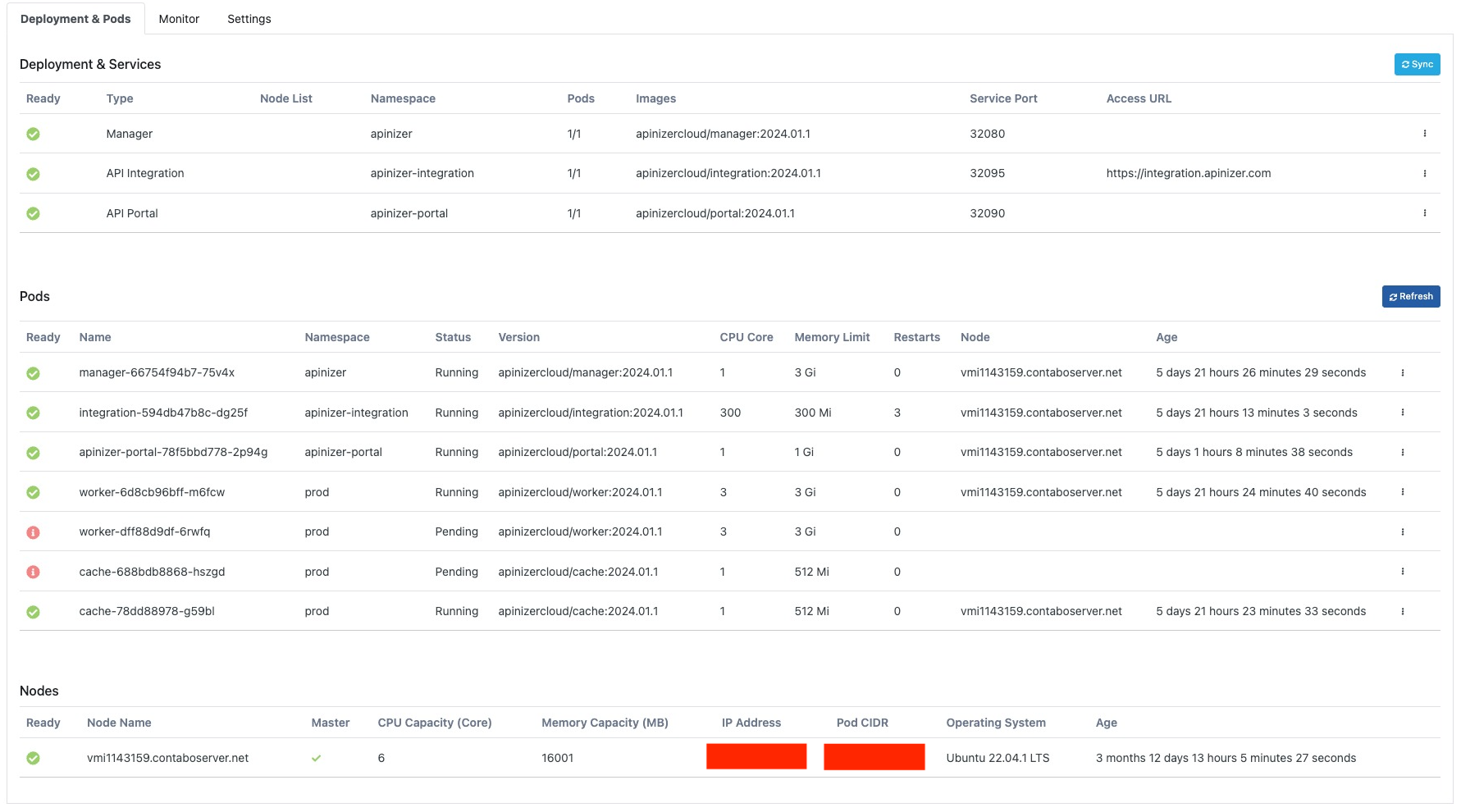
With this feature, changes made on Kubernetes are synchronized with the database.
This is the area where deployment information can be updated.
The configuration screen is opened with the Configure option from the dropdown menu at the end of the row.

An image containing details of the configuration screen is shown below:
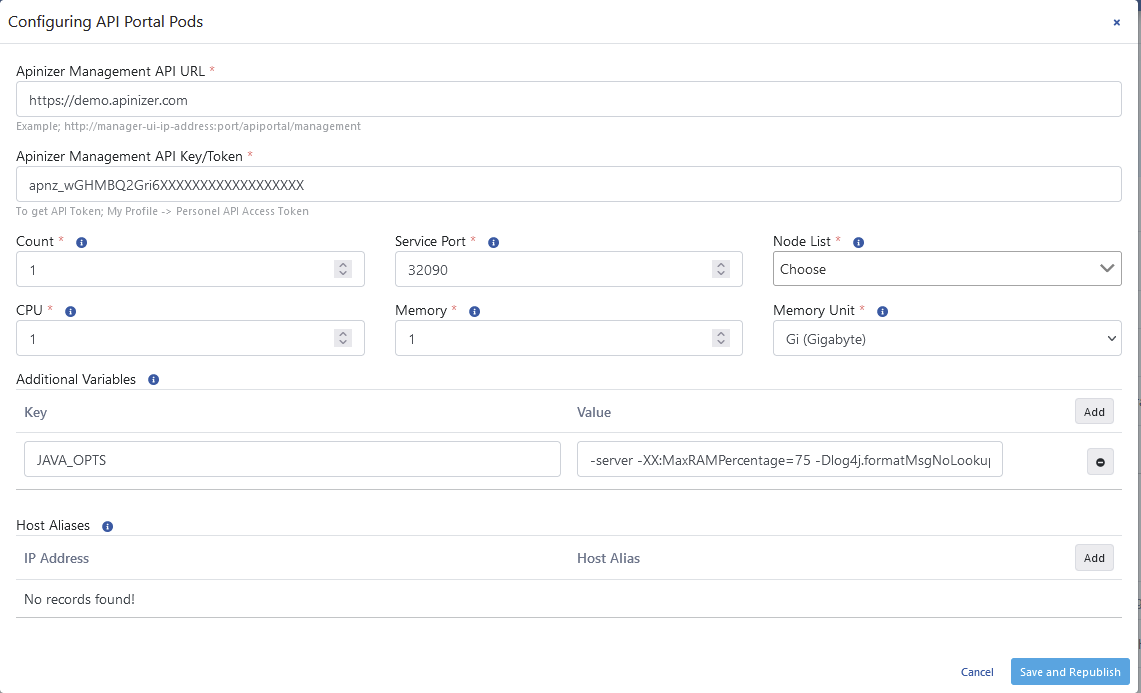
The fields used for configuration settings are shown in the table below.
| Field | Description |
|---|---|
| Access URL/Apinizer Management API URL (Access URL) | This is the field where the deployment access address is entered. |
| Apinizer Management API Key/Token (Apinizer Management API Key/Token) | This is the field where the security key that the application will use to access Apinizer Manager, required in deployment operations, is entered. |
| Count (Count) | The number of Gateway engines is equivalent to the replicaSet in the Kubernetes Cluster. |
| Service Port (Service Port) | This is the field showing the active port that the service object in the deployment will use. |
| CPU (CPU) | The maximum number of CPU cores the pod will use. Only whole values are used. |
| Memory (Memory) | The maximum memory value the pod will use. |
| Memory Unit (Memory Unit) | The unit of the value required for memory is selected; MB, GB. |
| Additional Variables (Additional Variables) | Default and optional variables and their values to be run in the pod are defined. Default variables cannot be deleted, only their values can be edited. |
| Host Aliases (Host Aliases) | IP addresses on the network can sometimes be placed behind host names. If these are not defined in nameserver or host file, or if Apinizer cannot resolve them somehow, Host Alias definition must be made for worker pods to resolve these names. |
Enables removal of the selected deployment.
Enables restart of pods running under the selected deployment.
Pod Operations
Log information of the selected pod information is displayed.
The selected pod is deleted and a new one is automatically created.
Monitor
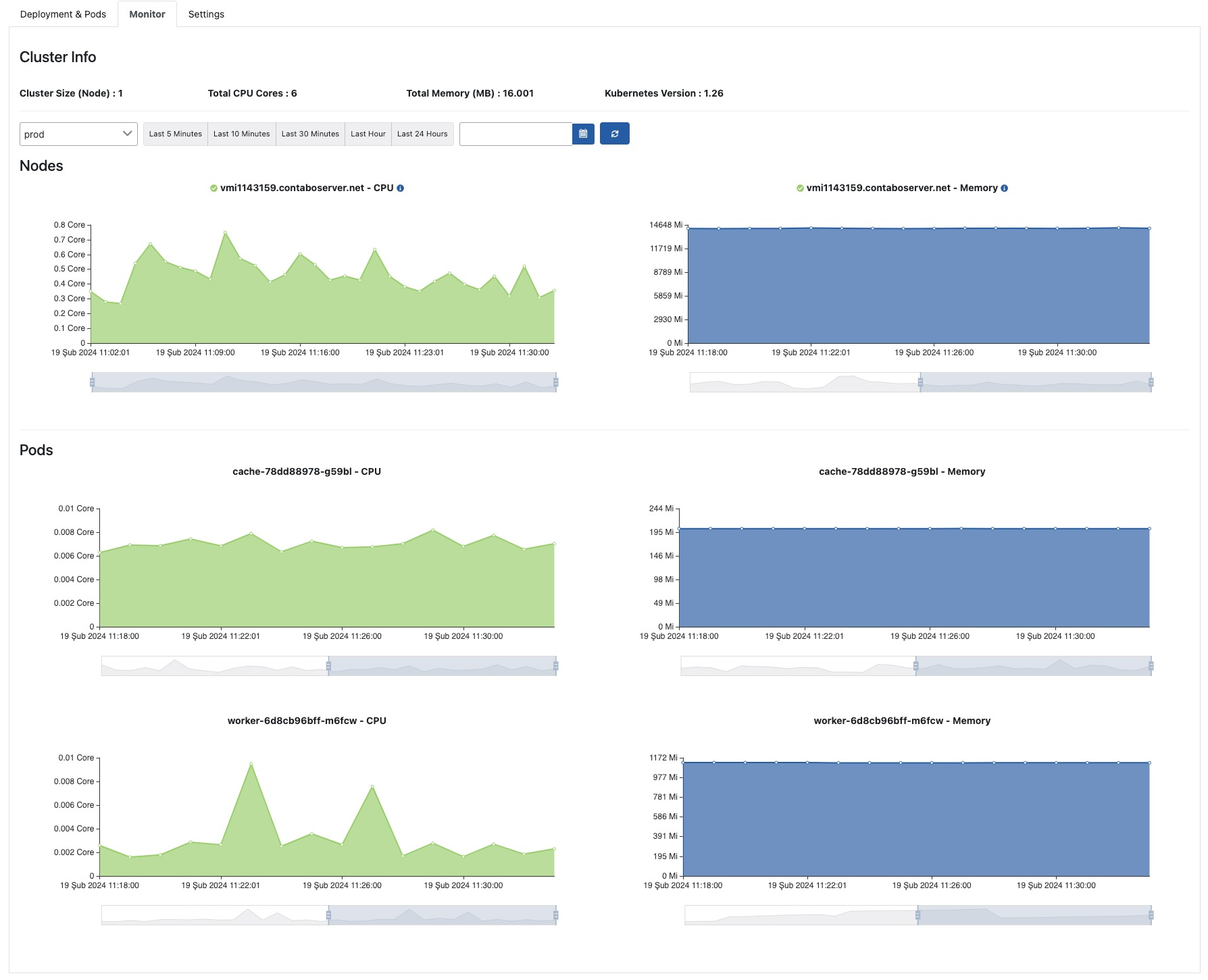
The Kubernetes monitor is used to learn about CPU and memory resources consumed by the Apinizer Kubernetes cluster.
This screen allows monitoring and managing the entire infrastructure as a single whole. Resources consumed for All Environments or a selected environment can be viewed separately for nodes and pods.
On the left side of the screen, green core-time graphs for CPU consumption, and on the right side, blue megabyte-time graphs for memory consumption are located.
An image containing the Monitor tab is shown below:
Settings
In this tab, general operations based on Kubernetes such as managing repository information of environments created for Apinizer, updating namespace information, configuring custom image prefix, and configuring Pod Security Context settings are performed.
An image containing the Settings tab is shown below:
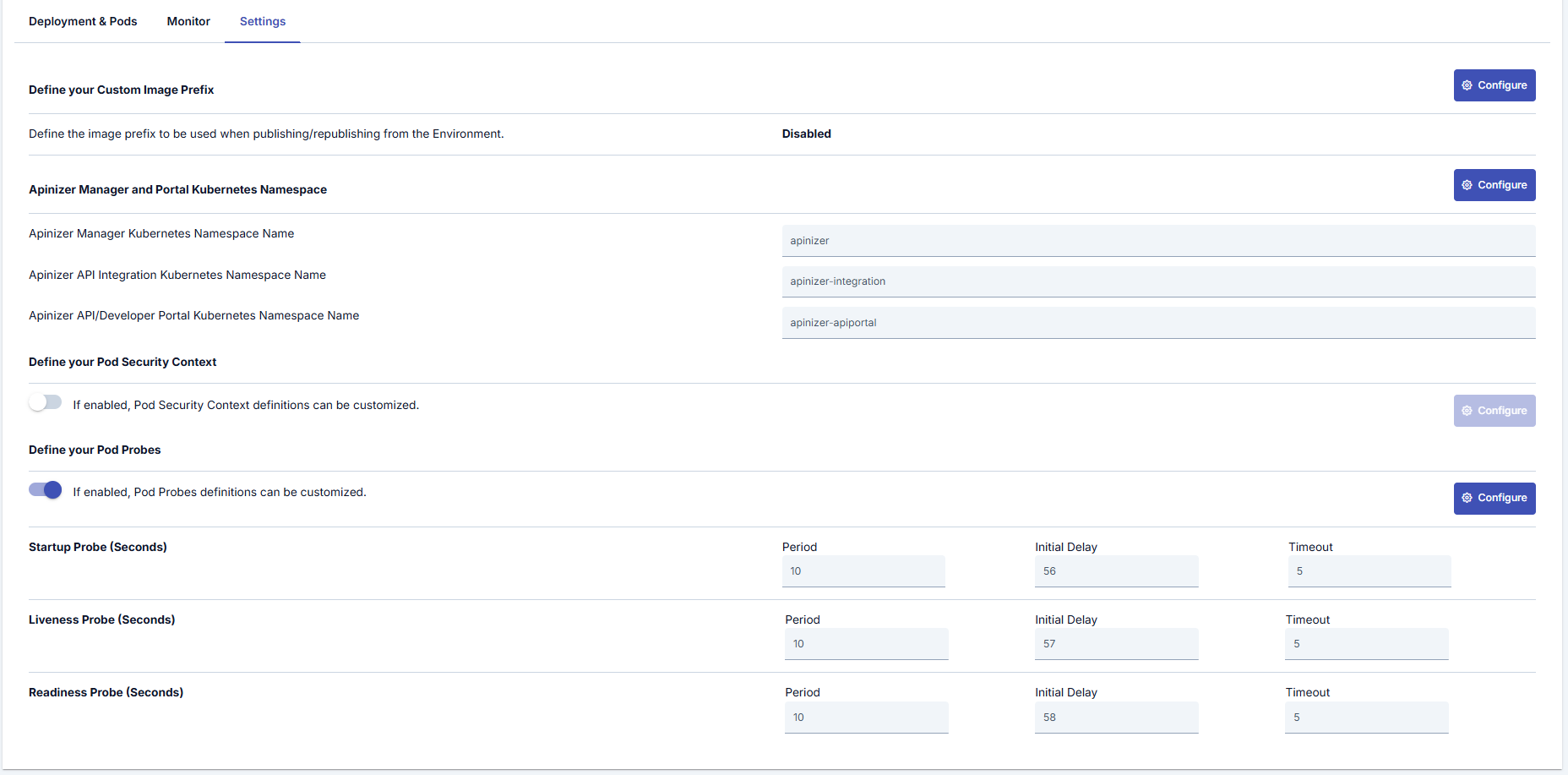
Apinizer Manager and Portal Kubernetes Namespace
Settings for this section can be made by pressing the Configure button located on the right side under the Apinizer Manager and Portal Kubernetes section.
An image containing Kubernetes Namespace settings is shown below:
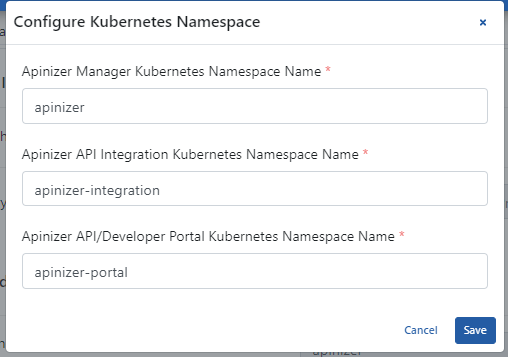
The fields used for Kubernetes Namespace settings are shown in the table below.
| Field | Description |
|---|---|
| Apinizer Manager Kubernetes Namespace Name (Apinizer Manager Kubernetes Namespace Name) | This is the field where the namespace where the Manager deployment will run is specified. |
| Apinizer API Integration Kubernetes Namespace Name (Apinizer API Integration Kubernetes Namespace Name) | This is the field where the namespace where the Integration deployment will run is specified. |
| Apinizer API/Developer Portal Kubernetes Namespace Name (Apinizer API/Developer Portal Kubernetes Namespace Name) | This is the field where the namespace where the Portal deployment will run is specified. |
Custom Image Prefix
Settings for this section can be made by pressing the Configure button located on the right side under the Custom Image Prefix section.
An image containing custom image prefix settings is shown below:
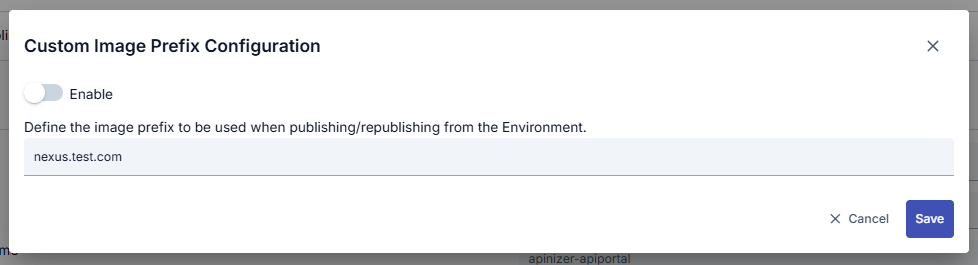
The fields used for custom image prefix settings are shown in the table below.
| Field | Description |
|---|---|
| Enable Custom Image Prefix (Enable Custom Image Prefix) | Setting that enables the use of a custom prefix for Kubernetes images. When enabled, all image names start with the specified prefix. |
| Custom Image Prefix (Custom Image Prefix) | The prefix value to be used for Kubernetes images. Example: my-registry.com/apinizer/ or registry.example.com:5000/ |
Custom Image Prefix Usage:
The custom image prefix feature is useful when using private Docker registries or internal network image repositories. When this feature is enabled, all Kubernetes deployments created by Apinizer use image names with the specified prefix.
Define Pod Security Context
Settings for this section can be made by pressing the Configure button located on the right side under the Define your Pod Security Context section.
An image containing configuration settings is shown below:
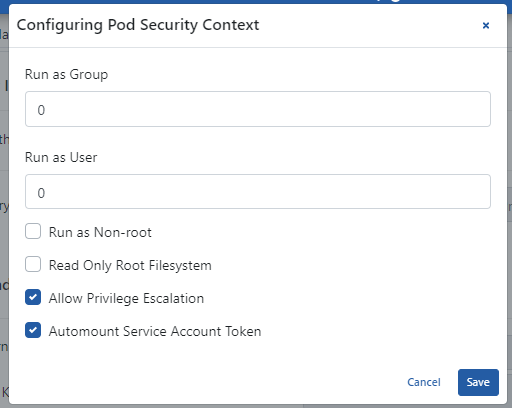
The fields used for configuration settings are shown in the table below.
| Field | Description |
|---|---|
| Run as Group | Setting that enables Kubernetes Pods to run with user group. |
| Run as User | Setting that enables Kubernetes Pods to run with user. |
| Run as Non-root | Setting that enables Kubernetes Pods to run only with Root user. |
| Read Only Root Filesystem | Setting that enables Kubernetes Pod root files to be read-only. |
| Allow Privilege Escalation | Setting that shows the security policy of Kubernetes Pods is active (true). |
| Automount Service Account Token | Setting that the service token created for Kubernetes Pods to run is automatically renewed. |
If Pod Security section activation is desired to be turned off; Pods belonging to Gateway, Manager, API Integration, and API Portal environments are restarted.
Define Pod Probes
Settings for this section can be made by pressing the Configure button located on the right side under the Define your Pod Probes section.
An image containing Pod Probes settings is shown below:
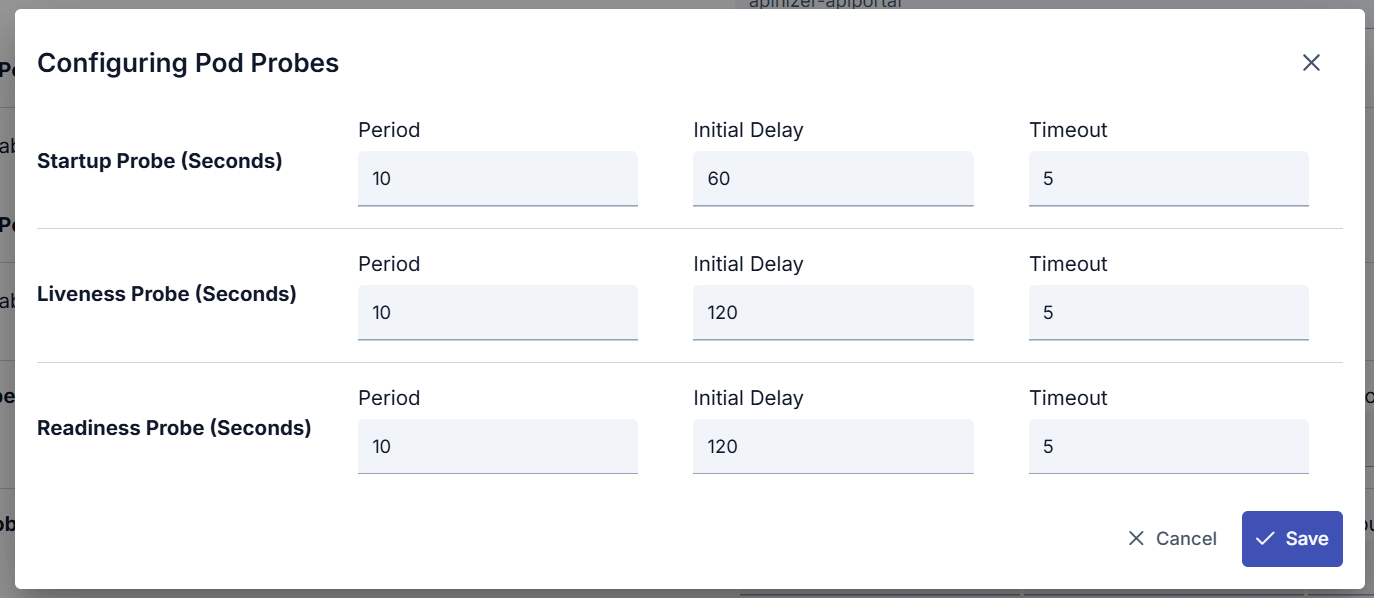
The fields used for Pod Probes Configuration settings are shown in the table below.
| Field | Description |
|---|---|
| Startup Probe (Startup Probe) | A probe type that monitors the container startup process and checks whether it is running for a certain period. It is used to determine how long the application startup process takes and to check whether it is completely ready before going into service. |
| Liveness Probe (Liveness Probe) | A probe type that monitors the application's running status. It determines whether the application inside the container is still running. If the application is not running, Kubernetes restarts this container. |
| Readiness Probe (Readiness Probe) | A probe type that determines whether the container is ready for service. It checks whether the application is ready to accept user traffic. If it is not ready, service traffic is not directed to this container. This is important to prevent service interruptions. |
| Period (Period) | This parameter determines how often the probe will be run. For example, when a certain period is set for a Liveness Probe, Kubernetes runs this probe at those period intervals and monitors the application's running status. It is in seconds. |
| Initial Delay (Initial Delay) | This parameter waits for a certain period to pass before starting the probe. Especially in cases where the application startup process may be long, initial delay can be used to wait for the application to start completely. This prevents probes from running before the container startup process is completed. It is in seconds. |
| Timeout (Timeout) | This parameter defines the situation where a probe cannot get a response within a certain period. For example, when a certain timeout period is set for a Liveness Probe, if the application does not respond within a certain period, Kubernetes can mark this pod as faulty and start its restart. It is in seconds. |