Webhook
Overview
What is its Purpose?
Webhook Connection makes the connection definition centralized, enabling all Integration Flow and Connector steps to call the same HTTP endpoint consistently
Reduces configuration errors during version transitions by managing HTTP method, URL, and security headers from a single point
Separates Development/Test/Production endpoints within a single connection thanks to environment-based connection parameters
Accelerates deployment processes with automatic name check, environment deployment, and Test Connection outputs
Working Principle
When a Webhook connection is requested from within an Integration Flow or Connector, the system reads the configured connection parameters
The connection pool is always on, there is no enable/disable switch; open connections are reused within the Per-Host and Total connection limits, and a new request waits for a free connection once the limit is reached
Authorization, Api-Key, or similar Authentication headers defined in Header tab are automatically added to the request
REST API call is made with selected HTTP method, payload is taken from Integration Flow step output and transmitted over TLS
When the request is completed, socket is closed or kept waiting for reuse within HTTP keep-alive duration
In case of connection error, timeout, or authentication error, error is notified to the user through Apinizer Message Service and written to deploymentResult logs
Usage Areas
Transferring Apinizer logs to observability platforms such as Splunk, Datadog, Graylog via REST webhook
Triggering Slack or Teams channel after successful deployment in CI/CD pipelines
Forwarding events from external services to third-party webhook APIs instead of MongoDB/Redis
Making POST/PUT calls to external SaaS services in rapid prototypes
Technical Features and Capabilities
Basic Features
All methods in EnumHttpRequestMethod list such as GET/POST/PUT/DELETE are selected from a single dropdown.
Endpoint in https://host/path format is defined with fullUrl field and can be combined with Integration Flow parameters.
Auto-completion is performed thanks to predefined HTTP header name/value services, and risk of entering incorrect headers decreases.
Ability to define separate connection parameters for each environment (Development, Test, Production).
Activating or deactivating the Connection (enable/disable toggle). In passive state, the connection cannot be used but its configuration is preserved.
Advanced Features
Service-based nameExist check runs when Name field is entered and conflicts are shown instantly.
Headers with missing name/value are blocked during saving.
Connection becomes available for use by all projects with Move to Global action from list view.
Ability to validate connection parameters before saving with the "Test Connection" button.
Exporting Connection configuration as a ZIP file. Importing to different environments (Development, Test, Production). Version control and backup capability.
Monitoring connection health and performance metrics.
Connection pool size can be tuned per connection, separately for a single host and for the pool as a whole.
A trust store and, if mutual TLS is required, a key store can be assigned to each connection for server certificate verification.
Multiple events can be combined into a single request and optionally gzip-compressed instead of sending one HTTP call per event.
Requests can be wrapped in the Splunk HTTP Event Collector envelope, with optional acknowledgment tracking for guaranteed delivery.
Connection Parameters
Mandatory Parameters
Description: Connection name (must be unique)
Example Value: Production_Webhook
Notes: Should not start with space, special characters should not be used
Description: Published environment ID that the Connection will be linked to
Example Value: Prod-Blue
Notes: Environment list is populated by EnvironmentService
Description: HTTP method to use in the call
Example Value: POST
Notes: GET/POST/PUT/DELETE/HEAD/OPTIONS/PATCH/TRACE are supported
Description: Full URL of the webhook endpoint
Example Value: https://hooks.partner.com/api/logs
Notes: HTTPS usage is recommended, query parameters are supported
Description: Request timeout duration (sec)
Example Value: 10
Notes: Minimum 1 sec in UI, model default 2 sec
Optional Parameters
Description: Text describing Connection purpose or target system
Default Value: -
Recommended Value: Short and action-oriented description
Description: Custom HTTP headers to send in webhook call
Default Value: (Empty list)
Recommended Value: Security headers such as Authorization: Bearer token
Description: Whether the Connection is active
Default Value: true
Recommended Value: false in test phase, true in Production
Timeout and Connection Pool Parameters
Connect, Response, Connection Request, and Socket timeouts fall back to the mandatory Timeout field above (default 2 seconds) when left empty. Write Stall Timeout is not part of this shared fallback; it has its own independent default (30 seconds).
Description: Time allowed to establish the TCP connection; field name connectTimeoutSeconds
Default: 2 (falls back to the Timeout field above when left empty)
Min: 1
Unit: seconds
Description: Time allowed to receive the full response; field name responseTimeoutSeconds
Default: 2 (falls back to the Timeout field above when left empty)
Min: 1
Unit: seconds
Description: Time allowed to obtain a connection from the pool; field name connectionRequestTimeoutSeconds
Default: 2 (falls back to the Timeout field above when left empty)
Min: 1
Unit: seconds
Description: Maximum idle time allowed between data packets on an already-open socket; field name socketTimeoutSeconds
Default: 2 (falls back to the Timeout field above when left empty)
Min: 1
Unit: seconds
Description: If sending the request body takes longer than this duration, the request is cancelled; field name writeStallTimeoutSeconds
Default: 30
Min: 1
Unit: seconds
Note: Setting it to 0 or a negative value disables this guard (unlimited block)
Description: Maximum concurrent connections the pool keeps open to a single host
Default: 24
Rule: must be at least 1
Description: Maximum concurrent connections the pool keeps open across all hosts
Default: 48
Rule: can be entered smaller than Connections Per Host — the UI does not block it; at runtime it is clamped up to the Connections Per Host value and this is logged as a WARN
The pool size fields were already used internally with fixed values; they are now exposed per connection instead of being hardcoded. Existing connections keep the same default pool sizing behavior.
Usage Scenarios
Situation: Need to transfer Gateway logs to central SIEM
Solution: POST + JSON payload + Authorization header
Expected Result: SIEM webhook receives log record at the end of each integration
Situation: Informing teams after CI/CD pipeline
Solution: POST https://hooks.slack.com/... + ContentType: application/json
Expected Result: Build/deployment result is shared in Slack channel
Situation: Opening ITSM ticket on threshold breaches
Solution: POST https://api.servicenow.com/... + API key
Expected Result: Automatic incident is created on ServiceNow
Situation: Triggering CRM activity
Solution: PUT https://crm.partner.com/events/id + Bearer token
Expected Result: CRM record is updated and reconciliation flow continues
Situation: Sending health-check data to Datadog Webhook API
Solution: POST https://api.datadoghq.com/api/v1/webhooks
Expected Result: Custom event opens in Datadog metrics dashboard
Situation: Notifying archive service for each Integration Flow execution
Solution: POST https://audit.internal/api/event + X-Trace-Id header
Expected Result: Audit service records the call and returns response
Connection Configuration
Creating New Webhook Integration
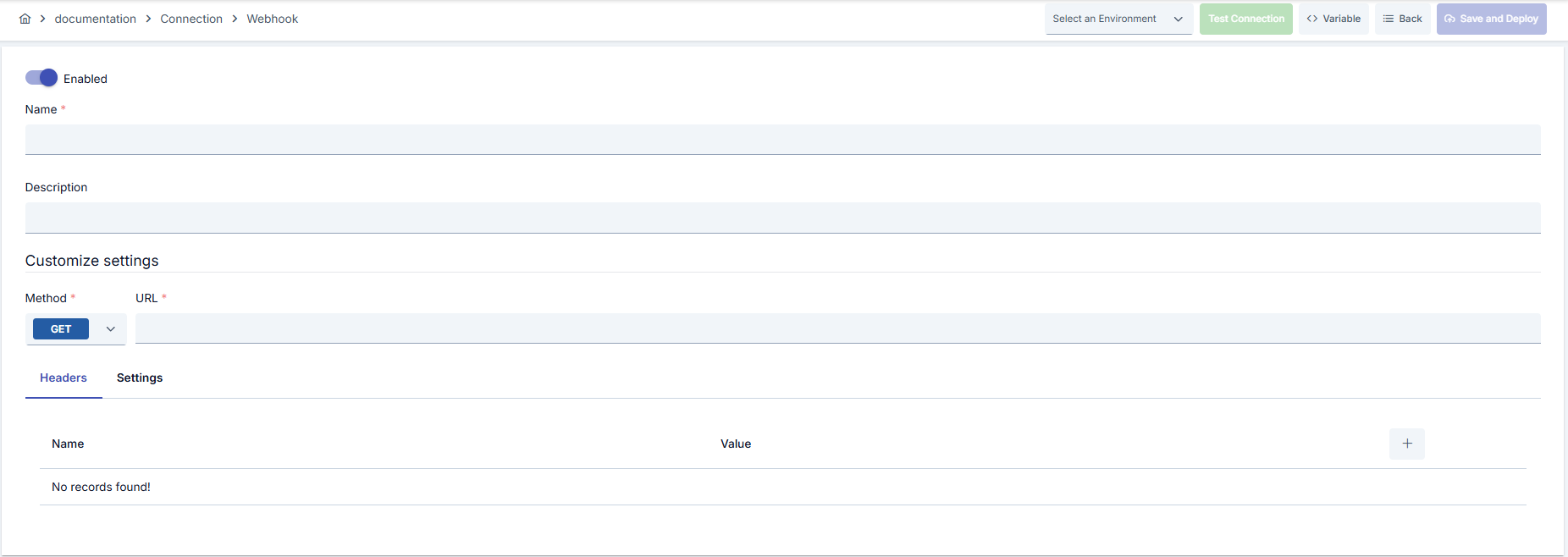
Configuration Steps
- Go to Connection → Webhook Integration section from the left menu.
- Click the [+ Create] button in the top right.
Enable Status (Active Status):
- Set active/passive status with toggle. New connections are active by default.
Name - Mandatory:
- Example:
Production_Webhook - Enter a unique name, should not start with space.
- System automatically checks. Green checkmark: available. Red cross: existing name.
Description:
- Example: "Prod log forwarding webhook"
- Max. 1000 characters.
- Describe the purpose of the Connection.
In the action button area at the top of the page, you can use the [<> Variable] button to select dynamic values, and with global variables, you can manage connection parameters with variable-based values instead of fixed values. For detailed information, review the Dynamic Variables page.
- Select environment from dropdown menu: Development, Test, or Production.
- Different connection parameters can be defined for each environment.
- Select GET/POST/PUT etc. from HTTP Method list.
- Enter full endpoint starting with https:// in Full URL field.
- Use placeholders for query parameters or path variables if necessary.
- Add new row with + in Headers tab.
- Header Name and Header Value fields cannot be left empty.
- You can select common headers from auto-completion list.
- Timeout field in Settings tab determines maximum duration (seconds) for request completion; Connect/Response/Connection Request/Socket Timeout fall back to this value when left empty.
- Set Connections Per Host and Total Pool Connections in the same tab if needed; they default to 24 and 48 respectively when left empty.
- Write API keys or Bearer tokens in Authorization header.
- Create Authorization: Basic ... if basic HTTP auth is required.
- SSL/TLS protection is provided with HTTPS URLs; configure certificate connection at environment level for mutual TLS if needed.
- Click the [Test Connection] button.
- Test whether connection parameters are correct.
- Success: Green confirmation message
- Failed: Error details are shown
- Click the [Save and Deploy] button in the top right.
Checklist:
- Unique name
- Mandatory fields filled
- Test connection successful (recommended)
Result:
- Connection is added to the list
- Becomes available for use in Integration Flow and Connector steps
- Becomes active according to environment
Connection created successfully! You can now use it in Integration Flow and Connector steps.
Deleting Connection
Select Delete from the ⋮ menu at the end of the row or click the [Delete] button on the connection detail page
Check Before Deleting: It may be used in Integration Flow or Connector steps. If necessary, assign an alternative connection. Back up with Export before deleting
Use the Disable option instead of deleting. Connection becomes passive but is not deleted. Can be reactivated when needed
Exporting/Importing Connection
In this step, users can export existing connections for backup, transfer to different environments, or sharing purposes, or import a previously exported connection again. This process is used to maintain data integrity in version management, transitions between test and production environments, or inter-team sharing processes.
Export
Click the [Export] button on the connection detail page. ZIP file is downloaded.
The row's ⋮ menu now has two items: the primary Export opens the Export/Import Wizard with this connection preselected — its certificate/key store and any ${VARIABLE} reference surface automatically on the dependency step; the secondary Export as File downloads the ZIP described below directly, without going through the wizard.
Format: Date-connection-ConnectionName-export.zip
Example: 13 Nov 2025-connection-Production_Webhook-export.zip
- Connection JSON file
- Metadata information
- Dependency information (e.g., certificates, key store)
- Backup
- Transfer between environments (Test → Prod)
- Versioning
- Team or project-based sharing
Import
- Click [Import Webhook Integration] button on the main list — it now opens the Export/Import Wizard's import step with type Connection preselected (Admin scope when opened from Administration); the old upload dialog is gone.
- Select the exported package and follow the wizard's steps.
- The wizard checks format, name conflicts and dependency availability before you confirm the import.
Scenario 1: Name Conflict → Overwrite the old connection or create with a new name.
Scenario 2: Missing Dependencies → Create missing certificates or key stores first or exclude them during import.
Usage Areas of Connection
Steps:
- Create the Connection
- Validate the connection with Test Connection
- Save and activate with Save and Deploy
- Ensure the Connection is in Enabled status
Connection is selected in Connector steps that make REST requests. Example: Steps such as "Send Message", "Invoke REST API", "Log to External Endpoint". Connection selection is made from the Connection field in the configuration of these steps
Connection is selected to make webhook calls at certain intervals in scheduled tasks. Business logic running with cron expression automatically uses connection parameters
The correctness of the connection can be checked independently of the Integration Flow with the Connection Test feature. This test is critical in the debugging process
TLS and Trust Store
A connection can select a trust store to verify the webhook endpoint's server certificate, and a key store if the endpoint requires mutual TLS. Both fields are optional.
Certificate authority bundle used to verify the server certificate presented by the webhook endpoint.
Client certificate and private key presented to the endpoint when mutual TLS is required.
Checks that the certificate's subject matches the endpoint hostname. Disabled by default.
When no trust store is selected, the server certificate is not verified — this reproduces the connection's previous behavior, and it is logged as a warning at connection time. Organizations sending traffic records that contain personal data over HTTPS are encouraged to configure a trust store.
TLS 1.2 and TLS 1.3 are the supported protocols; SSLv3, TLS 1.0, and TLS 1.1 are no longer offered.
Batching and Compression
By default, each event is sent as its own HTTP call — the same behavior as today. Batch Enabled turns on combining multiple events into a single request, sent as newline-delimited JSON, optionally gzip-compressed.
Turns event batching on. Disabled by default.
Maximum number of events in one batch.
Default: 100
Maximum batch size in bytes.
Default: 1 MB
Maximum time a batch waits before being sent even if it hasn't reached the event or byte limit.
Default: 200 milliseconds
Byte ceiling for events waiting to be batched.
Default: 32 MB
Compresses the batch request body. Disabled by default.
Whichever of the three triggers — event count, byte size, or delay — is reached first flushes the current batch in a single request.
Producer Throttle (default 100 ms, capped at 2000 ms) is how long the sending side waits when the batch buffer is full before routing the event to the failover connector when one is configured, or dropping it otherwise. It is independent from the batch delay above. This wait is only applied in full on a virtual thread; when the send runs on a platform thread, the effective wait is capped at 50 ms so it cannot hold a request thread for long.
Retry Behavior
Number of retry attempts after the initial request fails.
Default: 1
Wait time between retry attempts.
Default: 200 milliseconds
Upper bound applied to a server-provided Retry-After value on 429/503 responses.
Default: 5 seconds
Allows retrying non-idempotent methods. Disabled by default.
By default, requests using non-idempotent methods such as POST or PATCH are not retried, to avoid creating duplicate records on the target system. GET, PUT, and DELETE are retried once by default. Enable Retry Non-Idempotent only if the receiving endpoint is known to handle duplicate deliveries safely.
Resilience (Circuit Breaker)
A connection-level circuit breaker can be enabled to protect log delivery from a failing endpoint. It only affects log delivery — traffic, token, and audit logs sent through this connection; API proxy backend calls and task flow executions that use the same connection type are not affected and keep their existing error handling.
Turns the connection-level circuit breaker on or off.
Default: false (disabled)
Leave empty to inherit the platform-wide default from Management → System Settings → Logging & Monitoring → Connector Circuit Breaker.
Number of failed log deliveries within the error window that trips the circuit open.
Default: 5
Min: 1 | Max: 10000
How long the circuit stays open before a single recovery attempt is made.
Default: 30
Min: 1 | Max: 3600
Unit: seconds
When the error threshold is reached, the circuit opens: log delivery through this connection is skipped entirely for the duration of the sleep window — the endpoint is not contacted at all. Skipped log events are routed to the failover connection defined on this connector in the Gateway Environment when failover is enabled, otherwise they are dropped and counted. Only log delivery is affected; API proxy backend calls and task flow executions keep their normal behavior. After the sleep window elapses, a single attempt is made to reach the endpoint again — success closes the circuit, failure reopens it for another sleep window. In multi-pod deployments, circuit state is evaluated independently per pod.
Changes to these fields take effect for API Proxies using this connection only after redeployment.
Splunk HEC Mode
Splunk HTTP Event Collector (HEC) mode wraps outgoing records in the HEC event envelope and sends them to the /services/collector/event endpoint, instead of sending the raw payload to a generic webhook URL.
Turns Splunk HEC mode on. Disabled by default.
Standard Splunk HEC metadata fields attached to each event envelope.
Waits for Splunk's indexer acknowledgment before considering delivery successful. Disabled by default.
Maximum time to wait for an acknowledgment.
Default: 30 seconds
Number of times an unacknowledged batch is resent before it is routed to the failover connector when one is configured, or dropped otherwise.
Default: 2
Each connection sends a fixed X-Splunk-Request-Channel identifier with every request. When Use ACK is off, a Splunk 200 response only means the event was accepted into the ingestion queue — it does not mean the event has been indexed. Setups with a long-term retention commitment should enable Use ACK to get a stronger delivery guarantee.
Best Practices
Things to Do and Best Practices
Bad: Sending all calls as POST
Good: Selecting method required by target service
Best: Adjusting GET/POST/PUT/PATCH/DELETE usage for CRUD operations according to contract
Bad: Manually changing fixed v1/v2 paths in URL
Good: Separating different versions by creating new connection
Best: Managing versions environment-based using parametric URL definition
Bad: Sharing Authorization header as plain text
Good: Storing API keys only in relevant connection
Best: Using tokens dynamically retrieved through Secret Manager
Bad: Deploying untested connection to Production
Good: Copying after validating in test environment
Best: Versioning with Export/Import and storing change record
Bad: Using the same connection parameters in all environments
Good: Creating separate connections for each environment
Best: Managing all environments in a single connection using the Environment option, only changing environment when transitioning between environments
Bad: Saving and deploying the connection without testing
Good: Validating with Test Connection before saving
Best: Testing after every parameter change, performing full integration test in test environment before going to production
Security Best Practices
Do not use API keys in the same header for both Test and Prod. Define different keys for each environment and create rotation schedule
Disable logging of sensitive header values in console outputs. Keep only anonymized information such as X-Trace-Id open
Use IP whitelisting or HMAC signature verification at webhook endpoint. Automatically generate relevant signature header on Apinizer side
Store sensitive information such as usernames and passwords using environment variables or secret manager. Do not hardcode credentials in code or configuration files. Update passwords periodically
Always enable SSL/TLS in Production environment. Use self-signed certificates only in development environment. Track certificate expiration dates and renew them on time
Allow only authorized users to change Connection configuration. Store connection change logs. Apply change approval process for critical connections
Things to Avoid
Why to avoid: All environments are affected in token leakage
Alternative: Use different Authorization values environment-based
Why to avoid: Data travels in unencrypted channel
Alternative: Make URL HTTPS, provide certificate to target side if needed
Why to avoid: Same header sent multiple times causes error in target system
Alternative: Regularly review header table and remove unnecessary rows
Why to avoid: Test data may be written to production system, real users may be affected, security risk occurs
Alternative: Create separate connections for each environment, use environment parameter, separate connection names by adding prefix according to environment (Test_, Prod_)
Why to avoid: Connection constantly times out in network delays, Integration steps fail
Alternative: Adjust timeout values according to real usage scenarios, measure network latency and determine timeouts accordingly
Why to avoid: The connection pool (Per-Host / Total) is always on; the default limits (24 / 48) can be too low under high concurrent traffic, causing requests to time out while waiting for a free connection
Alternative: Adjust Connections Per Host and Total Pool Connections to the real concurrent request volume; Total can be entered below Per-Host, but it is automatically clamped up at runtime and logged as a WARN
Performance Tips
Recommendation: Keep webhook messages below 200 KB
Effect: Shorter response times and lower timeout rate
Recommendation: Define concurrency limits on Integration Flow side in high-volume triggers
Effect: Target system is not overloaded, error rate decreases
Recommendation: Add retry policy in Flow for idempotent endpoints, log error and take manual action in non-idempotent calls
Effect: Data loss is prevented in critical operations
Recommendation: Adjust Connections Per Host and Total Pool Connections to the real concurrent request volume; keep Total at or above Per-Host (a lower value is clamped up at runtime and logged as a WARN)
Effect: Connection opening cost decreases, risk of waiting for a pooled connection (Connection Request Timeout) decreases
Recommendation: Measure real network latency, adjust timeout values accordingly, avoid very low or very high timeouts
Effect: Unnecessary waits are prevented, fast fail-over is provided, user experience improves
Recommendation: Monitor connection pool usage, track timeout rates, perform connection health check, set up alerting
Effect: Problems are detected proactively, performance bottlenecks are identified early, downtime decreases
Troubleshooting
Webhook 4xx Error
Wrong endpoint, missing header, or incorrect payload format may exist.
Verify URL and HTTP method.
Check that mandatory headers are sent.
Reformat payload according to target documentation.
Test Connection Failed and Returns 5xx
Target service may be down, TLS certificate rejected, or rate limit reached.
Check target service health.
Verify HTTPS certificate chain.
Review rate limit logs and add wait time.
Connection Timeout
Network delay, target system responding slowly, or timeout value may be too low.
Check network connectivity.
Check target system health.
Increase timeout values.
Review connection logs.
Authentication Failed
Wrong username/password, expired credentials, or permission problem may exist.
Verify credentials.
Check that the user is active in the target system.
Check that necessary permissions are granted.
Check SSL/TLS certificates.
Pool Exhausted
Connections Per Host or Total Pool Connections may be too low for the traffic, connections may not be released properly, or the target system may be responding slowly.
Raise Connections Per Host and Total Pool Connections to match the real concurrent request volume.
Check whether connectionRequestTimeoutSeconds is set too low; if a free connection cannot be obtained from the pool within this time, the request fails.
A slow target service keeps connections busy longer, which fills the pool faster.
If Total is set below Connections Per Host, it is automatically clamped up at runtime; check connection logs for this WARN.
Connection Test Successful But Integration Flow Gives Error
A different connection may be selected in Integration/Connector step, the step may be misconfigured, or Flow/Job may not be redeployed.
Check that the Connection's enable toggle is active.
Verify that the correct connection is selected in Integration Flow.
Redeploy the Connection.
Redeploy Integration Flow or Job.
Check Gateway logs.
Server Certificate Not Verified
No trust store is selected on the connection, so the webhook endpoint's server certificate is accepted without verification.
Assign a Trust Store containing the certificate authority that issued the endpoint's certificate.
Turn on Verify Hostname if the certificate subject should be matched against the endpoint host.
If the endpoint requires client certificates, also assign a Key Store.
Splunk Events Show as Sent But Never Appear
A 200 response from Splunk HEC only confirms the event reached the ingestion queue, not that it was indexed.
Turn on Use ACK so delivery is only considered successful after Splunk confirms indexing.
Verify that Index and Sourcetype match a configuration Splunk actually accepts events for.
If ACKs are timing out, increase ACK Timeout or check Max ACK Resend exhaustion in connection logs.
Frequently Asked Questions (FAQ)
Can I use the same webhook connection for both Slack and Teams?
The same connection routes to a single URL. You need to create different connections for different platforms or make the URL parametric.
Why does Name field give error before saving?
If there is a connection with the same name in the list, service returns nameExist=true and does not allow saving. Update the name to be unique.
How many rows can I add to Header table?
There is no limit but name and value fields of each row must be filled; otherwise saving is blocked.
What unit does Timeout field work in?
UI takes value in seconds and backend converts this value to milliseconds and transfers it to HTTP client.
In which environment does Test Connection run?
It runs on Publication Worker according to the environment ID you selected and tries to reach the real endpoint.
Can I use the same connection in multiple Integration Flows?
Yes, the same connection can be used in multiple Integration Flow or Connector steps. This provides centralized management and guarantees configuration consistency. However, changes made to the connection will affect all usage locations, so care should be taken.
Can I turn off the connection pool?
No. The connection pool is always on, there is no enable/disable switch. The only configurable settings are the Connections Per Host and Total Pool Connections upper limits.
Should I create different connections for Test and Production?
Yes, it is recommended to create separate connections for each environment. Alternatively, you can manage all environments in a single connection using the environment parameter. This approach provides easier management and less error risk.
Test Connection is successful but not working in Integration Flow, why?
Several reasons may exist:
- Connection enable toggle may be passive
- A different connection may be selected in Integration step
- Connection may not be deployed
- Integration Flow may not have been redeployed yet
Do I need to reconfigure existing Webhook connections after upgrading?
No. Connection pool sizes, timeouts, batching, retry, and Splunk HEC mode all default to today's behavior; change them only if you need the new pooling, TLS verification, batching, or Splunk delivery behavior.
Why isn't my POST request retried when it fails?
By default, non-idempotent methods such as POST and PATCH are not retried, to avoid creating duplicate records on the target system. Enable Retry Non-Idempotent only if the endpoint is known to handle duplicate deliveries safely.