Kafka
Overview
What is its Purpose?
Kafka Connection stores centralized topic access information for Integration Flow or Connector steps in a single location, making them reusable.
Manages various Kafka producer/consumer properties through propertiesMap to maintain standard configuration in the messaging infrastructure.
When Enable Secure is activated, it enforces SSL/TLS parameters, guaranteeing encryption of critical data traffic.
Since connection parameters are validated before Deployment through the Test Connection function, the error catching process is accelerated.
Working Principle
When a Kafka Message Queue connection is requested from within an Integration Flow or Connector, the system reads the configured connection parameters.
If Enable Secure is active, mutual certificate-based Authentication is applied; optionally, SASL/SCRAM information is also read from propertiesMap.
Messages are sent to or consumed from the topic via Kafka wire protocol over TCP; serializer settings are taken from key.serializer and value.serializer fields in propertiesMap.
After the operation is completed, the connection stays open on the KafkaProducer instance; connections whose enable toggle is deactivated cannot be selected by any Flow.
In case of connection error, timeout, or authentication error, retry is performed according to retry.backoff.ms and max.block.ms values, and the result is transferred to the Apinizer message service.
Usage Areas
Targeting uniform Kafka topics in "Send Message" or "Consume Message" steps within Integration Flow
Sharing centralized Kafka configuration in connector-based data collection processes
Sending telemetry or logs to Kafka at certain intervals in Scheduled Jobs
Technical Features and Capabilities
Basic Features
Thanks to the mandatory topicName field, each Connection focuses on a specific topic and prevents incorrect topic selection in Integration Flow steps.
Desired Kafka client parameters are stored in key-value structure through propertiesMap, and string, integer, or secret data are separated thanks to MapValue types.
The debounce mechanism on the UI prevents creating a Connection with the same name and warns about conflicts early.
Ability to define separate connection parameters for each environment (Development, Test, Production).
Activating or deactivating the Connection (enable/disable toggle). In passive state, the connection cannot be used but its configuration is preserved.
Advanced Features
SASL mechanisms are added to propertiesMap, enabling encrypted Authentication scenarios without code changes.
When Enable Secure is enabled, both KeyStore and TrustStore can be selected, and if necessary, new records are created instantly in Secret Manager.
Multiple SSLContext protocols (TLSv1.2, TLSv1.3, etc.) can be selected with MultiSelect and stored on the same Connection.
Ability to validate connection parameters before saving with the "Test Connection" button.
Exporting Connection configuration as a ZIP file. Importing to different environments (Development, Test, Production). Version control and backup capability.
Monitoring connection health and performance metrics.
Connection Parameters
Mandatory Parameters
Description: Connection name (must be unique)
Example Value: Production_KafkaTopic01
Notes: Should not start with space, special characters should not be used
Description: Environment ID where the connection will be deployed
Example Value: Development
Notes: Changing environment provides parametric management within the same Connection
Description: Target topic name on Kafka
Example Value: audit.events.v1
Notes: The same topic should be used in producer and consumer steps
Description: Key-value pairs for Kafka client (bootstrap.servers, etc.)
Example Value: bootstrap.servers=broker1:9092
Notes: At least one record must exist; MapValue types must be selected correctly
Optional Parameters
Description: Description about the Connection purpose
Default Value: (Empty)
Recommended Value: Prod audit topic publish connection
Description: Enables SSL/TLS usage
Default Value: false
Recommended Value: true (Production)
Description: Allowed SSLContext protocols when Enable Secure is enabled
Default Value: (Empty)
Recommended Value: TLSv1.2, TLSv1.3
Description: Keystore resource containing client certificate
Default Value: (Empty)
Recommended Value: ks-prod-clients
Description: Truststore resource verifying broker certificate
Default Value: (Empty)
Recommended Value: ts-shared-root
Description: Comes as true in connectionConfigKafka.model.ts
Default Value: true
Recommended Value: true
Kafka connections have no separate "Connection Timeout", "Request Timeout", or "Pool Size" field. All timeout and retry settings are managed through the propertiesMap keys below (e.g. request.timeout.ms, retry.backoff.ms) rather than dedicated typed fields. The connection is a single KafkaProducer instance; there is no user-configurable "pool size" concept.
Kafka Producer Timeout Properties (Properties Map)
New Kafka connections include the following producer timeout properties in the Properties Map by default, so upgrade-safe defaults are visible in the UI instead of relying on the Kafka client's built-in defaults.
Description: Maximum time the producer blocks while waiting for metadata or buffer space before a send call fails
Default: 3000
Unit: milliseconds
Description: Maximum time the producer waits for a broker's response to a single request
Default: 5000
Unit: milliseconds
Description: Upper bound on the total time from sending a message to receiving delivery acknowledgment, including retries
Default: 15000
Unit: milliseconds
Description: Maximum wait time between reconnection attempts to a broker that keeps failing
Default: 3000
Unit: milliseconds
Description: Wait time between retry attempts after a failed send
Default: 3000
Unit: milliseconds
Existing Kafka connections created before this update are upgraded automatically: any of these five properties missing from the Properties Map are added with the defaults shown above. Properties already present in the Properties Map — including values you previously customized — are left untouched. Until that upgrade runs, a connection missing a property falls back to the Kafka client's own built-in default (for example, 60 seconds for max.block.ms). If your broker typically takes longer than 3 seconds to respond under normal conditions, raise these values from the connection screen.
Resilience (Circuit Breaker)
A connection-level circuit breaker can be enabled to protect log delivery from a failing broker. It only affects log delivery — traffic, token, and audit logs sent through this connection; API proxy backend calls and task flow executions that use the same connection type are not affected and keep their existing error handling.
Description: Turns the connection-level circuit breaker on or off
Default: false (disabled)
Notes: Leave empty to inherit the platform-wide default from Management → System Settings → Logging & Monitoring → Connector Circuit Breaker
Description: Number of failed log deliveries within the error window that trips the circuit open
Default: 5
Min: 1 | Max: 10000
Description: How long the circuit stays open before a single recovery attempt is made
Default: 30
Min: 1 | Max: 3600
Unit: seconds
When the error threshold is reached, the circuit opens: log delivery through this connection is skipped entirely for the duration of the sleep window — the broker is not contacted at all. Skipped log events are routed to the failover connection defined on this connector in the Gateway Environment when failover is enabled, otherwise they are dropped and counted. Only log delivery is affected; API proxy backend calls and task flow executions keep their normal behavior. After the sleep window elapses, a single attempt is made to reach the broker again — success closes the circuit, failure reopens it for another sleep window. In multi-pod deployments, circuit state is evaluated independently per pod.
Changes to these fields take effect for API Proxies using this connection only after redeployment.
Usage Scenarios
Situation: All services should publish messages to audit topic
Solution: topicName=audit.events, bootstrap.servers=cluster-prod:9092
Expected Behavior: Audit messages are collected in a single topic, audit team consumes from a single point
Situation: Same Connection should be used in different environments
Solution: Environment=Development, Enable Secure=false
Expected Behavior: Different broker URLs are managed with environment selection
Situation: Prod broker requires TLS
Solution: Enable Secure=true, ProtocolTypes=TLSv1.3, KeyStoreId=ks-prod
Expected Behavior: Certificate verification is ensured, messages are sent encrypted
Situation: Sudden traffic increase
Solution: linger.ms=5, batch.size=32768
Expected Behavior: Producer batches grow, throughput increases
Situation: Broker occasionally does not respond
Solution: retry.backoff.ms=5000, retries=10
Expected Behavior: No message loss with automatic retries
Situation: Message delays should be measured
Solution: delivery.timeout.ms=60000, enable.idempotence=true
Expected Behavior: Producer timeouts are logged, SLA reports are fed
Connection Configuration
Creating New Kafka
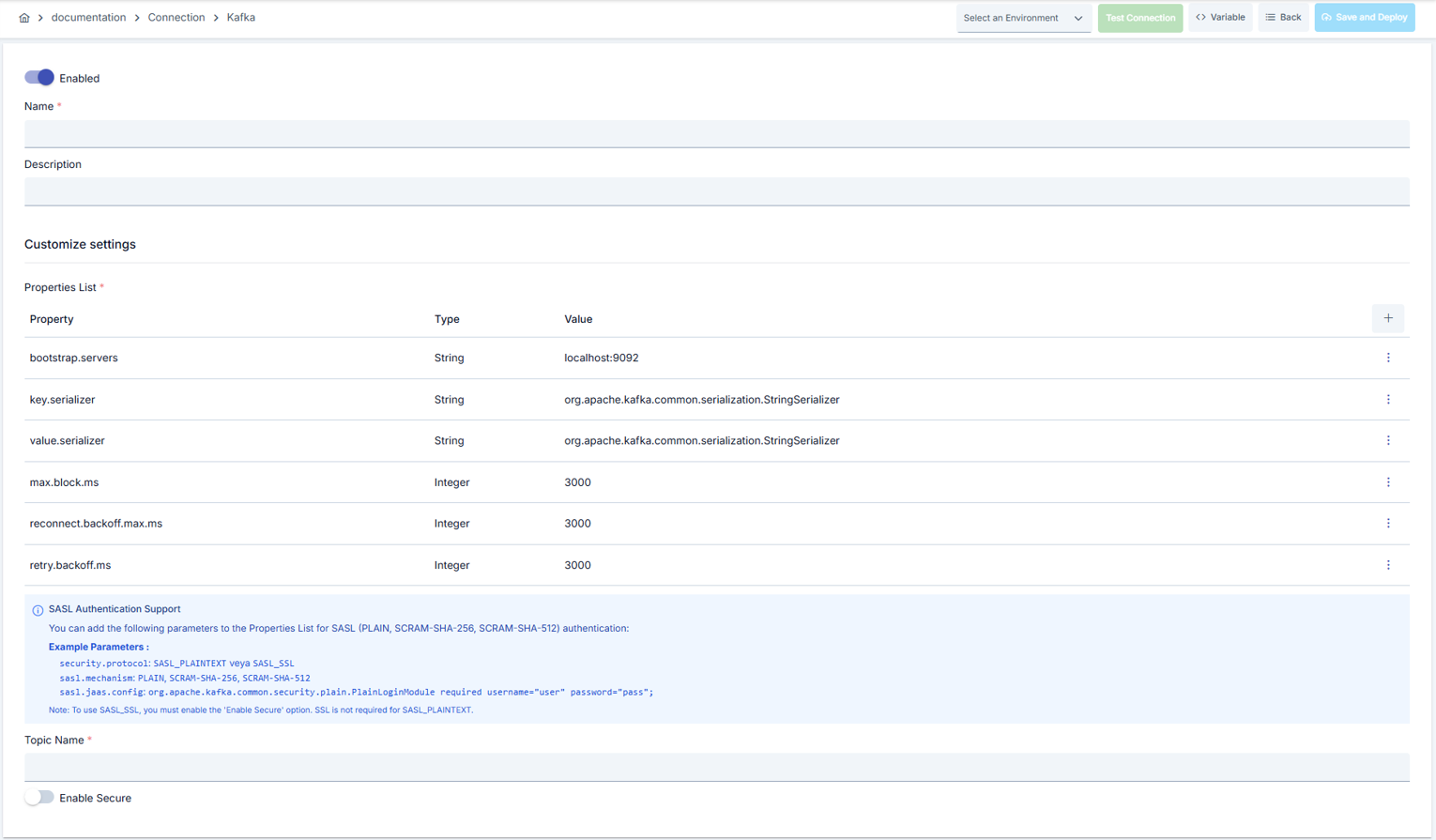
Configuration Steps
- Go to Connection → Kafka section from the left menu.
- Click the [+ Create] button in the top right.
Enable Status (Active Status):
- Set active/passive status with toggle. New connections are active by default.
Name - Mandatory:
- Example:
Production_KafkaAudit - Enter a unique name, should not start with space.
- System automatically checks. Green checkmark: available. Red cross: existing name.
Description:
- Example: "Audit topic producer connection"
- Max. 1000 characters.
- Describe the purpose of the Connection.
In the action button area at the top of the page, you can use the [<> Variable] button to select dynamic values, and with global variables, you can manage connection parameters with variable-based values instead of fixed values. For detailed information, review the Dynamic Variables page.
- Select environment from dropdown menu: Development, Test, or Production.
- Different connection parameters can be defined for each environment.
- Enter broker URLs, serializer settings, and timeout values in the propertiesMap table.
- Don't forget to select valueType for each record; use INTEGER for numeric values.
- Write the topic to connect to in the Topic Name field.
You can achieve high availability by adding multiple broker URLs.
- Enable TLS by turning on the Enable Secure toggle.
- Select supported SSLContext protocols in the Protocol Types field.
- Select KeyStore and TrustStore or create a new keystore.
Always use SSL/TLS in Production environment and select secure protocols.
- Add timeout parameters such as max.block.ms, request.timeout.ms, retry.backoff.ms to propertiesMap (there is no separate Connection Timeout / Pool Size field — all of these are propertiesMap keys).
- Determine settings such as linger.ms, batch.size, connections.max.idle.ms according to traffic volume.
- If using SASL/SCRAM, add sasl.mechanism, sasl.jaas.config keys.
- Ensure the correct TrustStore is selected for broker certificates.
- Store sensitive credential values as Secret type MapValue instead of plaintext.
Always store sensitive information as Secret type MapValue.
- Click the [Test Connection] button.
- Test whether connection parameters are correct.
- Success: Green confirmation message
- Failed: Error details are shown
- Click the [Save and Deploy] button in the top right.
Checklist:
- Unique name
- Mandatory fields filled
- Test connection successful (recommended)
Result:
- Connection is added to the list
- Becomes available for use in Integration Flow and Connector steps
- Becomes active according to environment
Connection created successfully! You can now use it in Integration Flow and Connector steps.
Deleting Connection
Select Delete from the ⋮ menu at the end of the row or click the [Delete] button on the connection detail page
Check Before Deleting: It may be used in Integration Flow or Connector steps. If necessary, assign an alternative connection. Back up with Export before deleting
Alternative: Deactivation
- Use the Disable option instead of deleting.
- Connection becomes passive but is not deleted.
- Can be reactivated when needed.
Exporting/Importing Connection
In this step, users can export existing connections for backup, transfer to different environments, or sharing purposes, or import a previously exported connection again. This process is used to maintain data integrity in version management, transitions between test and production environments, or inter-team sharing processes.
Export
Click the [Export] button on the connection detail page. ZIP file is downloaded.
The row's ⋮ menu now has two items: the primary Export opens the Export/Import Wizard with this connection preselected — its certificate/key store and any ${VARIABLE} reference surface automatically on the dependency step; the secondary Export as File downloads the ZIP described below directly, without going through the wizard.
Format: Date-connection-ConnectionName-export.zip
Example: 13 Nov 2025-connection-Production_Kafka-export.zip
- Connection JSON file
- Metadata information
- Dependency information (e.g., certificates, key store)
- Backup
- Transfer between environments (Test → Prod)
- Versioning
- Team or project-based sharing
Import
- Click [Import Kafka] button on the main list — it now opens the Export/Import Wizard's import step with type Connection preselected (Admin scope when opened from Administration); the old upload dialog is gone.
- Select the exported package and follow the wizard's steps.
- The wizard checks format, name conflicts and dependency availability before you confirm the import.
Scenario 1: Name Conflict → Overwrite the old connection or create with a new name.
Scenario 2: Missing Dependencies → Create missing certificates or key stores first or exclude them during import.
Usage Areas of Connection
Steps:
- Create the Connection.
- Validate the connection with Test Connection.
- Save and activate with Save and Deploy.
- Ensure the Connection is in Enabled status
Connection is selected in steps that require Kafka topic-based message sending and consumption. Example: Steps such as "Send Message", "Consume Message", "Kafka Producer", "Kafka Consumer". Connection selection is made from the Connection field in the configuration of these steps
In scheduled tasks (e.g., sending messages at certain intervals, file processing, etc.), access to external systems is provided by selecting the connection. When the connection changes, the job execution behavior is updated accordingly
The correctness of the connection can be checked independently of the Integration Flow with the Connection Test feature. This test is critical in the debugging process
Best Practices
Things to Do and Best Practices
Bad: Writing all messages to a single partition.
Good: Spreading traffic by increasing partition count.
Best: Determining partition plan per topic according to consumer count and throughput needs
Bad: Adding values randomly.
Good: Manually tracking changes.
Best: Keeping propertiesMap changes under version control with export files
Bad: Not tracking keystore/truststore expiration dates.
Good: Keeping a manual calendar.
Best: Automatically planning certificate renewals with Secret Manager events and monitoring alarms
Bad: Not monitoring connection health.
Good: Performing manual tests.
Best: Tracking Connection Monitoring metrics with APM/Prometheus and generating automatic alarms
Bad: Using the same connection parameters in all environments.
Good: Creating separate connections for each environment.
Best: Managing all environments in a single connection using the Environment option, only changing environment when transitioning between environments
Bad: Saving and deploying the connection without testing.
Good: Validating with Test Connection before saving.
Best: Testing after every parameter change, performing full integration test in test environment before going to production
Security Best Practices
Store SASL username/password or token information as Secret type MapValue; do not leave inline credentials in JAAS config
Grant access to Kafka brokers only from whitelisted IP ranges, close unnecessary ports
Mask log lines containing bootstrap or credentials; do not leave plaintext credentials in debug logs
Store sensitive information such as usernames and passwords using environment variables or secret manager. Do not hardcode credentials in code or configuration files. Update passwords periodically
Always enable SSL/TLS in Production environment. Use self-signed certificates only in development environment. Track certificate expiration dates and renew them on time
Allow only authorized users to change Connection configuration. Store connection change logs. Apply change approval process for critical connections
Things to Avoid
Why to avoid: Connection breaks in broker failure.
Alternative: Define multiple bootstrap.servers addresses
Why to avoid: Messages cannot be deserialized, error occurs.
Alternative: Determine key/value serializers according to message format
Why to avoid: Risk of credential leakage.
Alternative: Use Secret MapValue
Why to avoid: Test data may be written to production system, real users may be affected, security risk occurs.
Alternative: Create separate connections for each environment, use environment parameter, separate connection names by adding prefix according to environment (Test_, Prod_)
Why to avoid: Connection constantly times out in network delays, Integration steps fail.
Alternative: Adjust timeout values according to real usage scenarios, measure network latency and determine timeouts accordingly
Performance Tips
Recommendation: Adjust batch.size value according to message size (e.g., 32 KB).
Effect: Throughput increases with less network collision
Recommendation: Select snappy or lz4 as compression.type.
Effect: Bandwidth on broker decreases
Recommendation: Prefer asynchronous production by optimizing acks and linger.ms settings.
Effect: Client wait time shortens
Recommendation: Measure real network latency, adjust timeout values accordingly, avoid very low or very high timeouts.
Effect: Unnecessary waits are prevented, fast fail-over is provided, user experience improves
Recommendation: Track timeout rates, perform connection health check, set up alerting.
Effect: Problems are detected proactively, performance bottlenecks are identified early, downtime decreases
Troubleshooting
Topic Not Found
Topic name may be incorrect, topic may not be created on Broker, or ACL permissions may be missing.
Verify the topicName field.
Check topic status from broker administrator.
Add the relevant user to ACL policies.
Broker Authentication Error
Wrong SASL information, certificate invalid, or TrustStore missing.
Update SASL MapValues.
Check certificate expiration.
Ensure correct TrustStore is selected.
Connection Timeout
Network delay, target system responding slowly, or timeout value may be too low.
Check network connectivity.
Check target system health.
Increase timeout values.
Review connection logs.
Authentication Failed
Wrong username/password, expired credentials, or permission problem may exist.
Verify credentials.
Check that the user is active in the target system.
Check that necessary permissions are granted.
Check SSL/TLS certificates.
Connection Test Successful But Integration Flow Gives Error
A different connection may be selected in Integration/Connector step, the step may be misconfigured, or Flow/Job may not be redeployed.
Check that the Connection's enable toggle is active.
Verify that the correct connection is selected in Integration Flow.
Redeploy the Connection.
Redeploy Integration Flow or Job.
Check Gateway logs.
Frequently Asked Questions (FAQ)
Can I manage multiple topics with Kafka Connection?
The same Connection focuses on a single topic, but can be quickly duplicated for different topics; this way permissions and monitoring are kept separate.
Can Enable Secure be left closed?
It is possible for Development environment but not recommended to close TLS in Production; keep it open according to security policies.
How are secret values added to PropertiesMap?
When adding MapValue, select SECRET as valueType; UI masks values and stores them encrypted during export.
Is ordering important in multi-broker configuration?
Broker list is tried according to the first reachable server; DNS round-robin or bootstrap list is recommended for high availability.
Can I deploy if Test Connection fails?
You can, but it is not recommended; Integration Flow will continue to give errors after Deployment. Fix the error in the test first.
Can I use the same connection in multiple Integration Flows?
Yes, the same connection can be used in multiple Integration Flow or Connector steps. This provides centralized management and guarantees configuration consistency. However, changes made to the connection will affect all usage locations, so care should be taken.
Should I create different connections for Test and Production?
Yes, it is recommended to create separate connections for each environment. Alternatively, you can manage all environments in a single connection using the environment parameter. This approach provides easier management and less error risk.
Test Connection is successful but not working in Integration Flow, why?
Several reasons may exist:
- Connection enable toggle may be passive
- A different connection may be selected in Integration step
- Connection may not be deployed
- Integration Flow may not have been redeployed yet