Teams
Team is an organizational unit in the Apinizer platform where users are grouped logically and managed in bulk. Thanks to teams, you can manage users on a team basis instead of adding them to projects one by one, and perform role assignments centrally.
Team Concept
Team is the group formed by members working in a project. It enables operations such as making users members of projects or role assignment to be done in bulk through teams. In this way, users with the same roles and permissions are brought together to provide more efficient management.
Team-based bulk management instead of managing users one by one
Central role assignment and authorization on team
Easy addition and management of teams to projects
Facilitating user management in large organizations
Importance of Team in Apinizer
The team feature in Apinizer plays a critical role, especially in environments with many users and projects:
Efficiency and Time Savings
Instead of defining user roles repeatedly for each project when adding users as members to a project, roles defined once on a team can be used in all projects. In this way:
- Avoiding repetitive operations: There is no need to make role assignments every time when adding the same users to different projects
- Centralized management: Changes made to team members are automatically reflected in all projects the team is a member of
- Reduced error risk: Inconsistencies that may occur in operations done one by one are prevented
Organizational Structure
Teams allow you to reflect the corporate organizational structure to the Apinizer platform:
- Department-based grouping: Teams such as "Development Team", "Test Team", "DevOps Team" can be created
- Project-based grouping: All users working on a specific project can be gathered under a team
- Role-based grouping: Users with the same role can be combined in a team
Scalability
In large organizations, there can be hundreds of users and dozens of projects. Thanks to the team feature:
- User management becomes more systematic
- Adding teams to new projects is completed in seconds
- User changes (addition, removal, role change) can be managed from a single place
Team Usage Scenarios
Management of corporate departments as teams. For example:
- Software Development Team
- Quality Assurance Team
- System Management Team
Gathering all users working on a specific project in a team. For example:
- E-Commerce Project Team
- Payment System Team
- Reporting Team
Grouping users with the same role. For example:
- API Developers Team
- API Security Administrators Team
- Project Managers Team
Bringing together users from different roles. For example:
- Full-Stack Development Team (Developer + Designer)
- DevOps Team (Developer + System Administrator)
Advantages of Team Management
Central Role Management
Roles defined on a team are valid in all projects the team is a member of. In this way:
- Role changes can be made from a single place
- Consistency is ensured
- Management complexity decreases
Fast Project Integration
Adding a team to a new project is much faster than adding users one by one:
- All team members are added to the project with a single operation
- Role assignments are made automatically
- Time savings are achieved
Dynamic Member Management
Changes made to team members are automatically reflected:
- When a new member is added, they are automatically added to all projects the team is a member of
- When a member is removed, they are also automatically removed from relevant projects
- Role changes become valid in all projects
Traceability and Reporting
Thanks to team-based management:
- Which teams work in which projects can be easily seen
- User accesses can be reported on a team basis
- Organizational structure is understood more clearly
To learn how to add a team as a member to any project, click here.
Creating a New Team
An image containing team creation settings is shown below:
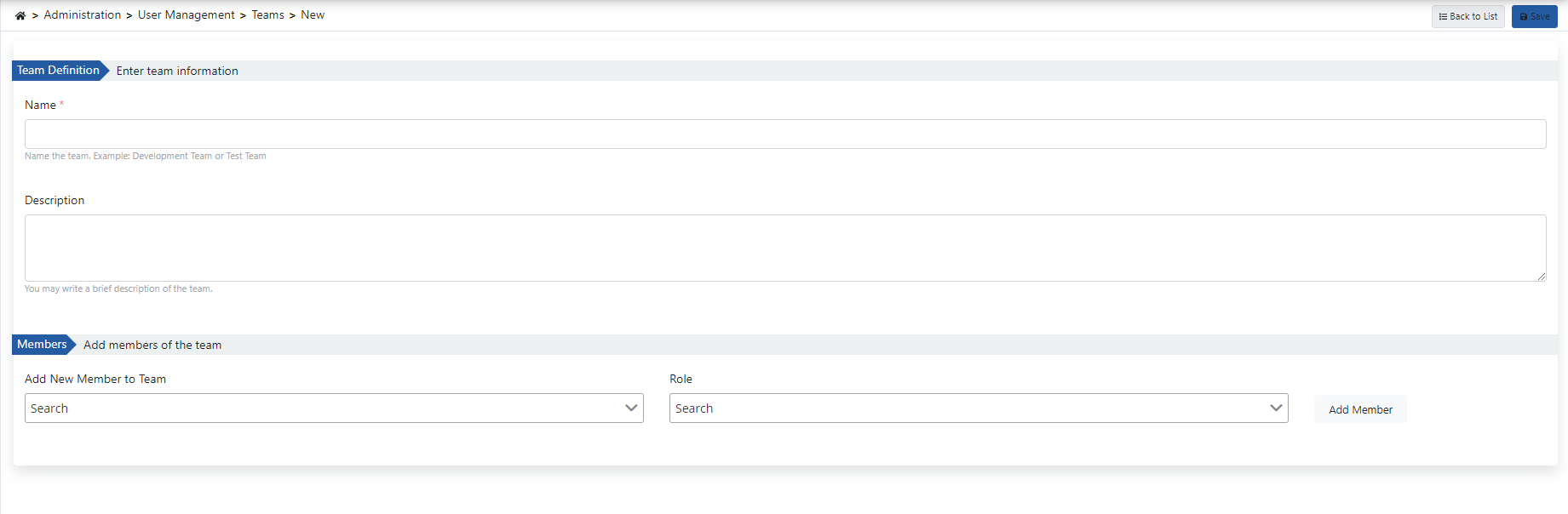
The fields used for team creation configuration are shown in the table below.
| Field | Description |
|---|---|
| Name | Team name information for the created team. |
| Description | A description can be written to facilitate management related to the created team. |
| Members (Members) | Members are users defined in Apinizer. Team members can be added by searching by name among users. |
| Role (Role) | Roles determine the authority of members in the team. Members in the team can also have different roles from each other; but the recommended usage of the feature is grouping members with the same role. Role is added by selecting the checkbox belonging to the relevant role. To add all roles, the checkbox next to the role search field is selected. |
Deleted teams are also deleted from projects they are active in by the system.