Logback
Overview
What is its Purpose?
Collects high-volume logs file-based for API Proxy traffic on Apinizer Gateway and provides continuous visibility to operations teams.
Controls disk consumption through RollingFileAppender parameters, guarantees separation of logs with daily/hourly cycles.
Environment-based log directories are defined to provide Development/Test/Production separation and speed up incident analysis.
Since incorrect logPath permissions can cause errors, validation of access rights at OS level is critical.
Working Principle
When a Logback connection is requested from within an Integration Flow or Connector, the system reads the configured connection parameters.
Logback RollingFileAppender reuses a single open file handle for the same log file on the worker node; there is no configurable connection pool concept.
Worker pod accesses target file system with system user account and file permissions linked to selected Environment; does not require additional Authentication layer.
HTTP request/response headers, bodies, and metadata are formatted with specified logPattern and written to specified logPath/logFileName combination via File I/O.
After operation completes, connection remains open within same worker thread and RollingFileAppender buffer is flushed to wait for new requests.
In case of connection error or authentication error, deployment-result dialog activates with detailed error message, user is advised to review log directory and permission checks.
Use Cases
Storing API Proxy traffic logs centrally and preparing for SIEM integration.
Ability to retrospectively analyze detailed request/response traces in business-critical integrations.
Maintaining disk capacity balance by applying environment-based log retention policies.
Filtering and exporting specific pod or endpoint logs during security reviews.
Technical Features and Capabilities
Basic Features
Directory on worker node is selected with logPath field, invalid folders are actively rejected.
logFileName and logFilenamePattern combination splits logs date/sequence-based, provides easy archiving capability.
Disk consumption is kept under control with maxFileSize, maxHistory, and totalSizeCap values.
Ability to define separate connection parameters for each environment (Development, Test, Production).
Activating or deactivating the Connection (enable/disable toggle). In passive state, connection cannot be used but its configuration is preserved.
Advanced Features
Test Connection button triggers logPath access and pattern validation before saving.
Instant uniqueness check is performed for Name field, registration is blocked in case of conflict.
Project-based connections are moved to global area with single click, enabling multi-project usage.
Ability to validate connection parameters before saving with "Test Connection" button.
Export connection configuration as ZIP file. Import to different environments (Development, Test, Production). Version control and backup capability.
Monitoring connection health and performance metrics.
Connection Parameters
Required Parameters
Description: Connection name (must be unique)
Example Value: Production_Logback
Notes: Cannot start with space, special characters should not be used
Description: Directory where log files will be written
Example Value: /var/log/apinizer/
Notes: Worker pod must have write permission, absolute path recommended
Description: RollingFileAppender base file name
Example Value: ApinizerApiProxyTraffic
Notes: Use of letters, numbers, and _ recommended
Description: File name pattern containing date and index
Example Value: %d{yyyy-MM-dd}.%i.log
Notes: Logback patterns supported, date format required
Description: Single-line log format
Example Value: %d{yyyy-MM-dd HH:mm:ss.SSS}[%t]%n
Notes: All compatible with Logback conversion patterns
Description: Upper limit of single file in MB
Example Value: 25
Notes: Positive integer, 1-1024 MB range recommended
Description: Number of rolling files to keep
Example Value: 30
Notes: 0 means unlimited but disk may grow
Description: Total MB limit of all rolling files
Example Value: 1024
Notes: If 0, Logback does not apply total limit; >512 MB recommended for Production
Optional Parameters
Description: Purpose or scope of the connection
Default Value: ''
Recommended Value: Short description indicating function and target system
Description: Published environment selection
Default Value: null
Recommended Value: Separate value selection recommended for each environment
Description: Label to route logs to specific worker pod
Default Value: ''
Recommended Value: Use when need to write only to target pod in multi-node clusters
Description: Activeness of the connection
Default Value: true
Recommended Value: Always active in Production, can be temporarily closed while resolving issues
Timeout and Connection Pool Parameters
The Logback connection writes to the local file system; network timeout and connection pool parameters do not apply to this connector.
Use Cases
Situation: High-volume traffic analysis required
Solution: logPath=/var/log/apinizer/proxy, maxHistory=30, totalSizeCap=2048
Expected Behavior: All calls stored with 30-day history, readable by SIEM
Situation: Specific endpoint logs requested
Solution: logFilenamePattern=%d{yyyy-MM-dd}-security.%i.log
Expected Behavior: Date-based files quickly filtered, review performed within incident period
Situation: Detailed log required in QA environment
Solution: environmentId=Test, maxFileSize=10
Expected Behavior: Test logs split into small files, developers easily download
Situation: Problem exists in specific worker pod
Solution: logPodName=gateway-worker-2
Expected Behavior: Logs taken only from relevant pod, target problem isolated
Situation: Log retention under GDPR
Solution: maxHistory=0, totalSizeCap=5120
Expected Behavior: Legal retention period provided with total quota instead of infinite cycle
Situation: Copying logs to backup node
Solution: logPath=/mnt/dr/logs, Enable Export All on
Expected Behavior: All logs written to shared storage in failover scenario
Connection Configuration
Creating New Logback
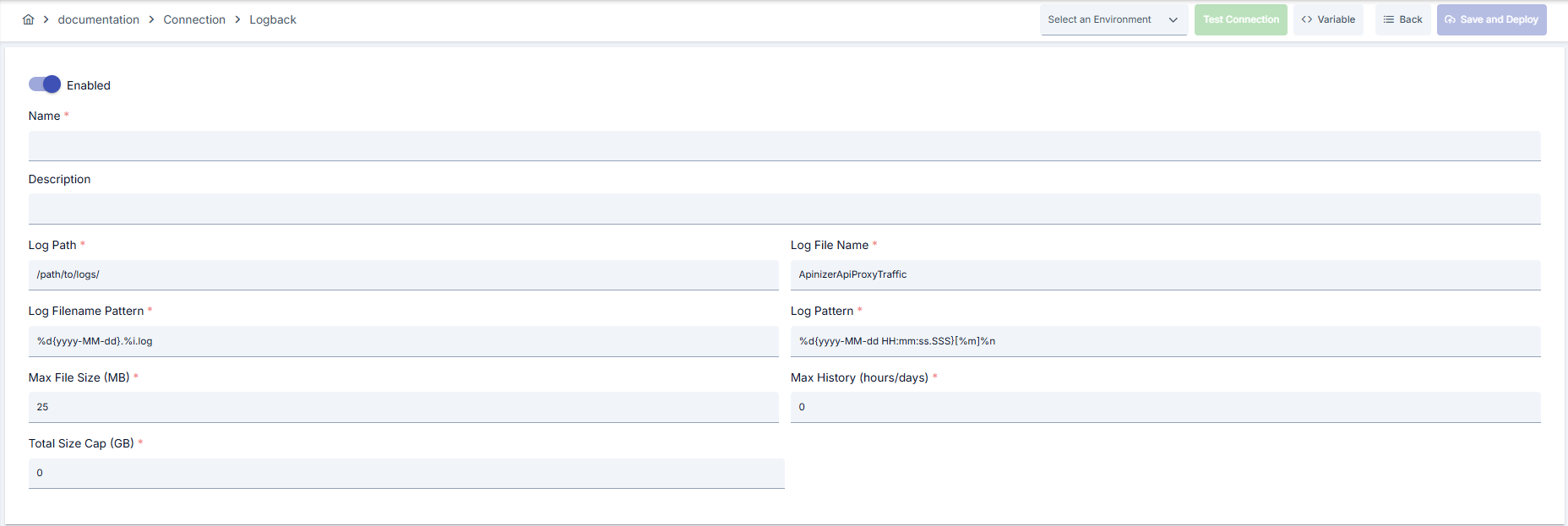
- Go to Connection → Logback section from left menu.
- Click [+ Create] button at top right.
Enable Status (Active Status): Set active/passive status with toggle. New connections are active by default.
Name Required:
Example: Production_Logback
- Enter unique name, cannot start with space.
- System automatically checks. Green checkmark: available. Red X: existing name.
Description: Example: "API proxy traffic logs"
- Max. 1000 characters.
- Describe the purpose of the Connection.
In the action button area at the top of the page, you can use the [<> Variable] button to select dynamic values, and with global variables, you can manage connection parameters with variable-based values instead of fixed values. For detailed information, review the Dynamic Variables page.
- Select environment from dropdown menu: Development, Test, or Production.
- Different connection parameters can be defined for each environment.
- Enter absolute directory that worker node can write to in logPath field.
- Determine RollingFileAppender file cycle with logFileName and logFilenamePattern fields; pay attention to containing date and index.
- Unauthorized directories produce errors during deployment.
- Fill logPattern field with Logback conversion patterns, add thread name or request-id if needed.
- Use logPodName field if routing to specific pod is required.
- Set maxFileSize, maxHistory, totalSizeCap values appropriately according to operation policies for disk quotas.
- Ensure worker node user account has write permission on logPath.
- Use file system ACLs or Kerberos-supported share points if needed.
- In production environment, allow only authorized service accounts to access shared directories.
- Click [Test Connection] button.
- Test whether connection parameters are correct.
- Success: Green confirmation message, Failed: Error details shown.
- Click [Save and Deploy] button at top right.
Checklist: Unique name. Required fields filled. Test connection successful (recommended)
Result:
- Connection is added to list.
- Becomes available in Integration Flow and Connector steps.
- Becomes active according to environment.
Connection created successfully! You can now use it in Integration Flow and Connector steps.
Deleting Connection
Select Delete from ⋮ menu at end of row or click [Delete] button on connection detail page
Check Before Deleting: May be used in Integration Flow or Connector steps. If necessary, assign an alternative connection. Back up with Export before deleting
Use Disable option instead of deleting. Connection becomes passive but is not deleted. Can be reactivated when needed
Exporting/Importing Connection
In this step, users can export existing connections for backup, moving to different environments, or sharing purposes, or import a previously exported connection again. This operation is used to maintain data integrity in version control, transitions between test and production environments, or inter-team sharing processes.
Export
Click [Export] button on connection detail page. ZIP file is downloaded.
The row's ⋮ menu now has two items: the primary Export opens the Export/Import Wizard with this connection preselected — any ${VARIABLE} reference in its host, URL or password field surfaces automatically on the dependency step; the secondary Export as File downloads the ZIP described below directly, without going through the wizard.
Format: Date-connection-Logback-export.zip
Example: 13 Nov 2025-connection-Production_Logback-export.zip
- Connection JSON file
- Metadata information
- Dependency information (e.g., certificates, key store)
- Backup
- Moving between environments (Test → Prod)
- Versioning
- Team or project-based sharing
Import
- Click [Import Logback] button on the main list — it now opens the Export/Import Wizard's import step with type Connection preselected (Admin scope when opened from Administration); the old upload dialog is gone.
- Select the exported package and follow the wizard's steps.
- The wizard checks format, name conflicts and dependency availability before you confirm the import.
Scenario 1: Name Conflict → Overwrite old connection or create with new name.
Scenario 2: Missing Dependencies → Create missing certificates or key stores first or exclude during import.
Connection Usage Areas
Steps:
- Create the connection.
- Validate connection with Test Connection.
- Save and activate with Save and Deploy.
- Ensure connection is in Enabled state
Connection is selected in steps requiring file-based log writing via the Logback RollingFileAppender. Examples: steps like "Logback Appender", "File Logger", "Rolling File Writer". Connection selection is made from the Connection field in these steps' configuration
In scheduled tasks (e.g., sending messages at certain intervals, file processing, etc.), access to external systems is provided by selecting connection. When connection changes, job execution behavior is updated accordingly
Connection correctness can be checked independently from Integration Flow with Connection Test feature. This test is critical in debugging process
Best Practices
Do's and Best Practices
Bad: Using temp directories in Production.
Good: Opening separate /var/log/apinizer directory.
Best: Granting permission only to service account on dedicated disk or mount point.
Bad: Not using date in pattern.
Good: Using daily dated pattern.
Best: Ensuring SIEM compatibility with pattern containing date + index and application name.
Bad: Leaving maxHistory=0 and totalSizeCap=0.
Good: Setting reasonable values according to traffic.
Best: Setting automatic cleanup rules according to disk capacity, regulation, and backup processes.
Bad: Writing all pods to single directory.
Good: Using logPodName for problematic pods.
Best: Setting up separate directory for each pod + central collection pipeline.
Bad: Using same connection parameters in all environments.
Good: Creating separate connection for each environment.
Best: Managing all environments in single connection using Environment option, only changing environment during transitions between environments
Bad: Saving and deploying connection without testing.
Good: Validating with Test Connection before saving.
Best: Testing after every parameter change, performing full integration test in test environment before going to production
Security Best Practices
Define POSIX permissions that only relevant worker service accounts can write to logPath directory, do not open root shares in Production
Restrict network segment in shares like NFS/Samba, apply IP-based allowlist in accesses
Prevent writing personal data to logPattern, anonymize sensitive fields with privacy setting components if needed
Store sensitive information such as username and password using environment variable or secret manager. Do not hardcode credentials in code or configuration files. Update passwords periodically
Always enable SSL/TLS in production environment. Use self-signed certificates only in development environment. Track certificate expiration dates and renew on time
Allow only authorized users to change connection configuration. Store connection change logs. Apply change approval process for critical connections
Don'ts
Why avoid: Keeping logs in root directory leads to incorrect permissions, affects other services
Alternative: Use separately mounted log directory
Why avoid: Files without dates are overwritten, log loss occurs
Alternative: Use patterns containing %d
Why avoid: Gateway may stop when disk is full
Alternative: Set maxFileSize, maxHistory, and totalSizeCap values according to system capacity
Why avoid: Test data may be written to production system, real users may be affected, security risk occurs
Alternative: Create separate connection for each environment, use environment parameter, separate connection names by adding prefix according to environment (Test_, Prod_)
Performance Tips
Recommendation: Prefer SSD-based directories, use noatime mount option
Impact: Write delays decrease, log recording becomes uninterrupted
Recommendation: Include only needed fields in logPattern, avoid expensive JSON serializations
Impact: CPU usage decreases, log throughput increases
Recommendation: Match maxHistory and totalSizeCap values with real disk capacity, schedule background cleanup scripts
Impact: Disk fullness risks are eliminated, manual intervention need decreases
Recommendation: Monitor disk usage and log write failures, connect worker pod health checks to alerting
Impact: Problems are proactively detected, disk fullness risks are identified early, downtime decreases
Troubleshooting
Log File Not Created
logPath may be incorrect, worker may not have write permission, or connection may be in disable state.
Validate logPath value.
Check worker pod user permissions.
Turn on connection enable status.
File Size Limit Exceeded
maxFileSize may be low, maxHistory=0, or totalSizeCap=0 may exist.
Increase maxFileSize according to traffic.
Set limit to maxHistory.
Define totalSizeCap and redeploy.
Authentication Failed
Wrong username/password, expired credentials, or permission problem may exist.
Verify credentials.
Check that user is active on target system.
Check that necessary permissions are granted.
Check SSL/TLS certificates.
Connection Test Successful But Integration Flow Errors
Different connection may be selected in Integration/Connector step, step may be misconfigured, or Flow/Job may not be redeployed.
Check that connection's enable toggle is active.
Verify that correct connection is selected in Integration Flow.
Redeploy connection.
Redeploy Integration Flow or Job.
Check Gateway logs.
Frequently Asked Questions (FAQ)
What minimum parameters should I enter for Logback Connection?
Name, logPath, logFileName, logFilenamePattern, logPattern, and all limit fields must be filled; others are optional but recommended.
Can I transfer logs to both file and external system simultaneously?
Yes, while Logback Connection writes to file, REST API or Message Queue outputs can be defined with parallel Connector steps in Integration Flow.
What happens if I leave logPodName value empty?
When left empty, all worker pods rotate under same logPath; safe to leave empty if you won't track specific pods.
If maxHistory and totalSizeCap conflict, which takes priority?
Logback first cleans according to maxHistory value, then continues deleting oldest files if totalSizeCap overflow continues.
How can I transfer logs to external SIEM tool?
When rolling files complete, external agents or cron jobs can read logPath and push to SIEM; keep file pattern compatible with SIEM expectations.
Can I use the same connection in multiple Integration Flows?
Yes, the same connection can be used in multiple Integration Flow or Connector steps. This provides centralized management and guarantees configuration consistency. However, changes made to the connection will affect all usage locations, so care should be taken.
Should I create different connections for Test and Production?
Yes, it is recommended to create separate connection for each environment. Alternatively, you can manage all environments in a single connection using environment parameter. This approach provides easier management and less error risk.
Test Connection is successful but not working in Integration Flow, why?
Several reasons may exist:
- Connection enable toggle may be passive
- Different connection may be selected in Integration step
- Connection may not be deployed
- Integration Flow may not be redeployed yet