Syslog
Overview
What is its Purpose?
Transfers Apinizer logs to a central syslog collector with low latency via Connection.
Provides flexible log transport compatible with different organization standards through TCP/UDP, TLS, and message format options.
Provides common naming and versioning while maintaining Development/Test/Production separation through environment-based configuration.
Logs transmitted in UDP mode have no delivery guarantee; prefer TCP + SSL/TLS for critical flows.
Working Principle
When a Syslog connection is requested from within an Integration Flow or Connector, the system reads the configured connection parameters.
In TCP mode, one or more persistent sockets are opened for each environment (Connection Count); log messages are queued asynchronously and sent in order — this is not a connection pool, it is a queuing model built on top of persistent socket(s). When the queue is full (whichever limit is reached first — message count or buffer memory), new messages are routed to the failover connector if one is enabled on the Syslog Connector; otherwise (the default) they are dropped. Automatic reconnection is applied when the active connection closes or a write timeout occurs; stateless sending is performed in UDP mode.
If TLS is used, certificate-based Authentication is applied; otherwise, syslog server's IP-based security policies come into play.
Log messages in RFC 3164/5424/5425 format, hostname, and facility/severity fields are transmitted over selected protocol.
After operation completes, the TCP connection stays open and is reused for the next queued message; UDP packets require no additional management as they are stateless.
In case of connection error, timeout, or authentication error, details are shown in deployment-result dialog; error metrics are propagated via Apinizer Event Manager.
Use Cases
Real-time transfer of API Gateway logs to SIEM or SOC platforms
Notification of security events (e.g., WS-Security, Authentication errors) to central alarm system
Providing single log flow for log correlation between operating systems, firewall, and Apinizer services
Validating new rule/transformation developments in test environment without affecting syslog infrastructure in prod environment
Technical Features and Capabilities
Basic Features
TCP/UDP: Selection can be made between low-latency UDP or reliable TCP modes.
RFC 3164, RFC 5424, or RFC 5425 formats; compatible log template is created with hostname, facility, and severity fields.
Routing to different syslog endpoints is performed by selecting target Environment for each Connection via environmentId list.
Ability to define separate connection parameters for each environment (Development, Test, Production).
Activating or deactivating the Connection (enable/disable toggle). In passive state, connection cannot be used but its configuration is preserved.
Advanced Features
IDeploymentResult outputs are shown to user after save and test, real status of log flow is monitored instantly.
Admin users can move connection from project context to global area, thus facilitating reuse.
Can be transferred to other environments by packaging JSON + metadata with ExportFile structure.
Ability to validate connection parameters before saving with "Test Connection" button.
Export connection configuration as ZIP file. Import to different environments (Development, Test, Production). Version control and backup capability.
Monitoring connection health, queue status, and performance metrics.
Optional octet-counted framing (RFC 6587) keeps large, multi-line records intact instead of relying on a trailing line break to mark the end of each message.
Multiple TCP sockets can be opened to the same syslog server to raise throughput under high log volume.
Connection Parameters
Required Parameters
Parameter: Name
Example Value: Production_Syslog
Connection name (must be unique). Cannot start with space, special characters should not be used.
Parameter: Environment
Example Value: prod-env-id
Identity of published environment where logs will be targeted. Environment list comes via Environment Service, cannot be tested if selection is not made.
Parameter: Syslog Protocol Type
Example Value: TCP
TCP or UDP selection. When TCP is selected, timeout and SSL settings become mandatory.
Parameter: Syslog Server Hostname
Example Value: syslog.corp.local
Syslog server name or IP where logs will be sent. FQDN recommended, DNS resolution is performed by gateway.
Parameter: Syslog Port
Example Value: 514
Syslog listening port. 514 for UDP, 6514 for TLS can be commonly used.
Parameter: Syslog Message Format
Example Value: RFC_5424 (the default offered on a new connection; a connection created before this default changed keeps RFC_3164 until you change it)
Message body template (RFC 3164/5424/5425). Should be selected according to SIEM expectations.
Parameter: Syslog App Name
Example Value: ApinizerGateway
Application name that will appear in messages. Recommended not to exceed 48 characters.
Parameter: Syslog Facility
Example Value: AUDIT
Log classification value, chosen from the standard syslog facility list (for example AUDIT, USER, DAEMON, AUTH, or LOCAL0 through LOCAL7).
Parameter: Syslog Severity
Example Value: INFORMATIONAL
Log importance level, chosen from the standard syslog severity list (Emergency, Alert, Critical, Error, Warning, Notice, Informational, Debug).
Parameter: Syslog Timeout (TCP)
Example Value: 500
Wait time in milliseconds for TCP handshake + ACK. Not shown in UDP mode, mandatory in TCP mode.
Optional Parameters
Parameter: Description
Default Value: -
Recommended Value: Specify usage purpose and target syslog cluster
Description about the connection
Parameter: Syslog Message Hostname
Default Value: gateway01
Recommended Value: Use different hostname for each environment to facilitate correlation
Overrides HOSTNAME field in log.
Parameter: Syslog SSL Enabled
Default Value: false
Recommended Value: true in Production, self-signed if needed in Test/Dev
Provides TLS encapsulation over TCP.
Parameter: Deploy To Worker
Default Value: true
Recommended Value: Leave true if network isolation exists
Whether connection will be deployed to worker nodes.
Timeout and Queue Parameters
Description: syslogTimeout value in TCP mode (handshake + ACK wait)
Default: 500
Unit: milliseconds
Notes: UI only enforces a required-field check; there is no min/max.
Description: Maximum number of log messages in the TCP async send queue. Works together with the buffer memory ceiling below — whichever limit is reached first applies. When the queue is full, the message is routed to the failover connector if one is enabled; otherwise it is dropped.
Default: 10000
Min: 100 | Max: 1000000
Unit: messages
Description: If writing a message to the syslog server takes longer than this duration, the connection is forcibly closed and re-established.
Default: 5
Min: 1 | Max: 60
Unit: seconds
Framing and Delivery Parameters
Description: How message boundaries are marked on the wire in TCP mode.
Default: AUTO — derived from Syslog Message Format: RFC_5425 uses octet-counted framing, every other format uses the traditional line-ending framing.
Values: AUTO, NON_TRANSPARENT, OCTET_COUNTING
Description: Number of parallel TCP sockets opened to the syslog server; this is not a connection pool.
Default: 1
Min: 1
Unit: sockets
Notes: The default (1) is intentional — a value greater than 1 can reorder messages, and most existing deployments depend on single-socket, fully-ordered delivery. Review "Delivery Order with Multiple Connections" below before changing it.
Description: Byte ceiling for the outbound send queue, independent of the message-count limit above.
Default: 64 MB
Min: 1 MB (1,048,576 bytes)
Unit: bytes
Notes: A single record larger than a quarter of this value is rejected immediately instead of being queued, so that a record which can never fit cannot block admission for the whole wait period. At the 64 MB default this ceiling is 16 MB; raise the ceiling if individual records can be larger.
Description: Maximum time the sending side waits when the queue is full before giving up on that attempt. The message is then routed to the failover connector if one is enabled; otherwise it is dropped.
Default: 100
Min: 0 | Max: 2000
Unit: milliseconds
Notes: This wait is only applied in full on a virtual thread. When the send runs on a platform thread, the effective wait is capped at 50 ms so it cannot hold a request thread for long.
Description: Number of frames written in one send cycle before the connection is flushed.
Default: 8
Min: 1
Unit: frames
These parameters are all optional and can be left empty. Framing, parallel connection count, and the message-count queue limit keep today's behavior when left empty. The one exception is the Buffer Memory Ceiling: the 64 MB limit applies by default even if the field is never filled in, so installations with large average records reach a full queue earlier than before (at 200 KB per record, 64 MB is roughly 327 messages, where the old count limit was 10,000). Raise the ceiling deliberately on those installations.
Message Splitting Parameter
Description: The largest a single syslog message from this connection may be before a record is sent as several syslog messages instead of one. The size that is measured is the complete syslog message — header, structured data and body together, not just the free-form part — which is the same quantity rsyslog measures with `global(maxMessageSize=...)` (the older `$MaxMessageSize` directive). The RFC 6587 framing around the message — the octet-count prefix in OCTET_COUNTING mode, or the trailing line break in NON_TRANSPARENT mode — is not counted.
Default: 0 — no splitting. Every record is still sent as exactly one message, byte-for-byte the same as before this setting existed.
Unit: bytes (UTF-8)
Notes: For UDP, keep this well under your network path's real datagram size; RFC 5426 recommends staying under 2048 bytes for compatibility with older relays and intermediate devices. See Splitting Oversized Messages below for what a split message looks like on the wire and how it relates to the size policy on the SIEM & Log Forwarding page.
TLS and Structured Data Parameters
These fields appear only where they are relevant: the first three when Enable SSL is on, the last two when the Syslog Message Format is RFC 5424 or RFC 5425. None of them is required — an organization that does not use TLS keeps sending over plain TCP or UDP exactly as before.
Description: The client certificate presented to the syslog server for mutual TLS (mTLS).
Default: empty
Notes: When left empty, no client certificate is presented and the session is server-only TLS. The list is filled from the key stores defined under Secrets; see Keystore Management.
Description: The trust store used to verify the syslog server's certificate chain.
Default: empty
Notes: When left empty, the JVM default trust store is used. When a truststore is selected it becomes the only trust anchor — the public certificate authorities that ship with the JVM are not added to it, so the server certificate must chain to a certificate inside that store.
Description: The name in the server certificate (SAN or CN) must match the Syslog Server Hostname you entered.
Default: on for connections created after the upgrade, off for connections that already existed
Notes: When it is off, only the certificate chain is verified, so a certificate issued for a different name is still accepted. Existing SSL connections keep behaving exactly as before until you turn it on yourself.
Description: Writes the RFC 5424 STRUCTURED-DATA field into the frames this connection sends.
Default: off
Notes: Effective over TCP (with or without TLS) and only with the RFC 5424 or RFC 5425 message format. UDP and RFC 3164 ignore it and the frame stays byte-for-byte what it is today.
Description: Your organization's IANA Private Enterprise Number. It identifies the Apinizer event element inside structured data.
Default: empty
Values: 1 to 10 digits
Notes: Optional. When it is empty, only the origin and timeQuality elements are written. A number can be requested free of charge from IANA.
Turning Enable SSL back off does not erase the three TLS fields. They are kept and take effect again the next time SSL is turned on.
When the certificate inside a key store record that is already selected here is renewed, save the Syslog connection again (or redeploy the environment) so that the open connections are rebuilt with the new material. Changing the server address, port, SSL state, keystore, truststore, hostname verification, framing type or message format rebuilds them as well; changing only the write timeout does not.
Use Cases
Situation: SOC platform accepts logs with TCP + TLS
Solution: Protocol: TCP, SSL Enabled: true, Port: 6514
Expected Behavior: Logs transmitted securely over TLS, facility/severity fields fall to SIEM rules
Situation: Fast UDP required for correlation with firewall logs
Solution: Protocol: UDP, Port: 514, Message Format: RFC_3164
Expected Behavior: Log flow performed with low latency, packet loss is tolerant
Situation: Detailed debug log requested in test environment
Solution: Severity: DEBUG, Facility: LOCAL0, Message Hostname: test-gw
Expected Behavior: Test syslog server receives detailed debug events
Situation: Audit teams request audit trail
Solution: Facility: AUDIT, Severity: NOTICE, App Name: ComplianceGW
Expected Behavior: Separated log flow provided for audit reports
Situation: Multiple projects will use same global syslog
Solution: Move to Global, Environment ID: admin project, Name prefix: Global_
Expected Behavior: Single connection shared across all projects, changes managed centrally
Situation: Production logs will be copied to secondary data center (optional)
Solution: Export ZIP, Import to different environment, Port/Hostname updated to DR address
Expected Behavior: DR syslog server starts receiving logs in same format
Connection Configuration
In this step, you can create a new connection or configure existing connection parameters to set connection rules. Defined parameters directly affect how the connection works and become available for use in Integration Flow or Connector steps.
Creating New Syslog Connection
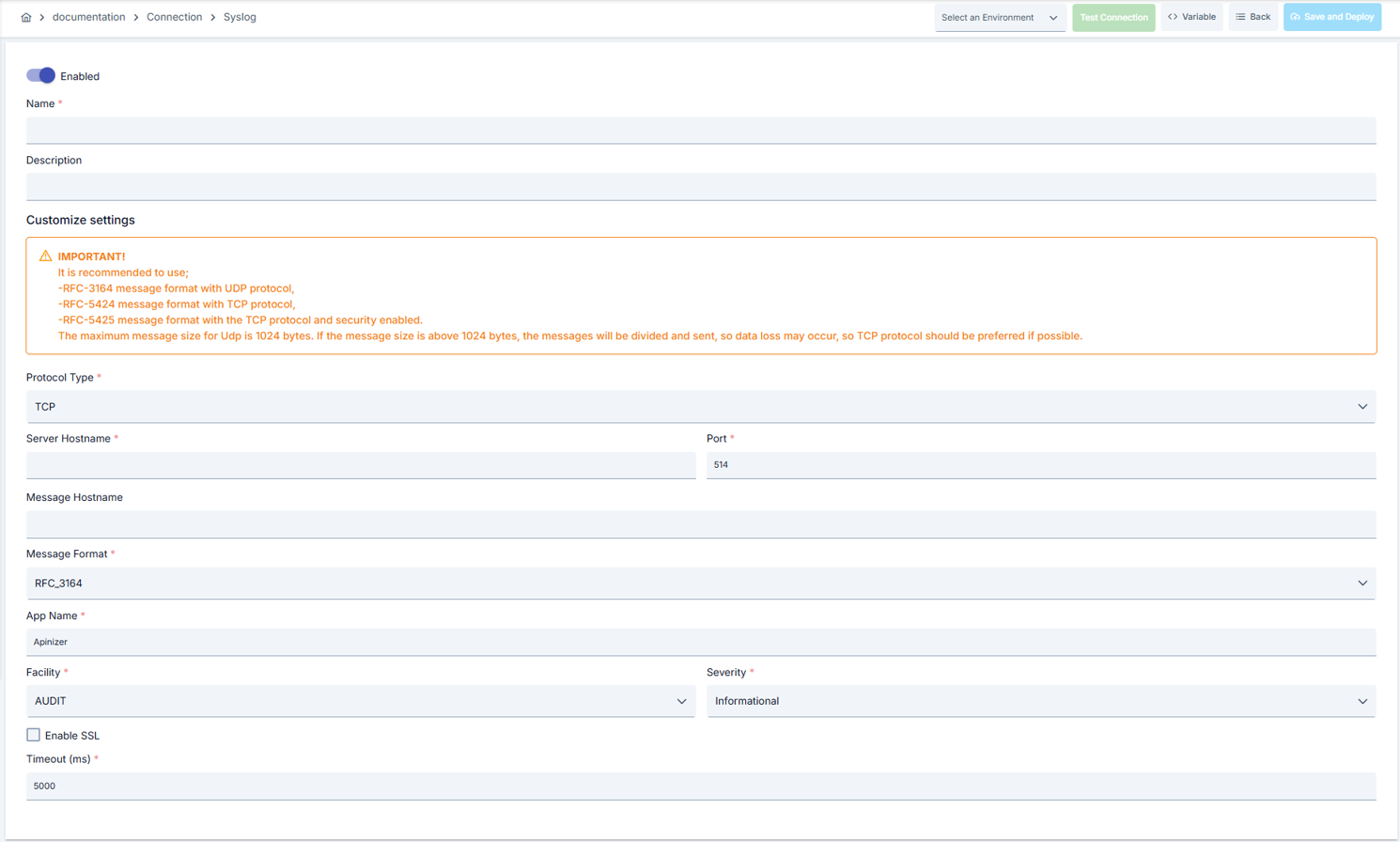
- Go to Connection → Syslog Connection section from left menu.
- Click [+ Create] button at top right.
Enable Status (Active Status): Set active/passive status with toggle. New connections are active by default.
Name Required:
- Example:
Production_Syslog - Enter unique name, cannot start with space.
- System automatically checks. Green checkmark: available. Red X: existing name.
Description:
- Example: "Gateway prod log flow"
- Max. 1000 characters.
- Describe the purpose of the Connection.
In the action button area at the top of the page, you can use the [<> Variable] button to select dynamic values, and with global variables, you can manage connection parameters with variable-based values instead of fixed values. For detailed information, review the Dynamic Variables page.
- Select environment from dropdown menu: Development, Test, or Production.
- Different connection parameters can be defined for each environment.
- Select TCP or UDP from Syslog Protocol Type field.
- Enter Syslog Server Hostname and Syslog Port values.
- Incorrect port leads to log loss; verify network firewall openings.
- Select Syslog Message Format (RFC 3164/5424/5425).
- Fill Syslog Message Hostname, Syslog App Name, Facility, and Severity fields according to your log policy.
- With RFC 5424 or RFC 5425 you can turn on Write RFC 5424 Structured Data and, if your organization has one, enter your Enterprise Number (PEN).
- When TCP is selected, Syslog Timeout value is entered in milliseconds (default 500).
- Timeout field is hidden in UDP mode.
- Enable TLS tunneling by setting the Enable SSL option to true in TCP mode.
- Select a Truststore when the syslog server's certificate is issued by a private authority; leave it empty to keep using the JVM default trust store.
- Select a Keystore when the syslog server asks the client for a certificate (mutual TLS); leave it empty for server-only TLS.
- Leave Hostname Verification on unless the server certificate deliberately carries a name other than the address you connect to.
- Step-by-step mutual TLS setup, including the syslog server side, is on Syslog Integration.
- Click [Test Connection] button.
- Test whether connection parameters are correct.
- Success: Green confirmation message, Failed: Error details shown.
- On a TLS connection the result box also reports the session that was negotiated, for example
ok: tls: TLSv1.3 / TLS_AES_256_GCM_SHA384 / peer=CN=syslog.example.com / clientCert=CN=apinizer-gateway (expires 2036-08-31).clientCert=nonemeans no client certificate was presented. - When the selected keystore or truststore cannot be read, the test fails with an explicit message; the connection is never retried without TLS.
- A successful test against a TLS server takes about a second longer than a plain one, because a server that rejects the client certificate only says so after the handshake and Apinizer waits for that answer.
- Click [Save and Deploy] button at top right.
Checklist: Unique name. Required fields filled. Test connection successful (recommended)
Result:
- Connection is added to list.
- Becomes available in Integration Flow and Connector steps.
- Becomes active according to environment.
Connection created successfully! You can now use it in Integration Flow and Connector steps.
Deleting Connection
Select Delete from ⋮ menu at end of row or click [Delete] button on connection detail page
Check Before Deleting: May be used in Integration Flow or Connector steps. If necessary, assign an alternative connection. Back up with Export before deleting
Use Disable option instead of deleting. Connection becomes passive but is not deleted. Can be reactivated when needed
Exporting/Importing Connection
In this step, you can export existing connections for backup, moving to different environments, or sharing purposes, or import a previously exported connection again. This operation is used to maintain data integrity in version control, transitions between test and production environments, or inter-team sharing processes.
Export
Click [Export] button on connection detail page. ZIP file is downloaded.
The row's ⋮ menu now has two items: the primary Export opens the Export/Import Wizard with this connection preselected — its certificate/key store and any ${VARIABLE} reference surface automatically on the dependency step; the secondary Export as File downloads the ZIP described below directly, without going through the wizard.
Format: Date-connection-ConnectionName-export.zip
Example: 13 Nov 2025-connection-Production_Syslog-export.zip
- Connection JSON file
- Metadata information
- Dependency information (e.g., certificates, key store)
- Backup
- Moving between environments (Test → Prod)
- Versioning
- Team or project-based sharing
Import
- Click [Import Syslog Connection] button on the main list — it now opens the Export/Import Wizard's import step with type Connection preselected (Admin scope when opened from Administration); the old upload dialog is gone.
- Select the exported package and follow the wizard's steps.
- The wizard checks format, name conflicts and dependency availability before you confirm the import.
Scenario 1: Name Conflict → Overwrite old connection or create with new name.
Scenario 2: Missing Dependencies → Create missing certificates or key stores first or exclude during import.
Connection Usage Areas
In this step, you can use the Syslog Connection connection you created in different components of the system. Connections are used by being selected in Integration Flow, Connector steps, or Scheduled Jobs.
Steps:
- Create the connection.
- Validate connection with Test Connection.
- Save and activate with Save and Deploy.
- Ensure connection is in Enabled state.
- Connection is selected in steps with syslog output such as "Send Message", "Notify".
- Can also be used for custom log sending in API Gateway policies.
- Connection selection is made from Connection field in configuration screen.
- Jobs that collect logs at certain intervals or perform health checks send notifications via syslog connection.
- If environment is changed in job update, connection is automatically adjusted.
- Connection correctness can be checked independently from Integration Flow with Connection Test feature.
- This test is critical in debugging process.
Large Records and High Volume
The settings below matter most for API proxies with large payloads (audit trails, batch responses, stack traces) or high request volume. They are optional, but note that the Buffer Memory Ceiling applies at its 64 MB default even on connections that never set it.
Why the Buffer Has a Byte Ceiling
Before this release, the send queue was limited only by message count (Queue Capacity, default 10,000). For API traffic records that average around 200 KB, a full queue of that size could hold close to 2 GB in memory, and messages that wait there for a while tend to get promoted to a longer-lived memory generation, which then triggers heavier garbage collection. The Buffer Memory Ceiling parameter bounds the same queue by bytes (default 64 MB) so it can no longer grow unbounded on large-payload traffic. The two limits work together — whichever is reached first applies. Once the queue is full, new messages are routed to the failover connector if one is enabled on the Syslog Connector; failover is disabled by default, and without it those messages are dropped with a warning logged roughly every 30 seconds.
Keeping Large Records Intact
In NON_TRANSPARENT framing, the syslog server treats the end of each line in the message body as the end of a frame, so any line break in a record is stripped before sending — a multi-line JSON payload, XML document, or stack trace is flattened onto a single line. OCTET_COUNTING framing (RFC 6587 §3.4.1) prefixes each frame with its length instead (<length> <message>), so line breaks inside the body no longer split the frame and no cleanup is needed — the record reaches the syslog server exactly as it left the gateway.
This was verified against a real rsyslog 8.2504.0 server: a 200 KB message arrived as a single event with OCTET_COUNTING framing, while the same message body split into multiple events under NON_TRANSPARENT.
When Syslog Framing Type is left at AUTO, RFC_5425 messages automatically use OCTET_COUNTING; every other format keeps using NON_TRANSPARENT, matching current behavior.
Delivery Order with Multiple Connections
When Parallel Connection Count is greater than 1, messages are distributed across different sockets and can arrive at the syslog server out of order. RFC 5424 messages carry a microsecond-resolution timestamp and an increasing message ID per socket, which is enough to reorder events downstream if needed. When Syslog Message Format is RFC 3164, the connection count is fixed at 1, since that format's timestamp has no sub-second resolution to distinguish reordered events.
rsyslog Server-Side Requirements
Octet-counted framing only helps if the receiving rsyslog server accepts frames of that size. The imtcp input's maxFrameSize defaults to 200,000 bytes — smaller than a 200 KB message (204,800 bytes) — and a message that exceeds it falls back out of length-prefixed handling on the server side:
input(type="imtcp" port="514" maxFrameSize="2000000" SupportOctetCountedFraming="on")

global(maxMessageSize="2097152")
global(oversizemsg.report="on")
global(maxMessageSize="...")is a separate setting frommaxFrameSizeand needs to be raised together with it.maxFrameSizeis only recognized by rsyslog 8.1905 and later; older versions reject it withparameter maxFrameSize not known, so confirm the server version before rolling out this configuration.oversizemsg.report="on"makes rsyslog log records that still exceed the limit instead of dropping them without a trace.- rsyslog escapes line breaks inside the message body with its own control-character sequence by default, which shows up as
#012on the SIEM side. Setglobal(parser.escapeControlCharactersOnReceive="off")if the original line breaks should be preserved as-is.
Define a failover connector on the Syslog Connector. Failover is disabled by default; without it, records are dropped when the queue fills up or the rsyslog server becomes unreachable, and a batched warning is logged roughly every 30 seconds. With failover enabled, those records keep flowing through the backup connector instead.
Idle Connections and Reconnects
A syslog server, a firewall, or a load balancer in between usually closes a TCP session that has been idle for a while, and it does so without telling the sender. Apinizer only finds out on its next write. On a connection with sparse traffic that meant every batch failed once, was retried on a fresh socket and then succeeded: no records were lost, but each of those batches wrote an error line, and the log read as if delivery were failing.
Apinizer now refreshes the socket before writing when nothing has been sent on it for 30 seconds, so the closed session is never written to in the first place. Two things follow on the log side:
- A batch that fails once and then succeeds on a fresh socket is no longer reported as an error. The first such recovery within a minute is written as an information line stating that no data was lost; the rest are counted and reported in the periodic summary below.
- While it has something to report, each socket writes an information summary at most once a minute: batches and records sent, sockets refreshed while idle, batches recovered, records lost, current queue depth and how many records the queue rejected. A socket with nothing to report stays silent.
A single write that takes longer than one second is reported separately as a warning carrying the target and the elapsed time. That is the line to look for when the question is whether the syslog server is genuinely falling behind, as opposed to merely closing idle sessions.
The Gateway diagnostics carry the same two counters per connection: idleReconnectCount, sockets refreshed before writing because they had been idle, and recoveredBatchCount, batches that failed once and then succeeded on a fresh socket. A recoveredBatchCount that keeps rising means the receiving side closes sessions sooner than thirty seconds.
The thirty-second threshold needs no configuration on the connection and is not exposed on the screen. Where a receiving side or a firewall closes sessions much sooner, it can be shortened for the whole node by starting the Gateway with -Dapinizer.syslog.socketIdleReconnectMillis=<milliseconds>; a value of 0 turns the proactive refresh off and restores the earlier behaviour.
Receivers That Close the Connection Right After Accepting It
The idle-reconnect refresh above only helps when Apinizer is the one leaving a connection unused. Some receivers behave differently: they complete the TCP handshake and then close the session immediately, before a single byte is exchanged — a session-limit ceiling or a source-IP rejection typically does this. Apinizer cannot see that at connect time, so without a check the first write on the fresh socket would fail, the retry on another fresh socket would also land on a receiver that closes it right away, and this could repeat rapidly enough to open a new TCP connection for every batch, with records silently lost in between.
Apinizer now reads from the socket for a short moment right after it connects (after the TLS handshake too, when TLS is used) and before writing anything to it. If the receiver has already closed the session, that read reports it immediately and the connection is treated as a normal connection failure — it counts toward the three-consecutive-failure threshold that moves traffic to the failover connector, and a fresh attempt follows five seconds later, exactly as for any other connection error. If the receiver stays quiet, as an ordinary syslog receiver does, the check simply times out and the socket is used right away; no extra I/O and no measurable delay are added once the connection is up and being reused for further batches.
When a receiver instead accepts the connection cleanly but closes it again after every batch, reconnecting on every failed write could still open connections at a very high rate. Apinizer paces reconnects after a write failure to at most roughly ten per second per socket, and once at least ten batches have gone through in a summary window with more than half of them needing this kind of recovery, a distinct warning is logged once a minute:
Syslog receiver drops the connection after nearly every batch (recovered X of Y batches, reconnects N, peerClosedAtAccept M); delivery may be silently lost - check receiver session limits (connectionId=..., target=...)
That line is the signal to check the receiving side's own session limits or connection policy — the sender is retrying correctly, but a receiver that behaves this way can still lose records between the moment a batch is accepted into the kernel send buffer and the moment the receiver's next close is discovered.
Two JVM system properties tune this behaviour for the whole node; both apply only to Apinizer's TCP syslog sender, not to any other connector.
-Dapinizer.syslog.connectLivenessMillis=<milliseconds>— how long the connect-time liveness read waits before deciding the receiver is silent and healthy. Default 100 ms, capped at 2000 ms;0turns the check off entirely, restoring the pre-APNZ-6839 behaviour where a receiver that closes the session at accept time is only discovered on the next write.-Dapinizer.syslog.minReconnectIntervalMillis=<milliseconds>— the minimum time between two reconnects that follow a write failure on the same socket. Default 100 ms, capped at 5000 ms;0removes the pacing. This does not affect the first connection, the proactive idle refresh above, or the half-open health probe — those already have their own, longer intervals.
An out-of-range or unparseable value falls back to the default and is logged as a warning rather than failing the connection.
The periodic per-socket summary described above now also reports two more counters: reconnects, the number of fresh TCP connections opened on that socket (the first connection counts too, so a socket that has never dropped still shows 1), and peerClosedAtAccept, how many of those connections were found closed by the connect-time liveness check right after being opened. A peerClosedAtAccept count above zero means the fault is on the receiving side — a session limit, a source-IP rejection, or a load balancer in between — rather than in the network path or on the Apinizer side.
Splitting Oversized Messages
This is a different tool from the framing settings above. Framing keeps a large record intact as one syslog event. Splitting deliberately breaks a record into several syslog messages, for the cases framing cannot help with: a receiving server whose own message-size limit cannot be raised, or a UDP connection, where there is no framing to lengthen in the first place.
Maximum Message Size bounds the size of a single syslog message this connection sends — see the parameter card above for exactly what is measured. It is optional and defaults to 0, which means no splitting: the connection keeps sending exactly one message per record, byte-for-byte what it always has. Set it to a positive number of bytes and any record whose message would exceed that size is sent instead as several syslog messages, each transmitted on its own.
What a split message looks like
Every part of a split message carries a slice of the original content; the only addition is a short prefix at the start of each part's message body:
[chunk 1/3 a1b2c3d4] first part of the original message...
The `[chunk i/N <id>]` prefix carries the part's position (i), the total number of parts (N), and an identifier shared by every part of that one original message and different from any other split message's identifier. It is written on every protocol (TCP and UDP) and every message format, so a receiver can recognize and reassemble a split message even on a destination using RFC 3164 over plain TCP or UDP.
When the connection has RFC 5424 or RFC 5425 selected and both Write RFC 5424 Structured Data and a valid Enterprise Number (PEN) are set — the same two conditions that already gate the `apinizer@<PEN>` element described under TLS and Structured Data Parameters — a split message additionally carries an `apinizerChunk@<PEN>` structured-data element on each part, carrying the same index, total and identifier as the prefix. The prefix is what a receiver without structured-data support reassembles on; the element is a convenience for a parser that already reads structured data. The element carries three parameters: `id` (the identifier shared by every part of one message), `seq` (the 1-based index of this part) and `total` (how many parts the message was split into) — for example `[apinizerChunk@32473 id="3f2a19cc" seq="2" total="7"]`.
The identifier does not travel in the RFC 5424 MSGID field. That field is capped at 32 characters by the protocol, which is not always enough to stay safely unique, so the identifier lives in the message prefix — and, where applicable, in the structured-data element — instead.
A split JSON record is not valid JSON one part at a time. When what is being split is a JSON-shaped payload — a SIEM Apinizer JSON v2 event, a Legacy Raw traffic log record, or any other JSON body — each individual syslog message, prefix included, is a fragment, not a document your JSON parser can read on its own. Reassemble the parts on the receiving side (see Reassembling Split Messages) before running JSON parsing rules on them; a parser applied directly to one part fails, or worse, silently misreads it.
Relationship to the SIEM Size Policy
The SIEM & Log Forwarding page has its own Size Policy, and the two settings solve different problems. The SIEM size policy runs first, at the destination level: it shortens, drops or replaces-with-a-hash the data object of an Apinizer JSON v2, CEF 0 or LEEF 2.0 payload so the event fits a target size — it is not available on Legacy Raw, and it never applies to traffic logs, which do not pass through the SIEM & Log Forwarding page at all. Maximum Message Size runs after that, on the Syslog connection itself, on whatever final message reaches it — a SIEM payload that already passed the size policy, an unmodified Legacy Raw event, or a traffic-log record forwarded by a Syslog Connector entirely outside the SIEM page. Where the SIEM size policy shrinks or drops content so it fits in one message, Maximum Message Size keeps all of the content and delivers it as more than one message instead.
Over TCP, splitting does not enlarge what the Buffer Memory Ceiling admits into the send queue either: the parts of one split message are queued and admitted together, as a single record, so a message whose total size does not fit within that ceiling is still rejected as a whole. Max Message Size solves a receiver's or a wire protocol's message-size limit — it is not a way around the connection's own queue budget.
Over UDP there is no send queue and no such all-or-nothing admission: each part is sent as its own datagram. If the connection fails partway through, the parts already sent are on the wire and the record is retried in full through the failover path, so a receiver can see duplicate parts. This is inherent to UDP, which is one more reason to prefer TCP for large records.
Best Practices
Do's and Best Practices
Bad: Using default RFC 3164 in all environments.
Good: Selecting format according to SIEM requirements.
Best: Versioning and documenting environment-based different formats with Export/Import.
Bad: Sending all logs with same severity.
Good: Separating warning and error logs into different severities.
Best: Documenting facility/severity matrix according to incident classification.
Bad: Leaving default hostname value.
Good: Using environment-based hostname.
Best: Naming in EnvironmentCode-gatewayId format and mapping with CMDB.
Bad: Space-containing and ambiguous expressions in Name field.
Good: Using environment prefix (Test_Syslog).
Best: Making {Environment}_{Purpose}_{Region} template mandatory.
Bad: Using same connection parameters in all environments.
Good: Creating separate connection for each environment.
Best: Managing all environments in single connection using Environment option, only changing environment during transitions between environments.
Bad: Saving and deploying connection without testing.
Good: Validating with Test Connection before saving.
Best: Testing after every parameter change, performing full integration test in test environment before going to production.
Security Best Practices
Make syslog server accessible only from relevant gateway subnets. Restrict UDP/TCP 514/6514 ports in firewall.
If using TLS, renew certificate chain regularly; use self-signed certificates only in Development environment.
Protect integrity by using TLS + message signature mechanism in RFC 5425 format for critical logs.
Store sensitive information such as username and password using environment variable or secret manager. Do not hardcode credentials in code or configuration files. Update passwords periodically
Always enable SSL/TLS in production environment. Use self-signed certificates only in development environment. Track certificate expiration dates and renew on time
Allow only authorized users to change connection configuration. Store connection change logs. Apply change approval process for critical connections
Don'ts
Why avoid: UDP does not provide delivery guarantee, packet loss cannot be controlled.
Alternative: Use TCP + SSL/TLS mode.
Why avoid: SIEM rules are not triggered, alerts are missed.
Alternative: Validate facility/severity map with operations team.
Why avoid: Source cannot be distinguished on SIEM side.
Alternative: Use hostname containing environment + region + node identity.
Why avoid: Test data may be written to production system, real users may be affected, security risk occurs.
Alternative: Create separate connection for each environment, use environment parameter, separate connection names by adding prefix according to environment (Test_, Prod_).
Why avoid: Connection constantly times out in network delays, Integration steps fail.
Alternative: Adjust timeout values according to real usage scenarios, measure network latency and set timeouts accordingly.
Performance Tips
Recommendation: Apply rate limiting on gateway side in UDP mode.
Impact: Target syslog server buffer overflow is prevented.
Recommendation: Keep timeout values in 5-10 sec range, verify automatic reconnect behavior during network interruptions.
Impact: Log delivery continuity is maintained.
Recommendation: Use RFC 5424 only if mandatory, otherwise reduce message size with RFC 3164.
Impact: Bandwidth and storage costs decrease.
Recommendation: Measure real network latency, adjust timeout values accordingly, avoid very low or very high timeouts.
Impact: Unnecessary waits are prevented, fast fail-over is provided, user experience improves.
Recommendation: Monitor queue fill level and Buffer Memory Ceiling usage, track timeout rates, perform connection health check, set up alerting.
Impact: Problems are proactively detected, performance bottlenecks are identified early, downtime decreases.
Delivery Health
When a Syslog connection is used as a destination on SIEM & Log Forwarding, its Destinations tab shows a read-only health card for it, above the destination list.
The card carries a state — Healthy, Degraded, Failing or Idle — the time of the last success and the last failure, the number of consecutive failures, and the last error message. Because the destination is a Syslog connection, the card also shows the state of the sender itself: whether it is up, how many messages are currently queued, and how many were rejected, lost, or blocked for longer than the write timeout — the same conditions described under Large Records and High Volume above.
The card describes this Management Console node only. Its counters are kept in memory and start again from zero when the node restarts, and each Gateway keeps its own counters, reported in its own diagnostics rather than added to the Manager's. The card refreshes every ten seconds while the tab is open.
See Delivery health on the SIEM & Log Forwarding page for the full state reference, the applied configuration revision, and the Gateway-side diagnostics JSON used to compare delivery across nodes.
Troubleshooting
TLS Handshake Failed
Wrong port (514 instead of 6514), certificate chain missing, or syslog server may not be expecting TLS.
Validate port and protocol match.
Update certificate stores.
Open TLS listener on syslog side.
UDP Logs Missing
Network packet loss, firewall throttling, or excessive burst rate may exist.
Measure loss by performing packet capture.
Apply rate limiting on gateway side.
Switch to TCP mode if needed.
Connection Timeout
Network delay, target system responding slowly, or timeout value may be too low.
Check network connectivity.
Check target system health.
Increase timeout values.
Review connection logs.
Authentication Failed
Wrong username/password, expired credentials, or permission problem may exist.
Verify credentials.
Check that user is active on target system.
Check that necessary permissions are granted.
Check SSL/TLS certificates.
Connection Test Successful But Integration Flow Errors
Different connection may be selected in Integration/Connector step, step may be misconfigured, or Flow/Job may not be redeployed.
Check that connection's enable toggle is active.
Verify that correct connection is selected in Integration Flow.
Redeploy connection.
Redeploy Integration Flow or Job.
Check Gateway logs.
Large Records Arriving Split or Truncated
A multi-line JSON or stack-trace record is being cut into several syslog events, or long records are missing entirely on the receiving side.
Confirm Syslog Framing Type is OCTET_COUNTING (or AUTO with the RFC_5425 message format) for records that contain line breaks.
Raise maxFrameSize and global(maxMessageSize=...) on the syslog server to comfortably exceed your largest record.
Verify the syslog server runs rsyslog 8.1905 or later; maxFrameSize is rejected on older versions.
Check whether Buffer Memory Ceiling or Queue Capacity is being reached under peak load. Messages that no longer fit go to the failover connector if one is enabled, and are dropped otherwise.
Frequently Asked Questions (FAQ)
Can Syslog connection send to multiple syslog servers at once?
No, each connection targets a single destination; duplicate connection or use load balancer for multiple targets.
Do I need to create new connection when switching from UDP to TCP?
You can update protocol on same connection but it's recommended to back up with export before change.
Is additional configuration required to select RFC 5425?
Yes, a syslog server listening TLS and Syslog SSL Enabled value being true is required.
Which component does timeout value affect?
Only affects TCP handshake and ACK wait time; there is no separate request timeout field for the syslog connection.
Can I share connection in different projects?
Admin users can move connection to global area with Move to Global action; can be used in other projects.
Can I use the same connection in multiple Integration Flows?
Yes, the same connection can be used in multiple Integration Flow or Connector steps. This provides centralized management and guarantees configuration consistency. However, changes made to the connection will affect all usage locations, so care should be taken.
Should I create different connections for Test and Production?
Yes, it is recommended to create separate connection for each environment. Alternatively, you can manage all environments in a single connection using environment parameter. This approach provides easier management and less error risk.
Test Connection is successful but not working in Integration Flow, why?
Several reasons may exist:
- Connection enable toggle may be passive
- Different connection may be selected in Integration step
- Connection may not be deployed
- Integration Flow may not be redeployed yet
Do I need to reconfigure existing Syslog connections after upgrading?
For most installations, no: framing type, parallel connection count, offer timeout, and batch flush frames keep today's behavior when left empty. The Buffer Memory Ceiling, however, applies its 64 MB default even when the field is never set, so installations with large average records (say 200 KB) reach a full queue earlier than before. Review that value after upgrading if this describes your deployment.
How do I make sure large records are not split into multiple syslog events?
Select RFC_5425 as the Syslog Message Format (or set Syslog Framing Type to OCTET_COUNTING explicitly), and make sure the receiving rsyslog server's maxFrameSize and maxMessageSize are raised to accommodate your largest record. This is about accidental fragmentation caused by line breaks inside a record; it is unrelated to Maximum Message Size, which splits a record on purpose and only once it exceeds a size you choose — see the next question.
Can Apinizer split a message that is too large for my syslog receiver, instead of dropping it?
Yes. Set Maximum Message Size (0 by default, meaning no splitting) to the largest single message your receiver or network path accepts. Any record whose message would exceed that size is sent as several syslog messages instead, each one marked with a [chunk i/N id] prefix your receiver can use to put it back together. See Splitting Oversized Messages above.