LDAP/Active Directory
Overview
What is its Purpose?
Centralizes Connection definitions, making the same LDAP access information reusable across all Integration Flow and Connector steps
Manages SSL/TLS and certificate requirements with enum-based policies, ensuring consistency in authentication processes
Narrows directory queries with Search Scope and customFilter fields, limiting unnecessary traffic and unauthorized attribute access
Enables sharing the same connection at the project or management console level through Environment selection and Move to Global feature
Working Principle
When an LDAP connection is requested from within an Integration Flow or Connector, the system reads the configured connection parameters
Gateway opens a new LDAP connection if no suitable connection exists for the selected environment; this behavior is automatic and not configurable from the screen. The only value the user can adjust is the connect time (Connection Timeout)
Binds to the target directory by performing certificate verification according to Username/password or requireCertificateType field
Search/query operations are executed over LDAP protocol according to searchScope and customFilter values
When the operation completes, the connection is automatically managed by Gateway for subsequent requests; this behavior is not configurable from the screen
In case of connection error, timeout, or authentication error, the result is written to deployment logs and a detailed message is shown to the user
Usage Areas
Managing LDAP-based user authentication in Integration Flow steps through a single connection
Querying self-service portal or management console users from Active Directory/LDAP directory
Reading membership attributes to create group-based or organizational unit (OU) based authorization rules
Connecting to internal directories with certificate requirements via LDAPS to perform SSL/TLS audit
Technical Features and Capabilities
Basic Features
Options are determined with EnumLdapRequireCertificateType as NOT_REQUIRED, REQUIRED_CN, or REQUIRED_AN_PN; when REQUIRED_AN_PN is selected, the certificateId field becomes mandatory.
LDAP queries are refined with EnumSearchScope (OBJECT, ONE_LEVEL, SUBTREE) and customFilter combination.
Environment variables can be selected for Server Address, Username, Password, and Base DN fields to use hidden values.
Ability to define separate connection parameters for each environment (Development, Test, Production).
Activating or deactivating the Connection (enable/disable toggle). In passive state, the connection cannot be used but its configuration is preserved.
Advanced Features
LDAP connection within a project can be moved to the management project via Move to Global action, making it available across all projects.
When pulling the certificate list, the revoked flag is checked, and revoked certificates are placed in a separate warning list.
After save or Test Connection operations, the deploymentResult dialog opens showing bind/log details.
Ability to validate connection parameters before saving via "Test Connection" button.
Exporting Connection configuration as a ZIP file. Importing to different environments (Development, Test, Production). Version control and backup capability.
Monitoring connection health and performance metrics.
Connection Parameters
Mandatory Parameters
Description: Connection name (must be unique)
Example Value: Production_LDAP
Notes: Should not start with space, special characters should not be used
Description: URI or host information of the LDAP server
Example Value: ldaps://directory.example.com:636
Notes: Can be selected with environment variable
Description: Determines certificate verification policy
Example Value: REQUIRED_CN
Notes: If REQUIRED_AN_PN is selected, certificateId becomes mandatory
Description: Query depth (EnumSearchScope)
Example Value: SUBTREE
Notes: One of OBJECT, ONE_LEVEL, or SUBTREE values is selected
Description: Distinguished name where searches will start
Example Value: ou=Users,dc=corp,dc=local
Notes: Environment variable can be used; cannot be left empty for validation
Optional Parameters
Description: Opens SSL/TLS channel for LDAPS communication
Default Value: false
Recommended Value: true (in Production environment)
Description: Service account to be used for bind operation
Default Value: (Empty)
Recommended Value: svc_ldap_reader or environment variable
Description: Password of bind account or secret reference
Default Value: (Empty)
Recommended Value: Secret Manager variable
Description: Additional LDAP filter expression
Default Value: (Empty)
Recommended Value: LDAP filter expression
Description: Identity of the certificate in Secret Manager
Default Value: (Empty)
Recommended Value: UUID (mandatory when REQUIRED_AN_PN is selected)
Description: Which directory product family the server belongs to
Default Value: (Empty — unknown)
Recommended Value: Detected with the [Detect Directory] button, or picked by hand
Timeout and Connection Pool Parameters
There is no separate "Request Timeout", "Pool Size", or "Bind Retry Interval" field. The LDAP connection has only one timeout field: Connection Timeout. This value limits the time to connect to the LDAP server; if the field is left empty or a value of 0 or less is entered, the server side defaults to 30000 ms.
Description: Maximum time to connect to LDAP server
Default: 30000
Min: 1000 | Max: 300000
Unit: milliseconds
Usage Scenarios
Situation: Portal users log in via LDAP
Solution: Server Address=ldaps://auth.corp:636, Use SSL=true, Require Certificate Type=REQUIRED_CN
Expected Behavior: Users are verified with TLS-protected bind
Situation: Integration Flow needs to fetch users belonging to specific groups
Solution: Group filter with Custom Filter
Expected Behavior: Flow lists only relevant members
Situation: Admin page should share global LDAP definition
Solution: Move to Global is executed, selectedEnvironmentId=manager
Expected Behavior: Management console uses the same connection
Situation: Passwords are stored in Secret Manager
Solution: Username and Password environment variable
Expected Behavior: No need to update connection when password changes
Situation: Mutual TLS is required with internal PKI
Solution: Require Certificate Type=REQUIRED_AN_PN, Certificate Id=UUID
Expected Behavior: Bind is rejected without certificate verification
Situation: Hundreds of search calls per minute
Solution: Connection Timeout value is adjusted to real network latency
Expected Behavior: Timeout errors decrease, queries complete in normal time
Connection Configuration
Creating New LDAP Pool Connection
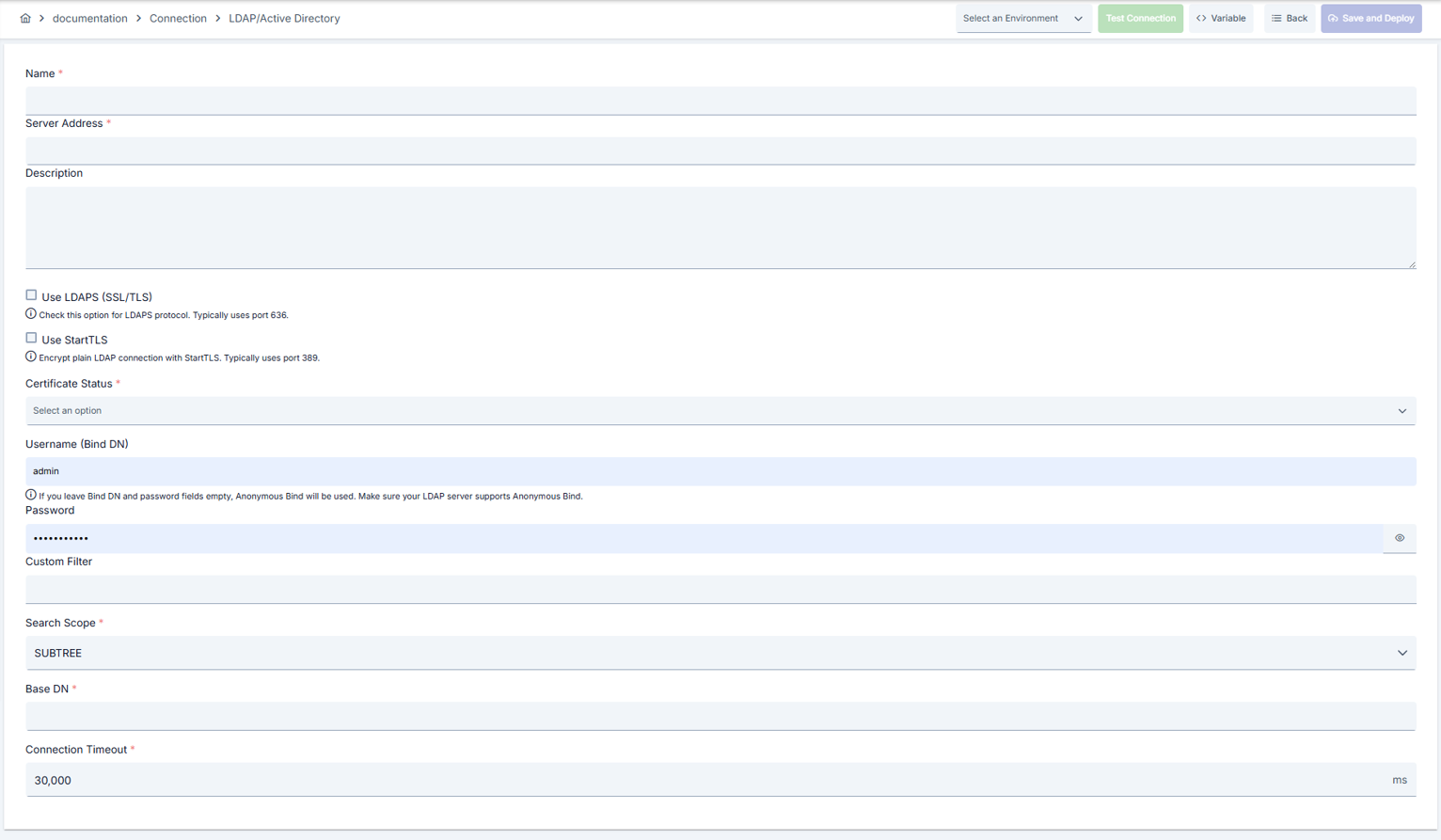
Configuration Steps
- Go to Connection → LDAP Pool Connection section from the left menu.
- Click the [+ Create] button at the top right.
- The new LDAP Pool Connection creation form opens.
Setting Enable Status (Active Status):
- Find the Enable Status toggle at the top of the form.
- Set the toggle to Active position (active by default).
- If you want to make the Connection passive, set the toggle to Passive position.
- Passive connections cannot be used in Integration Flows but their configurations are preserved.
Name - Mandatory Field:
- Enter a unique connection name in the Name field.
- Name examples:
Production_LDAP,Test_LDAPConnection,Dev_LDAP_Auth - Name rules:
- Should not start with space
- Special characters should not be used (recommended: letters, numbers, underscore)
- Maximum 255 characters
- System automatically checks as you type:
- Green checkmark: Name is available
- Red X mark: Name already exists, choose a different name
Description - Optional:
- Enter a text describing the purpose of the connection in the Description field.
- Example descriptions:
- "Portal LDAP access"
- "Production environment Active Directory connection"
- "Dummy LDAP connection for test environment"
- There is a maximum 1000 character limit.
- This field can be left empty.
In the action button area at the top of the page, you can use the [<> Variable] button to select dynamic values, and with global variables, you can manage connection parameters with variable-based values instead of fixed values. For detailed information, review the Dynamic Variables page.
- Find the Environment dropdown menu.
- Open the dropdown menu and select one of the following options:
- Development: For development environment
- Test: For test environment
- Production: For production environment
- Different connection parameters can be defined for each environment.
- Environment selection determines in which environment the connection will be active.
- Test Connection button remains disabled until environment is selected.
Server Address - Mandatory:
- Enter the LDAP server address in the Server Address field.
- Format:
ldaps://directory.example.com:636orldap://directory.example.com:389 - You can select environment variable
- Port 636 is used for LDAPS, port 389 for LDAP.
Search Scope - Mandatory:
- Select from the Search Scope dropdown menu:
- OBJECT: Searches only a single entry
- ONE_LEVEL: Searches the first level of the specified OU
- SUBTREE: Searches entries in the entire subtree
- Select according to performance requirements.
Base DN - Mandatory:
- Enter the distinguished name where searches will start in the Base DN field.
- Example:
ou=Users,dc=corp,dc=local - Environment variable can be used
- Cannot be left empty for validation.
Custom Filter - Optional:
- Enter additional LDAP filter expression in the Custom Filter field.
- Example LDAP filter expression
- This field can be left empty.
Require Certificate Type - Mandatory:
- Select from the Require Certificate Type dropdown menu:
- NOT_REQUIRED: Certificate verification not required
- REQUIRED_CN: Common Name verification required
- REQUIRED_AN_PN: Alternative Name or Principal Name verification required
- When REQUIRED_AN_PN is selected, Certificate Id becomes mandatory.
Certificate Id - Mandatory when REQUIRED_AN_PN is selected:
- When Require Certificate Type REQUIRED_AN_PN is selected, the Certificate Id field becomes visible.
- Select the certificate from Secret Manager.
- Certificate ID is entered in UUID format.
Use SSL - Optional:
- Find the Use SSL checkbox.
- Check the checkbox for LDAPS communication.
- Should be set to true in Production environment.
Username - Optional:
- Enter the service account to be used for bind operation in the Username field.
- Example:
svc_ldap_reader - You can select environment variable
- This field can be left empty (anonymous bind).
Password - Mandatory if Username is filled:
- If Username is filled, the Password field becomes visible.
- Enter the password of the bind account.
- Secret Manager variable is recommended
- Password will appear masked for security reasons.
Directory Type:
- Pick the directory product from the Directory Type dropdown: Active Directory, OpenLDAP, 389 Directory Server / FreeIPA, Other (Standard LDAP), or leave it unset (unknown).
- This choice does not change how the connection works. It only lets identity provider screens suggest matching field defaults.
Detect Directory:
- Click the [Detect Directory] button to ask the server what it is and where its trees start.
- The question is sent from the API Manager, so the server must be reachable from there.
- Nothing is saved. The answer is shown as a suggestion for you to review.
- Click [Use this directory type] to fill the Directory Type field with the detected value.
- Click one of the reported tree roots to fill it into the Base DN field.
- The result also states whether the server can return large result sets page by page.
- If the server does not publish this information, keep using the values you entered by hand.
Connection Timeout:
- Enter the maximum time to connect to LDAP server in the Connection Timeout field.
- Default: 30000 milliseconds (30 seconds)
- Minimum: 1000, Maximum: 300000 milliseconds
- There is no separate Request Timeout, Pool Size, or Bind Retry Interval field.
Username/Password Security:
- Link Username/password fields to secret manager variables.
- This way, there is no need to update the connection when the password changes.
SSL/TLS Settings:
- Keep SSL/TLS field mandatory in Production environment.
- Check the Use SSL checkbox.
- Use port 636 for LDAPS.
Certificate Management:
- Update the connection during certificate renewals.
- Update Certificate Id with the new certificate.
- Verify by running Test Connection.
- Find the [Test Connection] button at the bottom of the form or at the top right corner.
- Button remains disabled until environment is selected.
- Click the button.
- System tests connection parameters:
- Connection is established to LDAP server
- Authentication is performed (if Username/Password is filled)
- Certificate verification is performed (if Require Certificate Type is active)
- Bind operation is tested
- Test result:
- Successful: Green confirmation message is displayed, such as "Connection test successful"
- Failed: Red error message is displayed, error details are shown
- Remember that overlay is shown during test for critical fields using environment variables.
- In case of error:
- Read the error message
- Check relevant parameters (Server Address, Base DN, Username, Password)
- Check firewall and network settings
- Check LDAP server health
- Fix parameters and test again until test is successful.
- Click the [Test connection (step by step)] button to run a 7-step check instead of the single pass/fail result above.
- The steps run in order: Configuration Check, Server Connection, Secure Connection (TLS), Service Account Sign-in, Directory Information, Schema Check, Base DN Read.
- Each step shows a result, an explanation, a suggestion, and a copyable technical detail.
- The original single-result [Test Connection] button above is still available.
- Make sure all mandatory fields are filled.
- Verify that Test connection is successful (recommended).
- Click the [Save and Deploy] button at the top right corner of the form.
- System saves the connection and deploys it to the selected environment.
- After successful save:
- You are redirected to the connection list page
- New connection appears in the list
- Connection becomes Enabled status
- Becomes available for use in Integration Flow and Connector steps
Checklist (Before Saving):
- Name field is unique and valid
- Server Address is filled
- Search Scope is selected
- Base DN is filled
- Require Certificate Type is selected
- Certificate Id is filled if REQUIRED_AN_PN is selected
- Environment is selected
- Test Connection is successful (recommended)
- All mandatory fields are filled
Result:
- Connection is successfully created and saved
- Becomes active in the selected environment
- Connection selection can be made in Integration Flow and Connector steps
- Is displayed and can be managed in the connection list
Connection successfully created! You can now use it in Integration Flow and Connector steps.
Deleting Connection
Select ⋮ → Delete from the row end menu or click the [Delete] button on the connection detail page
Check Before Deleting: It may be used in Integration Flow or Connector steps. If necessary, assign an alternative connection. Take a backup with Export before deleting
Use Disable option instead of deleting. Connection becomes passive but is not deleted. Can be reactivated when needed
Diagnostic Mode
Diagnostic Mode writes every LDAP search and sign-in attempt made over this connection to the log in full detail, for a limited time. Passwords are never written.
On the connection detail page, pick a duration of 15, 30, or 60 minutes and click [Turn On].
Diagnostic Mode turns itself off when the time is up, so no restart is needed.
The setting is kept when you save the connection; you do not need to turn it on again after every save.
Diagnostic Mode is never included in an exported connection package.
Connection Health Status
The connection list shows a Status badge for each LDAP connection: Reachable, Unreachable, or Unknown. Apinizer checks the connection every 5 minutes with a sign-in and a basic search.
A connection that resolves a critical field from an environment variable can only be checked for one selected environment; use the [Test Connection] button on the connection screen for that case.
Exporting/Importing Connection
In this step, users can export (export) existing connections for backup, moving to different environments, or sharing purposes, or import (import) a previously exported connection again. This operation is used to maintain data integrity in version control, transition between test and production environments, or inter-team sharing processes.
The list screen's row-menu Export and the toolbar Import already go through the Connection type in the Export/Import Wizard — it surfaces an attached mTLS certificate (Require Certificate Type = REQUIRED_AN_PN) and key store as dependencies on the dependency step and packages them along automatically, no extra step needed. The row menu's secondary Export as File item and the detail page's own Export button (below) now bundle the certificate/key store the same way — matched by name on import, so importing that file no longer fails with an unresolved certificate reference.
Export
Click the [Export] button on the connection detail page. ZIP file is downloaded.
The row's ⋮ menu now has two items: the primary Export opens the Export/Import Wizard with this connection preselected — its certificate/key store and any ${VARIABLE} reference surface automatically on the dependency step (see the tip above); the secondary Export as File downloads the ZIP described below directly, without going through the wizard.
Format: Date-connection-LDAP Pool Connection-export.zip
Example: 13 Nov 2025-connection-Production_LDAP-export.zip
- Connection JSON file
- Metadata information
- The attached certificate or key store, if one is set (matched by name on import; created if missing, or updated/duplicated there following the same Replace Existing / Import as New rule as any other certificate reference)
- Backup
- Moving between environments (Test → Prod)
- Versioning
- Team or project-based sharing
Import
- Click the Import button on the main list — it now opens the Export/Import Wizard's import step with type Connection preselected (Admin scope when opened from Administration); the old upload dialog is gone.
- Select the exported package and follow the wizard's steps.
- The wizard checks format, name conflicts and dependency availability before you confirm the import.
Scenario 1: Name Conflict → Overwrite the old connection or create with a new name.
Scenario 2: Certificate Needed → Only applies to a package made with the row menu's secondary Export as File item, applied through the legacy /api/export-imports/import endpoint — the certificate is not included there; select the Certificate Id on the target by hand after import. The list screen's own Import button (above) already carries the certificate through the wizard, so this gap does not occur there.
Connection Usage Areas
Steps:
- Create the connection.
- Verify the connection with Test Connection.
- Save and activate with Save and Deploy.
- Make sure the connection is in Enabled status
Connection is selected in steps like "LDAP Lookup", "Attribute Enrichment". The same connection can be shared by multiple Flows; Warning: changes affect all Flows
Scheduled jobs can perform directory queries at certain intervals. When the job is redeployed, current connection parameters are automatically used
Connection Test result is displayed in the deployment dialog. Bind DN and error codes are quickly read during troubleshooting
Best Practices
Things to Do and Best Practices
Bad: Binding with domain admin account.
Good: Creating a read-only service account.
Best: Defining OU-based limited privilege service accounts and planning password rotation
Bad: Continuing to use expired certificates.
Good: Manually tracking certificate expiration dates.
Best: Setting up automatic alerts with Secret Manager and event log, renewing REQUIRED_AN_PN connections in advance
Bad: Selecting SUBTREE for every query.
Good: Using ONE_LEVEL for OU-based queries.
Best: Determining scope according to usage scenario and reducing unnecessary attribute reads
Bad: Writing fixed username and passwords to the form.
Good: Hiding with environment variable.
Best: Feeding variables from Secret Manager and auditing access logs
Bad: Using the same connection parameters in all environments.
Good: Creating separate connections for each environment.
Best: Managing all environments in a single connection using Environment option, only changing environment during inter-environment transitions
Bad: Saving and deploying connection without testing.
Good: Verifying with Test Connection before saving.
Best: Testing after every parameter change, performing full integration test in test environment before moving to production
Security Best Practices
Warning: Do not leave Use SSL closed in Production environment; otherwise credentials are transmitted in plain text
When you move Connection to Global, make sure only authorized users can edit, otherwise all projects are affected
Do not log sensitive data; prevent data leakage by keeping Test Connection overlay closed
Store sensitive information such as username and password using environment variable or secret manager. Do not hardcode credentials in code or configuration files. Periodically update passwords
Always enable SSL/TLS in Production environment. Use self-signed certificates only in development environment. Track certificate expiration dates and renew on time
Allow only authorized users to change Connection configuration. Store connection change logs. Apply change approval process for critical connections
Things to Avoid
Why to avoid: Directory opens to all users, access traces are not kept.
Alternative: Bind with read-only service account
Why to avoid: Performance decreases in large directories.
Alternative: Select ONE_LEVEL or OBJECT scope, narrow with customFilter
Why to avoid: Becomes vulnerable to man-in-the-middle attacks.
Alternative: Set Require Certificate Type field to REQUIRED_CN or REQUIRED_AN_PN according to corporate policy
Why to avoid: Test data can be written to production system, real users can be affected, security risk occurs.
Alternative: Create separate connections for each environment, use environment parameter, separate connection names by adding prefix according to environment (Test_, Prod_)
Why to avoid: Connection constantly times out in network delays, Integration steps fail.
Alternative: Adjust timeout values according to real usage scenarios, measure network latency and determine timeouts accordingly
Performance Tips
Recommendation: Use ONE_LEVEL instead of SUBTREE, narrow OUs with customFilter.
Impact: Number of entries sent to LDAP server decreases, response time shortens
Recommendation: Provide variables through Secret Manager cache.
Impact: Parameter read time decreases, overlay is less visible for Test Connection
Recommendation: Schedule certificate renewals to coincide with maintenance window, deploy new certificateId in advance.
Impact: Your security level is maintained without experiencing LDAPS interruption
Recommendation: Measure real network latency, adjust timeout values accordingly, avoid very low or very high timeouts.
Impact: Unnecessary waits are prevented, fast fail-over is provided, user experience improves
Recommendation: Track timeout rates, perform connection health check, set up alerting.
Impact: Problems are detected proactively, performance bottlenecks are identified early, downtime decreases
Troubleshooting
LDAP Search Returns No Results
searchScope may be too narrow, customFilter may be wrong, or Base DN may be incorrect.
Try again by setting Scope value to SUBTREE.
Remove custom filter and test.
Verify Base DN with directory administrator.
Certificate Validation Failed
Wrong requireCertificateType may be selected, certificate may be in revoked list, or CertificateId may not be current.
Check certificate status in Secret Manager.
Import new certificate if necessary.
Update RequireCertificateType value according to rule.
Connection Timeout
Network delay, target system responding slowly, or timeout value may be too low.
Check network connectivity.
Check target system health.
Increase timeout values.
Review connection logs.
Authentication Failed
Wrong username/password, expired credentials, or authorization problem may exist.
Verify credentials.
Check that user is active in target system.
Check that necessary permissions are granted.
Check SSL/TLS certificates.
Connection Test Successful But Integration Flow Gives Error
Different connection may be selected in Integration/Connector step, step may be misconfigured, or Flow/Job may not be redeployed.
Check that Connection's enable toggle is active.
Verify that correct connection is selected in Integration Flow.
Redeploy Connection.
Redeploy Integration Flow or Job.
Check Gateway logs.
Frequently Asked Questions (FAQ)
Can I define multiple Base DNs in LDAP connection?
A single connection only takes one Base DN; you need to create separate connections for different OUs or define alternative steps within Flow.
Why does Test Connection become passive when I use environment variable?
If Server Address, Username, Password, or Base DN starts with a variable, values are resolved at deployment time; Test Connection enters overlay because it cannot see the real value.
What do EnumSearchScope values do?
OBJECT searches only a single entry, ONE_LEVEL searches the first level of the specified OU, SUBTREE searches entries in the entire subtree; selection is made according to performance requirements.
What should I do if certificate appears in revoked list?
Renew the certificate via Secret Manager or select a different certificateId; bind is blocked with revoked certificates according to requireCertificateType setting.
How are parameters affected when I change Environment selection?
Separate values are stored for each environment; when you change the environment, the form is updated with relevant values and only the selected environment is affected after Save and Deploy.
Can I use the same connection in multiple Integration Flows?
Yes, the same connection can be used in multiple Integration Flow or Connector steps. This provides centralized management and guarantees configuration consistency. However, changes made to the connection will affect all usage locations, so care should be taken.
Should I create different connections for Test and Production?
Yes, it is recommended to create separate connections for each environment. Alternatively, you can manage all environments within a single connection using the environment parameter. This approach provides easier management and less error risk.
Test Connection is successful but not working in Integration Flow, why?
Several reasons may exist:
- Connection enable toggle may be passive
- A different connection may be selected in Integration step
- Connection may not be deployed
- Integration Flow may not have been redeployed yet