Keystore Management
Creating a New Key Store
Click the Create button from the Management → Secrets Management → Key Stores screen. Fill in the information under Definition. Then click the New Key Store Definition button.
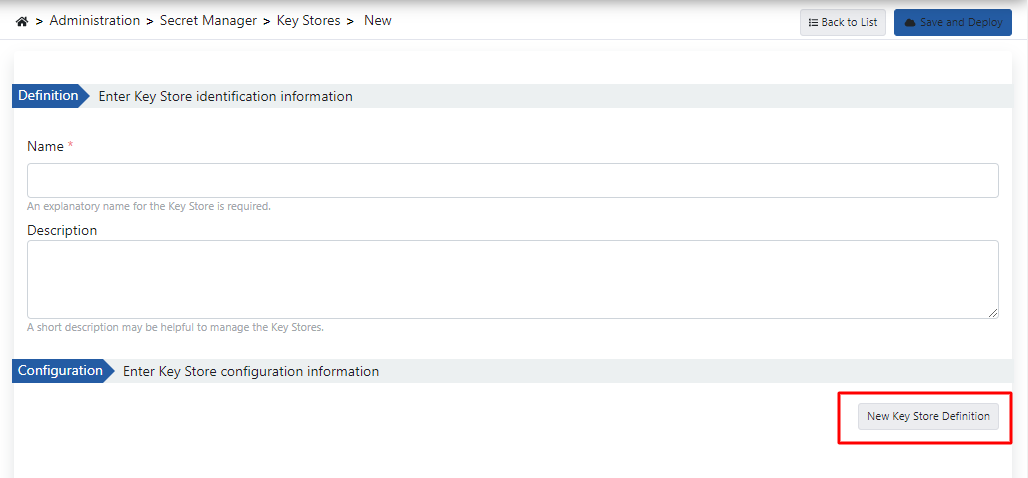
The fields used for Key Store creation configuration:
| Field | Description |
|---|---|
| Name | Name information of the created Key store. |
| Description | A description can be written to facilitate management related to the created Key Store. |
Fill in the configuration information for the Key Store in the opened window. Then click the Save button. The saved Key Store Definition is listed in the table opened under Configuration.
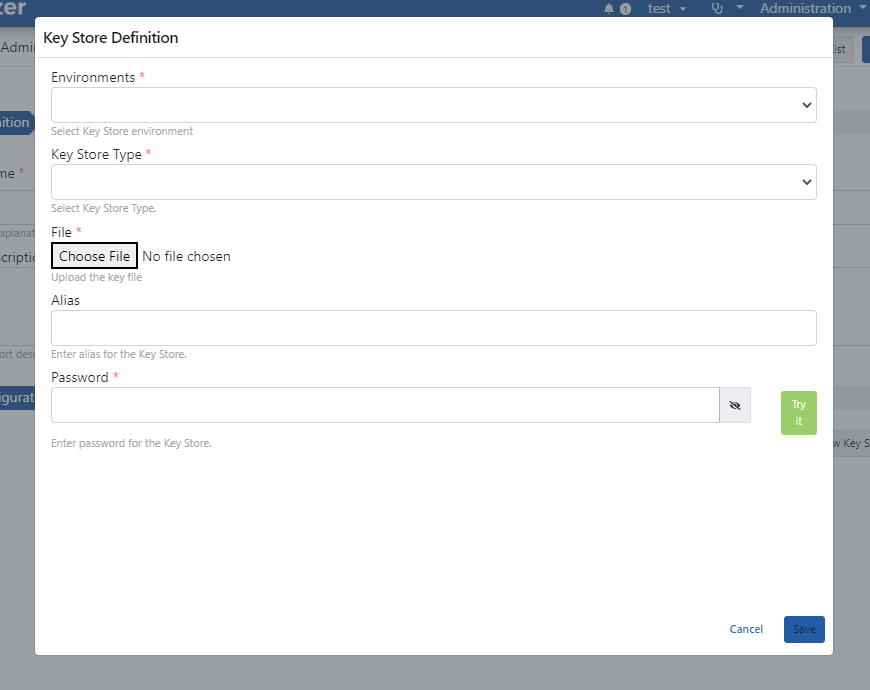
The fields used for Key Store definition configuration:
| Field | Description |
|---|---|
| Environments (Environments) | The previously defined environment where the Key Store will be used is selected. |
| Key Store Type (Key Store Type) | The type of the Key Store is selected. Two options are available: • JKS • PKCS12 |
| File (File) | The file containing the Key Store is selected by clicking the "Select File" button. • Allowed formats: .jks, .pkcs12, .p12, .pfx, .pem, .crt, .cer |
| Alias | The alias information of the Key Store is entered. |
| Password (Password) | This is the field where the password for the Key Store is entered. The Try it button checks whether the file opens with this password. |
| Key Store Content | Once the file, type and password are provided (automatically when an existing entry is opened, or after Try it for a newly uploaded file), the entries inside the keystore are listed: alias, entry type (key pair / trusted certificate / secret key), certificate owner (subject), algorithm and expiry date. The value typed into the Alias field is marked as Selected in the list. The eye icon on a row opens the certificate detail: subject, issuer, serial number, validity period, algorithm and key size, SHA-256 fingerprint, SAN list and any intermediate/root certificates. The list is read-only; the keystore is not modified. If the password is an environment or context variable (${...} / #{...}) the content cannot be shown and an information message is displayed; a wrong password or a corrupt file shows an error text instead of the list. The name of the uploaded file is stored with the entry and shown both in this window and in the environment table (keystores saved before this feature only show "File Selected" until a new file is uploaded). |
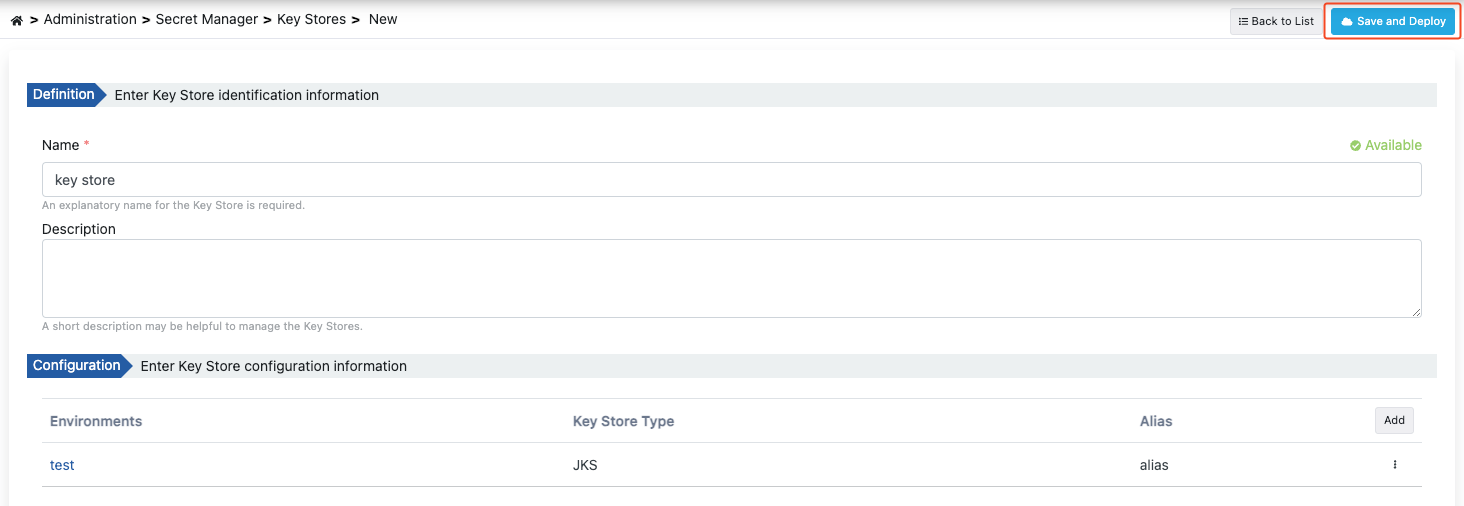
After completing the definition and configuration information, click the Save and Deploy button to deploy.
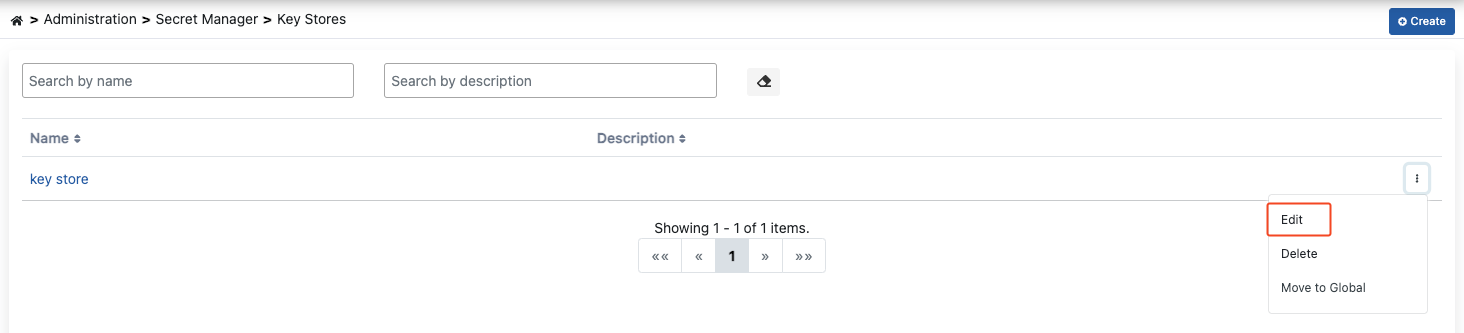
Key Store Editing
To edit an existing Key Store, click the Edit button from that Key Store's menu.
The environment table on the Key Store view page shows the uploaded File name for each row. Expanding a row with the arrow at the start of the row lists the entries inside the keystore (alias, entry type, subject, algorithm, expiry date); the eye icon opens the certificate detail. This lets you see which alias corresponds to which certificate without opening the edit window.
The Key Store list page also shows, as the Certificates list does, the environment table of each record (environment, type, alias, file name) together with the keystore content per environment, inline. At most three entries (type icon, alias, subject, expiry date) are listed per environment; when there are more, the ... N more link opens the view page. Keystores whose password is a variable or that cannot be opened show the corresponding info/error text instead. The description column was removed from the list; it appears as a tooltip on the name.
To edit the configuration information belonging to the Key Store, click the Edit button from the menu under the configuration list.
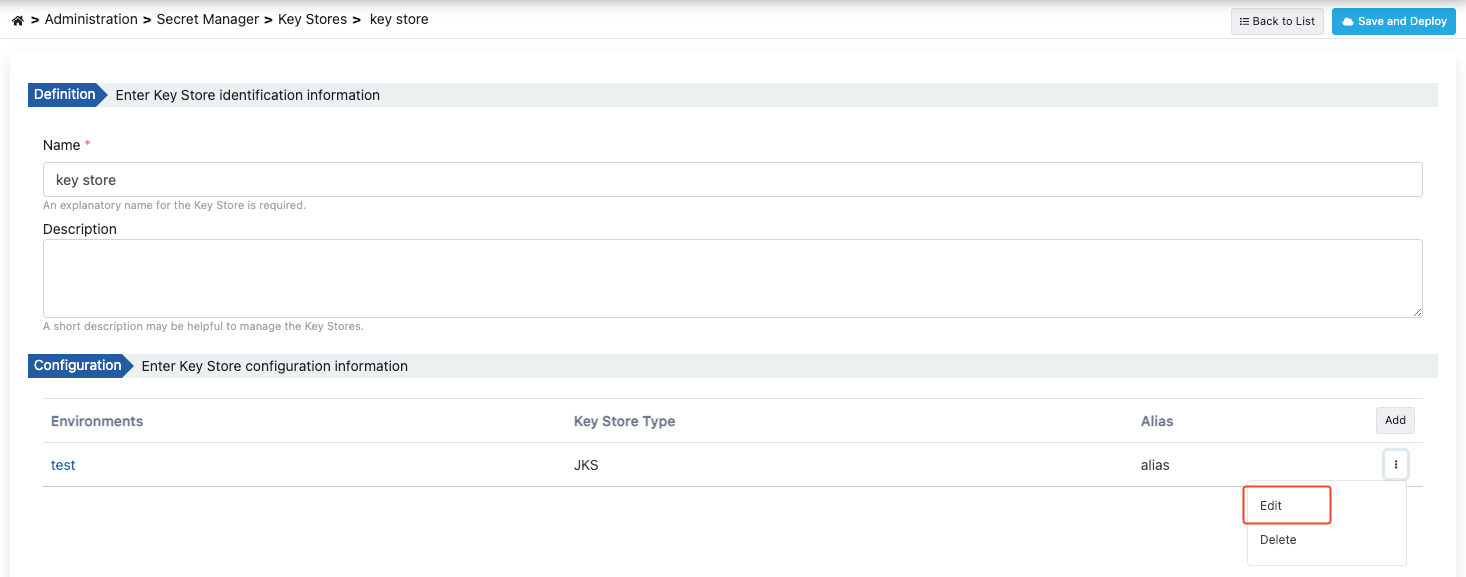
After clicking the "Edit" button to edit the Key Store, the steps followed during creation are followed.
Updating Related JWKs
When a Key Store is updated and the Save and Deploy button is clicked, if there are JWKs created from this keystore, the system automatically detects related JWKs and presents the user with options.
When a Key Store is updated, JWKs created from this keystore can also be automatically updated or the relationship can be disconnected.
The check covers JWKs in all projects that still reference this keystore, not only the keystore's own project. After saving, a notification reports how many JWKs were re-generated; a JWK that could not be re-generated (for example an older JWK without stored parse parameters, or an alias that no longer exists in the new file) is listed by name and must be re-created from the keystore. JWKs whose link to the keystore was lost (for example after an import) are not detected.
JWK Connection Dialog
When a Key Store is updated and related JWKs are detected, the following dialog opens:
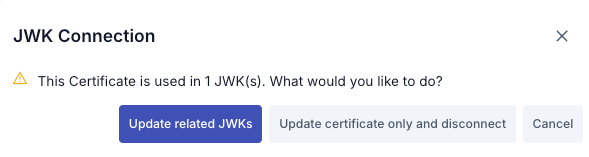
Dialog Content:
- Title: "JWK Connection"
- Warning Message: "This Key Store is used in X JWK(s). What would you like to do?"
- Options:
- Update related JWKs: Ensures that changes in the Key Store are reflected to related JWKs as well.
- Update keystore only and disconnect: Updates the Key Store but disconnects the relationship with JWKs.
- Cancel: Cancels the operation.
Update Flow
Edit the Key Store information and click the Save and Deploy button.
The system checks for JWKs created from this keystore.
If there are related JWKs, the JWK Connection dialog opens.
The user selects one of three options: Update, Disconnect, or Cancel.
When Update or Disconnect is selected, a confirmation dialog opens. The user confirms the operation by entering the keystore name.
After confirmation, the selected operation is performed and the keystore is updated.
Updating related JWKs may affect all policies and connections using these JWKs. Evaluate the impacts before proceeding.
Key Store Deletion
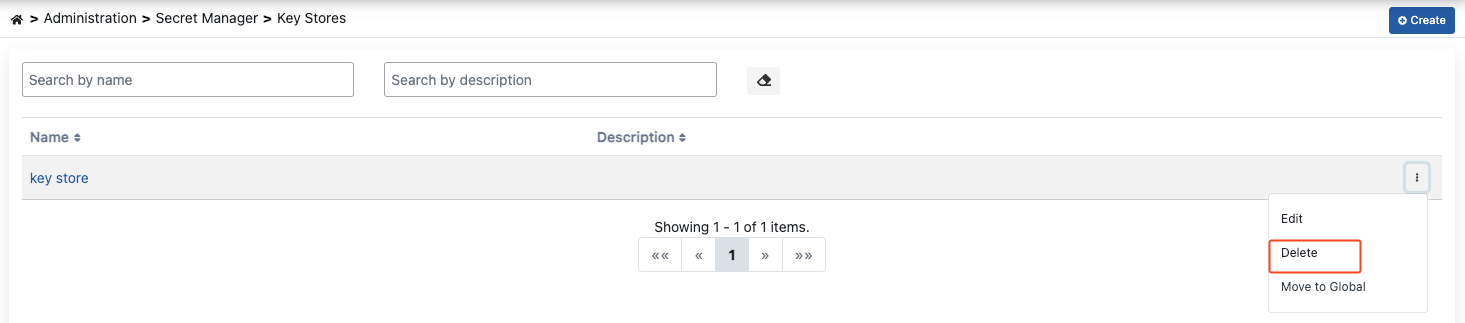
To delete an existing Key Store, click the Delete button from that Key Store's menu.
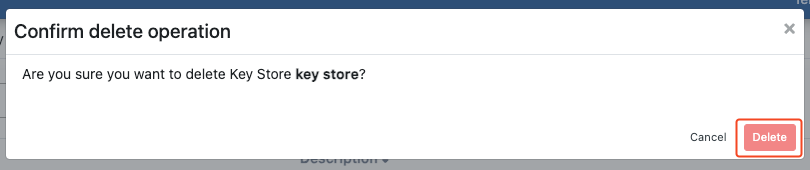
Click the Delete button again in the opened window to confirm.
Keystore Studio
Accessed from the Management → Secret → Keystore Studio menu, Keystore Studio is a tool that lets you inspect, edit, and convert JKS or PKCS12 keystores directly in your browser. As an alternative to desktop keystore tools, you can work with keystore content without any installation.
A keystore you open or create in Keystore Studio is only held in memory for the duration of your browser session; nothing is persisted unless you explicitly click Save to Pool.
Opening or Creating a Keystore
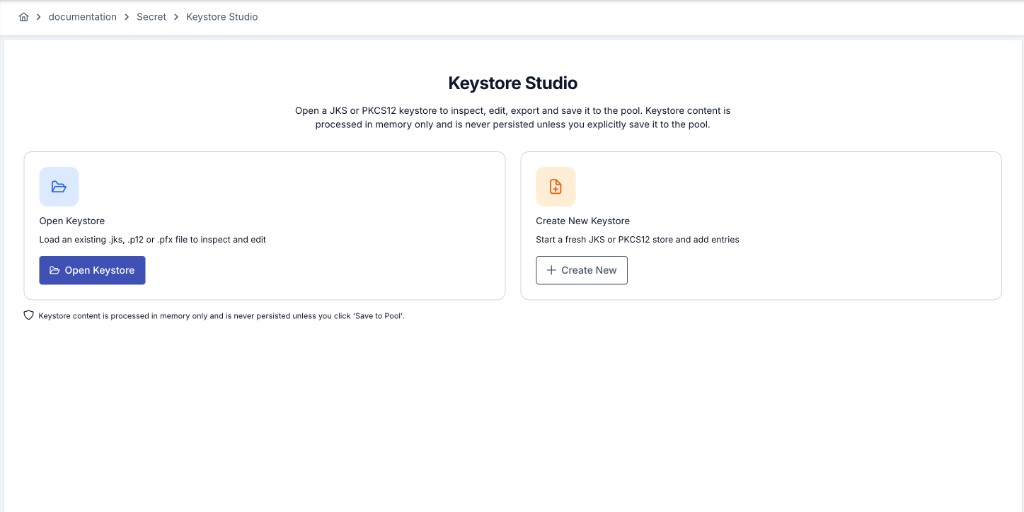
With Open Keystore, you can drag and drop or upload a .jks, .p12, or .pfx file from your computer using the file picker. The keystore type (JKS / PKCS12) is auto-detected from the file extension and can be changed manually if needed. Enter the store password and click Open to load the keystore into the inspection screen.
With Create New Keystore, you can start a fresh, empty JKS or PKCS12 keystore. After entering and confirming the store password, you can start adding entries to the newly created empty keystore.
Inspecting Entries
Once a keystore is opened, all entries (aliases) it contains are listed in a table: alias name, entry type (key pair or certificate), subject information, algorithm, and expiration date. Clicking View Detail on an entry shows the full certificate chain (subject/issuer, serial number, validity dates, algorithm and key size, SHA-1/SHA-256 fingerprint, the Subject Alternative Name list, and any intermediate/root certificates).
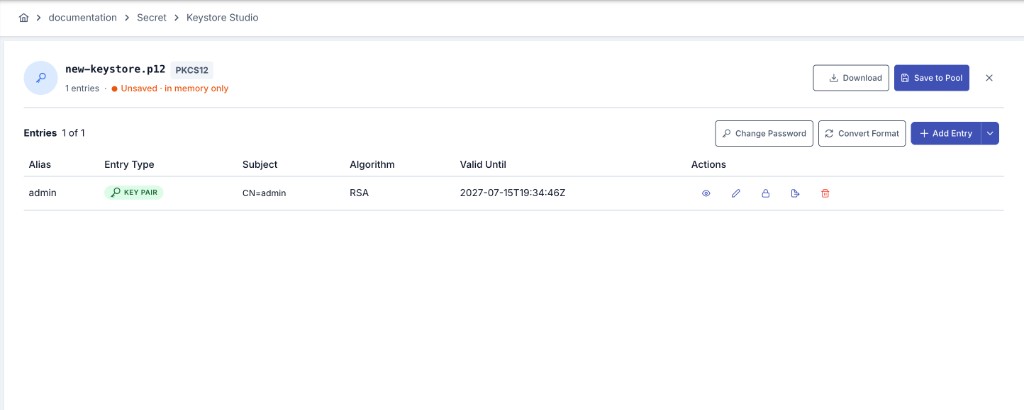
Adding Entries
You can add a new entry to the keystore you are working on in three ways:
Generates an RSA (1024/2048/3072/4096-bit) or EC (P-256/P-384/P-521/secp256k1) key pair and automatically signs it with a self-signed X.509 certificate. Subject DN, validity period, Subject Alternative Names, key usage, and CA (basic constraints) information can be customized.
Generates an AES (128/192/256-bit) secret key. Secret key entries can only be stored in PKCS12-format keystores.
The Import option supports five different source formats:
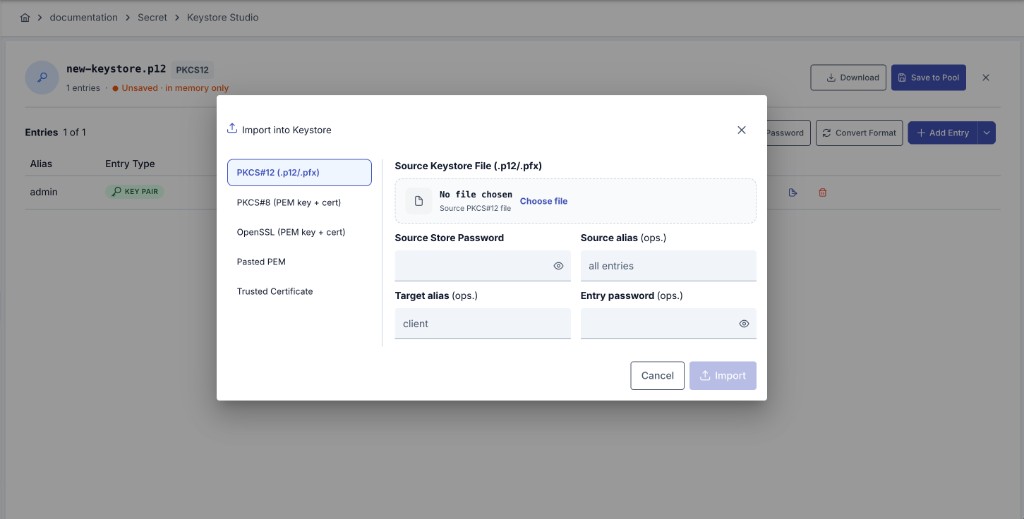
| Format | Description |
|---|---|
| PKCS#12 (.p12/.pfx) | Copies a single alias or all entries from another PKCS12 keystore. |
| PKCS#8 (PEM key + certificate) | Creates a new key entry from a pasted PKCS#8-format private key and its matching certificate(s). |
| OpenSSL (PEM key + certificate) | Creates a new key entry from a pasted OpenSSL-generated private key and certificate content. |
| Pasted PEM | Parses free-form PEM content pasted into a single text field, which may contain multiple blocks; creates a key entry if a private key is present, otherwise a certificate-only entry. |
| Trusted Certificate | Adds a certificate-only trusted certificate entry with no private key; can be provided by uploading a file or pasting PEM/base64 content. |
Depending on the selected format, importing uses whichever method is appropriate — file upload, pasting text (PEM), or entering base64 content.
Editing Operations
The following operations are available on an existing entry:
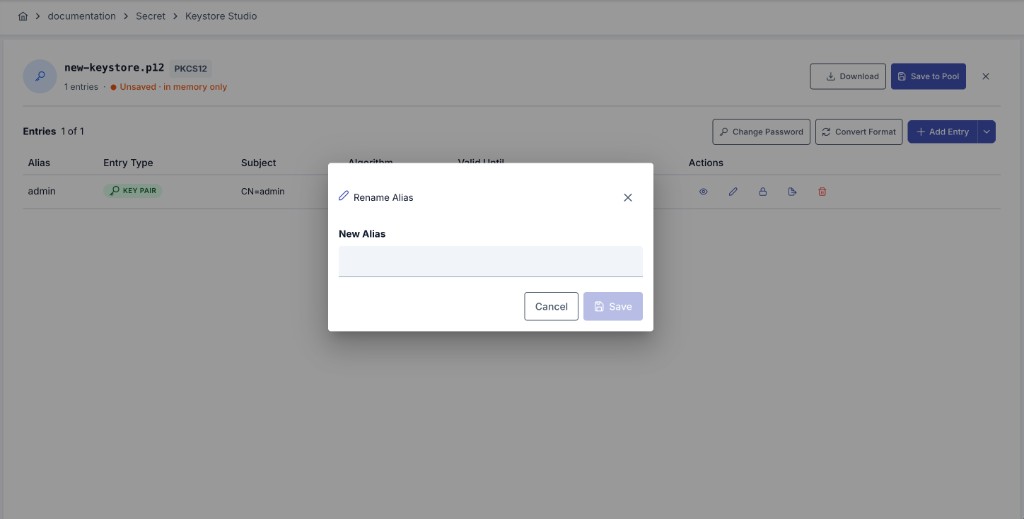
- Rename Alias: Changes the alias name of an entry.
- Set Entry Password: Available only for key pair entries; changes the entry's own password.
- Change Store Password: Changes the keystore's overall password; per-alias entry passwords can also be set if needed.
- Delete Entry: Removes the selected entry from the keystore you are working on.
Exporting and Converting Formats
Downloads the certificate of a selected entry as a file in one of the DER, PEM, PKCS#7, or PKI Path formats.
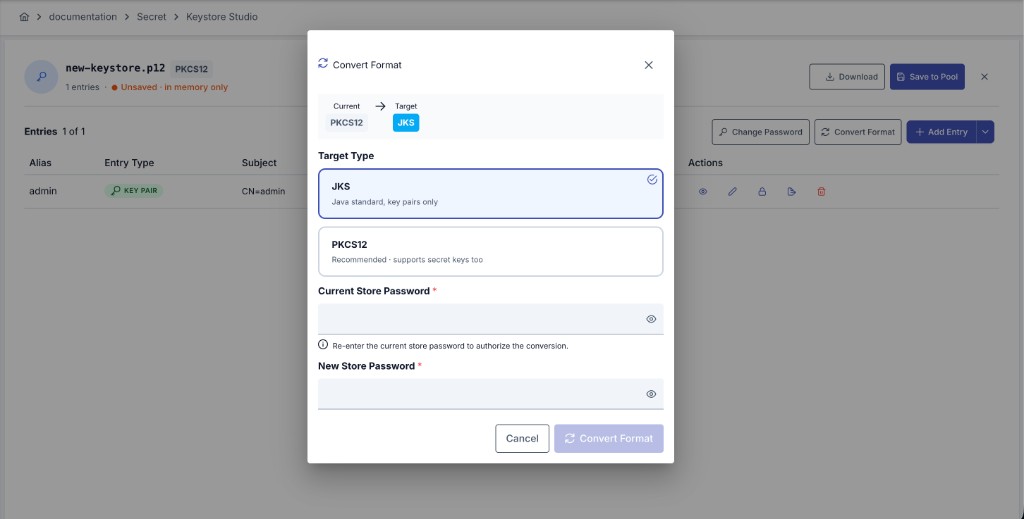
Converts the entire keystore you are working on between JKS and PKCS12; all entries are carried over to the new format (secret key entries can only be preserved when the target is PKCS12).
Downloading and Saving to the Pool
You can download the keystore you are working on to your computer at any time with Download, or permanently add it to the Apinizer Key Store pool with Save to Pool. A keystore saved to the pool becomes deployable to environments just like the Key Store configurations described above.
Saving to the pool requires Secrets & Certificates management permission on the relevant project for users who are not system administrators.