Adding Log Connectors
When API traffic on API Proxies in Gateway Runtime environments needs to be recorded, the setting of where the relevant logs should be stored can be made with the following settings. The following connectors can be used to send API traffic in Gateway Runtime environments to other environments:
To examine the structure of the data to be sent to these connectors, you can check this document.
An image showing how to add log connectors is provided below:
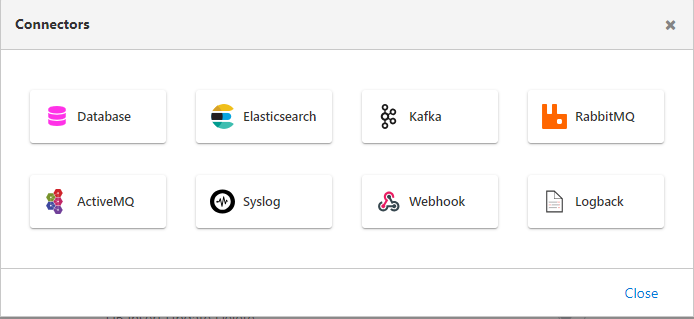
- Querying and analytical visualization of the relevant API Traffic in Apinizer Management Console is only possible by adding Elasticsearch Connector to the relevant environment.
- If multiple Elasticsearch Connectors are defined, data in the first added Elasticsearch Connector can be viewed in Apinizer Management Console.
- If Elasticsearch Connector has never been added, the following fields/menus are completely closed:
- All screens and menus related to Analytics
- API Proxy's Trace, API Traffic, and Analytics tabs
- Anomaly Detector in the Monitor menu
- Analytics section of Overview in the Management menu
- OAuth2 policy
- Log tab in the test console
- Token Requests in the Audit menu
- Report creator menu
- Dashboard and API Traffic in the Portal
Common Fields in Connectors
When creating a connector, there are some input fields that are the same for each type. This information is shown in the selected fields in the image below.
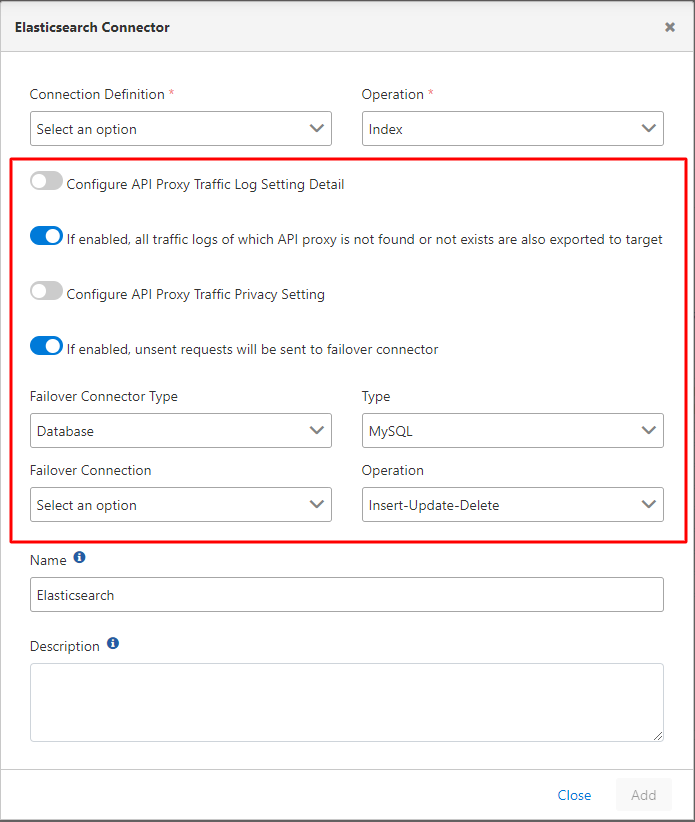
The fields used for configuration of common information in connectors are shown in the table below.
| Field | Description |
|---|---|
| Configure API Proxy Traffic Log Setting Detail (Configure API Proxy Traffic Log Setting Detail) | When this setting is activated, the fields to be logged are selected. If there are long texts among the fields to be sent for logging, size limits can be set for these fields. |
| If enabled, all traffic logs of which API proxy is not found or not exists are also exported to target (If enabled, all traffic logs of which API proxy is not found or not exists are also exported to target) | With this setting, if desired, all traffic logs where the API Proxy is not found or does not exist are also exported to the target. |
| Configure API Proxy Traffic Privacy Setting (Configure API Proxy Traffic Privacy Setting) | When this setting is activated, data that is not desired to be accessed clearly within log records can be prevented from being displayed as is. Detailed information about this section is explained below. |
| If enabled, unsent requests will be sent to failover connector (If enabled, unsent requests will be sent to failover connector) | If the connector is offline or inaccessible, a new failover connection can be defined for log records that cannot be sent in this case. |
| Failover Connector Type (Failover Connector Type) | The type of the failover connector to be defined is selected. |
| Type | This field becomes active when the failover type is selected as Database (Database). Database type is selected. |
| Failover Connection (Failover Connection) | The failover connection to be defined according to the selected failover type is selected. |
| Operation (Operation) | This field becomes active when the failover type is selected as Database (Database). Operation type is selected. |
Deactivating the primary log recipient itself on this screen stops all logging for it, even when a failover connector is defined. Failover only takes over once an active recipient becomes unreachable — it does not apply to a recipient you have turned off.
Database Recipient — Operation Field
When you add or edit a Database log recipient, the Operation field always offers a single option, Insert-Update-Delete, no matter which database type is selected — including MongoDB and Trino. A recipient that was saved earlier with an older value shows Insert-Update-Delete once you reopen it for editing; the stored value only changes when you press Save. Stored Procedure is no longer offered here, because it never wrote any log data; the Stored Procedure option used in Jobs, Alerts, and Task Flow Routing is unaffected.
The same dialog is shared by SIEM & Log Forwarding and by a portal's Login Log settings, so this behavior applies there as well.
Enable Failover Connector and the detail filter keys under Configure API Proxy Traffic Log Setting Detail now open correctly for a Database recipient; they previously failed to open for this recipient type.
Logging Disabled Fields on Failure or Block
When adding a connector, the two options under Override on Block / Failure control whether fields marked as disabled in log settings (such as headers, parameters, and bodies) should still be logged in specific situations:
| Field | Description |
|---|---|
| Log disabled fields when request is blocked by policy | When a request is blocked by a policy (for example, when authorization fails), fields marked as disabled in log settings are still sent to this connector. Useful for identifying the reason for the block and the requester. |
| Log disabled fields on policy failure or error | When an error occurs in the request or response pipeline, fields marked as disabled in log settings are still sent to this connector. Useful for analyzing which message content caused the error. |
These options were previously managed centrally for the entire platform via General Settings; they are now configured independently per connector.
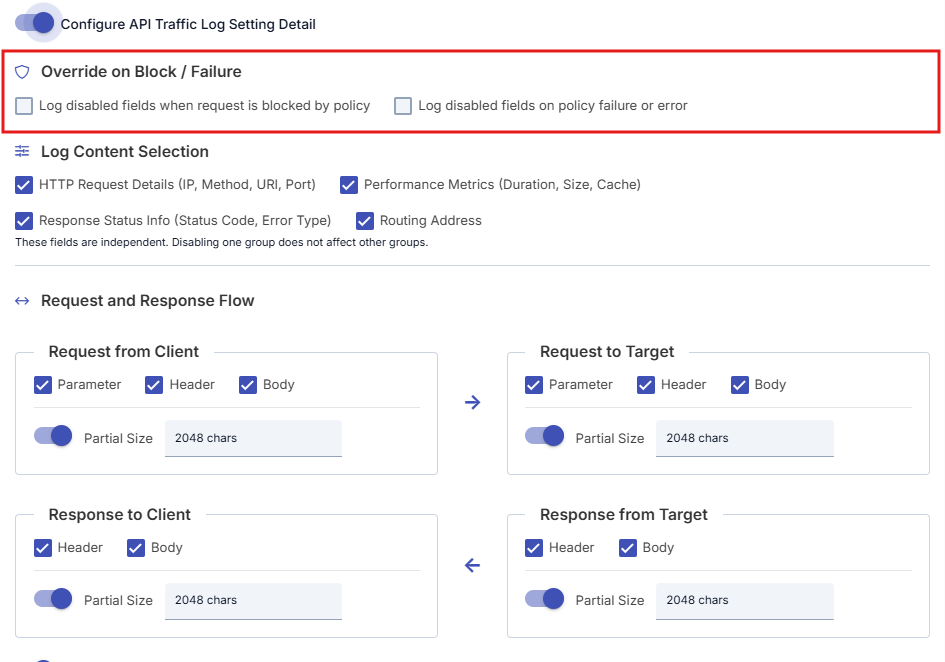
Configuring API Proxy Traffic Log Setting Details
When the "Configure API Traffic Log Setting Detail" option is enabled, you can customize how API traffic logs will be recorded. Apinizer logs are divided into four different regions according to the traffic flow in the system.
API Traffic Log Regions
Apinizer logs API traffic in these four regions:
- Request from Client (Request from Client)
- Request to Target (Request to Target)
- Response from Target (Response from Target)
- Response to Client (Response to Client)
When the "Configure API Traffic Log Setting Detail" option is enabled, logging can be customized for each of these regions.
By default, logging of fields in all message regions is active. Logged fields can be restricted according to need or based on the resource consumption of the log server.
For production environments, it is recommended to disable logging of elements belonging to the following regions:
- Request to Target (Request to Target)
- Response from Target (Response from Target)
If an API Proxy is running in a production environment, it means that all policy settings and tests in the API Proxy are completed and no more development will be done. Therefore, it is recommended not to write header, parameter, and body data in these two regions so that data in the database does not grow excessively.
Even if all logging fields are closed, if an error occurs in the request, all log fields are recorded so that the error can be detected. This feature can be turned on and off in general settings.
Due to variable data sizes and data formats of Formdata requests, file parts are never logged. Only other metadata fields are logged.
Since WebSocket and gRPC requests are kept as data coming to Apinizer and data leaving Apinizer, there are only 2 regions in these types of API Proxies.
Log Settings Screen
An image containing the log settings screen that appears when the "Configure API Traffic Log Setting Detail" option is enabled is shown below:
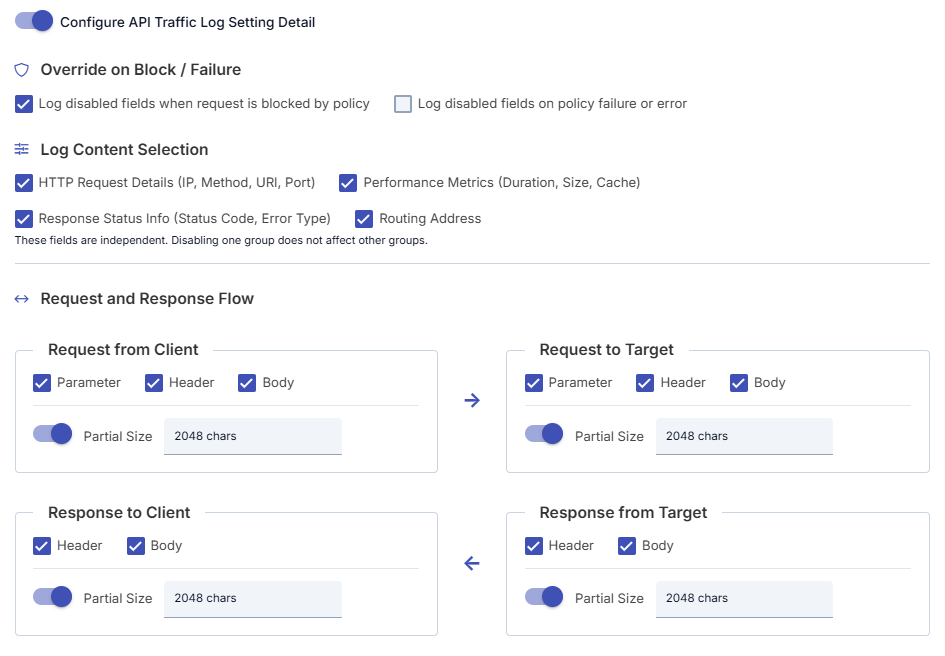
In this screen, which fields will be logged for each region can be selected and size limits can be set for fields containing long texts.
Customizable Log Fields
Fields that can be customized in API traffic log settings are given below. For each field, whether it will be logged or not can be selected, and size limits can be set for fields containing long texts.
| Group | Content |
|---|---|
| HTTP Request Details | IP, Method, URI, Port |
| Performance Metrics | Duration, Size, Cache |
| Response Status Info | Status Code, Error Type |
| Routing Address | Routing Address |
These groups are independent; disabling one group does not affect the other groups.
When HTTP Request Details (IP, Method, URI, Port) is off, the caller's username and the caller's attribution are removed from the traffic log of that connector: the typed client attribution ids (ack, cot, coi, coo) and the subscription ids (subi, subp, subpl, subo). The AI tenant credential (aivk) is still written. Usage reports and AI alarms that count by these ids do not see that connector's traffic; quota and limit enforcement is not affected.
In the Request and Response Flow section, you can also enable or disable the following fields separately for each region:
- Request from Client: Parameter, Header, Body
- Request to Target: Parameter, Header, Body
- Response from Target: Header, Body
- Response to Client: Header, Body
To limit log size for long content, you can enable Partial Size per region and set a character-based limit.
Size Limits
If there are long texts among the fields to be sent for logging, size limits can be set for these fields. This way, the size of log records can be kept under control and storage space in the database or log target system can be optimized.
A separate size limit can be determined for each field. When the determined limit is exceeded, the content of the relevant field is logged by truncating it or can be completely skipped.
Letting a Single Proxy Skip These Restrictions
The detail filter and size limits you configure here are an environment-wide rule that applies to every API Proxy whose traffic reaches this connector. Occasionally a single proxy needs more than the rule allows — a payment integration under investigation, for example, while the environment keeps bodies switched off everywhere else.
That exception is set on the proxy, not here. A proxy owner turns on Override environment restrictions, on the top bar of the proxy's own Log Settings tab, and only that proxy is exempted from this connector's detail filter and body size limits. No connector-side setting or permission is required, and every other proxy keeps the restrictions unchanged.
The connector dialog stays read-only about these exceptions: while the detail filter is on, it shows API Proxies overriding this filter: N. When N is greater than zero, the number is clickable and opens a window listing the name and project of each overriding proxy; nothing can be changed from there, since the exception is still managed from the proxy's own Log Settings tab. This line is not shown for an environment that has not been saved yet.
Privacy settings (masking, hashing, deletion, encryption) and the data retention profile apply unconditionally regardless of this override and are never skipped. While No Payload or No Persist is in effect, no body is captured at all and the override has nothing to reopen.
No redeploy is required after a proxy switches this on; saving is enough, and the change takes effect on the next request.
Configuring API Proxy Traffic Privacy Settings
Apinizer keeps records of message traffic (request and response) flowing through Apinizer.
Sensitive or personal data such as credit card information, password, phone number may be present in any part of the messages (header, parameter, body).
When it is not desired for this data to be accessed clearly within log records, Apinizer can prevent the data from being displayed as is by applying the following operations to fields carrying sensitivity/privacy within log records with "API Proxy Traffic Privacy Settings":
For API Proxy-based log settings, you can check the API Traffic Log Settings section on the API Proxy Configuration - Settings Tab page.
- Masking: A mask is applied to the field's value with the * sign.
- Deletion: The field's value is deleted while logging.
- Encryption: The field's value is encrypted with a salt code generated on an application basis.
- Hashing: The field's value is logged by hashing it.
API Proxy Traffic Privacy Settings are only related to how data in log records kept on Apinizer is stored. It is not related in any way to data going to Backend API or data returning to Client! You can use policies to process this data.
Applying Privacy Settings
At the time of log record creation, scanning is performed on the "header, parameter, body and request URL" fields of request and response messages. A rule finds data in one of three ways, chosen with Rule type when the definition is added: by element name (the name of a field, header or query parameter), by a regular expression, or by a built-in personal-data type (Turkish ID number, IBAN, phone number, e-mail address, credit card number and similar). For a match, the operation (masking, deletion, encryption, hashing) defined on the rule is applied.
For the element name to be searched on the request or response body, the body value must be XML, JSON, or Form data (form-data, x-www-form-urlencoded).
If the data is XML or JSON, the "sensitive data element name" value is searched in all element names (recursively), if it is form data, it is searched in all keywords, and if found, the relevant operation (masking, deletion, encryption, hashing) is applied to the element value if XML or JSON, or to the value corresponding to the key if form data. The "-PA" suffix is also added to the end of the relevant element/key name on the data to indicate that the operation was performed. PA: Privacy Applied.
For "API Proxy Traffic Privacy Settings" to be applied per defined field, scanning is performed in all of the following fields:
- Header, Query Parameter, and Body of Message Coming from Client
- Header, Query Parameter, and Body of Message Going to Backend
- Header and Body of Message Returning from Backend
- Header and Body of Message Returning to Client
- The logged request URL: the query string and the request path
The query string is covered by both rule kinds: an element-name rule hides ?id=... exactly as it hides the id entry in the parameter list, and pattern rules match the value itself. The request path is covered only by a regular expression or a built-in type, because a path segment has no name to match on — this is how the identifier in /user/12345678901 is hidden. Values that arrive percent-encoded (user%40example.com) are decoded before the pattern is applied; when no rule matches, the URL is logged exactly as it arrived. The proxy's own routing address is deliberately left alone, because traffic lists and reports group by it.
As can be understood from the scanned fields, API Proxy Traffic Privacy Settings is a costly operation in terms of performance.
Since logging operations are done asynchronously, even though it does not affect API Traffic, if it will be used intensively, system configuration should be made considering its effect on processor power.
Definitions Screen
The Activate option must be active to activate "API Proxy Traffic Privacy Settings".
An image containing the screen that appears when API Proxy Traffic Privacy Settings is activated is shown below:
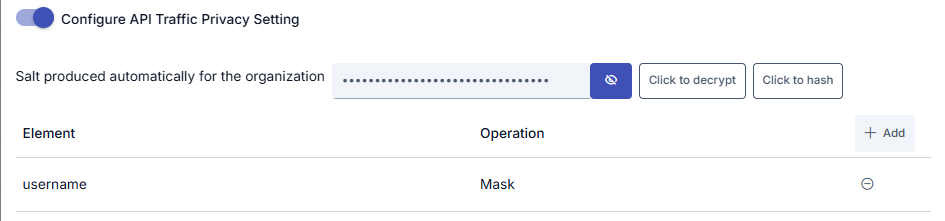
For each definition a Rule type is chosen first (element name, regular expression or built-in personal-data type), then the matching input for that type is filled in — an element name, a regular expression, or a personal-data type from the list — together with what will be done with the match (operation information). They are added to the definition list with the Add button. Switching the rule type clears the inputs belonging to the other types, so a definition always carries a single way of matching.
An element name and relevant operation defined here applies to all API Proxies.
When a definition is created, it is automatically added to all API Proxies. When a definition is deleted, this setting is removed from all API Proxies.
If an API Proxy does not exist, all definitions are applied to incoming requests.
What is Salt?
One of the operations of API Proxy Traffic Privacy Settings is hashing.
When the hashing method is selected, the data is stored by hashing it with an algorithm so that it cannot be reversed. Hashed data is one-way and cannot be retrieved. Only the hashed data can be recreated.
With Salt, the output that would normally be created by selecting a hash algorithm is made different, preventing the hashed value from being found by comparison.
When API Proxy Traffic Privacy Settings is first activated, Apinizer creates one salt value and hashes the data with it.
Although it seems more correct to hash each value with different salts, since in some cases it may be necessary to search and find the data or know that the value of the data is correct, this salt is stored secretly by Apinizer without being changed. The user is allowed to create the same hashed data on the screen by entering the value.