Linux Script
Overview
What is its Purpose?
Enables Integration Flow or Connector steps to trigger scripts/commands on remote Linux servers and centralizes DevOps automation.
Makes maintenance, deployment, or monitoring scripts reusable with centralized credential management and reduces manual SSH dependency.
Enables traceable use of the same configuration across Development/Test/Production environments through project-based isolation.
Allows safe stopping of triggered tasks during planned maintenance through active/passive connection management.
Working Principle
When a Linux Script connection is requested from within an Integration Flow or Connector, the system reads the configured connection parameters.
A new SSH session is opened for every script execution; there is no user-configurable connection pool.
Authentication to the target Linux server is performed with username/password-based SSH Authentication mechanism.
Script body and variables are sent over SSH channel, output stream returns to Connector as JSON.
After the operation completes, the connection is closed and temporary credential data on the worker is cleared from memory.
In case of connection error, timeout, or authentication error, detailed error code and message are generated with CustomParameterizedException; root cause is tracked through logs.
Use Cases
Automatic triggering of pre/post-deployment scripts
Periodic execution of log dumps or metric collection
Execution of system health checks for configuration drift control
Sequential deployment of security patches or package updates
Technical Features and Capabilities
Basic Features
Executes parametric bash scripts on remote Linux server without requiring interaction.
Carries standard output and error streams back to Integration Flow steps; shares with Connector variables.
Each connection is tagged with a project, projects other than ADMIN_PROJECT_ID cannot see other projects' resources.
Ability to define separate connection parameters for each environment (Development, Test, Production).
Activating or deactivating the Connection (enable/disable toggle). In passive state, connection cannot be used but its configuration is preserved.
Advanced Features
Global, previous task, or loop variables from Connector steps can be injected into script body.
connector-linux-script component pulls connection list in real-time and makes new connections available as soon as they are added.
Success/error scenarios are logged with ApinizerMessageService and monitored simultaneously at UI and log layers.
Ability to validate connection parameters before saving with "Test Connection" button.
Export connection configuration as ZIP file. Import to different environments (Development, Test, Production). Version control and backup capability.
Monitoring connection health and performance metrics.
Connection Parameters
Required Parameters
Description: Connection name (must be unique)
Example Value: Production_LinuxScript
Notes: Cannot start with space, special characters should not be used
Description: Fully qualified domain name or IP address of Linux server to be accessed via SSH
Example Value: ops-runner-01.apmz.local
Notes: DNS resolution must be possible, must be accessible from relevant worker
Description: Port used to connect to SSH service
Example Value: 22
Notes: Common SSH port is 22; the field is required and has no default value. If a different port is used, it must be opened in Network/Firewall
Description: Service or automation user on remote server
Example Value: deploysvc
Notes: Should be a restricted user with only necessary folder/script permissions
Description: Password for the user (stored encrypted)
Example Value: (Encrypted value)
Notes: Required in UI; validated in test connection before saving
Optional Parameters
Description: Purpose or scope description of the Connection
Default Value: (Empty)
Recommended Value: Should include task, server, and risk information
Description: Determines whether the connection will be deployed to Integration Workers
Default Value: true
Recommended Value: Recommended to deploy only to worker pools where it will be used
Description: Development/Test/Production selection
Default Value: Development
Recommended Value: Appropriate credential selection should be made for the environment
Use Cases
Situation: Need to restart services after Rolling Deployment completes
Solution: Define service node as host name, systemctl restart commands as script, SSH Port 22
Expected Result: Script executes successfully, services restart sequentially
Situation: Compressing daily logs and sending to FTP
Solution: Use tar and scp commands in script, give user relevant folder permission
Expected Result: Logs are collected, file path returns in Connector output when transfer completes
Situation: Reporting patch level at certain intervals
Solution: Select this connection in Scheduled Job, script returns yum check-update output
Expected Result: Report is transferred to SIEM via Integration Flow
Situation: Checksum tracking of critical files under /etc
Solution: Script produces sha256sum output, result is processed as JSON
Expected Result: Files with detected drift are logged as warnings
Situation: Infrastructure validation before failover in DR scenario
Solution: Create separate connection copies for host clusters, each runs health-check.sh
Expected Result: DR conditions are confirmed on success, process is stopped on error
Situation: Automatic intervention when CPU/RAM increases
Solution: Script analyzes top output and restarts services
Expected Result: Automatic correction is performed when threshold is exceeded, connector log contains details
Connection Configuration
Creating New Linux Script
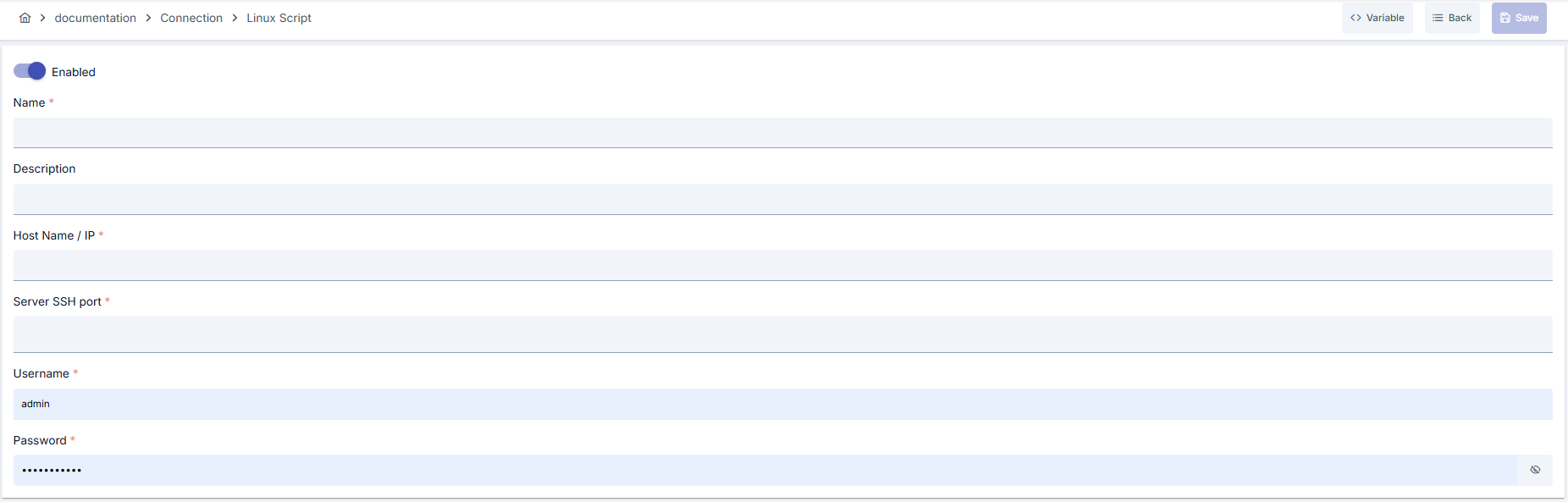
Configuration Steps
- Go to Connection → Linux Script section from left menu.
- Click [+ Create] button at top right.
Enable Status (Active Status):
- Set active/passive status with toggle. New connections are active by default.
Name - Required:
- Example:
Production_LinuxScript - Enter unique name, cannot start with space.
- System automatically checks. Green checkmark: available. Red X: existing name.
Description:
- Example: "Prod node restart scripts"
- Max. 1000 characters.
- Describe the purpose of the Connection.
In the action button area at the top of the page, you can use the [<> Variable] button to select dynamic values, and with global variables, you can manage connection parameters with variable-based values instead of fixed values. For detailed information, review the Dynamic Variables page.
- Select environment from dropdown menu: Development, Test, or Production.
- Different connection parameters can be defined for each environment.
- Host Name: Enter Linux server where script will run with fully qualified domain name (FQDN) or IP.
- SSH Port: Common SSH port is 22; the field is required and has no default value. If a different port is used, write the port and ensure it's opened in firewall.
- Host access should be tested from worker; inaccessible servers will error during save.
- Username: Use service user with only necessary directory/script permissions.
- Password: Password field is tested before saving and stored encrypted in database.
- Ensure user has execute permission on target scripts.
- Fill credentials from secret manager or environment variable.
- If SSL/TLS tunneling is required, configure port forwarding through bastion host.
- Do not use root account; define only service user with necessary permissions.
- Click [Test Connection] button.
- Test whether connection parameters are correct.
- Success: Green confirmation message
- Failed: Error details are shown
- Click [Save and Deploy] button at top right.
Checklist:
- Unique name
- Required fields filled
- Test connection successful (recommended)
Result:
- Connection is added to list
- Becomes available in Integration Flow and Connector steps
- Becomes active according to environment
Connection created successfully! You can now use it in Integration Flow and Connector steps.
Deleting Connection
Select Delete from ⋮ menu at end of row or click [Delete] button on connection detail page
Check Before Deleting: May be used in Integration Flow or Connector steps. If necessary, assign an alternative connection. Back up with Export before deleting
Use Disable option instead of deleting. Connection becomes passive but is not deleted. Can be reactivated when needed
Exporting/Importing Connection
In this step, users can export existing connections for backup, moving to different environments, or sharing purposes, or import a previously exported connection again. This operation is used to maintain data integrity in version control, transitions between test and production environments, or inter-team sharing processes.
Export
Click [Export] button on connection detail page. ZIP file is downloaded.
The row's ⋮ menu now has two items: the primary Export opens the Export/Import Wizard with this connection preselected — any ${VARIABLE} reference in its host, URL or password field surfaces automatically on the dependency step; the secondary Export as File downloads the ZIP described below directly, without going through the wizard.
Format: Date-connection-ConnectionName-export.zip
Example: 13 Nov 2025-connection-Production_LinuxScript-export.zip
- Connection JSON file
- Metadata information
- Dependency information (e.g., certificates, key store)
- Backup
- Moving between environments (Test → Prod)
- Versioning
- Team or project-based sharing
Import
- Click [Import Linux Script] button on the main list — it now opens the Export/Import Wizard's import step with type Connection preselected (Admin scope when opened from Administration); the old upload dialog is gone.
- Select the exported package and follow the wizard's steps.
- The wizard checks format, name conflicts and dependency availability before you confirm the import.
Scenario 1: Name Conflict → Overwrite old connection or create with new name.
Scenario 2: Missing Dependencies → Create missing certificates or key stores first or exclude during import.
Connection Usage Areas
Steps:
- Create the connection
- Validate connection with Test Connection
- Save and activate with Save and Deploy
- Ensure connection is in Enabled state
Linux script connector selects this connection in Scheduled Job or ops steps within Integration Flow. Examples: "Execute Linux Script", "Pre-Deployment Hook", "Health Check" steps. Connection selection is made from Connection field in these steps' configuration
In scheduled tasks (e.g., daily log archiving, resource usage measurements), commands are executed on remote servers by selecting this connection. Job behavior is updated immediately when connection changes
Connection correctness can be checked independently from Integration Flow with Connection Test feature. This test is critical in debugging process
Best Practices
Do's and Best Practices
Bad: Sharing root account for all scripts
Good: Create separate service user for each team
Best: Give permission only to necessary commands in sudoers file according to least privilege principle
Bad: Manually maintaining current scripts
Good: Store script content in VCS and copy to Connector
Best: Use IaC processes that automatically update script during pipeline
Bad: Writing long outputs directly to logs
Good: Filter critical lines
Best: Standardize output in JSON format and pass as parameter to subsequent steps in Integration Flow
Bad: Triggering dozens of long-running scripts simultaneously
Good: Spread access with scheduled jobs
Best: Keep per-host concurrency limited and spread long-running scripts across scheduled jobs in separate time windows
Bad: Using same connection parameters in all environments
Good: Create separate connection for each environment
Best: Manage all environments in single connection using Environment option, only change environment during transitions between environments
Bad: Saving and deploying connection without testing
Good: Validate with Test Connection before saving
Best: Test after every parameter change, perform full integration test in test environment before going to production
Security Best Practices
Renew passwords periodically, create new connection during rotation plan and disable old one
Tunnel through bastion instead of leaving direct internet-exposed port for production servers and apply IP whitelisting
Give user permission to run scripts only in allowed directories, restrict sudo requirement command-based in sudoers file
Store sensitive information such as username and password using environment variable or secret manager. Do not hardcode credentials in code or configuration files. Update passwords periodically
Always enable SSL/TLS in production environment. Use self-signed certificates only in development environment. Track certificate expiration dates and renew on time
Allow only authorized users to change connection configuration. Store connection change logs. Apply change approval process for critical connections
Don'ts
Why avoid: Single error affects all servers, cannot be audited
Alternative: Define role-based service users
Why avoid: Scripts fail if SSH port is closed
Alternative: Get opening approval from network team for host/port and set up monitoring
Why avoid: Incorrect success messages mislead processes
Alternative: Parse output and add conditional steps in Integration Flow
Why avoid: Test data may be written to production system, real users may be affected, security risk occurs
Alternative: Create separate connection for each environment, use environment parameter, separate connection names by adding prefix according to environment (Test_, Prod_)
Why avoid: Connection constantly times out in network delays, Integration steps fail
Alternative: Adjust timeout values according to real usage scenarios, measure network latency and set timeouts accordingly
Performance Tips
Recommendation: Add duration metric to Connector outputs, monitor 95th percentile value
Impact: Long scripts are detected early, scaling is performed
Recommendation: Compress large outputs and return as file, send only summary in Integration Flow
Impact: Payload decreases, Gateway memory is optimized
Recommendation: Distribute workloads targeting same host, run sequentially with Cron envelopes
Impact: Server resources are used balanced, SSH queues don't form
Recommendation: Measure real network latency, adjust timeout values accordingly, avoid very low or very high timeouts
Impact: Unnecessary waits are prevented, fast fail-over is provided, user experience improves
Recommendation: Track timeout rates, perform connection health check, set up alerting
Impact: Problems are proactively detected, performance bottlenecks are identified early, downtime decreases
Troubleshooting
Script Runs But Output is Empty
Script may be writing to file instead of stdout, JSON format may be invalid, or output key validation may have failed.
Update script to write to stdout.
Validate JSON output with jq.
Check Connector output key setting.
SSH Permission Error
User may not have access to target directory, sudo requirement may not be met, or host fingerprint may not be verified.
Check user permissions.
Add command-based permission to sudoers file.
Add host fingerprint to worker.
Connection Timeout
Network delay, target system responding slowly, or timeout value may be too low.
Check network connectivity.
Check target system health.
Increase timeout values.
Review connection logs.
Authentication Failed
Wrong username/password, expired credentials, or permission problem may exist.
Verify credentials.
Check that user is active on target system.
Check that necessary permissions are granted.
Check SSL/TLS certificates.
Connection Test Successful But Integration Flow Errors
Different connection may be selected in Integration/Connector step, step may be misconfigured, or Flow/Job may not be redeployed.
Check that connection's enable toggle is active.
Verify that correct connection is selected in Integration Flow.
Redeploy connection.
Redeploy Integration Flow or Job.
Check Gateway logs.
Frequently Asked Questions (FAQ)
Can different projects share the same Linux Script connection?
No, each connection belongs to a specific project; if sharing is needed, export/import or move-to-global operation should be applied.
Is automatic retry performed when script fails?
No, connector performs single execution. If retry is needed, Retry step should be configured in Integration Flow.
How are passwords stored?
Passwords entered through UI are encrypted when saved, decrypted only at runtime on worker side with UtilCommon.decryptWithDefaultAlgorithm.
What command does Test Connection execute?
During save, ls command is triggered via UtilRemoteLinux.runLinuxCommand; thus SSH and permission validation is performed.
How do I use script output in other steps?
You can select output keys returned from Connector as variables in subsequent steps within Integration Flow; get only necessary fields with JSON path settings.
Can I use the same connection in multiple Integration Flows?
Yes, the same connection can be used in multiple Integration Flow or Connector steps. This provides centralized management and guarantees configuration consistency. However, changes made to the connection will affect all usage locations, so care should be taken.
Should I create different connections for Test and Production?
Yes, it is recommended to create separate connection for each environment. Alternatively, you can manage all environments in a single connection using environment parameter. This approach provides easier management and less error risk.
Test Connection is successful but not working in Integration Flow, why?
Several reasons may exist:
- Connection enable toggle may be passive
- Different connection may be selected in Integration step
- Connection may not be deployed
- Integration Flow may not be redeployed yet