Converting PFX File to JKS File
When Apinizer Worker applications are desired to be opened with HTTPS, it supports pfx and jks certificates. However, organizations may still want to load pfx certificates in jks format.
This document explains how this conversion can be done with the help of "Keystore Explorer" program to help with this situation.
Converting Certificate Files to jks Format with Keystore Explorer (KSE)
pfx file is opened with KSE.
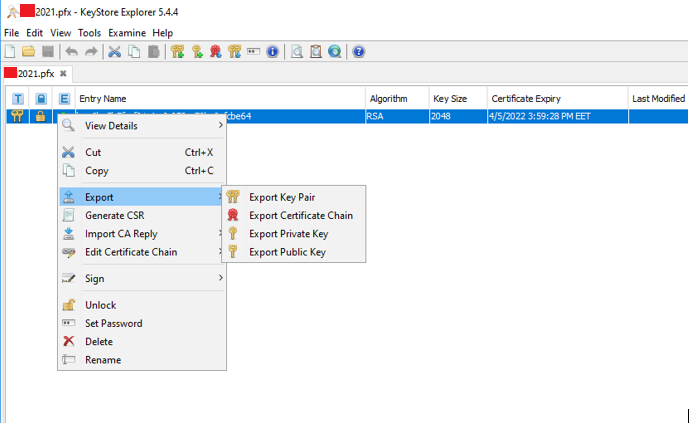
Right-click export key pair is selected for the file inside.
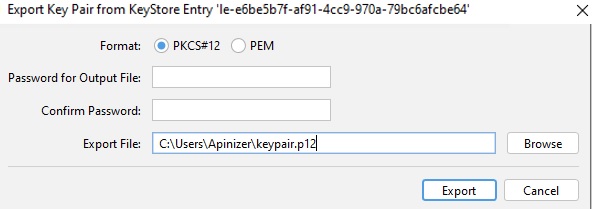
Keypair is exported in pkcs12 format with .p12 extension.
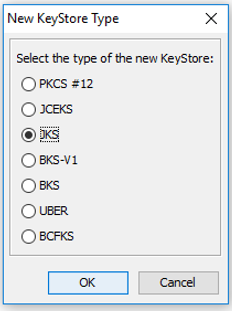
JKS type is selected with new file creation option.
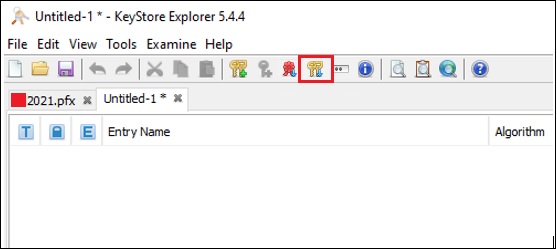
The .p12 file exported just now is imported to the created file with import keypair option:
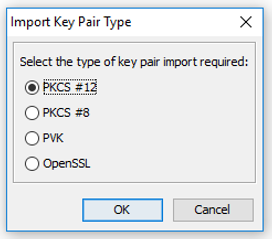
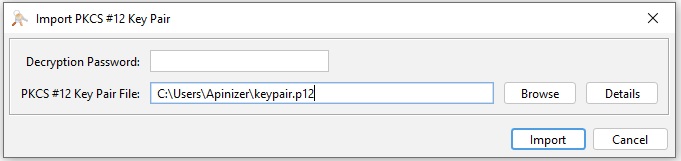
Optional alias can be entered. The point to pay attention to is that if there is another certificate with the same alias, it should not be overwritten.
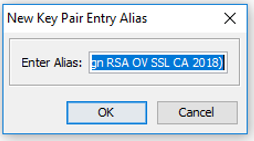
New password is given, the point to pay attention to is that the given password and jks password should be the same, if there is no password, jks should also have no password.

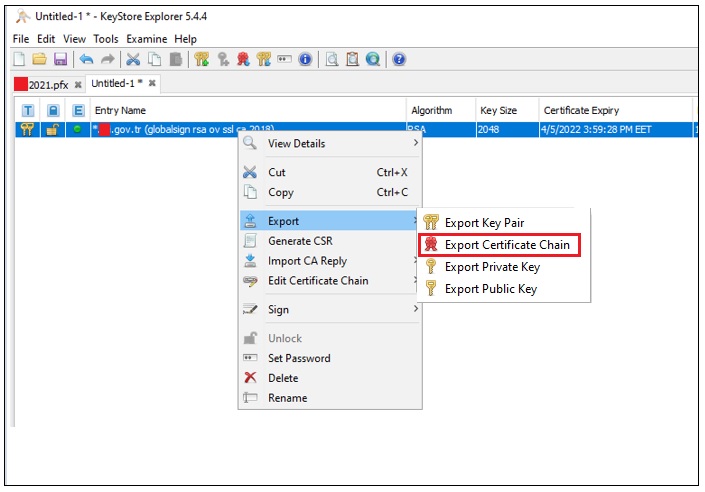
Then right-click on the imported keypair and select export certificate chain option:
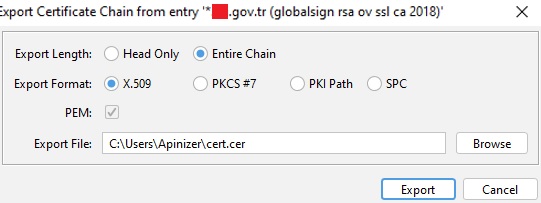
When exporting, it is necessary to select Entire Chain and X.509 options
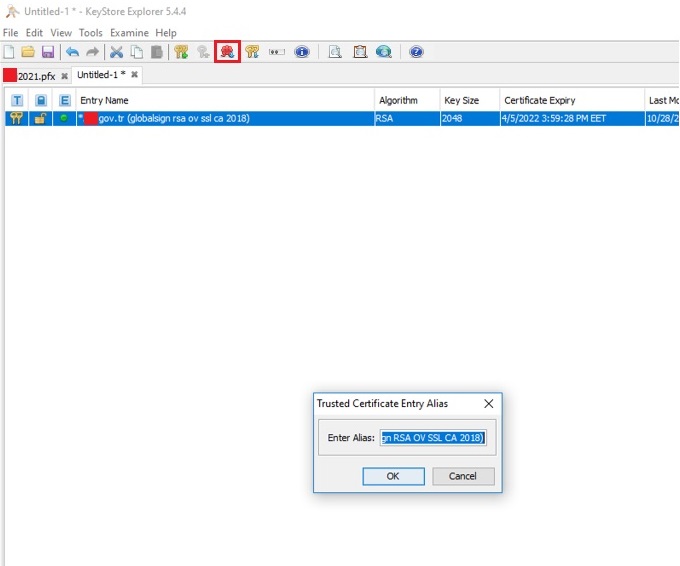
Then this exported certificate is imported to jks. Optional alias can be entered. The point to pay attention to is that if there is a certificate with the same alias, it should not be overwritten.
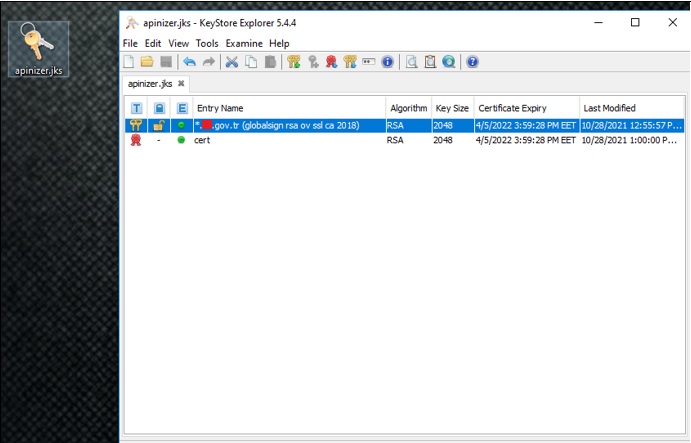
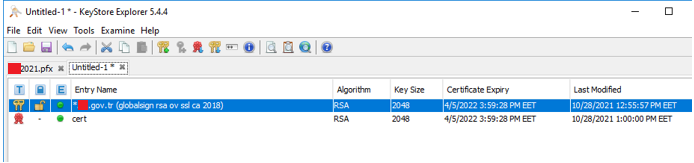
The final state should be as follows:
File is saved and closed with the password given to keypair.