Geographic Access Control Using Geolocation in Apinizer
This document explains how to block or allow requests from specific cities using the geolocation (geographic location) feature on the Apinizer platform.
At the end of the work, we will display which cities these incoming requests come from through Kibana Map.
1) Providing Geolocation Data
To provide this data, you can use services such as MaxMind, IpGeolocation. These services allow you to download databases containing IP and city information.
In this step, we will explain how to use the free GeoLite2 City database offered by MaxMind by downloading it.
Apinizer usually uses the client IP address to obtain geolocation data. The incoming IP address is queried through a database to determine which city the request comes from.
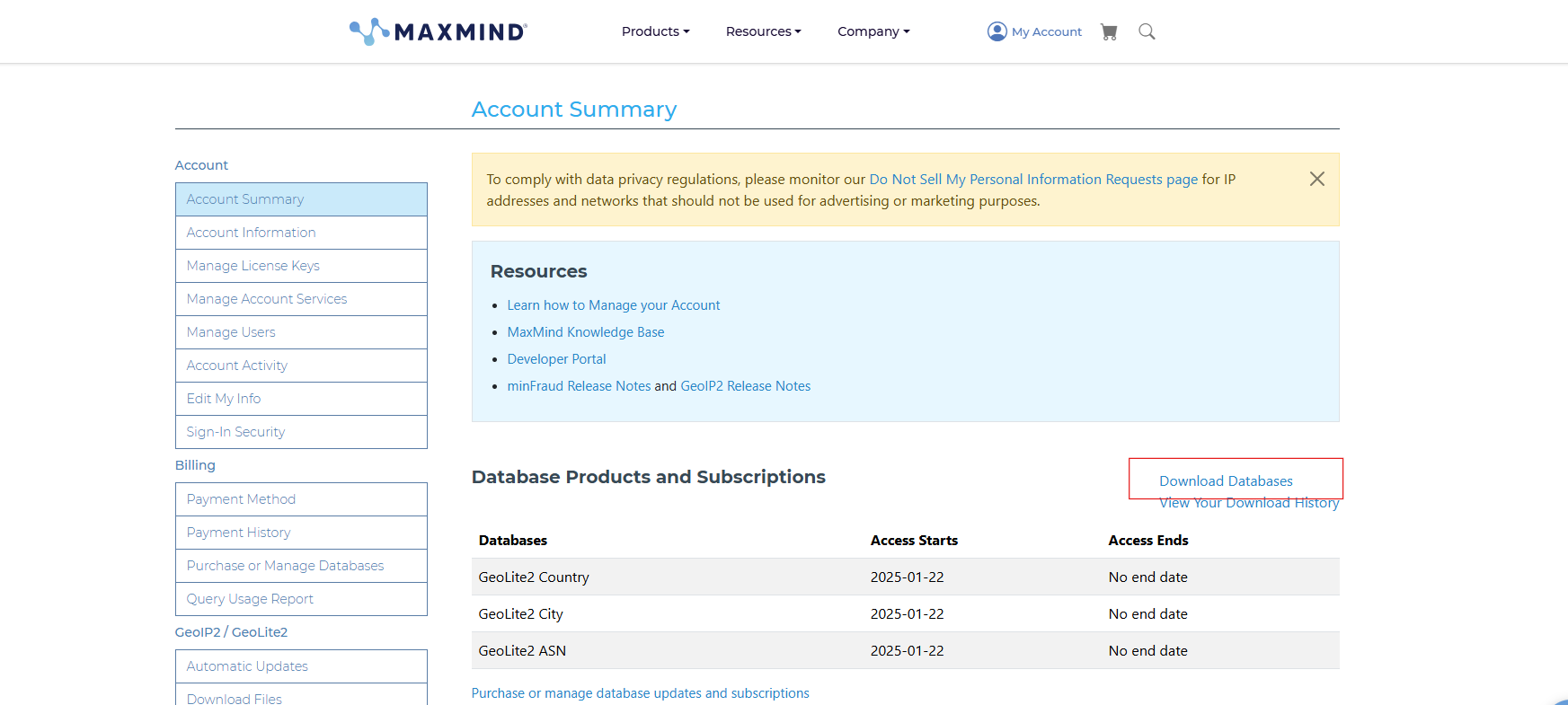
After completing the registration process on the page, we go to the red marked area specified below and download the zip file in the GeoLite2 City section, extract it, and obtain our .mmdb extension file:
2) Integration of Geolocation Database into Apinizer
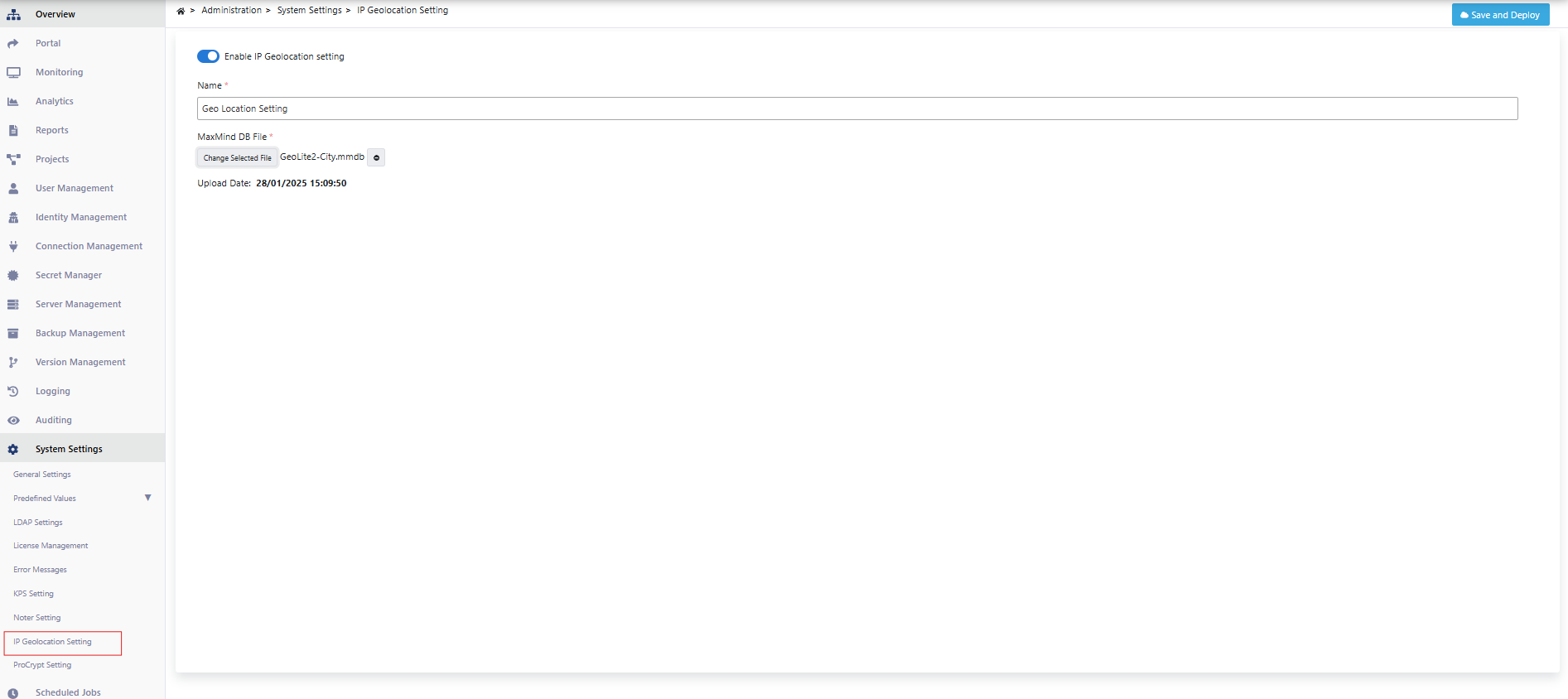
The .mmdb extension file is added from the Administration → System Settings → IP Geolocation Setting page and deployed.
3) Enabling XFF and Adding Allowed/Blocked IP List Policy
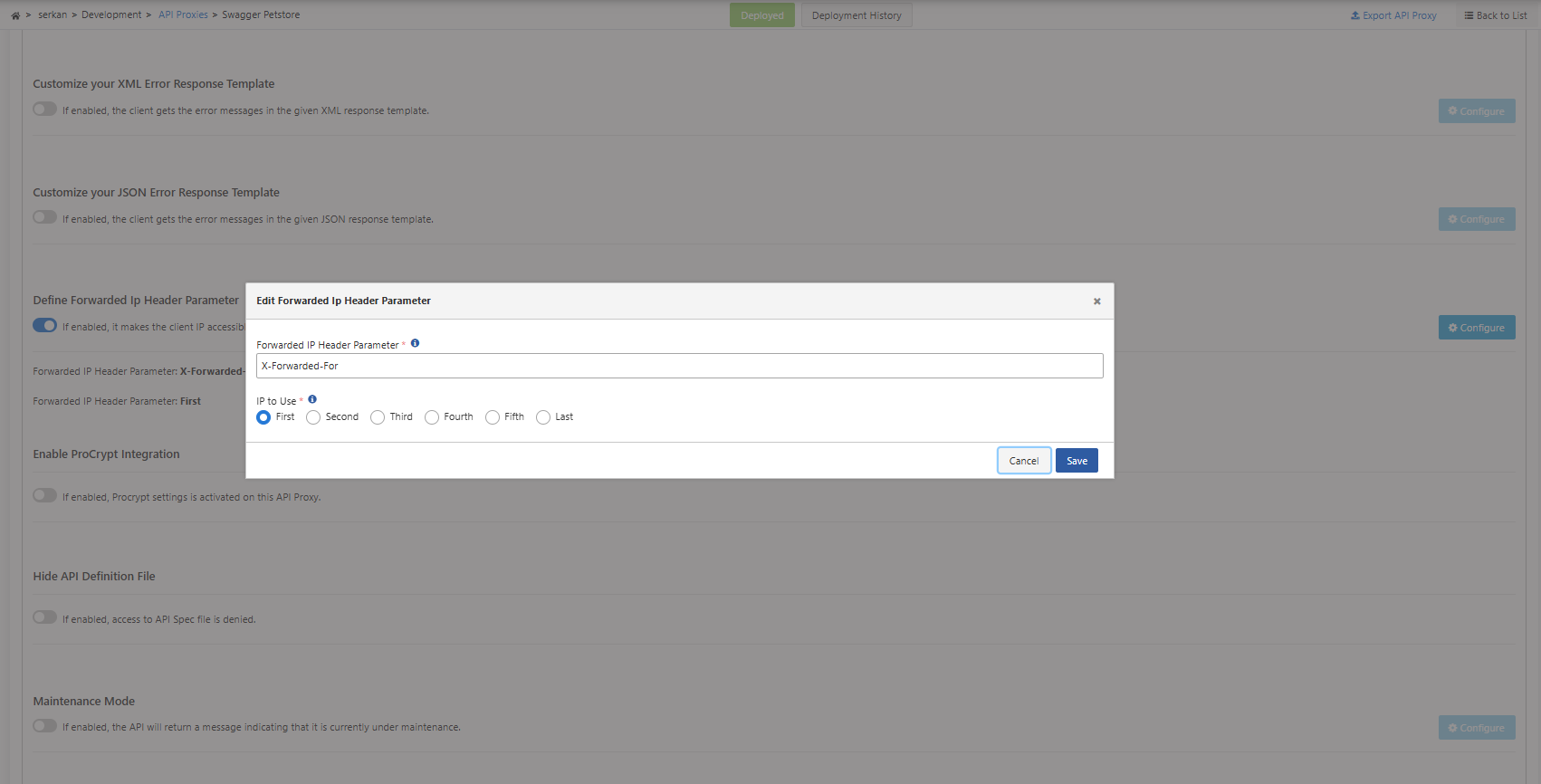
Through Apinizer, the real IP address of the client in requests can be determined using the X-Forwarded-For (XFF) header information.
With the Allowed IP policy, requests from specific IP addresses or specific cities can be allowed. Using the Blocked IP policy, these requests can be blocked.
To use XFF information, you can enable it from the Settings tab in Proxy settings:
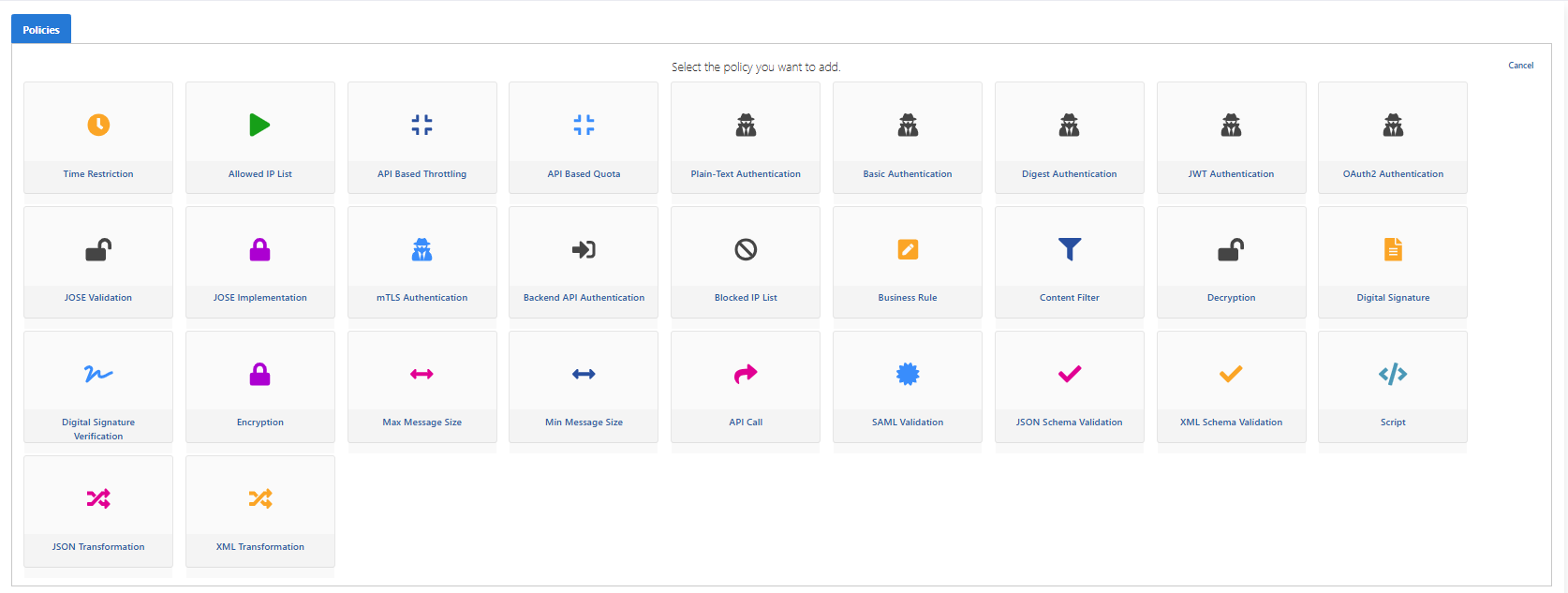
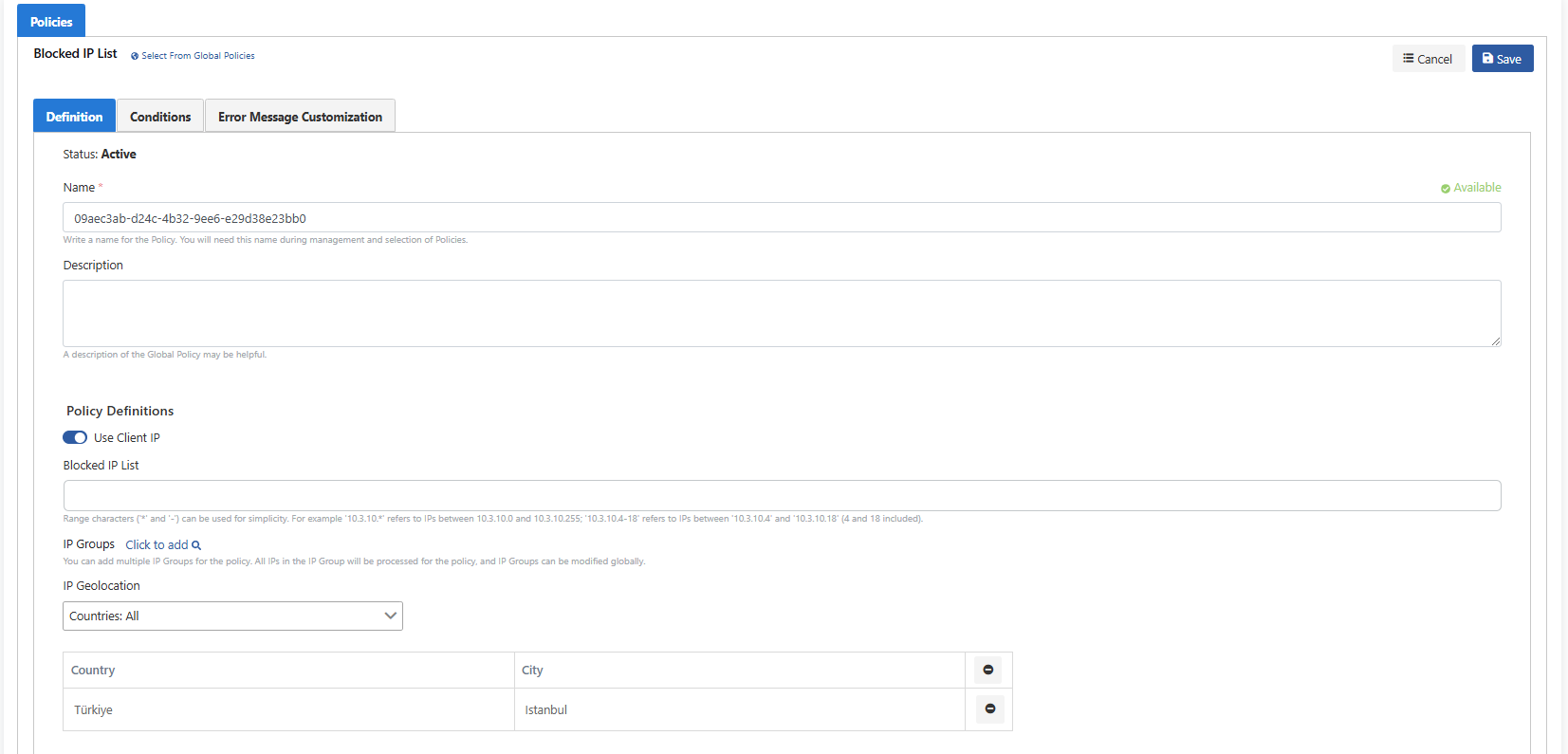
Let's block requests coming from Istanbul by adding the Blocked IP List policy to this Proxy:
Istanbul is selected from the IP Geolocation field and saved:
4) Access Blocking and Result
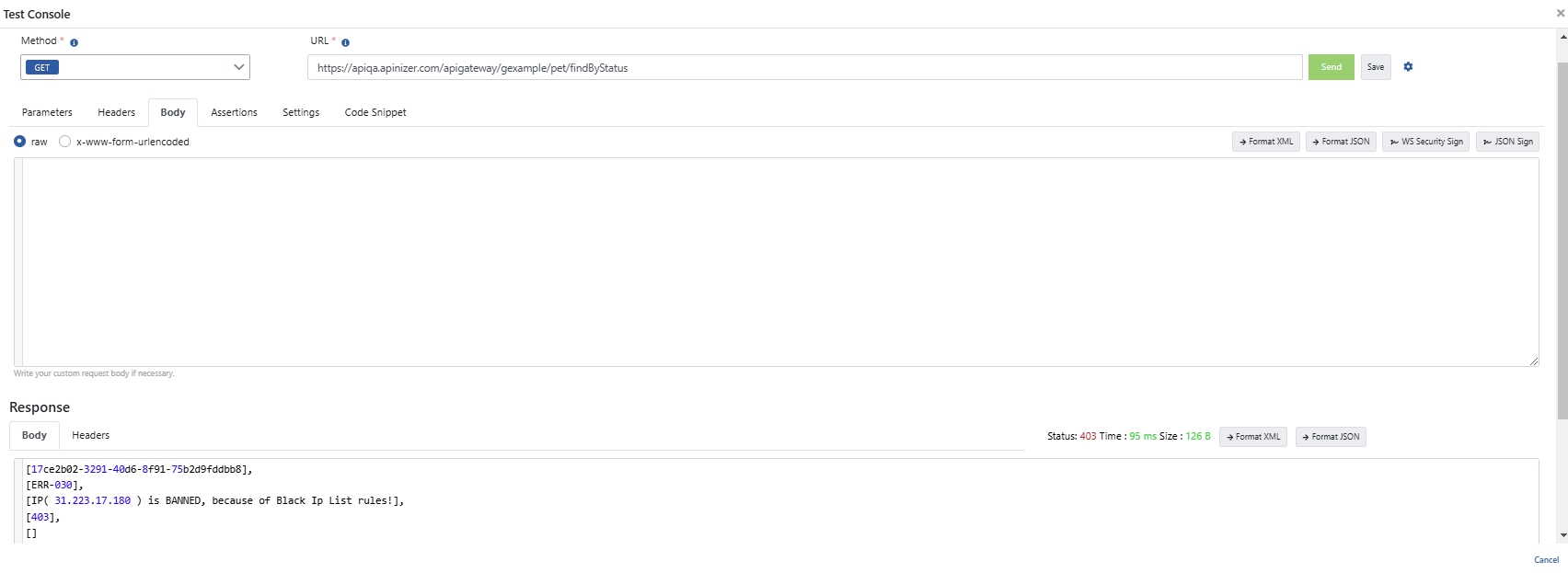
Access was blocked in a request made to the service with an IP address from Istanbul location:
Summary
- We explained how to block requests coming from Istanbul on the Apinizer platform.
- We downloaded the GeoLite2 City database offered by MaxMind and integrated this data into Apinizer.
- We controlled requests from specific cities by determining the real IP addresses of clients using X-Forwarded-For (XFF) header information.
- We selected Istanbul using Block Ip List policies to block requests coming from Istanbul and successfully blocked access from this city.
To visualize which cities incoming requests come from on Kibana, see the Geographic Visualization with Kibana Maps documentation.