Documentation Index
Fetch the complete documentation index at: https://docs.apinizer.com/llms.txt
Use this file to discover all available pages before exploring further.
ArgoCD Installation
Follow the steps below to install ArgoCD on the Kubernetes Cluster.
Creating namespace
Create a namespace for ArgoCD:kubectl create namespace argocd
ArgoCD installation
Apply ArgoCD manifest files from GitHub repository:kubectl apply -n argocd -f https://raw.githubusercontent.com/argoproj/argo-cd/stable/manifests/install.yaml
Monitoring pod status
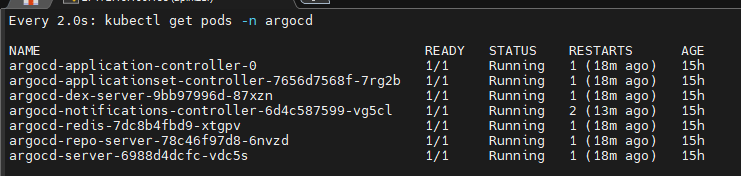
Monitor the startup of pods:watch kubectl get pods -n argocd
Configuring service type
Configure the service type as NodePort to access the ArgoCD interface:kubectl patch svc argocd-server -n argocd -p '{"spec": {"type": "NodePort"}}'
kubectl get svc argocd-server -n argocd

Accessing interface
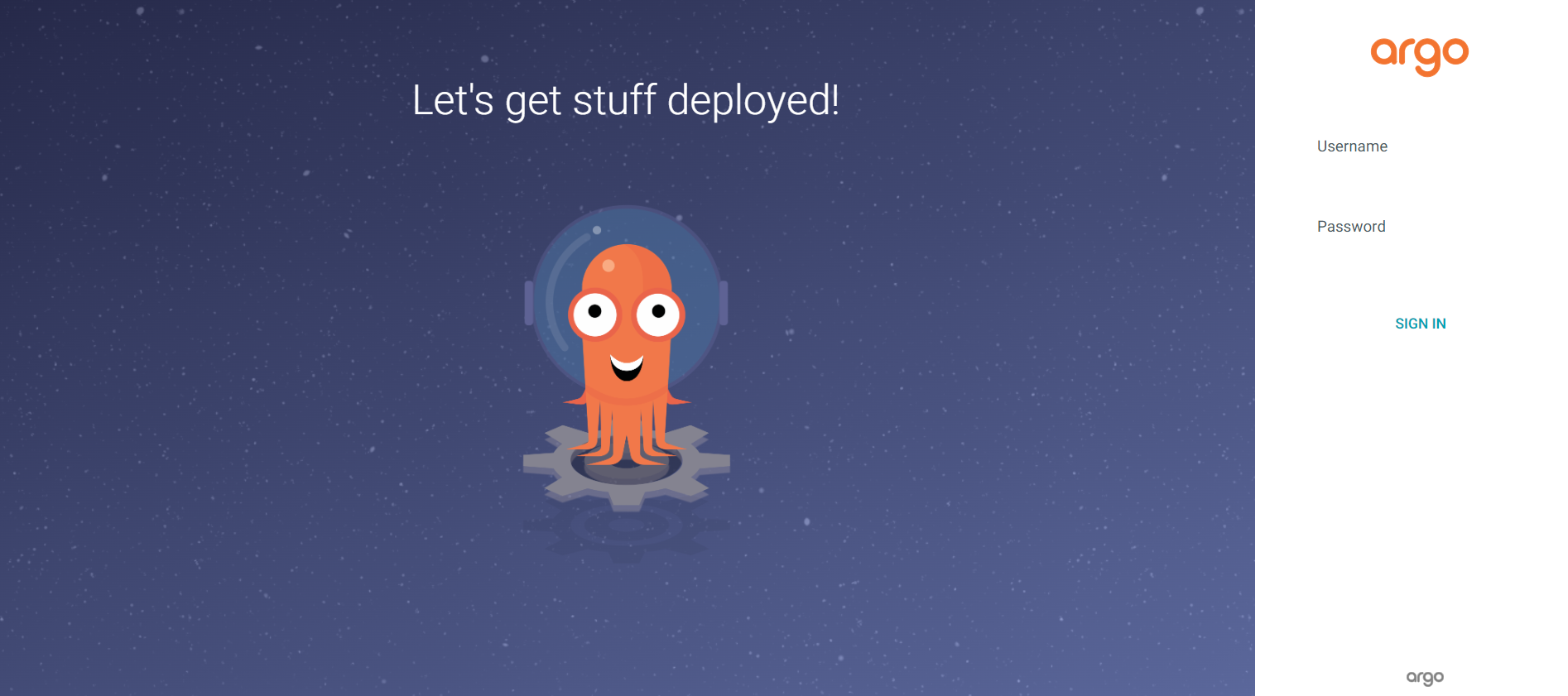
Access the ArgoCD interface using the port address your service exposes externally:http://<KUBERNETES_WORKER_IP_ADDRESS>:<PORT>
Getting password
Decode and display the password encoded in Base64 format:kubectl -n argocd get secret argocd-initial-admin-secret -o jsonpath="{.data.password}" | base64 -d; echo
The default username is admin. You can log in to the ArgoCD interface using this information.
Git Installation and Repository Configuration
Perform Git installation and configure the repository to push deployment files to GitHub.
Git installation
Install the Git package:sudo apt update
sudo apt install git
git --version
Git may ask you for user information. Configure using the following commands:git config --global user.email "you@example.com"
git config --global user.name "Your Name"
Creating GitHub repository
Create a repository on GitHub to store your deployment files.
Configuring remote address
Add it to the git system as a remote address to be able to add files to the GitHub repository.Authentication Error SolutionIf you get an “Authentication failed” error when using git, follow these steps:
- Log in to your GitHub account
- Click your profile picture in the top right corner and select “Settings”
- Go to “Personal access tokens” under “Developer settings” from the left menu
- Click “Generate new token” after “Token”
- Give necessary permissions
- Go to the bottom of the page and click “Generate token”
- Copy the token value and save it to a safe place. You cannot view this value again.
Configure the remote address with the token:git remote set-url origin https://<USERNAME>:<ACCESS_TOKEN>@<REPO_ADDRESS>
https://test:ghp_xxxx@github.com/test/test.git Pushing deployment files
Add the Apinizer Manager deployment yaml file to the git version system and push it to the remote repository:git init
git add apinizer-api-manager-deployment.yaml
git commit -m "manager add"
git remote add origin <GITHUB_REPO_ADDRESS>
git push -u origin master
Adding Git Repository to ArgoCD
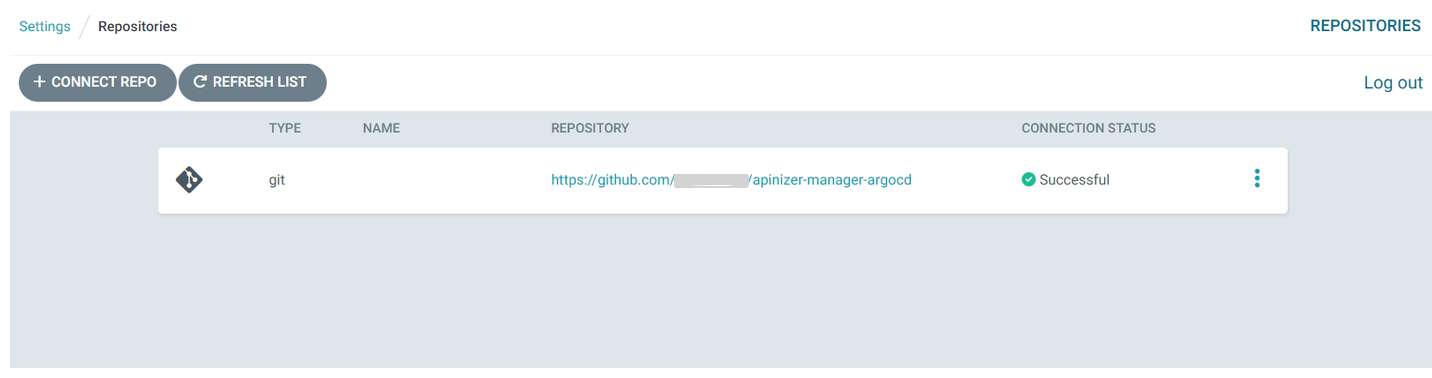
After adding YAML files to the GitHub repository, you need to add this repository address from the ArgoCD interface.
There are many connection methods. For the HTTPS method, you need to fill in the following fields.
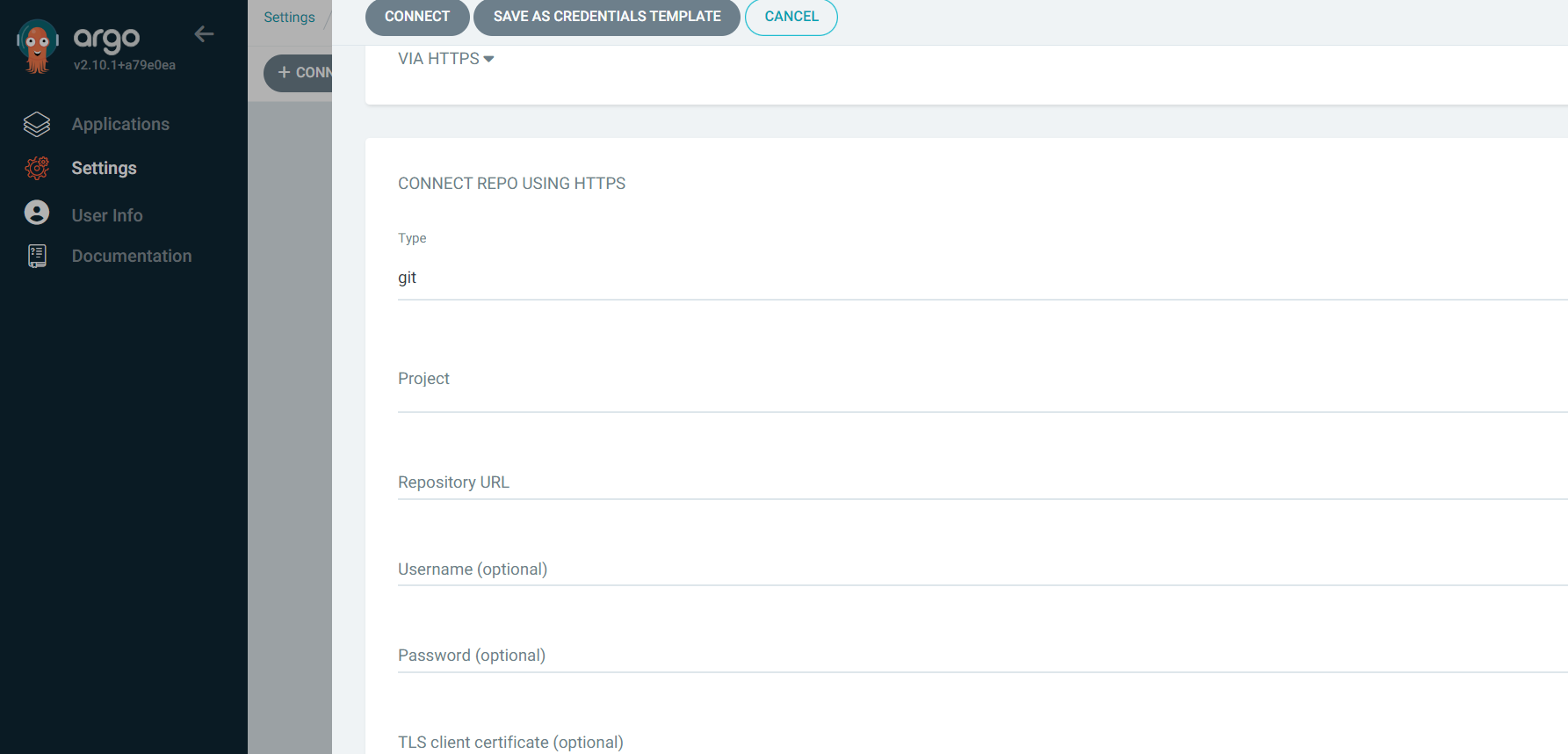
ImportantIf HTTPS is selected as the connection method, write the token value you created in the previous step in the password section.
Creating ArgoCD Application
You can automate your deployment processes by creating an application on ArgoCD.
Determining application name
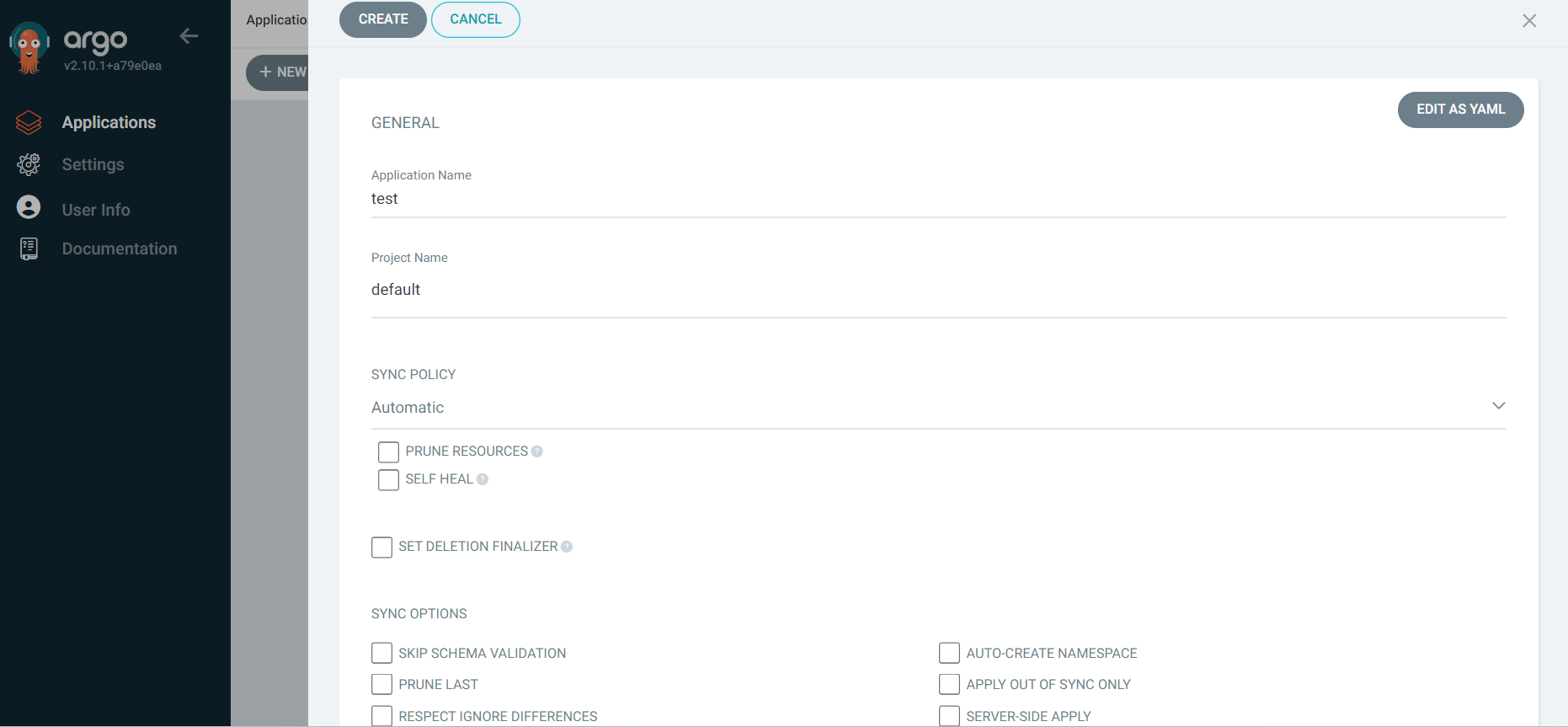
Give a name for the application.
Sync Policy configuration
If you want ArgoCD to automatically check for updates in the repository, set the SYNC POLICY option to Automatic.When Automatic sync policy is active, ArgoCD checks every 3 minutes on your behalf.
Automatic namespace creation
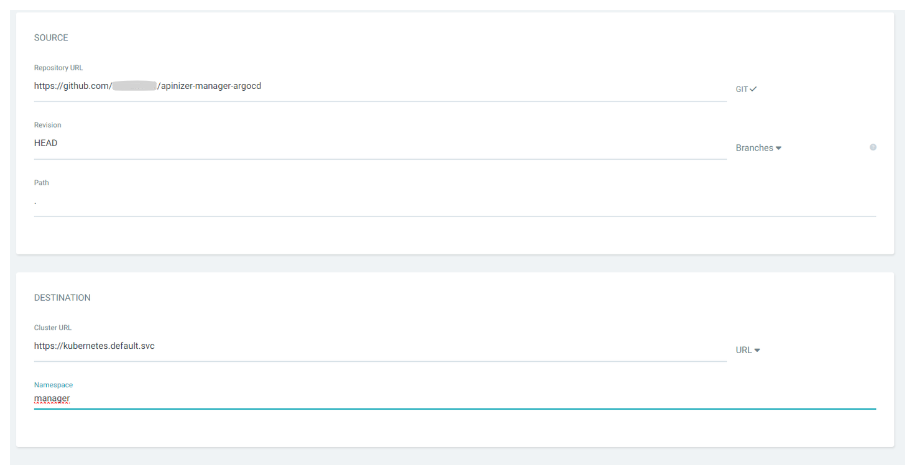
When you need a namespace that has not been created before in your Kubernetes Cluster, ArgoCD creates a namespace in your Kubernetes cluster with the AUTO-CREATE NAMESPACE option.
Application Management
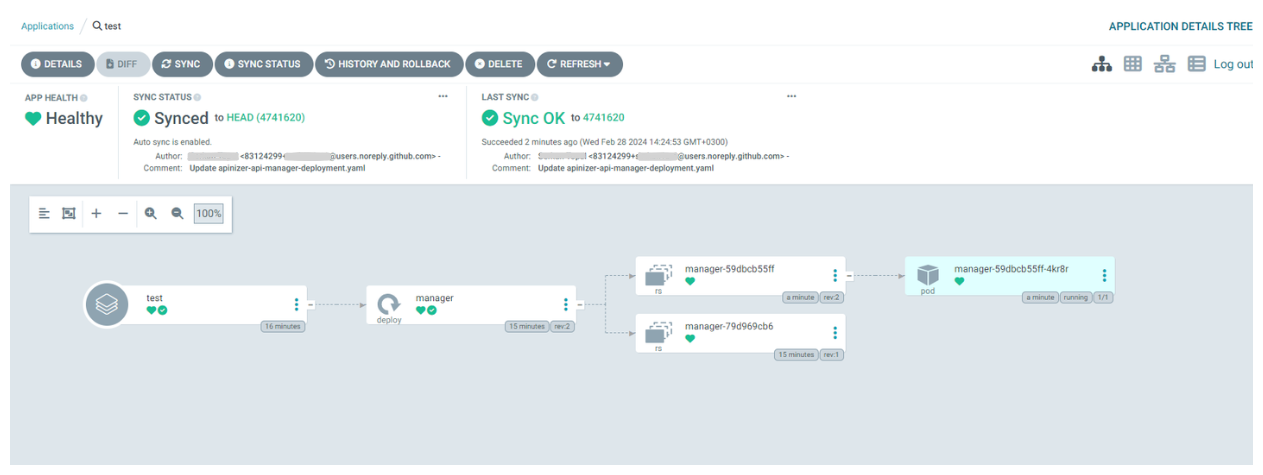
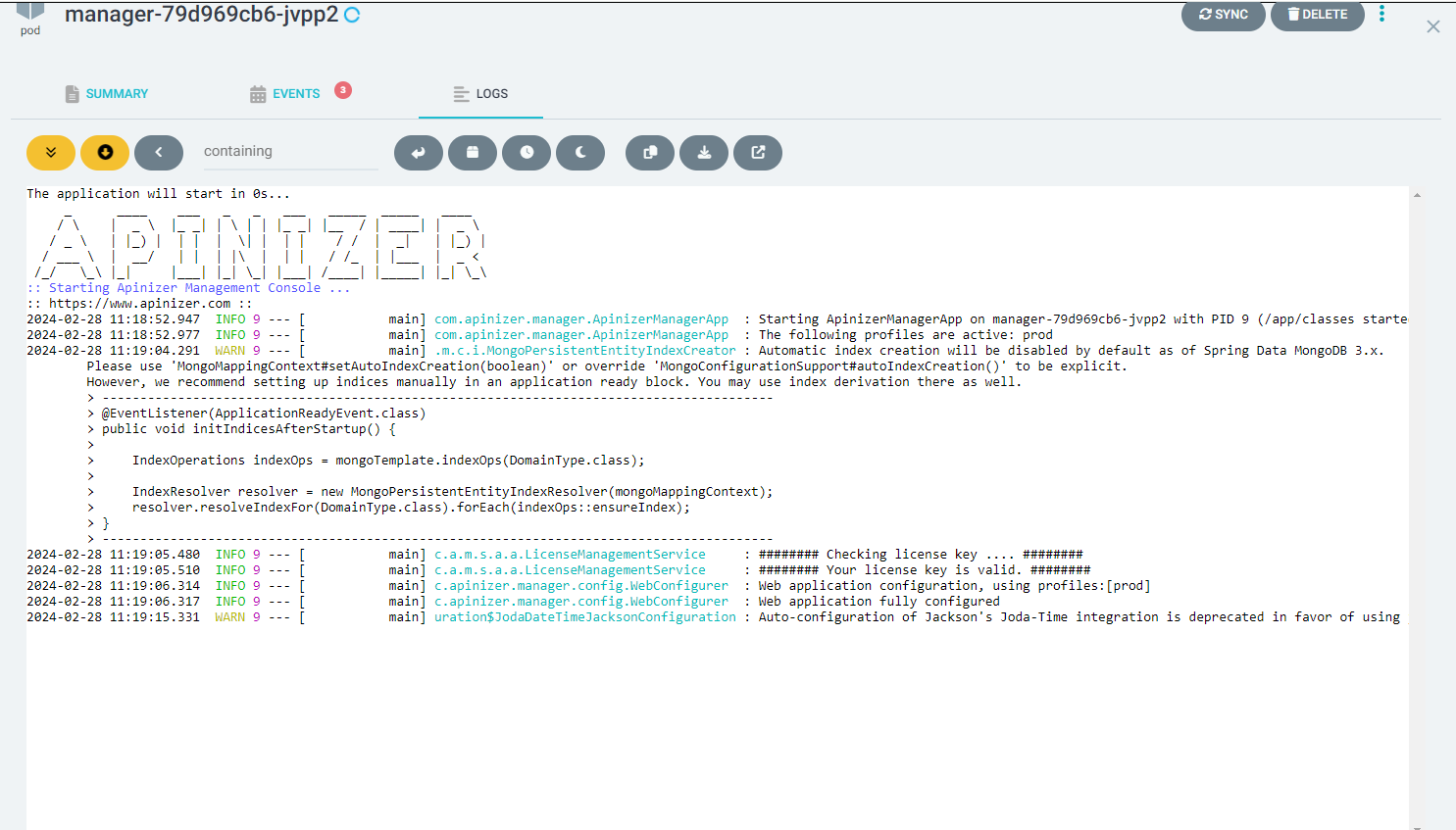
ArgoCD visually shows you deployments, replica sets, and pods. You can view real-time log data of pods.
 Manual Synchronization: You can manually synchronize a change made in your YAML file by pressing the SYNC button.
Automatic Synchronization: ArgoCD, which automatically detects every change made in YAML files, automates your deploy processes by updating your pods. This way, while your deploy processes occur more efficiently and quickly, you can prevent manual interventions and errors.
Manual Synchronization: You can manually synchronize a change made in your YAML file by pressing the SYNC button.
Automatic Synchronization: ArgoCD, which automatically detects every change made in YAML files, automates your deploy processes by updating your pods. This way, while your deploy processes occur more efficiently and quickly, you can prevent manual interventions and errors.