Mock API Usage
Mock API enables simulating the behavior of a real API. When you make an HTTP call to an endpoint you created without any software development, a previously specified response is returned.
This content explains, in order, creating a blank Mock API, returning responses based on conditions from endpoints, and creating, deploying, and testing the API as an API Proxy.
Thanks to conditions added to the response, Apinizer enables receiving different responses based on conditions depending on header, body, or parameter values of the request.
1. Creating Mock API
An API is to be created to manage employee records. The endpoints and the responses are created in the interface, not from an API definition document.
- Select Development → API Creator → Mock API in the main menu. Click Create. The new Mock API wizard opens.
- In the Source step, select Start blank. Click Continue.
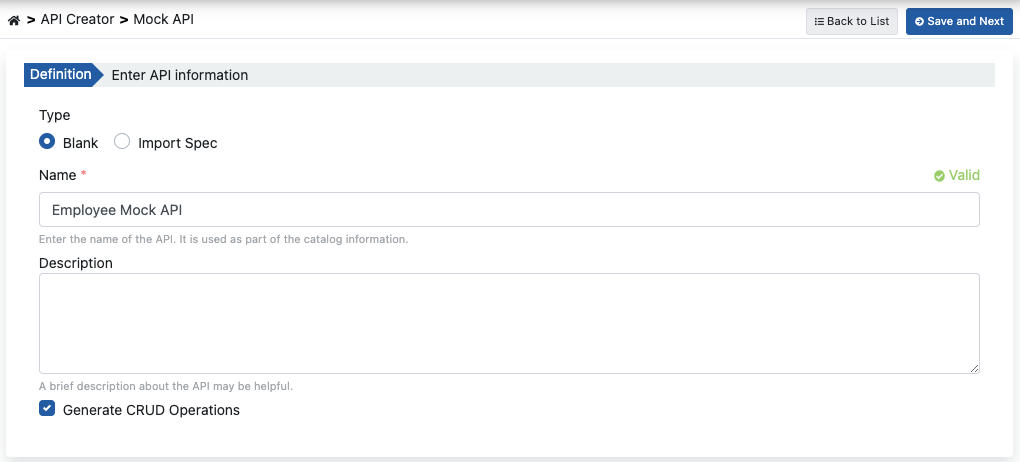
- In the Details step, enter Employee as the Name. Enter a description.
- Under CRUD scaffold, turn on Generate list, create, read, update and delete operations. Enter employees as the Resource name. Click Continue.
- In the Review step, check the summary. Click Create mock API.
The CRUD scaffold adds these endpoints: GET /employees, POST /employees, GET /employees/{id}, PUT /employees/{id}, and DELETE /employees/{id}. For details, see CRUD Scaffold.
The image below shows Mock API settings:
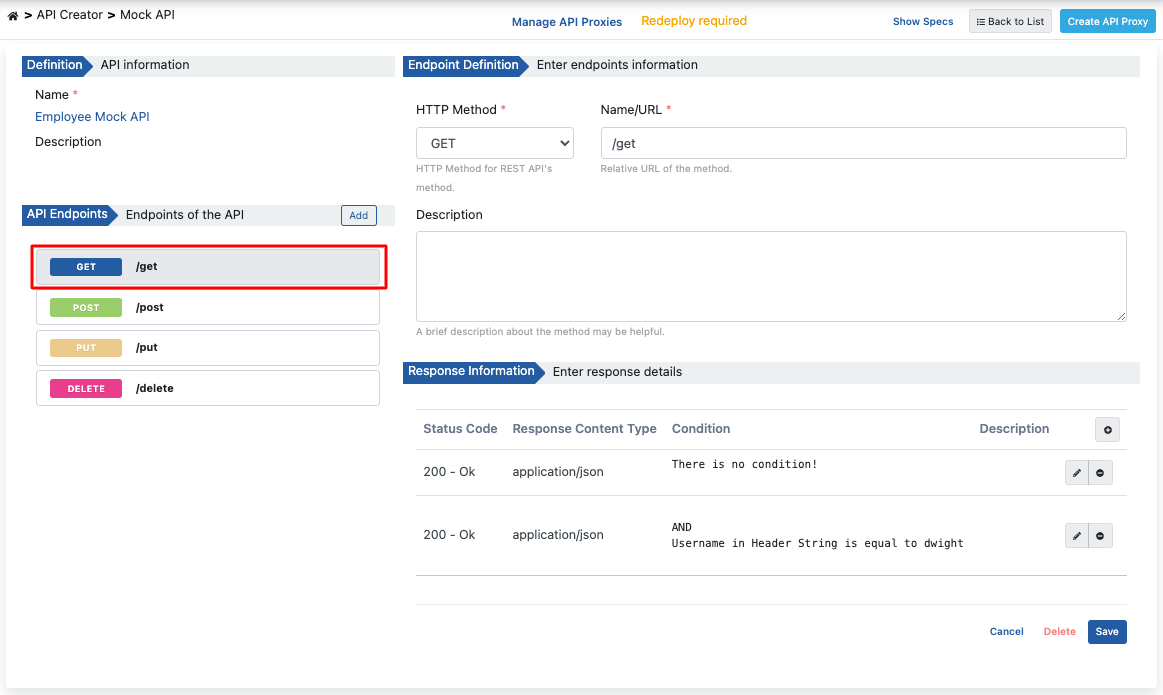
Apinizer creates the Mock API and opens the editor. The left column shows the Mock API and its endpoints. The center area shows the selected endpoint.
2. Returning Different Responses Based on Conditions
When a request is sent to the endpoint without a condition, the response must have a successful status code and the list of all employees.
The CRUD scaffold already added a default example to GET /employees. Change its body as follows:
- Select GET /employees in the left column. The Responses card shows the 200 OK tab. The example table shows Example 1 with the Default badge.
- Click the media type application/json. The response panel opens.
- Click the pencil icon of Example 1. The example dialog opens.
- Leave Conditions empty. An example without conditions is the default example.
- Enter the list of all employees in Response Body. Click Save. The dialog closes.
- Click Save in the response panel.
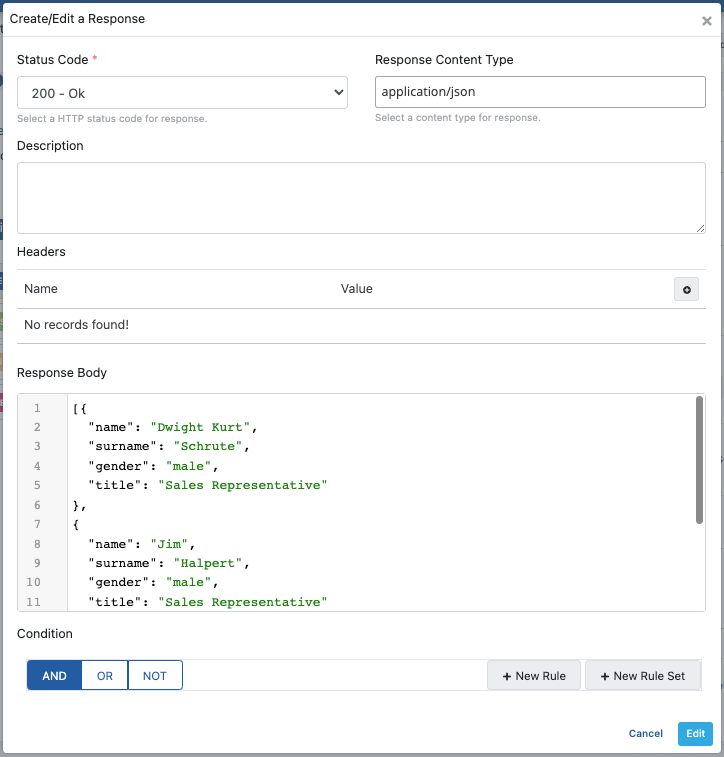
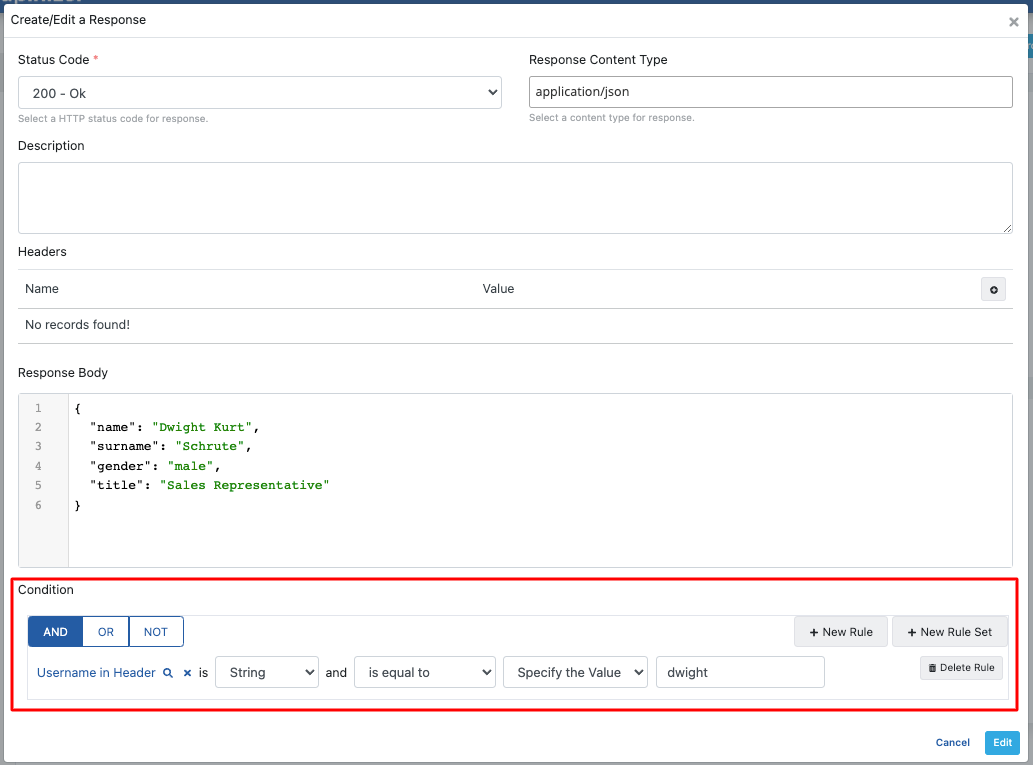
The following condition is created to return only this employee's information when the value of the username header is dwight.
- In the Responses card, click + Example under application/json. The example dialog opens.
- Under Conditions, click New Rule.
- Set the rule: header username, type String, operator equals, value dwight.
- Enter only the information of this employee in Response Body. Click Save.
The example appears in the table with the 1 rule badge.
3. Viewing API Definition Documents
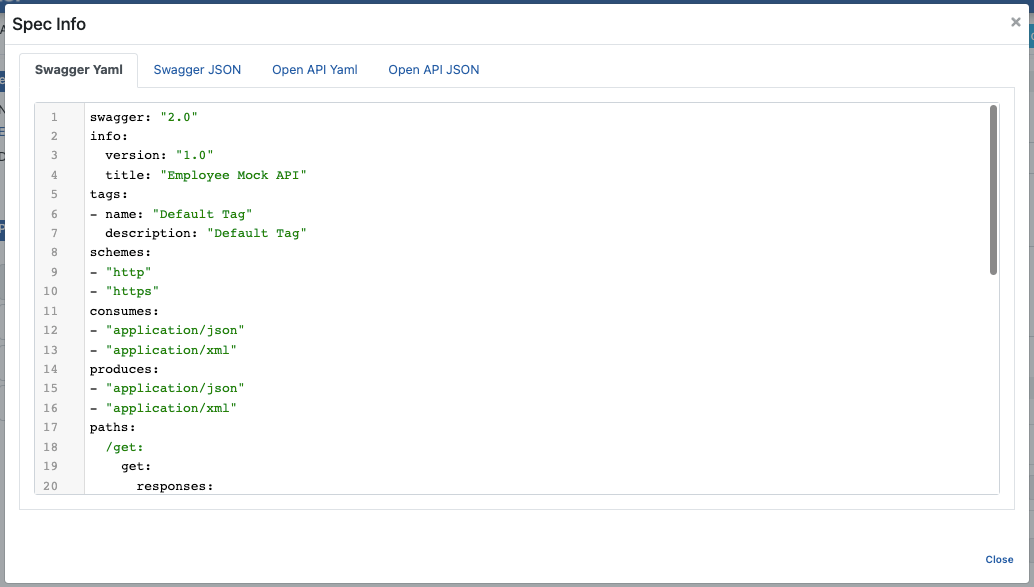
Click the Show Specs button in the breadcrumb bar to access the API definition file for Employee Mock API.

The dialog shows the OpenAPI specification. Switch between the Open API Yaml tab and the Open API JSON tab. Use Copy to Clipboard or Download to copy or download the specification.
The image below shows the specification dialog:
4. Creating API Proxy
You can instantly create an API Proxy by clicking the Create API Proxy button from the Mock API screen.

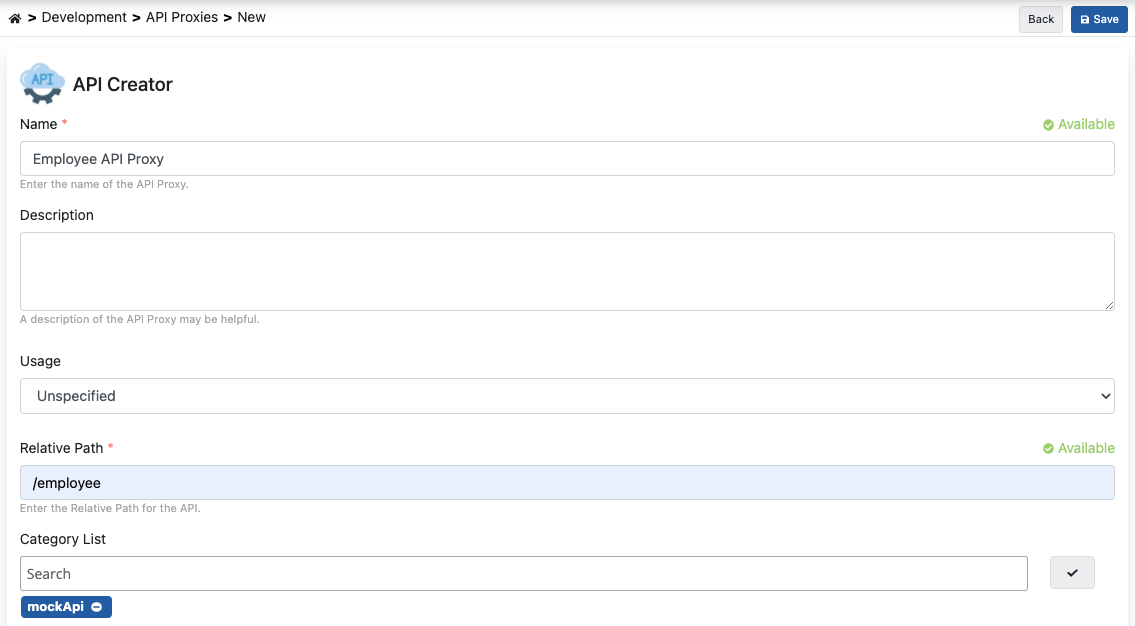
The Create API Proxy dialog opens. Fill in the fields as follows and click Create and deploy:
-
Proxy name: Employee API Proxy
-
Relative Paths:
/employee -
Category List: type
mockApiand press Enter. -
Deploy to: check the environment where you want to deploy the API Proxy.
4.1 Deploying the API Proxy
Employee API Proxy can be quickly deployed to a defined environment and made available for client consumption.
If you checked an environment under Deploy to, Create and deploy has already deployed the API Proxy. You can also deploy it later.
To deploy later, use the dialog opened by the Deploy button on the API Proxy screen.

You can also do this from the Mock API screen with the Manage API Proxies button.

5. Testing
Test the API with Try it on the Mock API screen. For details, see Try it.
- Select GET /employees in the left column. Click Try it in the endpoint card. The Try it panel opens.
- The panel selects Employee API Proxy and its first environment. If necessary, select the Environment where you deployed the API Proxy.
- Click Send.
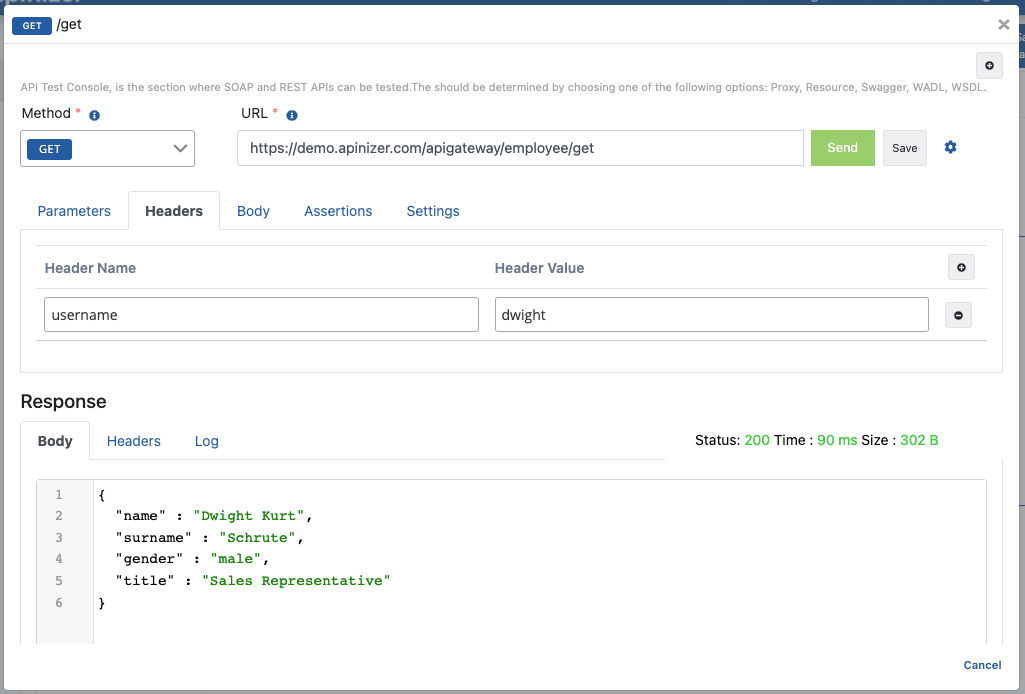
The request does not have the header expected by the condition. The following response body listing all employees is returned.
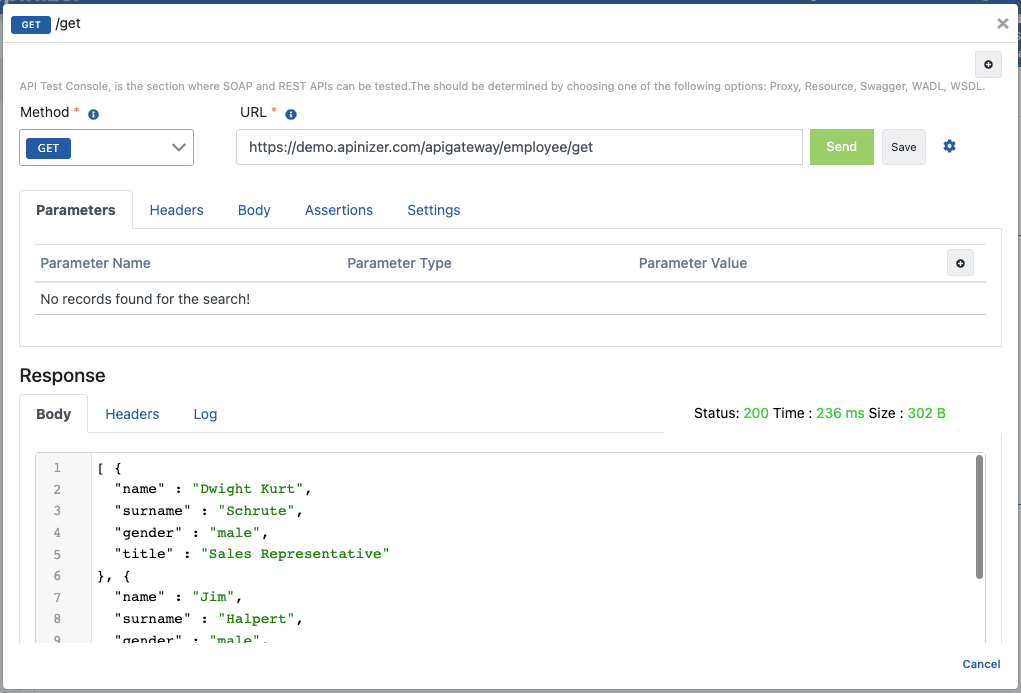
Now add the header expected by the condition to the request. In the Headers tab, click + Header. Enter username as the name and dwight as the value. Click Send. The following customized response is returned.