Amazon EKS
This document describes the necessary steps for installing Apinizer on Amazon EKS (Elastic Kubernetes Service). In the first 6 sections, AWS EKS installation, resource creation and usage steps are described step by step from the beginning. If there is a ready EKS cluster on AWS, you can start directly from section 7.
1. Introduction
Minimum System Requirements
For Apinizer installation on AWS EKS Cluster, the total CPU Cores of Compute Nodes to be defined in the Node Group must be at least 6 cores.
If t3.medium type server is selected, 3 are required.
If you add t3.xlarge type server, 2 will be sufficient.
What is AWS EKS (Elastic Kubernetes Service)?
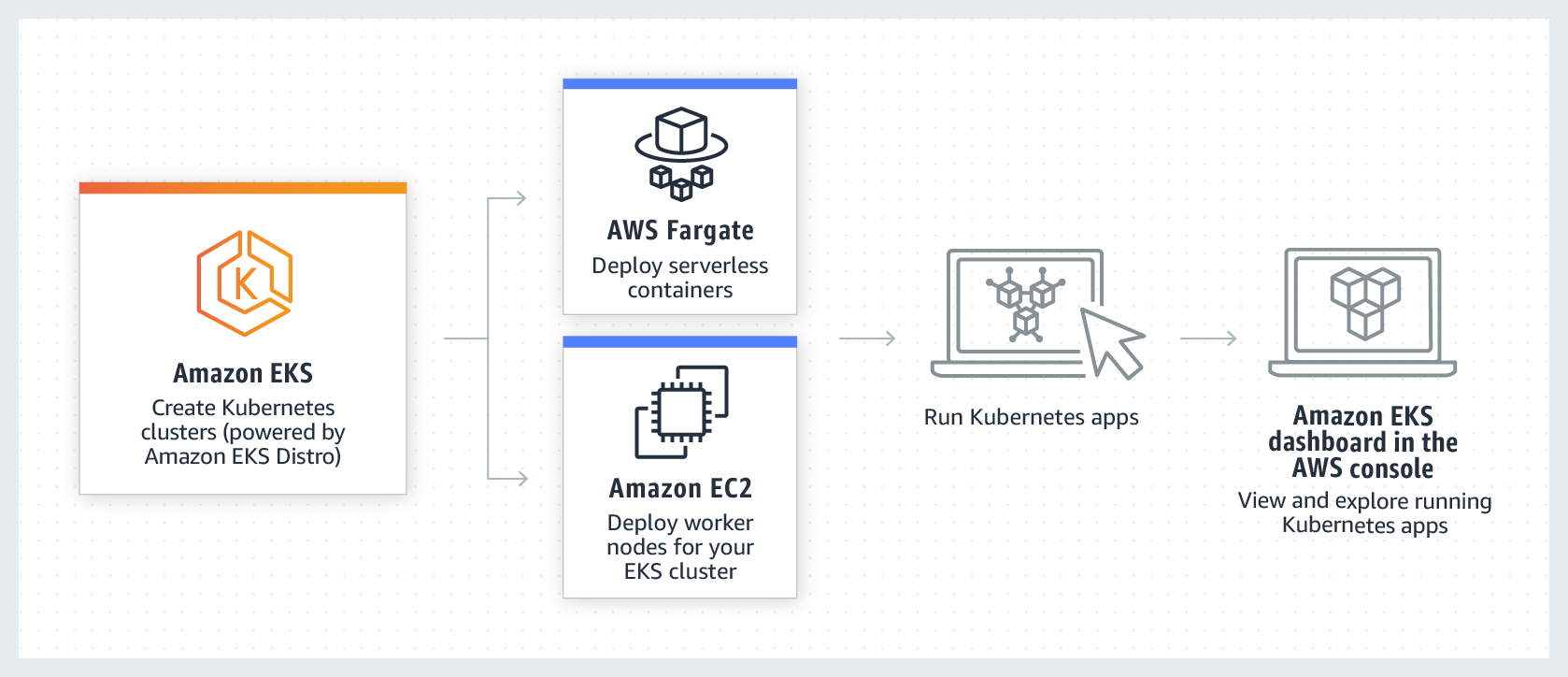
Amazon Elastic Kubernetes Service (Amazon EKS) is a managed service you can use to run Kubernetes on AWS without needing to install, operate, and maintain your own Kubernetes Control Plane (Master) or nodes (Worker Nodes).
Kubernetes is an open-source system for automating deployment, scaling, and management of containerized applications.
2. Configure EKS VPC and Subnets
What is AWS VPC and Subnet?
Amazon AWS VPC (Virtual Private Cloud) is a private virtual network within AWS. In other words, it can be called AWS's network infrastructure component. It is an advanced virtual network infrastructure developed by Amazon AWS for all components to be created on AWS to communicate with each other.
Within VPC, we can create networks, subnets, gateways specific to our own use. Connections between different networks and subnets can be provided with Route tables belonging to them.
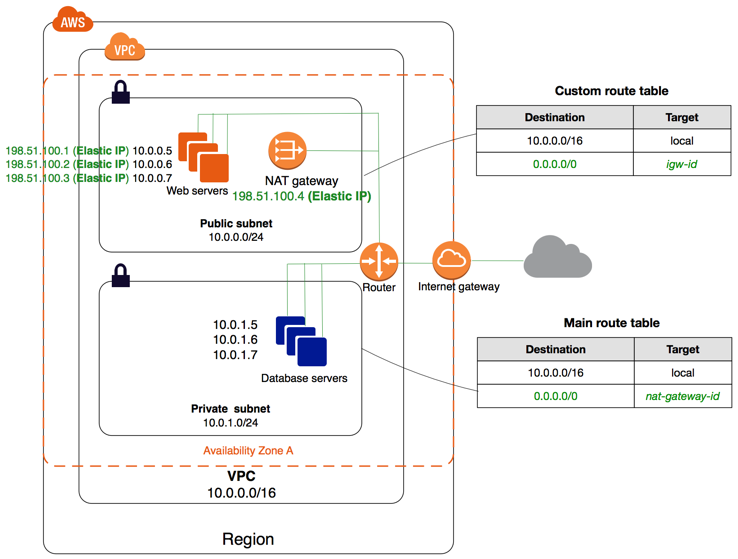
VPC Subnet: After creating a specific network on AWS, subnets belonging to this network can be created. By following the steps below, subnets can be created on AWS VPC.
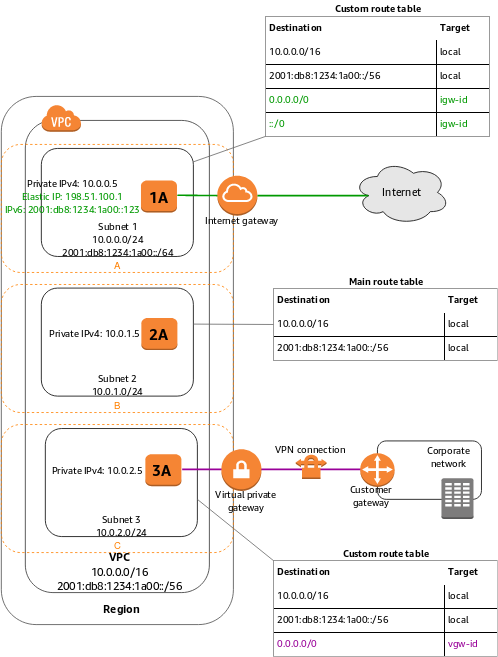
VPC and Subnets for EKS need to be set correctly and subnets need to be defined as specified in AWS documentation. If you don't know VPC and subnet definition, you can use AWS's ready template.
For details: AWS EKS VPC Documentation
Creating and Configuring AWS VPC
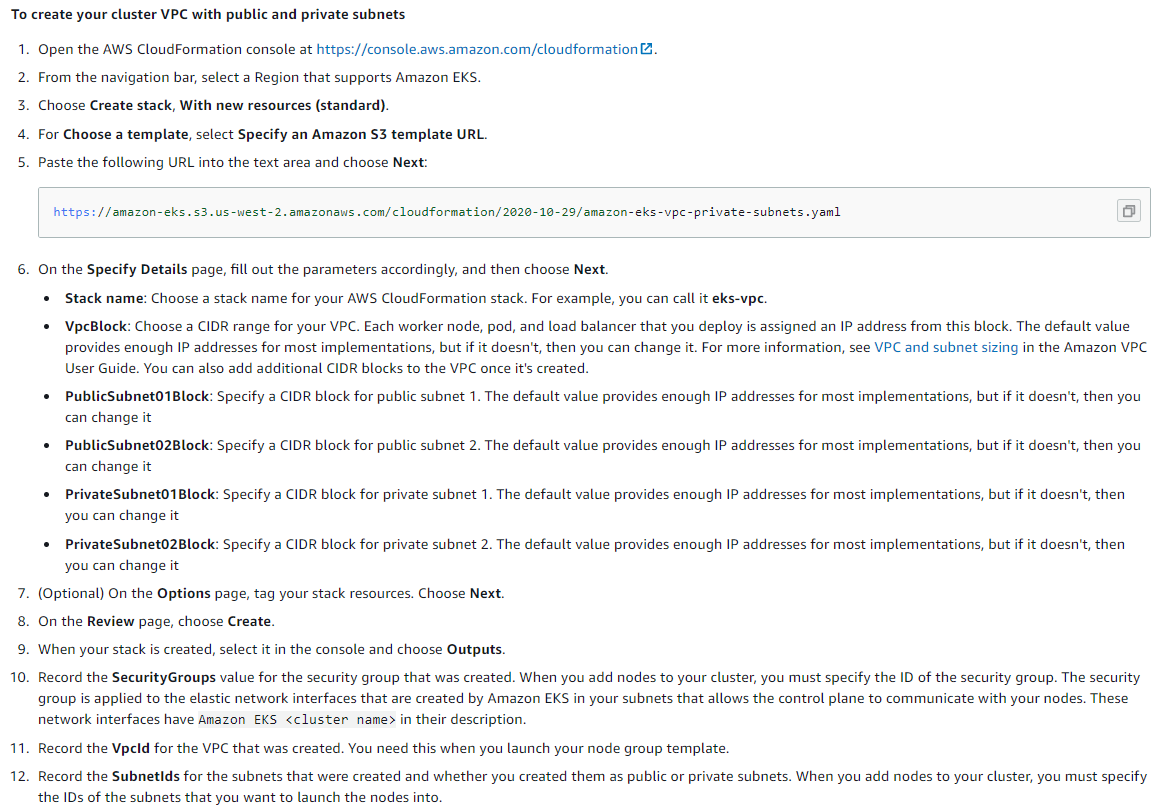
By following the steps below, the network structure suitable for EKS will be installed automatically.
For details: AWS CloudFormation Console
3. Configure EKS IAM Roles
What is AWS Identity and Access Management (IAM) Role?
Using AWS Identity and Access Management (IAM), you can determine who can access AWS services and resources under what conditions.
IAM is a feature of your AWS account and is provided at no additional charge. IAM is not something running like an instance or a database in terms of structure, but entirely manages permissions for us, managing all users who have access to the AWS account used, from who can access which service in what way.
IAM manages 6 main topics in terms of main concept:
- Users
- Groups
- Roles
- IAM Access Policies
- API Keys
- Password policy, MFA
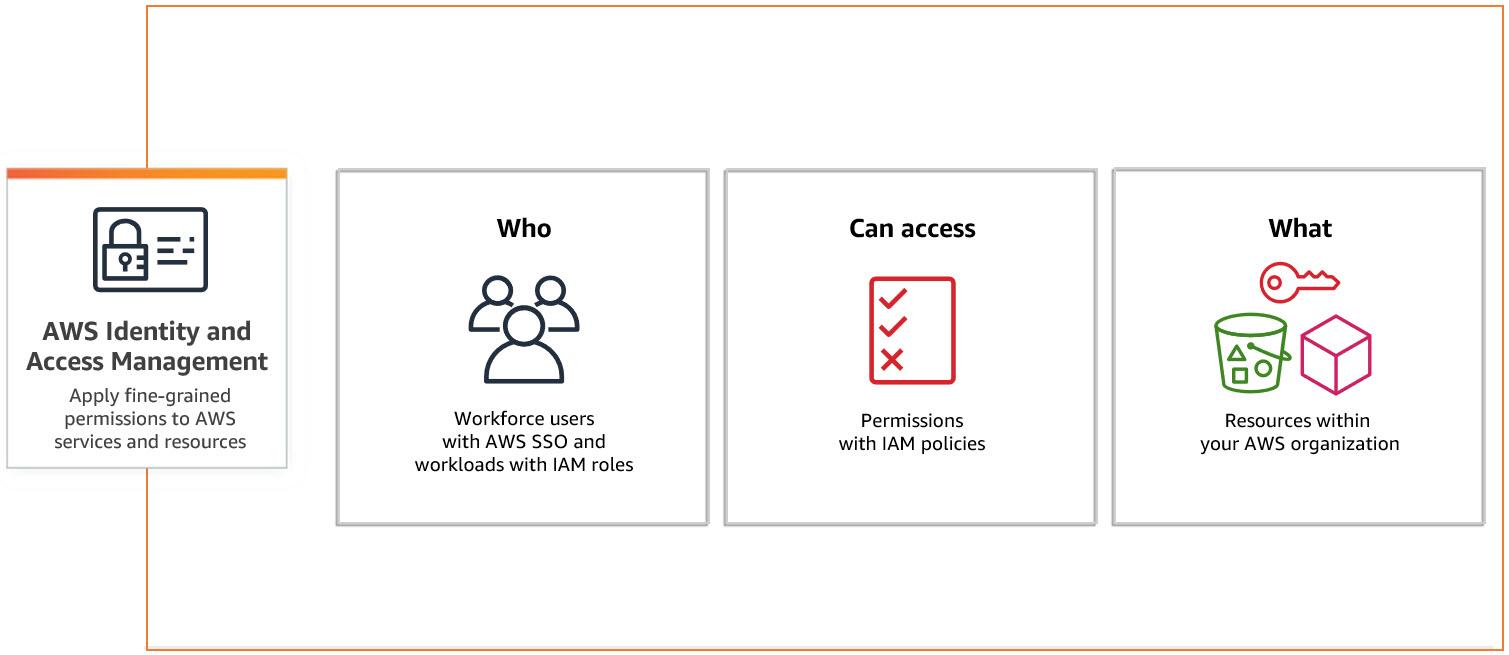
For detailed information: What is AWS IAM?
Creating and Configuring AWS IAM
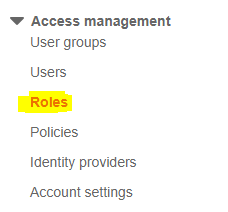
Go to the Roles page from the left menu and create a new Role.
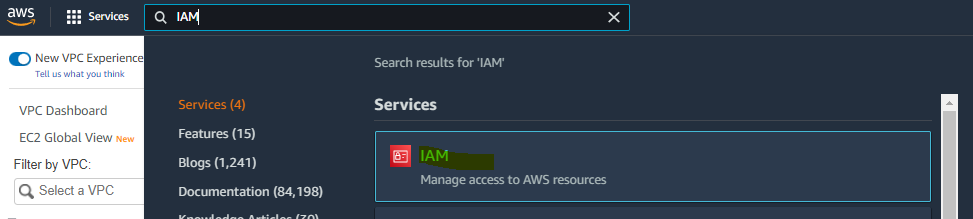
In this section, we need to create two Roles. The first is the Role to be used for EKS cluster, and the second is the Role information that Worker Node Groups within EKS will use.
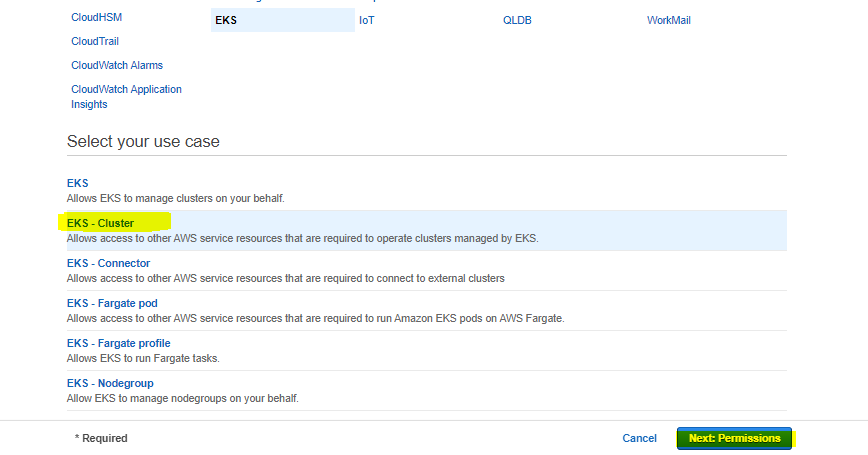
1. Creating the Role to be Used by EKS Cluster
To create a role, the operations in the given images should be performed in order.
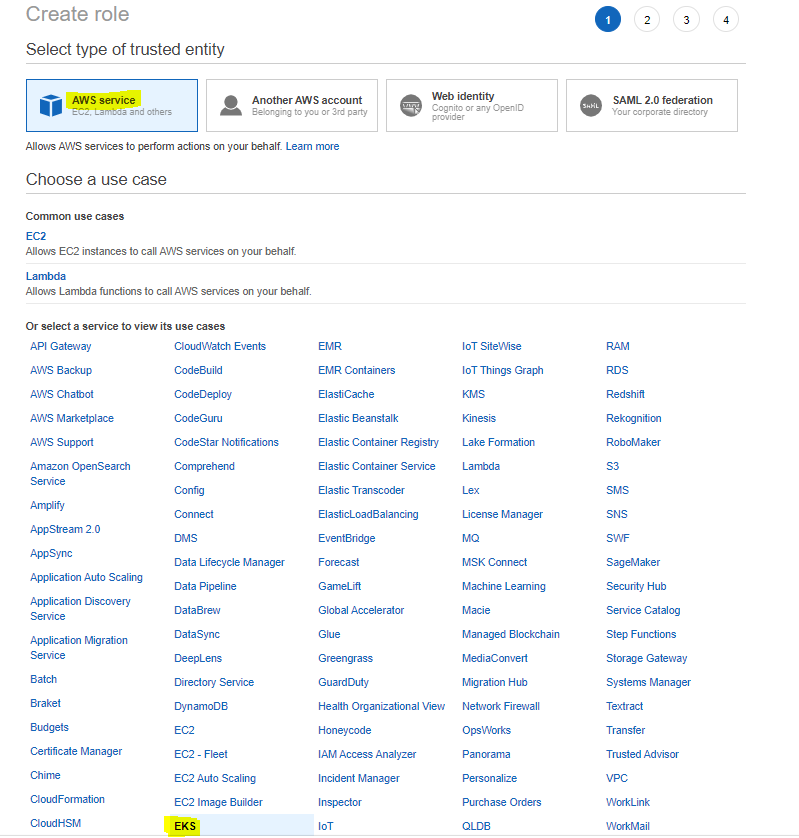
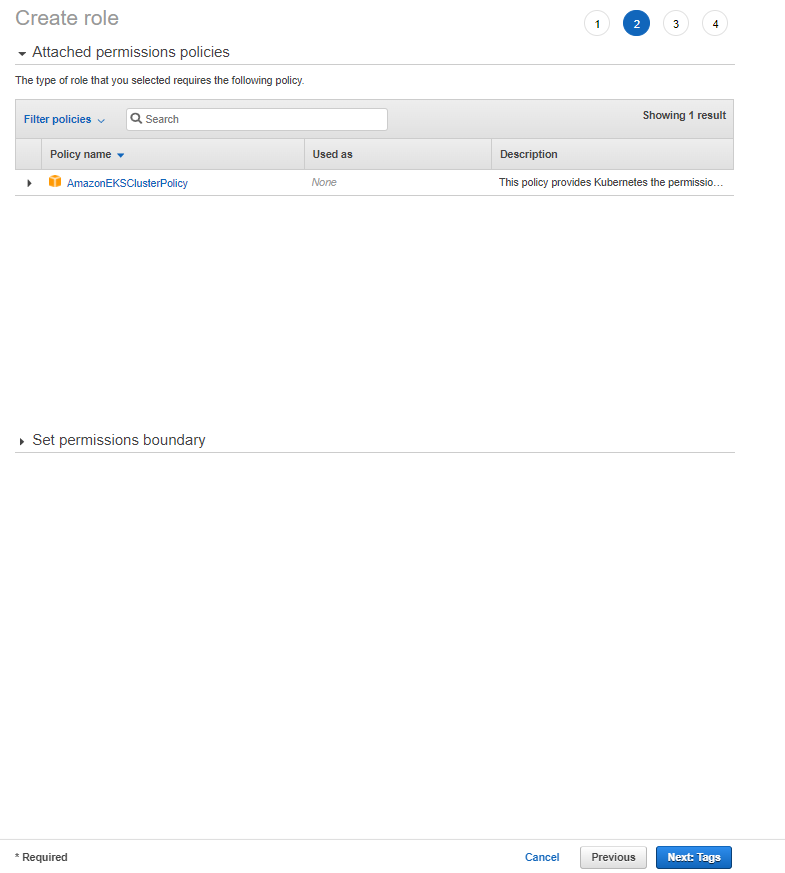
Continue on the incoming page without entering any key-value information.
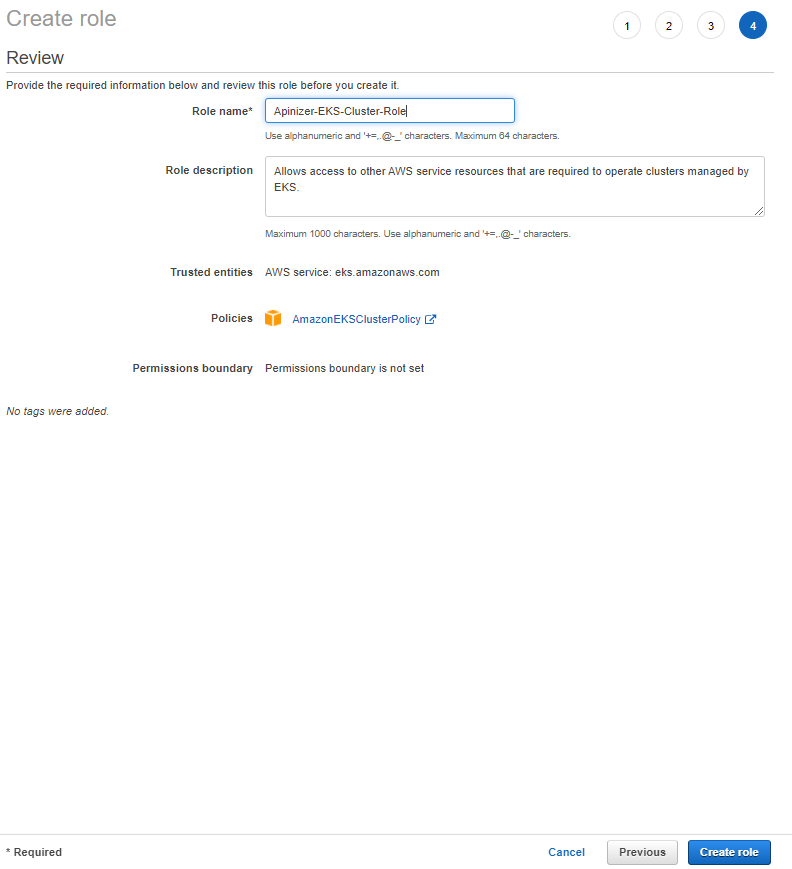
The IAM role to be used by the EKS cluster should be created. This role should contain the necessary permissions for the EKS cluster to access AWS services.
2. Creating the Role to be Used by EKS Cluster Worker Node Groups

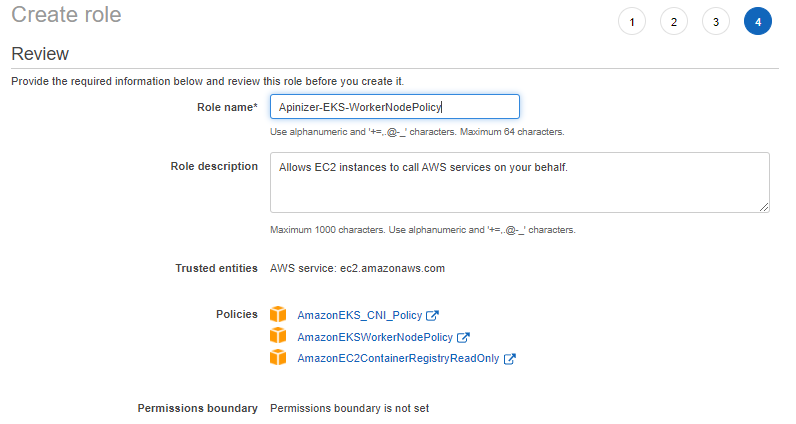
The following Policies should be selected for this Role.

The IAM role to be used by Worker Node Groups should be created. This role should contain the necessary permissions for worker nodes to access AWS services (EC2, EBS, ELB, etc.).
4. Installing EKS Master Node
Creating and Configuring AWS EKS (Elastic Kubernetes Service)
After completing the above steps, AWS EKS installation can be started.
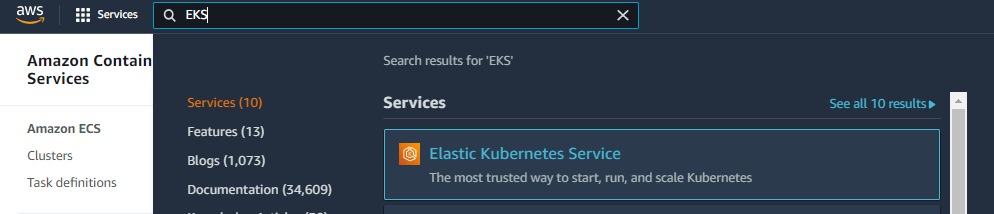
Continue the process by typing EKS in the search section.
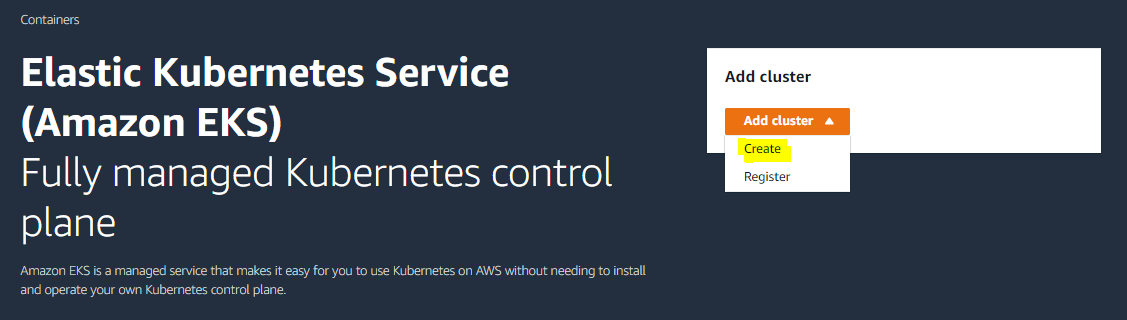
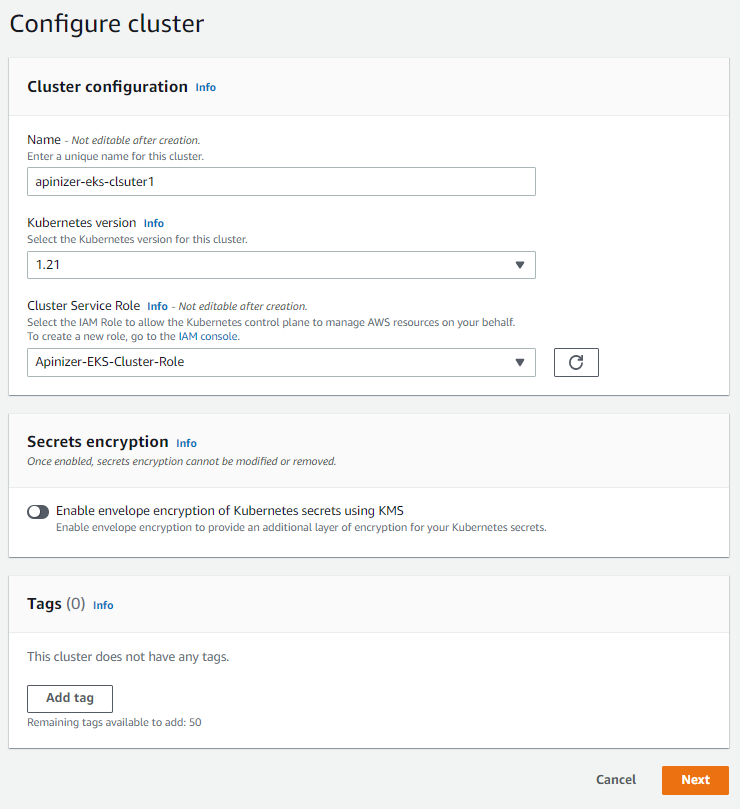
Select the cluster name, the kubernetes version we want to use, and the IAM role we created earlier.
Select cluster name, Kubernetes version and IAM role.
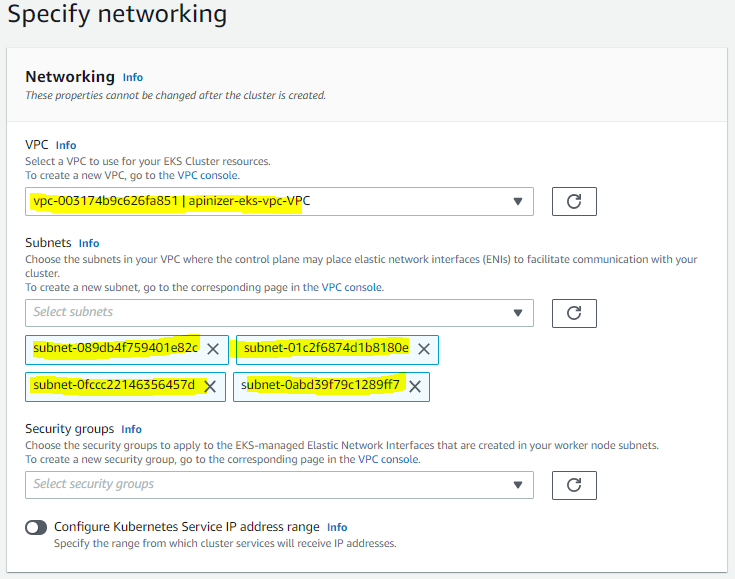
Select VPC and subnets. It is recommended to select at least 2 subnets for EKS.
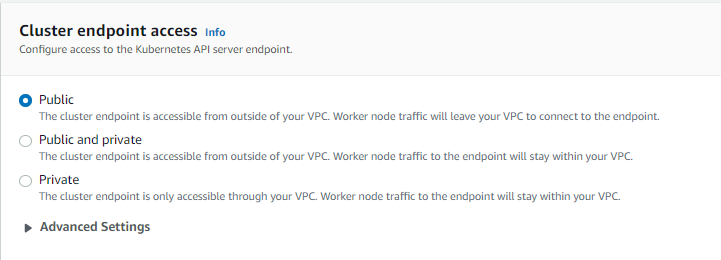
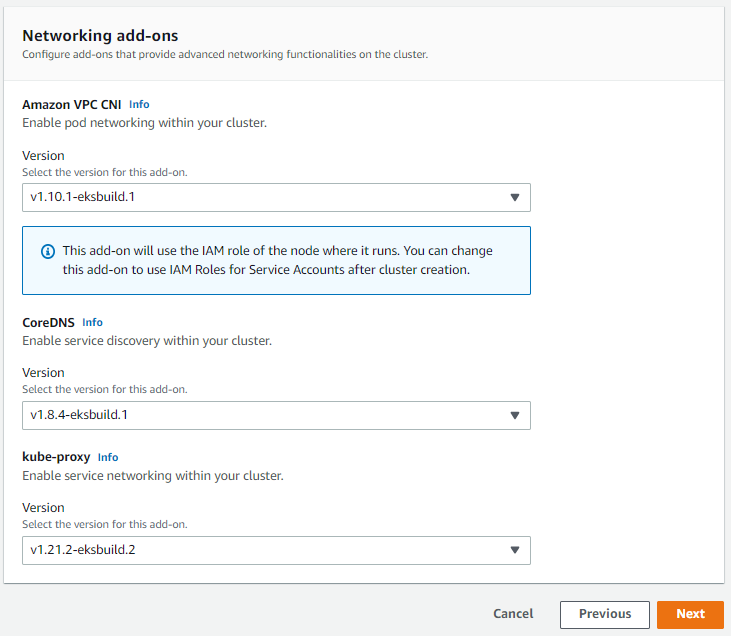
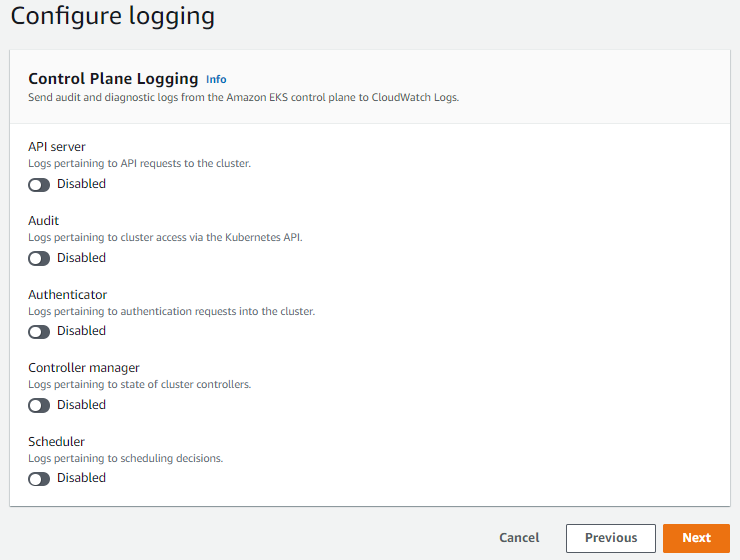
Select CloudWatch Log Group or create a new log group. This section can be configured as desired.
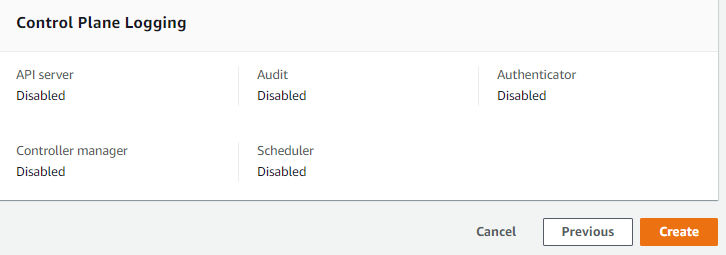
Finally, the defined information is displayed. At this stage, no error is seen. Start creating the cluster by saying Create.
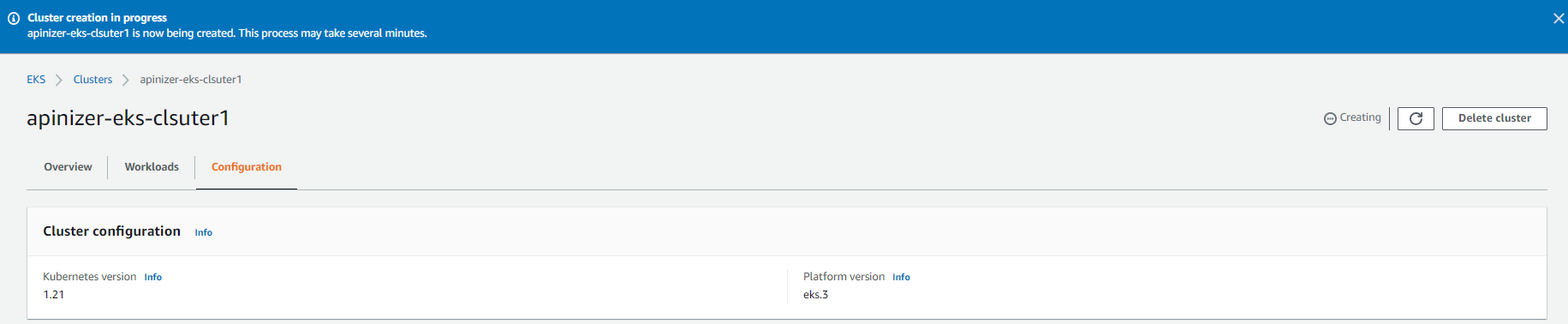
The EKS Cluster is being created. This process takes approximately 5 minutes. While this process continues, we can download and configure the necessary tools to access and manage EKS from our Client computer.
5. Installing and Configuring AWS CLI and kubectl
Download the necessary tools from the addresses below. Since Windows will be used as the Client computer in this document, versions suitable for Windows are downloaded.
AWS CLI Installation
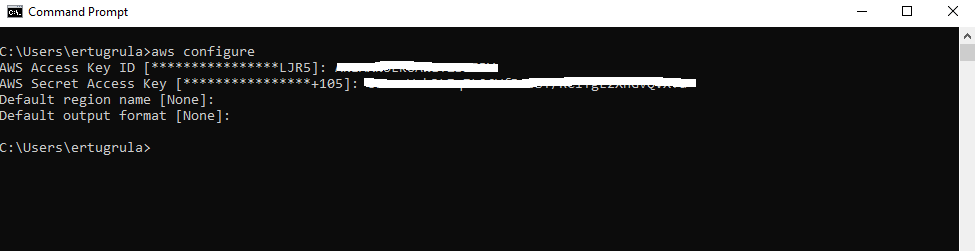
After installing the downloaded .msi tool, configure it according to your Cluster information as follows.
For details: AWS CLI Getting Started Guide
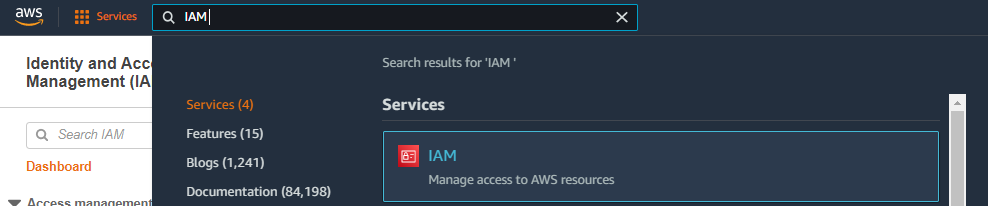
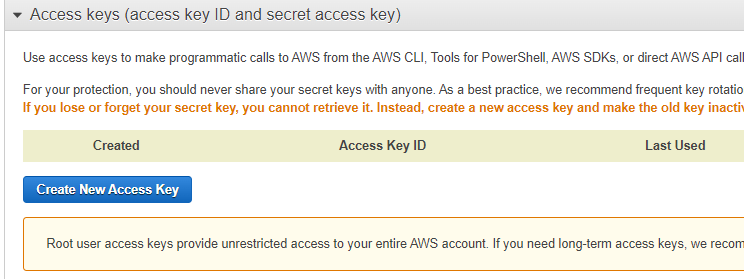
Access Key and Secret Key information are obtained from IAM Console.
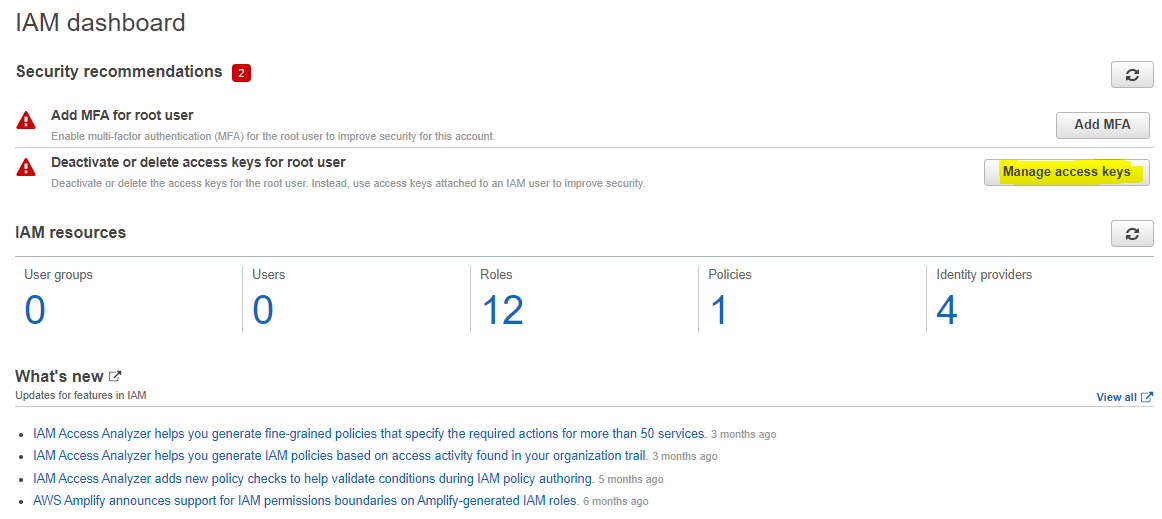
Go to Access information by clicking the Manage access keys button from the incoming screen.
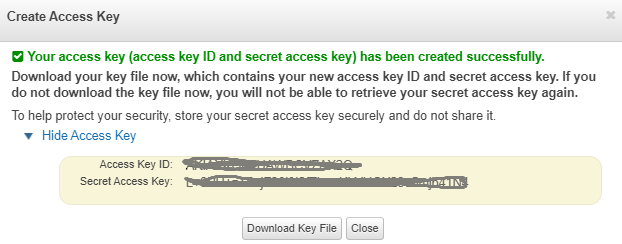
Access Key and Secret information are displayed in the window below. This information should be saved somewhere before closing the window.
aws configure
Start the configuration process by entering the Access Key and Secret information recorded earlier.
KUBECTL Installation
Kubectl should be downloaded to match the cluster version.
For details: AWS EKS kubectl Installation Guide
Kubectl is downloaded for Windows and added to PATH.
# Example Configuration Command
aws eks update-kubeconfig --region [EKS_Region] --name [EKS_Cluster_Name]
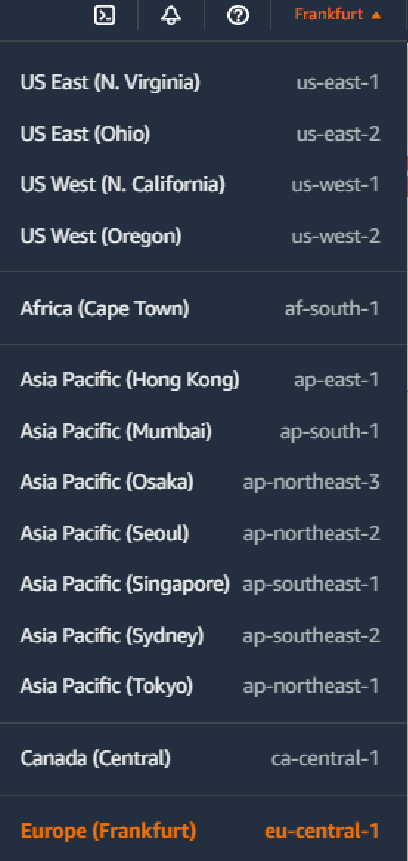
Here, region information can be obtained from the top menu as seen in the image below. Similarly, the cluster name can be obtained by going to the EKS page.
The section we need is eu-central-1.

To check cluster status:
aws eks --region eu-central-1 describe-cluster --name apinizer-eks-cluster1 --query cluster.status
If multiple clusters are managed, kubeconfig information should be updated as follows:
aws eks --region eu-central-1 update-kubeconfig --name apinizer-eks-cluster2
6. Creating EKS Worker Nodes
This section describes the creation of Worker Nodes for EKS. Go to AWS Console again and apply the following steps.
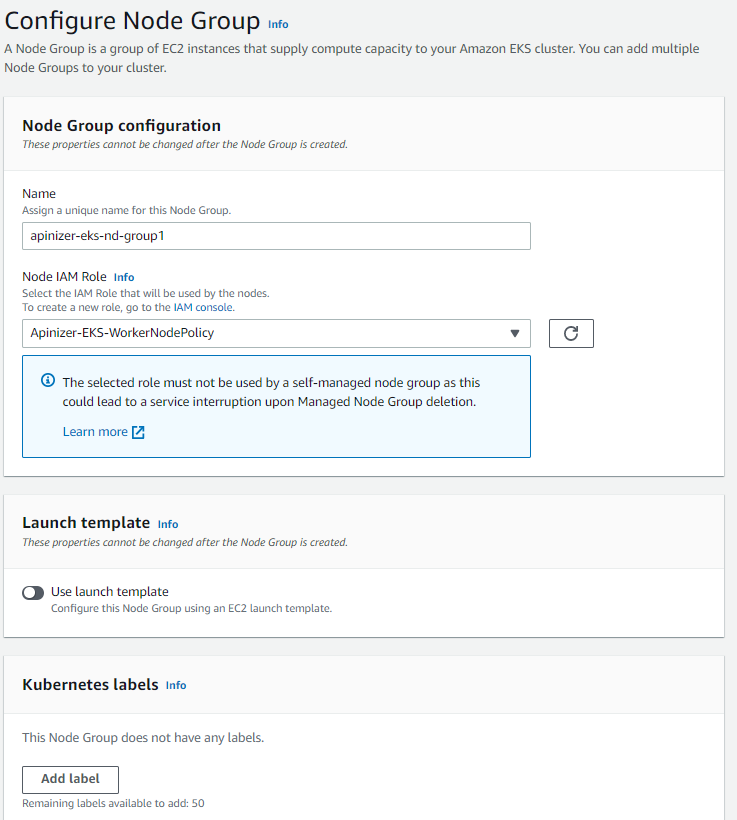
Create a new node group with the "Add Node Group" option from EKS Console.
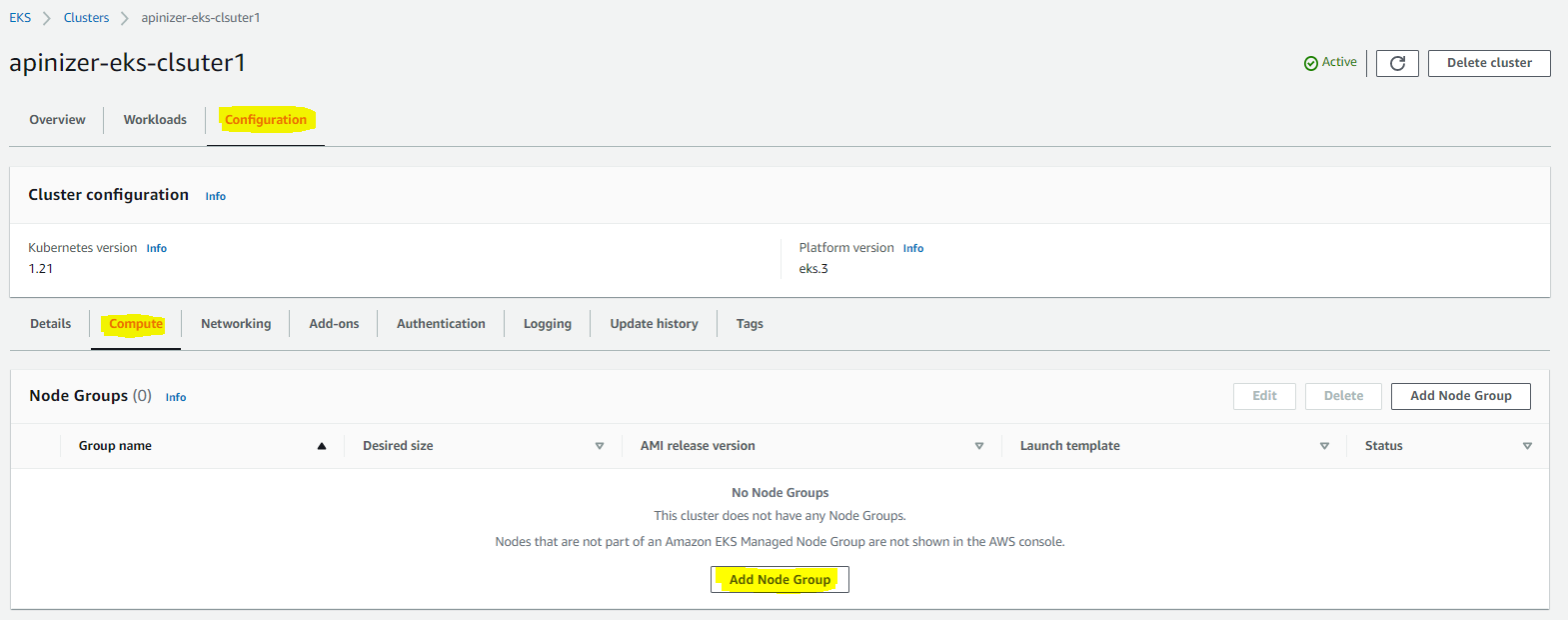
For node group:
- Node group name
- IAM role (worker node role created earlier)
- Instance type (e.g.: t3.medium, t3.xlarge)
- Disk size
are selected.

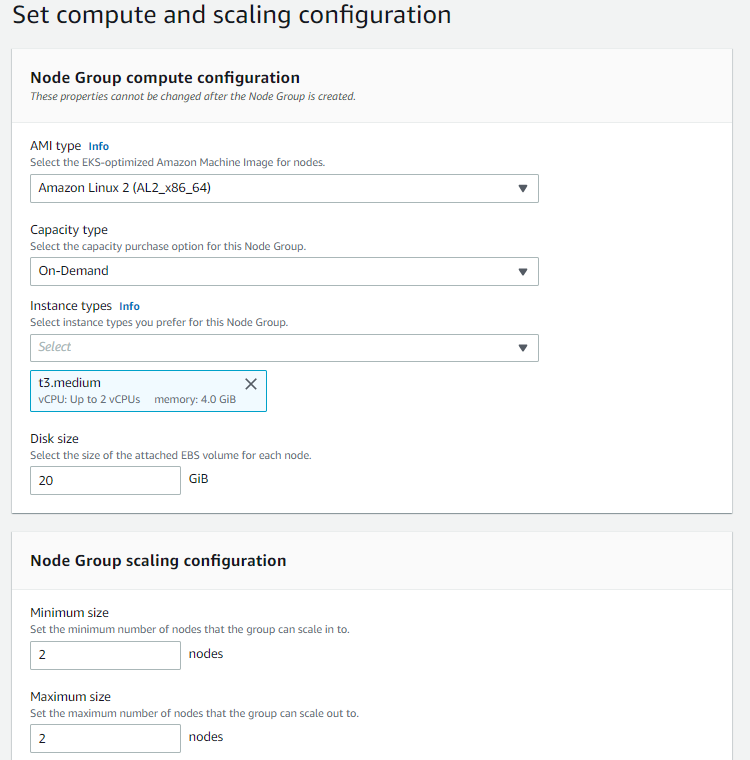
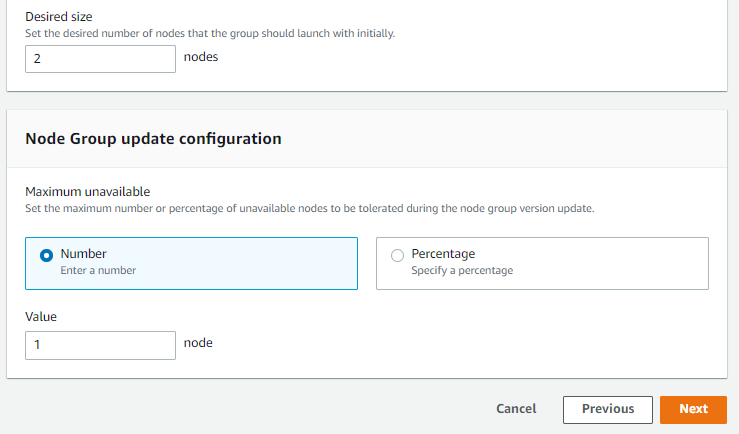
Minimum, maximum and desired node numbers are determined for node group.
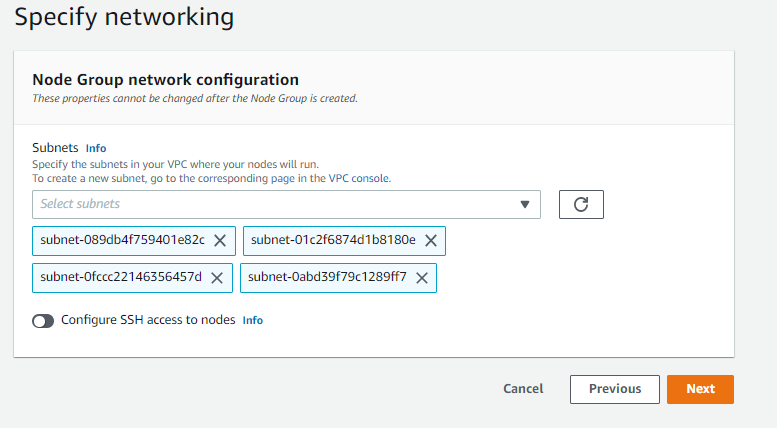
Subnets are selected and SSH key pair is determined.
Finally, the defined information is displayed. If no error is seen at this stage, start creating the cluster by saying Create.

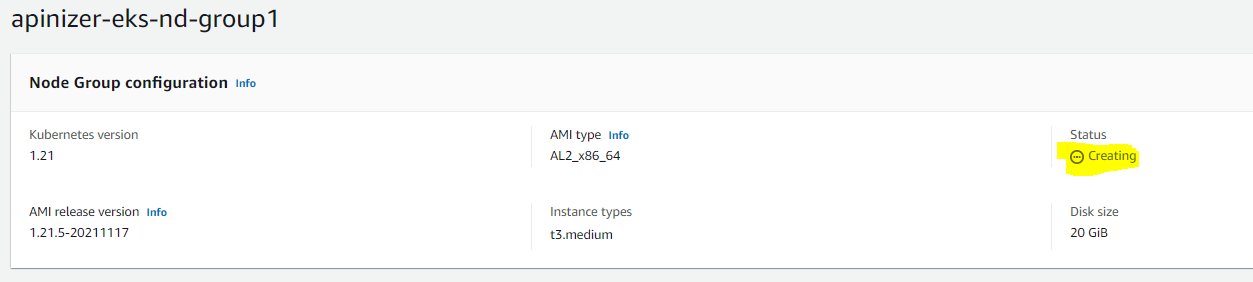
This process takes approximately 5 minutes. After the installation is completed and activated, deployment etc. operations can be done with the previously configured kubectl.
The image showing that Node Group installation is completed is below:

7. EKS Installation Test and Sample Deployment
From this stage, checking the kubernetes cluster with kubectl whose installation and definitions were made earlier and testing it with a sample nginx application is described.
AWS EKS Environment Test
Kubernetes cluster resources should be checked by following the commands below.
aws eks --region eu-central-1 describe-cluster --name apinizer-eks-cluster --query cluster.status
aws eks --region eu-central-1 update-kubeconfig --name apinizer-eks-cluster
kubectl get nodes

Loading and Testing Sample Application
In this section, loading the Nginx application defined in the .yaml file below as an example to the kubernetes cluster is described and tested after being exposed.
apiVersion: apps/v1
kind: Deployment
metadata:
  name: my-nginx
spec:
  selector:
    matchLabels:
      run: my-nginx
  replicas: 4
  template:
    metadata:
      labels:
        run: my-nginx
    spec:
      containers:
      - name: my-nginx
        image: nginx
        ports:
        - containerPort: 80
kubectl apply -f nginx.yaml
kubectl get pods
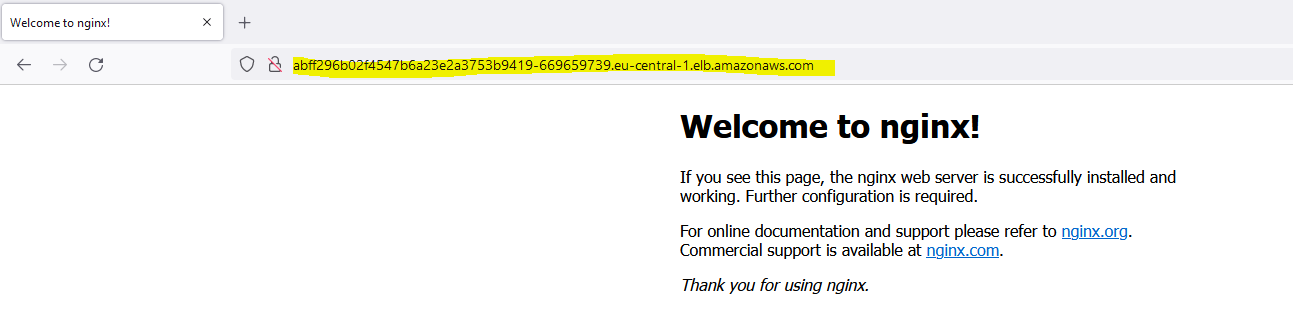
The application is seen to be successfully loaded to the kubernetes cluster.
Open the application as a service with the following command:
kubectl expose deployment/my-nginx --port=80 --target-port=80 --name=my-nginx-service --type=LoadBalancer
kubectl get svc
For testing:
curl -k <EXTERNAL-IP>
8. Installing Apinizer on EKS
What is described under this heading describes the definition of opening Apinizer as a service, different from Apinizer installation documents.
Apinizer Management Console installation
A .yaml file should be created for Apinizer and loaded to AWS EKS cluster.
As stated in the Installation and Configuration document, Replicaset MongoDB and Elasticsearch are needed.
-
For MongoDB, go to MongoDB Atlas and create an account, and it can be used free of charge up to a limited DB size. Apinizer does not need a large database because it only keeps configuration definitions in MongoDB.
-
Similarly, for Elasticsearch, Apinizer can be defined by going to Elastic Cloud and using an elastic service in the cloud environment.
Or you can install Replicaset MongoDB and Elasticsearch on an EC2 server in AWS and define them.
Example apinizer-deployment.yaml file settings are below:
apiVersion: v1
kind: Namespace
metadata:
  name: apinizer
---
apiVersion: apps/v1
kind: Deployment
metadata:
  name: manager
  namespace: apinizer
spec:
  replicas: 1
  selector:
    matchLabels:
      app: manager
      version: 'v1'
  template:
    metadata:
      labels:
        app: manager
        version: 'v1'
    spec:
      containers:
      - name: manager
        image: apinizercloud/manager:2023.01.1
        imagePullPolicy: IfNotPresent
        env:
        - name: SPRING_PROFILES_ACTIVE
          value: prod
        - name: SPRING_DATA_MONGODB_DATABASE
          value: apinizerdb-aws
        - name: SPRING_DATA_MONGODB_URI
          value: 'YOUR_MONGODB_URL'
        - name: JAVA_OPTS
          value: ' -Xmx1400m -Xms1400m'
        resources:
          requests:
            memory: '2Gi'
            cpu: '1'
          limits:
            memory: '2Gi'
            cpu: '1'
        ports:
        - name: http
          containerPort: 8080
kubectl apply -f apinizer-deployment.yaml
kubectl get pods -n apinizer
After Apinizer Management Console is loaded to EKS environment, a database named apinizerdb will be created in MongoDB database. The license key provided to you by Apinizer should be entered into the general_settings table.
The following permissions should be defined for Apinizer Management Console to access and manage Kubernetes resources.
Example service.yaml file settings are below:
apiVersion: v1
kind: Namespace
metadata:
  name: kube-system
---
apiVersion: v1
kind: ServiceAccount
metadata:
  name: admin-user
  namespace: kube-system
Example adminuser.yaml file settings are below:
apiVersion: rbac.authorization.k8s.io/v1
kind: ClusterRoleBinding
metadata:
  name: admin-user
roleRef:
  apiGroup: rbac.authorization.k8s.io
  kind: ClusterRole
  name: cluster-admin
subjects:
- kind: ServiceAccount
  name: admin-user
  namespace: kube-system
kubectl apply -f service.yaml
kubectl apply -f adminuser.yaml
kubectl create clusterrolebinding permissive-binding --clusterrole=cluster-admin --user=admin --user=kubelet --group=system:serviceaccounts
kubectl create clusterrolebinding apinizer -n kube-system --clusterrole=cluster-admin --serviceaccount=kube-system:apinizer
Creating Access Service for Apinizer Management Console
After the installation is completed, a service is needed to access Apinizer Management Console.
A service is created by following the steps below. It may take a minute or two to get the external IP sometimes.
kubectl expose -n apinizer deployment.apps/manager --port=80 --target-port=8080 --name=apinizer-console-service --type=LoadBalancer
kubectl get svc -n apinizer
After the service is created, Apinizer Management Console can be accessed from the EXTERNAL-IP address.
Apinizer Management Console Login
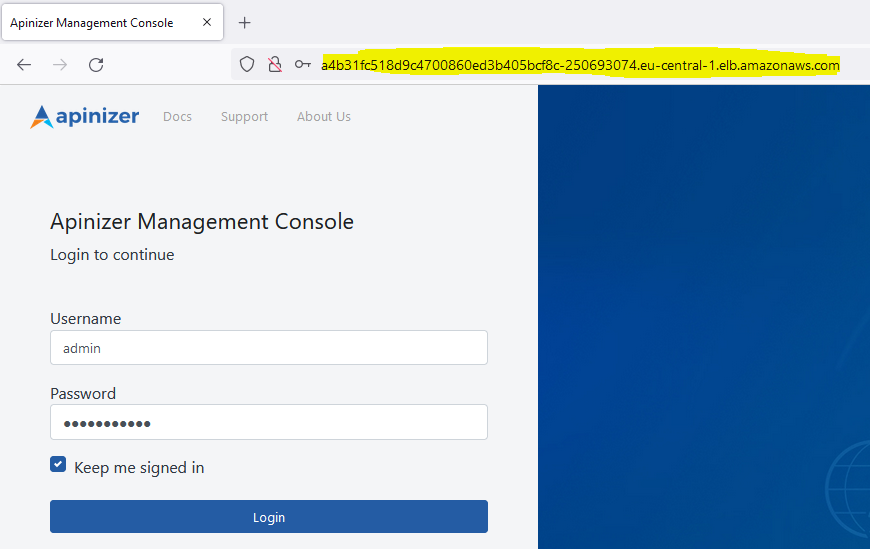
Login is made by writing the service access address in step 2 to the browser's address bar. You can contact Apinizer support team for default username password.
9. Apinizer Configurations
Defining Log Servers
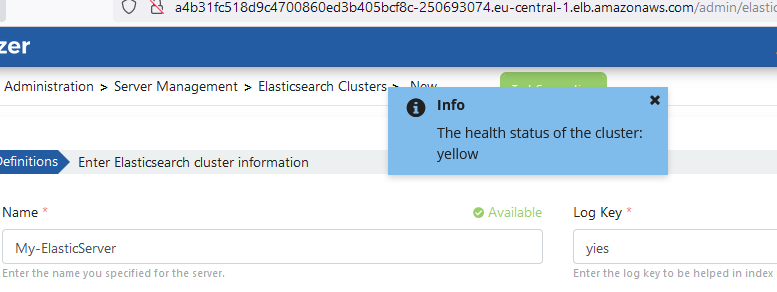
Apinizer stores API traffic and metric information in Elasticsearch database. To continue the installation process, Elasticsearch cluster definitions need to be made.
Go to Administration → Server Management → Elasticsearch Clusters page from the menu in Apinizer Management Console application.
The image containing Elasticsearch cluster definition settings is given below:
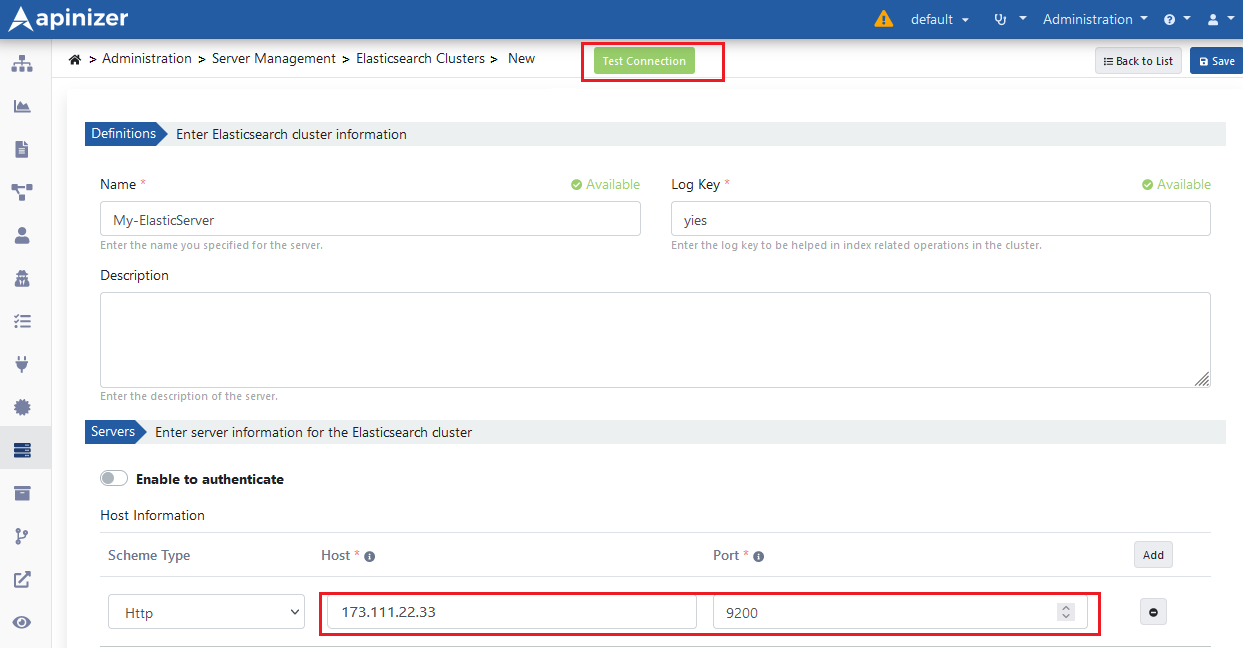
Test Connection button can be used to test Elasticsearch server connection with Apinizer.
Environment Definition
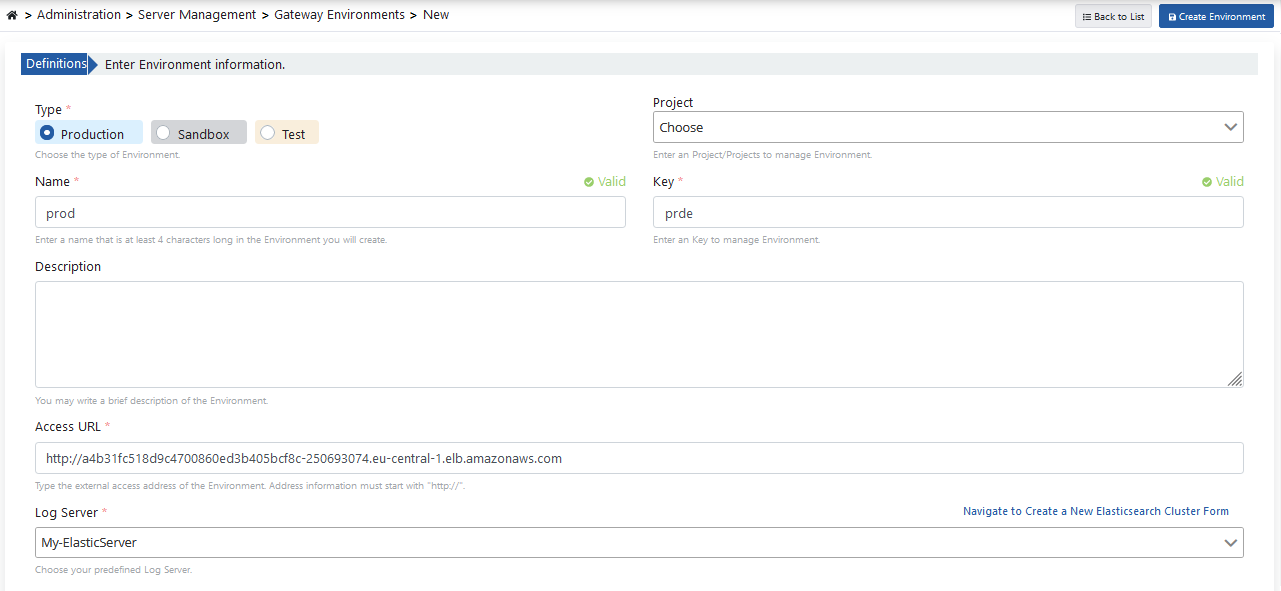
At least one environment needs to be loaded (deploy) for an API Proxy to be accessible. Apinizer also allows an API Proxy to be loaded to multiple environments.
Go to Administration → Server Management → Gateway Environment page from the menu in Apinizer Management Console application.
The image containing environment definition settings is given below:
The following values are the default values of the servers. They can be changed according to your cluster resources.
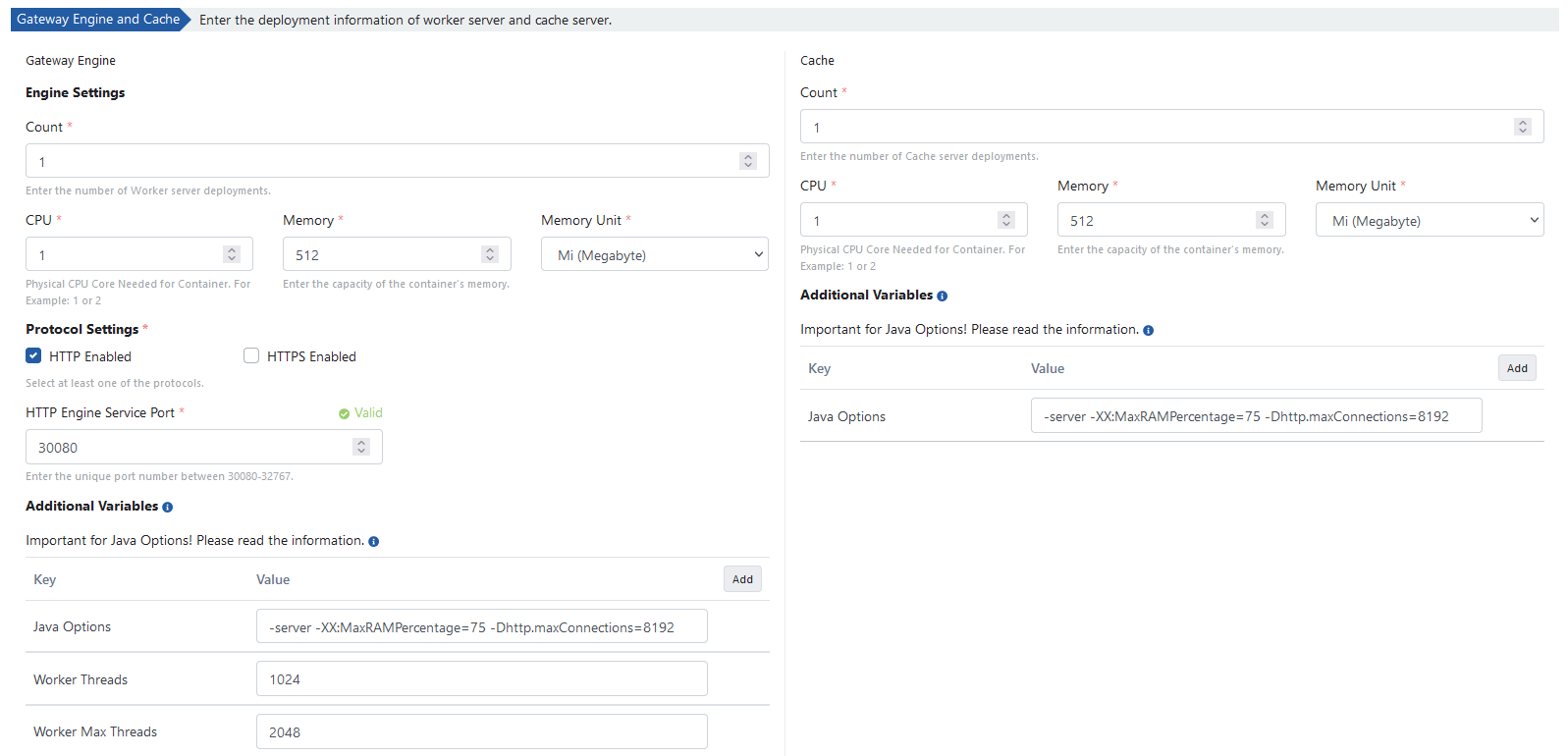
The environment definition process is completed by clicking the Create Environment button.
When environments are listed, the Prod type environment is deployed to EKS by clicking the Unpublished button showing the status of the relevant environment on the screen and then the Publish button.
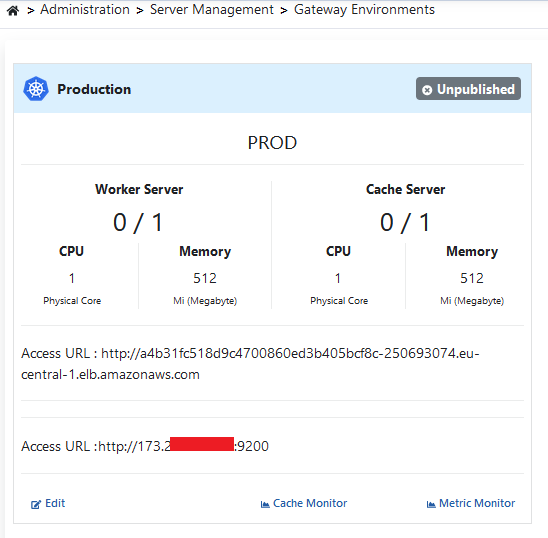
The environment loading process will be loaded to EKS in approximately 3 minutes.
For detailed information about Gateway Runtime environment definition and publishing operations, see Gateway Runtimes page.
Opening Environment as Service
Finally, a service needs to be created to access APIs that will run in the Environment we published.
kubectl expose -n prod deployment.apps/worker --port=80 --target-port=8091 --name=apinizer-worker-service --type=LoadBalancer
kubectl get svc -n prod
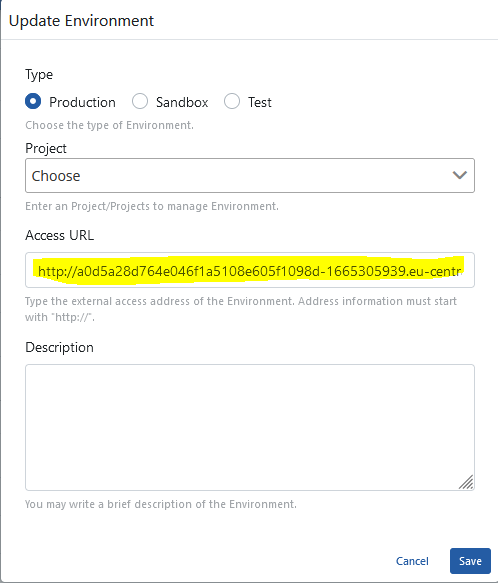
The LoadBalancer (EXTERNAL-IP) value produced by AWS should be assigned as the Access URL value of the defined Prod Environment.
First, click the edit button in the Environment Info table of the page where the environment is edited.

Then, click the edit button and change the Access URL information of the environment.
10. Publishing and Testing the First API in Apinizer
In the last step, opening an API to Apinizer as an API Proxy through a sample API definition file is described.
The project where the API Proxy will be registered is selected from the navbar menu.
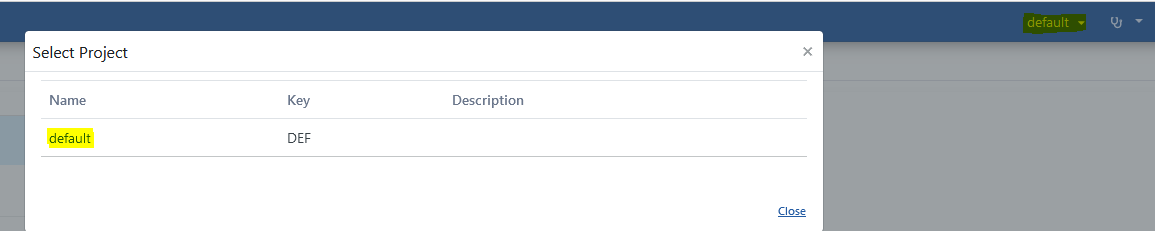
Go to Development → API Proxies page from the project menu in Apinizer Management Console application.
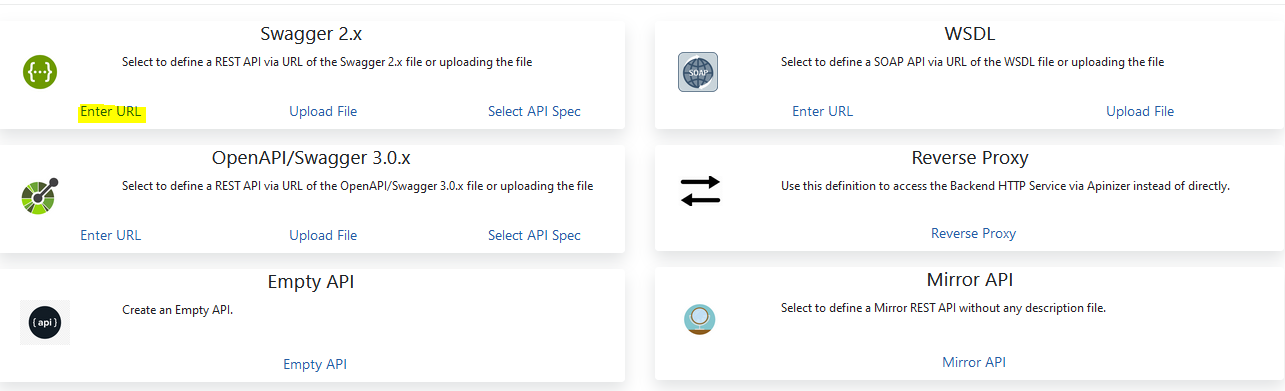
Click the + Proxy button to define a new API Proxy.

Select the source from which the API Proxy will be created with the selected link in the image below.
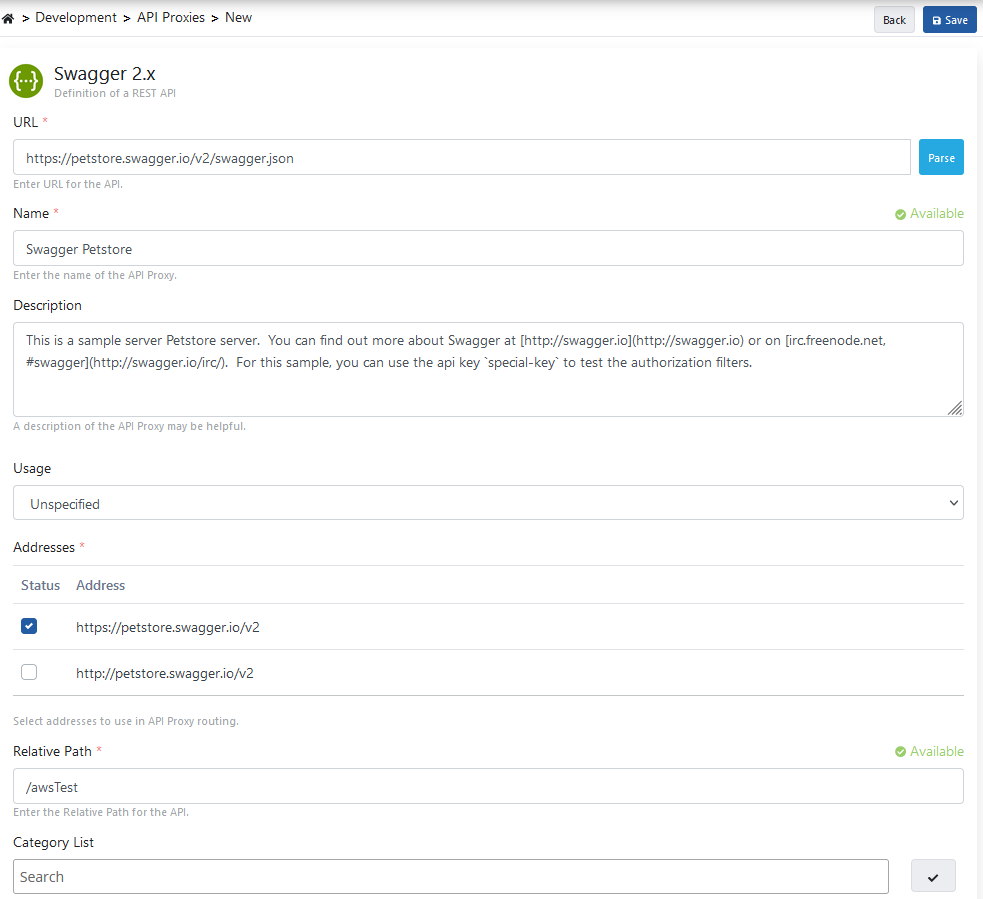
Enter the link of the API Definition file and Parse it.

Enter API Proxy information and click the Save button.
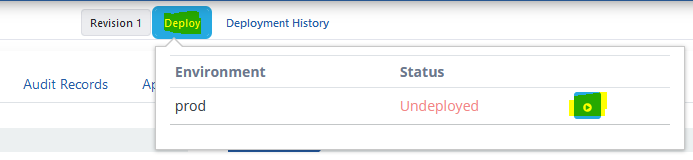
The Deploy button selected in the image below is used to load (deploy) the API Proxy.
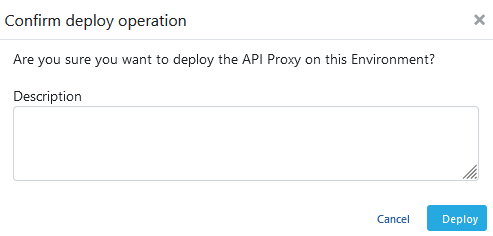
The loading process is confirmed.
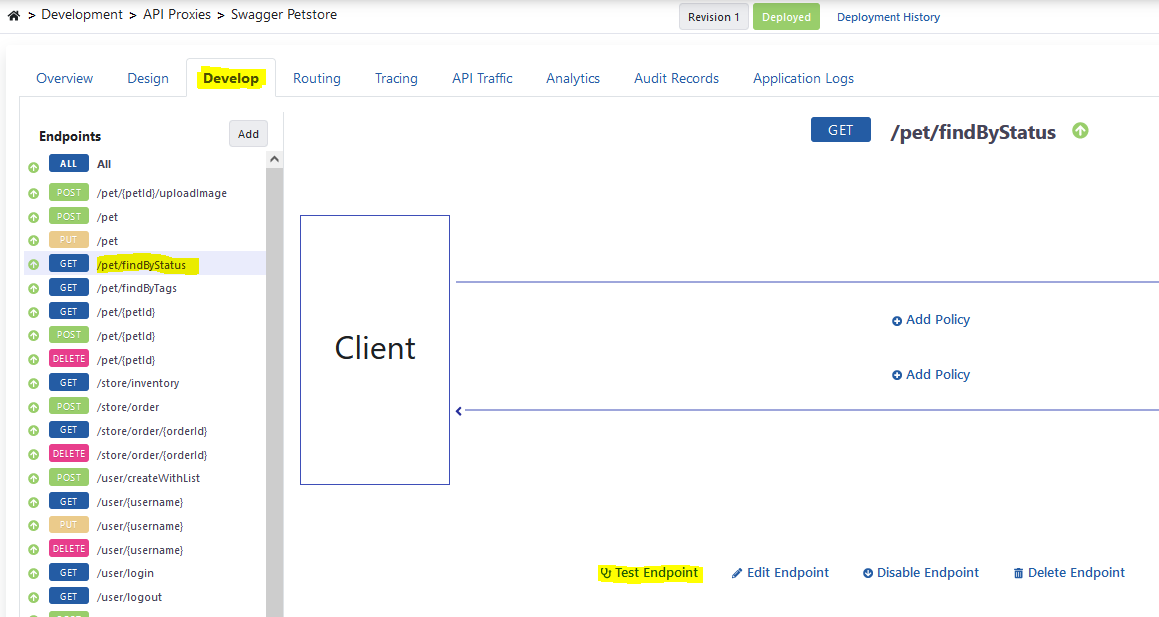
Come to the endpoint (endpoint) you want to test from the Develop tab of the API Proxy and click the Test Endpoint button.
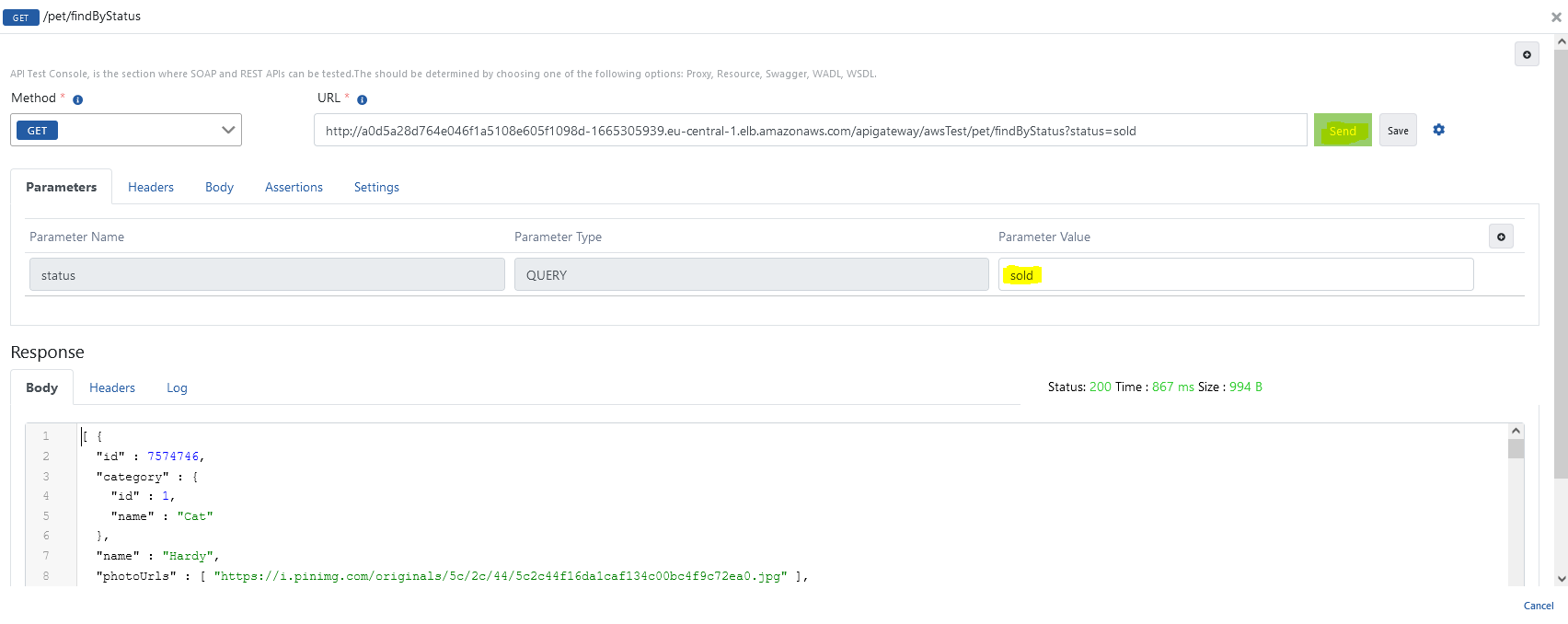
The image containing the test dialog is given below.
For detailed information about API Proxy, see Developer Guide.
For detailed information about Test Console, see Test Console page.