Token Quotas and Rate Limiting
Token quota and budget management belongs to the AI Gateway license module: without that module the quota screens are hidden in the Manager.
The API is not gated. The Management API, the APIops endpoints and the global AI Gateway settings write all answer normally on an installation whose license does not name AI Gateway — no 403 Forbidden, no silently dropped budget field. No other module restricts its API surface on a license either, so AI Gateway does not.
Losing the module deletes nothing: existing budget configuration and usage counters are preserved. Workers that are already deployed keep enforcing the hard limits they were given.
Quota Scopes
You can define quotas at four ownership levels. When more than one level applies to a request, the strictest (lowest) limit is the one enforced:
The tightest scope — a limit tied to one Consumer or API client's AI traffic on one API proxy and environment. As of 2026.09, this scope is a typed AI Token Budget assignment — the same kind of record managed on the Limits tab — so a row created, edited, or removed here is the same row you would see and change there.
Shared across every credential that belongs to the same organization.
A credential's usage through a specific API proxy.
The broadest scope — all AI traffic under a project (the tenant boundary in multi-tenant setups).
The limits defined on this screen do not apply on their own. Quota enforcement runs through the Token Rate Limit policy in the AI proxy's request policy list — including the platform-wide default limit. If that policy is removed from the proxy or deactivated, no quota applies to that proxy at all.
This is a deliberate design choice: even with limits defined, you can choose to let a specific proxy run unmetered. New AI proxies are created with this policy attached and active, so the default behaviour is protected; removing it is an explicit user action.
Within any scope, you can also set model-specific limits — for example, a lower quota for a premium model and a higher one for a budget model. A model-specific limit overrides the scope's base limit only for requests that use that model; every other model keeps using the base limit.
Shared Organizations from the Admin Scope
An organization can belong to a project, or it can be defined in the admin scope, where several projects share it. When your project's credentials reach such an organization — directly, or through the parent-organization chain — it is listed on your project's quota screen with a Shared tag and takes part in the effective-limit calculation like any other layer.
Only the admin organizations your project actually reaches are listed; the admin scope as a whole is never opened up to a project.
| Organization scope | Project administrator | System administrator |
|---|---|---|
| Project organization | Views and edits | Views and edits |
| Shared admin-scope organization | Views and uses it, cannot edit | Views and edits |
A rule you cannot edit is still fully visible: its row menu offers View, which opens the quota rule read-only (no Save button). The same applies to every rule for a user who holds only the view permission for AI budgets.
A shared organization's limit is a single record affecting several projects at once, so the right to change it is not delegated to one project's administrator. For the same reason, an APIops call made with a project identity cannot update a shared organization's budget either. An organization owned by a different project is never visible or editable under any circumstance.
Time Windows
Each scope can carry limits across four token windows, plus cost windows in USD:
A hard ceiling on tokens consumed in the current minute — useful for smoothing sudden traffic bursts.
The most commonly used window for everyday rate control, with its own optional USD budget.
A daily ceiling on token usage, with its own optional USD budget.
A monthly ceiling on token usage, with its own optional USD budget — the most common way to cap overall spend.
Token limits and USD budgets are independent — you can set only token limits, only a USD budget, or both together at any window.
A USD-denominated limit (monthly budget, or hourly/daily USD) can only be calculated for models that have an input price set in the Model Catalog. If the budget's scope covers a model with no price, the cost of that model's usage cannot be measured, so the limit could never apply to it — saving such a budget is rejected. Fill in the missing price in the Model Catalog (or on the LLM provider's supported model row), or use a token-based limit instead.
At runtime, a model that still has no price simply does not count toward any USD limit; a warning is logged so the gap does not go unnoticed.
The check runs wherever a budget is written, not only on the dedicated budget screens:
- the App budget of an API Proxy and the Tenant budget of a project — through their budget endpoints and through a whole-entity save of the proxy or project (Manager UI save, APIops create/update and promotion, import). An unchanged budget on a plain re-save is never re-checked, so an existing configuration cannot start failing on an unrelated edit;
- a routing change on an AI proxy (Manager UI, APIops
ai-routing, import). Pointing the proxy at a model without a price is rejected when a USD budget that covers the proxy already exists — its own App budget, the routing's own anonymous budget, the project's Tenant budget or the global budgets — because the change would silently widen that budget onto a model whose cost cannot be measured; - the global Default and Anonymous Default budgets in AI Gateway Settings (Manager UI and APIops). The Default budget's scope is every AI proxy in the installation. The Anonymous Default budget skips proxies that define their own anonymous budget in their routing, since those never fall back to the global one; whether a proxy actually accepts unauthenticated calls is not evaluated, so a proxy that requires authentication still counts.
The one exception is the organization budget: its scope spans the credentials of the organization and all of its sub-organizations and is not validated at save time — for organization budgets only the runtime warning applies.
Configuring a Quota
Go to AI Gateway → Token Quotas.
Choose Credential, Organization, Application, or Project. With Project, the target field shows the active project's name (the rule is bound to that project; pick a project first if none is active). A Credential-scope row is a typed AI Token Budget assignment tied to one Consumer or API client on one API proxy and environment; that Consumer/API client's own AI Budget Source setting (see Configuration Parameters) separately controls whether the Organization scope below also applies to it. For an API client with no access row on this proxy yet — one that has never actually consumed it — choosing an AI Budget Source other than Inherit here is rejected with 400 budgetsourcenotapplicable: the budget itself is still saved, only the source selection is not, since a source is only meaningful for a consumer that already has its own access row.
Enter token limits for the minute, hour, day, and/or month windows. These apply to every model by default.
Select a model and enter a different set of limits for it. This overrides the base limit only for requests using that model.
Enter a USD amount for the hourly, daily, and/or monthly window.
Quotas take effect immediately for new requests.
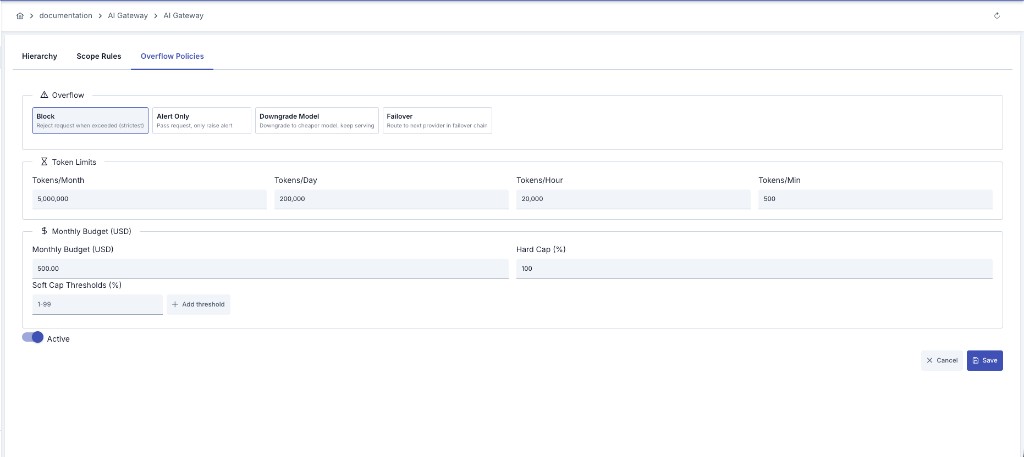
Overflow Actions
When a request would exceed a quota, you choose what happens next:
The request is rejected outright. The 429 response also carries a Retry-After header (in seconds) stating when the window reopens.
The request is routed to the next provider or model in the failover chain instead of being rejected.
The request goes through as usual; only a warning is raised.
The request is automatically redirected to a lower-cost model instead of being blocked.
The Retry-After value is the time remaining until the exceeded window (minute/hour/day/month) closes, but it is capped by the apinizer.limit.retryAfterClampSeconds JVM system property on the worker (default 86400, i.e. one day) — so a monthly window never reports a 30-day wait, at most one day. A client that retries earlier simply gets a new 429 with an updated Retry-After; counter accuracy is unaffected. The clamp applies to every window, not only monthly ones.
Per-Request Size Limit
Separate from the quota scopes above, you can cap the size of a single request — checked before the time-windowed quota, as a cheap pre-flight step. This lives in the same Token Rate Limit policy, under Oversized Guard:
This section works on its own. An installation that only wants to cap request size can add the Token Rate Limit policy and fill in these fields alone, with no quota defined at all — the quota tier never engages and the request never reaches the cache. The policy's Quota Reservation & Cache Behavior settings (TTL, cache timeout, fail-open) only matter once at least one limit exists, either in the Token Quotas screen or in the platform-wide limit under AI Gateway settings.
| Field | Description | Default |
|---|---|---|
| Max Tokens Per Request | Blocks a single request whose estimated token count exceeds this value. Empty = no limit. | — |
| Max Prompt Characters | Blocks a single request whose prompt character count exceeds this value — only the prompt text itself is counted, not JSON envelope fields such as model or stream. Empty = no limit. | — |
| Limit Source | Where the effective token limit comes from: Explicit uses Max Tokens Per Request above; Model Catalog derives it from the selected model's context window instead (context window minus max output tokens minus a safety margin). If the model's context window is unknown, the limit is skipped for that request rather than blocking it. | Explicit |
| On Overflow | What happens when the token limit is exceeded: Block rejects the request; Truncate Oldest Messages drops the oldest conversation turns instead, until the request fits. Character-count overflow always blocks, regardless of this setting. | Block |
When a request is truncated, Apinizer always preserves every system message and the last user message — if those alone still exceed the limit, it falls back to Block rather than send a partial conversation. A successful truncation is tracked in three places: the X-Apinizer-AI-Truncated response header (number of dropped messages), the Guardrail Hits report (as truncated, alongside oversized), and — if AI Trace is active on the proxy — that request's trace detail.
This is a different concept from the quota-tier Overflow Actions above: quota overflow is about a scope's minute/hour/day/month budget running out over time; the per-request size limit is about a single request being too large for the model's context window, independent of any quota.
Threshold Alarms
You can raise alerts as usage approaches a quota, independent of the overflow action: at 50%, 80%, 90%, and 100% of the limit. These alerts appear alongside your other AI alerts so you can react before a quota actually blocks traffic.
How Quota Tracking Stays Accurate
Before a request is sent to the model, Apinizer estimates its token cost and reserves that amount against every applicable scope and window. Once the response finishes — including streamed responses — the reservation is adjusted to match the actual tokens consumed. This keeps concurrent requests from over-counting or under-counting against your quotas.
Monitoring Quota Usage
View real-time quota consumption in Reports and Analytics:
- Tokens Used and Tokens Remaining for the current window
- Cost to Date against any configured budget
- Alerts raised as usage approaches a limit
Consumer-level AI usage shown here is attributed to the typed AI Token Budget assignment now backing the Credential scope above, by that assignment's own subject — see Quota Usage & Alerts for the account-level view of the same counters, which also tracks usage for a native API client and a portal application under their own AI scopes.
Reading the same numbers through the Management API
Token quotas can be viewed and updated through the APIops REST API; see API Reference: AI Budgets. Those endpoints describe the ceilings. What has actually been consumed against them — tokens, cost in US dollars, remaining headroom, percentage and reset time, per organization, consumer, application, API client or API proxy — is read through the Usage Reports API, five read-only GET endpoints intended for chargeback exports and budget-alarm jobs.
Three properties of those figures are worth knowing before you build a report on them:
- A consumer, an organization and an AI proxy are read from the hourly usage rollup — the same table this screen and the AI reports use, so the numbers match what you see here. It is refreshed about once an hour and is kept independently of traffic-log retention, so a question about last quarter still answers correctly. Its grain is a whole UTC day, and the response says which days it actually measured.
- An application and an API client are read from the traffic log instead, because the rollup carries no application dimension. Their figures are therefore bounded by how long the traffic log is retained, and traffic recorded before 2026.09.2 cannot be attributed to a specific API client at all.
- The budget block is live, not historical. It always describes the quota windows that are open right now, regardless of the period you asked for, and states how fresh it is (the counters are synchronized about once a minute).
If a source cannot be read, the call still answers successfully and marks the result as partial, naming the environments it could not reach — it never reports an unread source as zero consumption.
Next Steps
Assign a reusable budget plan to an API client or credential, enforced together with this screen's budgets under the stricter ceiling
Configure the failover chain used when a quota routes traffic elsewhere
Set per-model pricing that USD budgets are calculated against
Monitor quota and cost usage over time