Limit Plans
Every screen and endpoint here — plans, assignments, default limit policies, and Bulk Assignment — is governed by the Identity permission group (see Access Control and Roles): View to read, Manage to write. The AI Budgets permission group is also accepted in place of Identity, so an installation still organized around the older AI Budgets model keeps working unchanged.
Neither family is gated on a license module at the API level: an installation whose license does not name AI Gateway creates, lists and assigns AI Token Budget plans through the Management API and APIops exactly like a licensed one. What the module still governs is the menu and the family choice on screen: without it the AI Gateway group is hidden and Limit Plans is reached under Identity Management instead, and the AI Token Budget family is not offered in the family selector of the catalog, the plan editor, Bulk Assignment, or a consumer's Limits tab. Even with All families selected in the catalog's family filter, an installation without the license module keeps this family's rows hidden — All families is not a way around that restriction. Request Rate plans are created, published and assigned on those screens as usual — that family needs no AI Gateway module. A plan created while the module was licensed still names its own family when opened later; the family of an existing plan is read-only in any case.
Concepts
These screens separate three distinct ideas: a plan describes what is being limited, a revision is one published version of that description, and an assignment records which subject — an API client or a credential — that description applies to.
| Concept | Meaning |
|---|---|
| Limit Plan | A named, reusable budget description. Defined once, assignable to any number of subjects; an update to the plan is reflected automatically on every subject already assigned to it. |
| Revision | The recorded content of a plan at one point in time. A published revision can never be changed; a correction is always published as a new revision, and the previous one stays in history. |
| Assignment | The link between one API client or credential (Consumer) and a plan, or a value of its own. An assignment never copies a plan's content — it only points at the plan, so when the plan is updated, the assignment resolves to the current content automatically. |
Plan Families
A plan belongs to one of two families, chosen when the plan is created:
AI Token Budget — token limits per minute/hour/day/month, a USD budget, hard/soft cap thresholds, and an overflow behavior (block, alert only, downgrade to a cheaper model, failover).
Request Rate — the plan body is a list of windows, configured in the Request Rate Windows section of the plan form; each window defines:
| Field | Meaning | Default |
|---|---|---|
| Requests | The number of requests permitted in the window (a positive integer). | — |
| Interval | The unit of time the window is measured in: 1 Second, 1 Minute, 1 Hour, 1 Day, or 1 Month. | — |
| Period Length | How many intervals make up one window — for example, a 5-minute window is a Period Length of 5 on a 1 Minute interval. | 1 |
| Window Type | Fixed resets the counter at the start of each period; Sliding measures the trailing period from each request. | Fixed |
| Counting Mode | All requests counts every request, accepted or rejected, toward the window; Accepted only counts only requests that were allowed through. | All requests |
A plan needs at least one window, and windows are added and removed individually (Add Window / Remove Window). The same Interval/Period Length combination cannot be defined twice on the same plan — the server rejects a duplicate, and the screen warns before you can save. "100 requests per second and 10,000 per day" is one plan with two windows, not two separate plans.
A Request Rate plan also carries a single Overflow Action, independent of its windows:
| Overflow Action | Meaning | Default |
|---|---|---|
| Block | Once a window is exhausted, further requests are refused (429 with Retry-After). | Yes |
| Count Only | Requests keep being let through and counted after a window is exhausted — nothing is refused. | — |
Count Only exists for the case where the plan backs a billed overage rather than a hard stop — see Referenced by a Portal Subscription Plan below.
A plan's family cannot be changed once the plan is created — the family selector locks as soon as a plan exists.
The plan editor no longer asks for a separate Turkish name. A plan now has one name. The Turkish label shown in the portal and in reports is that same name. A plan that already had a distinct Turkish name before this change keeps it until the plan is saved again.
The Limit Plans Catalog
Reached from AI Gateway → Limit Plans, this screen lists every plan visible to you, filterable by family and free-text search. Each row shows the plan's name, family, lifecycle state, and — if any — its published revision number.
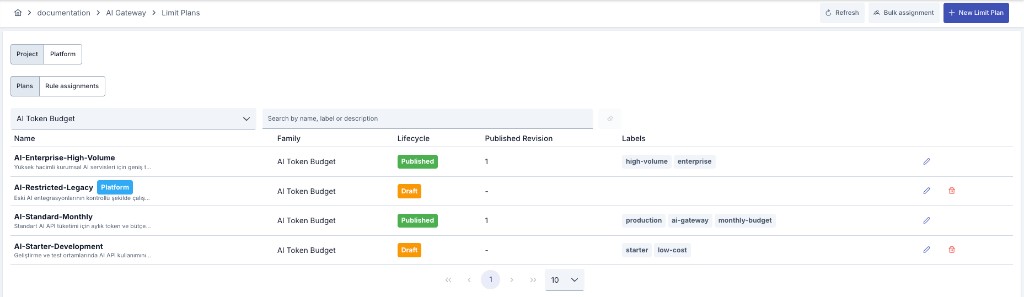
The screen opens on All families by default. Once you pick a specific family, your browser remembers that choice and restores it on your next visit. If the remembered family is no longer offered — for example, its license module was removed — or the browser cannot remember it, the screen falls back to All families.
When nothing matches, the screen shows one of two messages:
| Situation | What you see |
|---|---|
| No plan exists in this scope | "No limit plans defined yet." |
| A filter matches nothing | "No limit plan matches this filter.", a line naming how many plans exist in this scope, and a Clear filters button that resets the free-text search and the family filter together |
Plan Scope: Project or Platform
Every plan belongs to either one project's own catalog or the installation-wide Platform catalog. A system administrator switches between Project and Platform with a scope control above the list; a project member without system-admin rights sees only their own project's scope.
- Project-scope plans are created, edited, and assigned to subjects the same way regardless of scope.
- Platform-scope plans are visible to every project — a project member sees them read-only, badged Platform, and can reference them when assigning a limit — but only a system administrator can create, edit, publish, or retire one.
A Subscription Plan on a portal API Product can only reference a published, platform-scope plan of the matching family — this is what makes the Platform catalog the shared source of ceilings a commercial plan sells.
Administration Mode: Every Project in One List
A system administrator also reaches the catalog from Administration → Identity Management → Limit Plans. This view does not belong to any one project: it lists every project's plans and the Platform catalog together, with a Project column that names the owner of each row, so a plan can be found and corrected without first switching into the project that owns it.
- A scope filter above the list narrows it to All projects, Platform, or one project. Plans stay project-scoped — the filter only decides what is shown; it never moves a plan between projects.
- Creating a plan requires a concrete scope: pick Platform or a project in the filter first, and the new plan is born into that scope. While All projects is selected the create button stays disabled and says so.
- Editing a row opens the same editor as in project mode, badged with the owning project (or Platform). Publishing and retiring work exactly as they do there; a draft plan is deleted from its row in this list.
- Rule assignments are project-scoped. The Plans | Rule assignments switch is always shown here; while the filter is on All projects or Platform, choosing Rule assignments shows a short notice with a project picker instead of a table — pick a project (there or in the filter above) and that project's rules appear, with New rule assignment working exactly as it does from the project menu. Bulk assignment stays a project-mode action: it works on the active project's consumers, applications, and clients.
Profiles Owned by a Subscription Plan
When a portal subscription plan carries a rate limit or a quota, the system generates a Request Rate profile for that plan and republishes it whenever the plan's numbers change. These profiles live in the Platform catalog too, but they do not behave like ordinary catalog entries:
- They are hidden from the listing by default. Turn on Show subscription plan profiles above the list to see them; the row is badged Subscription plan and names the plan that owns it.
- They cannot be edited, published, retired, or deleted. Attempting any of those answers "this limit profile is managed by a portal subscription plan". The only way to change these limits is the rate-limit and quota fields on the owning subscription plan.
- They are not offered when you assign a limit (the Limits tab, bulk assignment, rule assignments) — the owning plan rewrites them from its own numbers, so binding another subject to one would silently change that subject's ceiling.
- If the subscription plan is deleted — or its rate limit and quota are both cleared — its profile is retired, not removed: assignments that already reference it keep resolving. A retired profile's description is rewritten to name the plan it came from and the date the link was removed, so the row no longer reads as though a plan still maintains it.
- The profile's internal key now includes the owning API Product's name as well as the plan's, so two products that each have a plan named, for instance, "Standard" get two distinct profiles instead of colliding on the same one. Profiles generated before this change keep their existing key.
- On an installation upgraded from an earlier version, profiles that this mechanism had already generated but had not yet marked as owned are found and stamped with their owning plan automatically; any plan that had ended up bound to another plan's profile because of that gap is moved back to its own. This runs once during the upgrade and needs no action.
Creating a Plan
New Limit Plan opens an editor with two cards: the plan's details, and the rule body the plan starts life with. Create Plan sits at the top right of the page, beside Back, and stays disabled until the plan has a name.
- Name and Family are marked required, and so is the Initial Rule Body — a plan with an empty body is refused rather than saved. The body's heading carries the required mark too, with a line naming what the chosen family needs: at least one token or USD limit for AI Token Budget, at least one window for Request Rate.
- Family is chosen once, here. An existing plan's family can never be changed afterwards.
- A new plan is always created active. The Active switch an AI Token Budget plan carries is not offered while creating one; it appears on a saved plan's open draft revision, where switching a budget off is a change you publish like any other.
The plan is created in Draft and its editor opens immediately, so the first revision can be published from there.
Deleting a plan is done from its row in the catalog list rather than from the editor. The editor keeps Retire, which withdraws a published plan from the catalog without touching the ceilings already in force.
Plan Lifecycle
| State | Meaning |
|---|---|
| Draft | Created but never published. Freely editable, and — as long as no assignment or deployment depends on it — deletable from its row in the catalog list. |
| Published | At least one revision has been published, and assignments can reference this plan. A published plan can never be deleted — an assignment may already reference it. |
| Retired | Withdrawn from the catalog: no new assignment may reference it, but assignments that already reference it keep resolving. Retiring is not a deployment action — it does not touch the current ceiling on the gateway for subjects already bound to it, only its visibility in the catalog. |
A plan never returns to Draft: because a published revision is immutable, a correction is made by opening a new draft revision under the same plan.
Revision Flow: Draft → Publish → History
While working on a plan, its rule body (token/USD limits, overflow behavior) is always edited on an open draft revision:
- Open New Draft — starts editing from a copy of the plan's latest published content. A plan can have at most one open draft at a time.
- Save Draft — makes the changes durable, but affects no subject yet: no assignment ever resolves to a draft revision.
- Publish — asks for a change reason (an optional note) and makes the draft the plan's current published revision. From this moment the revision's rule body can never be changed again; the previous published revision moves into history rather than being deleted.
The revision history table lists, for every revision, its number, its status (Draft / Published / Superseded), its change reason, when it was published, and by whom — the complete record of how a plan changed over time.
A retired plan can no longer have an open draft; to change its rule body, move to an active plan first (create a new plan and migrate assignments to it).
Assignments
The plan editor now has an Assignments section alongside the plan's own details and revision history. It shows two lists.
Assignments using this plan
| Column | Meaning |
|---|---|
| Subject type | Consumer, API Client, Application, or Organization. |
| Subject | The name of the assigned subject. An assignment whose subject was deleted shows Deleted subject. |
| Target | The same Target the assignment narrows to. |
| Status | The assignment's lifecycle state — Draft, Active, or Ended. |
| Source | How the assignment was created — by hand, migration, bulk run, or subscription. |
When there are none, the list reads "No assignment uses this plan."
Organizations defaulting to this plan
Organizations that picked this plan through Default Limit Plans, each row also naming the family the default applies to. A default plan applies only to newly created consumers. It does not change existing members. When there are none, the list reads "No organization defaults to this plan."
The section's Assign to organization and Assign to consumer buttons open the Bulk Assignment wizard. The plan and the chosen subject type come pre-selected. Both buttons are enabled only while the plan is Published and the operator has permission to assign limits. For a Platform-scope plan, assignment is only available from within a project scope; a disabled button explains why in a tooltip.
A Platform-scope plan's assignment lists are also shown for one project scope at a time. A different project may also use the same platform plan.
Assigning a Limit to a Subject: the Limits Tab
A plan — or a custom value tied to no plan — is applied to a specific subject through an assignment. An assignment is managed through the same Limits tab on two screens:
- On an API client's detail, the Limits sub-tab under the API Clients tab — limits that one client's own consumption.
- On a credential's (Consumer's) own edit screen, its Limits tab — limits the shared pool of every client that credential owns.
Both surfaces use the same component, so behavior is identical. A family selector above the tab switches between AI Token Budget and Request Rate; each family carries its own independent assignment, so a subject can hold one of each at the same time.
An explicit assignment on the Limits tab binds one subject: the gateway looks up assignments by that subject's own identity and keeps a single counter for it, so an assignment on consumer A — whether its target is Everything or narrowed to one API proxy — never limits, blocks, or counts consumer B (a consumer with no assignment of its own is governed only by the ceilings above it). Those ceilings — organization, API proxy, project, platform — keep applying alongside the subject's own assignment: for Request Rate each level is its own ceiling with its own counter and a request is refused as soon as any one of them is exhausted, while for AI Token Budget the merge rule in Working Together With Your Existing Limits applies. A consumer's Everything target only ever covers the API proxies that consumer is entitled to call and that run an authentication policy — see Enforcement. To limit, block, or pool callers that are not one fixed subject, use a rule assignment instead: its out-of-target action is the only way an assignment reaches identities other than its own subject, and Do not apply this rule to them leaves everyone outside the condition untouched.
Assignment Mode
An assignment carries one of three modes:
| Mode | Meaning |
|---|---|
| Plan | The subject's ceiling is the current content of a selected published plan. If the plan is updated afterward, the assignment automatically uses the new content. |
| Custom | The subject's ceiling is a value entered directly on this assignment, shared with no plan in the catalog. |
| Off | This subject carries no local ceiling of its own. |
An Off assignment does not mean the subject is unlimited — the ceilings above it in the chain (organization, project, platform) keep applying; this mode only turns off the subject's own local ceiling. A subject with no assignment at all is legacy/unmanaged: nothing is attached to it later on its own.
Earlier versions also offered an Inherit mode. The gateway never resolved it — an Inherit assignment behaved exactly like Off — so the option was removed and existing Inherit assignments were converted to Off at upgrade. Nothing changed at the gateway. To give the consumers of an organization a starting limit, use the organization's Default Limit Plans instead.
Lifecycle: Assign, Edit, Activate, End
A subject may have at most one live-or-pending assignment at a time; the option to create a new assignment is hidden while an active or draft one already exists — you are asked to end the existing one first.
- Assign Limit opens a form with the mode, (in Plan mode) a published plan or (in Custom mode) the values, an optional validity window (start/end), and an Activate immediately option.
- With Activate immediately checked, the assignment is saved directly as Active and becomes the effective ceiling immediately.
- Unchecked, the assignment is saved as Draft and does not yet affect the subject's ceiling.
- Activate turns a pending draft assignment live; the confirmation makes clear this becomes the subject's live ceiling for this scope.
- Edit, available next to End on the current assignment once it is Active, changes that same assignment's mode, plan selection (or custom values), or validity window in place — reusing the same form as Assign Limit, minus the Activate immediately option, since the assignment is already live. This is not a new assignment: the subject, the scope, and the record itself stay the same, only its content changes. If the assignment was changed or ended by someone else in the meantime, the save is refused, the dialog closes, and the panel reloads so you can review the current state before trying again.
- End closes an active assignment; an optional reason can be entered. Ending cannot be undone: the ceiling stops applying immediately, and a new assignment for the same subject is opened as a separate, new record. An ended assignment is not deleted — it stays in the History table below the tab, together with its mode and when and why it was assigned and ended.
- Deleting the subject ends its assignments automatically. When a consumer, a portal application, or an organization is deleted, every assignment naming it — active and draft alike — is ended in the same step, with the reason recorded as The subject was deleted, and the ceiling is withdrawn from the gateways. If the delete is refused (because something still depends on the subject), the assignments are left exactly as they were.
Edit only applies to the current Active assignment. A pending Draft assignment has no Edit action of its own in this version — Activate is the only action offered on it; once it is live, Edit becomes available on it like on any other active assignment.
Target: What the Ceiling Narrows To
Every assignment — on the Limits tab or a rule assignment — also carries a Target: what the subject's consumption is narrowed to, shown in its own Scope panel on the assign/edit form. The default, Everything, means no narrowing at all.
| Target | Meaning |
|---|---|
| Everything | No narrowing — the subject's whole consumption, on every API and environment. |
| One API Proxy | This API proxy, across every environment it is deployed to. |
| One API Proxy + Environment | This API proxy, in one gateway environment only. |
| One API Proxy Group | The whole group, across every environment — a single shared ceiling for the group. Covers requests that land on the group; a proxy of the group reached directly is not governed by it. |
| One API Proxy Group + Environment | The group, in one gateway environment only. |
| One API Endpoint | This one endpoint on this API proxy — one path and HTTP method, across every environment it is deployed to; no separate _ENV variant and no HTTP methods narrowing of its own, since it already narrows to a single method. Produced by the legacy limit migration at upgrade and shown wherever a Target is displayed; not yet a choice offered when creating a new assignment by hand. |
| One AI Model / One AI Provider | An AI Token Budget assignment narrowed to one LLM model or provider; not meaningful for Request Rate. |
On a One API Proxy or One API Proxy + Environment target, an additional HTTP methods narrowing is available: pick one or more methods and the ceiling applies only to requests using them (case-insensitive); leave it empty and the ceiling covers every method.
Like the subject, the Target (including the HTTP methods narrowing) is part of what identifies this assignment's own counter — Edit never offers it. To narrow a live assignment to a different API, group, environment, or method set, End it and Assign Limit again with the new target.
Cache Posture and Custom Error Message
Below the mode/plan fields, a Request Rate assignment also carries its own enforcement posture and, optionally, its own rejection message, the typed counterpart of the same fields on a Rate Limit Control List. The block is shown for the Request Rate family only; on an AI Token Budget assignment a short note takes its place (see below):
| Field | Meaning | Default |
|---|---|---|
| Action on cache connection error | What happens when the counter service cannot be reached: FAIL rejects the request (fail closed), CONTINUE lets it through uncounted. | FAIL |
| Cache connection timeout (seconds) | Maximum time to wait when connecting to the counter service. | Left empty, the platform default applies. |
| Show limits in response header | Whether RateLimit-Remaining, RateLimit-Limit, RateLimit-Reset, X-RateLimit-Identity, and X-RateLimit-Type are added to the response. | Off |
Custom error message — a message template, its content type, and an HTTP status code, using the same variable syntax as the platform's Error Messages screen. When set, it replaces the standard message on a limit-exceeded block for this assignment only; leave it blank to use the standard message.
Target narrows enforcement for both families — see Enforcement below for how an AI Token Budget assignment's target maps onto its counter. Cache Posture and Custom Error Message are acted on for Request Rate only, so the block is not shown on an AI Token Budget assignment (Limits tab and Bulk Assignment alike) — an AI Token Budget assignment is enforced through the Token Rate Limit policy, which has its own cache-behavior settings, applies the plan's own overflow action when a ceiling is exceeded, and adds no RateLimit-* headers to the response.
Live Usage on the Limits Tab
Directly below the current Active assignment's card, the same Limits tab — on all three surfaces it appears on (an API client's detail panel, a credential's own edit screen, and a portal Application's view) — shows a Current usage box for that assignment.
One row is listed per counter window (hourly/daily/monthly); when the assignment's target narrows to one API proxy or environment, or a rule assignment's condition narrows by identity, each narrowed scope or identity gets its own row.
| Column | Meaning |
|---|---|
| Window | The quota window the row measures — hourly, daily, or monthly. |
| Scope | The proxy/environment or identity the row's counter is narrowed to, or the whole assignment when it carries no narrowing. |
| Consumed | How much of the window has been used so far. |
| Limit | The ceiling enforced for this window. |
| Usage | A progress bar and a percentage badge — green below 70%, warning between 70-90%, critical at 90% and above, the same thresholds as the Quota Usage & Alerts report. |
| Resets at | When the current window closes and the counter renews. |
An AI Token Budget assignment's AI Cost counters are shown in USD rather than a raw count.
The box's numbers come from a snapshot refreshed from the gateway counters every minute; its Refresh button runs that same sync immediately, without waiting for the next scheduled cycle — the same on-demand sync the Quota Usage & Alerts report's own refresh control triggers. Before the assignment's first request creates its counter, the box reads "No counter yet — the first request that hits this assignment creates it."
The box is shown only for an Active assignment. A pending Draft has never been enforced, and an Ended assignment's counters are gone with its own namespace — a new assignment for the same subject starts a brand-new counter at zero.
Reading this box needs the same access as the rest of the Limits tab: View on either the Identity or the AI Budgets permission group for the project (a system administrator always sees it).
Bulk Assignment
Assigning a plan to a subject at a time does not scale once a project has thousands of them. Bulk Assignment attaches one limit — a plan or a custom value — to a large, filtered population of subjects (consumers, API clients, applications, or organizations) in a single run, instead of opening the Limits tab once per subject.
Reached from the Bulk Assignment button on the AI Gateway → Limit Plans catalog, or from a plan's own Assignments section with the plan and subject type pre-selected; the Back button in the top-left corner returns to that catalog. On an installation with no AI Gateway license module, Limit Plans is also listed under Identity Management, so Request Rate bulk assignment stays reachable without the AI Gateway menu group. The screen has two tabs: Assign builds and starts a run, Runs tracks its progress and history.
Assign: Selecting the Population
The left panel is a lazily loaded organization tree — each node shows its name and its subject count, and an include sub-organizations toggle folds a whole subtree into the selection. Above the subject table, filters narrow the population further: subject type (Consumer, API Client, Application, or Organization), free-text search, enabled only, and — once at least one organization is picked — existing assignment (Any, None, or Exists).
The right panel is a server-paged table of matching subjects (name, organization, and any current assignment: plan, mode, and target). Two selection modes are offered:
- Row selection — check individual rows, up to 5,000 subjects.
- Select all matching the filter — selects the entire filtered population without transferring an id list to the browser. This is the only practical way to select a population in the thousands. Unchecking any row afterward turns the switch Off automatically: the remaining checked rows on the current page become an explicit row selection and the "all matching" scope on other pages ends (an information message shows how many rows stayed selected). Turning the switch back on re-selects everything matching the filters at that moment.
Assign: Content and Conflict Policy
The Content dialog defines what every selected subject receives — the same fields as a single assignment:
- Family — Request Rate or AI Token Budget.
- Mode — Plan (pick a published plan) or Custom (enter windows/budget directly).
- Target — the same Target narrowing a single assignment carries (API proxy, group, environment, or method).
- Cache posture and custom message (Request Rate only), validity window (start/end date) — the same fields a single assignment carries.
A conflict policy decides what happens to a subject that already carries an active assignment on the same scope:
| Conflict Policy | Meaning | Default |
|---|---|---|
| Keep existing | A subject with an active assignment is skipped; only subjects without one receive the new assignment. | Yes |
| Replace | The subject's existing assignment is ended and a new one is opened in its place. | — |
Replace ends the existing assignment and opens a brand-new one — it does not carry over the subject's in-window consumption. The new assignment's counter starts at zero, exactly like any other freshly created assignment.
Preview and Start
Preview classifies the selected population without writing anything: the expected subject count, how many assignments would be created, skipped, or replaced, and a small sample of rows. Above 5,000 subjects the count is estimated — the run itself reports the real numbers as it processes.
Start queues the run (202) and switches to the Runs tab.
Runs Tab
Each row is one run: when it started, its kind (Assign, Rollback, or Retry), its status, phase, progress, the counters (created / replaced / skipped / failed), the deployment state, who triggered it, and how long it took.
| Status | Meaning |
|---|---|
| Queued | Accepted, not yet picked up. |
| Running | Actively processing chunks. |
| Success | Every subject in the population was processed with no failures. |
| Partial | Finished, but at least one subject failed. |
| Failed | The run could not complete. |
| Cancelled | Stopped by an operator's Cancel. |
| Interrupted | The node running it died mid-run — see Node Failure below. |
Runs recorded by an older version may still show License revoked, a state this version no longer produces: AI Token Budget assignments no longer depend on a license module.
Deployment state — In sync, Degraded, or Pending — reports whether the run's gateway-side rollout reached every environment.
A live run's row refreshes every 5 seconds. Only one active run per project is allowed at a time — starting a second while one is queued or running is refused (409).
Actions
- Cancel — asks a queued or running run to stop at its next chunk boundary; everything already written stays written.
- Rollback — only on a finished Assign or Retry run: queues a new run that ends every assignment the source run created, and re-opens what it Replaced as brand-new rows (their counters restart, same as any Replace). Asks for confirmation first.
- Retry failed — queues a new run over only the subjects the source run failed on, always with Keep existing as its conflict policy.
Expanding a row shows its issues — the FAILED and SKIPPED subjects, with the reason for each. Only FAILED and SKIPPED rows are kept, at most 1,000 per run; beyond that the list is marked truncated.
Node Failure
A run's owning node reports a heartbeat while it works. If a node dies mid-run, its heartbeat goes stale; after 10 minutes, a sweeper (checking every 5 minutes) marks the run Interrupted rather than leaving it stuck as Running forever. The operator resumes with Retry failed to cover whatever the interrupted run had not yet reached.
Deployment Lag and Compensation
The engine processes a run in chunks of 200 subjects, pushing one batch deployment to the affected gateways at the end of each chunk. For Replace and Rollback, removing the superseded binding is carried by a separate, once-a-minute deployment sweep — for a short window both the old and the new binding may be live on the gateway at once, and the stricter of the two is what actually enforces.
If writing the new binding fails partway through a Replace or Rollback step, the engine restores the old binding rather than leaving the subject with no ceiling at all. If even that restoration fails, the run's issue for that subject is marked unprotected, and the recommended recovery is Retry failed.
Every binding a bulk run creates or replaces carries the run's id as its source, so it is always traceable back to the run that wrote it.
Rule Assignments: Limiting by Identity Condition
A Rule Assignment is a Request Rate assignment whose subject is not one fixed API client or credential but a condition: any identity that matches it shares the assignment's windows. It is the typed counterpart of a Rate Limit Control List's target-audience matching, and it is always project-scoped — there is no platform-wide rule assignment.
Reached from AI Gateway → Limit Plans: switch the view toggle above the catalog table from Plans to Rule assignments. The toggle itself is hidden while the screen's scope is set to Platform.
Each rule assignment carries:
| Field | Meaning |
|---|---|
| Identity source | Where the identity is read from: the credential or API Client resolved by authentication (Auth resolved), or a chosen request Variable. This also decides who the assignment covers — Auth resolved counts authenticated callers, Variable counts any caller (a variable exists for anonymous traffic too); the screen has no separate field for this, and creating a rule assignment through the Management API or APIops without specifying it gets the same default. |
| Condition | One comparison operator + value, evaluated against the resolved identity — the same comparison operators as elsewhere in Apinizer (contains, starts with, is in a list…). |
| Target | The same Target narrowing an explicit assignment carries. |
| Out-of-target action | What happens to an identity the condition does not match: Block the flow rejects the request; Apply general quota applies a separate ceiling to those identities — one shared ceiling (Total) or one ceiling per identity (Per identity), with its own windows; Do not apply this rule to them leaves them alone entirely, neither blocked nor counted. A new rule starts at Do not apply this rule to them, so drawing a rule to give one consumer its own ceiling does not turn the assignment into a deny-list for everybody else. An assignment saved without an action — or one written before this choice existed — still reads as Block the flow. This setting is now shared by every rule assignment on the same target rather than held per rule — see Target Setting below. |
Even with target All, a rule assignment applies only to API proxies in its own project — traffic in other projects is neither blocked nor counted by it. Installation-wide (platform) assignments still apply in every project.
A caller blocked by a rule assignment's out-of-target action sees an HTTP 403 with error code ERR-251, naming the unmatched identity in the message; ERR-252 / HTTP 400 is returned only when the identity cannot be read at all — in practice a Variable identity source whose variable is missing from the request, since an Auth resolved identity is always available on an authenticated call. Both messages are customizable on the Error Messages screen like every other error type.
Multiple rule assignments can share one target: an identity inside any of their conditions is counted by exactly the rules it matches and is never blocked by a sibling rule — the same multi-condition OR a Rate Limit Control List's own target audience applied within one list, here spread across several rows instead. An explicit assignment on the same target (a specific API client, credential, project, and so on) always outranks every rule assignment there — the rules are skipped entirely.
Target Setting
The out-of-target action is no longer held on each individual rule assignment. It is one setting shared by every rule assignment on the same target. A target is the same combination of API proxy or group, environment, and method.
The first rule assignment created on a target asks for this setting, in its own section of the create dialog. It defaults to Do not apply this rule to them. Every later rule assignment added to the same target shows the setting read-only, with a note to change it from the target's group header instead.
The rule assignments list is now grouped by target. Each group's header shows the target's current setting, followed by a Change button that opens the setting for editing. The dialog states how many rule assignments the change applies to.
A target's rule assignments can carry different out-of-target settings — for example, rows created before this setting was shared. When that happens, the group header shows a Mixed setting badge. Unify merges them onto the single most restrictive one, in order Block the flow > Apply general quota > Do not apply this rule to them, previewed before it is applied.
General quota counters still stay separate per rule assignment, even after you unify the setting. Activating a draft, importing, or bulk-creating rule assignments does not automatically copy a target's shared setting onto the new row. Such a mismatch surfaces as the same Mixed setting badge.
Migrating from a Rate Limit Control List
| Rate Limit Control List field | Typed equivalent |
|---|---|
| Identity Source | Identity source (Auth resolved / Variable) |
| Apply by Variable | The chosen Variable, when Identity source is Variable |
| Target Audience — a list of OR'd conditions on one row | One condition per rule assignment; put several conditions on the same target by creating several rule assignments there — they are OR'd together the same way |
| Target Consumers — an exact identity list | An In condition whose value lists the identities |
| Out-of-target Action | Out-of-target action. The two legacy choices carry over unchanged; the third choice, Do not apply this rule to them, is new and is never selected by a migration. The legacy rule carried this per rule; the typed side now holds it per target instead. |
| Quota Mode and General Quota Limits | The same Total/Per identity mode, with its own windows |
| Interval Window Type (Fixed / Sliding) | The same Window Type, per window, on the plan or custom body the assignment references |
| Cache Connection Timeout / Action for Cache Connection Error | The assignment's own Cache Posture |
| Show Rate Limit Statistics in Response Header | The same field on the assignment |
| APIs and Endpoints — a list, one row can span several | The assignment's own Target — one target per assignment; several proxies or groups become several rule assignments |
| Execution Order — 6 positions, before/after the proxy group, API proxy, and API method policies | None. A typed assignment always evaluates at the authentication moment — see Enforcement. There is no typed equivalent of a position running before authentication: an API or endpoint with no authentication policy is never covered by a typed assignment at all, whatever its identity source. |
| Save and Deploy | Not needed. Activate (or Activate immediately on create) is enough — an active assignment reaches every worker without a separate deploy step. |
| Error Message Customization — per error type, plus a list-wide template | The assignment's own custom message replaces the standard message on a limit-exceeded block only. The error type also changes: a typed limit-exceeded block raises THROTTLING_STOP/QUOTA_STOP — the same types the environment-level quota/throttling access control already uses — not the Rate Limit Control List's own ENDPOINT_RATELIMIT_EXCEEDED; if you customized that type, customize THROTTLING_STOP/QUOTA_STOP (or the assignment's own message) instead. An out-of-target block still raises the familiar ENDPOINT_RATELIMIT_IDENTITY_NOT_ALLOWED/ENDPOINT_RATELIMIT_IDENTITY_NOT_RESOLVED. |
A Rate Limit Control List record is retired by this, not left running alongside a typed Rule Assignment — see Rate Limit Control List for its retired state and Legacy Limits Migrated at Upgrade below for what happened to its rules at upgrade.
Working Together With Your Existing Limits
Request Rate: an existing Rate Limit Control List or an API Proxy ACL/API Proxy Group ACL quota/throttling setting is no longer applied by the gateway — on upgrade, every such legacy limit was converted into a typed Limit Plan and assignment, so the ceiling itself carries over; only the mechanism enforcing it changed. See Legacy Limits Migrated at Upgrade below for exactly what moved and how.
AI Token Budget: an existing AI token budget defined elsewhere — at the organization, project, or proxy level — keeps applying alongside a typed assignment, not as a second, independent deduction: when both cover the same counter and window, the gateway reserves the request's cost once, against whichever ceiling is stricter; see Enforcement for the full merge rule.
A typed AI Token Budget assignment does not stack on top of an existing organization/project/proxy-level AI budget as a second ceiling. When both cover the same subject, window, and dimension (overall consumption, or the same model/provider), only one reservation happens, using whichever of the two is stricter — so adding a typed assignment can only tighten what already applies, never loosen or duplicate it.
Enforcement
Request Rate: Live
A typed Request Rate assignment now enforces for real. It is evaluated inline, at the end of the authentication policy's own credential check — the same moment a legacy per-credential quota/throttling control would block a request — after every ACL-row control that policy already performs, and only for a request that is not itself a token request.
Because that is the one hook, a typed Request Rate assignment (explicit or rule-based) only ever applies to traffic that actually runs through an authentication policy: an API or endpoint with no authentication policy is never covered by one, whatever its target.
Counters are reserved through the same counter service call the legacy quota/throttling/Rate Limit Control List path used to make — FIXED resets each period, SLIDING measures the trailing period from each request, bit-identical to the legacy behavior. Per window:
- Granted — the request proceeds; the response gets the statistics headers if Show limits in response header is on.
- Exceeded, Overflow Action = Block (the default) —
429withRetry-After; the error isTHROTTLING_STOP(Second/Minute windows) orQUOTA_STOP(Hour/Day/Month windows) — the same types the environment-level quota/throttling access control already raises, customizable on the platform-wide Error Messages screen, unless the assignment's own custom message is set. TheRetry-Aftervalue is capped at a platform-wide ceiling (1 day by default, changeable with theapinizer.limit.retryAfterClampSecondsJVM system property on the Worker) rather than reporting the full window — this applies to a Request Rate and an AI Token Budget block alike, since both stamp the header through the same mechanism. - Exceeded, Overflow Action = Count Only — the request is counted and let through; nothing is blocked.
- Counter service unreachable — the assignment's own Cache Posture:
FAILrejects the request,CONTINUElets it through uncounted.
Observability: a Prometheus counter apinizer_limit_typed_decisions_total{family, outcome} (outcome: granted / blocked / count_only / cache_error_continue / cache_error_fail / out_of_target_block) tracks every enforcement decision.
There is no parity comparison for Request Rate: the legacy path it would have compared against is retired, so there is nothing left to compare against. The apinizer_limit_shadow_comparisons_total{family="REQUEST_RATE", ...} series is no longer produced — nor is there a comparison for AI Token Budget any more: shadow mode ended for that family too, and the apinizer.limit.shadow.enabled switch that once gated it no longer exists; see AI Token Budget: Enforced below.
An Active Request Rate assignment created while this mechanism was still shadow-only starts blocking traffic for real the moment you upgrade to this version — review your active assignments beforehand if you are not ready for them to start enforcing. Their counters start at zero: no consumption carries over from the comparison period, since a shadow comparison never reserved anything.
On the same upgrade, every legacy Rate Limit Control List rule and every API Proxy ACL/API Proxy Group ACL throttling/quota setting is converted into a typed Limit Plan and assignment — the gateway no longer reads either legacy source at all. Afterward, expect to see Migrated REQUEST_RATE #<checksum> plans in your catalog and assignments with source Migration on your subjects; like every migrated Request Rate assignment, their counters start at zero — a migrated AI Token Budget assignment is the one exception, see AI Budgets below. See Legacy Limits Migrated at Upgrade below for the full conversion matrix.
AI Token Budget: Enforced
A typed AI Token Budget assignment now enforces for real, at every subject level the family supports — Consumer, API Client, Application, Organization, API Proxy, Project, and Platform — whether it was created by hand or, like a Request Rate one, sourced from a portal subscription (see Referenced by a Portal Subscription Plan below).
When an entity-level AI budget — an organization, API proxy, project, or platform default budget defined on the Token Quotas screen — and a typed assignment cover the same subject, window, and dimension, the gateway reserves the request's token/USD cost once, against whichever ceiling is stricter; see Working Together With Your Existing Limits above.
The Target narrowing is honored for this family too: Everything, One API Proxy, and One API Proxy + Environment budget the subject's whole counter; One AI Model and One AI Provider budget only that model's or that provider's own dimension of the counter, leaving every other model/provider under the subject's wider ceiling.
An assignment's actor scope narrows coverage the same way: an Anonymous-only assignment applies only to callers with no resolved identity and is reserved against the proxy's separate anonymous counter — the same legacy bucket an Anonymous Default budget uses — never folding onto authenticated traffic's shared proxy counter; an Authenticated-only assignment applies only to a resolved identity, and the default, Any, covers both. A Request Rate assignment honors the same actor-scope narrowing.
There is no rule assignment for this family: an AI Token Budget ceiling always has one fixed subject, never an identity condition, so creating a rule assignment for this family — including through the Management API or APIops — is refused with 400 — the Rule assignments view toggle above the catalog table is Request Rate only.
The shadow-comparison mechanism this section used to describe — the apinizer_limit_shadow_comparisons_total counter and the apinizer.limit.shadow.enabled switch that gated it — no longer exists for either family.
The "Rate Limit" Badge on Develop
The Rate Limit badge shown on an API proxy's Develop screen is now computed only from typed Request Rate assignments — a retired Rate Limit Control List no longer lights it up. Clicking it opens a dialog listing every Active assignment currently covering this proxy — explicit and rule-based alike, installation-wide ones included. Each row names its subject (consumer username, API client / application / organization / project name) and, when the target is narrowed, the proxy or proxy group name. A typed ceiling always evaluates at the authentication moment, so the badge's former "Last" (after the API method policies) position never lights up anymore.
A row whose subject no longer exists is marked Deleted consumer (or application, organization, API client) instead of showing a bare identifier, and that row carries its own End action — so an assignment left behind by a subject deleted before your upgrade can be closed straight from this dialog, without going through the subject's own Limits tab. The End action is available here for every active row, to anyone who may manage limits.
On upgrade, Apinizer ends every assignment whose subject no longer exists and records the reason as The subject no longer exists. The same check runs again each night, so an assignment orphaned later — by an import that replaced a record, or by a manual database correction — is closed on its own rather than staying in force.
Reports and Alerts
A typed Request Rate counter attributed to a Consumer (or an API Client migrated from one) is folded into that consumer's existing counters, shown under the Quota Usage report's existing Plan type, and caught by whatever Alert Definition already watches that consumer's Plan-type counters — no new rule needed.
A typed counter attributed to any other subject (a project, an organization, an API proxy, the platform, or a rule assignment) keeps its own counter type instead — it is shown labeled Other in the report, but only once Show other counters is turned on (off by default); the type filter has no dedicated option to select it by name yet. And, deliberately, no pre-existing Alert Definition fires on it: an alert rule written before typed limits existed must not silently start watching them. Alert notification text that does reference it labels it Rate Limit. Create a dedicated Alert Definition against it if you want to be notified.
Legacy Limits Migrated at Upgrade
When you upgrade to a version where the legacy Request Rate path is retired (see Working Together With Your Existing Limits and Enforcement above), every legacy Request Rate limit is converted into a typed Limit Plan and assignment automatically, before the Manager accepts requests. This section describes what that conversion does.
Sources
- Every environment-scoped throttling and quota setting on an API Proxy ACL or API Proxy Group ACL row.
- Every Rate Limit Control List record.
Plan Creation and Deduplication
Rows that share the exact same rule body — the same windows and the same enforcement posture — are folded into a single plan per project, identified by a canonical checksum of that body, so thousands of legacy rows typically converge on a handful of plans:
| Field | Value |
|---|---|
| Name | Migrated REQUEST_RATE #<checksum> (checksum's first 8 hex characters) |
| Tags | migrated, checksum:<sha> |
| Description | "Migrated from legacy access-row / rate-limit-list limits: …" |
| Family | Request Rate |
| State | Published, revision 1 |
Window Mapping
| Legacy field | Typed window |
|---|---|
| Throttling, 1 Second / 1 Minute interval | Second / Minute window |
| Quota, 1 Hour / 1 Day / 1 Month interval | Hour / Day / Month window |
| Both throttling and quota on the same row | Both windows, on the same plan |
Window Type (Fixed/Sliding) and Counting Mode are carried over unchanged for each window.
Enforcement Posture
- Action on cache connection error:
FAILif either the throttling side or the quota side of the legacy row wasFAIL. - Cache connection timeout: the larger of the two legacy timeouts.
- Show limits in response header: carried over if set on the legacy row.
- A Rate Limit Control List's own custom error message, content type, and HTTP status code are carried over as the resulting assignment's custom error message.
Assignment (Binding)
Every migrated row becomes one assignment: mode Plan, source Migration, state Active, with its own end date set to the row's expiry date, if it had one.
| Legacy row | Subject | Target |
|---|---|---|
| API Proxy ACL / API Proxy Group ACL row | The Consumer itself — the same whether the Consumer was later migrated to an API client or stayed Consumer only; when its twin belongs to a portal application, the API client (its client id) instead | One API Proxy + Environment / One API Proxy Group + Environment, matching the row's environment |
| Rate Limit Control List rule | Same subject rule as the row above | One API Endpoint (the rule's own endpoint) / One API Proxy (a rule written for every endpoint) / One API Proxy Group |
A Rate Limit Control List's Target Consumers list was, in legacy behavior, that rule's own allow list: an identity missing from it received the rule's out-of-target action instead of the rule's own ceiling. The migration keeps that shape: each listed Consumer still gets its own explicit assignment as in the row above, and one additional rule assignment is written for the list as a whole — an In condition whose value is the resolved identities (username or client id) — carrying the rule's out-of-target action and, where the rule had one, its general quota. A listed Consumer's own explicit assignment always outranks that rule assignment on the same target, exactly as an explicit assignment outranks a rule assignment anywhere else; a Consumer left off the list falls through to the rule's out-of-target action, the same as it did before the upgrade.
A Rate Limit Control List's Target Audience conditions and its equality-based target identity values (not already covered by the Target Consumers list) become their own rule assignments the same way: the identity source (auth-resolved or variable), the out-of-target action (Block, or a general quota), and the general quota itself (Total/Per identity, with its own window) all carry onto the rule. When the out-of-target action is a general quota but its quota fields were left empty, the rule's own limit is carried over as the general quota instead — the same fallback the legacy runtime applied. A rule left with nobody to migrate — no consumers, no identities, no condition — produces no assignment at all.
AI Budgets
A consumer-level AI token budget is migrated the same way, from a different source and into a different plan family:
- Source: the environment-level Enable AI Token Budget setting (and its budget values) on an API Proxy ACL/API Proxy Group ACL row.
- Plan: rows sharing the exact same budget body are folded the same way Request Rate rows are — one AI Token Budget plan per distinct body, named
Migrated AI_TOKEN_BUDGET #<checksum>(first 8 hex characters), taggedmigratedandchecksum:<sha>, Published. - Assignment: subject is the Consumer itself — the same twin the Request Rate migration above targets — or, when that Consumer's migrated API client belongs to a portal application, the API client instead; target One API Proxy + Environment, matching the row's own proxy and environment; source Migration; end date the row's own expiry, if it had one.
- No counter reset: unlike every other migrated assignment, this one is counted under the same counter the legacy budget already used, so in-window consumption carries over rather than restarting at zero. A Consumer later migrated to an API client keeps sharing that same counter with its legacy record.
The row's AI Budget Source field keeps exactly one job after this migration: it only decides whether the organization-level AI budget chain applies to that Consumer on that proxy. The Consumer's own migrated assignment always applies regardless of that setting; to stop it, end the assignment (or disable its budget) on the Limits tab or the Token Quotas screen.
Not every enabled row is carried — see the AI-specific outcomes in Not Migrated (Reported Only) below. A row whose AI Budget Source was Organization is the notable case: its own budget was never enforced even before this migration (only the organization chain applied to it), so nothing is lost by leaving it out — assign one directly on the Limits screen if you want that Consumer to also carry its own ceiling. A row whose Consumer no longer exists is skipped and recorded as CREDENTIAL_MISSING, the same as a portal-derived or expired row is skipped and counted without being listed individually.
Not Migrated (Reported Only)
The following legacy items have no typed counterpart, are intentionally skipped, or are carried over with a caveat; each is recorded in the migration's audit ledger:
| Legacy item | Outcome |
|---|---|
| Quota/Throttling Limit Change Action (Clamp / Reset) | Dropped — no typed equivalent |
| A Rate Limit Control List's condition | Dropped; the rest of the rule is still migrated |
A Rate Limit Control List's Execution Order set to "after the API method policies" (LAST) | Dropped; a typed assignment always evaluates at the authentication moment — see Enforcement |
| A disabled Rate Limit Control List | Not migrated |
| An expired row | Skipped |
| A row disabled for its environment | Skipped, recorded as ENV_DISABLED_SKIPPED |
| A row whose limit fields were left incomplete | Skipped, recorded as LIMIT_INCOMPLETE_SKIPPED |
| A Rate Limit Control List rule with no limit configured on it | Skipped, recorded as RULE_WITHOUT_LIMIT |
| A row pointing at a deleted API, group, or endpoint | Skipped, recorded as RULE_TARGET_MISSING |
| An API Proxy ACL/Group ACL row with a different cache-error posture for its throttling side than its quota side | Both carried onto the assignment as FAIL, the stricter of the two, recorded as CACHE_POSTURE_MERGED |
| A rule audience whose out-of-target action is General quota but whose quota fields were left empty | The rule's own limit is carried over as the general quota instead — the same fallback the legacy runtime applied, recorded as GENERAL_QUOTA_FALLBACK |
| A Rate Limit Control List with no consumers, no target identities, and no condition to migrate | Nothing is migrated, recorded as EMPTY_AUDIENCE_SKIPPED |
| A portal-derived (subscription/product) row | Skipped — carried instead by the Subscription Plan assignment backfill; see Upgrading Existing Subscription Plans |
| A row's AI Budget Source set to Organization | Not carried — see AI Budgets above; recorded as AI_LEAF_EXCLUDED_BY_SOURCE, information only, not a residual failure |
| Enable AI Token Budget on but the budget itself disabled or naming no ceiling | Skipped, recorded as AI_BUDGET_INCOMPLETE_SKIPPED |
| A row with Enable AI Token Budget on but no API proxy named on it | Skipped, recorded as AI_BUDGET_TARGET_MISSING |
Re-running the migration is idempotent: a subject/target pair that already has an active assignment from a previous run is left as-is, not written again.
Referenced by a Portal Subscription Plan
A published, platform-scope plan can also be referenced from a portal API Product's Subscription Plan — the commercial plan a developer subscribes to — instead of, or alongside, being assigned by hand on the Limits tab. See API Product → Limit Profiles and → Typed Limit Binding for how this is configured and materialized on the product side; this section covers what happens on the limit side.
A Subscription Plan may reference at most one Request Rate plan and one AI Token Budget plan, each Off or a specific published plan. The referenced plan's overflow posture must agree with the Subscription Plan's own on-exceed setting — Block needs a plan that blocks, Continue & charge needs a plan that only counts (Count Only for Request Rate, Alert Only for AI Token Budget) — a mismatch is refused when the Subscription Plan is saved.
When a subscription of that plan is approved, one Active assignment is created automatically for the subscribing application, per referenced family — the same kind of assignment described above, sourced from the subscription rather than entered by hand, application-wide rather than tied to one API. Its enforcement status follows its family exactly like a manually entered assignment does: both a subscription-sourced Request Rate assignment and a subscription-sourced AI Token Budget assignment enforce for real.
An application can have only one such assignment per family. If a second, different subscription of the same application also references a plan for that family, the existing assignment is kept, and the operator approving the second subscription is asked to keep it or switch to the new plan. When a subscription that owns the assignment ends, it is handed over to another still-approved subscription of the same application that references the same family, if one exists, so coverage and accumulated usage are not lost; otherwise the assignment ends with it.
Upgrading Existing Subscription Plans
On upgrade, Subscription Plans that already carry quota or rate-limit numbers are converted automatically: a matching platform-scope Request Rate plan is created and the Subscription Plan is pointed at it, so nothing changes for existing subscribers. Subscriptions that were already approved before the upgrade do not receive their assignment automatically — a system administrator runs a one-time backfill (previewed by default, applied on request) to create it for the existing backlog. See API Product → Version Upgrade for the portal-side summary and the Limit Plans, Assignments & Defaults API reference for the backfill endpoint.
Next Steps
Review the existing quota and budget tiers at the organization/project/application level
Review the API client lifecycle and the API Clients tab
Configure who can view and manage the Limit Plans screens
Reference a platform Limit Profile from a Subscription Plan
Preview, start, and monitor a bulk assignment run through the Management API
Create, update, and delete Limit Plans through the Management API
Assign, replace, and remove individual Limit Plan assignments through the Management API