Consumers
Access control settings made with Identity Management in Apinizer can be configured in 2 different ways:
- Through consumers: Go to the consumer detail. In the consumer detail, API Proxies that have been granted access permission and their settings are viewed and operations are performed.
- Through API Proxies: Go to the API Proxy detail. Consumers that have been granted access permission to the API Proxy are viewed and operations are performed.
This page fulfills the condition in the first option.
This screen was previously named "Credential" in earlier Apinizer releases; it has since been renamed to "Consumer" for clarity. The underlying API, URLs (including /credential/... token endpoints), and field names are unchanged — only the name shown on screen changed.
Consumer access permission alone is not sufficient for API proxy access. For the settings in the consumer and access permission to be valid, one of the authentication policies must be added on the API Proxy and the Security Manager option must be selected as the authentication method in this policy.
Consumer List
An image showing the list of existing consumers when the consumers page is first opened is shown below:
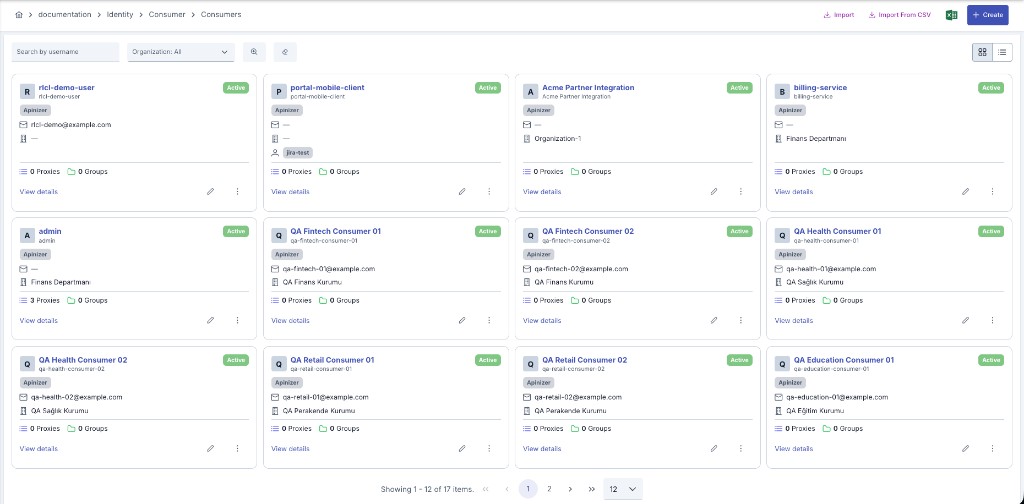
The fields used for screen components are shown in the table below.
| Field | Description |
|---|---|
| Advanced Search (Advanced Search) | Used to perform detailed search on consumers. |
| Access Control List (Access Control List) | Table where consumers are listed and sorted. |
| Create (Create) | Used to create a new "Consumer". |
| Import From CSV (Import From CSV) | Used for bulk consumer saving. |
| Import (Import) | Used to import consumer as .json or .zip extension. |
| Export Consumer List as an Excel File (Export Consumer List as an Excel File) | Used to download the consumers list as an excel file. |
| Export (Export) | All data belonging to the consumer can be exported to be reused in another project. In this process, only general information is exported. Advanced settings, API Proxy ACL, API Proxy Group ACL, JWK settings, and mTLS settings are not exported as they are project-based information. |
| Source | Shows where the consumer record comes from: Apinizer (created directly in Apinizer) or the identity provider that synchronized it — LDAP, Database, API, or OIDC — together with that provider's name. See Synchronization below. |
Bulk Consumer Import via CSV
The import from CSV feature can be used to import existing consumers to Apinizer.
If this feature is desired to be used;
Existing user information should be written with each record on one line.
The record must contain username and password information together and the password information must be in plain text.
The # sign should be placed as a separator between username and password information.
Each line should be separated with the Enter key.
Data prepared in this way is entered into the opened screen and the import button is pressed.
Exporting Consumer
To export the Consumer, Export (Export) is selected from the menu at the end of the row.
Globalizing Consumer
Consumers are moved to the Admin page with the "Globalize" option, removed from this list, made available in all projects, and management is left to the Admin user.
To globalize the Consumer, Move to Global (Move to Global) is selected from the menu at the end of the row.
Creating Consumer
To add consumers, when the Create button is pressed, the screen shown in the image below appears:
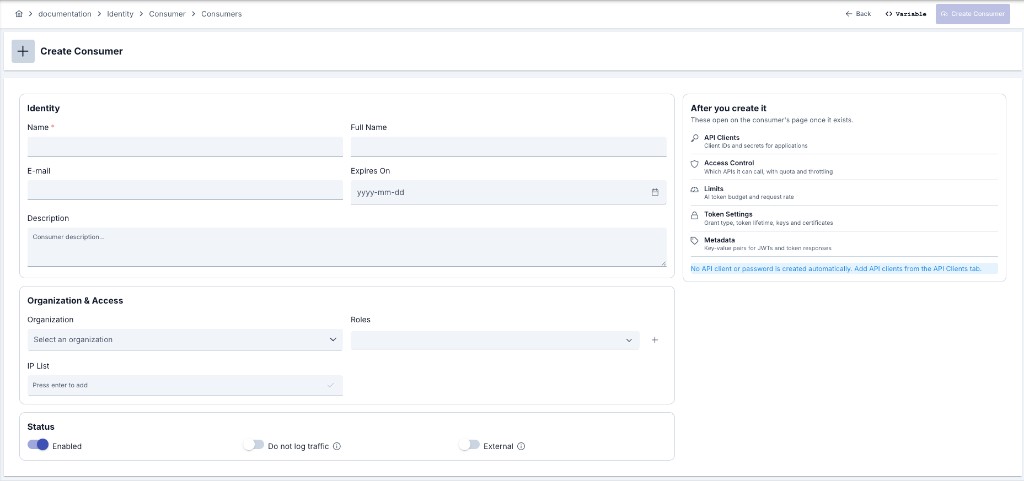
The create form has no Information / Metadata / Token Settings / Secrets tabs. Username and password are not entered on this step and are not generated automatically; they are added from the API Clients tab after the record exists. Access control, limits, token settings, and metadata are managed on the consumer detail, as the right-hand panel states.
As seen in this image, we can perform two types of operations on consumers:
- Entering, creating, or updating consumer details
- Creating or updating the consumer's access control list
Consumer field descriptions are as follows:
| Field | Description |
|---|---|
| Name (Name) | The required display name on the create form. |
| Username (Username) | This is the "username" information that will represent the identity, this value is used to access the user identity for authorization. It must be unique and one-of-a-kind throughout the entire system. It is not on the create form; it is added from API Clients. |
| Password (Password) | This is the password information of the identity. It can be automatically generated with the button next to it if desired. It is not on the create form; it is added from API Clients. |
| E-Mail (E-Mail) | This is the mail information belonging to the client used to access the owner of the identity. |
| Full Name (Full Name) | This is the full name of the client who owns the identity. |
| Active | Specifies whether the consumer is active (usable). If selected, it is active. |
| Do not log traffic | Stops this consumer's API traffic from being written to the traffic log connectors. Off by default. See Turning Traffic Logging Off for a Consumer. |
| External | Marks whether the consumer is treated as an external identity. |
| Expires On (Expires On) | If this date value is entered, the Consumer will no longer be able to access from the time this date arrives. |
| Organization (Organization) | The organization the consumer is linked to. Beyond reporting, this link drives organization-level metadata inheritance into the tokens issued for this consumer — see Organization-Level Metadata. The picker only offers organizations in scope for the calling project (that project's own organizations plus installation-wide/admin-scoped organizations); an organization belonging to another project cannot be selected, and this is also enforced server-side. Read-only once the consumer already exists: moving a consumer to a different organization is done from Transferring a Consumer to Another Organization below, not by editing this field. For a sync-managed consumer, see the note below. |
| Roles (Roles) | These are the roles that the consumer has. Authorization is performed according to these roles. |
| IP List (IP List) | If the consumer needs to come from certain IP addresses only, the information about which IP addresses this consumer can access from is entered here. Leaving it empty means requests from all IPs will be accepted. |
| IP Geolocation (IP Geolocation) | Used to allow the consumer to access only from specific countries. Country selection can be made. By default, "Countries: All" is selected and allows access from all countries. |
| Description | If a description about the consumer is desired to be entered, this field can be filled. |
| Enable Advanced Settings (Enable Advanced Settings) | If there is a need to customize the consumer's password and IP list on an environment basis, customization settings are activated with this option. When selected, password and IP list can be entered for each environment. |
| Environment Password (Environment Password) | A password can be entered to be used specifically for the environment in the relevant row. |
| Environment IP List (Environment IP List) | An IP list can be entered to be used specifically for the environment in the relevant row. |
| Deleted environment | A row whose environment this project can no longer see — it was deleted, unpublished, or moved to another project — is marked with a Deleted environment badge instead of being shown with an empty name. The row's password and IP list are kept as they are: an environment that was only unpublished or reassigned can come back, so nothing is removed on your behalf. Delete the row yourself when it is no longer needed. |
For a consumer managed by synchronization, the Organization field comes from the source provider. It cannot be changed here, or with the Transfer action either. To change it, update the group or OU membership in the source; the next synchronization run writes the new organization.
If the consumer you are saving was deleted by someone else in the meantime, the save is refused rather than silently creating a new, disconnected record under the id the form was still holding.
Clicking the eye icon or the copy button next to a masked secret field — the Password field here, and the equivalent secret fields on the LLM Provider and OIDC Identity Provider screens — writes a Secret Revealed audit record (see Event Types) naming the screen, the entity, and the field, but never the value itself. Simply opening the edit screen does not: the record is written only at the moment the value is actually revealed or copied.
Consumer Key
Alongside the username, a consumer carries a consumer key: a permanent, readable identity assigned by the server when the consumer is created. It is not shown anywhere on the Consumers screen — not in the list, not in the view, not in the edit form — and cannot be edited; it is visible only in Management API (APIops) responses. It also does not travel with export/import packages — the key is left out of an exported consumer.
The consumer key is what stays constant about a consumer. The username may be changed — it is the login and display identity — and the consumer key does not change with it, which is what lets a reference to the consumer survive a rename.
Because the key identifies exactly one consumer, it is never carried over to a second record: a consumer produced with Duplicate receives a new key of its own the moment it is created. A consumer brought in with Import as New arrives without a key; that consumer, and any pre-existing consumer left without one, is later assigned a key by a background maintenance task that runs on a regular schedule.
The consumer key is not a secret and is not a password — it is a public identifier, like the username. It grants no access on its own.
As of this version, consumers brought in by synchronization from an identity provider, and those created by bulk import from a CSV file, are also assigned a consumer key as soon as they are created — the same rule as for consumers created from this screen or through the Management API. Sync-managed consumers additionally carry the time they were first synchronized.
Client ID and Client Secret Leave the Consumer Screen After Migration
Once the automatic migration has given the consumer's derived API client a locally-held secret, the Username and Password inputs are no longer shown on this screen. In their place the Identity section shows the migrated client's client id and a note saying where the pair now lives: the client id is the username every caller already holds, and the secret is rotated from the Client Secrets sub-tab under the API Clients tab, through the usual grace-period mechanism — the previous secret keeps authenticating through its grace window while the new one takes over. An information banner at the top of the page names the migrated client as well.
Every other field on the consumer stays editable and the record still saves normally; saving the form changes neither the username nor the password. A consumer whose client identity was never carried over keeps editing both fields exactly as before.
The username lock is also enforced on the server: a save that changes a migrated consumer's username is refused with a 400 carrying the error key credential.legacyIdentityMigrated, whatever the screen shows. A save that arrives with a new password through the API still rotates the migrated client's secret to that value, so integrations written against the earlier behaviour keep working. Neither the lock nor a rotation suspends anything already issued: a token obtained before a rotation keeps validating until the previous secret's grace window ends.
Turning Traffic Logging Off for a Consumer
Some customers ask, on privacy or data-protection grounds, that their API traffic not be retained. Do not log traffic answers that request for one consumer: while it is on, this consumer's traffic is sent to no traffic log connector at all — Elasticsearch, Kafka, Syslog, Database, Webhook and the rest.
Consumers with the switch on carry a Traffic log off badge in the consumer list and in the organization overview, so a silenced customer is visible without opening each record.
The scope is deliberately narrow. Turning this on does not stop:
- Trace records and OpenTelemetry spans — the operational trail used to diagnose an incident
- Prometheus metrics — request counts and durations, which carry no message content
- Security and access events — the audit trail behind quota, anomaly and security investigations
- Requests that failed authentication — a request is only silenced once the gateway has actually verified the identity presented. A caller who sends a silenced consumer's username with a wrong password, an invalid API key or a rejected token is not that consumer as far as this switch is concerned, and the blocked request is written to the traffic log connectors as usual. Failed-authentication traffic is exactly what a later investigation needs, so it is never something an unverified caller can suppress.
A privacy preference must not be able to erase a security or audit trail, which is why those lanes stay open. When an installation genuinely needs zero retention, the right instrument is the No Persist data retention profile, not this switch.
This switch is set from the Manager screens (or through APIops) by someone with administrative rights. It is deliberately not offered on the API Portal: a portal customer editing their own record or their own application cannot turn it on or off, and a value sent in a portal request body is ignored rather than applied. The reason is that switching it on removes a customer's traffic from the SIEM/Elasticsearch/Kafka feeds security and fraud monitoring rely on — that has to stay an operator's decision.
The same switch exists on applications, where it covers every consumer bound to the application at once. The two are independent and combine as either one is enough: a consumer is silenced if it has been switched off itself or its application has. Saving is enough — the consumer is redeployed automatically and no manual redeploy is required.
When a package replaces an existing consumer, a consumer that is silenced here stays silenced even if the package says otherwise. The opposite direction is allowed: a package may switch logging off. The asymmetry is deliberate — this is a decision the target installation made about itself, and an import is not the place to reverse it silently.
Deleting a Consumer
Deleting a consumer removes its access control list and rate-limit history along with it, undeploys it from every environment it was deployed to, and then permanently removes the record — unlike an organization or a portal application, a consumer's own access grants are never a reason its delete is refused. This action cannot be undone.
The one relationship that does block it: a consumer that still owns API clients not yet revoked cannot be deleted — the request is refused with an HTTP 409 response that names the consumer itself and the real blocker (the count of un-revoked API clients still owned by it). Revoke the clients first, then delete the consumer. Already-revoked clients never block the delete.
Deleting a consumer also ends its limit assignments. Every Request Rate or AI Token Budget assignment naming this consumer — active ones and unactivated drafts alike — is closed in the same step, with the reason recorded as The subject was deleted, and the ceiling is withdrawn from the gateways it was deployed to. The assignments are kept as history, the same way an assignment you end by hand is. If the delete is refused for any of the reasons above, the assignments are left untouched and keep applying. The same applies when an organization or a portal application is deleted. See Limit Plans and Assignments.
A consumer managed by directory synchronization cannot be deleted manually, on any surface that can request a delete — the manager interface, the portal, or the Management API. It is retired only through its provider's synchronization run; see Deactivation Mode.
The rule above is enforced on the server, not only in the interface — a manual delete request for a sync-managed consumer is refused the same way regardless of which surface sent it.
If a delete for the same consumer is already being processed, a second attempt is refused with an HTTP 409 response until the first one finishes. See Concurrent Deletion if this persists long after nothing is actually running.
Transferring a Consumer to Another Organization
A consumer can be moved to a different organization of the same project with the Transfer button next to the Organization field on this screen, which opens a dialog to pick the target organization. Everything the move needs to keep working follows automatically: the consumer's own API clients, the access control entries and the tokens issued to it that still name the organization it is leaving are all re-linked to the new organization in the same operation, and the consumer is redeployed so the change takes effect immediately. Quota usage figures are not rewritten by the transfer itself — they correct themselves on their next regular synchronization.
If the target organization is suspended, traffic for the consumer stops immediately after the transfer. Resume the target organization to let traffic flow again.
The transfer is refused, and nothing is changed, when:
- the consumer is managed by directory synchronization — its organization is owned by its provider;
- a delete of the consumer, or of the organization it is leaving or joining, is currently in progress;
- the target organization does not resolve, is not in scope for the calling project (accepted: an organization of the consumer's own project, or an installation-wide/admin-scoped organization), or has been merged into another organization;
- the target organization is the one the consumer is already in.
The rule is enforced on the server, not only in the interface. A transfer request sent directly to the Management API is refused the same way for a sync-managed consumer, an unresolved or cross-project target, or while a delete is in progress on the consumer or on either organization.
API Clients
A consumer's username and password identify a person or a system that signs in. An API client is a separate thing: a machine identity that obtains a token on behalf of that consumer, carrying its own client id and its own versioned client secrets. One consumer can hold several API clients — one per integration, per environment or per team — and each of them can be retired on its own, without touching the consumer or the other clients.
API clients are managed from the API Clients tab of the consumer, on both the view and the edit screen. An API client is never edited on a page of its own: the row in the list is a summary, and the expanded row is the whole editor with its Overview, Client Secrets, Authorization, Limits (for users with permission to view Identity or AI budgets) and Activity sub-tabs.
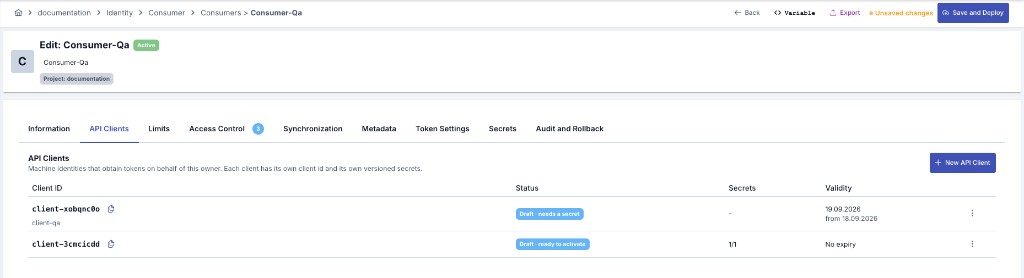
The consumer's own Limits tab, on its own edit screen, assigns a ceiling to that consumer — and to the pooled consumption of every client it owns — only; see Target.
An API client can obtain a token and use it to call an API Proxy directly — the gateway no longer stops it at the door. What it can actually reach is decided by authorization: the owner's own access, narrowed by the client's own restriction — and both sides of that relationship have to currently be live, see Owner and Client Lifecycle.
The Expanded Row: Identity Header, Info Box and Ownership Chain
Above the four sub-tabs, the expanded row always shows the same three things, whichever sub-tab happens to be open:
- Identity header — the client's name, its lifecycle state, its client id, and its Management Key. Both the client id and the Management Key are shown with a copy button next to them. Hovering the Management Key explains what it is for: it is the identifier that addresses the management API and this screen only — it plays no part in gateway authentication.
- An info box directly below the header, shown at all times, repeating the same three facts as a reminder: a live gateway call authenticates with the client id and the client secret, never with the Management Key; the Management Key only addresses the management API and this screen; and the client secret itself is visible only once, at the moment it is issued or rotated — see The Client Secret Is Shown Once.
- A collapsible Ownership Chain panel, collapsed by default, reading Organization → Owner (a Consumer or an Application, see Owner and Client Lifecycle) → This API Client. It is built entirely from fields already loaded with the client, so opening it makes no extra call; where only an id is on hand for the organization or the owner, the id is shown rather than a resolved name.
When the client's own readiness is Unresolved Dependency, the identity header carries an extra badge next to the state tag, with a tooltip explaining that something the client depends on through its owner chain — a suspended or missing parent record, for example — does not currently resolve. A client can still read as Active by its own state and still fail live traffic for this reason; the badge is a shortcut to that diagnosis without leaving the row.
Creating an API Client: Draft, Then Activate
Creating is deliberately two steps.
- The client is created as a draft. At this moment it holds no secret at all — that is a structural fact, not a default that could be turned off. The client id is either generated by Apinizer or entered by hand (4 to 128 characters; letters, digits and
._:@~-). It is fixed at creation: neither the client id nor the Management Key (the API client key) can be changed afterwards, because issued tokens and the installation-wide client id registry are bound to them. - The client is activated. Activation is refused while the client holds no usable authentication material — a draft with no client secret cannot become active. Issue its first secret from the Client Secrets sub-tab, then activate it.
A consumer's username and an API client's client id can never hold the same value. Because the two are created on separate screens, nothing warns you at creation time — the collision surfaces when the record is deployed: whichever one reaches an environment second is the one that fails to deploy (which, when a worker restarts and both are loaded together, is always the API client, since consumers load before API clients). The losing record cannot be used to obtain a token until the collision is resolved. The rejection is logged with POLICY_AUTH_IDENTITY_AMBIGUOUS (see Error Messages); the side that is not in conflict is unaffected. When choosing a client id, make sure it does not collide with an existing consumer username anywhere in the installation.
A draft that was never activated can be discarded. This does not free its client id: the identifier is retired in the installation-wide registry and can never be issued again — non-reuse is what makes a client id a permanent name. Discarding is the only deletion offered here; a client that has been in use is suspended or revoked instead.
The Client Secret Is Shown Once
A client secret is shown once, in the response that creates or rotates it. Copy it at that moment. Afterwards the value cannot be read from the list, from the client's detail, or from the Management API — none of them ever return secret material.
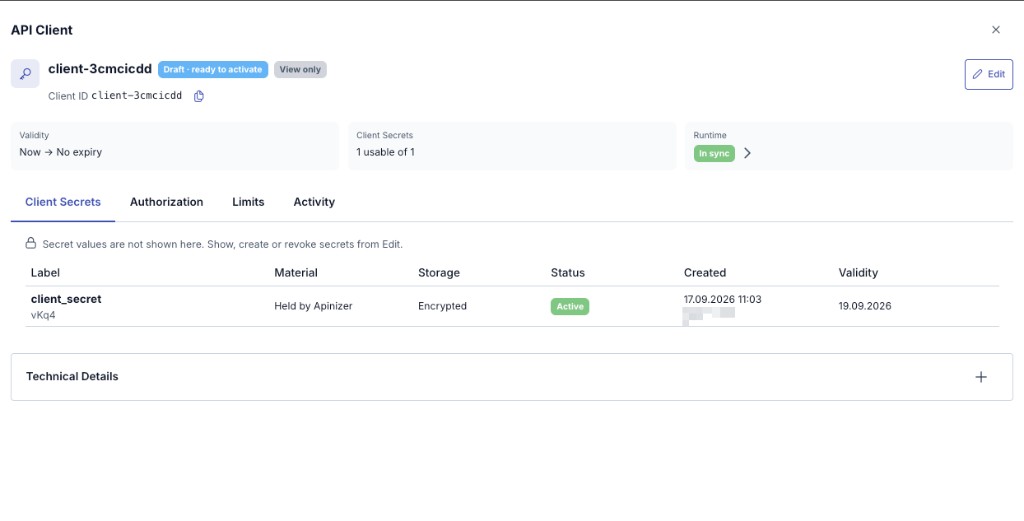
When it is needed again, the only route is Reveal: it requires the manage permission, it requires a written reason, and it writes an audit record carrying the client, the secret version and the reason — never the value.
Rotation issues a new secret and leaves the previous one working for a grace period, so integrations can be switched over without an outage. A manually entered secret is recommended to be at least 32 characters long; a shorter value is still accepted and shown with a warning on screen — only an empty value is refused.
A client keeps at most 5 secret versions. When the cap is reached, the way forward is to revoke a version that is no longer needed — see below.
Secret Storage Mode
A secret generation is stored in one of two modes, fixed at the moment it is issued or rotated:
| Mode | Behavior |
|---|---|
| Encrypted (Default) | Kept in a form that can be revealed again: a platform-encrypted copy is always stored, plus a KEK-sealed recovery envelope when the installation has a recovery key configured. Revealable with or without a recovery key. |
| Hashed | Only a one-way verifier is stored — no recoverable copy is kept anywhere, even when a recovery key exists. Reveal is permanently unavailable for a generation stored this way; the secret's only appearance is the moment it is issued or rotated. |
Verification never depends on the mode — a presented secret is checked against its verifier the same way in both. The mode only decides whether a recoverable copy sits alongside it.
On the Client Secrets sub-tab, the issue/rotate dialog offers this choice directly: a Storage Mode control lets you pick Encrypted or Hashed for the generation being created. It is pre-selected to the installation's default — see API Client Secret Storage Settings for that default and how to change it — and switching it in the dialog only affects the one generation being issued. Each existing generation's mode is shown in the Storage column of the secret versions table.
Maintenance Job: Grace Period and Scheduled Rotation
The grace period now genuinely ends. An hourly maintenance job destroys the material of every previous secret whose grace period has lapsed — the value can no longer be verified, revealed or recovered; only the audit record of the version remains. The same job also takes care of scheduled rotations: a rotation planned with a future start date used to sit waiting forever — now, when its start time arrives, the job activates the new secret on its own and moves the previous one into its grace period. On an installation upgraded to this version, the first run of the job applies the same rule retroactively, destroying the material of every grace secret whose period had already lapsed.
Revoking a Single Secret Version
An individual secret version can be revoked on its own, from the Client Secrets sub-tab, without touching the client or its other versions. Revocation is immediate and permanent: the version's material is destroyed on the spot, exactly as at the end of a grace period, and a version already revoked cannot be revoked again. This is the action to reach for when one secret is suspected leaked — it kills that value at once instead of leaving it alive through a rotation's grace period.
Because a leaked secret may already have been exchanged for tokens, revoking a secret version by hand also deletes every stored (opaque) token of that client — all of them, not only those obtained with the revoked version. A well-behaved client_credentials integration simply requests a new token with a still-valid secret and continues; whoever holds only the leaked value gets nothing. The scheduled grace-period cleanup described above never does this: a rotation that runs its normal course never touches the client's tokens.
Revoking a single secret version does not stamp the client's token cutoff. A JWT is never stored, so there is no row here for this action to delete — a JWT obtained under the now-dead secret keeps validating until it expires on its own. Killing an already-issued JWT outright takes a full client Revoke, which does stamp the cutoff.
The active version can be revoked too — deliberately so, for the leak scenario — but doing it drops the client to Pending Secret: it refuses authentication everywhere until a new secret is issued. The confirmation dialog states this plainly; expect an outage for that client until you issue its next secret.
Whether a generation is revealable depends on its storage mode, not on whether the installation holds a recovery key by itself: an Encrypted generation is revealable with or without a recovery key, while a Hashed generation is never revealable, on any installation — that is the deliberate design a Hashed choice makes at issue or rotate time, not a fault. Rotate the secret to obtain a new value. The same applies to a secret whose value was destroyed when it was revoked.
The rate limit on Reveal is best-effort: two reveals arriving at the same moment may both pass. The real boundary is the manage permission, the mandatory reason and the audit record — not the counter.
Authorization of an API Client
An API client never reaches more than its owner. On every live request, the gateway computes an intersection: what the owner — the consumer, or the application — has been granted, narrowed by whatever the Authorization sub-tab allows for this one client. The owner side is checked first: if the owner itself was never granted a target, the client's own mode is never even consulted, and no client-side setting can reach a target its owner does not hold.
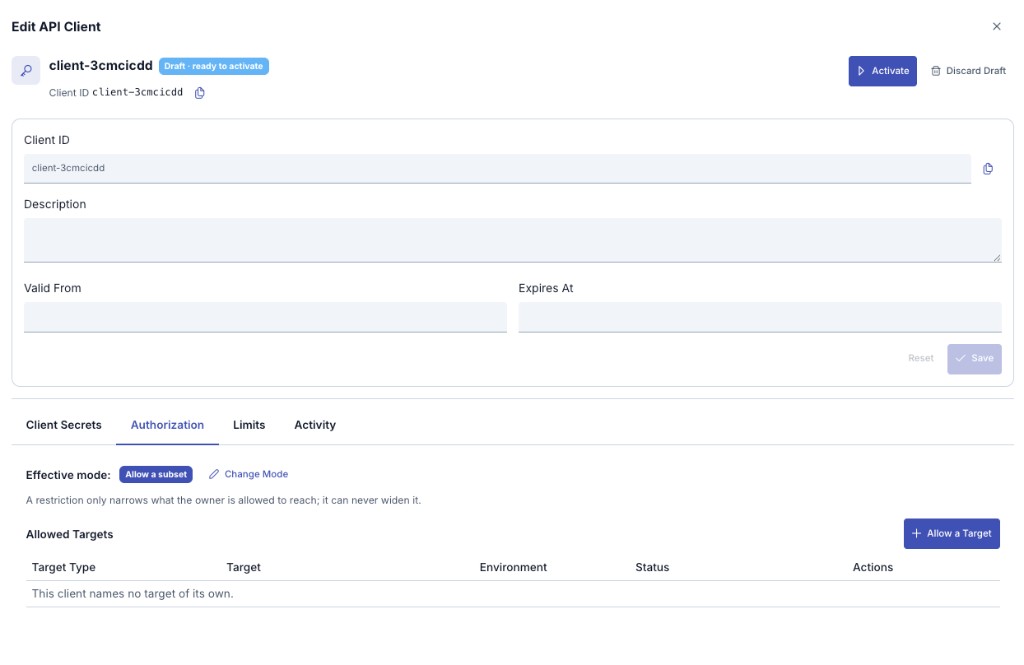
| Mode | Meaning |
|---|---|
| Follow the owner | The client reaches everything its owner reaches. This is the default for a client owned by a consumer, so behaviour matches what a plain consumer already did. |
| Deny all | The client reaches nothing, whatever its owner holds. This is the default for a client owned by an application. |
| Allow a subset | The client reaches only the targets named on this tab — and only those its owner already holds. |
When the client has no active row on this tab, the effective mode above is derived from who owns it — it is never read as unrestricted:
- A client owned by a consumer defaults to Follow the owner, matching how that consumer's own access already behaved.
- A client owned by an application defaults to Deny all. This is easy to miss: a freshly created application-owned client fails every live request until a target is named here, even when the application itself already holds broad access on its Access tab.
A target the owner has not been granted cannot be allowed here; the server refuses it. Narrowing a target to a single environment is a narrowing and is allowed; the reverse — asking for a whole API Proxy while the owner is narrowed to one environment — is a widening and is refused.
Changing the mode does not edit the current row: it ends that row and writes a new one, so the record of what the client was allowed to reach is kept.
This decision is made at the level of a whole API Proxy or API Proxy group; a consumer's per-method Disallowed Methods setting has no counterpart for an API client in this version.
Owner and Client Lifecycle on Live Traffic
Being authorized for a target is not enough on its own. Before that intersection is even evaluated, a request against an API Proxy checks that both sides of the relationship are currently live — and these two checks are rejected for different reasons, with different error codes, not both as one generic "unauthorized":
- The client itself must be Active and Ready — a Draft, Suspended or Revoked client is rejected, and so is one still Pending Secret or carrying an Unresolved Dependency; this rejection surfaces with the same generic code a disabled consumer goes through,
POLICY_AUTH_USERNOTEXISTS. Its Valid From / Expires At window, set on its Overview tab, must also currently hold — outside that window the rejection surfaces instead asPOLICY_AUTH_CREDENTIAL_EXPIRED. - The owner — and everything above it — must be currently live. A client owned by a consumer is rejected while that consumer is disabled; a client owned by an application is rejected while the application is suspended — and now also while the organization the application belongs to, or any organization above it, is suspended. The whole chain of ownership is evaluated and the most restrictive link wins. This rejection surfaces as
POLICY_AUTH_CREDENTIAL_PROXYNOTALLOWED— while the owner chain is not live, the client's own authorization mode is never even evaluated.
The same owner check now also gates issuing the token itself: a client whose owner chain is not live is refused at the token endpoint with the same generic response an unknown or disabled client receives — which axis refused it is written to the server log, never returned to the caller. Previously the owner check ran only on the live API Proxy call, so a client under a suspended application could still obtain a token it could never spend; that misleading success is gone. The same gate stands in front of the token introspection and revocation (RFC 7009) endpoints too, because they authenticate the calling client the same way: while its owner chain is not live, a client can neither introspect nor revoke its own tokens.
Disabling or suspending the owner is consequently also the fastest way to cut off every client beneath it at once — traffic and new tokens alike — without touching the clients individually. Note that suspending an organization's consumers and revoking them remain two independent axes: revoking an organization's consumers neither lifts nor imposes a suspension — the only way to lift a suspension is an explicit Resume.
Revoking an organization's consumers also reaches every API client in its subtree. Beyond disabling the organization's own consumers, that action stamps the token cutoff of every API client owned by an application anywhere under the organization — and of every API client owned by one of the organization's own consumers — to the moment of the revoke, exactly as a single client's own Revoke does, and deletes their stored (opaque) tokens from the management database the same way. This is a one-time, durable cleanup of tokens already issued, not a new live restriction: the affected applications and their API clients stay Active, so a client whose owner chain is otherwise live can obtain a brand-new token immediately afterwards. It is independent of suspension in the same way the consumer-level revoke is — revoking an organization's consumers does not, on its own, stop new tokens for the clients under it; only suspending the organization does that.
Suspending, Resuming and Revoking an API Client
An Active client can be taken out of service in two very different ways, and the difference is the whole point:
- Suspend is a pause, and destroys nothing. While suspended, the client is refused on live traffic and at the token endpoint, but its secrets are untouched and its already-issued tokens are kept — they are simply rejected at the gateway for as long as the suspension lasts. Suspending asks for a reason, which is written to the client's lifecycle history (the Activity sub-tab), not onto the record itself.
- Resume restores exactly what was paused. The same secrets verify again, and a token issued before the suspension works again if it has not expired in the meantime — nothing needs to be re-issued.
- Revoke is terminal, and there is no way back. In one atomic write the client leaves service, the material of every live secret version is destroyed — as with a lapsed grace period, only the audit stubs remain — and its client id stays retired in the installation-wide registry forever, never to be issued again. Every token this client had already been issued dies too, through two independent mechanisms, because an opaque token and a JWT cannot be killed the same way: stored (opaque) tokens are deleted immediately — this deletion happens in the management database and does not depend on reaching any gateway — and, since a signed JWT is stateless and validates offline (there is no row here to delete), the client's token cutoff is stamped to the moment of revocation instead. From that instant on, the gateway rejects any token — JWT or opaque alike — whose issue time is before the cutoff, regardless of whether its stored row was ever actually reached by the deletion above; this is what makes revoke reach a JWT at all. Revoking asks for a reason, recorded the same way a suspension's is. A revoked client is kept as a record — revocation does not delete it. It cannot be issued a new secret either — the attempt is refused with
400.
A suspended client can be revoked directly — suspension is not a barrier to revocation, so the suspend-investigate-revoke sequence needs no resume in between. An action that does not fit the client's current state, on the other hand, is refused, not silently absorbed: suspending an already-suspended client, resuming one that is not suspended, or revoking one already revoked is an error, and a draft can only be discarded — it cannot be suspended or revoked. Every action also carries the record version the screen was looking at, so two operators acting on the same client at the same moment cannot silently overwrite each other: the second action is refused with a conflict and the screen has to be refreshed first.
An API client also stands in the way of deleting its owner — until it is revoked. Deleting a consumer or an application that still owns API clients not yet revoked is refused with an HTTP 409 response: revoke the clients first, then delete the owner. This ordering is what guarantees no client record is ever orphaned with live secrets and live tokens still attached to it.
Obtaining a Token with an API Client
An activated API client authenticates itself at the same token endpoints a consumer uses — /credential/token for OAuth2, /credential/jwt for JWT — presenting its client id and client secret in place of a consumer's username and password. See Token Acquisition Methods for the request shape.
Only two grant types are available to an API client in this version:
- client_credentials — the normal way to obtain a token.
- refresh_token — usable once refresh has been turned on for that client; it works the same way it does for a consumer.
An API client can never be the resource owner of a password grant: presenting a client id where a username is expected is refused rather than accepted as a matching identity, however similar the two happen to look.
The introspection, revocation and discovery endpoints (see Token Introspection, Revocation and Discovery) work the same way for a token issued to an API client as for one issued to a consumer: a caller can only inspect or revoke the tokens it obtained itself.
expires_inis always in seconds. A consumer's token still follows the installation-wide expires_in unit setting (milliseconds by default, for backward compatibility); a token issued to an API client reports its lifetime in seconds regardless of that setting, per RFC 6749 §5.1.- Refresh starts out disabled. Every newly created API client is born without the ability to refresh its token; refresh has to be turned on for that client before a
refresh_tokenrequest will succeed. - A consumer's own API client follows the consumer's Token Settings. The API client that is created automatically for a consumer carries no token settings of its own; the lifetime, never-expires and refresh settings saved on the consumer's Token Settings tab apply to the tokens it obtains at
/credential/tokenand/credential/jwt— exactly as they did before the client existed. Only an API client that was given its own token settings through the Management API uses those instead, and then as a whole: the consumer's values are never mixed into them. Because the token is obtained through the client, the consumer's Refresh Token Allowed setting is also read live: turning it off takes effect on that consumer's very next refresh attempt. - An API client that belongs to an application never expires unless you give it a lifetime. A client whose owner is an application rather than a consumer — the clients issued from the API Portal are the usual case — has no consumer Token Settings tab behind it, and the portal does not ask for token settings when it issues one. Such a client is treated exactly like a consumer whose token settings were never filled in: its token never expires and no refresh token is issued. In the response this shows as
expires_in: 0with noX-IssuedAtorX-ExpiresAtfields — that combination means "no expiry", and the token stays valid. To give one a real lifetime or refresh capability, set the token settings on that API client through the Management API; a client that carries its own settings uses them as a whole. - Refresh permission is read live, not frozen at issuance. Turning Refresh Token Allowed off for a client takes effect on its very next refresh attempt, even for a refresh token that was already issued — nothing has to expire first. A consumer's own refresh permission, by contrast, is copied onto each token the moment it is issued: flipping the consumer's setting only changes what its next token gets, never a refresh token already outstanding.
- Scope always comes back empty. An API client has no role/scope source of its own yet, so
scopein the response is empty even when the request asks for one. With Reject When Principal Has No Roles turned on, a scope-requesting API client is refused with HTTP 400invalid_scopeinstead; with it off (the default), a scopeless token is issued.
An API client is not bound by a Contract's validity period the way some consumers are: its own Valid From / Expires At window, set on its Overview tab, is what governs whether it can obtain a token at all.
Basic, Base64 and Digest authentication policies never accept an API client's credentials in this version. Basic and Base64 support is planned for a later version. Digest's challenge-response check needs the plaintext password on every request: a Hashed generation (see Secret Storage Mode above) can never supply that and rules Digest out permanently, while an Encrypted generation keeps the recoverable copy Digest would need — but Digest support for an API client is not wired in this version, regardless of storage mode.
Once a token is issued, whether it can actually be used against an API Proxy is governed entirely by Authorization of an API Client and Owner and Client Lifecycle above — the token endpoint checks that the client and its owner chain are live, but never evaluates the authorization intersection. A rejected live request surfaces with an error code that names its cause (see Error Messages): a client that is not itself live — Draft, Suspended, Revoked or still awaiting a secret — is turned away as POLICY_AUTH_USERNOTEXISTS, the same generic path a disabled consumer goes through; a request outside the client's own Valid From / Expires At window returns POLICY_AUTH_CREDENTIAL_EXPIRED; and only a disabled or suspended owner, a missing grant, the Deny all default, or a subset mismatch surface as POLICY_AUTH_CREDENTIAL_PROXYNOTALLOWED.
Legacy Records: Automatic Migration
Consumers that act as machine clients today are converted to typed API clients automatically — there is no screen, button, or manual step for it. The conversion runs installation-wide the first time the Manager starts on this version (Automatic Migration at Upgrade below), a daily job retries whatever did not converge, and a Consumer created or edited afterwards goes through the same steps on save (Migrated at Creation — and on Save). What follows explains what the migration decides, what it carries, and what it leaves alone.
Decision Values
Every legacy record gets one of three decisions. The decision is also written to the migration ledger, so an operator can read why a given record was or was not converted.
| Decision | Meaning |
|---|---|
| Migrate | The record is converted to an API client. A target whose access rule cannot be resolved (for example, an API Proxy that no longer exists) does not stop this: that one rule is skipped and reported, while the rest of the record is still carried over. When the record's owning application cannot be settled either, the client is derived Consumer-owned instead (Ambiguous owner). A record reached through an HTTP Digest or an mTLS policy is migrated the same way and carries an informational note (Reached via HTTP Digest, Reached via mTLS); a Digest-reached record is served from the migrated generation's encrypted platform copy. |
| Consumer only | The record stays a Consumer; no API client is derived for it, because a client would have nothing of its own to authenticate with. This covers a record verified against an external identity source (LDAP, a database, an API), a record matched by an identity provider claim (IdP-matched identity), a record with no usable stored secret, and every record but the oldest sharing a username with another record (Client id collision). This is not a warning — the record keeps working exactly as it did before. |
| Blocked | The record has no username, so there is no identifier to carry over. This is the one case that stops a record's migration outright — until a username is given to it, at which point it is migrated on save. |
The migration carries the access side of a record and nothing else. The legacy access lists are not modified, and the record's other limits stay where they are — except its AI token budget, which is carried separately into a typed assignment at upgrade; see AI Budgets. Access rows produced by portal subscriptions are excluded and reported as such: the subscription lifecycle creates and removes them, and materialising them would create a second authority for the same access.
The legacy credential's password is read once and stored as the derived client's first secret, and the client is activated: the same client id and the same password the customer already uses keep authenticating, now through the new client, without a forced reset and without the customer noticing anything. The legacy credential itself is never modified by this, and every token issued before or after keeps working until it expires on its own — the migration never revokes anything. A password stored as a variable or expression reference (a value starting with ${ or #{) is carried as a secret reference generation that the gateway resolves on every request, exactly as it resolved the legacy field. A carried-over secret is always stored in Encrypted mode, so it stays revealable even on an installation with no recovery key configured. From that point on, the legacy record's edit screen no longer shows the username and password inputs; the client id is displayed instead and the secret is rotated from the API Clients tab — see Client ID and Client Secret Leave the Consumer Screen After Migration. The per-record outcomes of the carry-over (Carried, Carried as-is, Carried as variable reference, Skipped — blank secret, …) are listed with the scripted form of this step in API Client Secret Migration.
A migrated client's AI Model Access restriction keeps working unchanged: it stays bound to the legacy consumer record through the link the migration preserves, rather than being copied onto the client. Its AI token budget works differently: at upgrade it is carried into a typed AI Token Budget assignment on the client itself (or on the legacy Consumer, when the client stayed Consumer-owned) — see AI Budgets — so it keeps applying and no longer depends on the legacy record. A native API client that was never migrated from a Consumer can carry its own typed AI Token Budget assignment the same way, tracked under its own api_client usage scope; see Quota Usage & Alerts.
Every locally-authenticated record is migrated. A record authenticating through an external identity source, matched by an external identity provider claim, or holding no stored secret stays a Consumer — no API client is derived for it — and keeps working unchanged.
Migrated at Creation — and on Save
A Consumer created after this version — from this screen, from the portal, through APIops, or by CSV import — that authenticates with a locally stored password rather than through an external identity source goes through the same three steps at the moment it is created: it is classified, its API client is derived, and the legacy password is carried over and the client activated. No operator action is needed; the derived client shows up on the Consumer's own API Clients tab right away.
The same happens on every save of an existing Consumer that has not been migrated yet. A legacy record the upgrade left alone because it was not migratable at the time — Blocked for having no username, or Consumer only for having no stored secret — is converted the moment an operator fills the missing field in and saves. An already-migrated Consumer, or one that stays Consumer only, is left exactly as it is by this check; it costs nothing on an ordinary edit.
If any one of the three steps fails for a Consumer that should have been migrated, the Consumer keeps working exactly as it did before this feature existed, and the daily reconcile job described below completes it. Records written by directory or database synchronization are not part of this at all — they carry an external identity source by construction, so nothing is derived for them either way.
Automatic Migration at Upgrade
The steps below run automatically, in order, once the first time the Manager starts on this version — before it starts accepting requests. No screen, button, or manual step triggers them.
Each step is fault-tolerant per record (one broken record does not stop the step), idempotent (a second run adds zero new rows), and never pushes synchronously to the gateway: it writes dispatch rows that workers pick up on their next cold start or through the minutely sweeper, rather than pushing to every worker inline. Every step writes one run row — tag, status (RUNNING/COMPLETED/FAILED), counters, a residual count, and notes — to the api_client_migration_run collection, and, for every record that did not converge, a row to api_client_migration_row (subject type, subject id, outcome, reason). Together these two collections are the migration's ledger.
| Step | What it does |
|---|---|
| Identity | For every legacy Consumer in the installation, makes the inventory decision described in Decision Values above, derives its API client twin, carries over its secret, and activates it. Residual (retryable): FAILED, FAILED_ISSUE. Recorded in the ledger, but not residual: SKIPPED_BLOCKED (blank username), FAILED_DECRYPT, SOURCE_MISSING. |
| Access flag | Records, for audit only, that the access axis (typed grant/restriction/registry) was already written by the Identity step above, and that a Consumer-owned or Consumer only record's access authority stays exactly where it always was — its legacy API Proxy ACL/API Proxy Group ACL rows. This step writes nothing else. |
| Limits | Converts legacy Request Rate limits into typed Limit Plans and assignments — see Legacy Limits Migrated at Upgrade for the full conversion. A Consumer's enabled AI token budget is converted the same way, into its own typed AI Token Budget assignment, carried onto its migrated API client when it has one; see AI Budgets. |
| Portal | Re-derives every portal application's grants from its approved subscriptions and backfills the matching subscription plan assignments. |
| Consumer key stamp | Generates a unique consumerKey for every Consumer that does not already have one — earlier synchronization writers never stamped it. |
| Verification and daily reconcile | Rolls the residual of every step above into one run row, then makes sure a daily job (03:45), LimitMigrationReconcileJob, exists in the admin job catalog — the job is recreated automatically at every boot if it is ever missing, not installed only once by this changeset. It re-runs the same idempotent steps for as long as any residual or failed step remains in the ledger; once fully converged, this is a single indexed read per day. If this step itself cannot reach the scheduler at boot, it records a FAILED run row instead of installing the job directly — the job catalog's own boot-time recreation still brings the job up, and its next nightly run retries whatever steps are still outstanding. |
| Legacy password cleanup | Deferred, not immediate: 7 days after the Identity step converges (configurable with -Dapinizer.migration.legacyPasswordUnsetGraceDays=N), the daily reconcile job above unsets the password field on every legacy Consumer whose twin is Active and carries its own secret material (Local Secret or Secret Reference), so no second copy of the secret is left behind. Environment-detail passwords and username are left in place. A Consumer whose secret carry-over failed, or whose twin is still in Draft, keeps its password — the legacy path keeps answering for it. The wait exists so an older-version gateway pod restarting inside that window can still find the password it needs to verify a migrated Consumer — every gateway must be upgraded to this version within the window; see Apinizer Version Upgrade. Until the window elapses, the ledger shows this step with a residual of 1 and a deferred note — this is expected, not a failure. |
Legacy quota and throttling counters do not carry over — every typed Request Rate counter restarts from zero. A migrated AI Token Budget assignment is the one exception: it is counted under the same counter its legacy budget already used, so in-window AI consumption carries over rather than restarting. This migration has no rollback: the MongoDB backup you take before upgrading (see Apinizer Version Upgrade) is the only way back.
For scripting — re-reading what each legacy record would become, or re-running the derivation or the secret carry-over against one project after the fact — the same steps are exposed on the Manager REST API; see API Client Secret Migration.
Runtime Propagation: Synchronous Push and Self-Healing
Every mutation on this screen — create, edit, activate, suspend, resume, revoke, and the destruction of a single secret generation — is written durably first, then pushed to every gateway environment. What comes back answers "is it live yet?" in two different ways that can disagree with each other:
- The action's own report, shown right where you took the action. It describes only the push that action just performed, and it fades the moment you take the next one. Reading In sync here means every environment confirmed immediately; Degraded means at least one did not — and Degraded never masquerades as done: the record change (and, for a revoke, the deletion of stored tokens) is already permanent regardless, only a gateway's own copy is behind.
- The Runtime badge, next to the client's name at the top of the panel, is durable rather than tied to one action: In sync, Degraded x/y (how many of the targeted environments have confirmed, out of how many are targeted), or Pending. It reflects where the client currently stands across every environment however it got there, and it stays accurate across sessions instead of fading. Click it to see the environment-by-environment breakdown, including the reason an environment has not confirmed when one is known. A client with no runtime record at all — one created before this mechanism existed, for example — shows no badge.
A Degraded or Pending reading is no longer something you have to chase by hand:
- A background process retries an unconfirmed push on its own, on a schedule that starts at about a minute and backs off further each time an attempt still does not succeed — up to about an hour between attempts — until every environment has confirmed. A manual redeploy is not needed to make progress; it remains the right move only when the environment itself is the problem, for example when it has been unreachable for an extended stretch.
- Revoking a client is the one action that can hand its own push to this background process outright, when the environments do not all confirm within the request itself: the client already shows as revoked, but the reading is Pending rather than In sync or Degraded until every environment catches up — at which point it moves to In sync on its own, with no further action from you.
- A nightly maintenance job looks for a client that should have a runtime record and does not — the trace of an operational accident, such as a restored backup — and creates one so the same retry process can pick it up from there. This is a safety net for a rare condition, not something a healthy installation is expected to ever surface.
- The most security-critical leg of a revoke is never affected by this delay at all: a stored (opaque) token is deleted directly from the management database the moment you revoke, regardless of how long any environment takes to catch up — a validation attempt with a deleted token never succeeds, even on an environment still showing Degraded or Pending.
- An environment never lets a delayed retry apply an older change over one it has already applied more recently: a retry that arrives late for a change that has since been superseded is silently dropped rather than rolling the environment backward.
Known Limit: Legacy JWT Paths Outside the Revocation Cascade
The token cutoff described above exists only for an identity that has a record to stamp it on — an API client. Two JWT shapes have no such record and stay outside the cutoff no matter what is revoked:
- a JWT issued through an identity source other than a stored Consumer or API client record — for example, password-grant verification against an external LDAP, Database, API, or OIDC identity service;
- a JWT issued to a
client_credentialscaller that has no consumer record at all — a consumer-less legacy M2M integration.
Revoking a consumer, an API client, or an organization's consumers can never invalidate an already-issued token of either shape before its own expiry arrives — there is nothing to stamp a cutoff on. Revocation Strictness does not close this gap for that kind of revoke either: turning it on only makes the token's own explicit self-revocation — the caller's own call to the RFC 7009 revoke endpoint — actually take effect for a token of this shape, where today that call is accepted and silently does nothing. It does not let an admin-triggered consumer, API client, or organization revoke reach a token it could not reach before.
On this release line the Manager and the Workers must be upgraded together. A Worker on this version that receives pushes from an older Manager never receives the owner-chain field and stays on the safe side (fail-closed): the affected API clients are refused on that worker until it is restarted — a restart re-derives the owner chain locally and clears the condition. In the opposite mix — a new Manager pushing to an older Worker — the organization-suspension axis is simply not enforced on that worker until it is upgraded.
Consumer Access Control Settings
To set access permissions for the consumer, operations are performed by switching to the Access Control List panel.
In this panel, the API Proxy for which access permission is desired to be granted is selected from the screen that appears when the + Add API Proxy button is pressed.
A consumer's Access Control List is not included when the consumer is exported through the Export/Import Wizard — nor on a single-object (JSON) export, nor over APIops. Importing the package with Import as New creates a consumer with no API access at all; grant it here afterward. Importing with Replace Existing leaves the target consumer's existing Access Control List exactly as it is — nothing from the package is added, removed, or changed. This is deliberate: access control is specific to the installation and environment it runs in. A whole-project export/import (Administration → Export Project / Import Project) is unaffected by this and still carries access control with it.
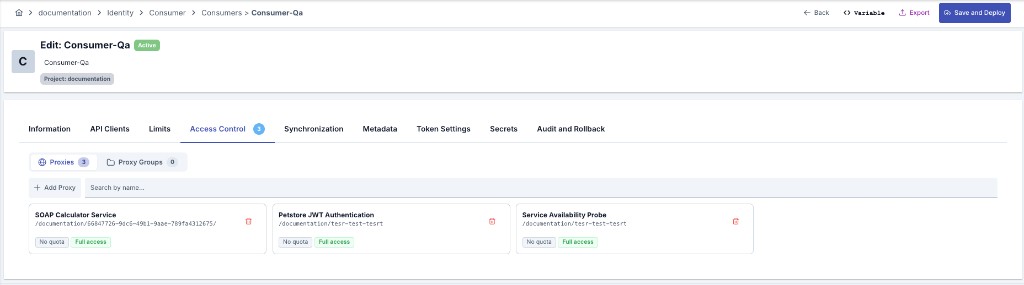
From the opened screen, the desired API Proxy(ies) are selected and the Add button is pressed.
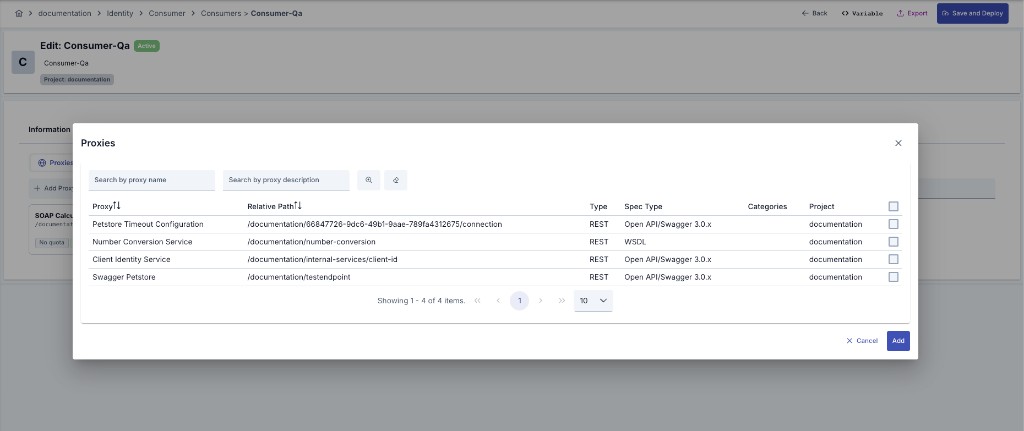
With this operation, access permission is granted to the consumer for the selected API Proxies. For this operation to become active on live running rules, it must be deployed to environments.
For this, when operations are completed, press the Save and Deploy button in the upper right corner to activate the settings.
API Proxy-Based Customization
To customize the consumer on an API Proxy basis, select the relevant API Proxy in the Access Control list; quota, throttling, and expiry settings are configured in the panel on the right.
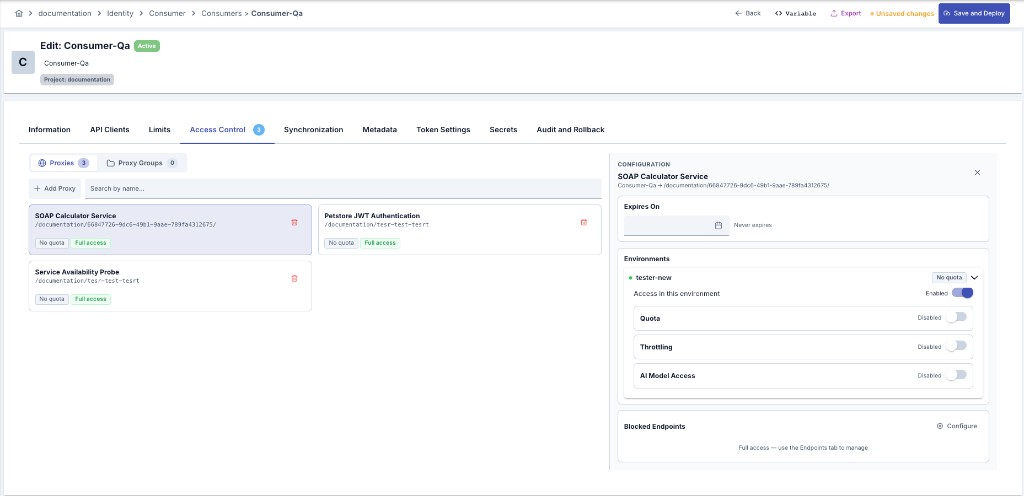
The fields used for API Proxy-based access customization configuration are shown in the table below.
| Field | Description |
|---|---|
| Expires On (Expires On) | If this date value is entered, the Consumer will no longer be able to access the API Proxy from the time this date arrives. |
| Environment List (Environment List) | Enables entering Quota and Throttling values specific to the environment where the API Proxy is deployed. |
| Environment Quota (Quota) | The quota value specific to the specified environment of the API Proxy. |
| Environment Throttling (Throttling) | The throttling value specific to the specified environment of the API Proxy. |
| Message Count (Message Count) | The maximum number of messages that can be sent to the Backend API within the time given with the Throttling Interval. |
| Interval Time Amount (Interval Time Amount) | A numeric value indicating the duration of the limitation window in the selected time unit. |
| Interval Time Unit (Interval Time Unit) | The time interval unit used for API request limitation (for example, second, minute). |
| Interval Window Type (Interval Window Type) | The time interval method used for API request limitation (fixed or sliding). |
| Cache Connection Timeout (Second) (Cache Connection Timeout (Second)) | The timeout duration for cache connection is specified. |
| Action for Cache Connection Error (Action for Cache Connection Error) | The action to be applied if the policy experiences a connection problem with the cache server is specified. |
| Disallowed Methods (Disallowed Methods) | If it is desired that the consumer not access any method of the API Proxy regardless of the roles it has, the methods of the API Proxy that are desired to be closed to access are selected here. |
| AI Model Access (AI Model Access) | Only meaningful on AI proxies. Limits which models this consumer may call on this proxy and environment — see the section below. |
| Save and Deploy Button (Save and Deploy) | After completing the settings/changes, press the Save and Deploy button to activate the settings. |
AI Model Access
On an AI proxy you may not want every consumer to reach every model — for example, opening a cheap model to one team while keeping an expensive one closed. Turning on AI Model Access on an environment card limits which model ids this consumer may call on that proxy and environment.
The restriction is enforced on both paths, and both are required:
- Call path — a request for a model outside the list is rejected; the consumer cannot reach it through failover or conditional routing either.
- Discovery path — the
GET /v1/modelsresponse is filtered per caller, so a disallowed model does not appear in the list at all.
Even with the switch on, an empty list applies no restriction and the consumer can call every model the proxy serves. This matches the provider-side Allowed Models field (empty = unrestricted) and keeps existing records behaving exactly as before. Add at least one model to actually restrict it.
Quota and model access are separate concepts. Quota answers "how much can it consume", model access answers "which model can it call". Giving a model a budget does not grant access to it, and granting access does not define a budget.
If you use automatic model downgrade on quota overflow (cheaper model), and the target model is not in this list, the request is blocked rather than downgraded — otherwise the restriction could be bypassed through quota overflow.
Requests without a consumer (anonymous) are not subject to this restriction; proxy- and provider-level restrictions still apply as before.
Synchronization
A consumer that was created by Credential Synchronization carries a Synchronization tab in its detail screen. The tab is only shown for sync-managed consumers — a consumer created directly in Apinizer does not have it.
| Field | Description |
|---|---|
| Source Type | The identity provider family this consumer was synchronized from: LDAP, Database, API, or OIDC. |
| Source Name | The name of the specific provider record (for example, a particular LDAP or OIDC provider) that synchronized this consumer. |
| LDAP DN | Shown only for LDAP-sourced consumers; the record's full distinguished name in the directory. |
| Last Synchronized | The completion time of the provider's last synchronization run. |
If your account has identity management permission, the tab also carries a Synchronize Now button. This triggers an immediate synchronization run for the consumer's entire source provider — not just this one record — the same run that Synchronize Now on the central Synchronization screen triggers for that provider.
Metadata
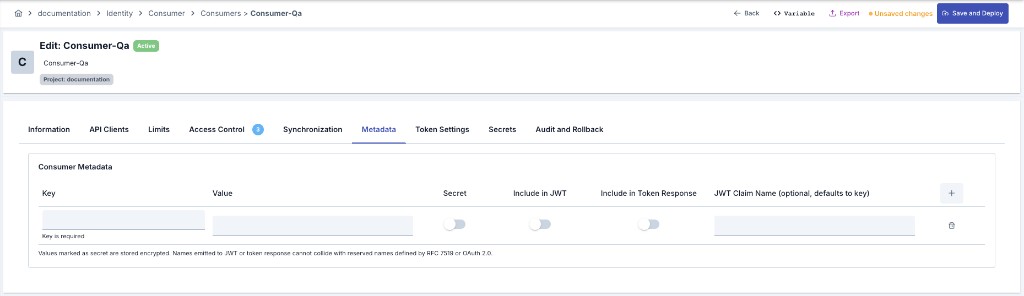
Each consumer can carry user-defined key/value metadata entries. These entries are stored on the consumer, optionally encrypted at rest, and can be propagated to:
- JWT token payload as a custom claim — when Include in JWT is enabled, the entry is appended to the JWT body during token issuance. Secret entries are an exception (see the warning below).
- OAuth token endpoint response body as an additional JSON field — when Include in Token Response is enabled, the entry is appended to the
/oauth/tokenresponse. - Script policies (Groovy / JavaScript) — accessed from scripts via
credentialMap(see Script Access below). The script context sees the full metadata (including secret values), regardless of the include toggles. - APIops
GET /apiops/projects/{projectName}/credentials/{username}response — secret values are masked as***.
Fields
| Field | Description |
|---|---|
| Key | The unique identifier of the metadata entry. Cannot be empty; duplicate keys are rejected on save. |
| Value | Free-form value. Stored encrypted when Secret is enabled. Supports ${env.X} / #{ctx.Y} placeholders resolved at runtime. |
| Secret | When enabled, the value is encrypted at rest and masked as *** in management/APIops consumer listings. In the token endpoint response it is delivered in clear text over TLS; it is never emitted as a JWT claim, because a signed JWT is readable by any token holder. Toggleable per entry. |
| Include in JWT | When enabled, the entry is emitted as a JWT claim during token issuance. Secret entries are excluded from the JWT even when this is enabled. Disabled for OAuth-opaque grant types. |
| Include in Token Response | When enabled, the entry is appended to the OAuth token endpoint response body. Honors Token Management Settings field name overrides. |
| JWT Claim Name | Optional override for the claim/field name. When empty, the entry's Key is used. |
Secret entries are never written as claims into the signed, world-readable JWT — even when Include in JWT is enabled. Secret values are delivered only through the token endpoint response body (over TLS, to the authenticated client). Keep Secret disabled for non-sensitive values that must be embedded in the JWT.
Reserved Names
Names listed below cannot be used for entries with Include in JWT or Include in Token Response enabled. Save is rejected client-side and server-side.
- JWT (RFC 7519):
iss,sub,aud,exp,nbf,iat,jti - JWT (Apinizer internal):
X-ApplicationName,X-IssuedAt,X-ExpiresAt,X-ExpiresInMillis,scope,X-RefreshTokenExpiresAt,X-RefreshTokenExpiresInMillis,X-RefreshTokenIssuedAt,X-RefreshCount,X-MaxRefreshCount,X-ApiResponse,X-RefreshToken - OAuth response (RFC 6749):
access_token,refresh_token,token_type,expires_in,scope,state,error,error_description,error_uri - OAuth response (Apinizer internal):
X-ApplicationName,X-IssuedAt,X-ExpiresAt,X-RefreshTokenIssuedAt,X-RefreshTokenExpiresAt,X-RefreshCount,X-ApiResponse - OAuth response (dynamic): Any custom names you configure for OAuth response fields under Token Management Settings (e.g. the names you set for the access-token or scope fields) are also reserved.
Organization-Level Metadata
Consumer organizations support the same metadata structure. Organization metadata applies as defaults to every consumer in that organization — but only to consumers that belong to that organization (i.e., consumers with their Organization field set to this organization). Organizations themselves do not issue tokens. At token issuance, organization metadata is applied first; if the same key is also defined on the consumer, the consumer's value takes precedence (the consumer level overrides the organization level).
Script Access
From script policies (Groovy / JavaScript), metadata is reached through the credentialMap binding, queried by username or client id:
credentialMap["username"].metadata— merged (organization + consumer) metadatacredentialMap["username"].credentialMetadata— consumer-only metadatacredentialMap["username"].organizationMetadata— organization-only metadata
credentialMap is lookup-only; enumerating all users or modifying entries is not supported. The script context can also read secret values.
An API client's client id always comes back not found through credentialMap in this version — both a presence check and a direct lookup agree, consistently. This is deliberate: API clients are not yet visible in the script context, so an API client's password is never leaked into a script as null.
Token Settings
To perform operations for token settings, switch to the Token Settings panel.
An image containing token settings is shown below:
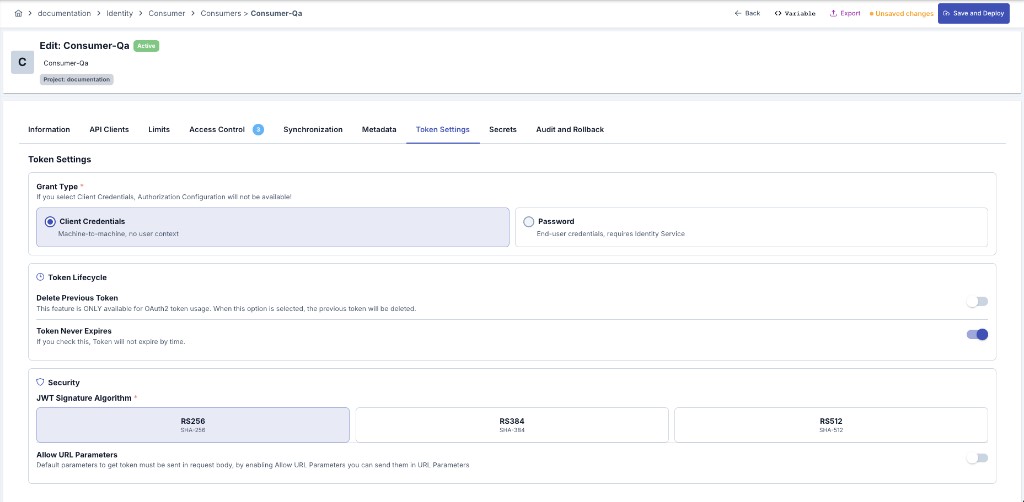
The fields used for token settings configuration are shown in the table below.
| Field | Description |
|---|---|
| Grant Type (Grant Type) | The information to be requested for token generation changes accordingly. Client Credentials or Password. |
| Identity/Role/Group Service (Identity/Role/Group Service) | If Grant Type is password; this is the identity provider service that specifies where the username and password information to be sent will be verified. |
| Select to JWT Regenerator Service API (Select to JWT Regenerator Service API) | This feature is only valid for JWT token usage. It enables the JWT token value to be regenerated through the selected API without authentication. |
| Delete Previous Token (Delete Previous Token) | This feature is only valid for OAuth2 token usage. In new token acquisitions or renewals, it invalidates the previous token. |
| Token Never Expires (Token Never Expires) | If this option is checked, the token does not become invalid over time, it can be used as long as desired. |
| Token Expires In (Token Expires In) | Specifies the lifetime during which the token will be usable. |
| Refresh Token Allowed (Refresh Token Allowed) | Enables the token refresh feature. |
| Refresh Token Count (Refresh Token Count) | Specifies how many times the token can be refreshed. |
| Refresh Token Expires In (Refresh Token Expires In) | Specifies the lifetime that the token will have with each refresh. |
| JWT Signature Algorithm (JWT Signature Algorithm) | This feature is only valid for JWT token usage. It is used to select the signature algorithm to be used when generating the token. |
| Allow URL Parameters (Allow URL Parameters) | Allows information to be sent as URL parameters when sending requests to the Token Service for token generation. It is recommended not to use it as it may pose a security risk. |
Refresh Token Allowed is copied onto each of the consumer's tokens the moment it is issued. Turning it off stops the next token from being able to refresh; a refresh token issued earlier keeps working exactly as before, until it expires or is otherwise invalidated. An API client's equivalent setting is read live instead — see Behaviors that differ from a consumer's token.
Client Authentication — Authorization Basic Header Support (RFC 6749 §2.3.1)
Getting a Token with Basic Authorization
Credentials can now be presented using HTTP Basic Authentication:
# With Basic Authorization header (new)
curl -u "my-client-id:my-secret" \
  -d "grant_type=client_credentials" \
  https://gateway.example.com/credential/token
Legacy Body-Parameter Method
Sending credentials in the request body is still supported:
# Via body parameters (backward compatible)
curl -d "grant_type=client_credentials&client_id=my-client-id&client_secret=my-secret" \
  https://gateway.example.com/credential/token
RFC Compliance Rules
- Do not mix methods: Sending both Basic header AND body parameters (
client_id/client_secret) results in aninvalid_requesterror (HTTP 400). - Valid Base64 required: Malformed Basic headers (invalid Base64 or missing
:separator) are rejected withinvalid_client(HTTP 401). - Non-Basic schemes ignored: Headers like
Authorization: Bearer ...are ignored; the server falls back to body-parameter validation. - Password grant credentials in body: The resource owner password (
usernameandpassword) must always be sent in the request body; the Basic header is for client credentials only.
JWK Settings
From the Secrets tab, selections of JWK keys required for decrypting and/or verifying the signature of the incoming consumer's JWK key-related data are made.
An image containing JWK settings is shown below:
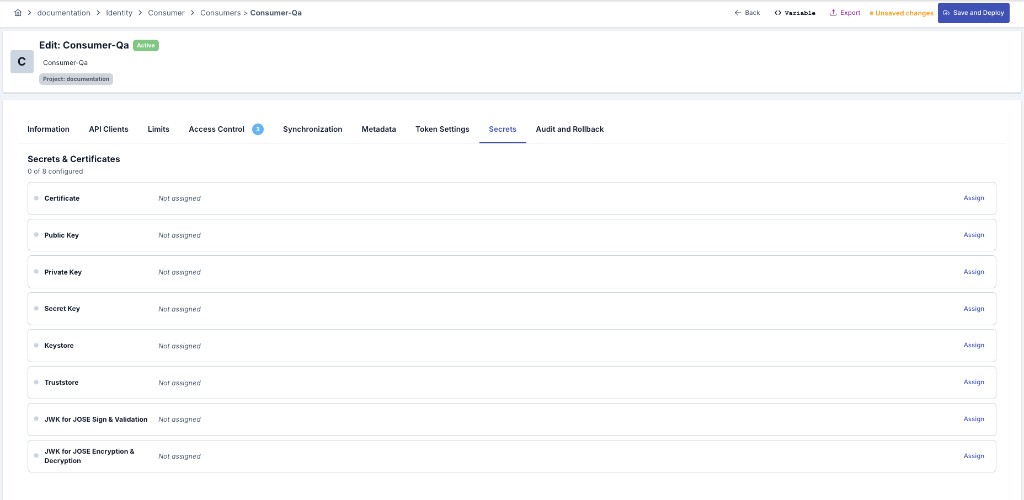
The fields used for JWK settings configuration are shown in the table below.
| Field | Description |
|---|---|
| JWK for JOSE Sign & Validation (JWK for JOSE Sign & Validation) | This is the signing/signature verification JWK key that the consumer has. When it is said to use the user's key in JOSE Validation/Implementation policies, this JWK is used for signing/signature verification. |
| JWK for JOSE Encryption & Descryption (JWK for JOSE Encryption & Descryption) | This is the encryption/decryption verification JWK key that the consumer has. When it is said to use the user's key in JOSE Validation/Implementation policies, this JWK is used for encryption/decryption verification. |
mTLS Settings
From the Secrets tab, the Truststore selection required for the incoming consumer's certificate to be verified with the mTLS Authentication Policy is made.
An image containing mTLS settings is shown below:
The fields used for mTLS settings configuration are shown in the table below.
| Field | Description |
|---|---|
| Truststore (Truststore) | Truststore is selected. If it is not previously defined, a new one can be created by pressing the + button next to it. |