Contracts/Protocols
In some cases, services to be provided to clients may need to be opened and/or used through a contract/protocol. In such cases, it may be necessary to keep the contract/protocol text with its history and know which services and consumers are associated with this contract/protocol.
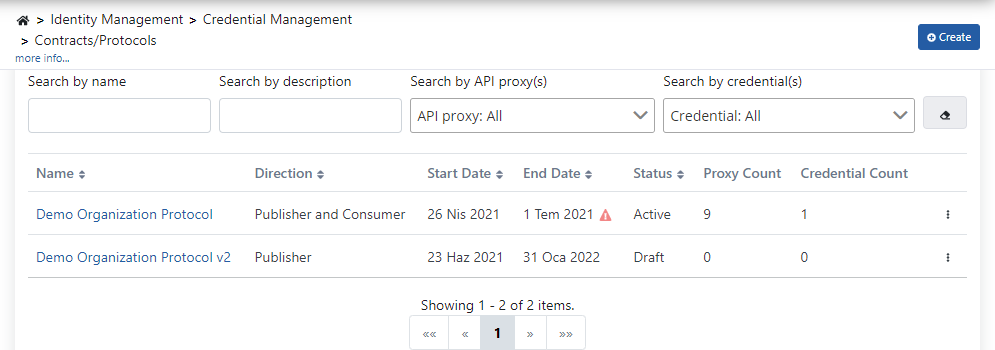
When the Contracts/Protocols page is first entered, all existing contract/protocol records are listed as shown in the image below:
To create a new contract/protocol, press the Create button in the upper right corner and complete the contract/protocol record by saving the information shown in the image below.
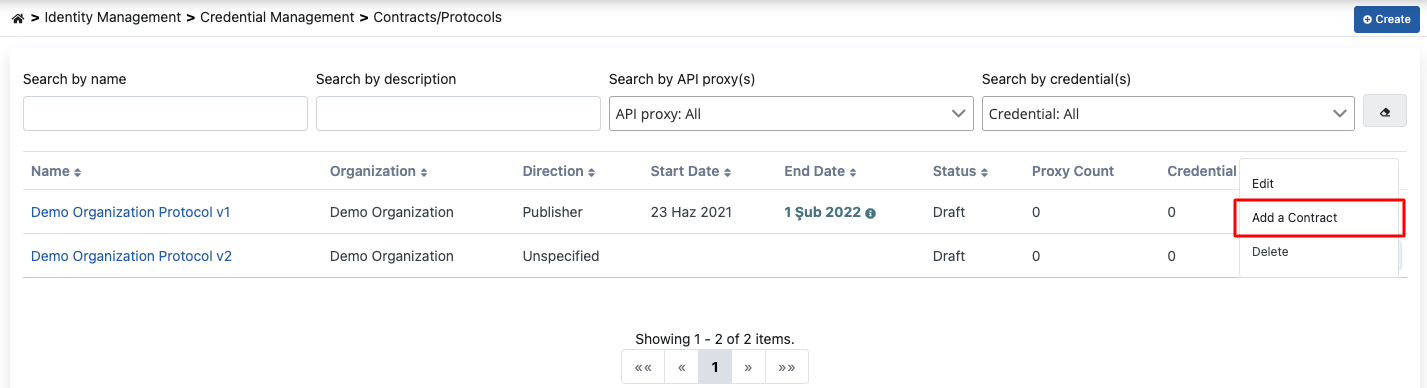
Or to create a new contract/protocol based on settings from an existing contract/protocol, click the Add a Contract option from the detail menu of the record.
An image containing Contract/Protocol settings is shown below:
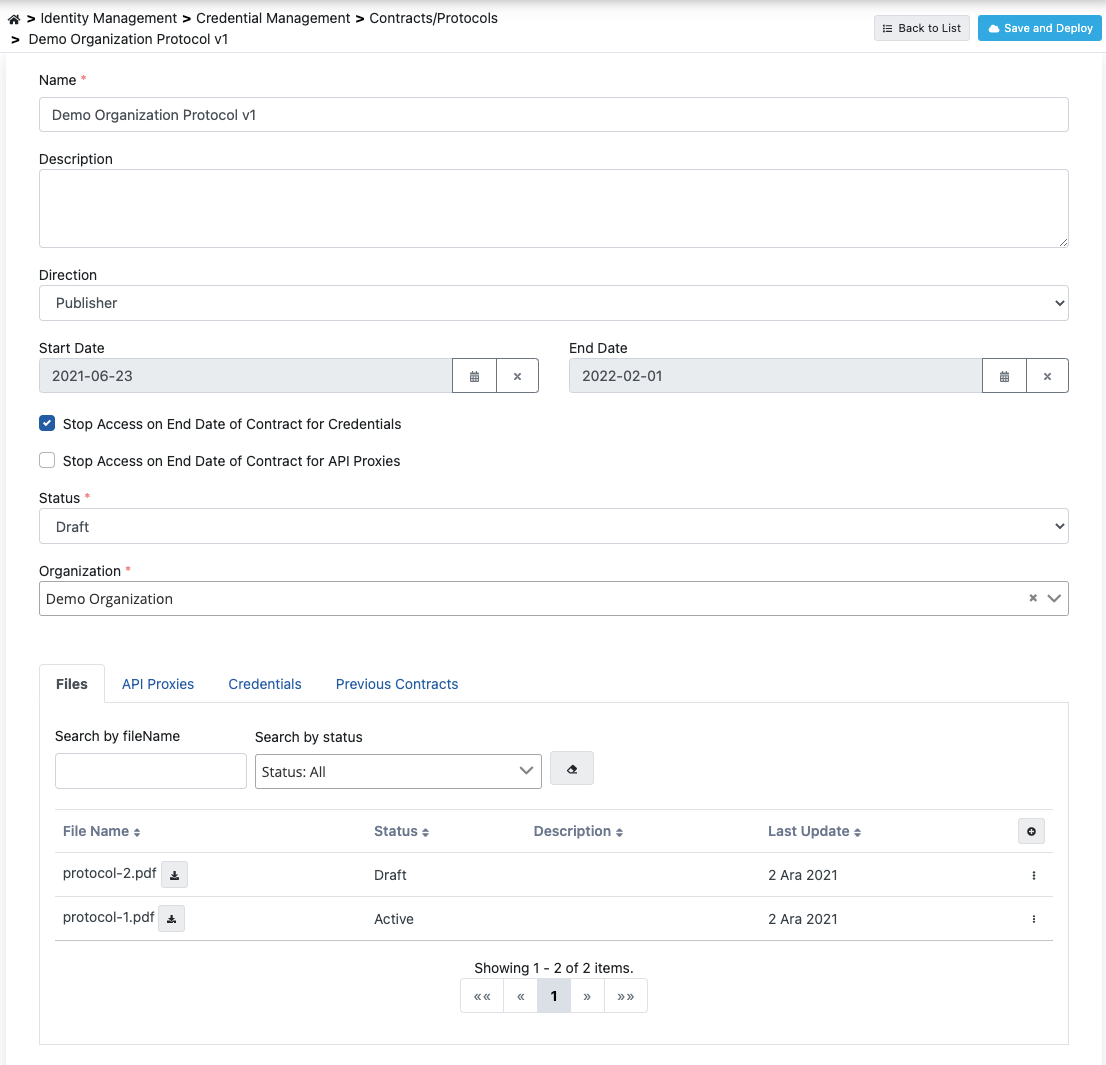
The fields used for contract/protocol configuration are shown in the table below.
| Field | Description |
|---|---|
| Name | The name given to the contract/protocol. |
| Description | Description information can be optionally entered to describe what the contract/protocol contains. |
| Direction (Direction) | Expresses the usage type of services (API Proxies) that are the subject of the contract. When evaluating this field, the relationship of the organization that owns Apinizer with the relevant services should be considered. If the organization has created the service, Publisher, if the organization is opening an existing service for use by its internal applications, Consumer, if both are the case, Publisher and Consumer option can be selected. If none is desired to be selected, Unspecified expression should be used. |
| Start Date (Start Date) | The start time information of the contract. |
| End Date (End Date) | The end time information of the contract. |
| Use End Date for Consumers (Use End Date for Consumers) | When this option is activated, the usage permission of consumers associated with the contract/protocol automatically expires when the contract period expires and they can no longer make new requests. Of course, for this setting to be valid, one of the authentication policies must be added on the associated API Proxy and the Security Manager option must be selected as the authentication method in this policy. |
| Stop Access on End Date of Contract for API Proxies (Stop Access on End Date of Contract for API Proxies) | When this option is activated, the usage permission of API Proxies associated with the contract/protocol automatically expires when the contract period expires and they can no longer make new requests. Of course, for this setting to be valid, one of the authentication policies must be added on the associated API Proxy and the Security Manager option must be selected as the authentication method in this policy. |
| Status (Status) | Information about whether the contract is active or inactive. |
| Organization (Organization) | Information about which organization the contract was made with. |
Files Tab
If it is desired for documents related to the contract/protocol to be included within the contract/protocol record, press the Add button marked in red in the image above and save the file to the contract/protocol by entering the necessary information shown in the image below.
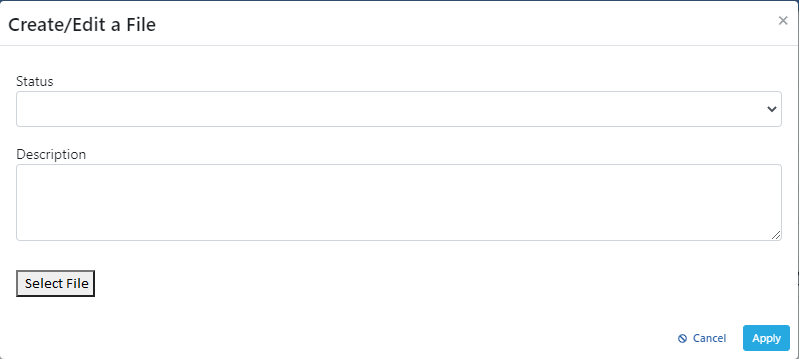
The fields used for file configuration are shown in the table below.
| Field | Description |
|---|---|
| Status (Status) | Expresses the status of the file. |
| Description | This field can be used if a description about the file content is desired to be entered. |
| Select File (Select File) | The file to be uploaded |
API Proxies Tab
If it is desired for API Proxies related to the contract/protocol to be included within the contract/protocol record, press the Add button marked in red in the image below.
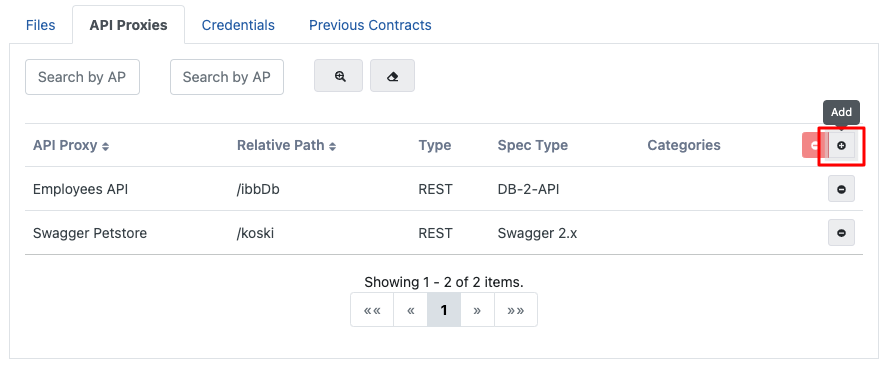
When the Add button is pressed, API Proxies within the project are listed as shown in the image below.
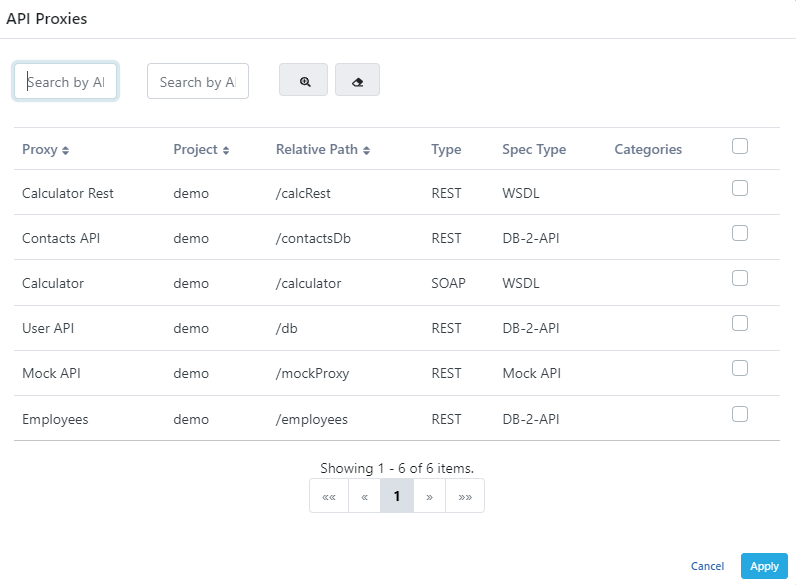
API proxies for which a relationship with the contract is desired to be established are selected from this list and saved.
Consumers Tab
If it is desired for consumers related to the contract/protocol to be included within the contract/protocol record, press the Add button marked in red in the image below.
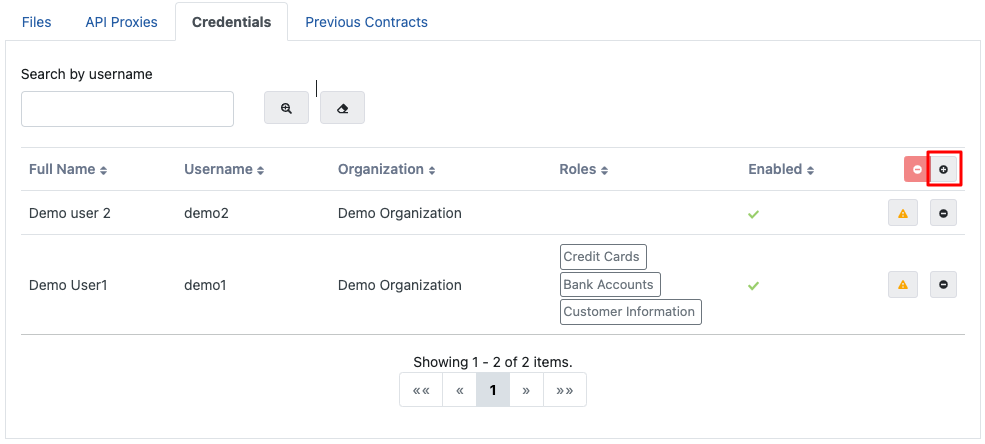
When the Add button is pressed, the consumer list within the project or defined globally is listed as shown in the image below.
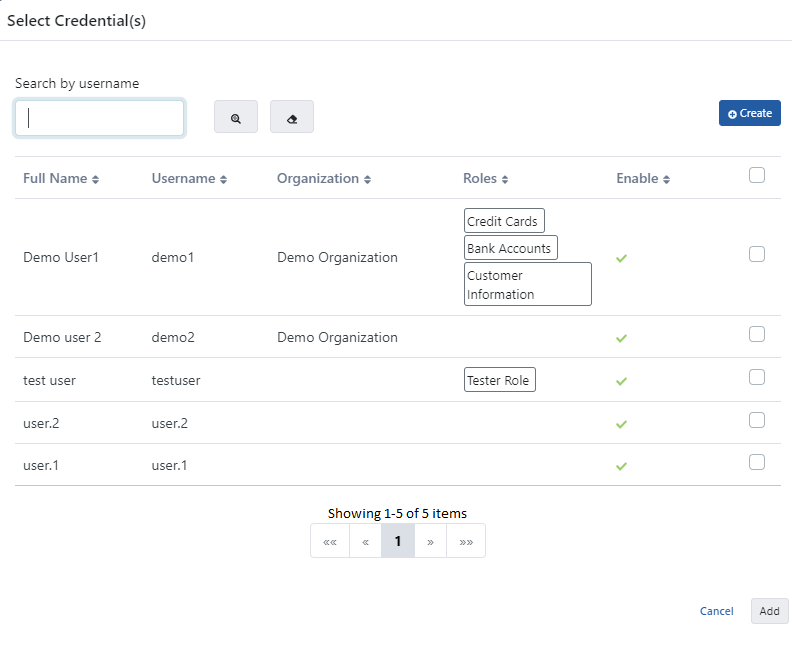
Consumers for which a relationship with the contract is desired to be established are selected from this list and saved.
If the desired consumer is not in this list, a new consumer can be created by pressing the Create button.
For more detailed information about the consumer screen, you can visit the Consumers page.
Recommended Access
Adding an API Proxy or a Consumer to the API Proxies or Consumers tab does not, by itself, grant access (ACL) — it only associates the record with the contract/protocol.
If consumers are attached to the contract/protocol but are not yet present in the ACL of a given API Proxy, a warning icon is shown on that proxy's row in the API Proxies tab. Likewise, if API Proxies are attached to the contract/protocol but are not yet present in a consumer's ACL, a warning icon is shown on that consumer's row in the Consumers tab.
Clicking the warning icon lists only the consumers/API Proxies that do not yet have access; the records selected and saved from this list are the ones granted access (ACL).
Access granted this way is subject to the uniqueness rule described on the API Proxy ACL page, and is recorded in the ACL history like manually granted access. If access is granted again for a record that is already authorized (for example, from concurrent sessions), the existing record's disallowed methods, expiry date, and quota/throttling customizations are not overwritten.
Removing access through the contract is not supported; to cut off a consumer's access to an API Proxy, delete the corresponding record from the API Proxy ACL page.
Previous Contracts Tab
This section contains the list of contracts/protocols from which the current contract/protocol was derived.
