Application of Plain-Text Authentication Policy to REST API via Security Manager Provider
In this scenario, the application of Plain-Text Authentication policy to a REST architecture API named Swagger PetStore will be tested.
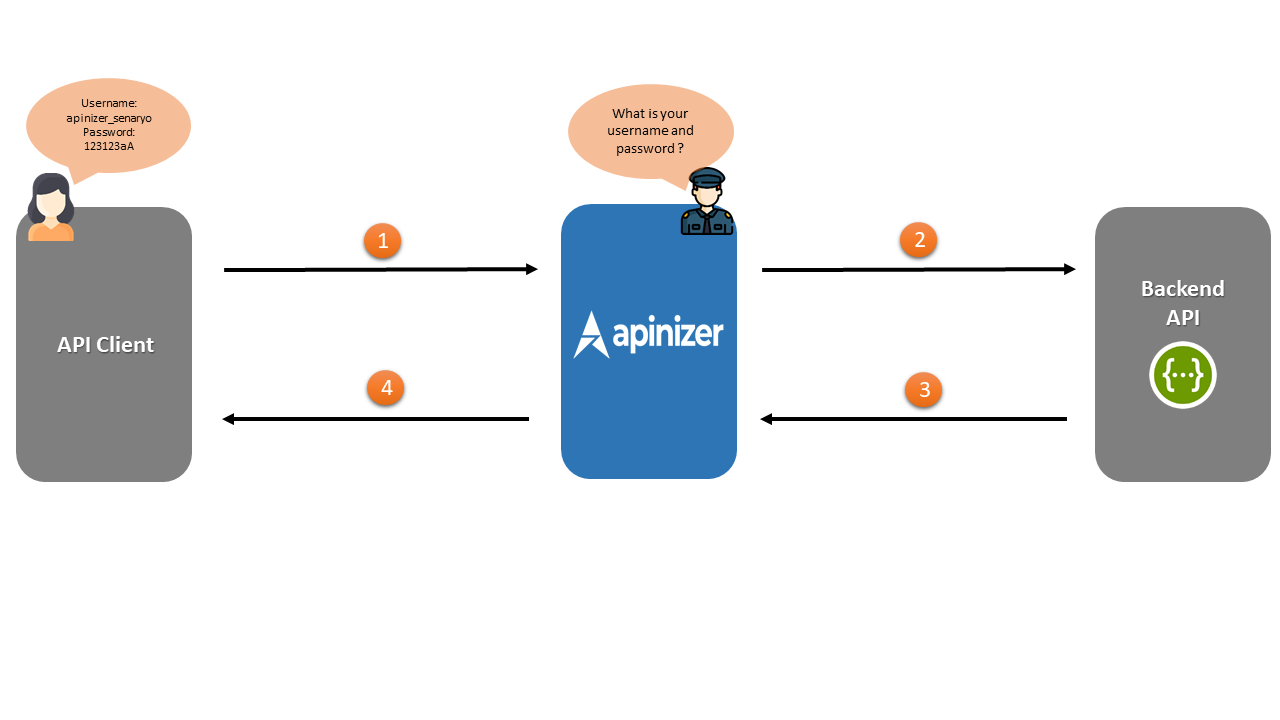
The numbering in the diagram below corresponds to the order of operations.
- Security Manager in Apinizer requests Plain-Text type authentication information from API Client. If this authentication is correct, proceed to field number two.
- Apinizer makes a request to Backend API.
- Backend API responds to Apinizer.
- Apinizer responds to API Client.
Creating API Proxy
Access to the REST API named Swagger Petstore can be provided from https://petstore.swagger.io/.
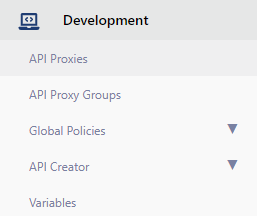
Click the API Proxies option under the Development menu.
Since no proxy definition has been made before on the opened page, the text No records found! appears.
Click the Create button in the top right corner and start creating a new proxy.

In this section, it is necessary to select what type the API Proxy to be created is.
Since the type of API to be used in this scenario will be Swagger 2.X, this type is selected.
Click on the Enter URL expression to switch to the screen where the address of the API to be used will be entered.
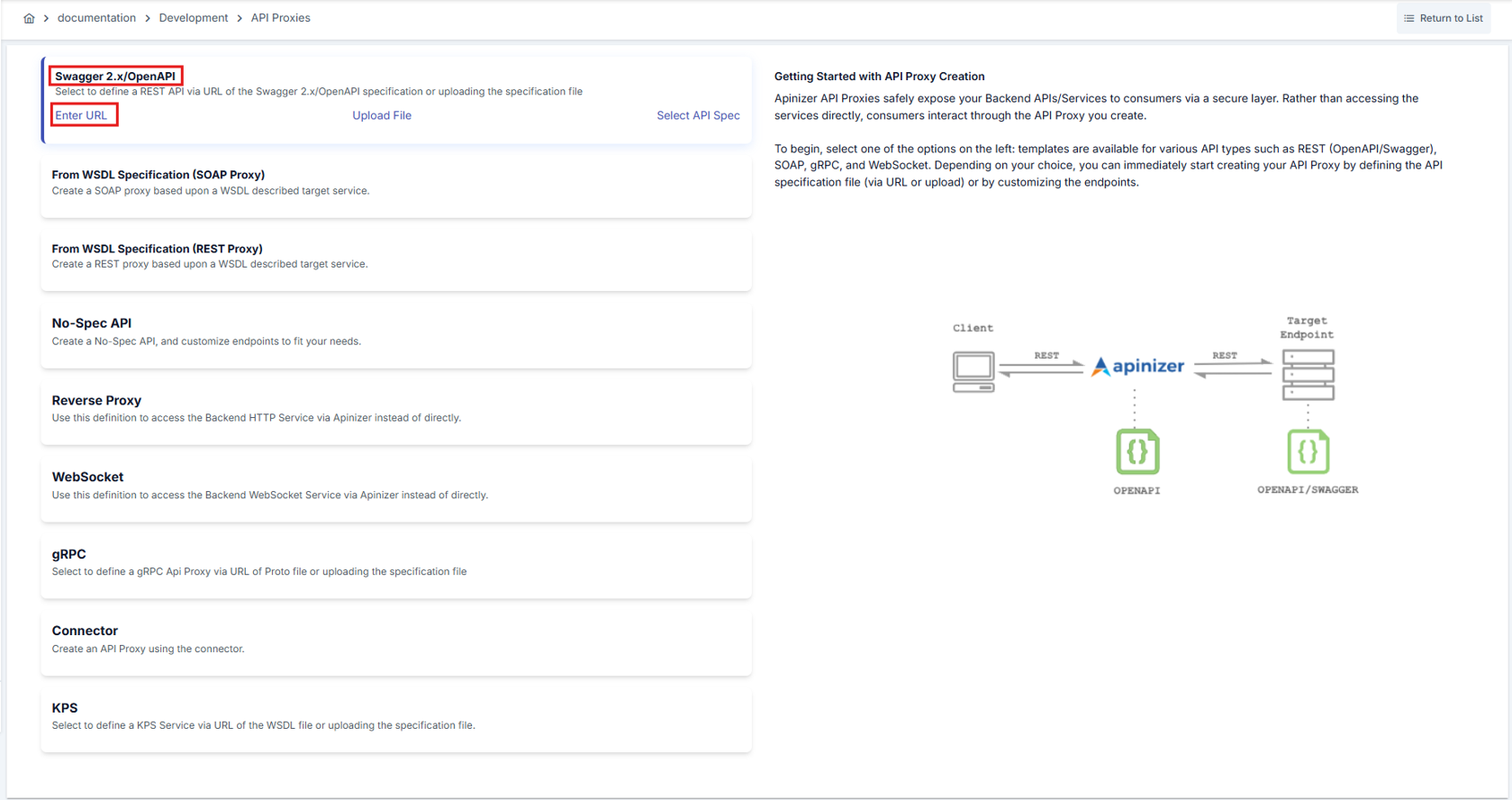
Enter the address to be accessed in the URL section and click the Parse button.

After the Parse operation is performed, settings for the API Proxy can be made:
- The Usage field specifies who will use the created API Proxy. Options such as publisher, consumer, publisher and consumer are available here.
- The Sharing Type field specifies the sharing type of the created API Proxy. Options such as external, internal, external and internal are available here.
- One or both of the two API addresses under the Addresses tab can be selected. If both addresses are selected, Apinizer will perform the Load Balance operation itself.
- Relative Path is the address where the created API Proxy will be opened for access.
- The Category List field also allows categorization of the created API Proxy.
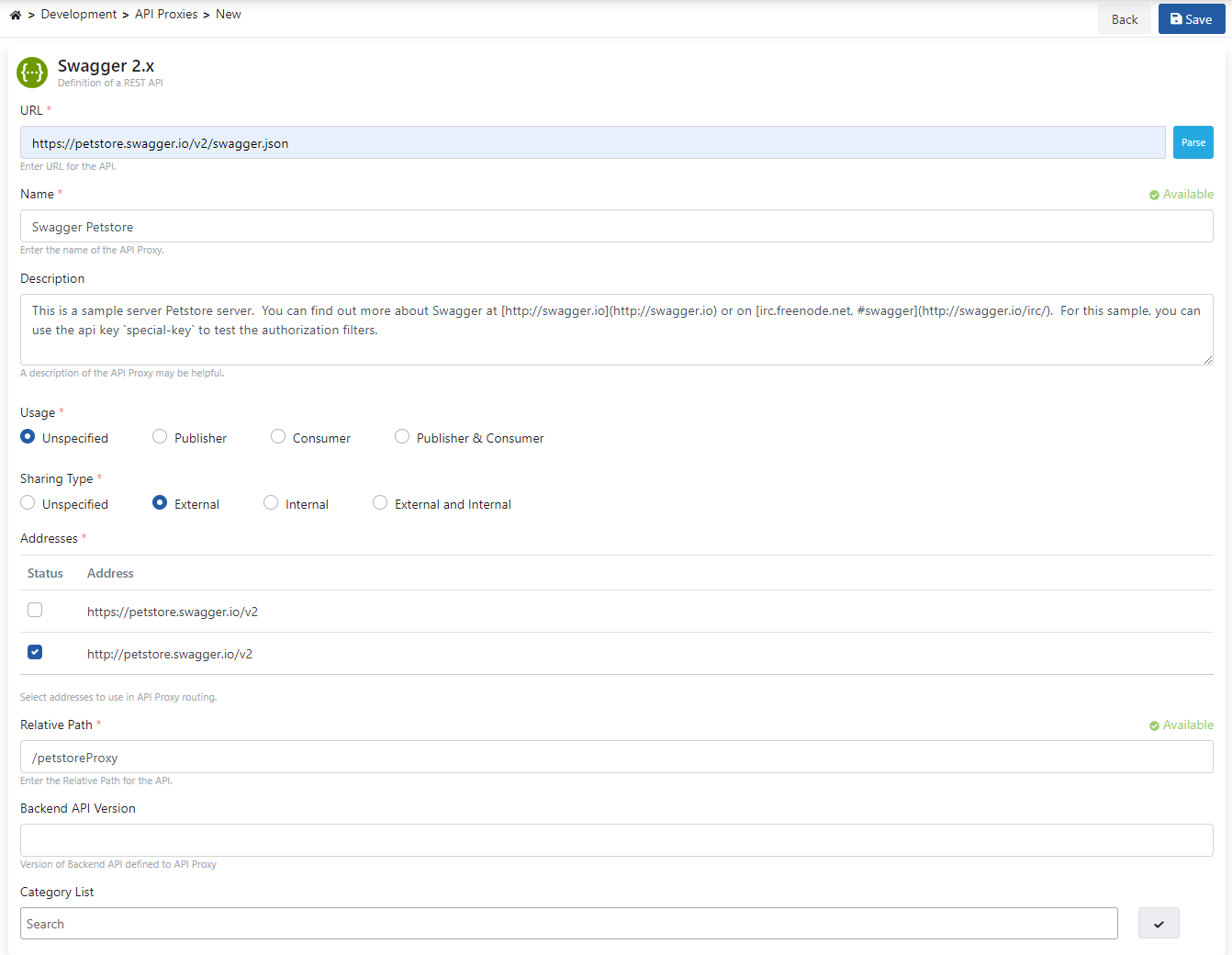
After these settings are made, the API Proxy is saved.
After the save operation, click the Develop tab on the opened page.
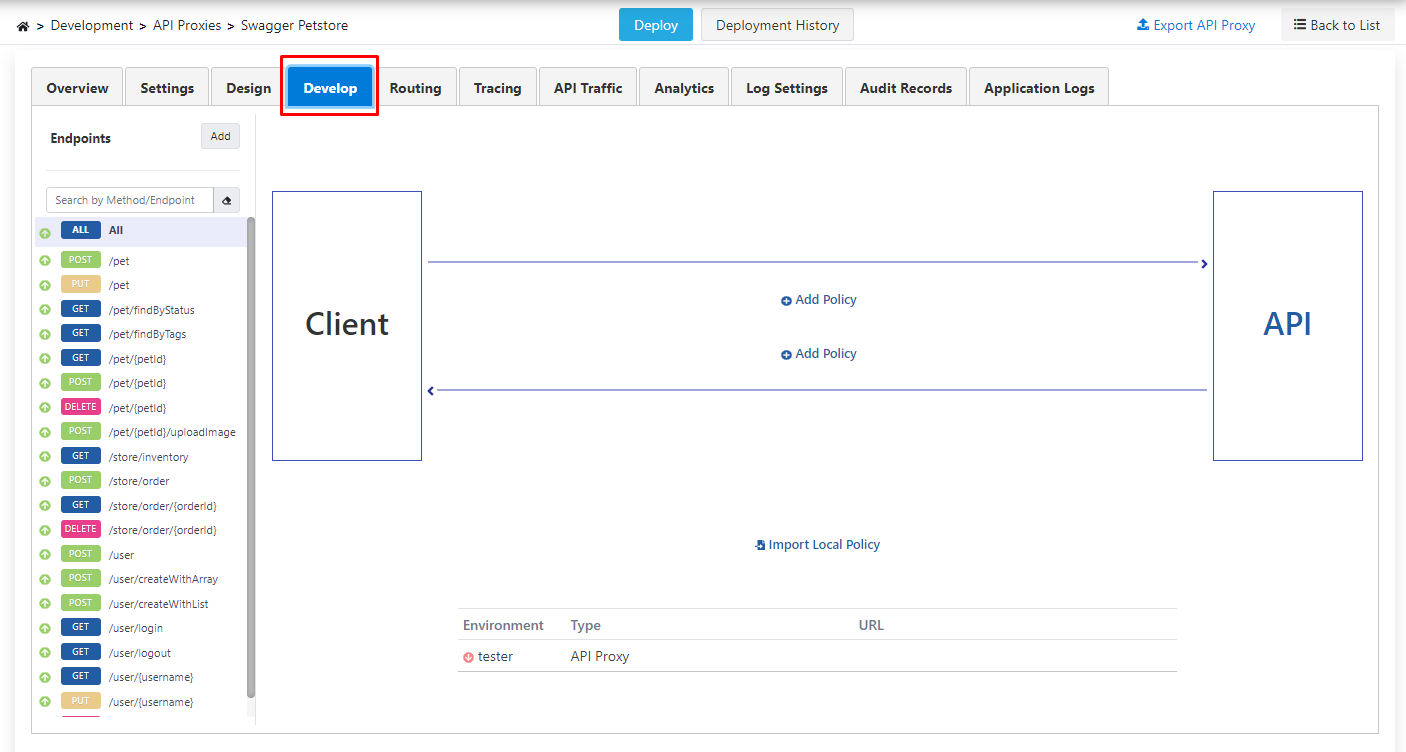
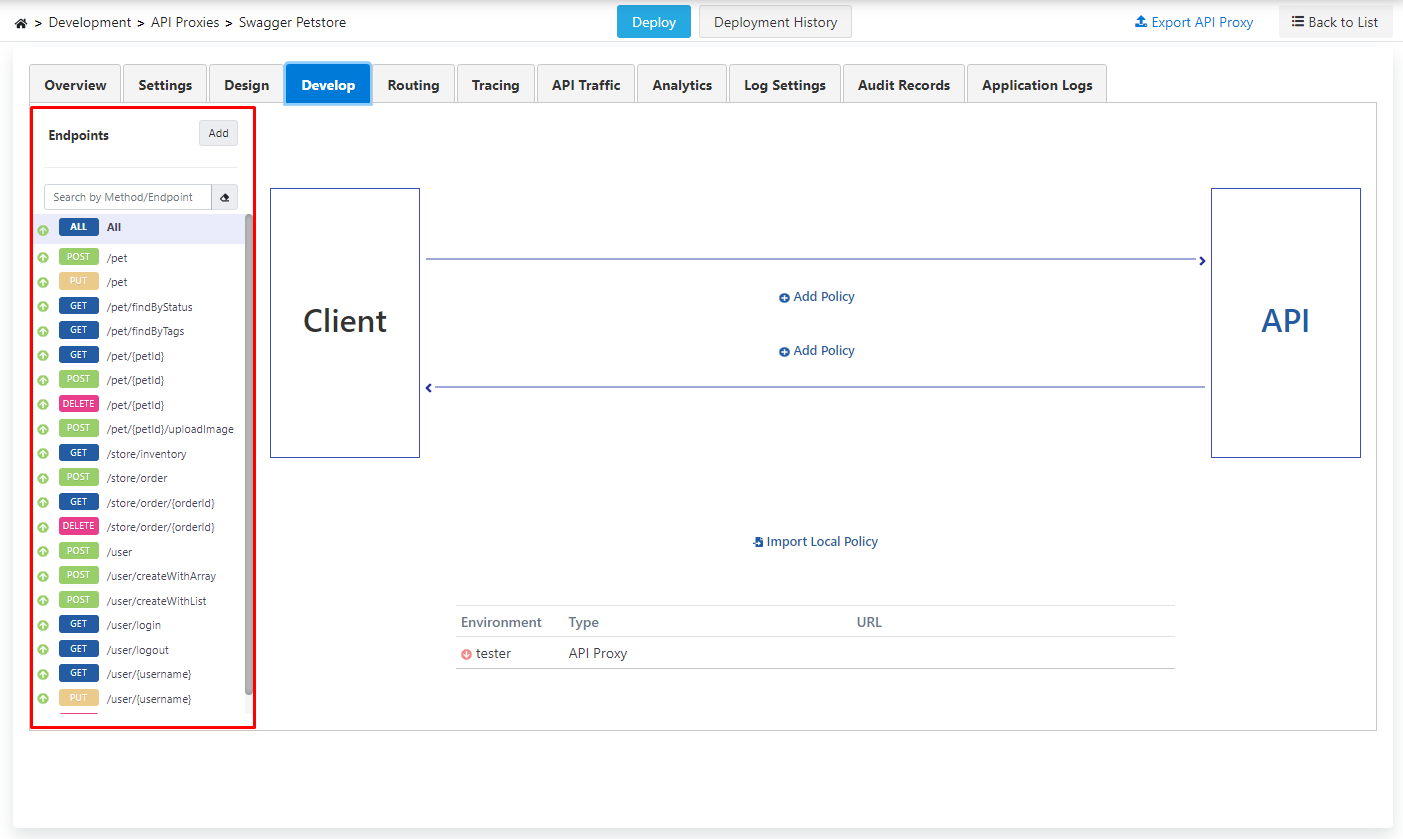
Policies to be added with the All expression above these endpoints can be applied to all endpoints.
The created API Proxy is deployed. For this, click the Deploy button in the middle section above.
Creating Consumers
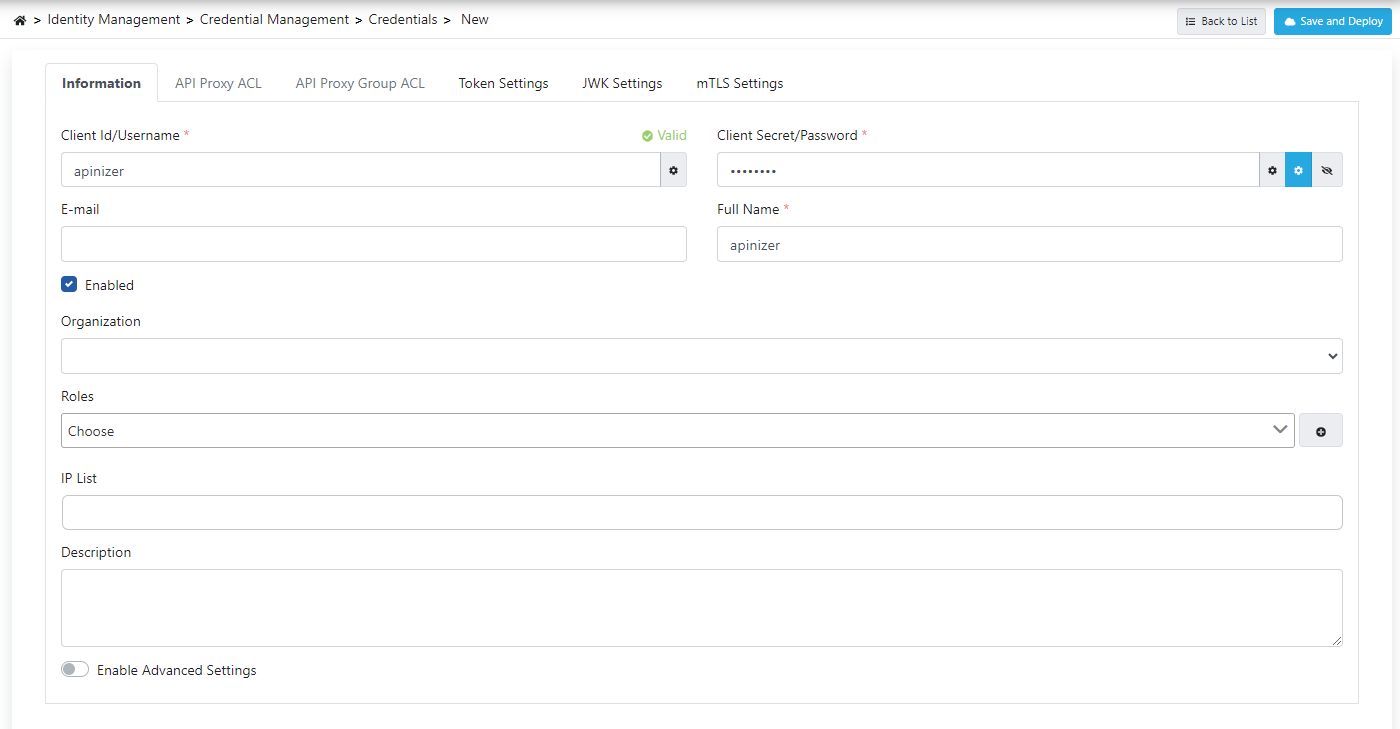
The information for the Consumer to be added will be username = apinizer, password = 123123aA.
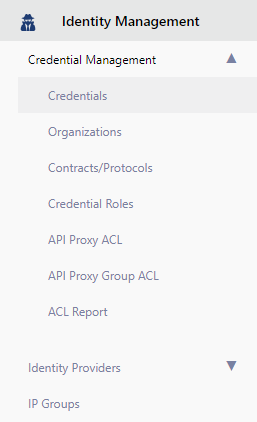
For this, go to the Identity Management menu.
Here, click the Consumers menu under the Consumer Management menu.
Click the Create button in the top right corner on the opened screen.

Here, the required fields are filled with the previously specified information and the created consumer is saved by clicking the Save and Deploy button.
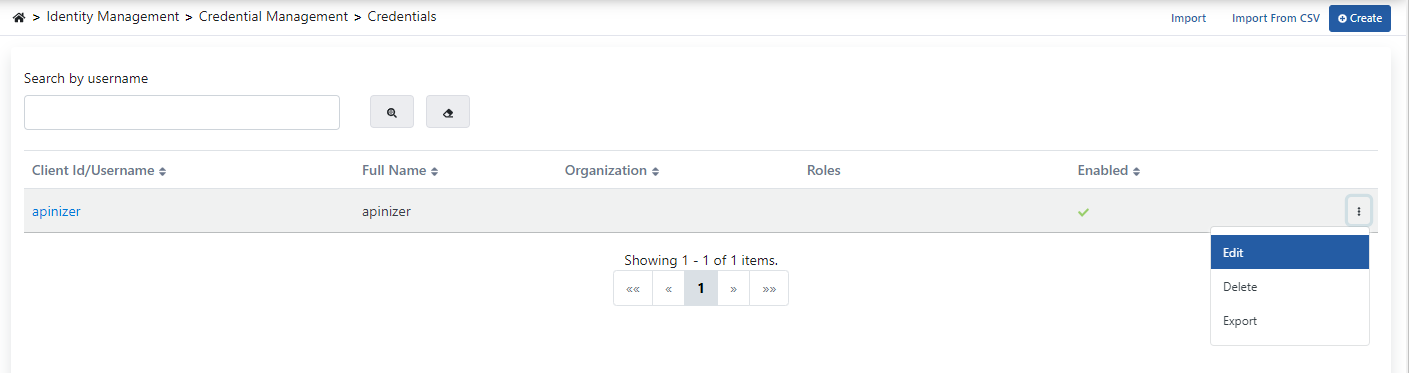
The proxy that this consumer element will provide access to must be selected. Hover over the created consumer and click the Edit option from the menu on the side.
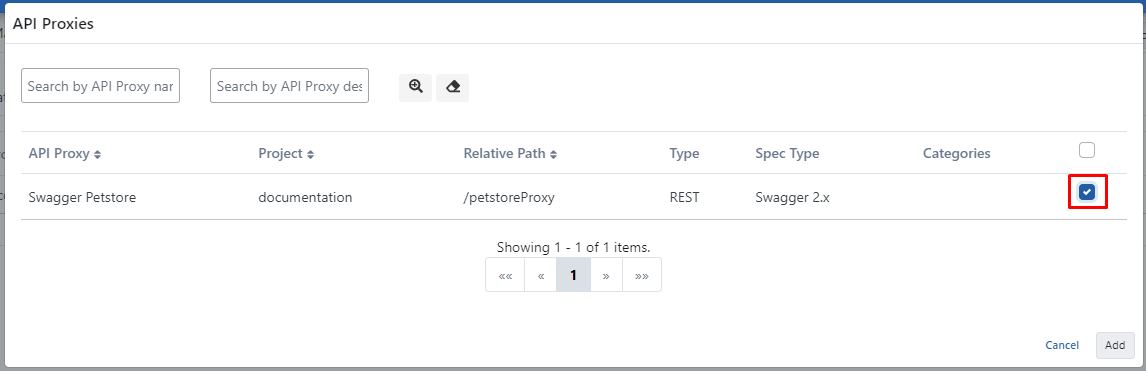
Click the API Proxy ACL tab from the opened screen, and click the button in this tab.

On the opened page, API Proxies in the project currently being worked on are listed. The proxy named Swagger Petstore is selected.
Click the Add button to specify that the created Consumer element will have access to this proxy.
Click the Save and Deploy button in the top right corner and save the operation.
Adding Authentication Policy
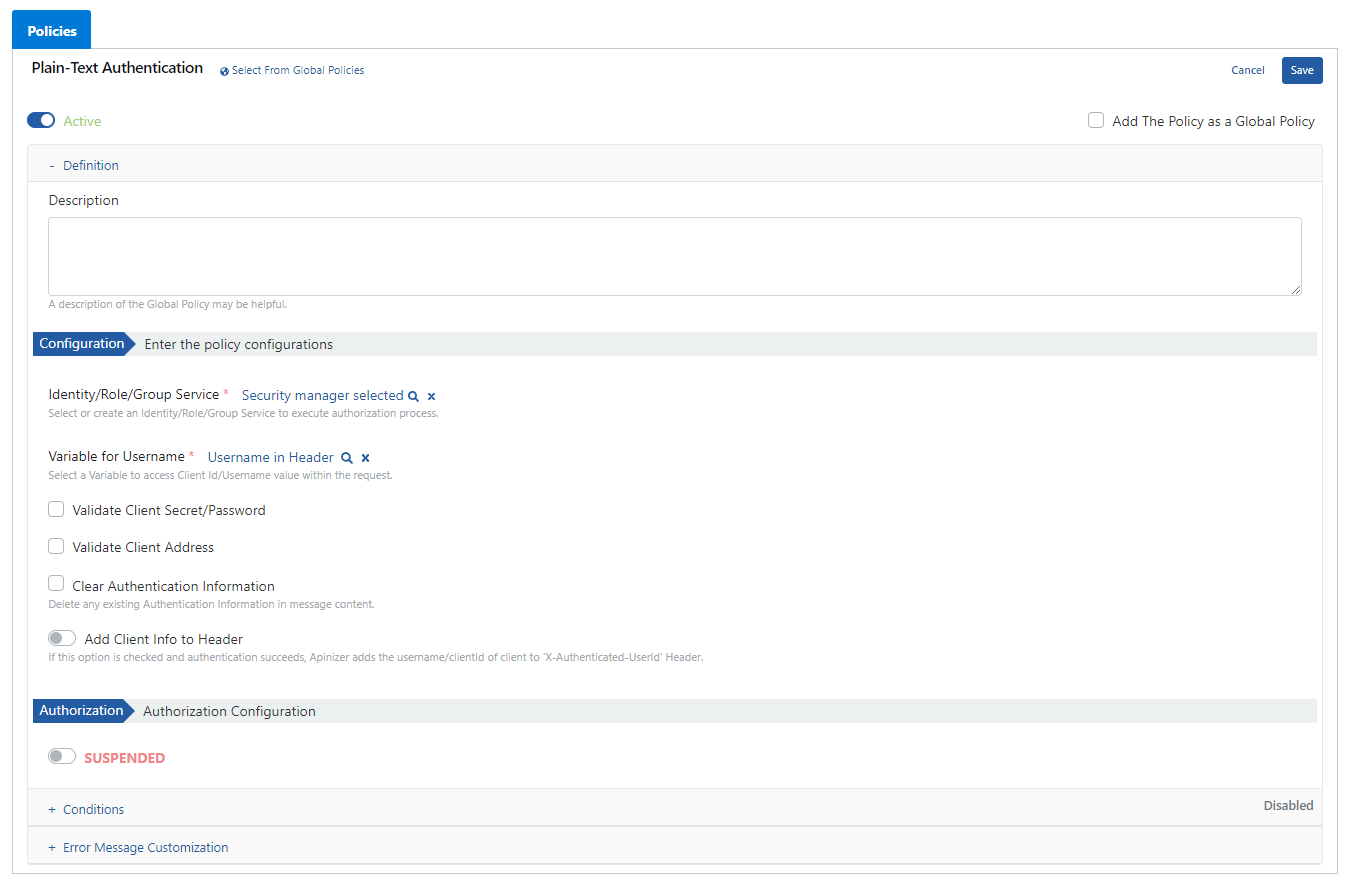
The Plain-Text Authentication policy can now be added.
Go to the page where API Proxies are listed and select the proxy named Swagger Petstore from here.
Then go to the Develop tab and click the Add Policy button.
On the opened page, the Plain-Text Authentication policy is selected.
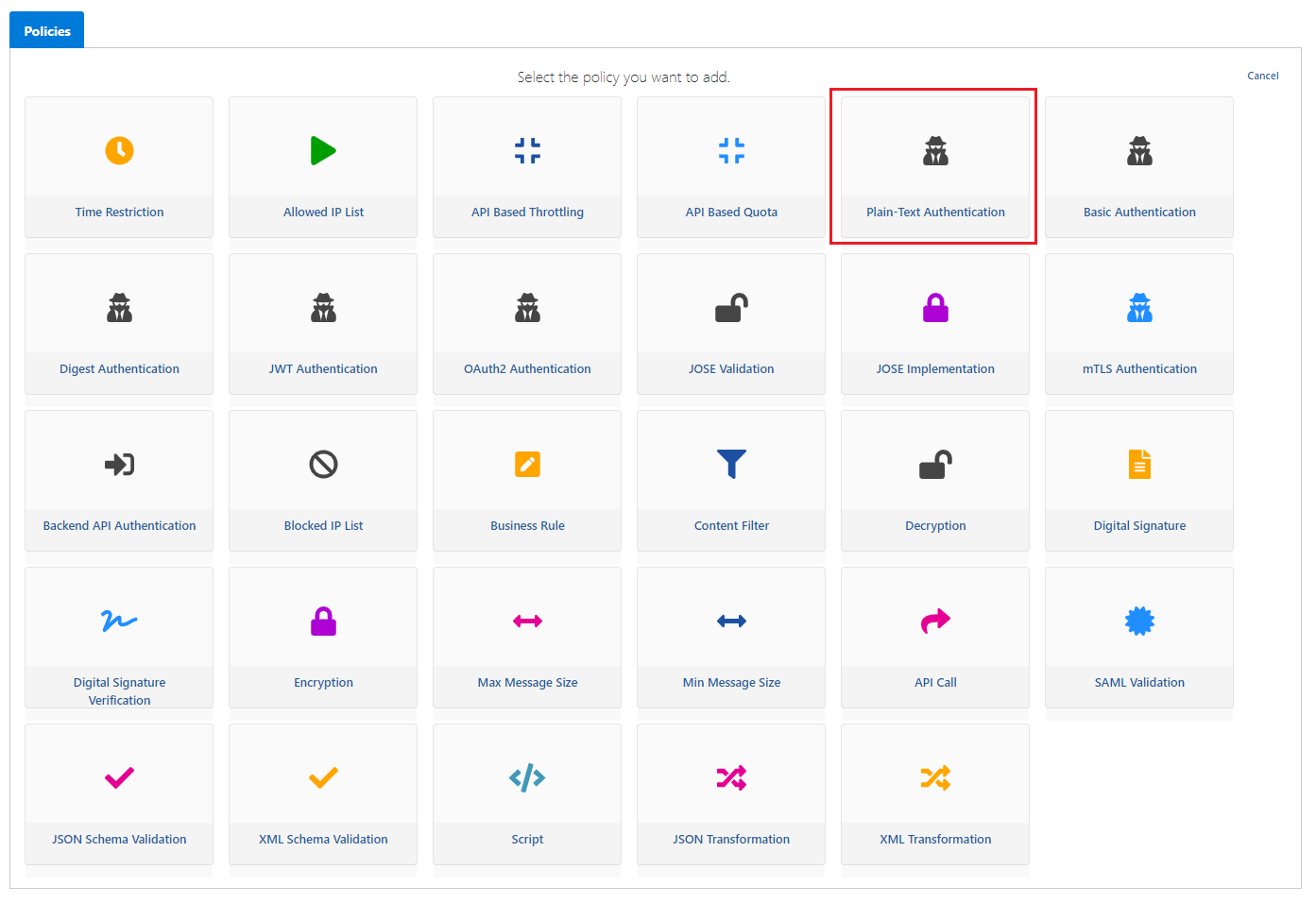
The fields on this screen:
- The value to be selected in the Identity/Role/Group Service field is the Security Manager value. Because credentials control will be performed by Security Manager.
- The Variable for username and variable for password expressions also select which variable the username and password information will be retrieved with. In this scenario, these values will be retrieved from header.
If the Clear Authentication Information option is selected, authentication information in the incoming message is deleted. Activating this setting is always recommended unless there is a special situation.
- The Add Client Info To Header option specifies whether client information will be present in the Header going to the backend API.
- If this option becomes active, another parameter named Authenticated User Header Name appears.
- The X-Authenticated-UserId expression here specifies the header name with which the client information going to the backend API will go.
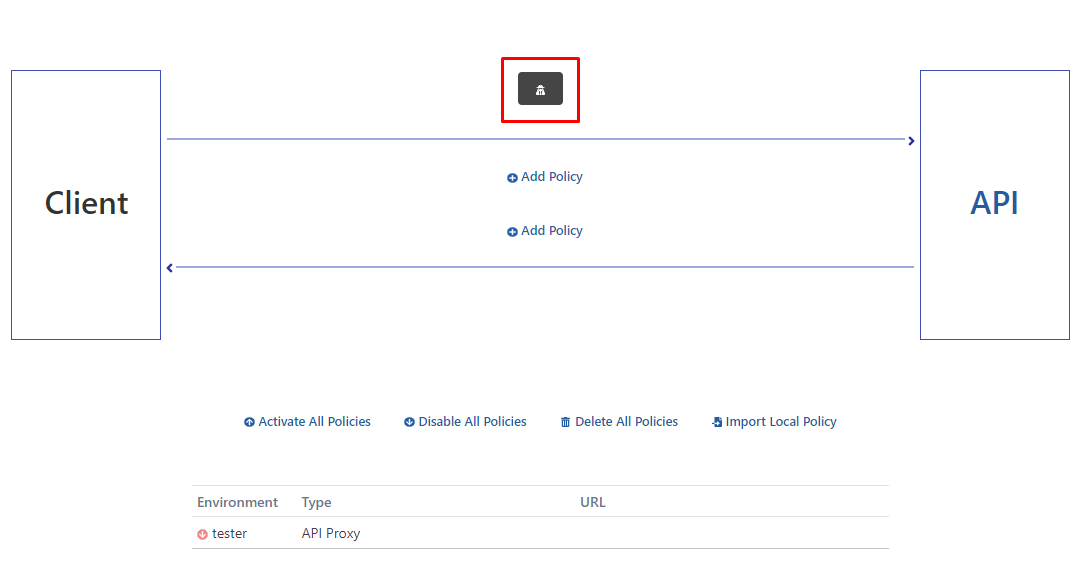
The relevant icon is seen when the policy is registered.
For the operation to be valid, the proxy must be Deployed.
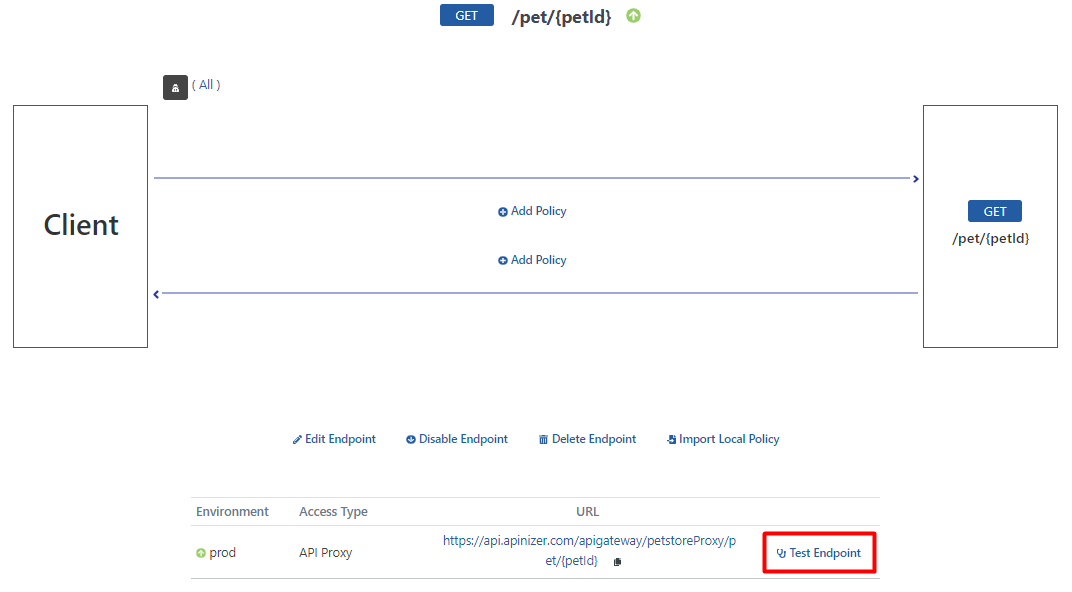
Testing the API Proxy
After selecting the "/pet/{petId}" endpoint, click the Test Endpoint button.
Enter the desired petId value as "1" in the URL, and when the Send button is pressed, it is seen that the returned response is an error message.
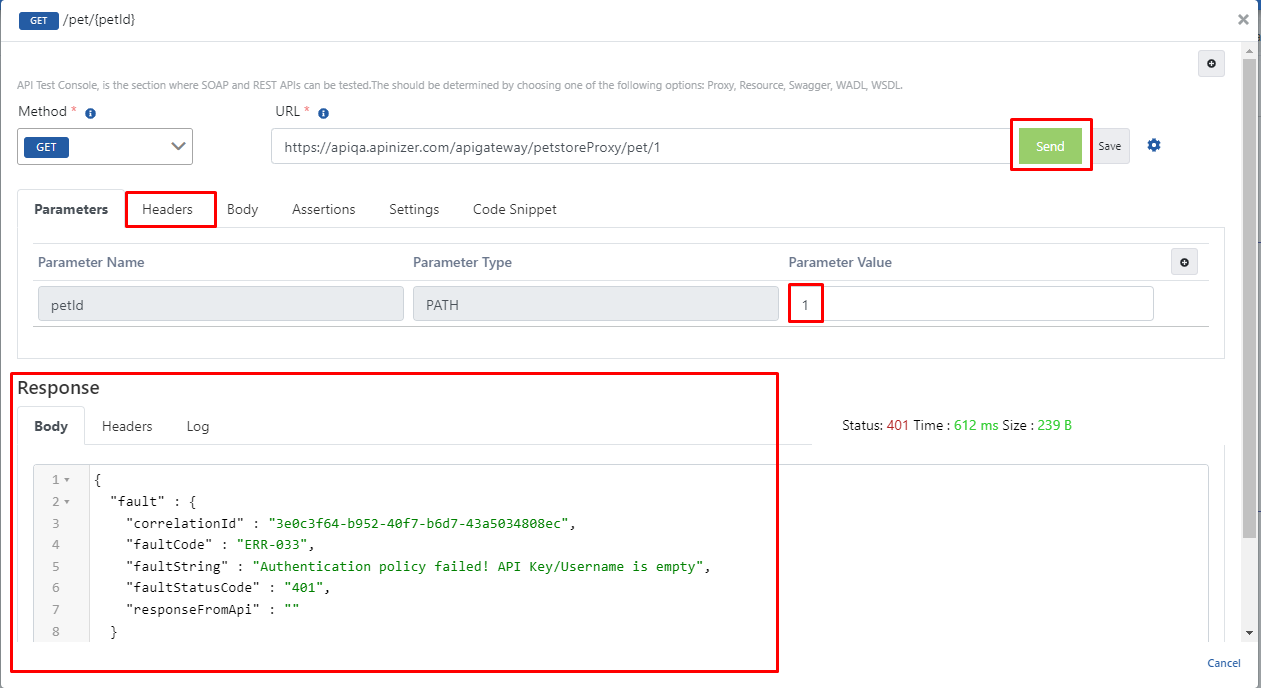
It is seen that this error is related to the applied Plain-Text Authentication. Because no authentication information has been placed in the header in any way.
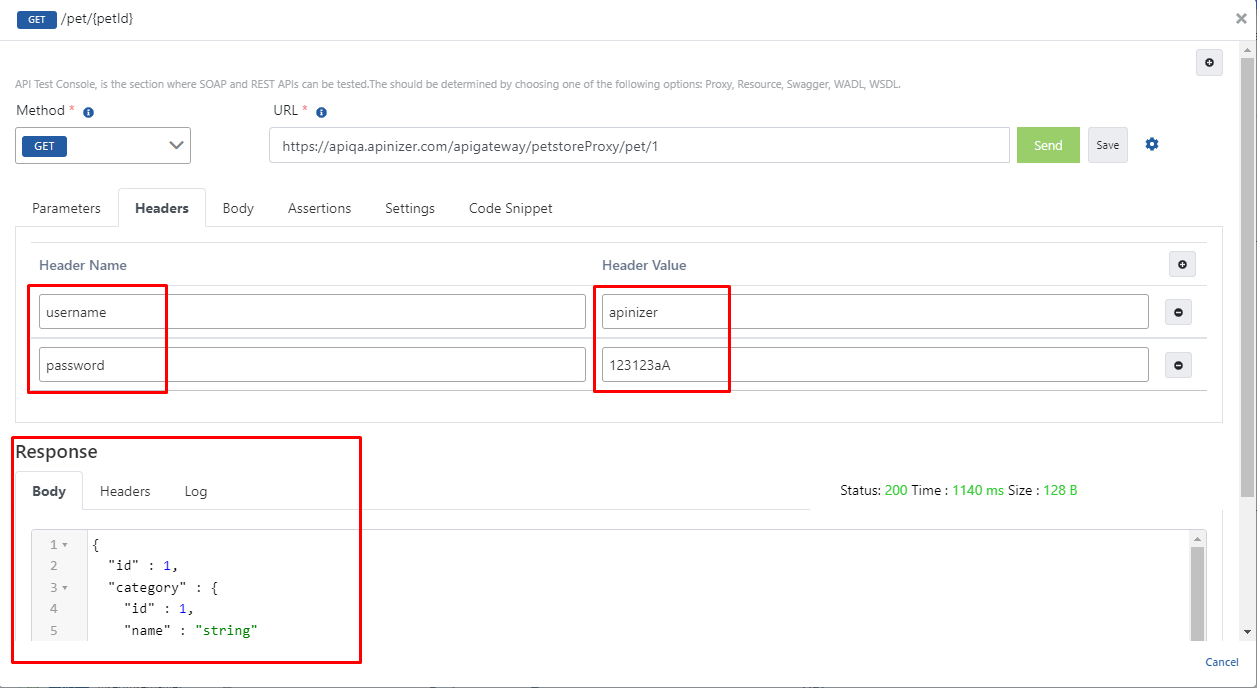
This time, enter username and password expressions in the header and repeat the test.
Enter the values username = apinizer, password = 123123aA in the headers to be sent to the Backend API.
When the Send button is clicked, a successful response is received.