Application of mTLS Authentication Policy
Creating Certificates, Keystore and Truststore for MTLS (Mutual TLS)
To run keytool commands, you must be in the path where Java is installed or Java's bin directory must be defined in your environment variables.
It is recommended that you use Java version 1.8.400 or later for private keys to be created correctly.
If Apinizer is behind NGINX or a different Load Balancer, or if SSL offloading is done by the firewall, certificates cannot reach Apinizer, so settings must be made in these tools for certificates to pass to Apinizer.
Step 1: Creating CA Certificate and Key
The CA certificate is used to sign both client and server certificates. This ensures that both parties can verify each other.
If you have a CA Certificate, you can continue from Step 2.
Create CA private key
openssl genpkey -algorithm RSA -out ca-key.pem
This command creates a CA private key (ca-key.pem) using the RSA algorithm. This key will be used to sign the CA certificate.
Create CA certificate
openssl req -x509 -new -nodes -key ca-key.pem -sha256 -days 365 -out ca-cert.pem -subj "/C=US/ST=California/L=San Francisco/O=MyOrg/OU=MyDept/CN=MyRootCA"
This command creates a CA certificate (ca-cert.pem) that will be valid for one year ("-days 365") using the ca-key.pem key. This certificate will be used to sign client and server certificates.
Files created after Step 1:
ca-key.pem: CA private keyca-cert.pem: CA certificate
Step 2: Creating Keystore and Certificate for Server
The server needs its own certificate to be verified by the client. This certificate must be signed by the CA.
If you have already created server Keystore and Truststore values, you do not need to repeat this step for new clients. In this case, you can continue from step 3.
Create server private key and CSR
openssl req -new -newkey rsa:2048 -nodes -keyout server-key.pem -out server.csr -subj "/C=US/ST=California/L=San Francisco/O=MyOrg/OU=MyDept/CN=server"
This command creates a private key (server-key.pem) and a CSR (server.csr) for the server. CSR is a certificate request to be signed by the CA.
Sign CSR with CA certificate
openssl x509 -req -in server.csr -CA ca-cert.pem -CAkey ca-key.pem -CAcreateserial -out server-cert.pem -days 365 -sha256
This command signs the server CSR (server.csr) using the CA certificate (ca-cert.pem) and CA key (ca-key.pem) and creates a server certificate (server-cert.pem) that will be valid for one year.
Combine server private key and certificate in pfx format
openssl pkcs12 -export -out server-keystore.pfx -inkey server-key.pem -in server-cert.pem -certfile ca-cert.pem -passout pass:changeit
This command combines the server private key (server-key.pem), server certificate (server-cert.pem), and CA certificate (ca-cert.pem) to create a PFX file (server-keystore.pfx). The PFX file will be used as a keystore for use by Java applications.
"Files created after Step 2:"
server-key.pem: Server private keyserver.csr: Server CSRserver-cert.pem: Server certificateserver-keystore.pfx: Server keystore file (in PFX format)
Step 3: Creating Keystore and Certificate for Client
The client needs its own certificate to be verified by the server. This certificate must be signed by the CA.
If you are doing these operations on the server side, you need to share your CA certificate with your client so that this step can be performed by your client.
Create client private key and CSR
openssl req -new -newkey rsa:2048 -nodes -keyout client-key.pem -out client.csr -subj "/C=US/ST=California/L=San Francisco/O=MyOrg/OU=MyDept/CN=client"
This command creates a private key (client-key.pem) and a CSR (client.csr) for the client. CSR is a certificate request to be signed by the CA.
Sign CSR with CA certificate
openssl x509 -req -in client.csr -CA ca-cert.pem -CAkey ca-key.pem -CAcreateserial -out client-cert.pem -days 365 -sha256
This command signs the client CSR (client.csr) using the CA certificate (ca-cert.pem) and CA key (ca-key.pem) and creates a client certificate (client-cert.pem) that will be valid for one year.
Combine client private key and certificate in pfx format
openssl pkcs12 -export -out client-keystore.pfx -inkey client-key.pem -in client-cert.pem -certfile ca-cert.pem -passout pass:changeit
This command combines the client private key (client-key.pem), client certificate (client-cert.pem), and CA certificate (ca-cert.pem) to create a PFX file (client-keystore.pfx). The PFX file will be used as a keystore for use by Java applications.
"Files created after Step 3:"
client-key.pem: Client private keyclient.csr: Client CSRclient-cert.pem: Client certificateclient-keystore.pfx: Client keystore file (in PFX format)
Step 4: Creating TrustStore
TrustStore is used to verify the certificates of the other party. Both the server and client sides must have the CA certificate.
Import CA certificate into server truststore (If you have done this before, you can skip this step. This operation will be done once on the server side, do not repeat for each client! )
keytool -importcert -file ca-cert.pem -alias ca-cert -keystore server-truststore.pfx -storetype PKCS12 -storepass changeit -noprompt
This command imports the CA certificate (ca-cert.pem) into the server truststore (server-truststore.pfx). This truststore contains the CA certificate that the server will use to verify client certificates.
Import CA certificate into client truststore
keytool -importcert -file ca-cert.pem -alias ca-cert -keystore client-truststore.pfx -storetype PKCS12 -storepass changeit -noprompt
This command imports the CA certificate (ca-cert.pem) into the client truststore (client-truststore.pfx). This truststore contains the CA certificate that the client will use to verify server certificates.
"Files created after Step 4:"
server-truststore.pfx: Server truststore file (in PFX format)client-truststore.pfx: Client truststore file (in PFX format)
Summary
"As a result of these steps, we have the following files:"
On the CA Side, "the following files to be used to sign client and server certificates were created:"
ca-key.pem: CA private keyca-cert.pem: CA certificate
On the Server Side: private key and CSR were created for the server. CSR was signed by the CA and server certificate was obtained. This certificate and private key were converted to server keystore file (server-keystore.pfx):
server-key.pem: Server private keyserver.csr: Server CSRserver-cert.pem: Server certificateserver-keystore.pfx: Server keystore file (in PFX format)server-truststore.pfx: Server truststore file (in PFX format)
On the Client Side: own private key and CSR were created for the client. CSR was signed by the CA and client certificate was obtained. This certificate and private key were converted to client keystore file (client-keystore.pfx).
client-key.pem: Client private keyclient.csr: Client CSRclient-cert.pem: Client certificateclient-keystore.pfx: Client keystore file (in PFX format)client-truststore.pfx: Client truststore file (in PFX format)
Setting Up Client Certificate for Apinizer
After these operations are completed, the user-truststore.pfx file is created for the client's certificate to be verified in Apinizer and added to Apinizer from the KeyStores screen.
keytool -import -trustcacerts -file client-cert.pem -keypass password -storepass changeit -keystore user-truststore.pfx -deststoretype pkcs12
The added user-truststore.pfx file is found on the Consumer page for whichever client it was created for and is selected in the TrustStore field in the Secret panel.
The .p12 and .pfx extensions actually specify the same file format - PKCS#12. PKCS#12 is a file format that typically contains a server certificate, associated private key, and optionally any intermediate certificates.
.pfx is generally used on Windows platform, while .p12 is generally used on Unix or Linux-based systems. However, there is no difference between these two file extensions and you do not need to perform any operation to convert one extension to another.
-
The following command can be used to convert p12 format to jks:
keytool -importkeystore -srckeystore serverkeystore.pfx -srcstoretype pkcs12 -destkeystore serverkeystore.jks -deststoretype jks- The following command can be used to convert jks format to pfx/p12:
keytool -importkeystore -srckeystore serverkeystore.jks -srcstoretype jks -destkeystore serverkeystore.pfx -deststoretype pkcs12
Uploading Created User Truststore to Apinizer
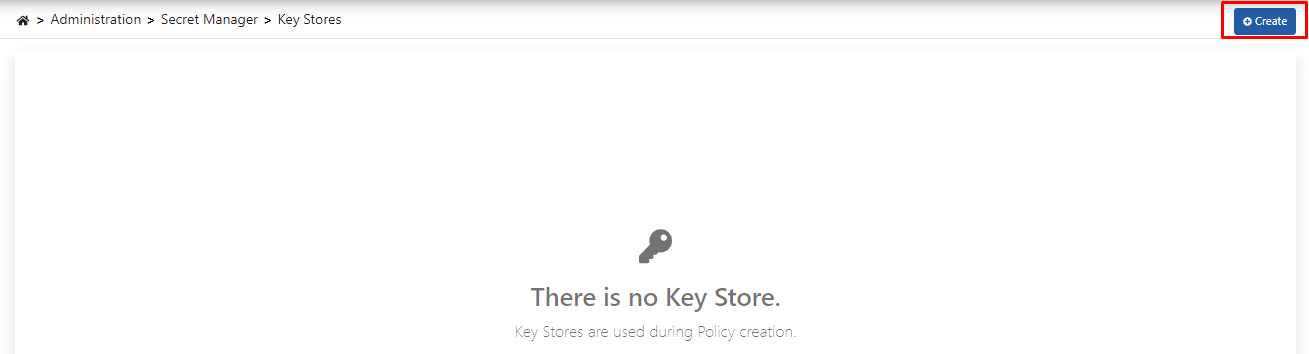
Click the Create button from the Key Stores screen.
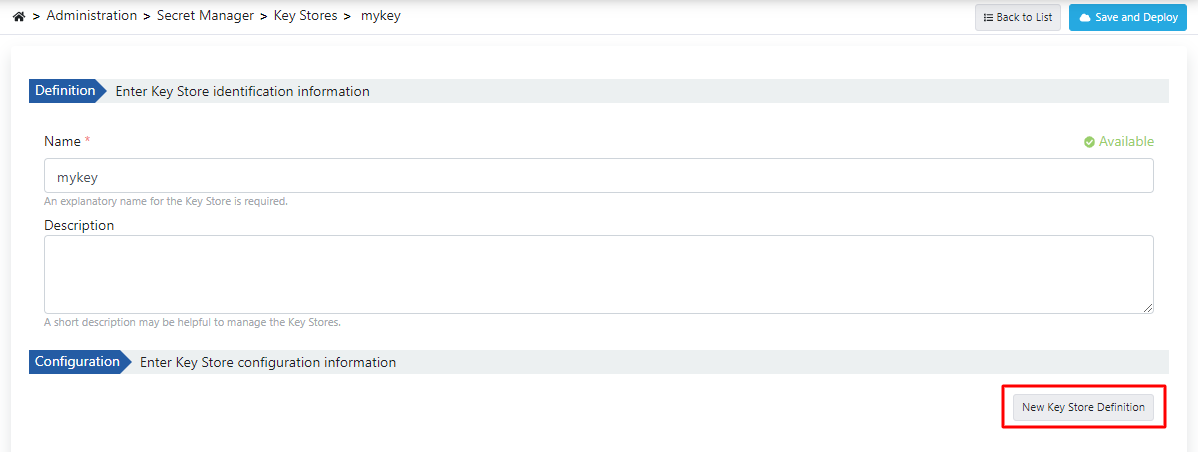
Click the New Key Store Definition button from the opened screen.
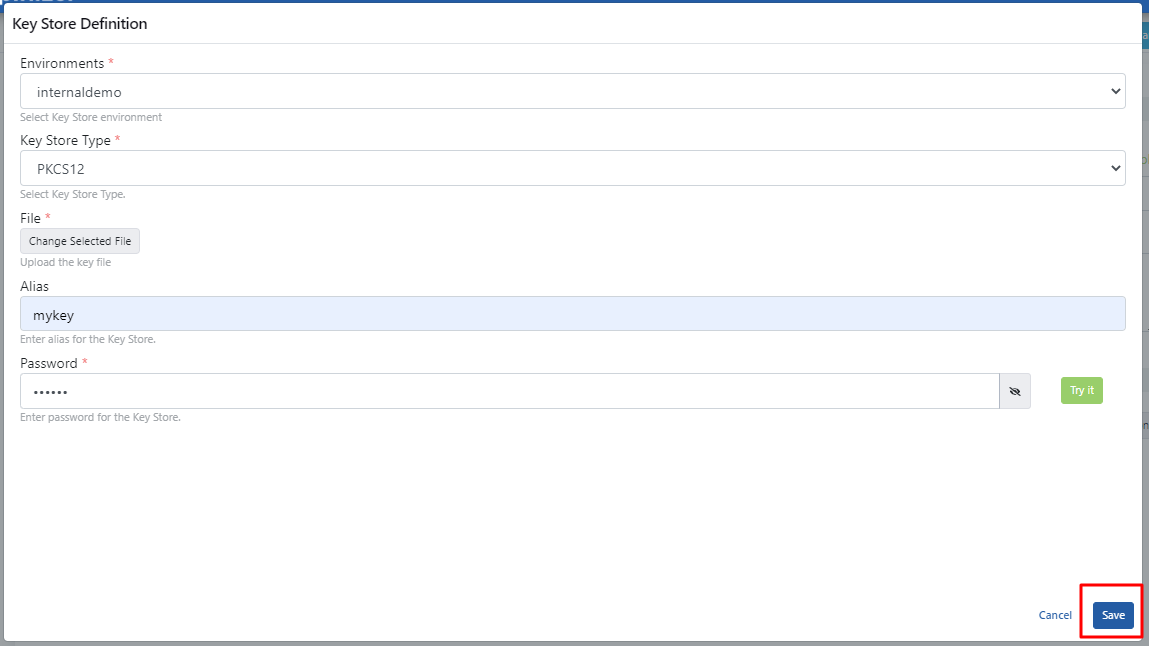
Select the created user-truststore.pfx file, enter the necessary information, and click the Save button.
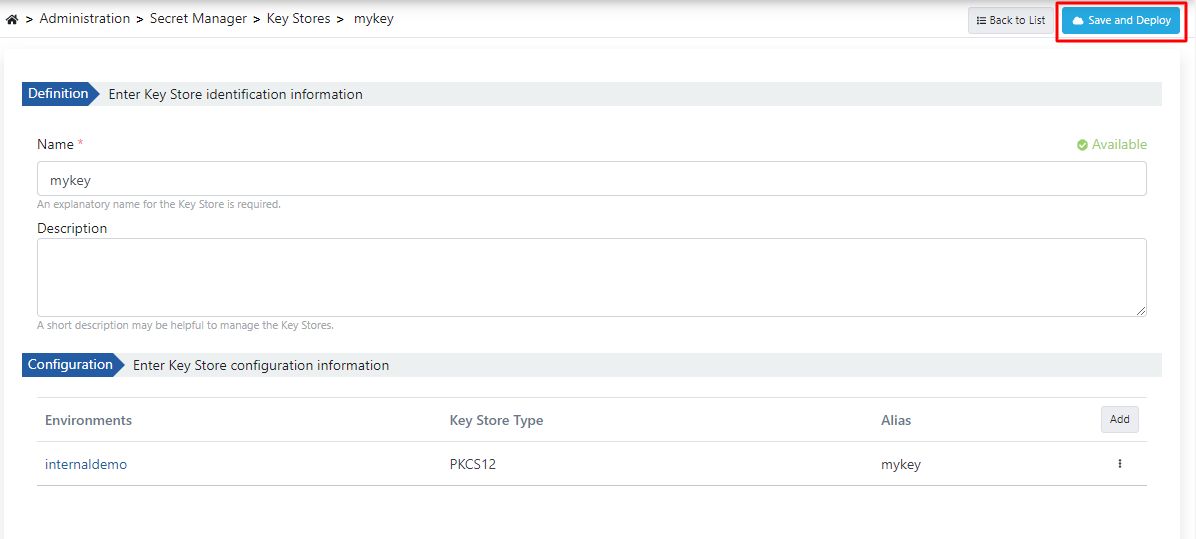
Click the Save and Deploy button to save the client keystore.
Making Necessary Settings on Apinizer Environments
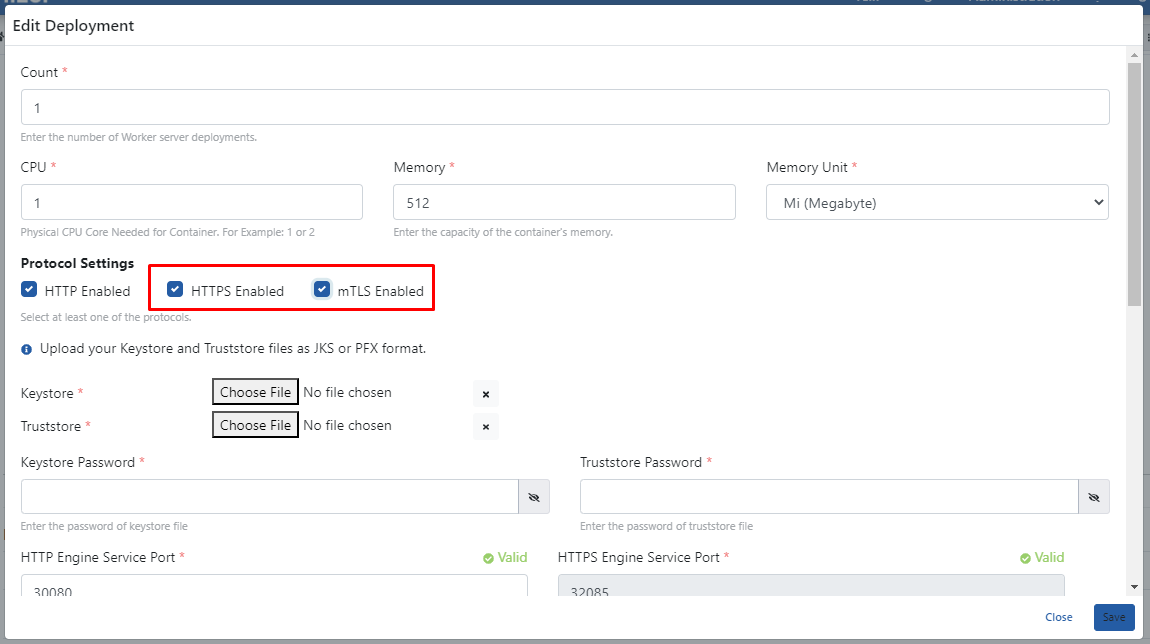
For the mTLS policy to be usable, SSL Offloading must be done on Apinizer Environment's and the mTLS option must be selected.
For this, the HTTPS Enabled option and the mTLS options that come with it are activated on the Gateway Environment's deployment settings.
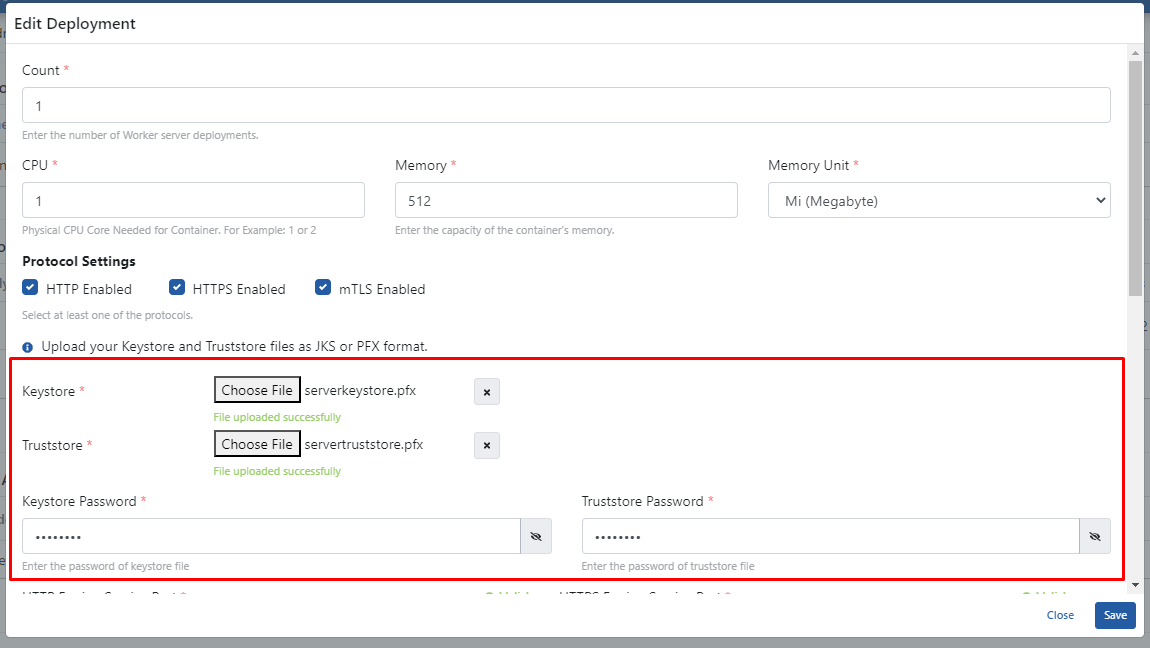
The created server-keystore.pfx and server-truststore.pfx files are added. Password information is entered. Click the Save button.
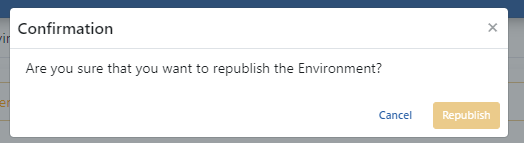
After saving, Republish is required.
Adding mTLS Authentication Policy to API Proxy
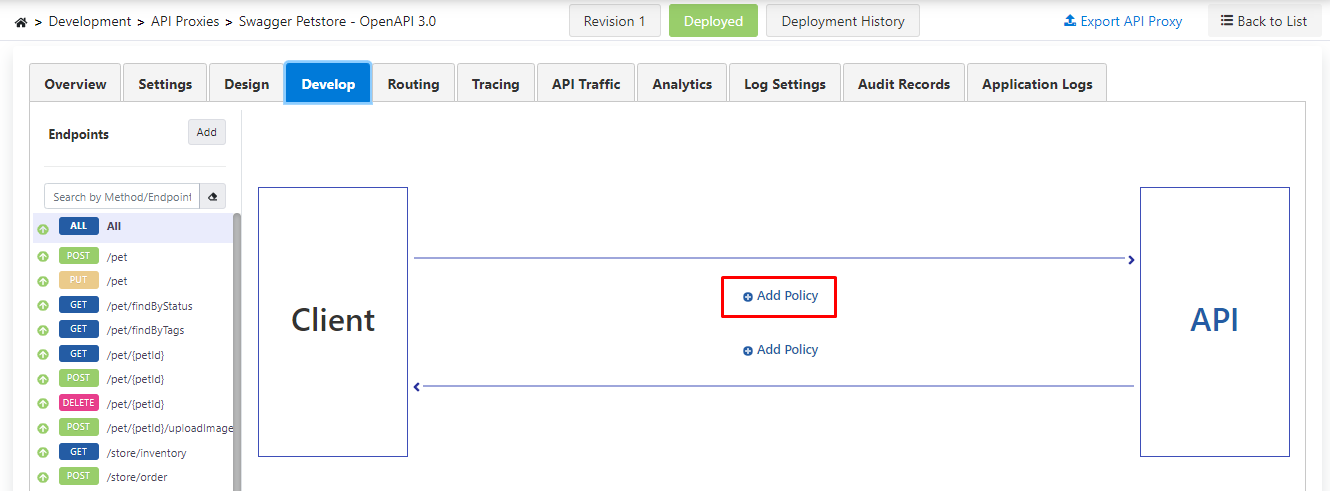
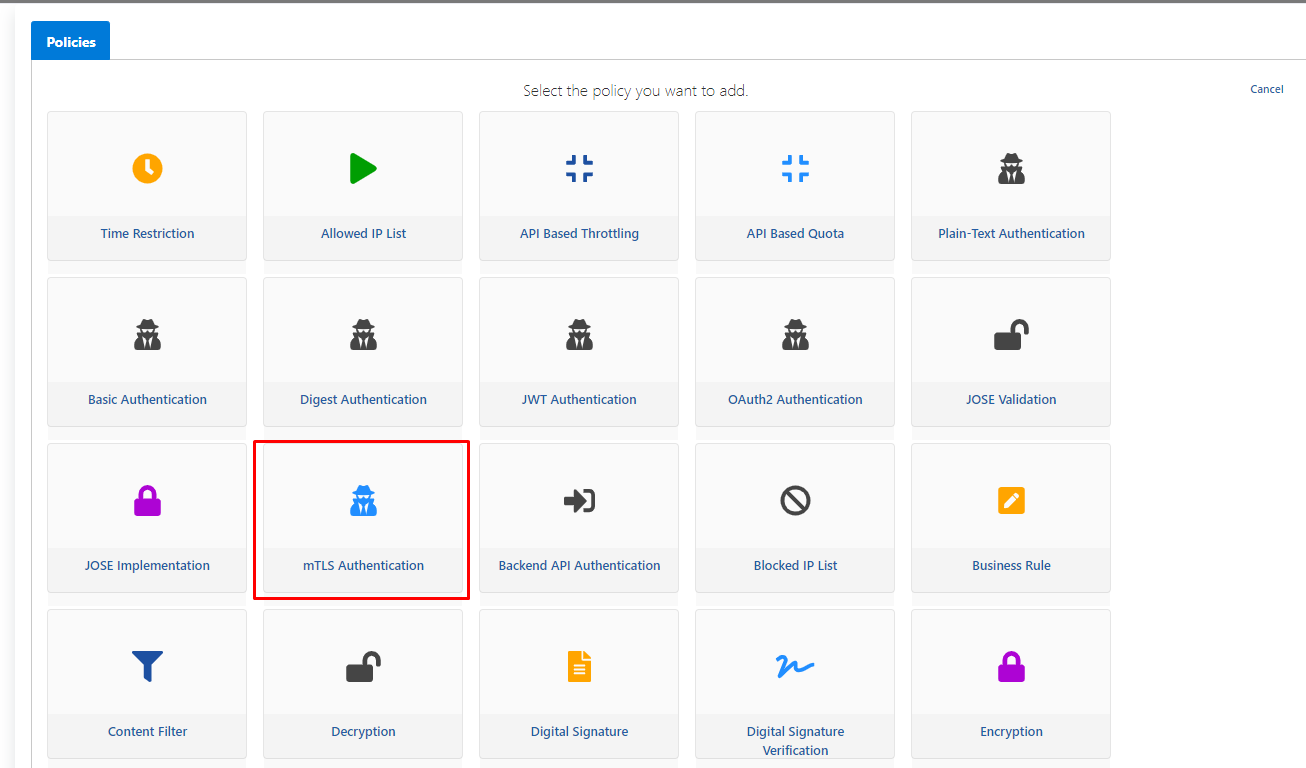
Click the Add Policy link from the Development (Develop) tab of the API Proxy.
mTLS is selected from the policies.
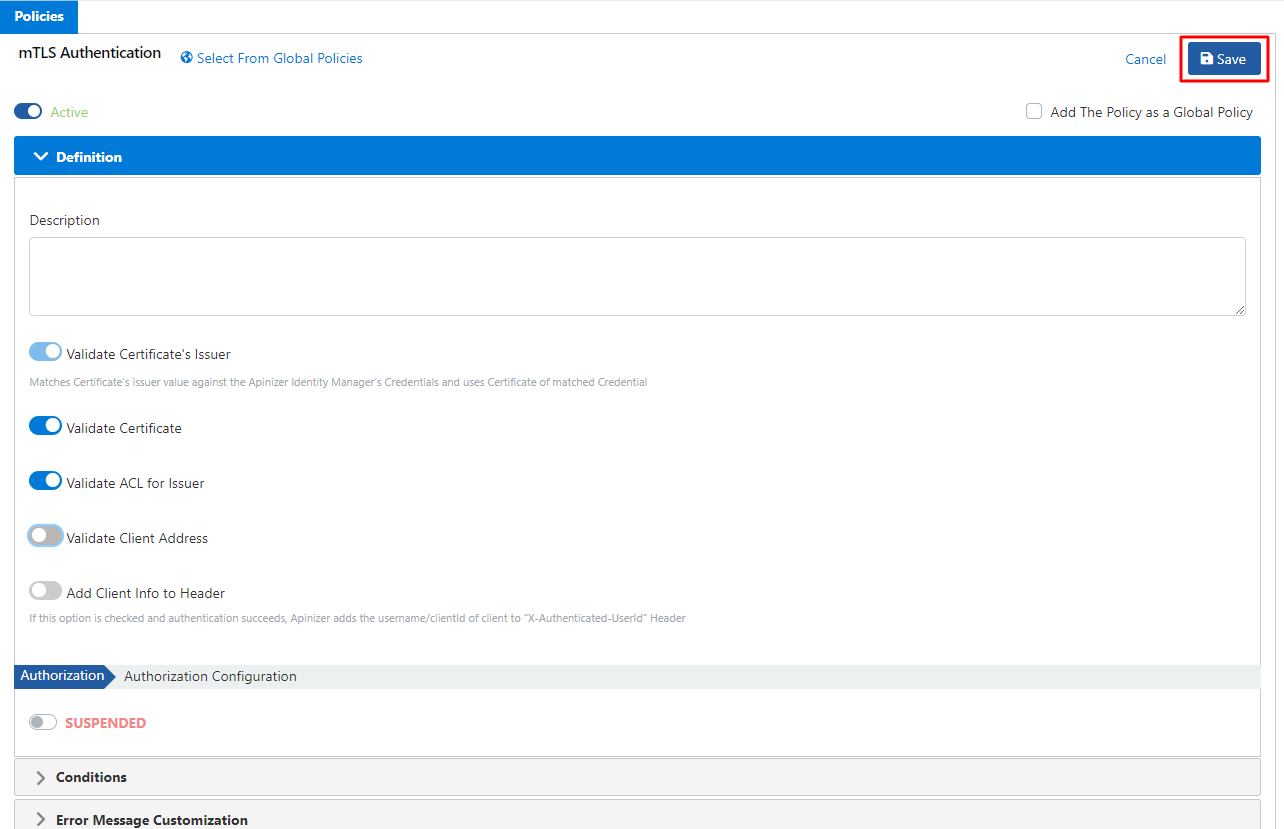
Policy settings are made as follows and the Save button is clicked.
Click here for detailed information about mTLS Settings.
Consumer's mTLS Settings
The username of the consumer is determined by the Identity Source selection in the policy. These two settings must be consistent with each other; otherwise the request is rejected even when the certificate is valid.
| Identity Source in the policy | Username of the consumer | Its value in this scenario |
|---|---|---|
| Certificate Issuer (Issuer CN) | Name of the authority that signed the certificate | MyRootCA |
| Certificate Subject (Subject CN) | Name of the client certificate itself | client |
| Subject, then Issuer (default) | Either can be used; the subject name is searched first, and the issuer name if not found | client or MyRootCA |
In this scenario both naming approaches work with the default setting. Use the MyRootCA name if you want to gather all clients issued by the authority under a single identity; use the client name and select the Certificate Subject option in the policy if you want to recognize each client individually and be able to revoke a single client's access independently.
For detailed information about the Identity Source option and its meanings, see the Identity Source section on the mTLS Authentication policy page.
The API Proxy with the mTLS policy must be added to the API Proxy Access card on the consumer's Access Control tab.
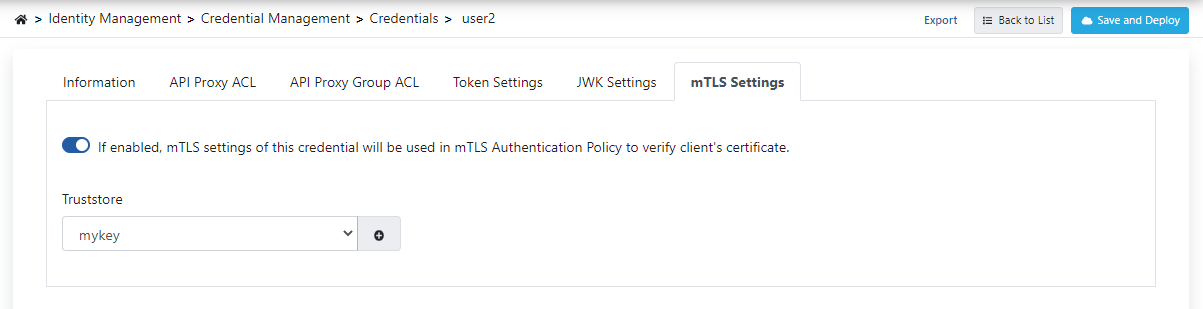
The truststore is selected in the Truststore field on the consumer's Secrets tab:
Making Request to API Proxy
A request can be made to the API Proxy with the following client Java code example and its pom file.
Example Java Code:
package mtls;

import org.apache.http.HttpEntity;
import org.apache.http.client.methods.CloseableHttpResponse;
import org.apache.http.client.methods.HttpGet;
import org.apache.http.conn.ssl.SSLConnectionSocketFactory;
import org.apache.http.impl.client.CloseableHttpClient;
import org.apache.http.impl.client.HttpClients;
import org.apache.http.ssl.SSLContexts;
import org.apache.http.util.EntityUtils;

import javax.net.ssl.KeyManagerFactory;
import javax.net.ssl.SSLContext;
import javax.net.ssl.TrustManagerFactory;
import java.io.FileInputStream;
import java.security.KeyStore;

public class MTLSClientTest {
    public static void main(String[] args) throws Exception {
        KeyStore keystore = KeyStore.getInstance("PKCS12");
        keystore.load(new FileInputStream("/Users/mhy/Downloads/mtls/client-keystore.pfx"), "changeit".toCharArray());

        KeyManagerFactory keyManagerFactory = KeyManagerFactory.getInstance(KeyManagerFactory.getDefaultAlgorithm());
        keyManagerFactory.init(keystore, "changeit".toCharArray());

        SSLContext sslContext = SSLContext.getInstance("TLS");
        SSLConnectionSocketFactory sslConnectionSocketFactory;
        boolean verifyServerCertificate=true;

        if(verifyServerCertificate){
            //if verifying server certificate is needed, use this code:
            KeyStore truststore = KeyStore.getInstance("PKCS12");
            truststore.load(new FileInputStream("/Users/mhy/Downloads/mtls/client-truststore.pfx"), "changeit".toCharArray());

            TrustManagerFactory trustManagerFactory = TrustManagerFactory.getInstance(TrustManagerFactory.getDefaultAlgorithm());
            trustManagerFactory.init(truststore);

            sslContext.init(keyManagerFactory.getKeyManagers(), trustManagerFactory.getTrustManagers(), null);
            sslConnectionSocketFactory = new SSLConnectionSocketFactory(sslContext);
        }else{
            //if verifying server certificate is NOT needed, use this code:
            sslContext = SSLContexts.custom()
                    .loadKeyMaterial(keystore, "changeit".toCharArray())
                    .loadTrustMaterial((chain, authType) -> true) // Trust all certificates
                    .build();
            sslConnectionSocketFactory = new SSLConnectionSocketFactory(sslContext);
        }

        CloseableHttpClient httpClient = HttpClients.custom()
                .setSSLSocketFactory(sslConnectionSocketFactory)
                .build();

        HttpGet httpGet = new HttpGet("https://api.apinizer.com/apigw/mtls/pet/findByStatus?status=sold");

        try (CloseableHttpResponse response = httpClient.execute(httpGet)) {
            HttpEntity entity = response.getEntity();
            if (entity != null) {
                String responseBody = EntityUtils.toString(entity);
                System.out.println(responseBody);
            }
        } catch (Exception e) {
            e.printStackTrace();
        } finally {
            httpClient.close();
        }
    }
}
Pom:
<?xml version="1.0" encoding="UTF-8"?>
<project xmlns="http://maven.apache.org/POM/4.0.0"
         xmlns:xsi="http://www.w3.org/2001/XMLSchema-instance"
         xsi:schemaLocation="http://maven.apache.org/POM/4.0.0 http://maven.apache.org/xsd/maven-4.0.0.xsd">
    <modelVersion>4.0.0</modelVersion>
    <groupId>Jose-SenderReceiver</groupId>
    <artifactId>Jose-SenderReceiver</artifactId>
    <version>1.0-SNAPSHOT</version>
    <build>
        <plugins>
            <plugin>
                <groupId>org.apache.maven.plugins</groupId>
                <artifactId>maven-compiler-plugin</artifactId>
                <configuration>
                    <source>7</source>
                    <target>7</target>
                </configuration>
            </plugin>
        </plugins>
    </build>
    <dependencies>
        <dependency>
            <groupId>com.nimbusds</groupId>
            <artifactId>nimbus-jose-jwt</artifactId>
            <version>9.25.6</version>
        </dependency>
        <dependency>
            <groupId>org.bouncycastle</groupId>
            <artifactId>bcprov-jdk15to18</artifactId>
            <version>1.69</version>
        </dependency>
        <dependency>
            <groupId>org.apache.commons</groupId>
            <artifactId>commons-text</artifactId>
            <version>1.8</version>
        </dependency>
        {/* Apache HttpClient */}
        <dependency>
            <groupId>org.apache.httpcomponents</groupId>
            <artifactId>httpclient</artifactId>
            <version>4.5.13</version>
        </dependency>
        {/* SSLContext for mTLS */}
        <dependency>
            <groupId>org.apache.httpcomponents</groupId>
            <artifactId>httpcore-nio</artifactId>
            <version>4.4.13</version>
        </dependency>
        {/* BouncyCastle for mTLS */}
        <dependency>
            <groupId>org.bouncycastle</groupId>
            <artifactId>bcprov-jdk15to18</artifactId>
            <version>1.69</version>
        </dependency>
    </dependencies>
</project>