Application of JSON Transformation and Script Policy on Created Mock API
In this scenario, the application of JSON Transformation and Script policies to a Mock API created on Apinizer will be tested.
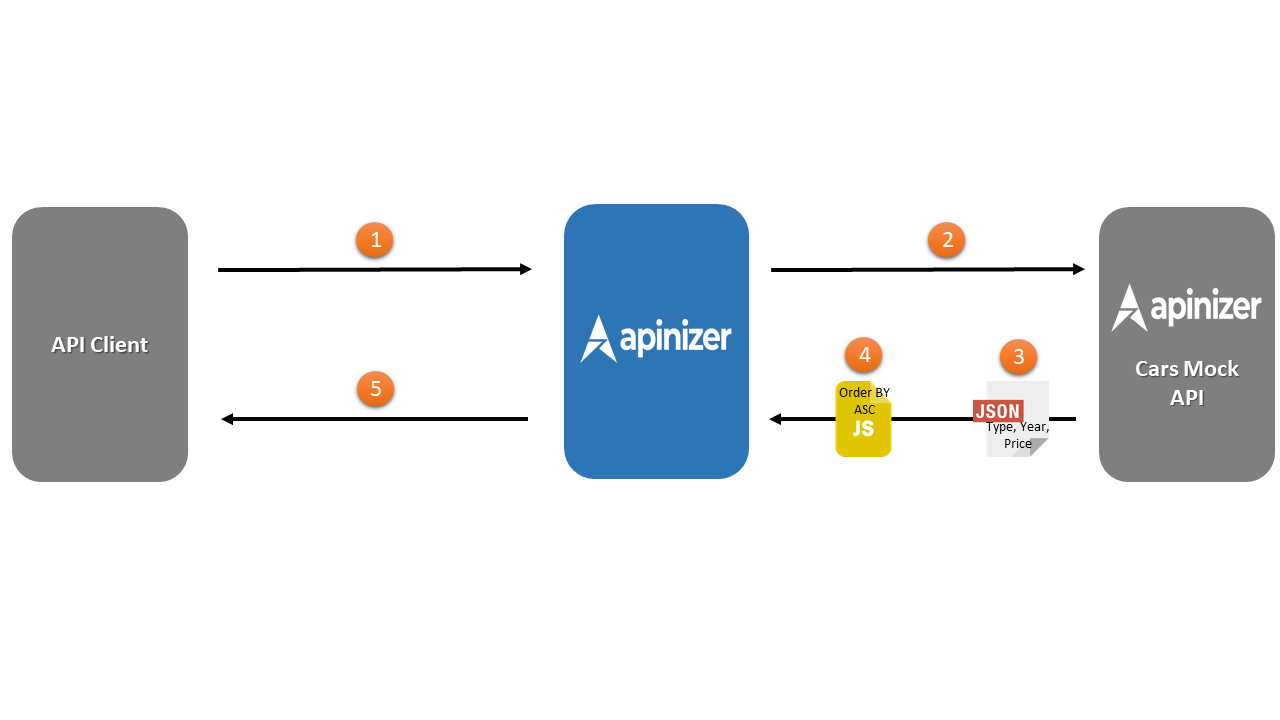
The numbering in the diagram below corresponds to the order of operations.
- API Client makes a request to Apinizer.
- Apinizer makes a request to Cars Mock API.
- The tip, yıl, fiyat keys in the response returned from Cars Mock API are converted to type, year, price key expressions by applying the JSON Transformation policy and transmitted to Apinizer.
- The operation of the Script policy is optional. Because this policy works if there is any Order By parameter in the request coming from the API Client.
- Response is given from Apinizer to API Client.
Creating Mock API
First, create the Mock API that returns the car list. For all details, see Creating Mock API with API Creator.
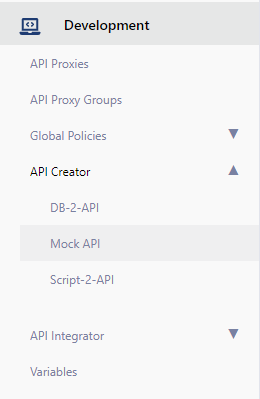
Select Mock API in the API Creator menu under the Development menu.
If no Mock API exists, the page shows There is no Mock API.
- Click Create in the top right corner. The new Mock API wizard opens.
- In the Source step, select Start blank. Click Continue.
- In the Details step, enter the Name and the Description of the Mock API. Click Continue.
- In the Review step, click Create mock API. Apinizer creates the Mock API and opens its editor.
The left column of the editor shows the Mock API and its API Endpoints. The center area shows the selected endpoint and its responses.
In this scenario, tests are performed through an endpoint named "/getCarList" of type "GET".
Add the endpoint and its response:
- Click the + button next to API Endpoints. The Configure panel opens.
- Select GET as the HTTP Method. Enter /getCarList as the Path. Click Save. Apinizer adds the endpoint with one 200 OK response.
- In the Responses card, click + Example. The example dialog opens with the media type application/json.
- In Response Body, enter a list of cars. Each car has the keys "tip", "yil", and "fiyat". Leave Conditions empty.
- Click Save.
For more options, for example response headers and conditions, see Adding or Editing Response.
Creating API Proxy from Mock API
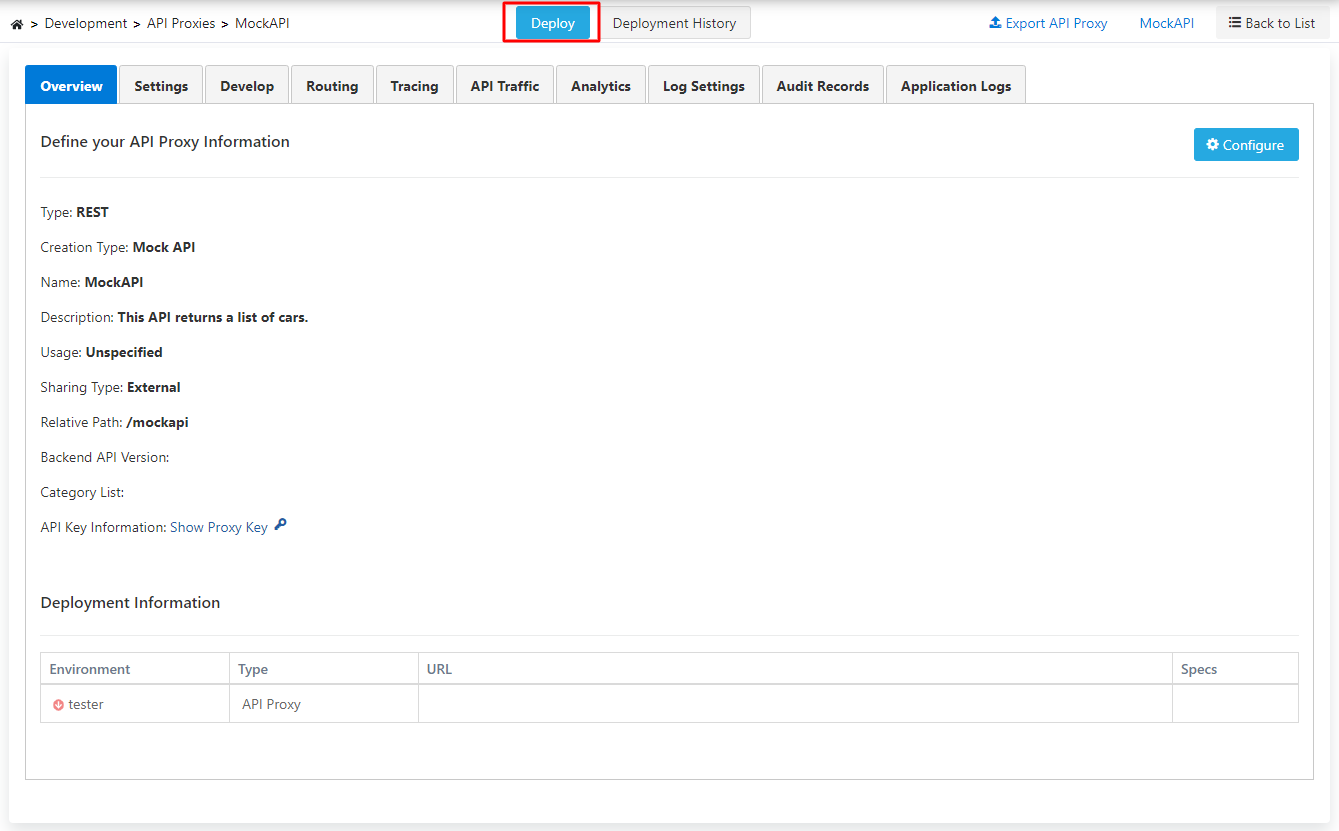
- Click Create API Proxy in the breadcrumb bar of the editor. The Create API Proxy dialog opens.
- Enter a suitable Relative Paths value. Enter a category in Category List if necessary.
- Under Deploy to, check the environment where you want to deploy the API Proxy.
- Click Create and deploy. Apinizer creates the API Proxy and deploys it to the checked environment.
For details, see Creating API Proxy from Mock API.
The /getCarList endpoint under the Develop menu is selected and the Test Endpoint button is clicked.
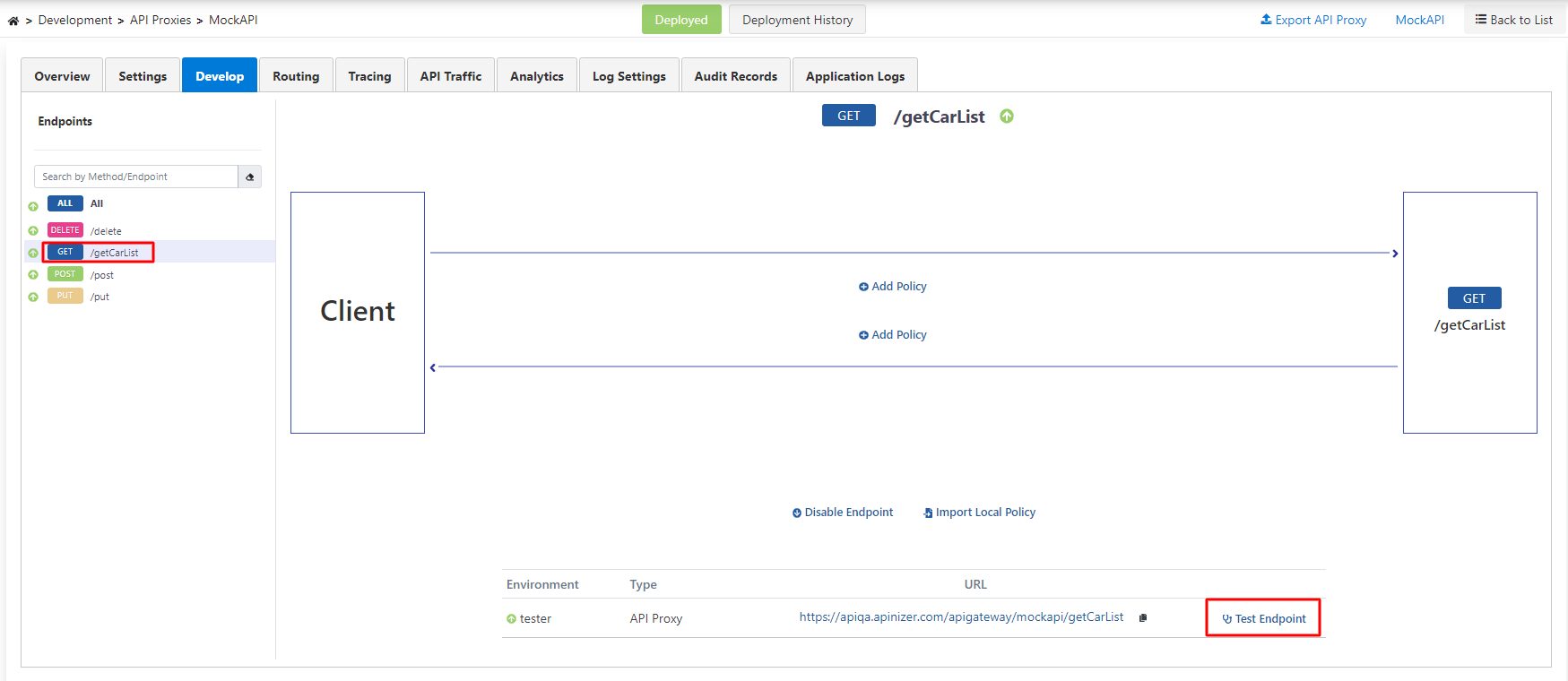
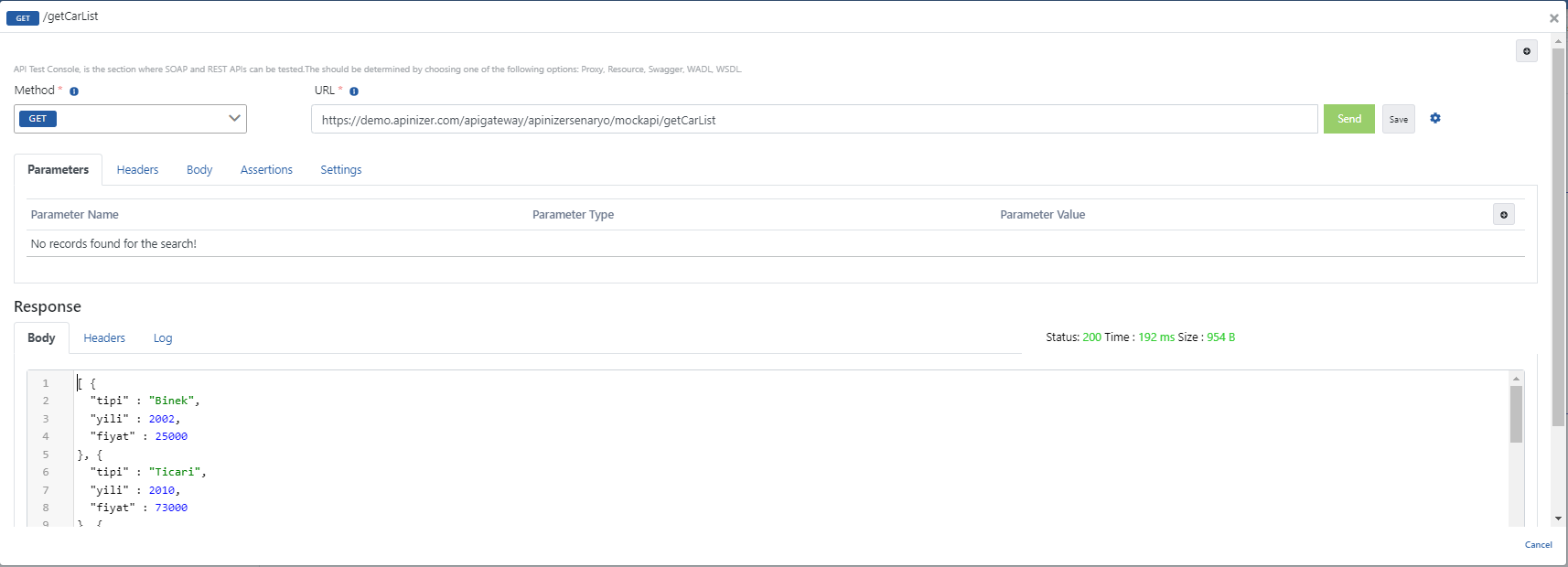
In the first test to be performed, no policy application will be made in any way.
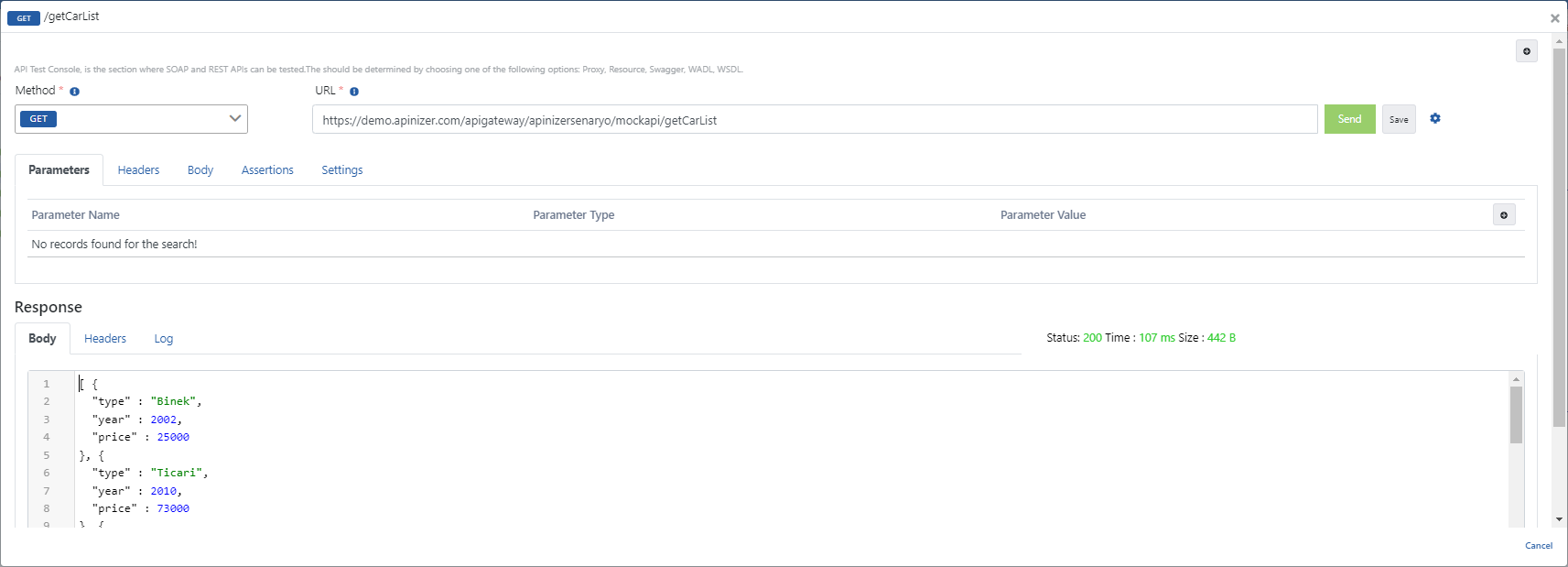
When a request is made to the address in the URL field, JSON data in the Response field is seen as a response.
If the returned response is examined, it returns a list containing "tip", "yil", and "fiyat" key expressions.
Adding JSON Transformation Policy
A policy must be added to enable the key expressions in the scenario to change.
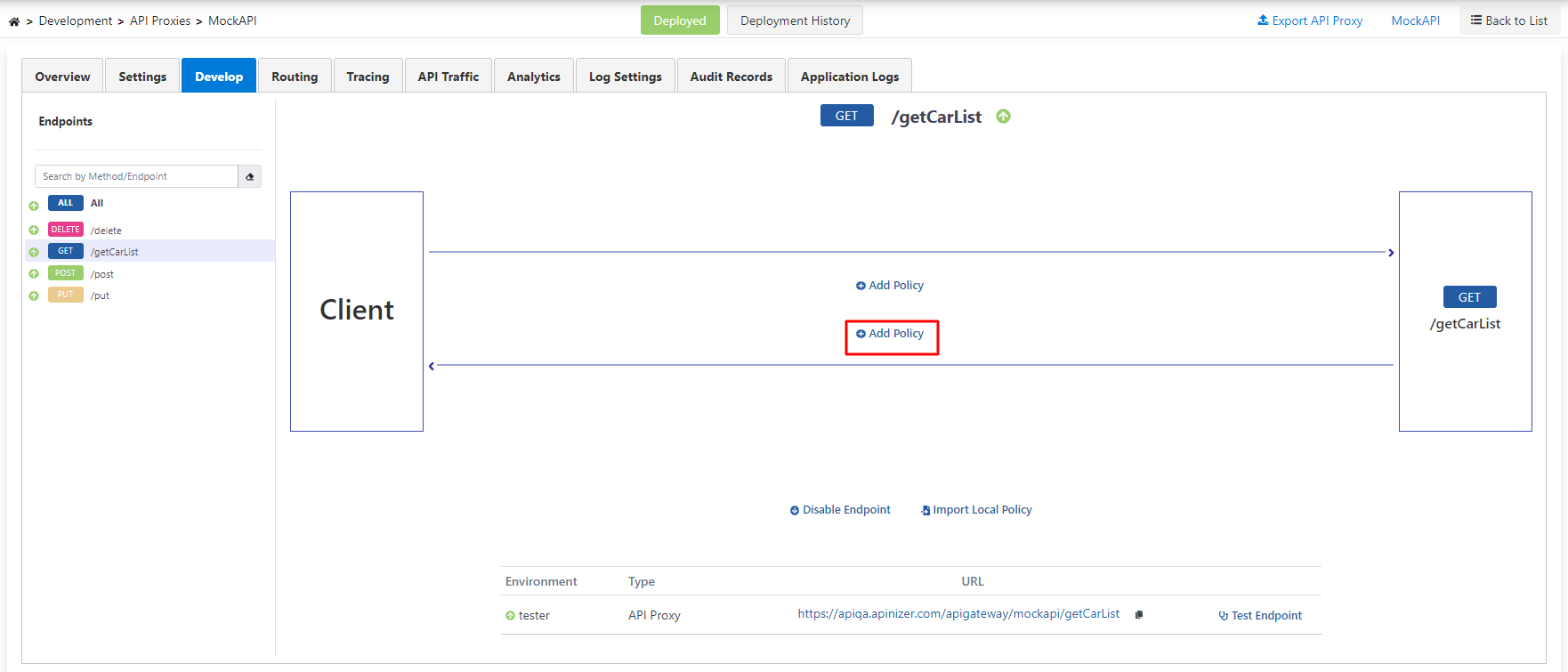
This policy will be in the field that will go as a response from the API to the Client.
Click the Add Policy expression in the field seen in the image below.
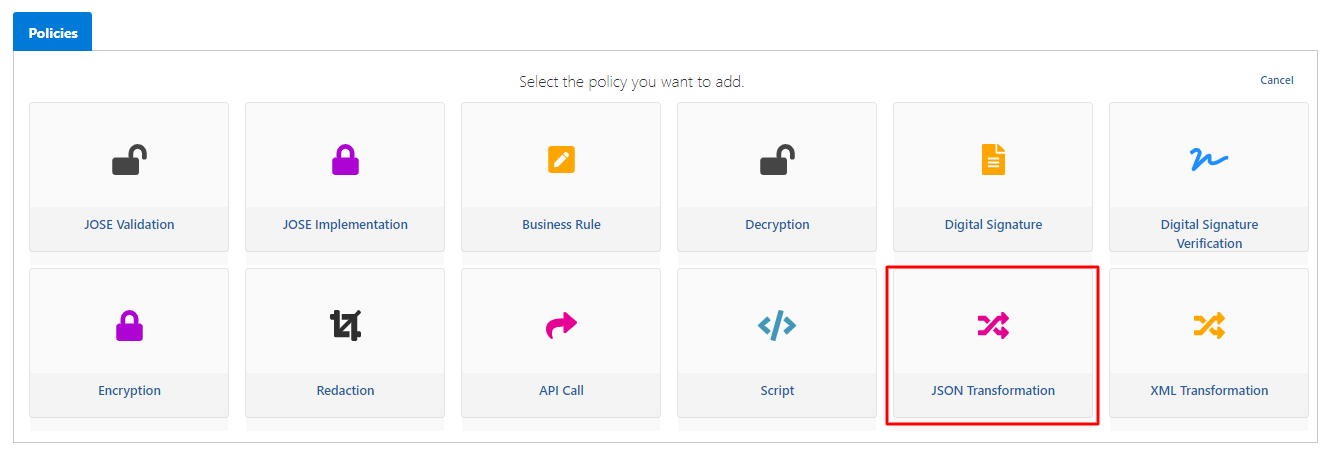
On the opened screen, the JSON Transformation policy marked in the image below is selected.
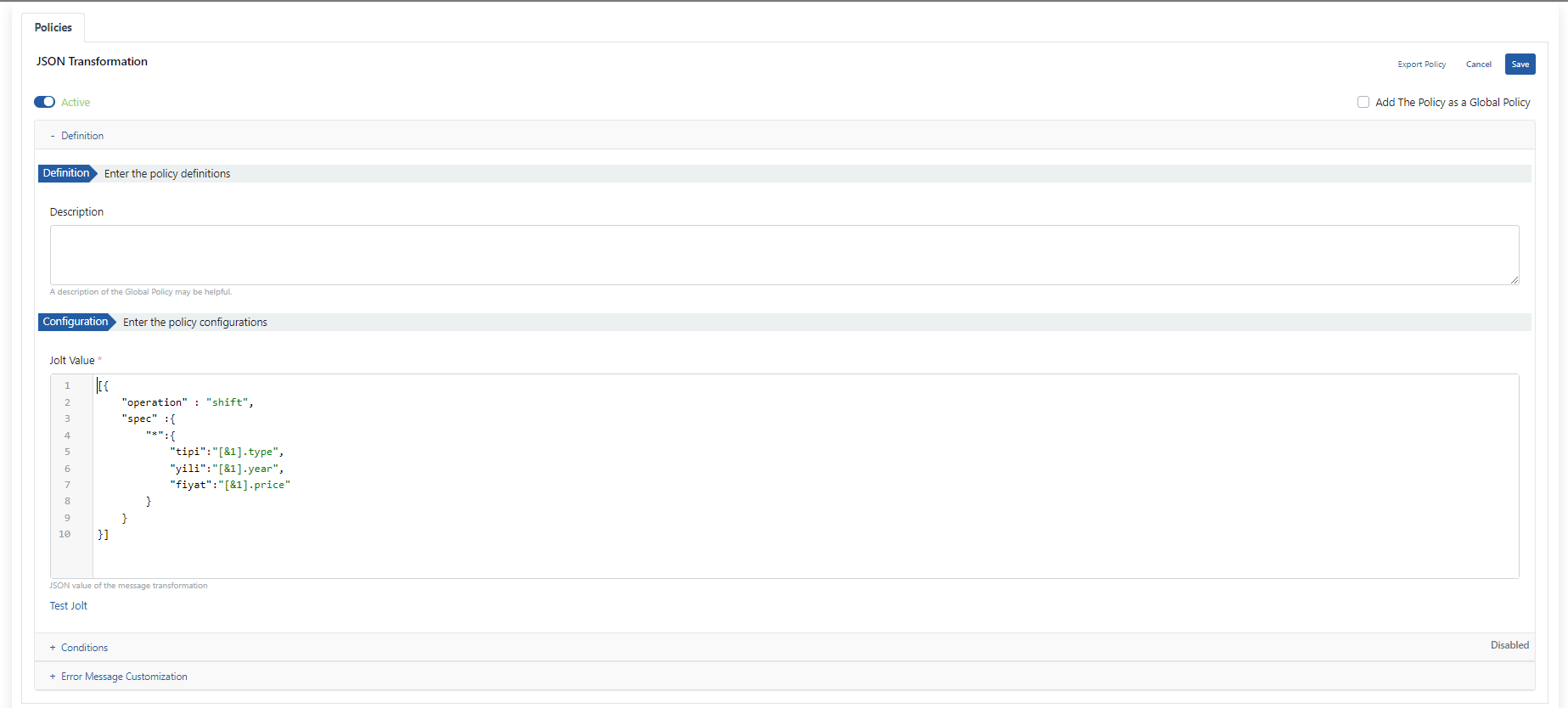
If the expressions on this screen are examined;
- A description can be added to the policy to be used with the Description field.
- The Jolt Value required for the message to be changed is written with the Configuration - Enter the policy configurations field.
- The written configuration is tested with the Test Jolt expression.
- The created policy is saved by clicking the Save button.
- Click the Redeploy button for the changes to take effect.
- Proceed to testing the selected endpoint.
As seen in the image below, when a request is made to the specified endpoint, it is seen that the key expressions in the response returning from Mock API have changed.
Adding Script Policy
Next is the execution of the script that will sort according to the "Order By" parameter value to be sent from the client.
For this, the Script policy must be added to the field where the response sent from Mock API to the client is located.
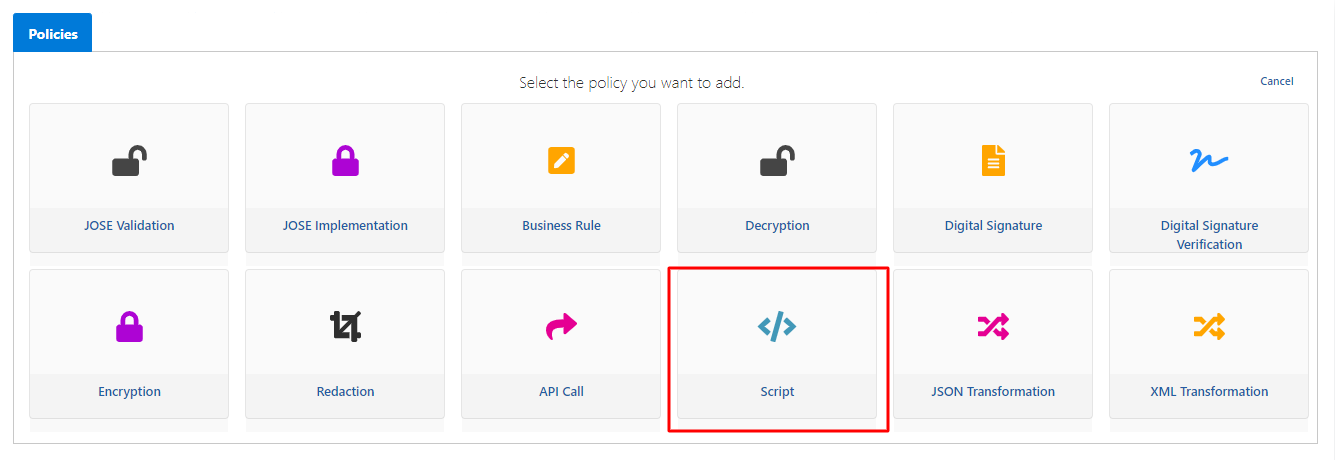
Click the Add Policy expression and select the Script policy from here.
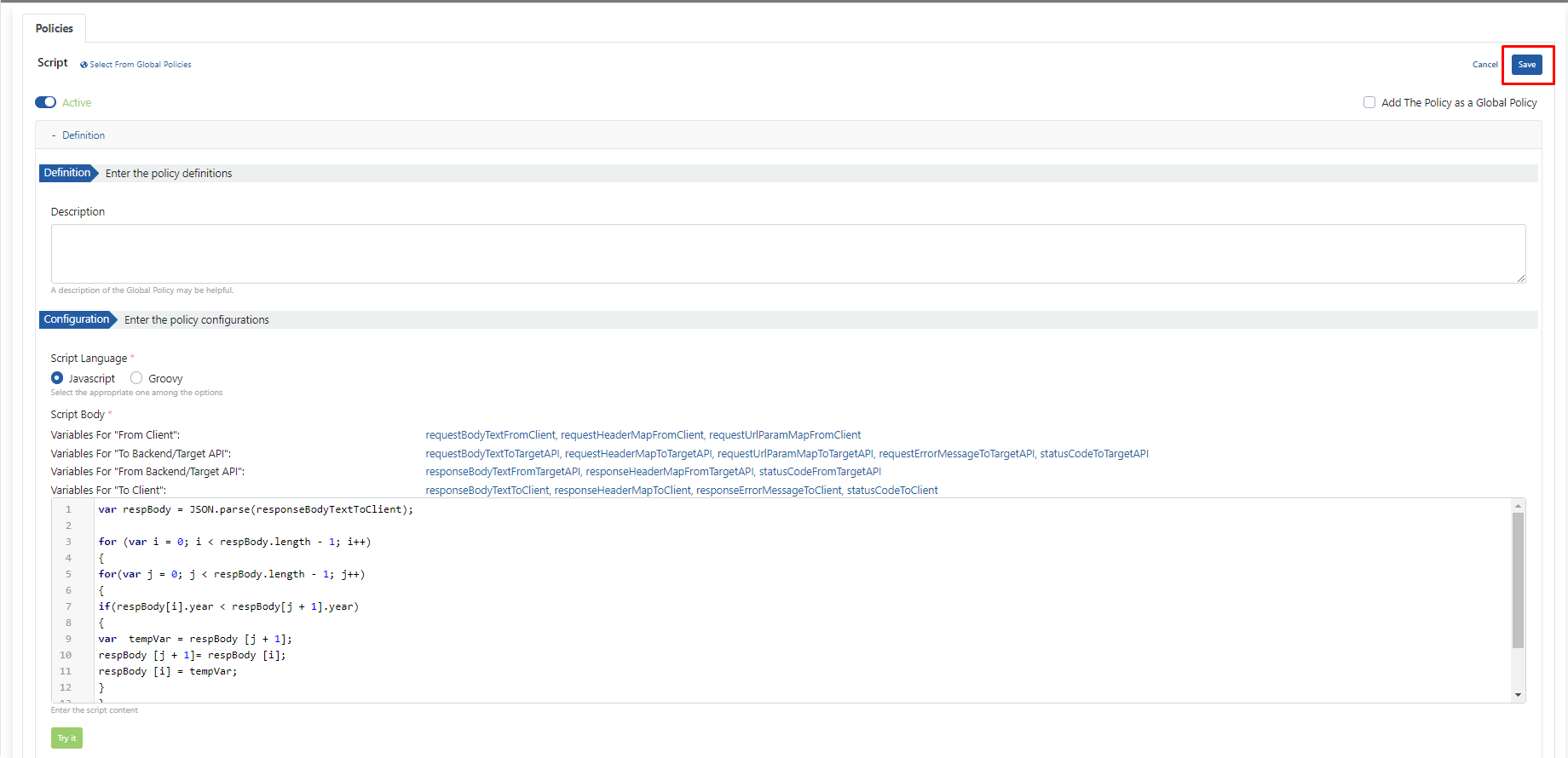
If the expressions on this screen are examined one by one,
- The programming language with which the Script to be created will be written is selected with the Script Language field.
- The Script Body field contains both the field where the script will be written and ready functions that facilitate use when writing scripts.
- In this scenario, the function named ResponseBodyTextToClient will be used.
- To get information about other ready functions, you can click this link.
- After writing the script to be used, click the Save button and the policy is saved.
After the last additions on the proxy, it is Redeployed.
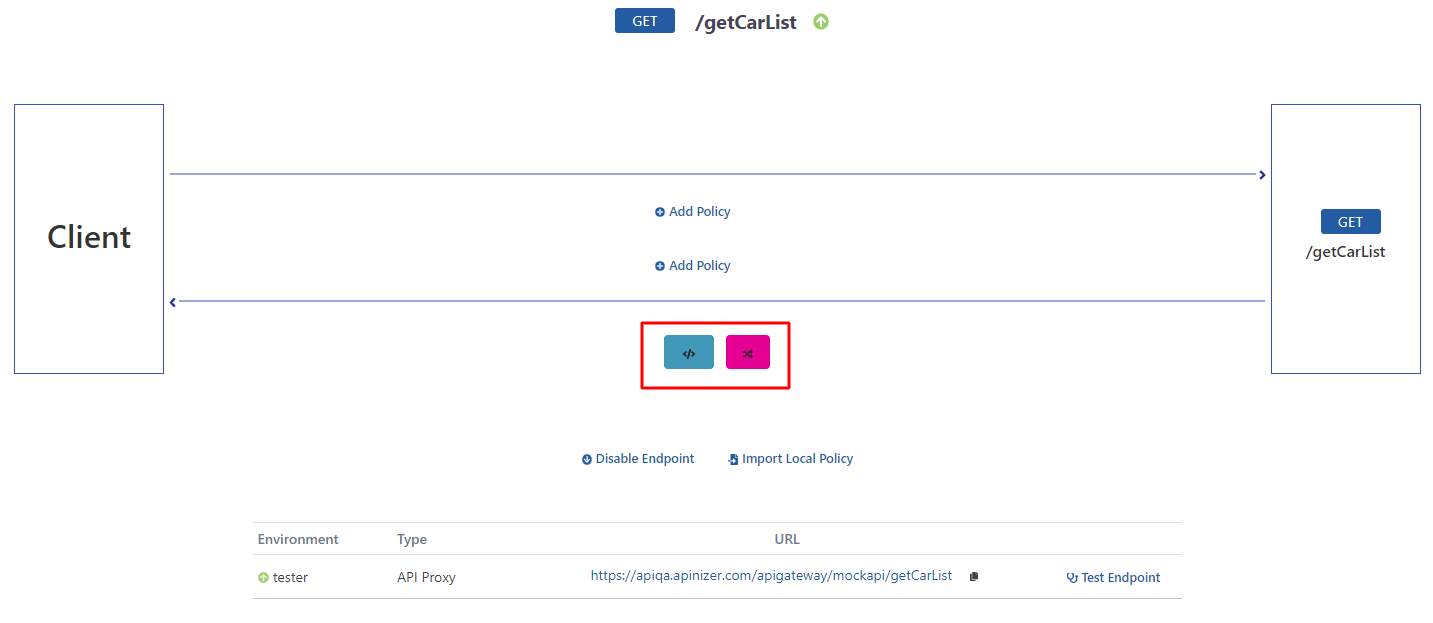
First, the JSON Transformation policy must be run and then the Script policy must be run.
For this, the icon belonging to the JSON Transformation policy must be moved to the end. The usage desired to be created is shown in the image below.
Testing the API Proxy
Click the Test Endpoint expression.
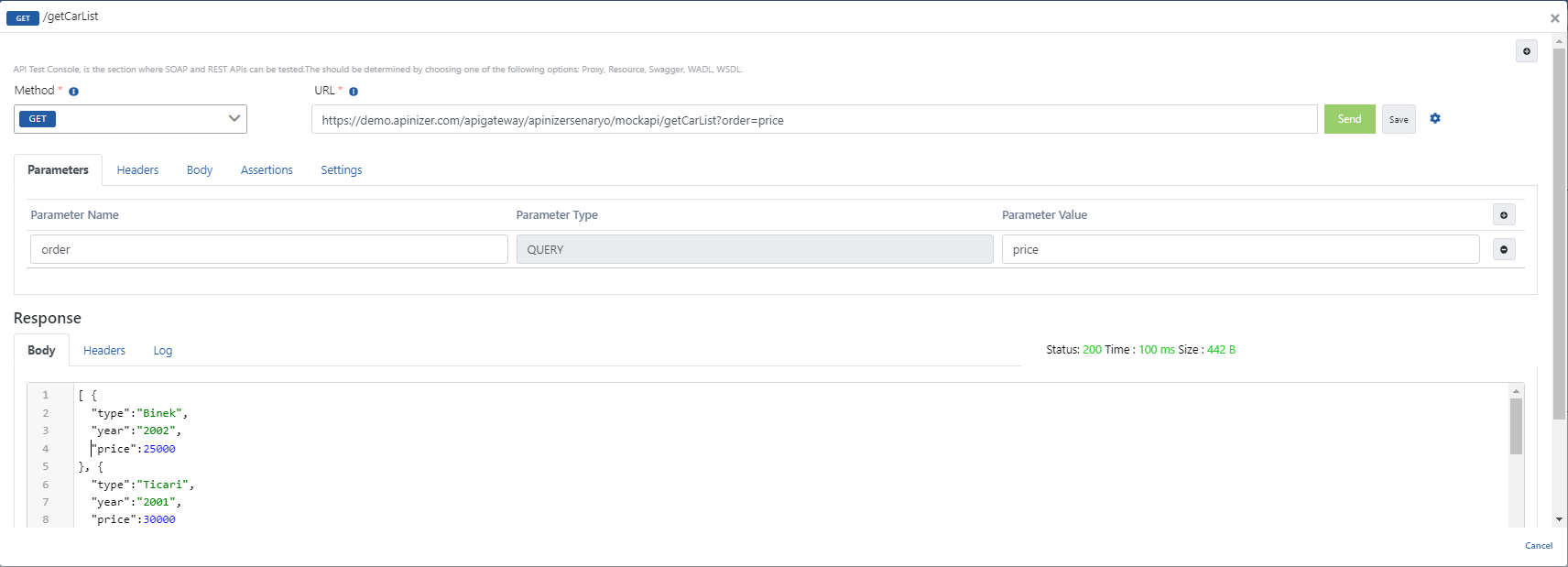
In the first test, no query parameters are sent to the mock API and the answer in the "Response" field is obtained.
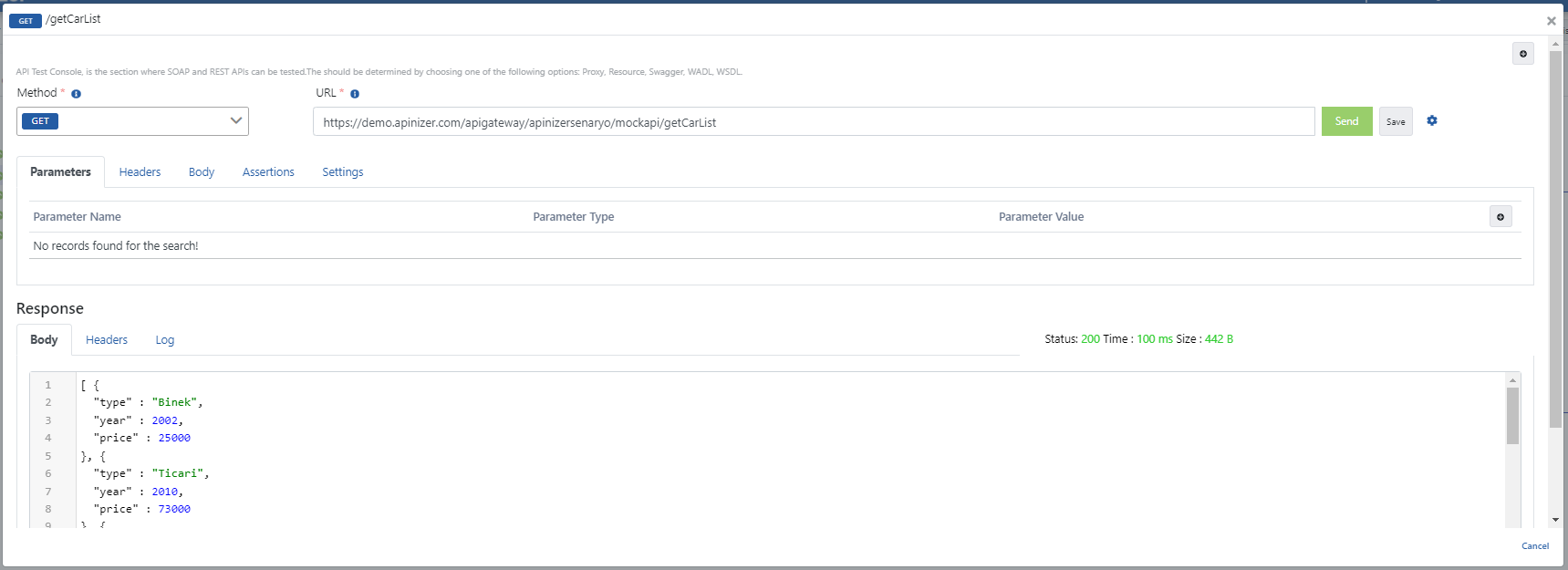
Then, the order=year query parameter is added to sort the response to be received by year.
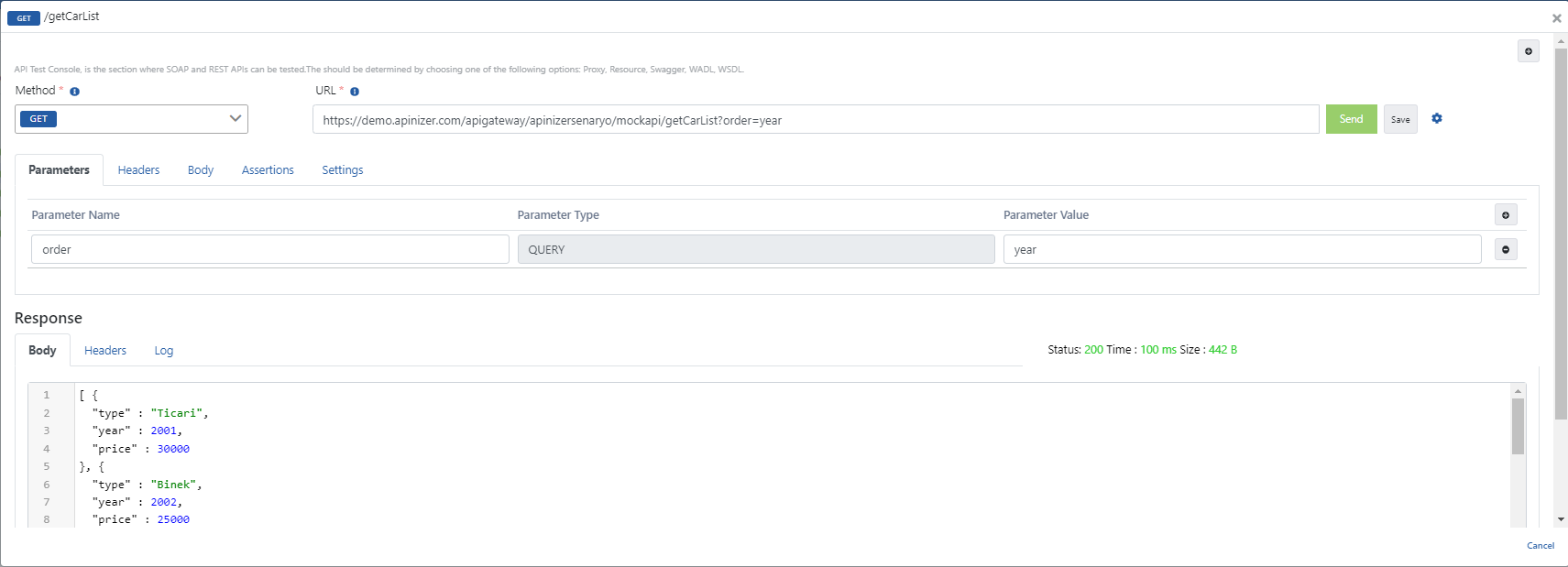
Finally, the order=price query parameter is added to sort the response to be received by year.