Creating DB-2-API from MySQL Database
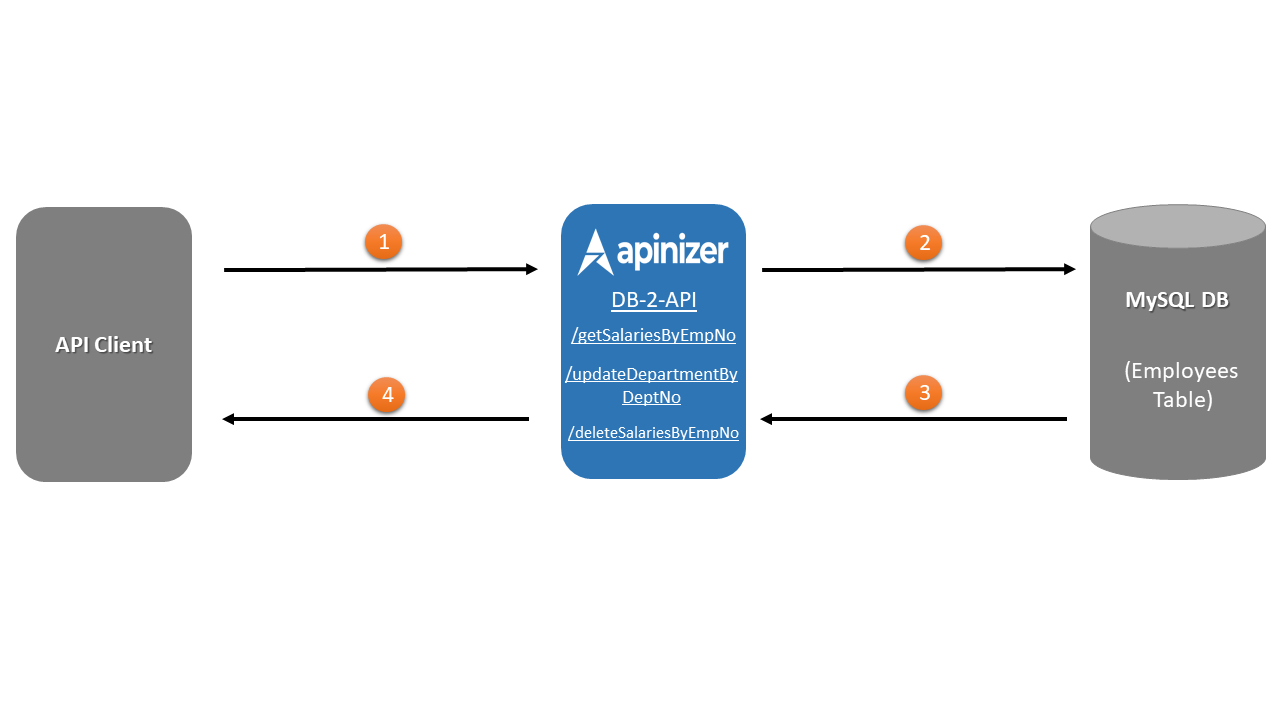
The numbering in the diagram below corresponds to the order of operations.
- API Client makes a request to an endpoint in the DB-2-API on Apinizer.
- Apinizer sends this request to the database, and the query belonging to the relevant endpoint is executed on the database.
- The response to the relevant query from the database comes to Apinizer.
- Apinizer sends the response to API Client.
Defining MySQL database connection in Apinizer.
Defining endpoints for GET, POST, PUT, DELETE operations.
Converting DB-2-API to API Proxy format.
Testing the created endpoints.
Establishing Database Connection
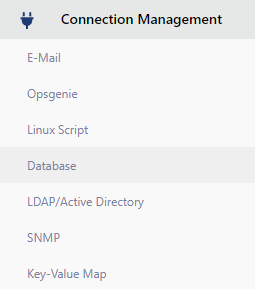
Select the Database expression under the Connection Management menu.
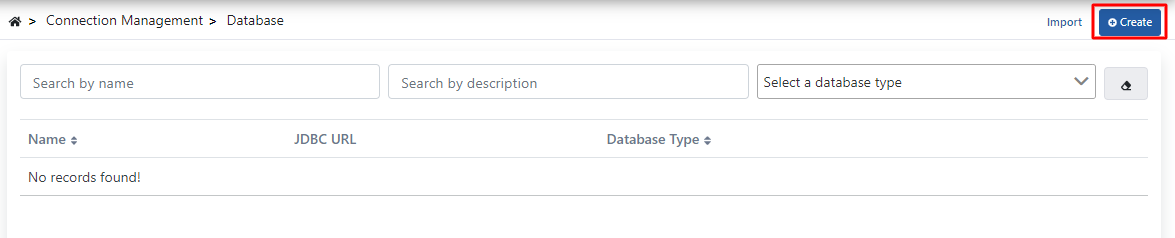
Since no database connection has been made before, this page appears empty. Click the Create button in the top right corner.
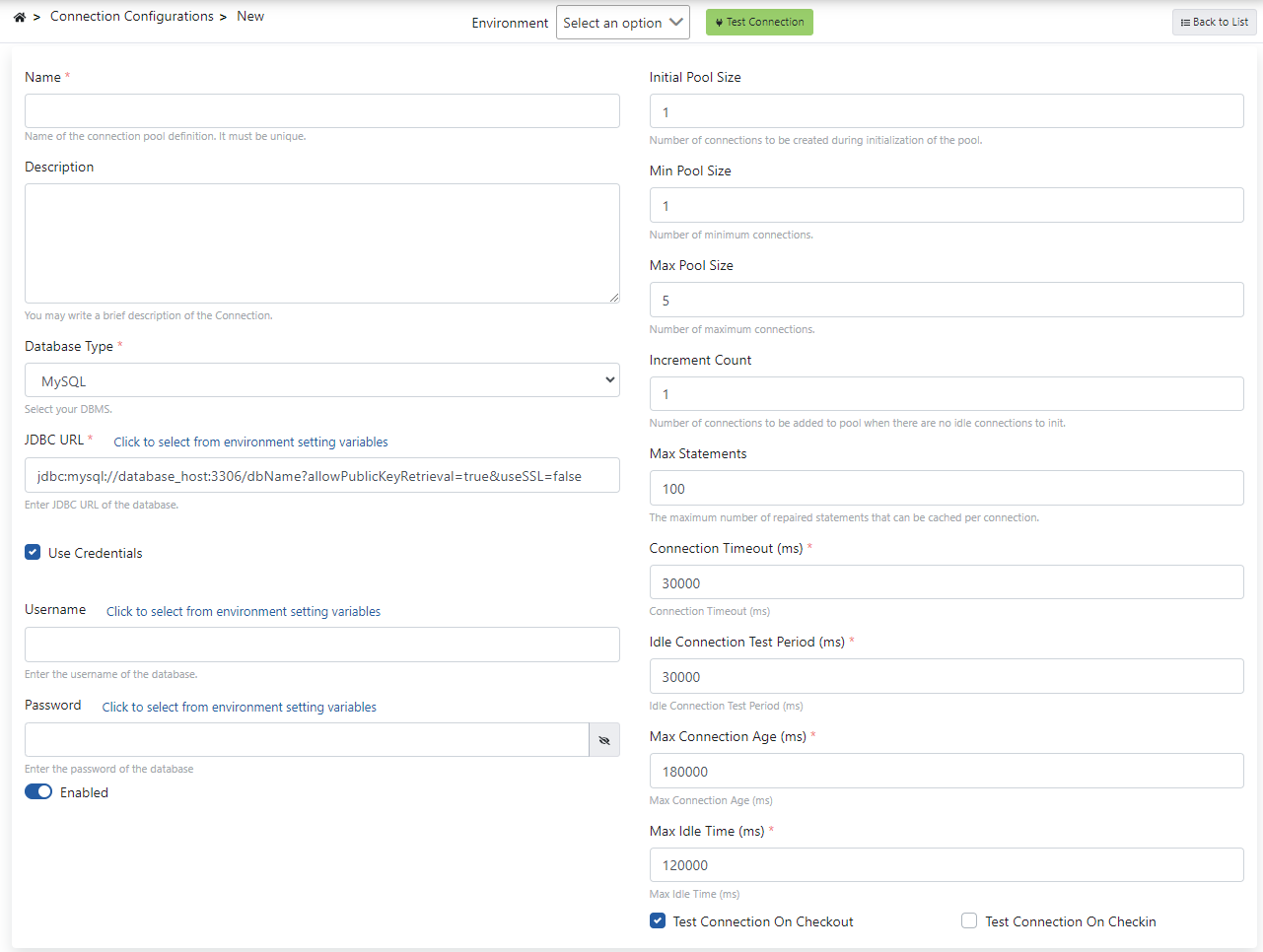
Start creating MySQL database connection.
If the input fields on this page are examined;
- Write the name of the database you are connecting to with the Name field.
- A description is made for the connection to be created with the Description field.
- Select the type of connection to be created with Database Type.
- Write the address of the database to be connected to with the JDBC URL field. An example connection string is also in the input field.
- Enter the username required for the database to be connected to with the Username field, and write the password information to be entered during connection in the Password field.
- For information about other fields besides these fields, you can look at the database connection page.
After entering the required database connection information, test the connection with the Test Connection button in the middle above, click the Save And Deploy button, and create the connection.
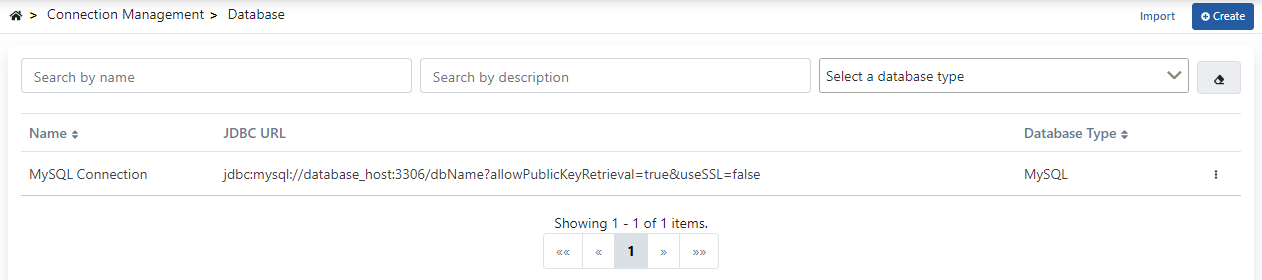
The screenshot to be obtained after saving is shown in the image below.
Creating DB-2-API
After the database connection is established, proceed to the DB-2-API creation stage.
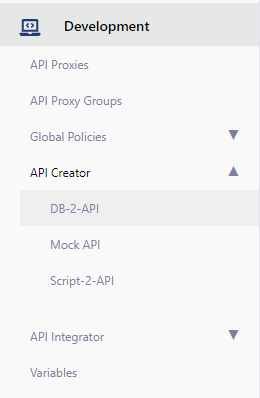
Select the DB-2-API option under the API Creator menu in the Development menu.
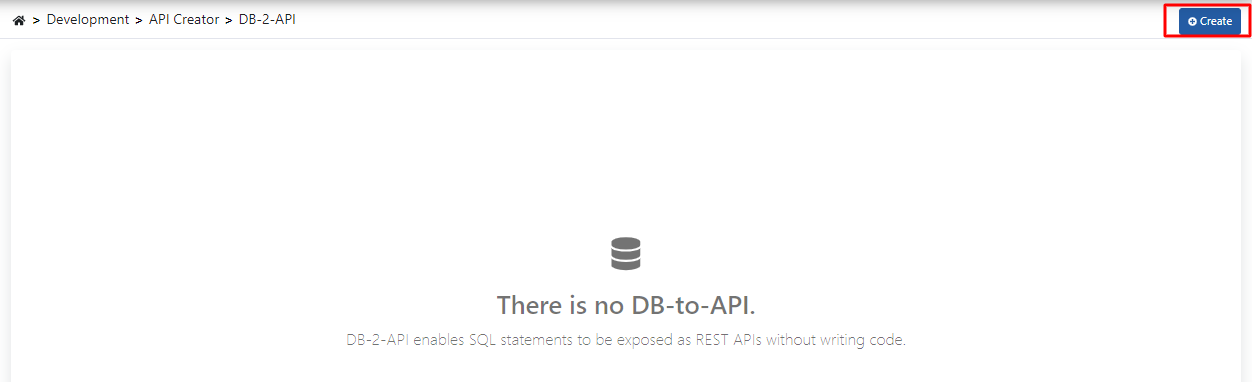
After selecting the DB-2-API option, an empty page appears on the screen. This is because no DB-2-API has been created before.
Click the Create button in the top right corner on this screen to start creating DB-2-API.
The page that appears after clicking the Create button is shown below.
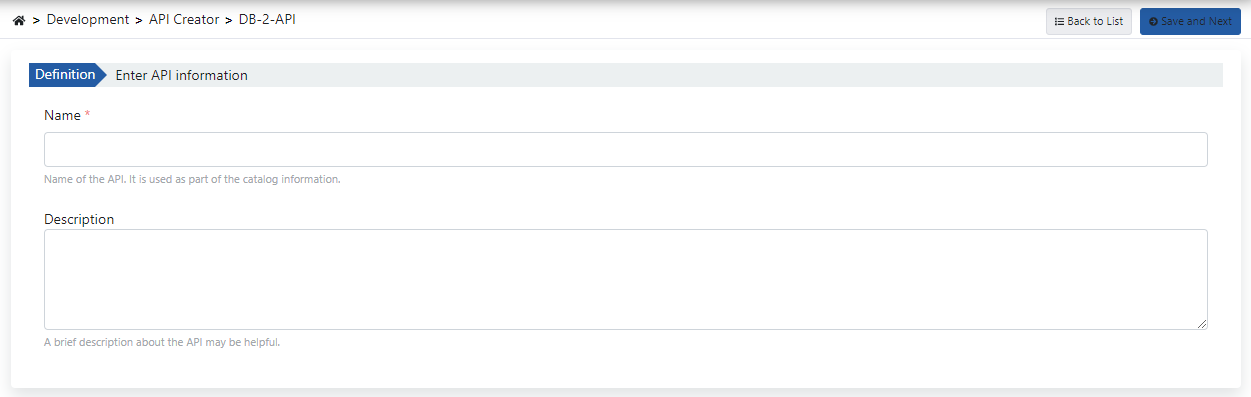
On the page that appears after clicking the Create button:
- The Name field must give a name to the DB-2-API. This field cannot be left empty.
- A description can be added as desired.
After filling in the Name field, click the Save and Next button and proceed to the next step.
Now you can create DB-2-API on this page.
Click the Add button in the red rectangle to create the first endpoint.
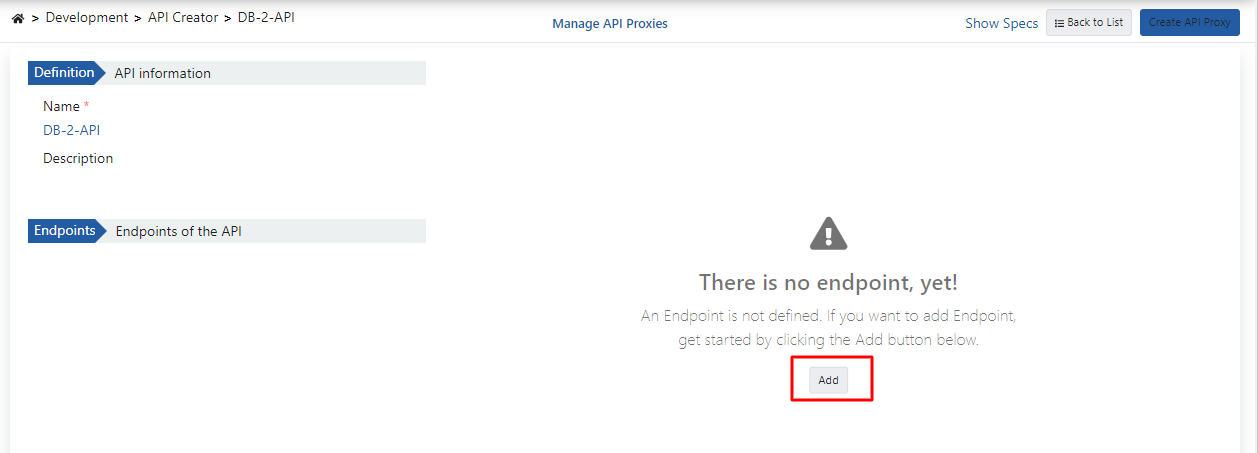
Fields on the endpoint creation screen:
- Select the methods (GET,POST,DELETE,PUT, etc.) of the endpoint to be created with the HTTP Method field.
- Enter the name of the endpoint in the Name/URL field.
- A description related to the endpoint can be added in the Description field.
- Select the database to be connected to with the Connection Pool Definition field.
- Specify how many seconds the created query will timeout with the Timeout field.
- Select what type the SQL query to be written will be created with the Type of SQL Statement expression.
- Enter the SQL query to be written in the Enter SQL Statement field.
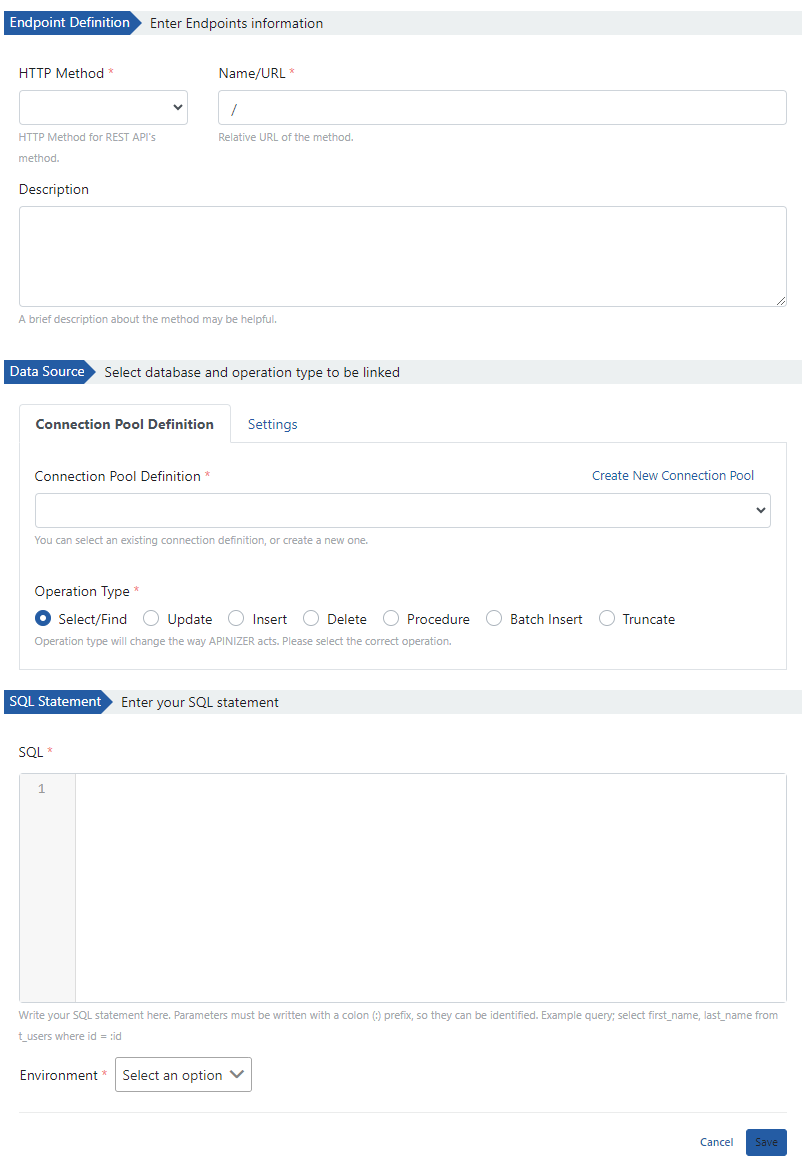
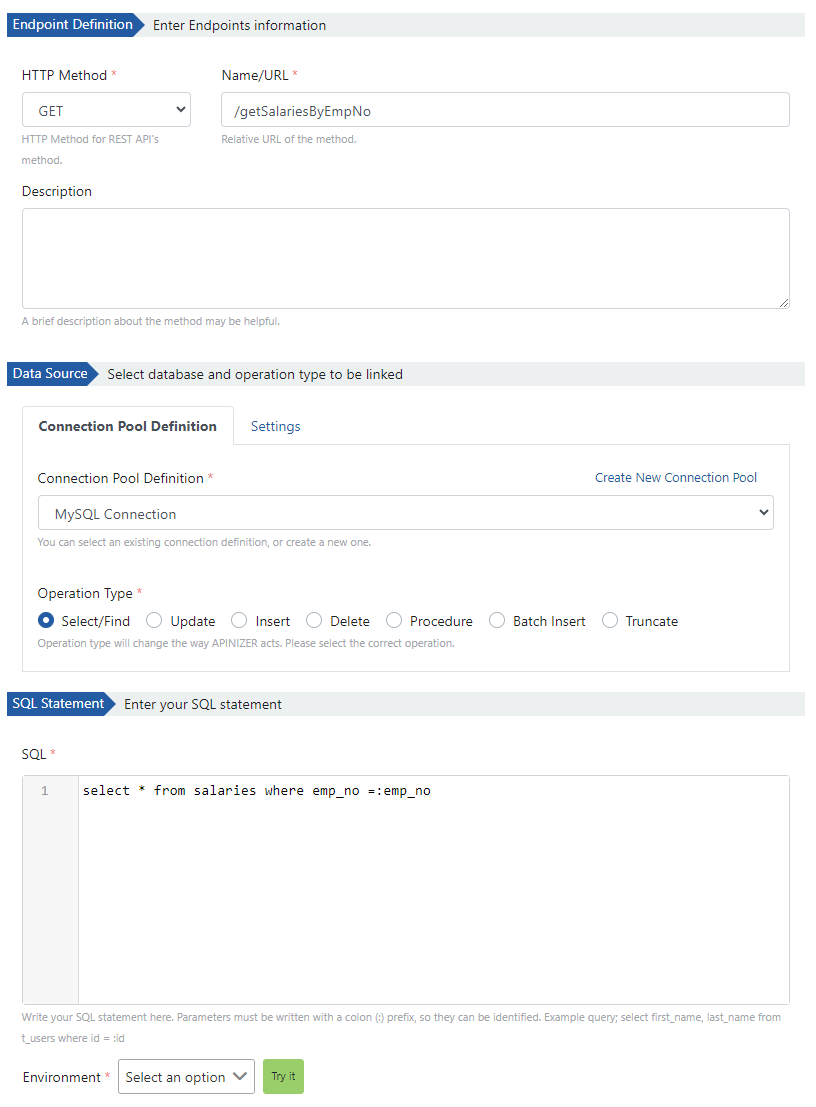
GET Endpoint: /getSalariesByEmpNo
First, an endpoint named /getSalariesByEmpNo will be created.
For this endpoint to be usable, a parameter of Query type must be sent.
The fields to be used in this endpoint have been entered in the sections explained one by one above.
The image for the Query type parameter created is shown below.
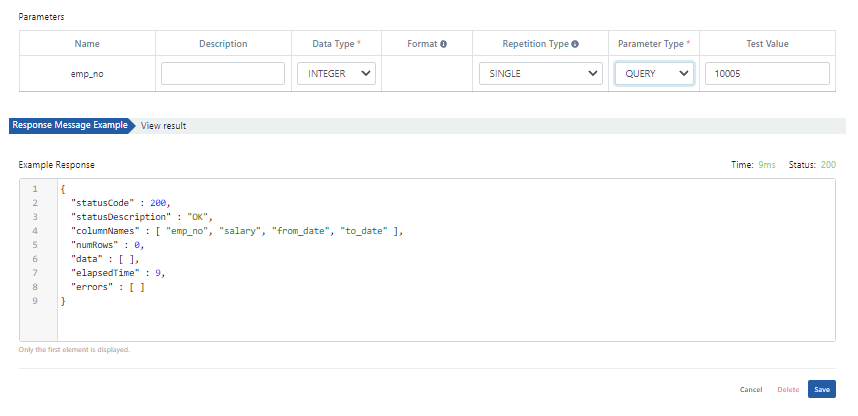
Parameter properties:
- Data Type: integer
- Repetition Type: Single (because it contains a single field)
- Parameter Type: Query
- Test Value: Write the value to be tested to get an example response
Click the Save button to save the endpoint.
PUT Endpoint: /updateDepartmentByDeptNo
The second endpoint to be created is the endpoint named /updateDepartmentByDeptNo.
For this, it is necessary to click the Add button in the red rectangle as seen in the image below.
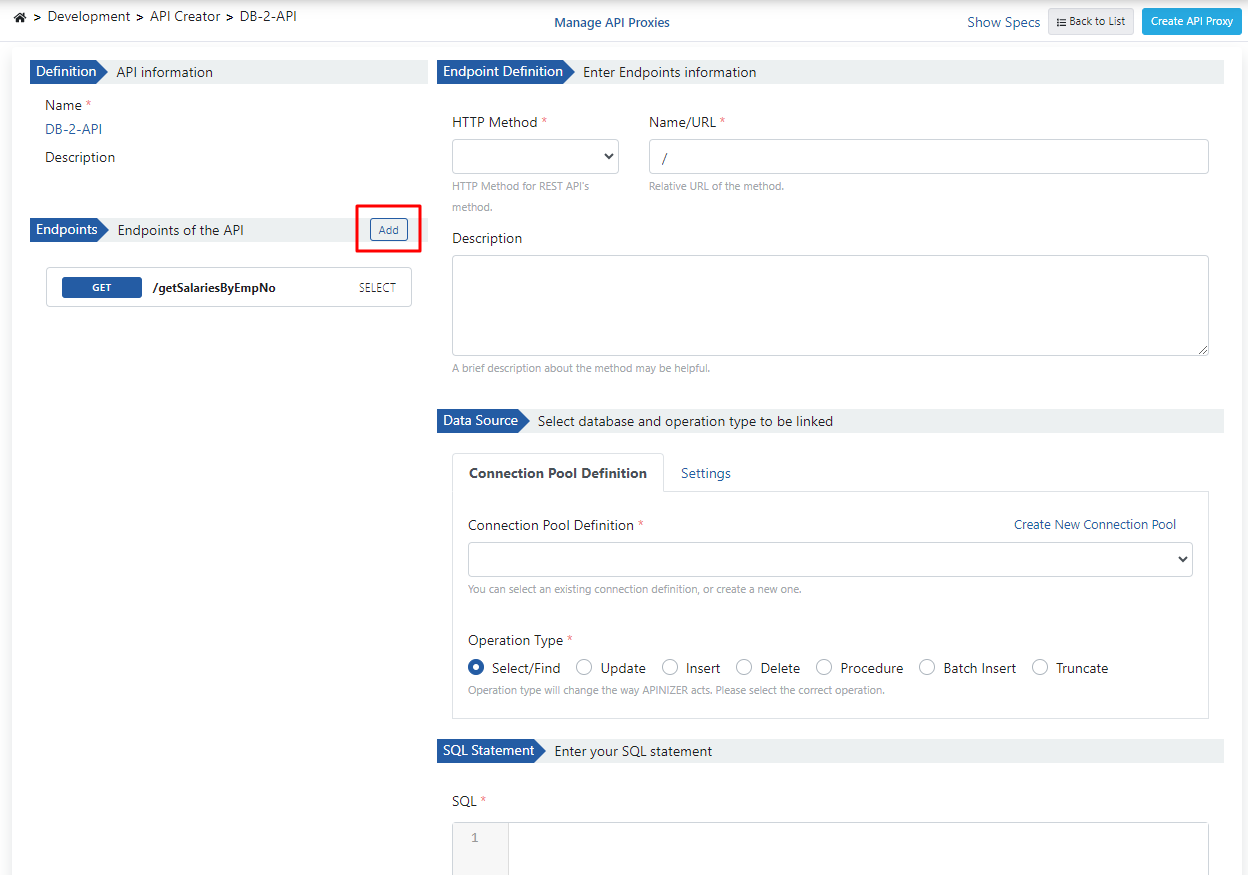
After clicking, the field where the endpoint can be created appears on the side.
The endpoint to be created takes a parameter of Body type.
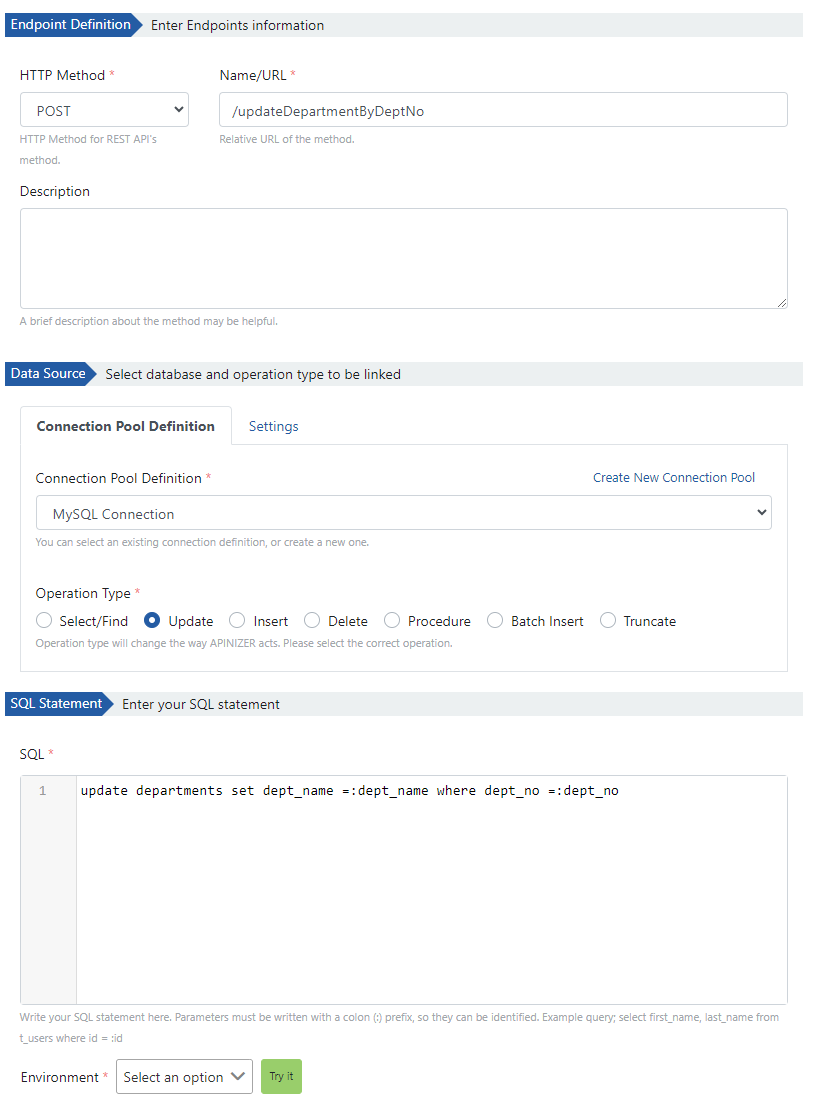
The fields to be used in this endpoint have been entered in the sections explained one by one above.
The image for the Body type parameter created is shown below.
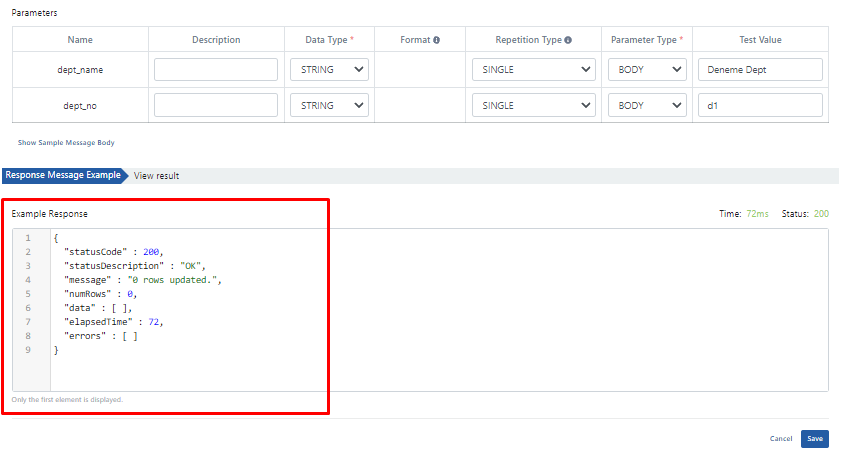
Since this endpoint receives two different parameter values, the parameters are defined separately.
Since the created endpoint performs an update operation, the Body expression is selected as Parameter Type.
When the written SQL query is tested, the response shown in the image above is obtained.
DELETE Endpoint: /deleteSalariesByEmpNo
The last endpoint to be created is the endpoint named /deleteSalariesByEmpNo.
To add this endpoint, click the Add button in the red rectangle in the image below and create the endpoint from the screen that opens on the right.
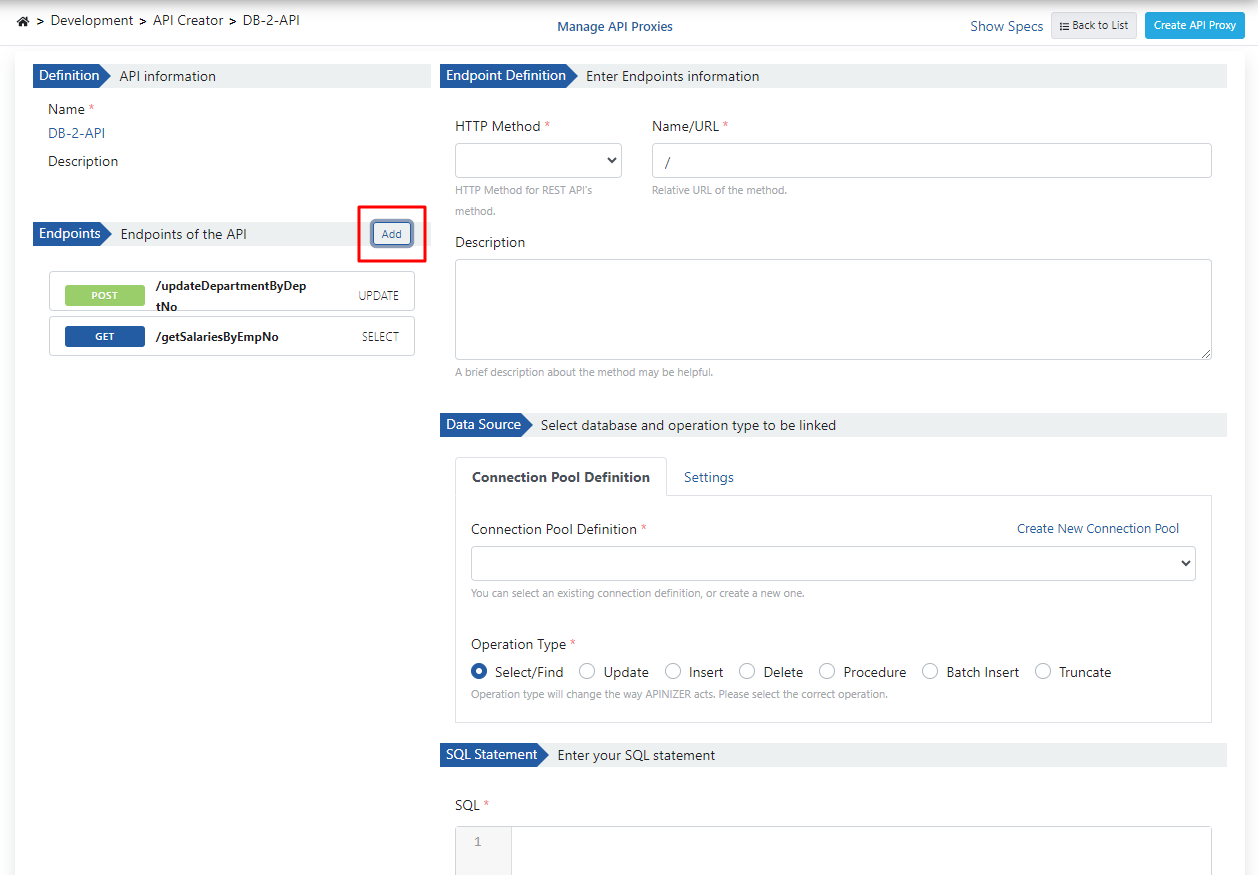
After filling in the required fields, create the Query parameter that will be in the endpoint.
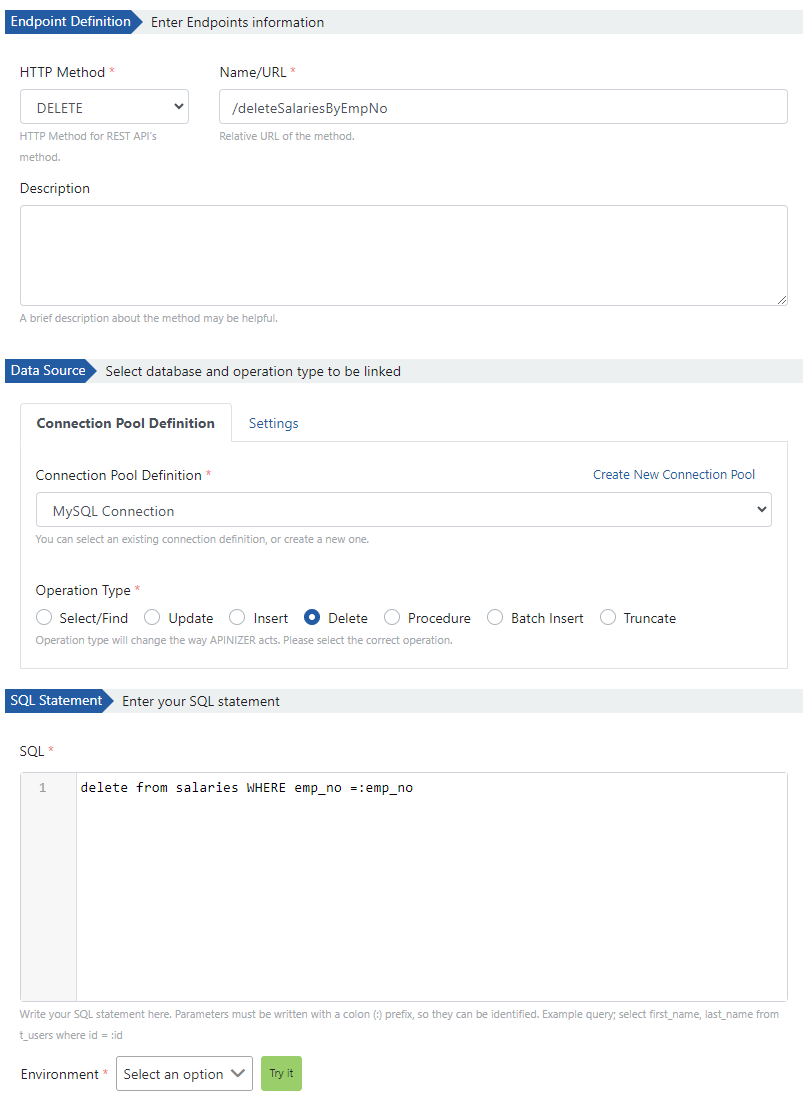
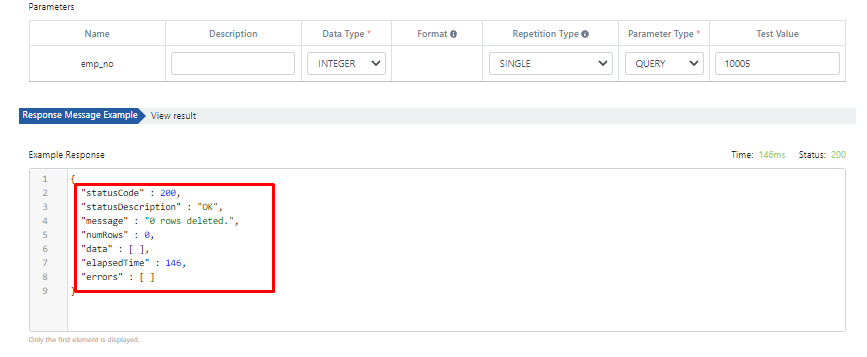
Test the SQL query written with the created Query parameter and obtain the example response shown in the image below.
This endpoint is saved and the final version of the DB-2-API to be created is shown in the image below.
The endpoints in the API are located in the rectangle on the left.
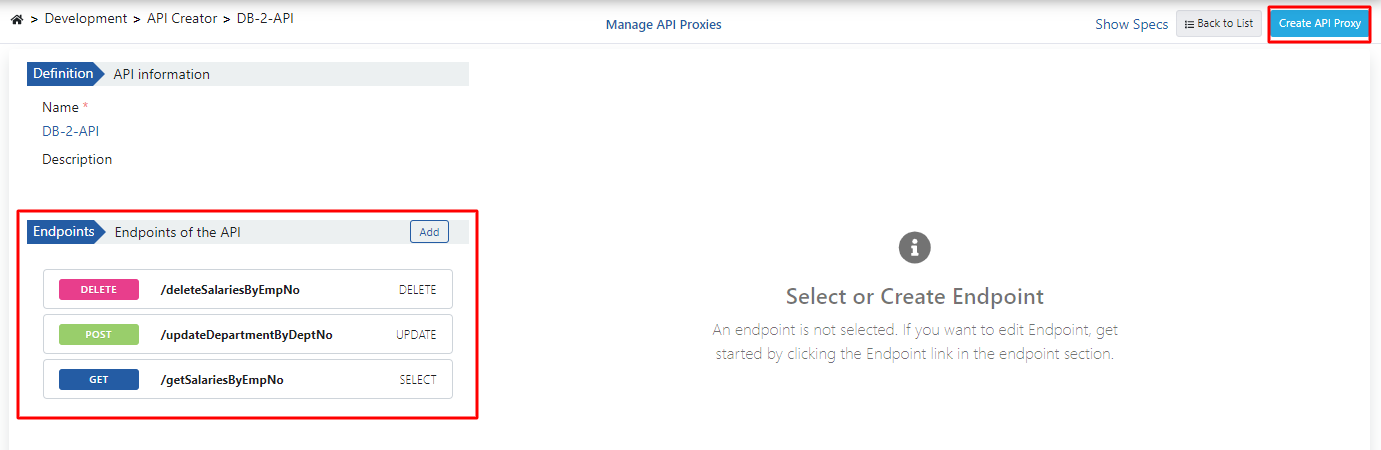
After all endpoints are created, click the Create API Proxy button in the top right corner.
Creating API Proxy from DB-2-API
On this page:
- Give a name to the API Proxy to be created from DB-2-API in the Name field.
- Write the /db2api path expression in the Relative Path expression. This address will be the address where the API Proxy will be opened to the outside.
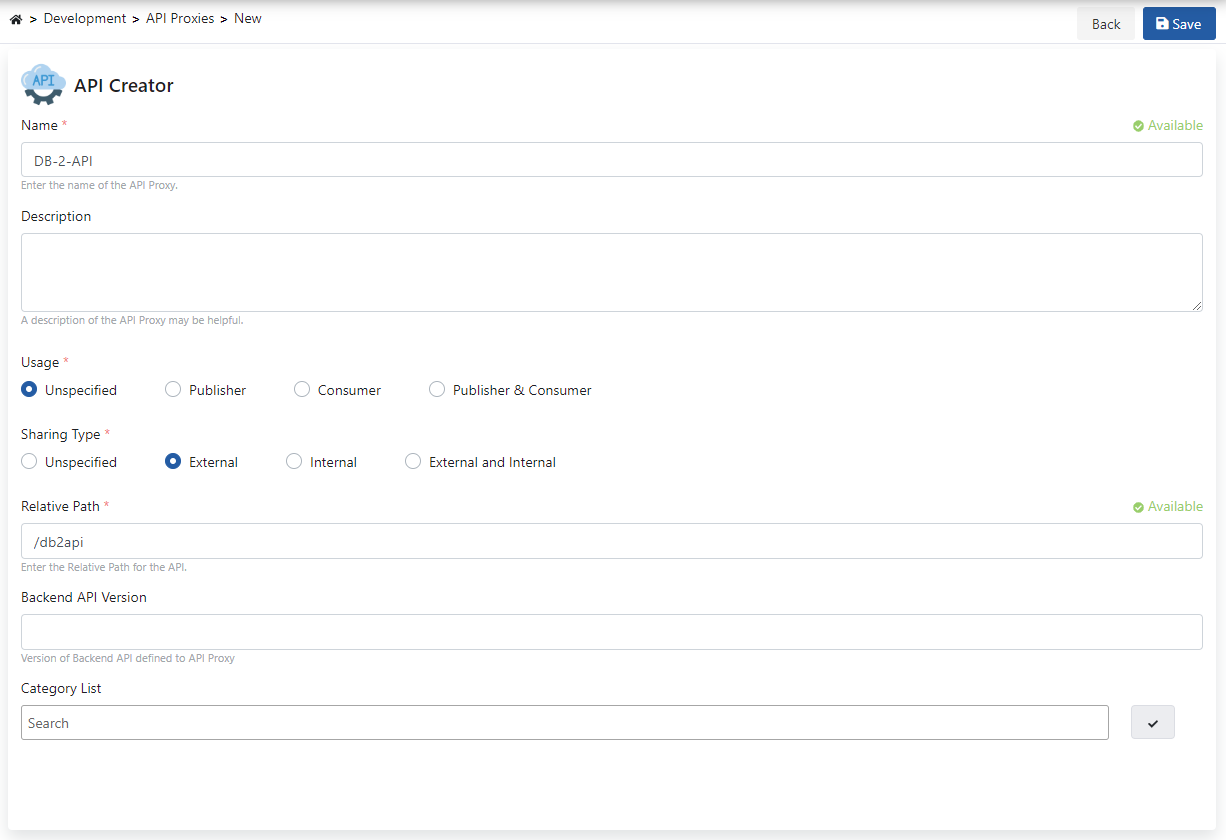
Click the Save button in the top right corner and save the proxy.
After the save operation is performed, you come to the page shown in the image below.
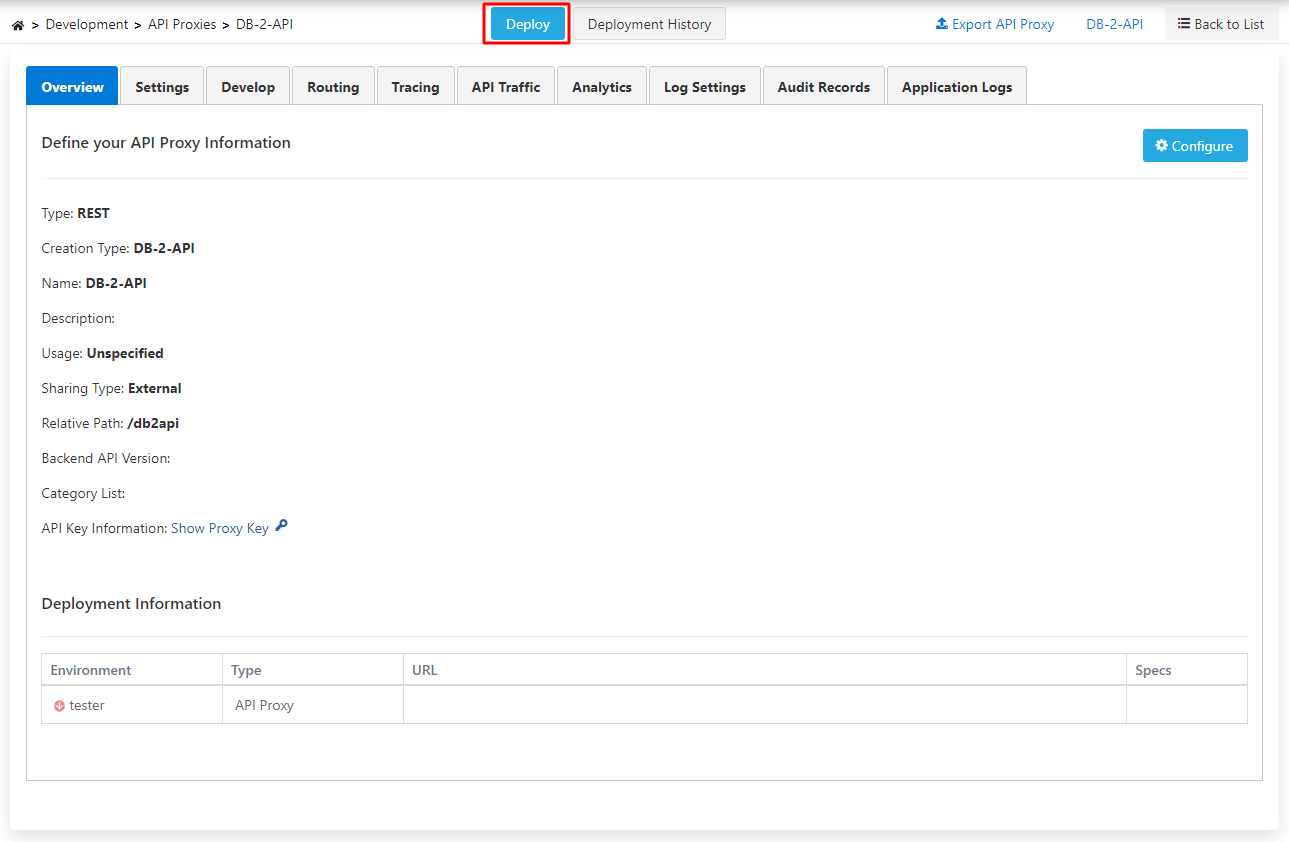
Testing the API Proxy
Here, click the Deploy button in the red rectangle above and in the image to deploy the API Proxy.
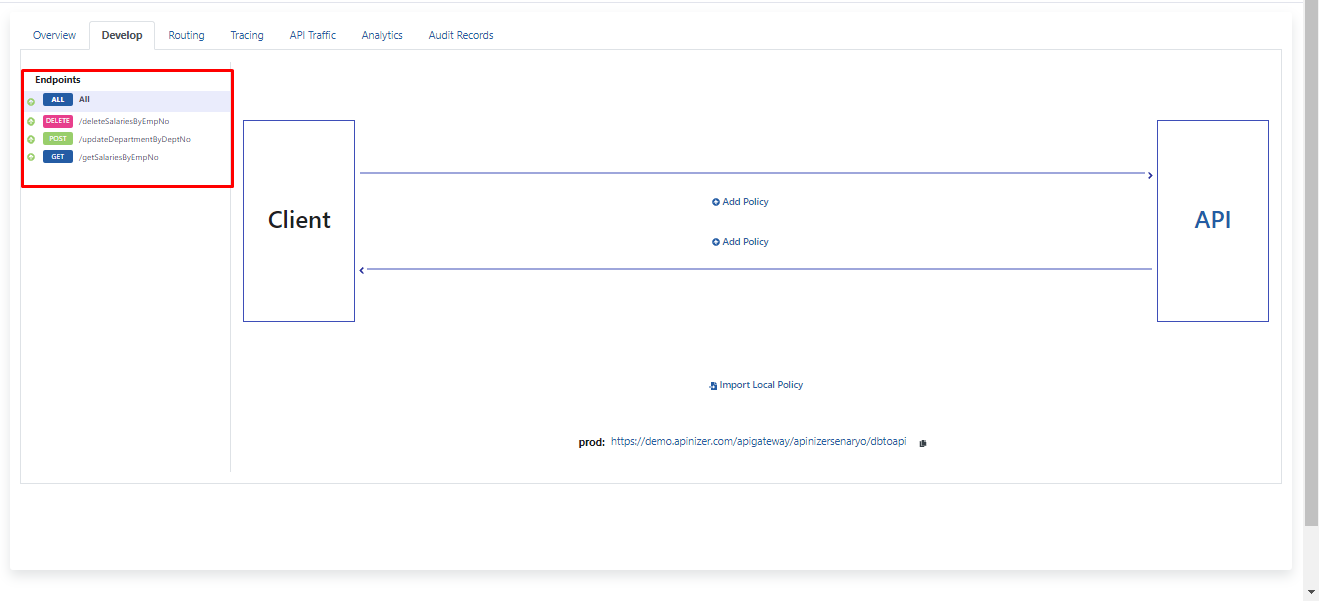
After the proxy is deployed, the created endpoints are tested in order.
Select the Develop tab for test operations.
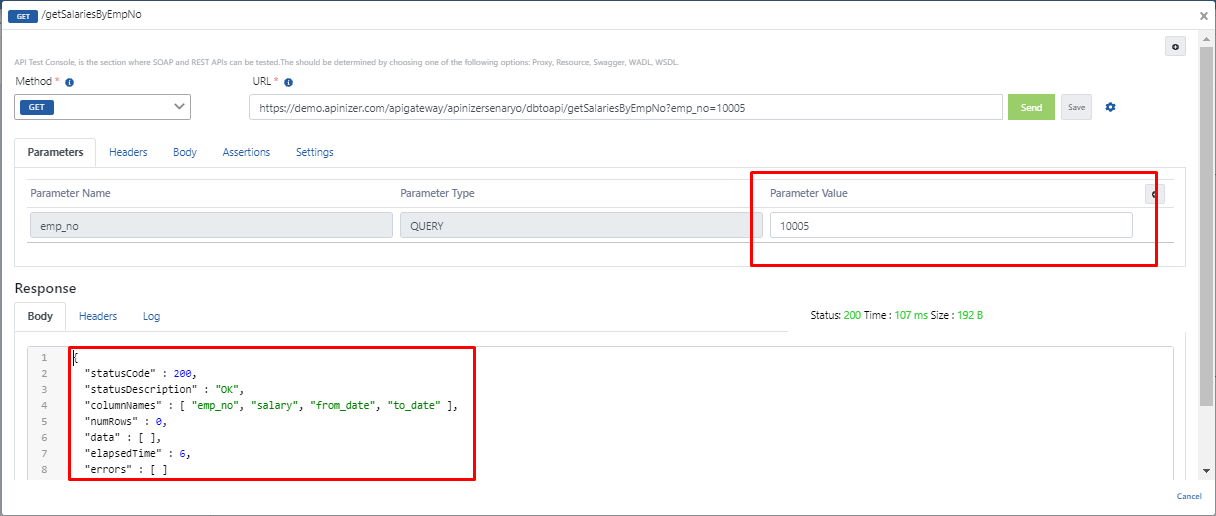
Select the endpoint named /getSalariesByEmpNo and click the Test Endpoint button.
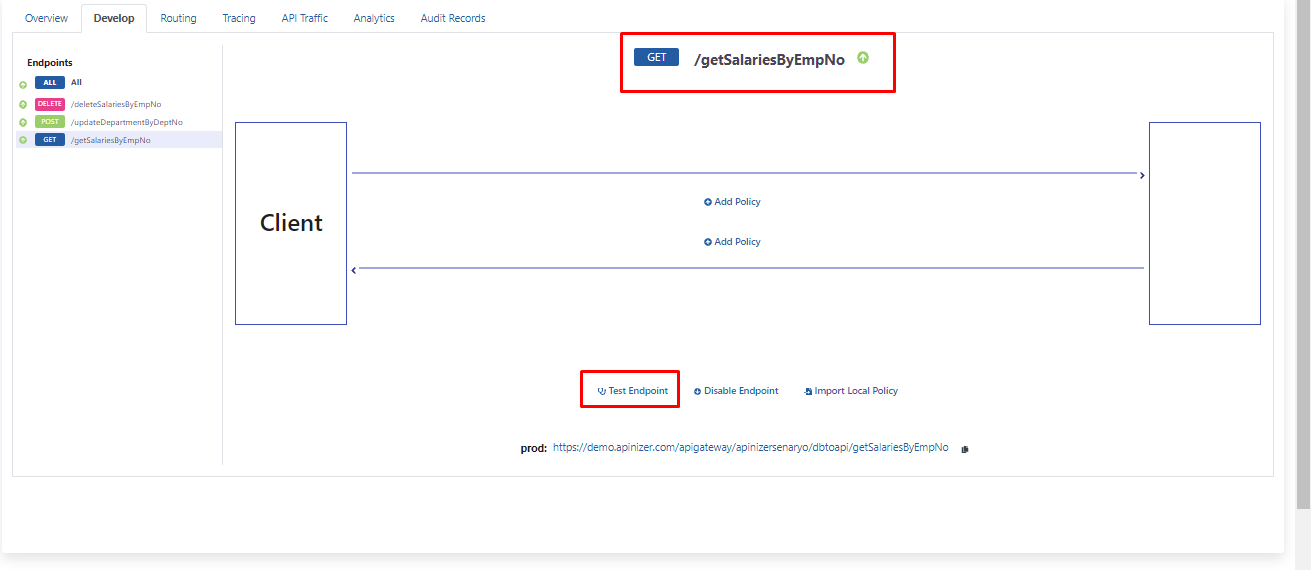
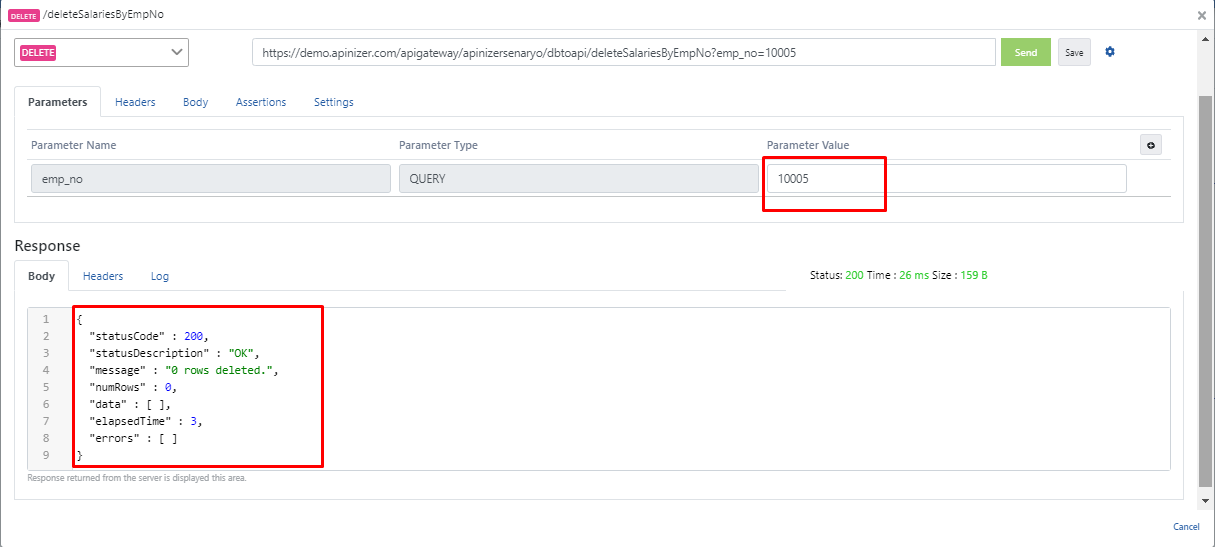
Enter the value "10005" as the Query parameter and obtain the response in the red rectangle.
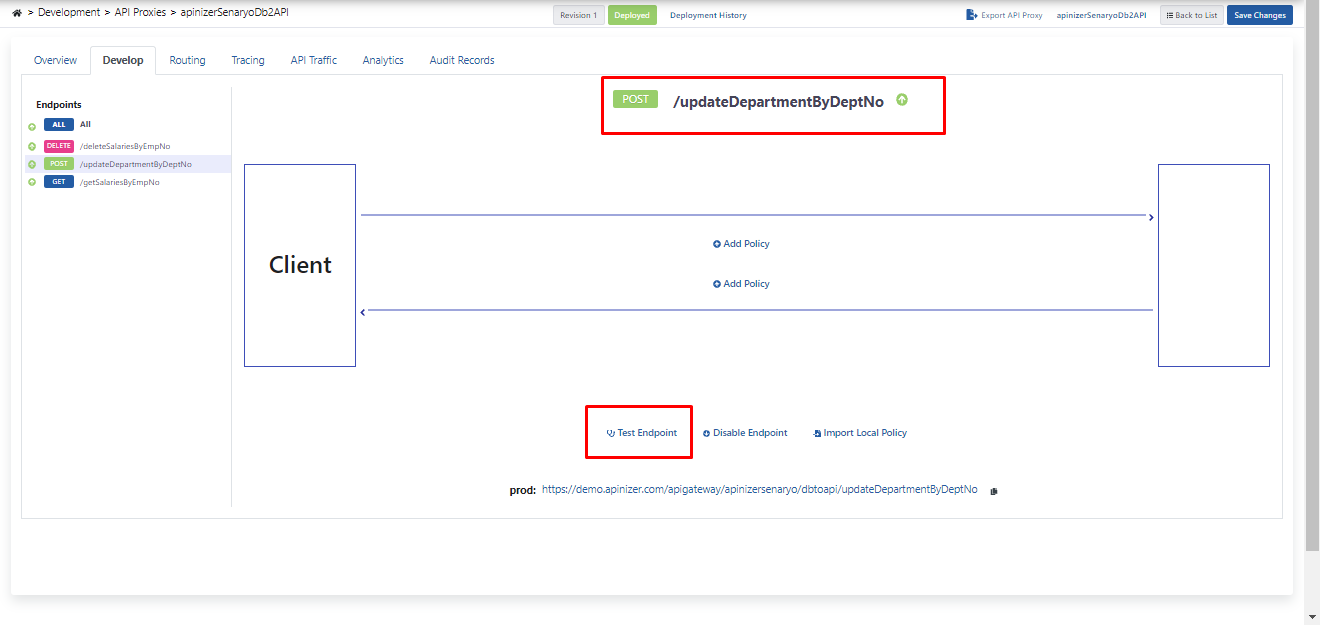
After testing this endpoint, select the second endpoint named /updateDepartmentByDeptNo for testing.
Click the Test Endpoint button.
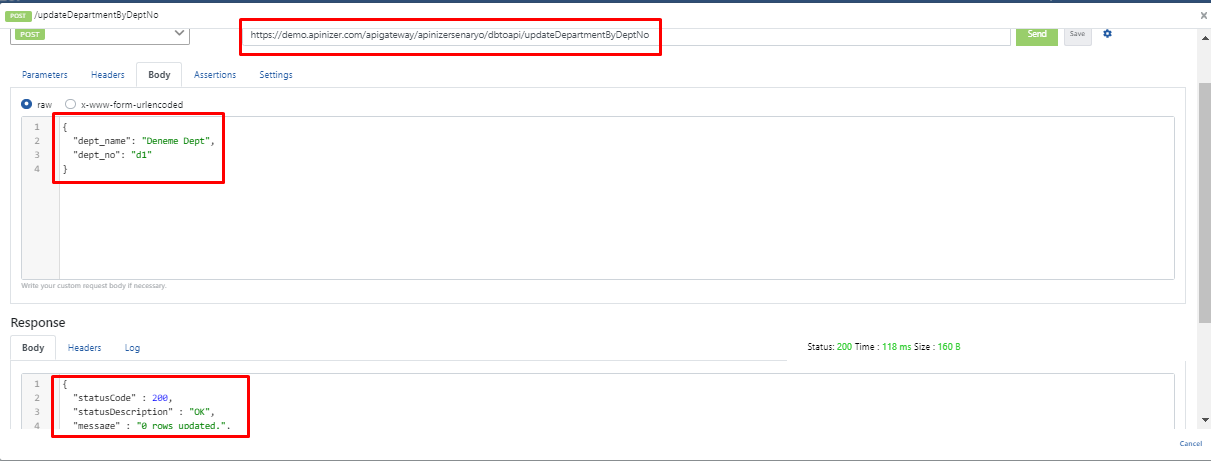
Since this endpoint requests two pieces of data in the Body, they are given in key/value format.
When the Send button is clicked, the response in the red rectangle is obtained as a response.
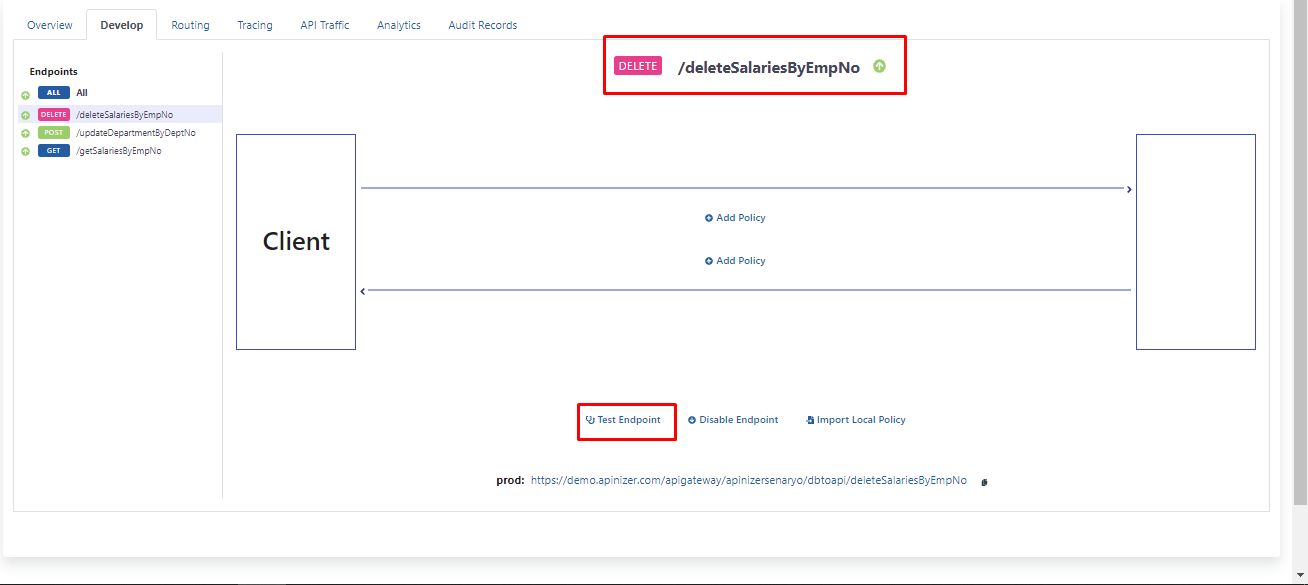
Finally, select the endpoint named /deleteSalariesByEmpNo for testing.
Click the Test Endpoint button.
This endpoint takes a parameter of Query type. Enter the value "10005" and when you click the Send button, the response obtained is in the red rectangle.