Asset Lifecycle
Asset Lifecycle covers three operations offered in common across most configuration screens in Apinizer: Duplicate, Audit, and Rollback. These operations are accessed from the asset's own list and detail screens — they are not a separate menu or module.
Scope
Duplicate, Audit, and Rollback are enabled on the large majority of configurable assets in Apinizer. The table below summarizes the main asset groups and example assets where these operations are active.
API from Database, API from Script, Mock API
Consumers and Consumer Organizations, Contracts/Protocols, IP Groups, Rate Limit Control List
Certificates, Keystores, JWK, Private Keys
Kafka, RabbitMQ, Email, FTP, Elasticsearch, Webhook, Syslog, Graylog, ActiveMQ, and other connector definitions
Variables, Environment Variables, Policy Configuration Templates
Uptime Monitor, Anomaly Detector, Custom Queries and Filters, Report Configurations
Users, Roles, Teams
MCP servers/connections, A2A agents/connections, Knowledge Bases, LLM Providers, Model Catalog, AI policies
Task Flow definitions, API Promotion mapping definitions
Exception for API Proxy: Duplicate on API Proxy follows its own dedicated flow rather than the common flow described below, because the linked definition file and methods must also be cloned separately. That flow is documented on the API List page. Audit and Rollback on API Proxy, however, use the common mechanism described on this page.
Duplicate
Duplicate creates a new, independent record based on an existing asset. The source asset's settings carry over to the new record; only the name changes, and the copy is created with its own identity, independent of the source.
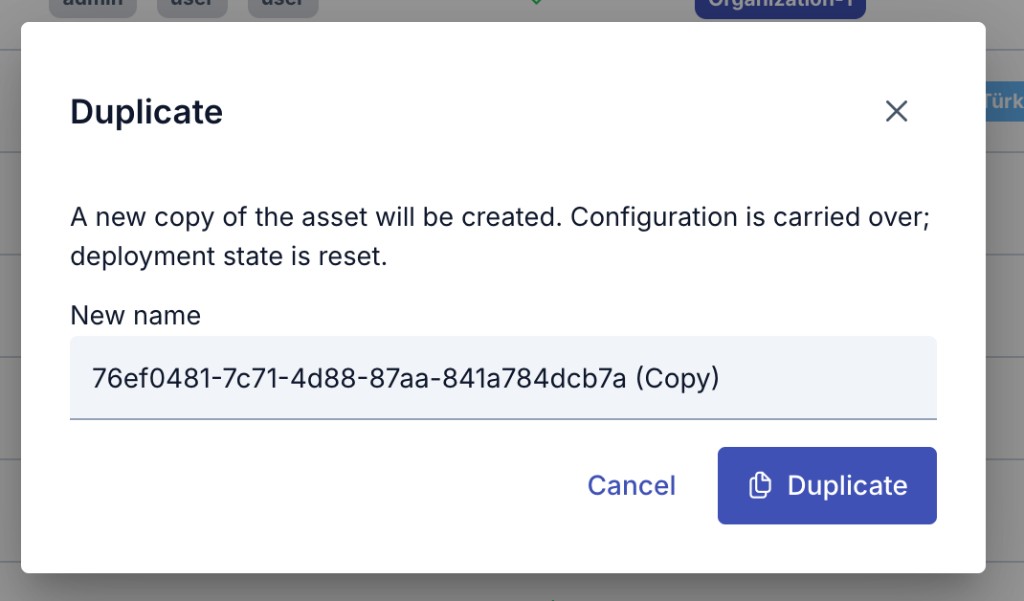
From the asset's list screen, select Duplicate from the row's action menu.
In the dialog that opens, enter a name for the copy. Reusing the source's name, or a name already used in the project, is blocked and a warning is shown.
Once confirmed, a new record is created and the copy appears on the list screen.
The duplicated record inherits the source's configuration, but its deployment state is reset. The copy starts out as a new record that has not yet been deployed to any environment — information about which environments the source is deployed to is not carried over to the copy.
Audit
Every asset that has been saved at least once has an Audit and Rollback tab on its detail screen. This tab only appears once the asset has been saved (it is not shown for a new, unsaved record).
In the Mock API and Script-2-API editors, the History button opens the same Audit and Rollback records in a side panel.
This tab lists every operation performed on the asset, newest first. Each entry shows:
| Field | Description |
|---|---|
| Date | The date and time the operation was performed |
| User | The user who performed the operation |
| Change | The type of operation (created, updated, etc.) |
| Actions | Actions to inspect the record or roll back to it |
Clicking the view (eye) icon on a row shows the full configuration snapshot at that point in time side by side with the previous record's state. Changed fields are highlighted. For an asset's initial creation record, there is no previous version to compare against, and this is noted accordingly.
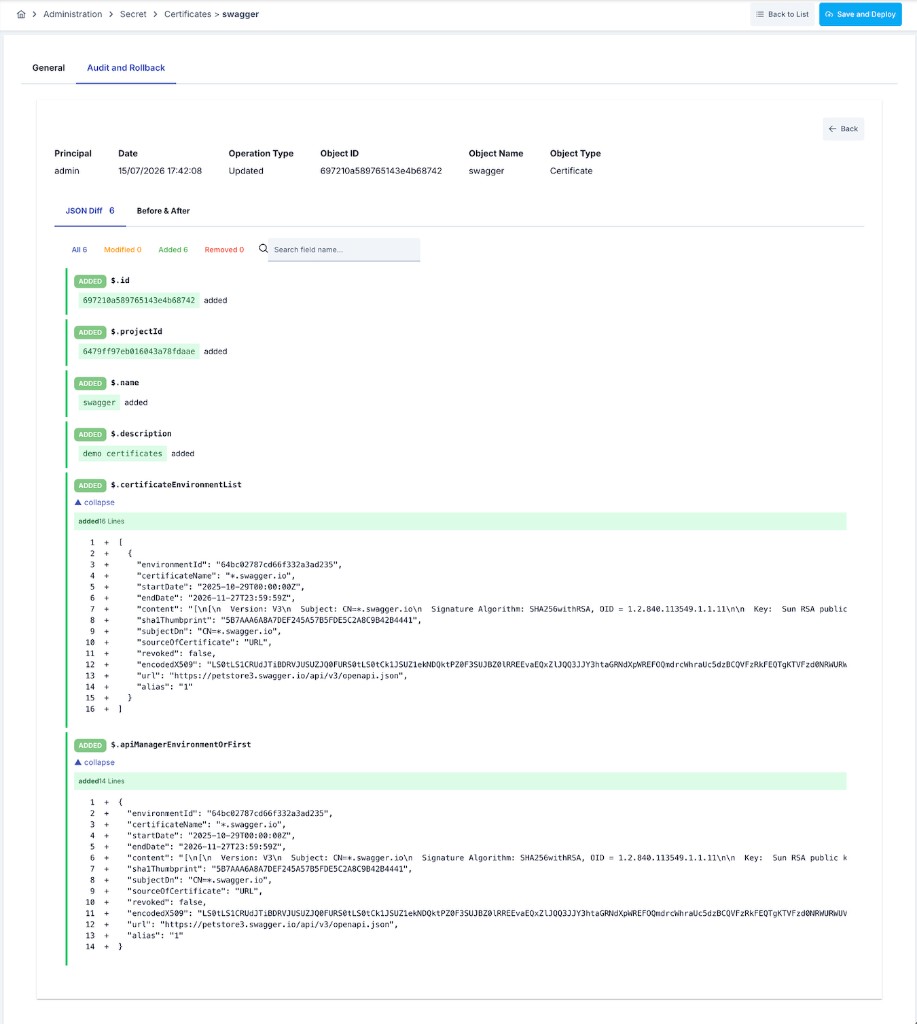
For assets that change frequently (e.g. a policy that is updated often), the number of listed entries is capped at a fixed limit; the ordering always starts from the most recent entry.
Hidden values such as passwords, API keys, tokens and private keys are not written to audit records, so they do not appear in this comparison either. A change that affects only a hidden field still produces an audit entry, even though the two sides look identical. See the Audit Records page for details.
Relationship to the general audit screens
The inspection and comparison mechanism used in this tab is the same one used by Apinizer's platform-wide audit infrastructure. The difference is that it is now also offered as an asset-scoped, filtered view directly on each asset's own detail screen. If you want to review all operations across the system from a single filterable screen, see the Audit Records page. The platform-wide audit screen does not offer a Rollback action — Rollback is only available from the asset's own Audit tab.
Rollback
Rollback restores an asset's configuration to a previous state recorded in its audit history. This action is started from a record in the Audit tab.
In the Audit tab, click the Rollback action on the record you want to restore.
To prevent an accidental rollback, the confirmation dialog requires you to re-type the asset's name. The Rollback button stays disabled until the exact text is entered.
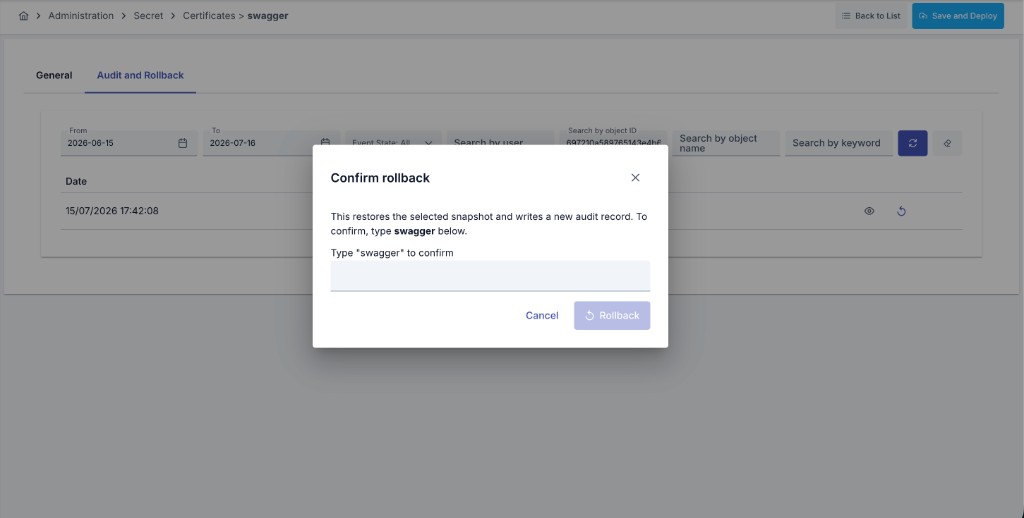
Once confirmed, the configuration recorded in the selected entry is applied to the asset's current state. The asset's identity, project, creation date, and hidden fields are preserved; every other setting is replaced with the values from the selected record.
Hidden values such as passwords, API keys, tokens, client secrets and private keys are not written to audit records, so they cannot be restored from them either. During a rollback these fields are kept at their current value: they are neither reverted to their earlier value nor emptied. After the operation, a message reports how many hidden fields were kept at their current value.
If a hidden value also has to be reverted, set it by hand on the asset's own screen after the rollback.
Rollback does not delete history — instead, it writes a new audit entry. This means the rollback action itself shows up in the Audit history as an "update", and can be rolled back again if needed. The audit history therefore only ever grows forward.
The Rollback described on this page restores an asset's configuration to a prior recorded state. API Proxy also has a separate "Rollback" action that restores which revision is deployed to an environment — that action is performed from the Deployment History on the Deployment and Version Management page and relates to deployment/environment state. The two actions are independent of each other.
Delete
Connected assets — Consumers, Organizations and Portal Applications — have their own delete guard, separate from the three operations above: a central check confirms both that the asset is not still connected to other records and that no other delete of the same record is already in progress. This behaves identically no matter where the delete is requested from — the interface, the Management API, or APIops — the same block produces the same HTTP 409 response and the same refusal reason on every surface. See each asset's own page for its specific delete rules; this section covers the mechanism they share.
Delete Blockers
An asset cannot be deleted while it is still connected to other records — for example, an organization that still has consumers or sub-organizations linked to it, or a portal application that still has consumers, access grants or product subscriptions. A consumer or a portal application that still owns API clients not yet revoked is blocked the same way — revoke the clients first; already-revoked clients never block a delete. The refusal names the categories of records that can apply to that asset type; it does not currently break down which ones actually do or how many there are, so check the asset's own related records (through its detail screens or lists) to find out what is really still attached. The way to clear a block is always the same: move or remove the connected records — for a portal application, archiving it is also an option — then try the delete again.
A consumer's own access grants and token usage history are never a reason its delete is refused; deleting a consumer removes those along with it, exactly as before. Its API clients are the one exception, as above.
Concurrent Deletion
Only one delete can be in progress for a given asset at a time. A second delete request for the same record, made while the first is still being processed, is refused with an HTTP 409 response without touching the record — this is what a doubled-up click or a retried request runs into, and simply trying again shortly after is normally all it takes.
If the server process carrying out a delete ends before the delete finishes — for example, an unexpected server restart — the record can stay in the "delete in progress" state permanently, refusing every further delete attempt: the lock does not clear itself. This is deliberate — since the record's true state is unknown at that point, letting the lock expire on its own risks a second delete landing on top of a half-finished one. If you run into this, contact your Apinizer administrator; for the recovery steps, see Recovering a Record Locked by an Interrupted Delete.
Permissions (RBAC)
These three operations are governed by the permission category the asset belongs to:
- Duplicate and Rollback require Manage permission on the asset's category.
- Viewing audit history only requires View permission on the asset's category.
For project-scoped assets (e.g. Consumers, Connections, API Proxy), the permission check is evaluated against the relevant project; for global/project-independent assets (e.g. users, roles), no project scope is required. See the Authorization Matrix page for the full list of categories and role permissions.
Where to Access It
| Operation | Access point |
|---|---|
| Duplicate | The row action menu (...) on the list screen → Duplicate |
| Audit | The Audit and Rollback tab on the detail screen (the record must already exist). In the Mock API and Script-2-API editors, the History button opens it in a side panel. |
| Rollback | In the same tab, the Rollback action on a listed entry |
Duplicate is performed from the list screen, while Audit and Rollback are performed from the asset's own detail screen — the three are not all available on the same page.
Next Steps
Review all platform-wide operations with filtering.
Learn about asset categories, actions, and role permissions.
Review the API Proxy-specific Duplicate flow.
Learn how to roll back which revision of an API Proxy is deployed to an environment.