Deployment and Version Management
When an API Proxy is created, it does not yet have an access address and is not accessible by clients. When an API Proxy is deployed to an Environment, a URL is created that includes the access address of the Environment where it is deployed, and clients can now access the API Proxy's methods/endpoints through this URL.
This section covers deploying, redeploying, undeploying an API Proxy, viewing deployment history, and rolling back an API Proxy.
Deployment Status and Deployment History Information
When an API Proxy is open, its deployment status appears on the deploy button in the upper right of the screen; the button reads Deploy, Redeploy, or Deployed. The deployment history is opened from the More actions (⋯) menu next to it: History > Deploy History.

Deployment and rollback operations are performed through these elements.
Deploy
An API Proxy must be deployed to an Environment to be accessible by clients.
Click the deploy button in the upper right of the screen.

When this button is clicked, Environments, the deployment status of the API Proxy in each Environment (Undeployed, Redeploy required, or Active), and depending on this status, the Deploy button or Redeploy and Undeploy buttons are displayed.
In the following example, there is a single Environment named prod, the API Proxy is not deployed (or has been deployed and removed) in this Environment, and the Deploy button is visible.
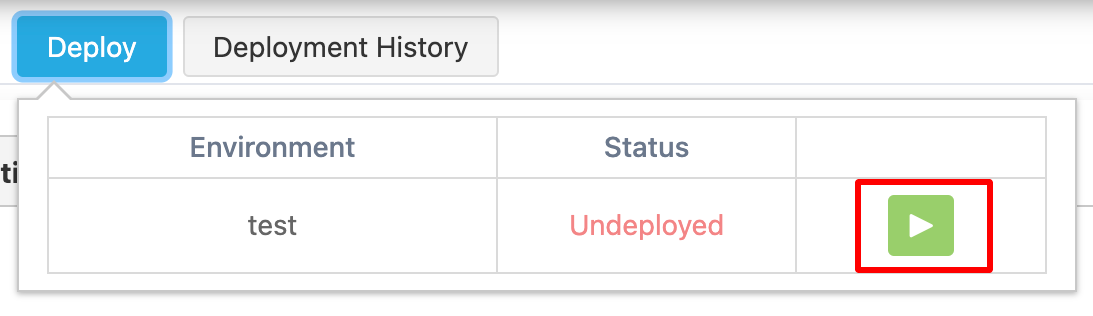
- A revision can be deployed to one or more Environments.
- Different revisions of an API Proxy can be deployed to different Environments.
When the Deploy button is clicked, a window appears. Here, optional description notes related to the deployment can be entered, and since these notes will be visible in the deployment history, it is beneficial to enter a note for each deployment. With the Never delete this deploy history option, it can be ensured that the version to be deployed is never deleted from the version history.
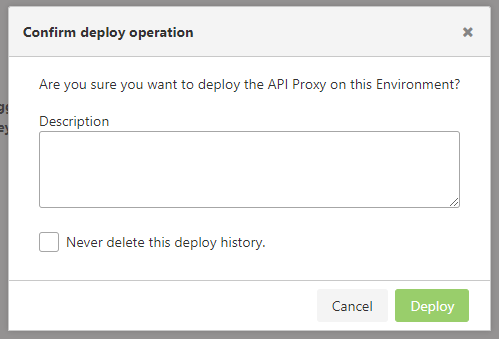
When the Deploy button is pressed in this window, the API Proxy is deployed to the selected Environment and its status is updated to Active. With this update, a separate access address is created for each Environment where the deployment has been made for this API Proxy, and the API Proxy becomes accessible to clients.

The access addresses of the API Proxy can be viewed in the Deployment section of the Overview tab. In this area, access addresses are displayed in separate rows for each Environment where the API Proxy is deployed, and the API Definition File content at that address can be accessed by clicking the link in the Specs column.

The access address displayed in the URL column for the API Proxy is the root address. The method/endpoint address to be accessed must be appended after this root address to send the request.
Redeploy
Changes made to a deployed API Proxy are not reflected to clients until the API Proxy is redeployed. This feature gives developers the ability to work without stopping client traffic. When an update is made to a deployed API Proxy, the status of the related Environment in the deployment window shows Redeploy required. This indicates that redeployment with the Redeploy button is required for the updates to take effect.

It is not mandatory for changes to be made for an API Proxy to be redeployed; the Redeploy button can be used for the Environments it is deployed to.
When the Redeploy button is clicked, the process flow is the same as in deployment.
The redeployment process is performed seamlessly. The settings of the redeployed API Proxy replace the previous settings at runtime, and from that moment on, incoming requests are answered according to the new settings.
Undeploy
If a deployed API Proxy needs to be closed to access for some reason, click the deployment button at the top right of the screen to open the window displaying the Environments.
Click the Undeploy button in the row of the Environment from which the API Proxy is to be removed in the list in this window. After confirmation in the confirmation window that appears, the API Proxy can no longer be accessed in the selected Environment.
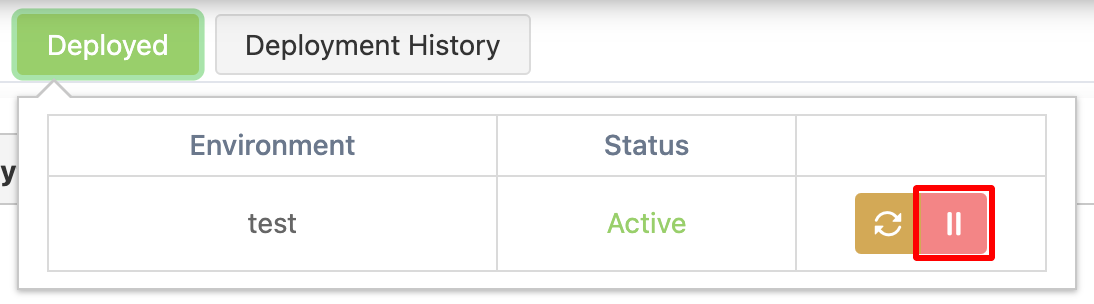
Every deploy and undeploy attempt, successful or failed, also writes a Deploy or Undeploy record to Audit Records and, once a destination is configured, to a SIEM (see SIEM & Log Forwarding).
Deployment History
An API Proxy can be deployed, redeployed, or removed many times during its lifetime. It is also possible to enter a description note for each deployment operation.
The deployment history displays information such as who deployed or removed this API Proxy, when, to which environment, and if written, its description. To open this window, click the More actions (⋯) menu and then History > Deploy History.
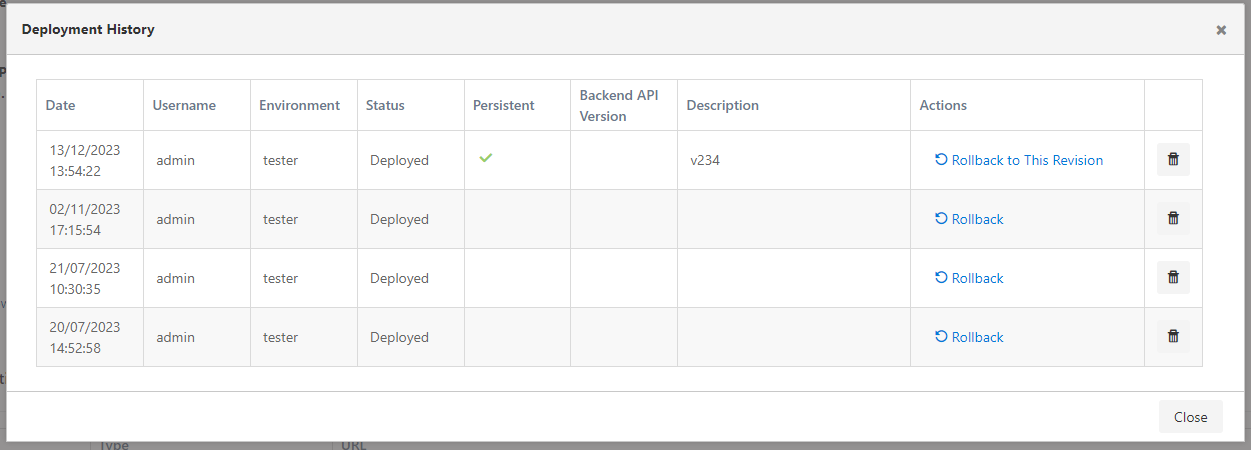
The total number of history records to be kept is configured from the System Global Settings screen.
Rollback
If a problem is encountered while updating the API Proxy, the API Proxy can be rolled back to the last stable working revision through the deployment history.
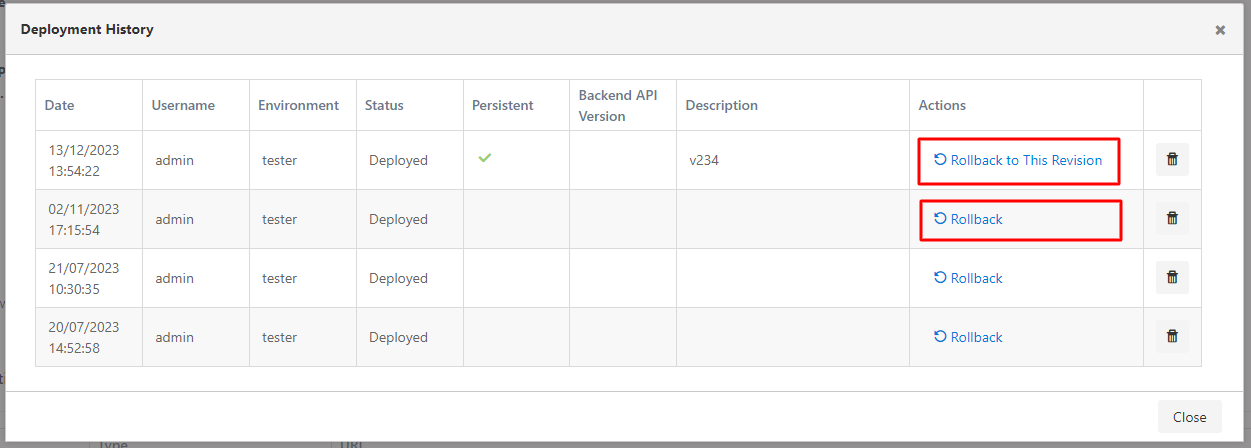
Rollback is performed from the Actions column of the deployed records in the History window:
- The Rollback to This Revision button on the latest record undoes all changes made after the active deployment and reverts the API Proxy to the configuration of the active deployment.
- The Rollback button on earlier records reverts the API Proxy to the configuration in that record.
In both cases, confirmation is required in the confirmation window.
Revision Deletion
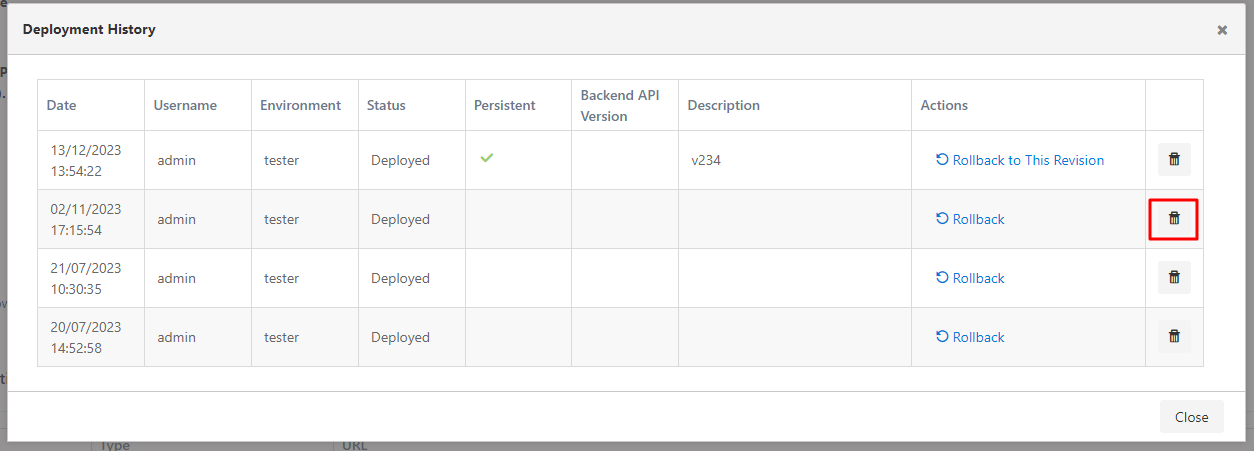
Revisions can be deleted through the deployment history. To do this, click the trash button for the relevant revision.
Deployment Results
When a configuration is deployed to or removed from a specific Environment or all environments, the operation results are displayed on a detailed results page. Since there can be multiple Pods within an Environment, it is important to ensure that the configuration is successfully deployed to all Pods for the system to work consistently. In case of any Pod crash or becoming inaccessible, this situation is displayed on the results screen, enabling necessary intervention.
The visual containing the Deployment Results screen is shown below:
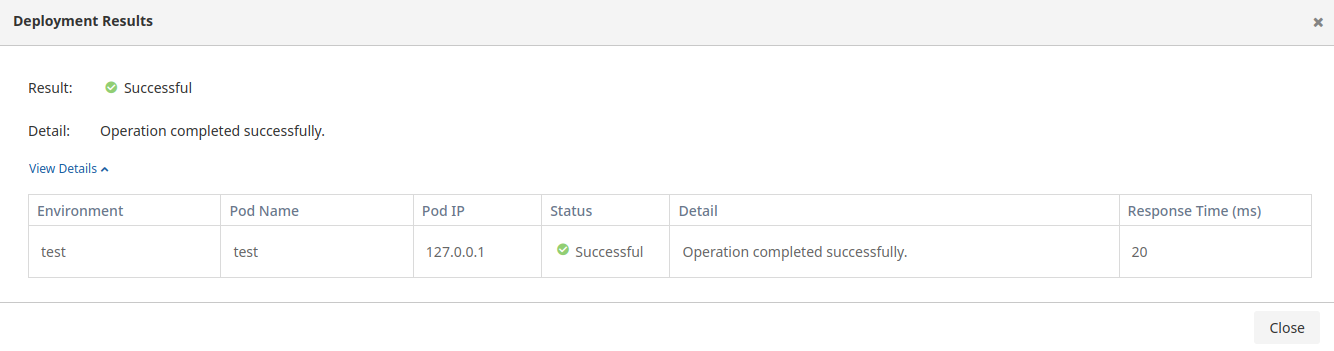
The fields used for the Deployment Results information screen are shown in the table below.
| Field | Description |
|---|---|
| Environment | Indicates the working environment where the operation was performed. |
| Pod Name | Specifies the name of the pod used during the operation. |
| Pod IP | Shows the IP address of the pod where the operation was performed. |
| Status | Indicates the general status of the operation. |
| Detail | Field containing detailed explanation about the operation result. |
| Result | Contains information summarizing the general status of the operation. |
| Response Time(ms) | Expresses the completion time of the operation in milliseconds (ms). |
Related Pages
Learn about the API Proxy concept and basic features.
Review the Environment concept and deployment processes.
Manage general information and settings of the API Proxy.
Configure deployment history retention settings.