Traffic Tab
In the Traffic tab, the message traffic of the API Proxy can be viewed and filtered, and log records of each message can be examined.
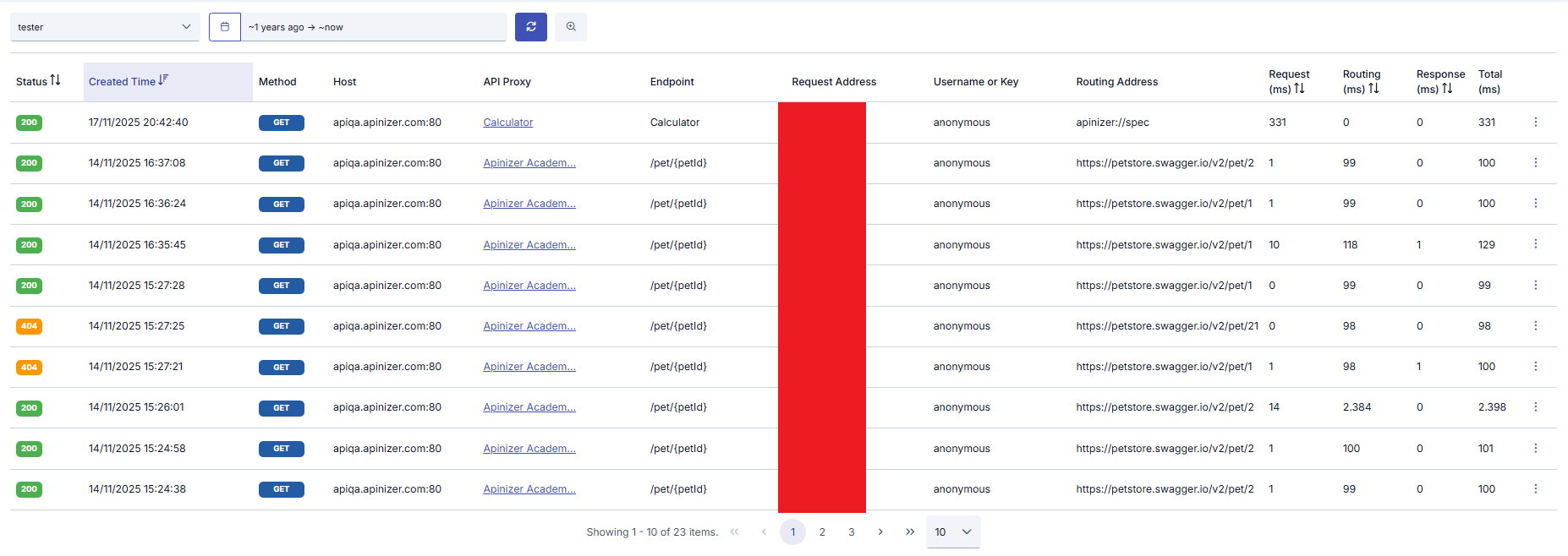
Each of the log records shown in the table belongs to a request coming from a client to this API Proxy and the response message given to that request. The following operations can be performed on this message.
Since WebSocket and gRPC requests are kept as data coming to and going from Apinizer, there are only 2 areas in these types of API Proxies.
Routing Address
This field holds the address information where the relevant API Proxy is routed.
- When the request reaches the backend, this column shows the backend address, highlighted, as listed below.
- When the gateway answers the request itself without a backend call — an MCP
initialize/tools/list/ping, a discovery document, a mock response, or a request blocked or refused at the gateway — this column instead shows the gateway endpoint the client called (for an MCP proxy, its MCP endpoint URL, e.g.https://api.apinizer.com/apigateway/aigw/petstore-mcp). This address is shown in a muted color with a tooltip explaining it was answered by the gateway at that address, without a backend call. The address is built from the request's own scheme, server name, port, and URI already present in the log record — the default port (80/443) is omitted. - (Empty), shown as "— (not routed)", now only remains on older log records written before this address was captured, which have nothing left to reconstruct it from.
Services using Apinizer as backend are shown with the "apinizer://" prefix, it will write exactly "apinizer://<COMPONENT_NAME>/<METHOD_NAME>".
This also applies to proxies where routing is closed to prevent going to backend.
Possible values are;
| Routing Address | Condition |
|---|---|
apinizer://mirror.routing/<METOT_ADI> | API Proxy type Swagger 2.x, OpenAPI/Swagger 3.0.x, WSDL, Reverse Proxy or No-Spec API and Routing option is closed and Mirror option is open |
apinizer://specresponse.routing/<METOT_ADI> | API Proxy type Swagger 2.x, OpenAPI/Swagger 3.0.x, WSDL, Reverse Proxy or No-Spec API and Routing option is closed and Mirror option is closed |
apinizer://db2api.apicreator/<METOT_ADI> | API Proxy type DB2API |
apinizer://script2api.apicreator/<METOT_ADI> | API Proxy type Script2API |
apinizer://mockapi.apicreator/<METOT_ADI> | API Proxy type Mock API |
apinizer://connector/<METOT_ADI> | API Proxy type Connector |
apinizer://maintenance | API Proxy in maintenance mode |
apinizer://cache/<METOT_ADI> | In any API Proxy type and Caching is open |
http://<BACKEND_ADRESİ>/<METOT_ADI> or https://<BACKEND_ADRESİ>/<METOT_ADI> | API Proxy type Swagger 2.x, OpenAPI/Swagger 3.0.x, WSDL, Reverse Proxy, No-Spec API or KPS and Routing option is open |
apinizer://spec | API Proxy type Swagger 2.x, OpenAPI/Swagger 3.0.x, WSDL, Reverse Proxy, No-Spec API and access to spec address |
| (Empty), shown as "— (not routed)" | Legacy log record written before gateway-answered requests captured this address, with nothing left to reconstruct it from |
Routing Status Badges
Next to the address, the Routing column shows one or more status badges derived from the fields already present in the log record. At most one address-related badge appears per row, together with an optional error badge:
- cache hit — the response was served from cache (including the AI semantic cache); by design there is no backend call for these rows.
- direct — the request reached the backend address with no retry or failover.
- retry ×n — the router retried the backend the given number of times before the exchange completed.
- failover ×n — the router failed over to an alternate backend the given number of times.
- tool call — replaces direct on MCP
tools/callrows; the address shown is the tool's backend — the source API Proxy path reached through the gateway in Expose Tools mode, or the MCP server host:port in Passthrough mode. - backend error — the backend was reached but the exchange still failed; hover the badge to see the error type.
- blocked at gateway — the request was refused by a policy before reaching any backend.
- refused at gateway — an MCP
tools/callrequest was refused before reaching any backend (unknown tool, insufficient scope, argument rule, or output filter). - gateway error — the gateway could not complete the request without reaching a backend, for example a tool backend proxy being unavailable, a failed tool execution, or a session limit.
- handled by gateway — the request succeeded without any backend call, such as an MCP
initialize/tools/list/ping, a discovery document, a mock response, or a spec request.
For the handled by gateway, blocked at gateway, refused at gateway, and gateway error badges, the address shown is the gateway endpoint the client called, not an empty value. The same address also appears in the Endpoint field of the AI/MCP detail drawer's summary card, which previously showed "—" for these rows.
Log records written before this classification existed fall back to the HTTP status code: 4xx/5xx is shown as blocked at gateway, anything else as handled by gateway.
Filtering
Search can be performed in 2 different types (Basic, Advanced) with the More options option
In the Basic tab, filtering is applied to records with determined criteria such as a specific time range, endpoint, or HTTP method.

In the Advanced tab, users can create nested filters.

Search can be performed with the following options in the Advanced tab.

Detailed View
The first one in the menu at the end of the row of the request message to be examined opens a panel displaying the log records of that message.
Detailed View opens in a panel that slides in from the right (drawer). Every API type uses the same panel: REST, SOAP, WebSocket, gRPC, MCP and AI Gateway records are all read the same way. The panel's last tab shows LLM Insights when AI usage data is available for the record, or MCP Details / A2A Details depending on the record's content; the tab is hidden when none of these apply.
For a WebSocket or gRPC record, the first two payload tabs are named Incoming Message and Outgoing Message, and the backend-response tabs are not shown: these protocols do not log a request/response pair.
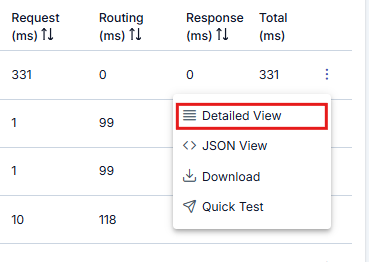
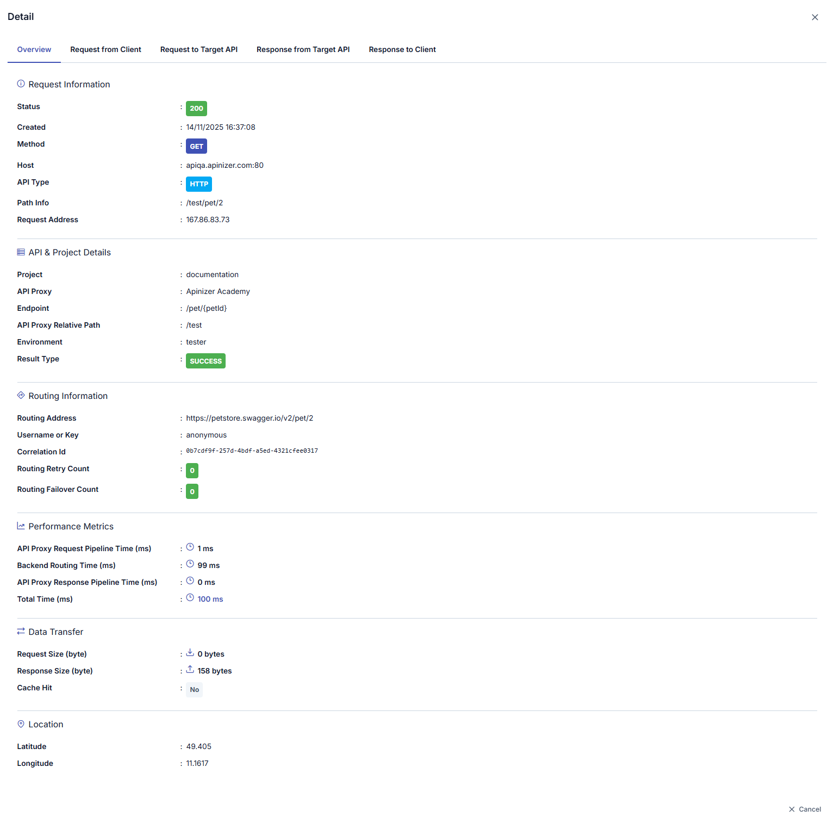
In the panel that opens, it is seen that logs are divided into tabs related to message flow. When the name of the tab to be examined (for example, the Request From Client to API Proxy tab) is clicked, log records related to this area are displayed. By default, the Overview tab is open.
If Elasticsearch does not respond in time while the log record is being fetched, the Detailed View panel (and the JSON View window) does not open with empty fields. Instead, the following message is shown:
Could not load the log detail because Elasticsearch did not respond in time. Please try again in a moment.
Try again in a moment; if the problem persists, check your Elasticsearch connection and timeout settings. This message only appears when the underlying log document could not be retrieved in time — if the document genuinely does not exist (for example, it has been deleted or has fallen outside the retention period), the window opens as before with the corresponding fields empty.
This same protection also applies to the Quick Test reload below and to the detail panel on the Portal Traffic and Usage screen — neither opens an empty detail panel when Elasticsearch times out; both show the same message above.
Authentication Failure Reason
When a request is rejected through an LDAP identity provider, the Detailed View window shows an Authentication Failure Reason field: sign-in failed, user not found, a required role is missing (the roles the policy required and the roles the user carries are both shown in this case), or the directory could not be reached. This field is shown only for rejections caused by LDAP; it does not appear for requests rejected for another reason.
When the directory cannot be reached at all, the request is rejected with a separate error stating that the service is temporarily unavailable, instead of the usual invalid username/password error; this error text can be customized from the Error Messages screen. The Authentication Failure Reason is never sent to the client or to the API Portal; it can only be seen from this screen.
Routing Diagnostics
If a request to the backend has routing diagnostic signals, a Routing Diagnostics section is shown in the Detailed View panel.
This section is only shown for requests that go to the backend; requests served from cache or that never reach the backend (mock, maintenance mode, etc.) do not show this section.
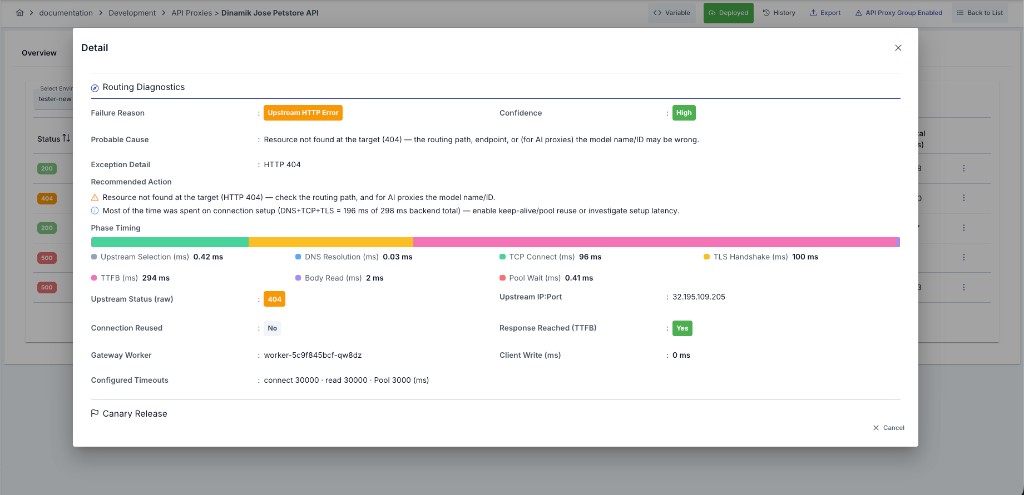
| Field | Description |
|---|---|
| Failure Reason | If the request failed, the classified failure reason (Pool Timeout, Connect Timeout, DNS Failure, TLS Handshake Failure, Read Timeout, Backend/Client Closed, No Healthy Upstream, Circuit Open, Retries Exhausted, Upstream HTTP Error, Unknown) |
| Confidence | The reliability level of the classification (High/Medium/Low) |
| Probable Cause | An automatically generated explanation based on the failure reason |
| Exception | If present, the exception class and detail that caused the failure |
| Recommended Action | A suggestion generated from the available signals to help resolve the issue |
| Phase Timing | The duration (ms) of each of: selection, DNS, TCP connect, TLS handshake, time to first byte (TTFB), body read, and pool wait |
| Upstream Status (raw) | The raw HTTP status code returned by the backend (may differ from the code returned to the client, e.g. if a policy changed it) |
| Upstream IP:Port | The backend address the request was actually sent to |
| Connection Reused | Whether the connection was reused from the pool |
| Response Reached (TTFB) | Whether at least one byte of the response was received from the backend |
| Gateway Worker | The Worker pod/host that processed the request |
| Client Write (ms) | Time spent writing the response to the client |
| Pool | The connection pool's instantaneous state: leased, pending, available, and maximum connection counts |
| Configured Timeouts | The connect, read, and pool-lease (connection-request) timeout values (ms) configured for the API Proxy |
Combined with the timeout and connection pool settings configured on the Routing tab, this information helps you quickly pinpoint the root cause of a routing problem. For an aggregate routing diagnostics summary for this API Proxy, see the Analytics tab.
JSON View
The button below the Detailed View button displays log records in JSON format.
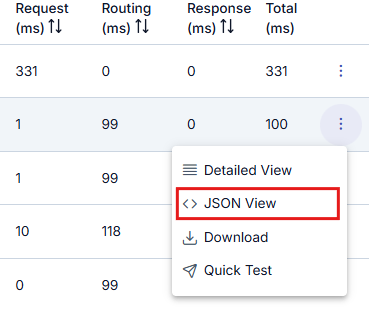
The visual containing the dialog opened when JSON View is clicked is shown below:
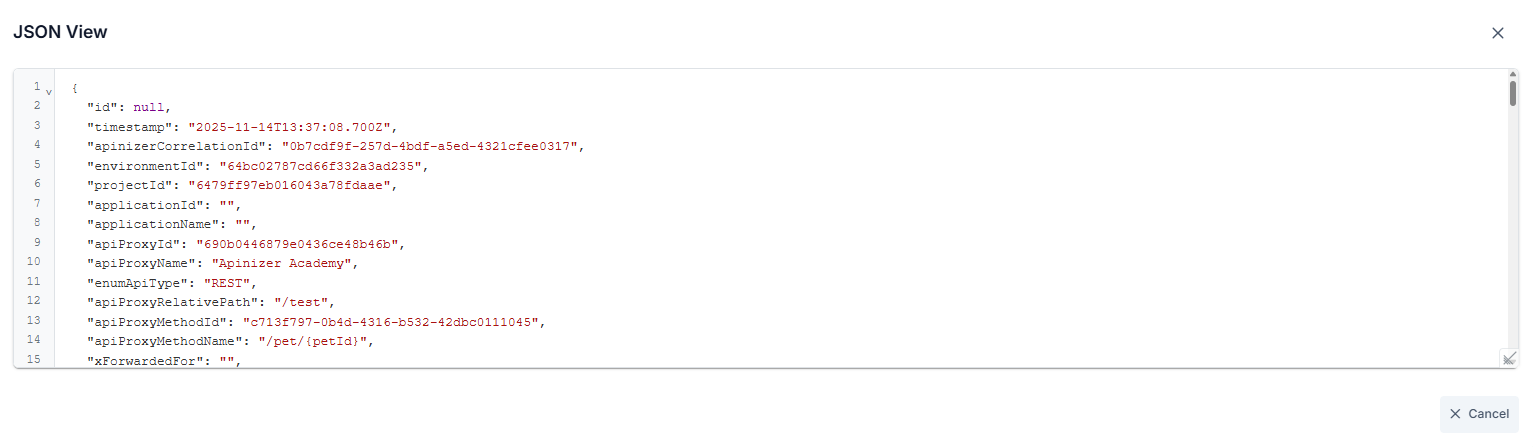
Key values in this field are written in a readable format, not as they are in the log file, to facilitate reading.
For example, the "apiProxyId" value is kept as "api" in the log record, when the log record is downloaded, the actual log record will be displayed.
For the actual log file format, you can examine the "Template Data Structure Table" on the Elasticsearch Manual ILM Policy and Template Creation page.
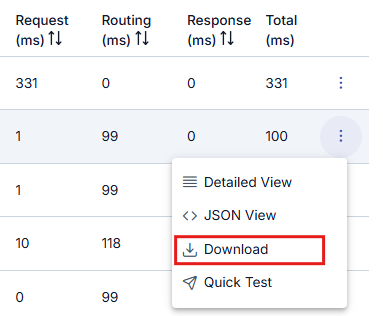
Download
It is also possible to download log records for more detailed examination.
Quick Test
The Quick Test button on the relevant row opens the Test Console formatted so that the sent request can be tested immediately by resending it.
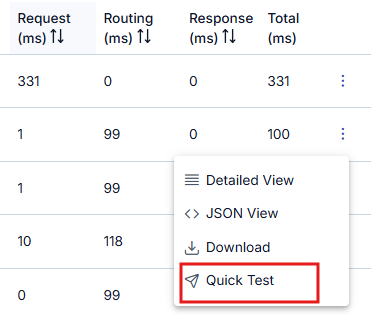
"Quick Test" button must be enabled in general settings to be visible.