HTTP Routing
If API type is HTTP, this tab is visible.
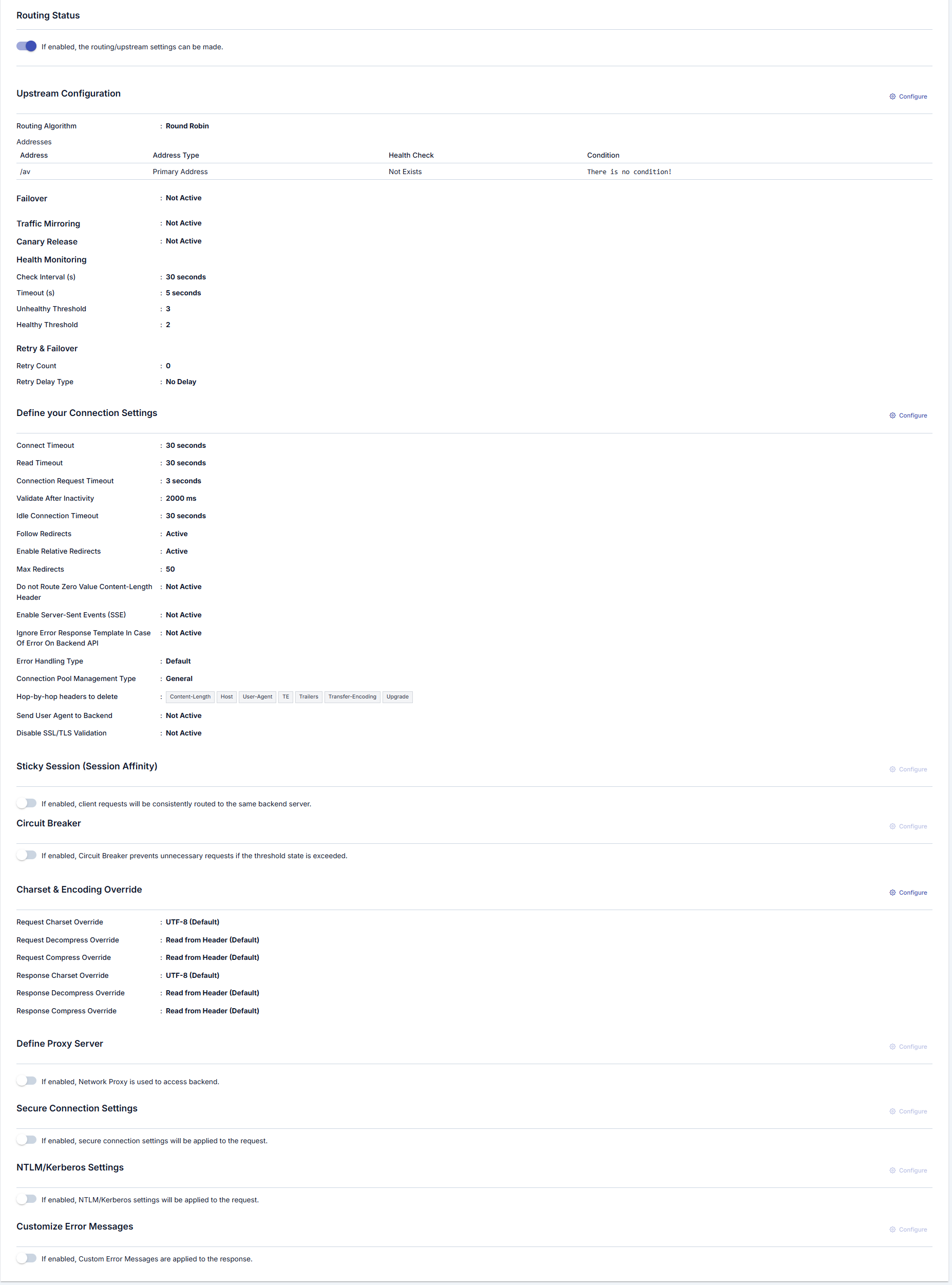
Enabling Routing/Upstream Settings
The visual containing the enabling settings for routing/upstream settings is shown below:

The parameters used for enabling routing/upstream settings are shown below.
| Field | Description |
|---|---|
| If enabled, the routing/upstream settings can be made. (If enabled, the routing/upstream settings can be made.) | By enabling this setting, how traffic will be routed is managed. If closed, requests do not go to backend, if open, backend information to go to can be entered. |
| If enabled, mirroring is activated; otherwise, sample response from the specification is returned. (If enabled, mirroring is activated; otherwise, sample response from the specification is returned.) | This setting appears only if the above setting is inactive, i.e., requests are not going to any backend. With this setting, mock data can be returned or the request can be returned by copying it to the response. When enabled, the request message is copied to the response message and the response line is executed; when disabled, the result expected to return in code 200 in the definition file is returned. |
Disable Routing
If routing is disabled, requests are not forwarded to the backend. Depending on your configuration, Apinizer can return responses based on the API definition file (spec) or mirror behavior without calling the upstream service.
Routing Tab settings are shown in the following image:
Managing Backend API Addresses
When creating an API Proxy, the Backend API's access address can be obtained in different ways:
- If an API Definition File is used, at least one of the addresses in this file is selected by the user.
- If an API Proxy is created with the No-Spec API option (for example, for a Backend API developed with code-first approach), the Backend API's address is entered by the user.
- If an API Proxy is created for an API created with API Creator (DB-2-API, Mock API or Script-2-API), address is not requested, it is managed by Apinizer. The Routing Tab is closed for these types of APIs.
The address information obtained during creation can be changed later, new addresses can be defined, or existing ones can be deleted. For this, the Addresses (Addresses) section in the Routing Tab is used.

Adding New Address
A new address can be added from the window that opens when the ➕ button in the column header area at the far right of the window opened with the Configure button is clicked.
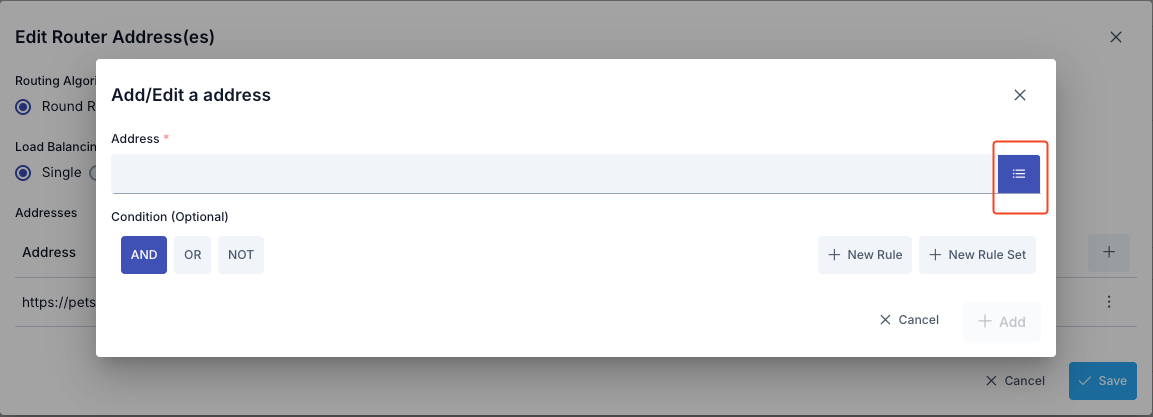
In the new address addition window:
- Backend API address is entered in the Address field or environment variable is used
- Environment Variables Selection Dialog can be opened by clicking the list icon button on the right of the Address field
- Selected environment variable is copied to clipboard and pasted into the Address field
- Conditional routing can be defined with the Condition section
Updating Address
The address can be updated in the window that opens when the Configure button in the Address (Address) column of the table showing addresses is clicked.
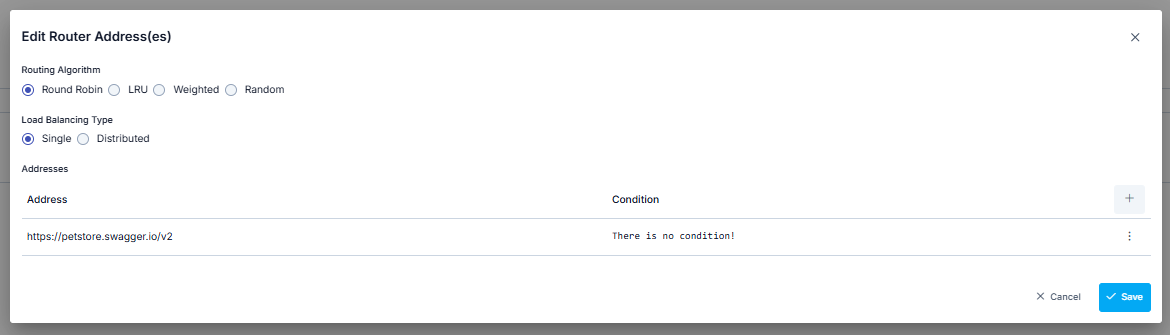
If this value is desired to change automatically according to the environment it is in, selection can be made from Environment Variables (Environment Variable).
When the list icon button on the right of the address input field is clicked, the Environment Variables Selection Dialog opens. Through this dialog, all environment variables (Environment Variables) defined in the project can be viewed and selected.
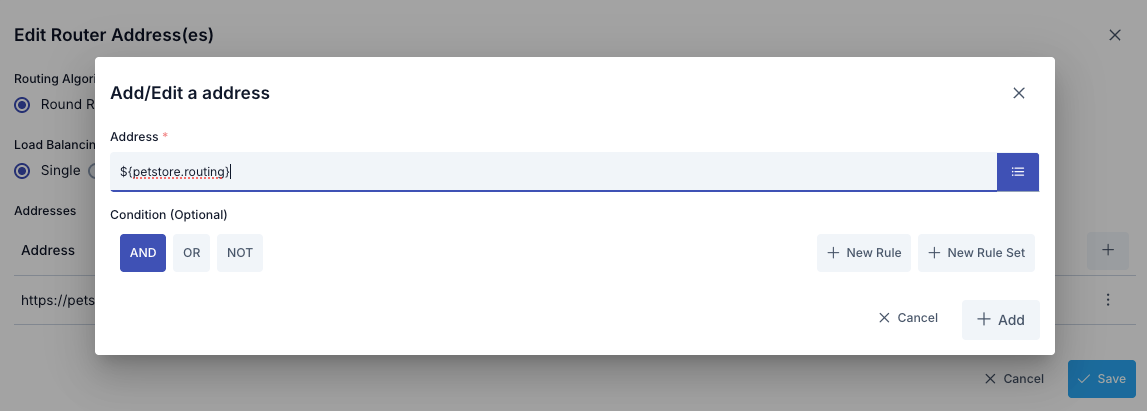
When the list icon button on the right of the address input field is clicked, the Environment Variables Selection Dialog opens. Through this dialog, all environment variables (Environment Variables) defined in the project can be viewed and selected.
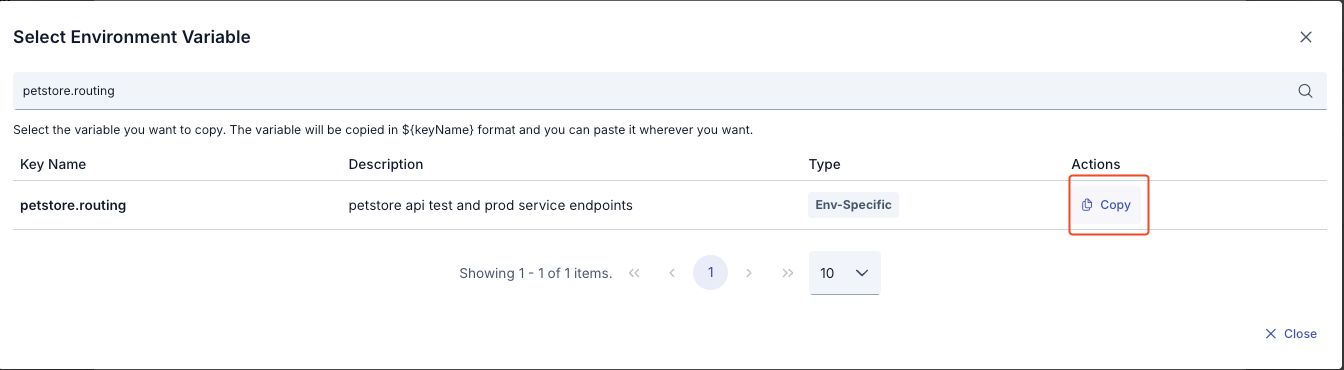
In the Environment Variables Selection Dialog:
- All environment variables are listed (Global and Environment-Specific)
- Filtering can be done by variable name or description with the search box
- Key Name, Description, Type information is displayed for each variable
- The format of the selected variable (
${variableName}) is automatically copied to clipboard with the Copy button - The copied value can be used by pasting it into the Address field
Example Usage:
- Environment variable:
BACKEND_URL = dev-api.example.com(for Development environment) - Environment variable:
BACKEND_URL = api.example.com(for Production environment) - Value entered in Address field:
${BACKEND_URL} - At runtime in Development environment:
dev-api.example.com - At runtime in Production environment:
api.example.com
If the API Proxy's type is SOAP; the SOAP Type information added/edited in this section is reflected to the port information in the WSDL.
Conditional Routing
The Condition section in the window opened for address update or addition operations provides the ability to define conditions for messages from clients to be sent to this address. Thus, for example, requests that do not come with a special header or parameter value can be routed to only certain one or more of the defined addresses.
A practical usage scenario example could be routing requests coming with "test=true" parameter to the test server, and requests that do not contain this parameter to the production server. Another scenario could be routing requests to servers in different regions according to the IP value of the requests.
Deleting Address
The address is deleted by selecting the Remove option from the dropdown menu at the end of the row of the address to be deleted.
At least one address is required for the API Proxy to route. Therefore, after deleting the last address, the save button becomes inactive and does not allow saving.
Load Balancing
When the load on the Backend API increases, it is possible to distribute the load by loading the same API/Web Service to another server as well.
No network settings need to be made for the new server to be accessible to clients, it is sufficient to add it to the Addresses (Addresses) section on Apinizer. Apinizer distributes the load among these addresses if multiple addresses are defined for a Backend API.
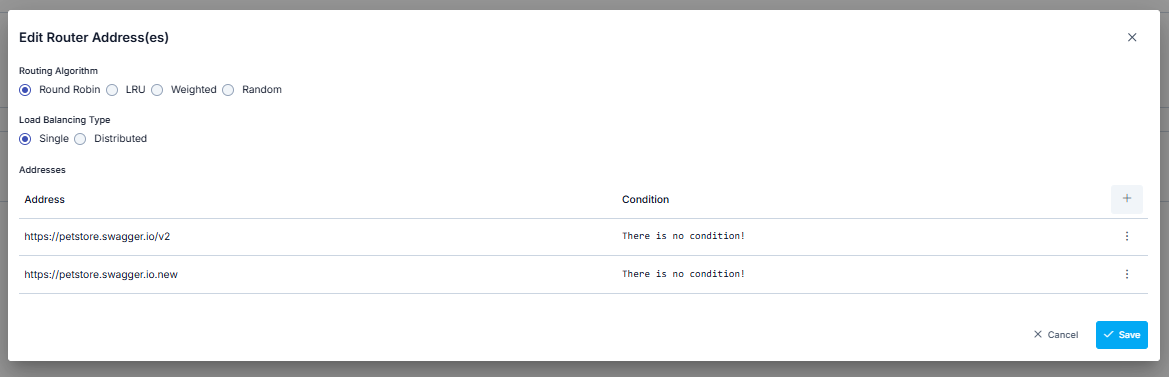
Which algorithm to use among the algorithms that can be used for load balancing can be determined by the user.
| Algorithm | Description |
|---|---|
| Round Robin | Request messages are sent to addresses in the list in order. When the end of the list is reached, it returns to the beginning of the list and the same cycle continues. |
| LRU | Request messages are routed to the server that has been unused for the longest time among the addresses in the list. |
| Weighted | Weights are assigned to addresses by the user. Requests are routed to servers in order considering these weight values. For example; if one of two addresses has a weight of 1 and the other has a weight of 2, while 1 request is routed to the address with weight 1, 2 requests are routed to the address with weight 2. |
| Random | Request messages are routed to randomly selected addresses. |
| Load Balancing Type | Apinizer can be configured to run multiple Workers in each Environment. Thus, the load is distributed among API Proxies in that Environment. In this case, API Proxies on each Worker must know the Backend API addresses. The Load Balancing Type parameter determines how information about how many times or when each Backend API address was accessed will be maintained when load balancing is performed among Backend API addresses. If Simple (Single) is selected, each Worker operates the load balancing address independently from other Workers, while when Distributed is selected, Workers perform load balancing through the same single access data using distributed cache. Accordingly, Simple (Single) works faster, while Distributed works in a way that guarantees the load balancing algorithm is executed correctly. |
Sticky Session
The Sticky Session mechanism ensures that the same client is always routed to the same backend. This mechanism can be used in scenarios such as session state, cache locality, or backend-specific data consistency.
Apinizer supports three different sticky session types: COOKIE_ONLY, IP_HASH, and HYBRID. Cookie-based sticky session uses secure cookies signed with HMAC-SHA256 and works integrated with circuit breaker to automatically skip unhealthy backends.
For detailed information, see the Sticky Session page.
Connection Settings Definition
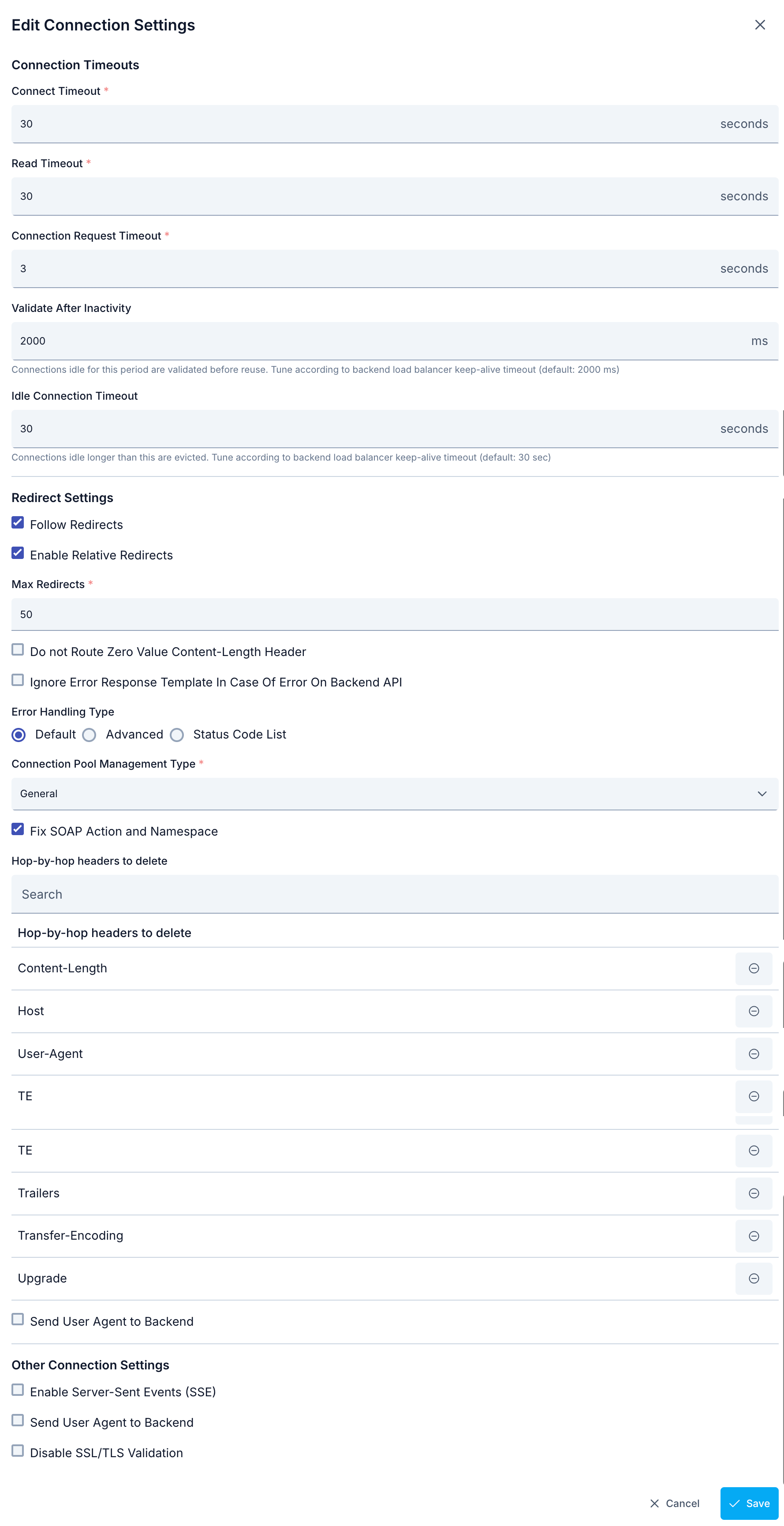
The parameters used for connection settings configuration are shown below.
| Field | Description |
|---|---|
| Connection Timeout | Maximum waiting time determined to connect to the Backend API and send the request message. Given in seconds. If the Backend API cannot be accessed during this time; a new request can be sent to the same address or other addresses in the list if any, or an error can be returned to the client, according to the values of Retry Count and Failover Retry Count parameters. |
| Read Timeout | Maximum waiting time determined to receive the response message from the Backend API. Given in seconds. If no response is received from the Backend API during this time; a new request can be sent to the same address or other addresses in the list if any, or an error can be returned to the client, according to the values of Retry Count and Failover Retry Count parameters. |
| Connection Pool Wait Timeout | Timeout duration used when requesting a connection from the connection pool. Given in seconds. |
| Validate After Inactivity | Connections idle for this period (milliseconds) are validated before reuse. Tune according to backend load balancer keep-alive timeout. Default: 2000 ms. Note: This setting applies per API Proxy only when Connection Pool Management Type = Custom. For General or None pool, the value from global System Settings is used; proxy-level values are ignored. |
| Idle Connection Timeout | Connections idle longer than this period (seconds) are evicted from the pool. Tune according to backend load balancer keep-alive timeout. Default: 30 seconds. Note: This setting applies per API Proxy only when Connection Pool Management Type = Custom. For General or None pool, the value from global System Settings is used; proxy-level values are ignored. |
| Activate Redirect | Instead of immediately returning an error to the client when timeout durations are exceeded or an error is returned from the Backend API, it is attempted to make the operation successful by sending the request again to the same address or other addresses. |
| Follow Redirects | When HTTP redirect responses (3xx) are received from the backend, follows the redirect addresses returned. Additionally, instead of immediately returning an error to the client when timeout durations are exceeded or an error is returned from the Backend API, it is attempted to make the operation successful by sending the request again to the same address or other addresses. |
| Activate Relative Redirect | When this feature is enabled, redirect operations are performed to relative addresses. |
| Max Redirect Count | Maximum number of backend redirects (3xx + Location) followed for a single request. The HTTP client itself allows at most 20 follow-up requests in total, and authentication challenges (a 401/407 retried with credentials) count against that same cap together with redirects; so the effective limit is min(value, 20), and lower when the backend also issues authentication challenges. 0 or a negative value disables the Apinizer-side limit; only the client's hard cap of 20 applies. |
| Preserve HTTP Method and Body on Redirect | By default, 301/302/303 redirects downgrade the request to GET and drop the body. Enable this to preserve the original HTTP method and body on all redirects (301/302/303/307/308). Applies only to HTTP/1.1 backend connections with streaming disabled — see the warning below. |
| Do Not Forward Content-Length Header with Zero Value | If the Content-Length value is zero, the Content-Length header is not sent to the back-end server. |
| Retry Count | If a timeout occurs for the request sent to the Backend API or the expected response message, or if an error is returned from the Backend API, the value of the Retry Count parameter is checked before returning an error message to the client. If this value is greater than 0, the request is sent again to the Backend API. This operation is repeated this parameter's value times. |
| Retry Count on Error | If a timeout still occurs or an error message is still returned from the Backend API even though messages have been sent to the Backend API Retry Count times, the value of the Failover Retry Count parameter is checked. If this value is greater than 0, requests are sent to other Backend API addresses. The operation of trying different addresses is repeated this parameter's value times. A single attempt is made for each new address, and if a successful result cannot be obtained, it moves to the next address. If the number of defined addresses is less than the value of the Failover Retry Count parameter, the operation is terminated and an error is returned to the client because there are no new addresses to try. |
| Apply Response Template When Error is Received from Backend API | With the configuration made in the XML/JSON Error Response Template section in the Overview tab for an API Proxy, templates that determine how an error message will be returned to the client in error situations can be defined. These error templates allow customization by also handling errors related to applied policies. However, sometimes the error message returned from the Backend API may contain meaningful data for the client, and therefore it may be desired to return this message to the client as is. In such a case, the box of the Ignore Error Response Template In Case Of Error On Backend API parameter is checked. When this parameter is checked, the templates defined in the Error Response Template section are not processed only when an error message is returned from the Backend API. However, for example, these templates will be used for error responses originating from any policy. |
| Error Handling Type | Error Handling is used to determine whether the result returned from the Backend address will be evaluated as Successful or Erroneous. There are three options to decide on the status of the message; default settings, advanced settings and status code list. If default settings are selected, in this case it is checked whether the status of the returned message is "HTTP status code >= 400". If the condition is met, the status of the message is evaluated as erroneous. If advanced settings are selected, in this case it is checked whether the condition specified on the returned message is met. If the condition is met, the status of the message is evaluated as erroneous. For example; a condition can be written as "(HTTP status code = 500 or HTTP status code = 501) and (message body contains "error") ..etc". If status code list is selected, in this case it is checked whether the HTTP status code of the returned message is in the specified list. If the condition is met, the status of the message is evaluated as erroneous. :::warning |
Policies on the response line are not executed for unexpected situations (i.e., returns that meet the error condition).
::: | | Connection Pool Management Type | Connection Pool Management options: General: Existing General Connection Pool settings for the Environment (Environment) it is in are applied. Custom: Used to create a Connection Pool specific to this API Proxy. None: If None option is selected, Connection Pool is not created. | | Fix SOAP Action and Namespace information | With this option active in SOAP and Rest2Soap services, the process of fixing SOAP actions and namespaces according to WSDL by default is performed. You can visit this page for more detailed information. If the setting is disabled, no change is made on the request sent by the client. | | Hop-by-hop headers to delete | Determines the information to be deleted from the header information coming during the request sent from client to backend. Note that some headers are always removed regardless of this list — see the Always-Removed (Transport-Managed) Headers info box below. | | Send User Agent to Backend | Information that User Agent information will be sent when sending request to Backend. When this option is enabled, the User-Agent value can be customized. | | Disable SSL/TLS Verification | Server certificate is not verified when sending request to Backend. |
Connection Pool Dependency: The Validate After Inactivity and Idle Connection Timeout settings are applied per API Proxy only when the Connection Pool Management Type is set to Custom. When General or None pool is selected, these values are taken from the global System Settings (System Settings > Gateway > Connection Settings), and any values entered at the API Proxy level are ignored. This is because the General pool is shared across all proxies, while Custom pool is specific to each proxy. Other timeout settings (Connect Timeout, Read Timeout, Connection Pool Wait Timeout) always apply per API Proxy regardless of the pool type.
Always-Removed (Transport-Managed) Headers: Regardless of the Hop-by-hop headers to delete configuration, Apinizer Gateway always removes certain headers from the request forwarded to the backend, because these headers are managed by the gateway's own HTTP transport layer rather than by policy configuration:
- Content-Length and Transfer-Encoding: The gateway's HTTP client calculates the body boundaries itself, so these headers are always recalculated rather than forwarded as received.
- Expect (100-continue): The 100-continue handshake is connection-based (hop-by-hop), not end-to-end. The gateway already reads the full request body for policy processing, and the handshake with the backend is managed by the gateway's own HTTP client layer. The raw Expect header sent by the client is not forwarded to the backend — forwarding it as-is could otherwise cause a 417 Expectation Failed response, a hang, or a protocol error depending on the backend.
Other headers in the hop-by-hop list remain configurable; the transport-managed headers above are never forwarded to the backend even if they are removed from that list.
Visibility in traffic logs: In traffic log region 1 (the request as received from the client), the Expect header sent by the client is shown as-is. In traffic log region 2 (the request as sent to the backend), the Expect header is shown as removed — it does not appear in the header list.
Impact on uploads: There is no impact on uploads. The body is always sent to the backend in full; the only thing lost is the backend's optimization of rejecting a large body before receiving it.
When to enable Preserve HTTP Method and Body on Redirect: enable this setting when the backend responds with a 301/302/303 redirect — for example, redirecting an http:// address to https:// — and the original HTTP method and body (such as a POST or PUT payload) must reach the final address unchanged. A typical symptom of the default behavior is a REST-2-SOAP proxy receiving a backend error such as "No binding operation info while invoking unknown method with params unknown" after a redirect silently drops the request body.
In most cases, a simpler fix is to configure the backend address as the final destination address directly (for example, the https:// address instead of the http:// one). When no redirect occurs, this setting is not needed at all.
This setting can also be configured through APIops — see Update Connection Settings.
Preserve HTTP Method and Body on Redirect only applies to HTTP/1.1 backend connections with streaming disabled. If the API Proxy has streaming enabled (for example, Server-Sent Events) or the Backend HTTP Version policy is set to a value other than HTTP/1.1 (for example, HTTP/2), this setting has no effect at all — 301/302/303 redirects on that path still downgrade the request to GET and drop the body, regardless of this option.
When this condition applies, the Routing screen shows a warning below the setting:
This setting has no effect here: it only applies to HTTP/1.1 backend connections with streaming disabled. Disable streaming and set the HTTP version policy to HTTP/1.1 to preserve the method and body on redirect.
To make the setting effective, disable streaming and set the HTTP version policy to HTTP/1.1 (Default). In most cases, an even simpler fix is to configure the backend address as the final destination address directly (for example, the https:// address instead of the http:// one) so that no redirect occurs at all.
If a redirect on this path would downgrade the request method, a warning is also written to the worker log, so the drop does not happen silently.
Circuit Breaker
Requests made from clients to APIs can fail due to temporary errors such as slow network connections, timeouts, and overloading or temporary disabling of resources. The causes of such errors can disappear on their own in a short time. However, servers need time for the causes of errors to disappear. Circuit Breaker, a microservice architecture pattern, serves this purpose.
Circuit Breaker monitors existing endpoints in a load-balanced system and stops access to the relevant endpoint for a while if there is any abnormality in endpoint responses.
At least two addresses must be defined for the Backend API in the addresses section for Circuit Breaker to be usable.
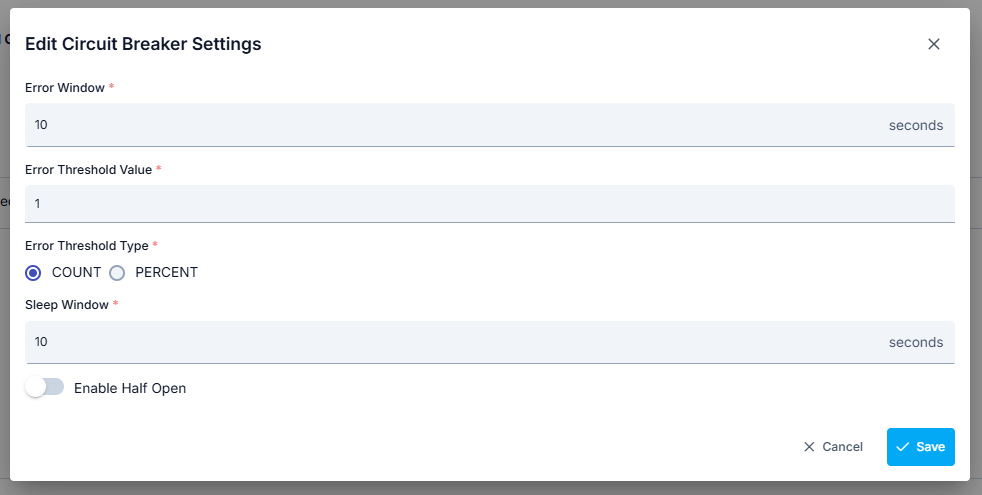
The parameters used for Circuit Breaker configuration are shown below.
| Field | Description |
|---|---|
| Activate Circuit Breaker | Enables entering configuration parameters by activating the Circuit Breaker. |
| Error Window | Specifies the monitoring duration for errors for Backend API addresses. Entered in seconds. |
| Error Threshold Value | Specifies how many errors will be accepted within the monitored duration. When the error threshold is exceeded, no new requests are sent to that Backend API address for the duration specified by the Sleep Window parameter. |
| Error Threshold Type | Specifies how the error count will be handled. Let the number of errors occurring during Error Window: HS, Total message count coming during Error Window: TMS, Error Threshold Value: HED. Accordingly, COUNT: HS >= HED condition is checked. PERCENT: HS >= (TMS * HED) / 100 condition is checked. |
| Sleep Window | Specifies how long no new request will be sent to the Backend API address where errors are received and Error Threshold Value is exceeded. During this time, incoming requests are routed to other address or addresses. After this time ends, requests start to be sent to this address again. |
| Activate Half-Open | If this option is checked, after the duration specified by the Sleep Window parameter passes, 1 request is sent to the relevant address to check if the problem at that address has been resolved. If the returned result is erroneous, this address is closed to new requests again for the Sleep Window duration. If this option is not checked, after the duration specified by the Sleep Window parameter passes, the values of the relevant address are reset and monitoring starts again for this address for the Error Window duration. |
Circuit Breaker is applied separately for each address. When the error threshold and duration are exceeded, the circuit breaker only blocks access to the endpoint at the relevant address.
Automatic Failback with Health Check
The Active Health Check mechanism periodically checks the health status of backends and works integrated with circuit breaker to provide automatic failback. This mechanism automatically removes unhealthy backends from traffic and re-includes them when they become healthy again.
How Does Health Check Work?
The health check mechanism works as follows:
- Periodic Check: A request is sent to the health check endpoint for each backend at the specified interval (default: 30 seconds)
- Health Status Tracking: The backend's health status is tracked based on each health check result
- Unhealthy Detection: When consecutive failure count exceeds the fail threshold (default: 3), the backend is marked as unhealthy
- Automatic Disabling: Unhealthy backends are automatically removed from traffic via circuit breaker
- Automatic Recovery: When consecutive success count exceeds the pass threshold (default: 2), the backend is marked as healthy again and included in traffic
Health Check Parameters
Health check parameters are configured at routing level and apply to all backend addresses:
| Parameter | Description |
|---|---|
| Health Path | The backend's health check endpoint. Must be specified at address level for each address. Must be specified as a full URL (e.g., https://backend.example.com/health). |
| Interval (Seconds) | How often health checks are performed. Default: 30 seconds. |
| Timeout (Seconds) | Timeout duration for health check requests. Default: 5 seconds. |
| Fail Threshold | Number of consecutive failures required to mark backend as unhealthy. Default: 3. |
| Pass Threshold | Number of consecutive successes required to mark backend as healthy. Default: 2. |
If Health Path is empty or null, health check is not performed for that backend and backend health status is not monitored. Health check is only performed for PRIMARY and FAILOVER_ONLY type addresses (if failover is enabled). For CANARY type addresses, health check is performed if canary release is enabled. Health check is not performed for MIRROR type addresses.
Health Check → Circuit Breaker Coordination
The health check mechanism works coordinated with circuit breaker to automatically disable and re-enable backends based on their health status:
- Backend Unhealthy: When health check fail threshold is exceeded, circuit breaker automatically transitions to OPEN state and backend is removed from traffic
- Backend Healthy: When health check pass threshold is exceeded, circuit breaker automatically transitions to CLOSED state and backend is re-included in traffic
- Load Balancing Integration: During load balancing, only healthy backends are selected, unhealthy backends are automatically filtered out
Health Check Lifecycle Management
When an API Proxy is deployed, updated, or undeployed, health check records are automatically managed:
- Deploy/Update: New backends are added, removed backends are deleted, unchanged backends' config is updated (health status preserved)
- Undeploy: All backends' health check records are cleaned up
Retry and Failover
When requests sent to backend APIs fail, automatic retry and failover mechanisms are activated. These mechanisms automatically handle temporary errors and provide high availability.
Retry Mechanism
The Retry mechanism ensures that when requests sent to backend fail, they are retried a certain number of times to the same backend address.
Retry Parameters
| Parameter | Description |
|---|---|
| Retry Count | When a request sent to the backend API fails, it is retried this many times. If the value is 0, no retry is performed. |
| Retry Delay Type | Type of waiting time between retry attempts. Options: NO_DELAY, FIXED_DELAY, or EXPONENTIAL_BACKOFF. |
| Retry Fixed Delay (ms) | If fixed delay is used, the waiting time between each retry attempt (milliseconds). |
| Retry Initial Delay (ms) | If exponential backoff is used, the waiting time for the first retry attempt (milliseconds). |
| Retry Max Delay (ms) | If exponential backoff is used, the maximum delay duration (milliseconds). |
| Retry Backoff Multiplier | Exponential backoff multiplier (e.g., 2.0 = delay doubles with each attempt). |
Retry Flow
The retry mechanism is triggered in the following situations:
- Timeout: When connection timeout or read timeout occurs
- Error Codes: When HTTP error codes (4xx, 5xx) are returned from the backend
- Connection Errors: When connection errors such as UnknownHostException, MalformedURLException occur
The retry mechanism works as follows:
-
Initial request is sent and result is checked:
- If request is successful: Operation is completed
- If request fails: Retry mechanism is activated
-
Retry mechanism:
- If retry count is 0: Failover mechanism is activated
- If retry count is greater than 0: Retry loop is entered
-
Retry loop (from i = 1 to retry count):
- If retry delay is active: Specified duration is waited (exponential backoff or fixed delay)
- Request is retried
- If request is successful: Operation is completed
- If request fails and i < retry count: i is incremented and loop continues
- If request fails and i = retry count: Failover mechanism is activated
Failover Mechanism
The Failover mechanism automatically redirects requests to other backend addresses (addresses of type FAILOVER_ONLY) when one backend address fails.
Failover Logic
The failover mechanism works with a simple and clear logic:
- Initial Request: Sent to PRIMARY addresses (with load balancing)
- Failure Condition: If the initial request fails and
failoverOnlyEnabled=true - Failover Addresses: Requests are sent sequentially to addresses of type FAILOVER_ONLY
- Failover Retry: Each failover address is tried
failoverRetryCounttimes
If failoverOnlyEnabled=false or null, the failover mechanism does not activate. In this case, after the retry mechanism is completed, an error is returned to the client.
Failover Flow
The failover mechanism works as follows:
-
Request is sent to PRIMARY backend and retry count attempts are made:
- If request is successful: Operation is completed
- If all attempts fail: Failover check is performed
-
Failover check:
- If
failoverOnlyEnabled = falseornull: Error is returned - If
failoverOnlyEnabled = true: FAILOVER_ONLY type addresses are used
- If
-
FAILOVER_ONLY addresses (tried sequentially):
- First failover address is selected (from health check filtered healthy addresses)
- Failover retry count attempts are made
- If request is successful: Operation is completed
- If request fails: Next failover address is tried
-
Until all failover addresses are tried:
- Each failover address is tried failover retry count times
- First successful address is used and operation is completed
- If all failover addresses fail: Error is returned
Address Types
| Address Type | Description |
|---|---|
| PRIMARY | Backend addresses used for normal traffic. Initial requests are sent to these addresses. |
| FAILOVER_ONLY | Addresses used only in failover situations. Activated when failoverOnlyEnabled=true. |
| CANARY | Addresses used for canary release. Not included in the failover mechanism. |
| MIRROR | Addresses used for traffic mirroring. Not included in the failover mechanism. |
For detailed information, see the Retry and Failover page.
Server Side Streaming (SSE)
When the Server Side Streaming feature is activated in response settings, it enables responses from APIs that return HTTP responses as Stream, especially like OpenAI, Claude, Gemini, to be transmitted to the client piece by piece rather than in bulk. With this method, the client can receive the response faster and without interruption.
When the SSE feature is enabled, connection pool (Connection Pool) and retry (Retry) mechanisms are disabled. Also, partial data sent on the response line is not recorded and cannot be viewed in log traffic.
Since SSE creates long-term open connections, connection timeout settings should be configured carefully.
Download
If it is desired for the data to be returned as a result of the API Proxy to be downloadable, this feature is activated.
Which response message is downloadable is decided by looking at the Content-Type header value in the return value. If the values here are in the list on the Byte Array Content Types page in system settings, it is decided that the returned value is downloadable.
If the download option is activated:
- If the response content type of the accessed endpoint is downloadable content, it is downloaded as a file.
- If the response content type of the accessed endpoint is not downloadable content, the request is not affected, normal flow continues.
If the download option is not activated:
- If the response content type of the accessed endpoint is downloadable content, the content is encoded with Base64 and returned as String.
- If the response content type of the accessed endpoint is not downloadable content, the request is not affected, normal flow continues.
Charset & Encoding Override
The Charset & Encoding Override feature allows explicit control over how request and response bodies are decoded and re-encoded, independent of the Content-Encoding and charset header values. When an override is configured, the header value is ignored and the configured value is applied instead.
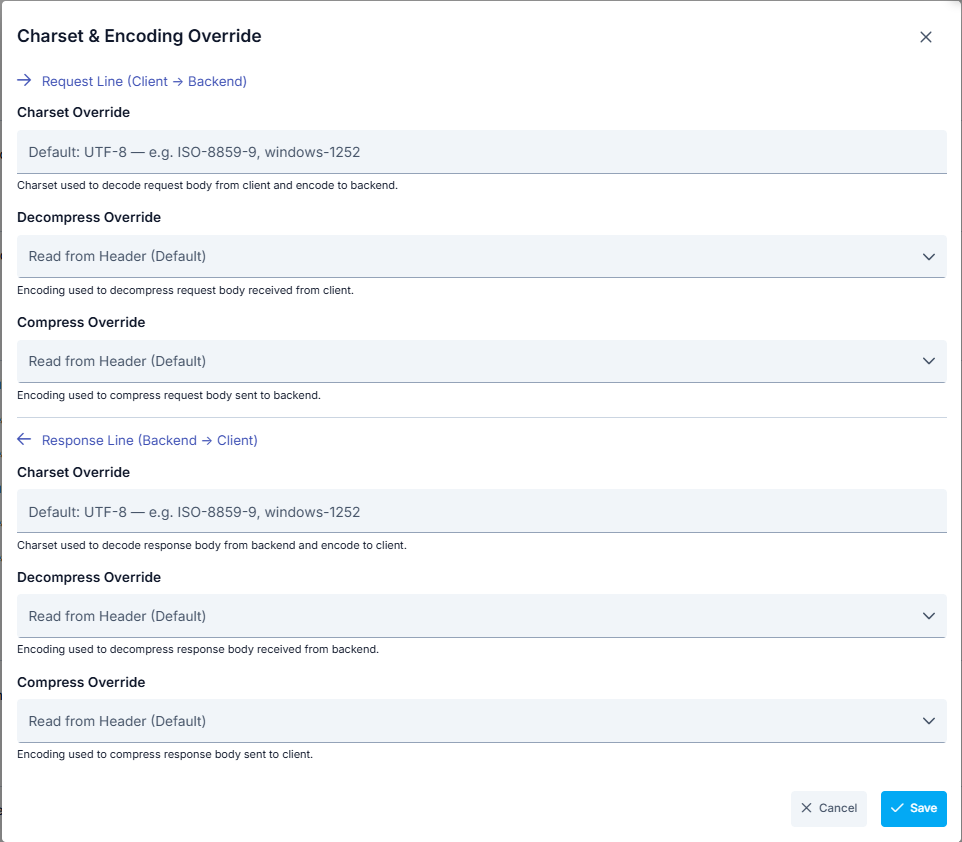
Request Line (Client → Backend)
| Field | Description |
|---|---|
| Charset Override | Charset used to decode the request body received from the client and encode it before sending to the backend. Overrides the charset in the Content-Type header. Leave empty to use the default (UTF-8). |
| Decompress Override | Compression algorithm used to decompress the request body received from the client. Overrides the Content-Encoding header. Select Not Apply (skip) to skip decompression. |
| Compress Override | Compression algorithm used to compress the request body before sending to the backend. Select Not Apply (skip) to skip compression. |
Response Line (Backend → Client)
| Field | Description |
|---|---|
| Charset Override | Charset used to decode the response body received from the backend and encode it before sending to the client. Overrides the charset in the Content-Type header. |
| Decompress Override | Compression algorithm used to decompress the response body received from the backend. Overrides the Content-Encoding header. Select Not Apply (skip) to skip decompression. |
| Compress Override | Determines how the response body is compressed before being sent to the client. Default: Auto by client Accept-Encoding — the first method the client accepts is applied. Mirror server response option forwards the response with the same encoding the backend returned. If a specific algorithm is selected, that algorithm is always applied. Select Not Apply (skip) to disable compression. For detailed behavior, see Content Encoding and Compression — Response Compression Behavior Modes. |
Decompress Override options: GZIP, DEFLATE, BR (Brotli), ZSTD, Not Apply (skip).
Request Compress Override options: GZIP, DEFLATE, BR (Brotli), ZSTD, Not Apply (skip).
Response Compress Override options: Mirror server response, Auto by client Accept-Encoding (default), GZIP, DEFLATE, BR (Brotli), ZSTD, Not Apply (skip).
Query Parameter Encoding
You can choose how query parameter values are encoded when forwarded to the backend. By default, special characters such as /, +, and = are encoded for safety; for example, / is sent as %2F in the address. Some backend services, however, expect these characters unencoded. In such cases, you can change the encoding behavior to suit your needs.
| Mode | Behavior |
|---|---|
| Standard (URL Encode) (default) | All special characters, including /, +, and =, are encoded. This is the behavior of all existing API Proxies and does not change. |
| RFC 3986 (Preserved) | Characters allowed in the query component of the address standard (/, +, =, :, @) are preserved as-is; only characters that genuinely require escaping are encoded. Suitable for backends that expect values such as Base64 or signed tokens to arrive unchanged. |
| Raw (No Encoding) | Values are forwarded without encoding. Only characters that could break the address (such as spaces or line breaks) are encoded for safety. You are responsible for the suitability of the forwarded values; in most cases, RFC 3986 (Preserved) is the safer choice. |
The default mode is Standard, and all existing API Proxies continue to work unchanged. You only need to change this setting if your backend expects query parameters to be unencoded.
Backend HTTP Version
You can choose which HTTP protocol version Apinizer uses when connecting to the backend. By default, Apinizer speaks HTTP/1.1 with the backend, exactly as before; you can opt in to negotiating HTTP/2 over TLS or, for cleartext backends known to support it, to speaking HTTP/2 directly without an upgrade step.
| Option | Behavior |
|---|---|
| HTTP/1.1 (Default) | Apinizer connects to the backend using HTTP/1.1. This is the behavior of all existing API Proxies and does not change. |
| HTTP/2 (ALPN, falls back to HTTP/1.1) | For https addresses, Apinizer negotiates the protocol with the backend during the TLS handshake (ALPN) and uses HTTP/2 if the backend supports it; if not, it automatically falls back to HTTP/1.1. For plain http addresses, this option behaves the same as HTTP/1.1 (Default). |
| HTTP/2 Prior Knowledge (h2c, cleartext) | For plain http addresses, Apinizer speaks HTTP/2 directly, without an upgrade negotiation (h2c). Use this option only when the backend is known to support HTTP/2 over cleartext. |
The default option is HTTP/1.1 (Default), and all existing API Proxies continue to work unchanged — no migration or additional configuration is required.
The following combinations are rejected on save, with a descriptive error message:
- Using HTTP/2 (ALPN, falls back to HTTP/1.1) or HTTP/2 Prior Knowledge (h2c, cleartext) together with NTLM authentication.
- Using HTTP/2 Prior Knowledge (h2c, cleartext) with an
httpsaddress. - Using HTTP/2 Prior Knowledge (h2c, cleartext) while a backend health check path is defined.
Regardless of the selected option, traffic mirror targets and health check requests always connect using HTTP/1.1; this setting only affects requests sent to the actual backend.
API definition requests (?wsdl, ?wadl, ?swagger, ?openapi, ?xsd=...) are not affected by this setting. Apinizer serves them from the definition content it stores itself, so they never reach the backend. The only exception is when the API Proxy's Spec Access Type is set to Backend Proxy: the definition request is then forwarded to the backend and therefore does follow the Backend HTTP Version setting.
Proxy Server
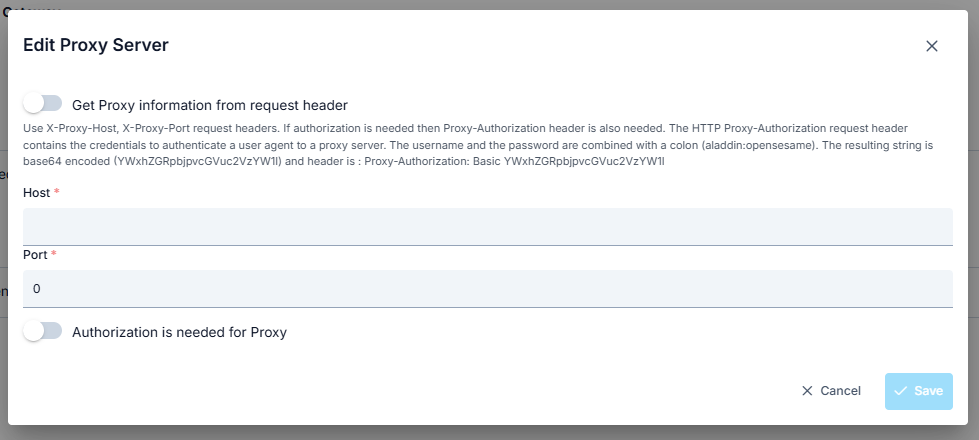
In some cases, the Backend API address may be behind a proxy server. In such a scenario, the necessary Proxy server settings are made from the Proxy Server section of the Routing tab.
The parameters used for Proxy Server configuration are shown below.
| Field | Description |
|---|---|
| Use Proxy Server | Enables entering configuration parameters by activating Proxy Server settings. |
| Get information from request message header | "X-Proxy-Host" and "X-Proxy-Port" headers are used for proxy server, and if authorization is required, "Proxy-Authorization" header is used. "Proxy-Authorization" header is used in the authorization of the user used to connect to the proxy server. It is created by combining username and password with a colon and encoding with Base64. |
| Host | The name or IP of the proxy server is entered. |
| Port | The port of the proxy server is entered. |
| Authorization Required for Proxy Server * | Activated if authorization is required for proxy server access. |
| Username | The username with access permission to the proxy server is entered. |
| Password | The password of the username with access permission to the proxy server is entered. |
mTLS Setting
When this setting is enabled, the selected mTLS settings are applied to the request.
Thus, the Apinizer client that will send from Apinizer to the target service verifies the target service's certificate and indicates that it also has a certificate and must be verified by the target service.
The target service also verifies the client's certificate, and thus secure communication is established with the client.
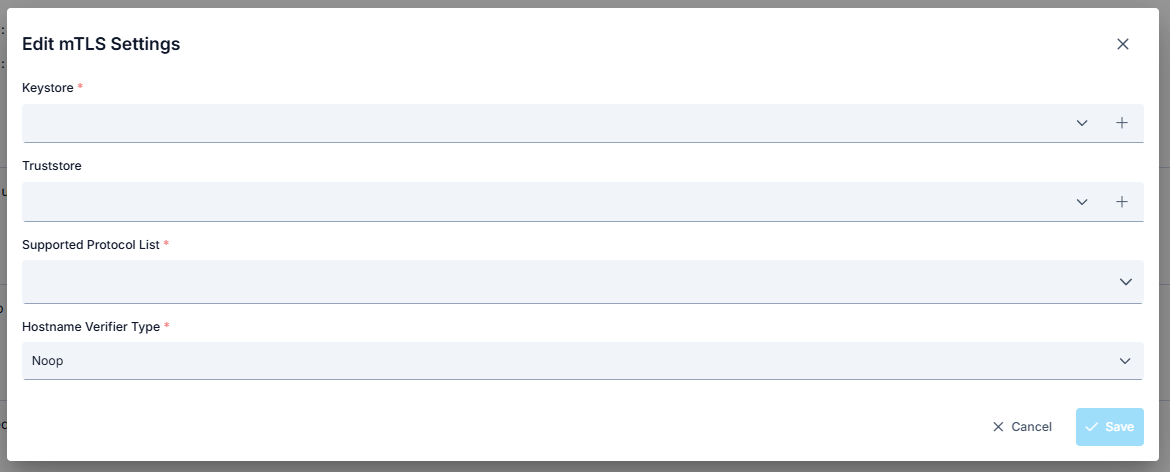
The parameters used for mTLS configuration are shown below.
| Field | Description |
|---|---|
| Skip SSL Verification | When checked, server certificate verification is bypassed and all certificates are trusted. When this option is enabled, TrustStore, KeyStore, and protocol settings are hidden. Useful for environments using self-signed certificates. |
| Keystore | Keystore is used to authenticate the client side. Keystore content should contain: If there is no mTLS verification at the server address, it should be empty. If there is mTLS verification at the server address: client privatekey, Client certificate (with public key), Certificate chain (if any intermediate and root CA certificates) should be present. |
| Truststore | Truststore is used to verify the server certificate. Truststore content should contain: The root CA certificate of the target server, Intermediate CA certificates (if any) should be present. |
| Supported Protocol List | Supported protocols are selected. Options: TLSv1.3, TLSv1.2, TLSv1.1, TLSv1, SSLv3 |
| Hostname Verifier Type | Noop Hostname Verification disables hostname verification that could pose a security risk in SSL/TLS connections. To prevent man-in-the-middle (MITM) attacks where an attacker could intercept SSL/TLS communication and impersonate the server, it is important to verify the server's hostname. Instead of using Noop Hostname Verification, you can use one of the following hostname verification implementations provided by the Apache HttpComponents client framework: Default Hostname Verification: This implementation performs standard hostname verification according to rules defined in RFC 2818 and RFC 6125. It checks the common name (CN) of the server certificate and subject alternative names (SANs) to ensure the hostname matches. Strict Hostname Verification: This implementation performs stricter hostname verification than Default Hostname Verification. It requires an exact match between the hostname and the CN or SANs of the server certificate. It also checks whether the hostname is a fully qualified domain name (FQDN) and is not an IP address or wildcard domain name. Browser Compat Hostname Verification: This implementation performs relaxed hostname verification based on rules used by popular web browsers. It allows a wildcard domain name to match any subdomain of the domain name and ignores case sensitivity of the hostname. |
The Truststore selector on this screen lists exactly the same records as the Keystore selector: both are chosen from the Key Store records under Administration → Secret → Key Stores. There is no separately created "truststore" record in the product; upload your JKS or PKCS12 truststore file as a Key Store record, then select it here. The plus button next to the selector does the same thing without leaving this screen.
The Truststore tab on Secret → Certificates is a different thing: it shows the running truststore content of the selected environment as read-only, and nothing is selected from there.
When mTLS settings are active, the existing "http connection pool" in routing, whose values are specified in environment settings, is disabled.
When mTLS is enabled and the client certificate cannot be loaded — the selected Keystore is not found in the environment, the file cannot be opened, or its password is wrong — the request is not sent to the target service. The call is stopped with error code ERR-304 and HTTP 502, and the Failure Reason field on the API Traffic screen shows mTLS Configuration Failure, reported separately from TLS Handshake Failure.
In earlier versions the request was sent without a client certificate in the same situation: if the target service did not require a certificate the call succeeded with no client identity at all, and if it did, only the peer's handshake error was visible.
You can customize the text returned to the client on the API Proxy > Error Messages screen. Which keystore, which environment and which alias failed is written to the worker log at ERROR level.
This check does not apply when Skip SSL Verification is checked; that option already disables the client certificate and its behavior is unchanged.
NTLM Setting
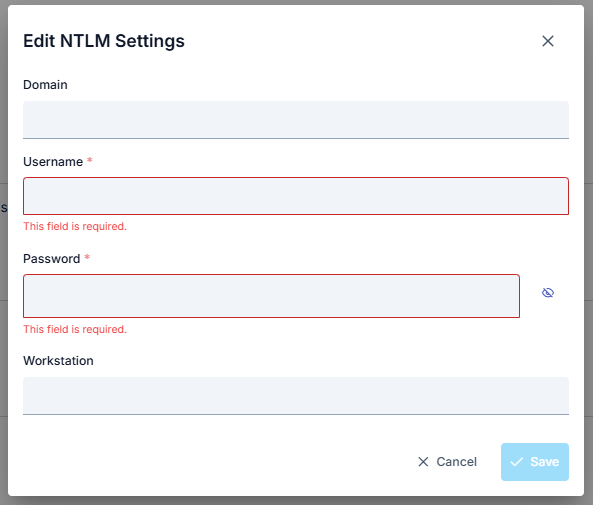
When this setting is enabled, the selected NTLM settings are applied to the request.
The parameters used for NTLM configuration are shown below.
| Field | Description |
|---|---|
| Domain | Domain information belonging to the NTLM setting. |
| Username | Username information belonging to the NTLM setting. |
| Password | Password information belonging to the NTLM setting. |
| Workstation | Workstation information belonging to the NTLM setting. |
Customize Error Messages
When an error is thrown from policies, Apinizer sends the default error message to the user if it has not been customized. Click to learn more about customizing error messages.See.
For a complete guide on all layers, workflow and scenario examples of the error message configuration system, see the Error Message Configuration Guide page.
Important Notes
- If the request
Content-EncodingorTransfer-Encodingheader from the client contains one of "gzip, deflate, br, zstd, compress", the message body is decompressed using that method, and after request line policies are applied, the body is re-compressed using the same method before being sent to the Backend API. - If the response from the Backend API contains a
Content-Encodingheader, the body is decompressed and, after response line policies are applied, it is processed according to the Response Compress Override setting. The default behavior (Auto by client Accept-Encoding) compresses with the first method the client accepts. - Even when the Backend API returns plain text, the Auto by client Accept-Encoding mode applies the method specified in the client's
Accept-Encodingheader. The Mirror server response mode forwards the response as plain text. - Policies always operate on uncompressed (plain) data.