API Proxy Metadata Information
General Information Tab
This tab contains general settings related to the selected API Proxy.
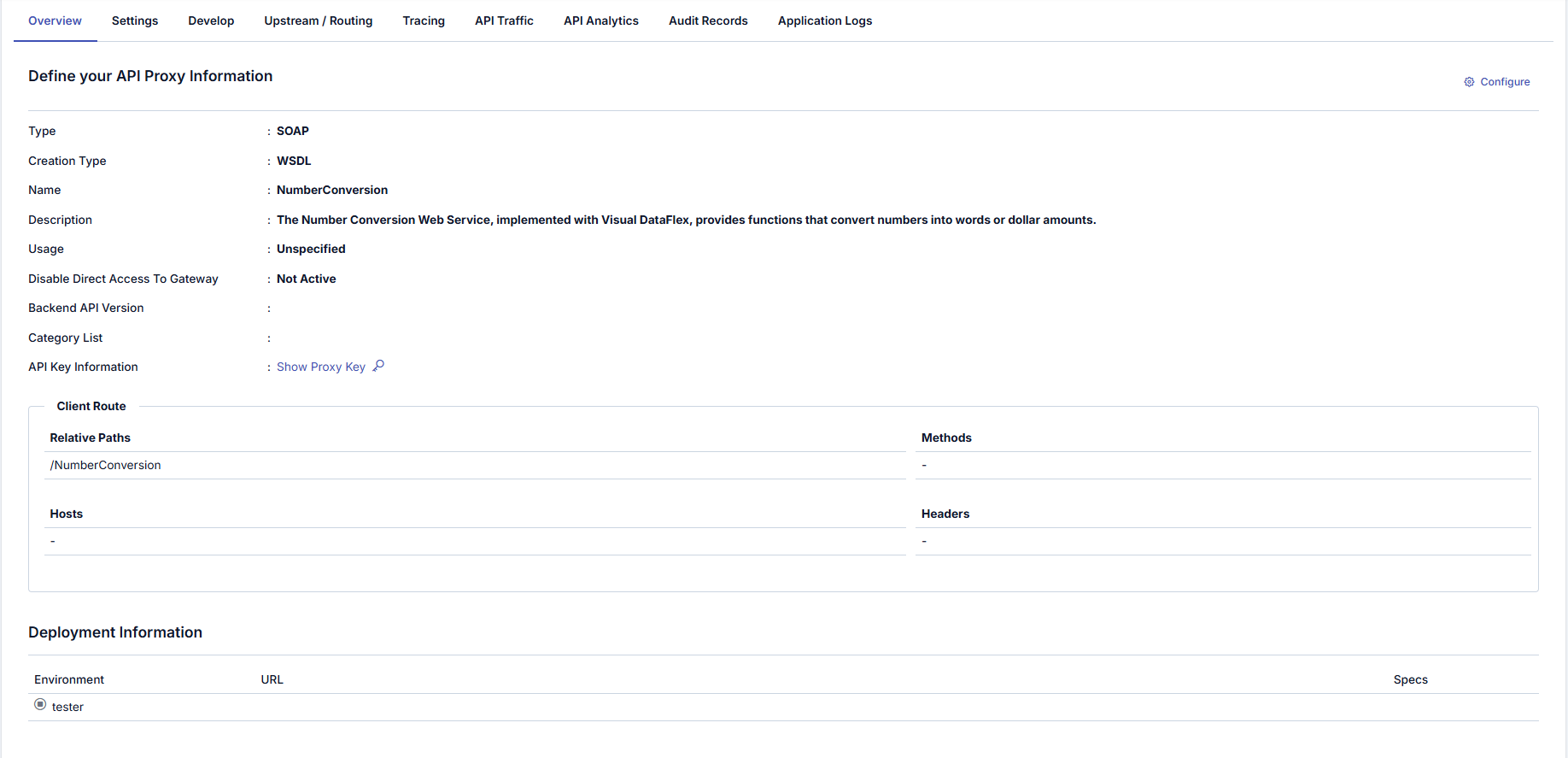
If the related API Proxy is part of a Group, a warning icon appears in the upper right of the screen. Hold the pointer on it to see API Proxy Group Enabled and the names of the Groups, or click it to list the Groups and open the Group screen that the API Proxy belongs to. If the API Proxy was created from an API Creator (DB-2-API, Script-2-API, or Mock API), the same icon also appears, even when the proxy is in no Group; it lists that API Creator and opens its screen.
Configuration
By clicking the Configure button, the basic information of the API Proxy can be configured in the dialog screen that opens.
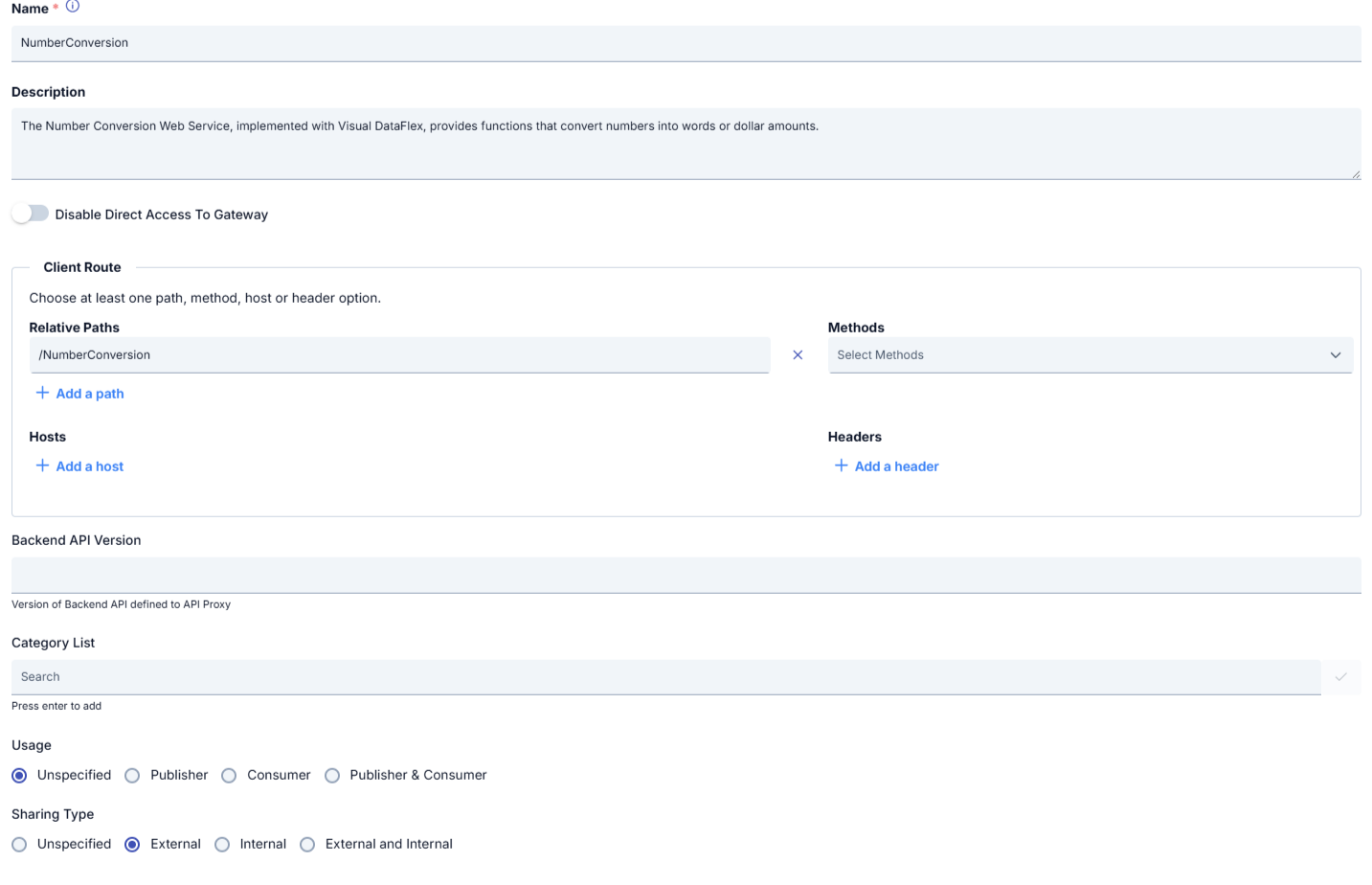
Configuration Fields
| Field | Description |
|---|---|
| Name | The name given to the API Proxy by the user. This value must be unique within the project. |
| Description | The description text of the API Proxy. Information about the purpose, business logic, or functions provided by the Proxy is written here. |
| Disable Direct Access To Gateway | When this option is enabled, direct access to the API Proxy through its own address is blocked; the API Proxy can only be reached through the address of the API Proxy Group it belongs to. Requests to the direct address are rejected with ERR-134 (HTTP 401). If the API Proxy is not part of any group, enabling this option makes the proxy completely unreachable. This setting does not protect the Backend service; access to the Backend from outside the gateway must be restricted at the network level. |
| Client Route | The section that determines which path, method, and criteria incoming requests to the API will be routed. For detailed information, you can refer to the Client Route page. |
| Backend API Version | The field where the Backend API version that the API Proxy corresponds to is entered. This value is important for information and version management. |
| Category List | Used to classify API Proxies. For example: Finance, CRM, Notification, Integration. Category selection helps API Portal users find APIs more easily. |
| Usage | Specifies the usage type of the API Proxy. Options: • Unspecified • Publisher (Producer only) • Consumer (Consumer only) • Publisher & Consumer (Both uses) This value is used to specify the role of the API within the project. |
| Sharing Type | The field that determines how the API Proxy is shared within or outside the project. Options: • Unspecified • External • Internal • External and Internal |
For Detailed Information See: API Proxy Client Route Usage Guide
Example Configuration Flow
- Proxy name and description are entered.
- Path (Relative Path) is defined from the Client Route section.
- Method, host, or header constraints are added if necessary.
- Access settings are made (Disable Direct Access To Gateway, etc.)
- Categories are selected.
- Usage and sharing type are determined.
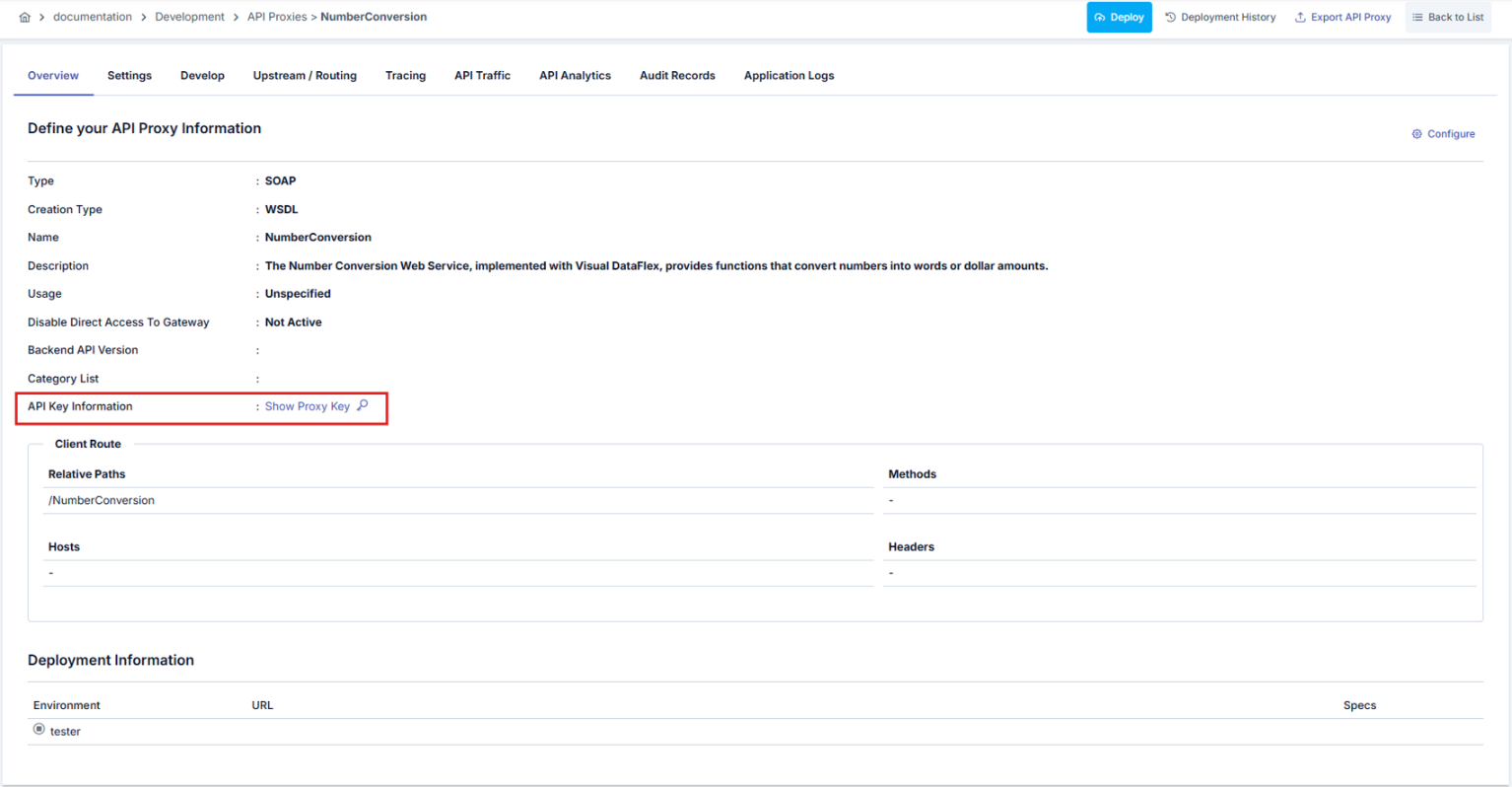
Show Proxy Key
This is the section where the access keys of the API Proxy are managed. Access keys are used for OAuth2 Authentication Policy.
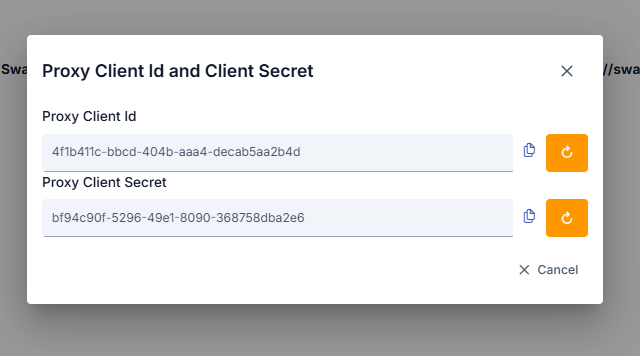
Client Id and Client Secret values are automatically generated. Both fields are read-only; the value can be shown with the eye button and copied. To change a key, use the pencil button (Edit Client Id / Edit Client Secret) next to the field. On this screen the new key is stored as soon as the change is confirmed, and a "Client Id successfully changed." message is displayed. If any of the keys for a deployed API Proxy are changed, the API Proxy must be redeployed for the keys to be valid.
Dialog that opens when the Show Proxy Key button is clicked:
Confirmation dialog (Edit Client ID or Secret Key Confirmation) that opens when the pencil button next to the Client ID or Secret fields is clicked:
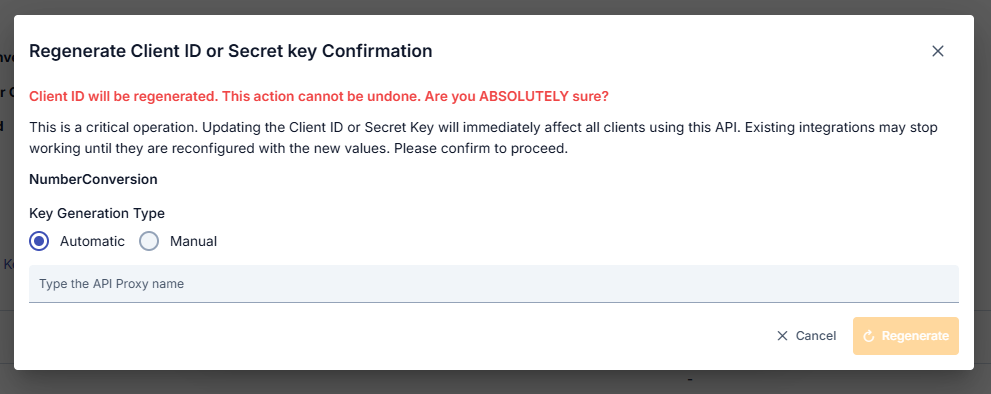
This dialog warns that the Client ID will be changed and that integrations using the current value will stop working. To confirm the operation, you must type the API Proxy's name and select the key generation type (Automatic or Manual), then click Edit and answer the final question ("Are you sure you want to change the key?").
In the Automatic option, the system automatically generates a new random value, while in the Manual option, you can type your own value. Manual is the only way to enter a key value by hand; a value consisting only of spaces is not accepted.
Deployment and Specification Information
The deployment information section displays which environments the API Proxy is deployed to and the access address in that environment. An API Proxy can be deployed to multiple environments at the same time.
If an API Proxy Group has been created from the API Proxy, information about that group is also displayed in this area.
An image containing the deployment section is shown below:

The fields used for the deployment section configuration are shown in the table below.
| Field | Description |
|---|---|
| Environment | The Environment information where the API Proxy is deployed. |
| Access Type | The access type information of the API Proxy. |
| URL | The access address of the API Proxy. It is automatically generated using the Gateway Address and the access address of the deployed Environment. |
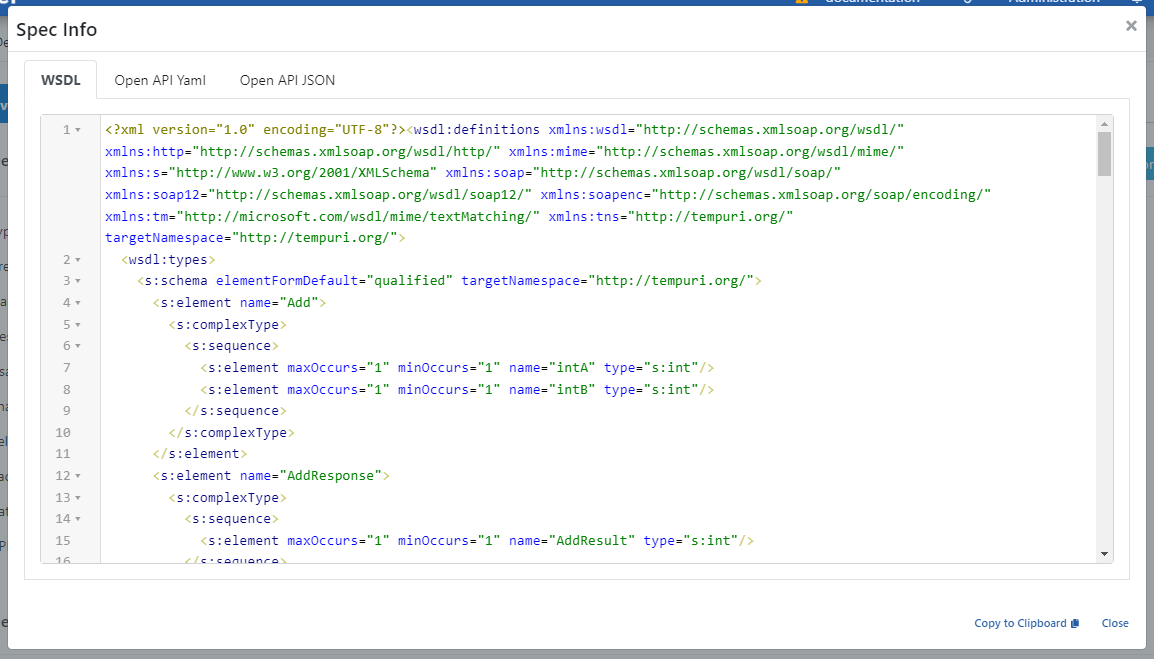
| Specification Files | The Specification files of the API Proxy. Specification files in Swagger and OpenAPI formats are generated for each API Proxy. If the API Proxy type is SOAP, WSDL and XSD specification files will also be generated. When the Show link is clicked for any environment, the API Specification Files valid for that environment for the API Proxy are displayed. |
When the Show button is clicked, a dialog showing API Proxy definitions in different types and formats is shown below:
Next Steps
API Proxy deployment and specification file information
API Proxy settings
API Proxy traffic log settings
API Proxy design tab
REST endpoint configuration
SOAP method configuration
Detailed Client Route configuration