Environment Variables Management
For detailed information about the Environment Variables concept, you can refer to the Environment Variable core concepts page.
This page contains practical information on how Environment Variables are created, edited, and used. Environment Variables is a feature in the Apinizer API Management Platform that allows you to centrally manage configuration information that needs to use different values in different environments (Development, Test, Production). Thanks to this feature, the same API Proxy configuration can dynamically use different values such as backend addresses, database connection information, and API keys in different environments.
Working Logic
1. Definition Stage
Environment variables are defined at the project level and can be of two types:
- Global (All Environments): Uses the same value in all environments
- Environment-Specific: Different values can be defined for each environment
2. Usage Stage
Environment variables are used in configuration fields in the ${variableName} format:
- Example 1:
${BACKEND_URL}for backend address - Example 2:
jdbc:mysql://${DB_HOST}:${DB_PORT}/${DB_NAME}for database connection string - Example 3:
${API_KEY}for API key
3. Runtime Resolution
When the API Proxy is running (runtime):
- Expressions in
${variableName}format in the configuration are detected - The variable value of the relevant environment (Environment) is retrieved
- The value is automatically decrypted — every value is stored encrypted, so this step also applies to values that are not marked Secret
- Variable name is replaced with the actual value
- Operation continues with the actual value
Example Scenario:
- Development Environment:
BACKEND_URL = dev-api.example.com - Production Environment:
BACKEND_URL = api.example.com - In Configuration:
${BACKEND_URL} - At Runtime in Development:
dev-api.example.com - At Runtime in Production:
api.example.com
Creating Environment Variable (Create)
The visual containing the steps for creating an environment variable is shown below:
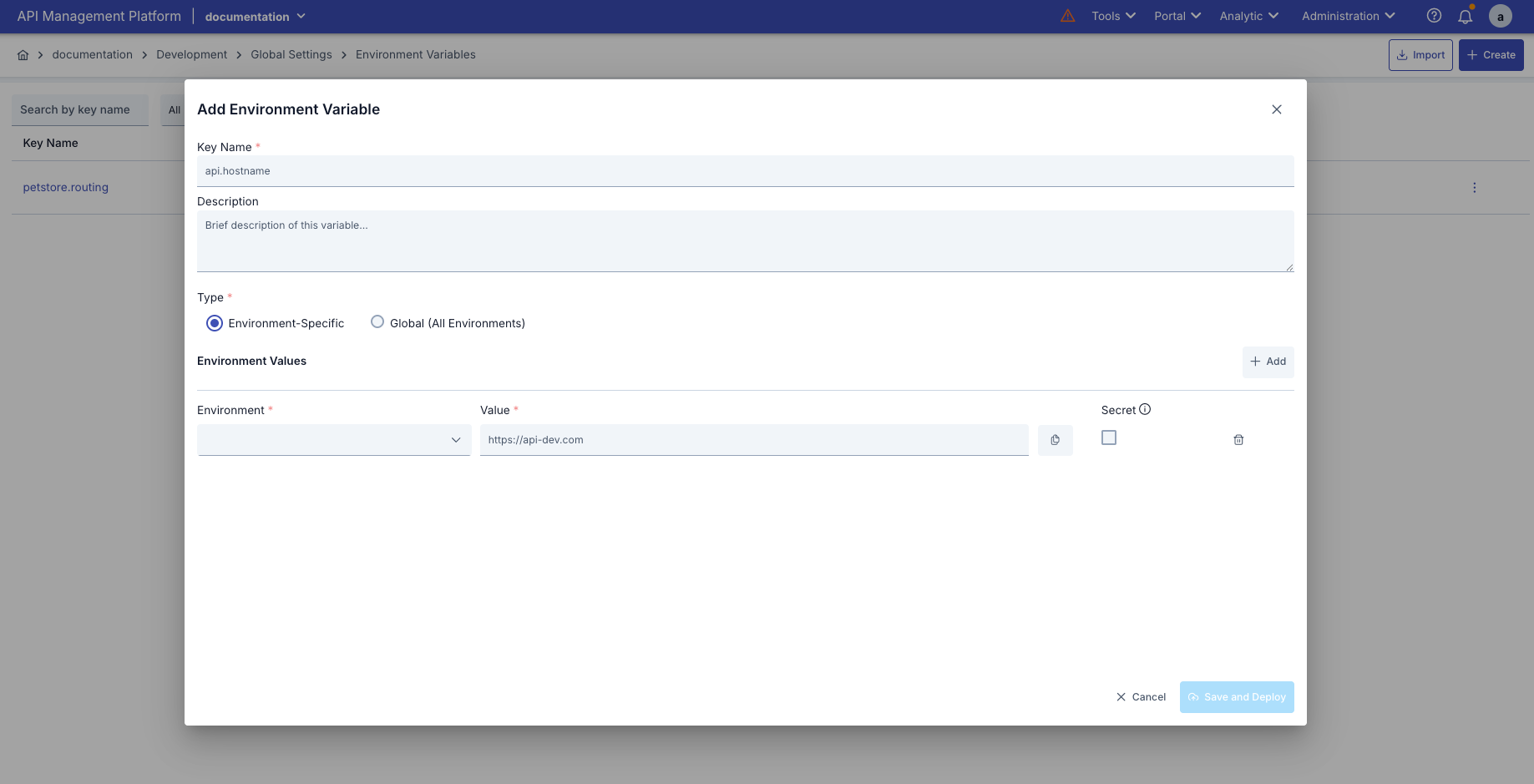
Environment variable creation configurations are explained step by step in the table below:
| Step | Function |
|---|---|
| Step 1: Adding New Environment Variable | Go to Environment Variables page Click the "Create" button in the upper right corner Environment Variable editing window opens |
| Step 2: Entering Basic Information | Key Name (Variable Name): Required field Must be unique within the project Name check is performed automatically Valid name: Green checkmark Existing name: Red warning sign Description: Optional field Describes what the variable is used for |
| Step 3: Type Selection | Environment-Specific: Different values can be defined for each environment Selected when creating a new record Cannot be changed after the record is created Global (All Environments): Same value is used in all environments Selected when creating a new record Cannot be changed after the record is created :::info |
Type selection can only be made when creating a new record. The type of existing records cannot be changed.
::: |
| Step 4: Value Definition | For Environment-Specific Variables:
Adding Environment: Click "Add Environment" button to add a new environment
Environment Selection: Select an environment for each value
Existing environments are selected from the list
Custom environment name can be entered with "Custom..." option
Entering Value: Enter value for each environment
Setting Secret: Check "Secret" checkbox when the value must never be readable again
Every value is stored encrypted, whether or not it is marked Secret
Values that are not Secret are masked on screen and can be revealed with the eye icon and copied
Secret values can never be displayed once saved
If value is not changed during update, existing value is preserved
For Global Variables:
Global Value: Enter a single value (valid for all environments)
Setting Secret: Check "Secret" checkbox when the value must never be readable again |
| Step 5: Saving and Deployment | Form Control: All required fields must be filled and name must be valid
Click "Save and Deploy" button
Confirmation Dialog:
You are asked to enter the variable name again (for security)
Affected components are listed:
API Proxy Routing settings
Policy Configuration settings
Connector settings
Other configuration settings
Deployment Result:
Automatically deployed to all running environments (Environments)
Deployment results are displayed |
- Go to Environment Variables page
- Click the "Create" button in the upper right corner
- Environment Variable editing window opens
Key Name (Variable Name):
- Required field
- Must be unique within the project
- Name check is performed automatically
- Valid name: Green checkmark
- Existing name: Red warning sign
Description:
- Optional field
- Describes what the variable is used for
Environment-Specific:
- Different values can be defined for each environment
- Selected when creating a new record
- Cannot be changed after the record is created
Global (All Environments):
- Same value is used in all environments
- Selected when creating a new record
- Cannot be changed after the record is created
Type selection can only be made when creating a new record. The type of existing records cannot be changed.
For Environment-Specific Variables:
- Adding Environment: Click "Add Environment" button to add a new environment
- Environment Selection: Select an environment for each value
- Existing environments are selected from the list
- Custom environment name can be entered with "Custom..." option
- Entering Value: Enter value for each environment
- Setting Secret: Check "Secret" checkbox when the value must never be readable again
- Every value is stored encrypted in the database, whether or not it is marked Secret
- Values that are not Secret are masked on screen; they can be revealed with the eye icon and copied
- Secret values can never be displayed once saved: they are not shown on screen, not returned by the API, and not written as plain text into an export package
- If value is not changed during update, existing value is preserved
For Global Variables:
- Global Value: Enter a single value (valid for all environments)
- Setting Secret: Check "Secret" checkbox when the value must never be readable again
- Form Control: All required fields must be filled and name must be valid
- Click "Save and Deploy" button
- Confirmation Dialog:
- You are asked to enter the variable name again (for security)
- Affected components are listed:
- API Proxy Routing settings
- Policy Configuration settings
- Connector settings
- Other configuration settings
- Deployment Result:
- Automatically deployed to all running environments (Environments)
- Deployment results are displayed
All environment variable values are stored encrypted in the database — you do not need to mark a value Secret just to protect it. Mark a value Secret only when nobody should ever be able to read it back:
- A value that is not Secret: masked on screen, revealable with the eye icon and copyable; returned as plain text by the read APIs and carried as plain text in an export package.
- A Secret value: can never be displayed once saved; it is not shown on screen, comes back as
nullfrom the API, and is not written as plain text into an export package.
Because a Secret value cannot be read back, changing it means typing a new value.
Editing Environment Variable (Edit)
Opening the Edit Modal
The edit modal can be opened in the following ways:
| Method | Description |
|---|---|
| Clicking from List | Click on the environment variable name |
| Selection from Menu | Select "Edit" from the menu at the end of the row |
Differences in Edit Modal
| Feature | New Record | Edit |
|---|---|---|
| Modal Title | "Add Environment Variable" | "Edit Environment Variable" |
| Type Selection | Active (changeable) | Inactive (cannot be changed) |
| Non-Secret Values | Entered masked, revealable with the eye icon | Masked; revealable with the eye icon and copyable |
| Secret Values | Entered masked, revealable with the eye icon | Read-only mask (************); no eye or copy button |
| Secret Checkbox | Active | Inactive for saved secrets |
Environment Variables Usage
Environment variables can be used in various configuration fields in the Apinizer API Manager platform. This section explains in detail how environment variables are used, in which configurations they can be used, and practical examples.
Usage Format
Environment variables are referenced in configuration fields using a special format.
Format Structure
| Format | Description | Example |
|---|---|---|
${variableName} | Basic usage format | ${BACKEND_URL} |
text${variableName} | Combining with text | https://${API_HOST} |
${variableName}text | Combining with text | ${API_PORT}/api |
text${variable1}text${variable2} | Multiple variables | jdbc:mysql://${DB_HOST}:${DB_PORT}/${DB_NAME} |
Format Rules
| Rule | Description |
|---|---|
| Starting Character | Must start with ${ |
| Ending Character | Must end with } |
| Variable Name | Variable name is in the middle (without spaces) |
| Case Sensitivity | Variable name is case-sensitive |
| Special Characters | Dot (.), underscore (_) can be used in variable name |
Usage Locations
Environment variables can be used in various configuration fields in the Apinizer platform. However, the Environment Variable Selection Dialog is only available in certain fields.
1. API Proxy - Routing
Usage Area: Upstream Routing addresses
| Feature | Description |
|---|---|
| Location | API Proxy > Upstream/Routing Tab > Define Address(es) |
| Field | Backend API address input field |
| Usage | Environment-based routing in backend API addresses |
| Access | By clicking the list icon button on the right of the address input field |
Usage Scenario: To use different backend addresses in different environments
2. Database Connection
Usage Area: Database connection configuration
| Feature | Description |
|---|---|
| Location | Administration > Connection Management > Connection Pool Def DB |
| Fields | JDBC URL, Username, Password |
| Usage | Environment-based management in database connection information |
| Dialog Access | By clicking the list icon button on the right of each field |
| Secret Usage | Password field must be marked as secret |
Usage Scenario: To use different database connection information in different environments
3. LDAP Connection
Usage Area: LDAP connection configuration
| Feature | Description |
|---|---|
| Location | Administration > Connection Management > Connection Pool Def LDAP |
| Fields | LDAP URL, Bind DN, Bind Password |
| Usage | Environment-based management in LDAP connection information |
| Dialog Access | By clicking the list icon button on the right of each field |
| Secret Usage | Bind Password must be marked as secret |
Usage Scenario: To use different LDAP connection information in different environments
4. AI Gateway — Copy to Clipboard via Button (MCP Gateway, A2A Gateway, Models, Vector DBs)
Usage Area: Inline MCP server / A2A agent authentication settings in the AI Gateway module, plus LLM/VectorDB connection information
| Feature | Description |
|---|---|
| Location | MCP Gateway — an MCP Gateway's Routing tab, or the MCP Call (LLM) / MCP Call (Fixed) policy's inline server fields (Endpoint, Bearer Token or OAuth2 client credentials) · A2A Gateway — an A2A Gateway's A2A Routing tab, or the A2A Call (LLM) / A2A Call (Fixed) policy's inline agent fields (Endpoint, Bearer Token or OAuth2 client credentials) · AI Gateway > Models (Endpoint URL, API Key, API Secret, Organization ID) · AI Gateway > RAG > Vector DBs tab (Default Collection Name) |
| Fields | The corresponding text inputs on the screens above |
| Usage | Environment-based management of authentication and LLM/VectorDB connection information |
| Dialog Access | Yes — a "Variable" button (code icon) in the page's top toolbar opens the "Select Environment Variable" dialog; clicking a variable in the list copies its value (as ${variableName}) to the clipboard, which you then paste into the target field yourself (there is no per-field auto-fill; the button is a single, page-wide entry point) |
| Secret Usage | Sensitive fields such as API Key, API Secret, Bearer Token, and OAuth2 client secret are stored as secrets; when a field holds an environment variable expression (typed or pasted), encryption is skipped and the value is resolved from the environment variable at runtime |
Usage Scenario: To run the same AI Gateway configuration with different LLM provider keys or different MCP/A2A server credentials in different environments
5. AI Gateway — Manual Entry (AI RAG Injection Policy)
Usage Area: Connection/template fields of the AI RAG Injection policy
| Feature | Description |
|---|---|
| Location | AI RAG Injection policy (Collection Name, Injection Template, Embedding Model) |
| Fields | The corresponding text inputs on the policy above |
| Usage | Environment-based management of RAG connection information |
| Dialog Access | None — the Environment Variable Selection Dialog is not offered on these fields; you enter the variable name directly into the field as ${VARIABLE_NAME} |
| Secret Usage | None of this policy's fields are marked as secret; when a field holds an environment variable expression, the value is resolved from the environment variable at runtime |
Usage Scenario: To run the same AI Gateway configuration with different RAG collection names in different environments
For security reasons, the regex/pattern fields in the AI Prompt Guard policy do not support environment variable resolution; the value entered in these fields is used as-is.
Usage Scenarios and Examples
- Backend API Address Management
- Database Connection Management
- API Key Management
- AI Gateway Connection Management
Problem: Different backend API addresses are used in different environments.
Solution:
- Creating Environment Variable:
Key Name: BACKEND_API_URL
Type: Environment-Specific
Development: https://dev-api.example.com
Test: https://test-api.example.com
Production: https://api.example.com
- Usage in Routing:
Address: ${BACKEND_API_URL}
- Result:
- In Development environment, requests go to
https://dev-api.example.com - In Test environment, requests go to
https://test-api.example.com - In Production environment, requests go to
https://api.example.com
Problem: Different databases are used in each environment.
Solution:
- Environment Variables:
DB_HOST: Development=dev-db.example.com, Production=prod-db.example.com
DB_PORT: Global=3306
DB_NAME: Development=dev_db, Production=prod_db
DB_USER: Development=dev_user, Production=prod_user
DB_PASSWORD: Development=dev_pass, Production=prod_pass (Secret)
- Usage in Connector:
Connection String: jdbc:mysql://${DB_HOST}:${DB_PORT}/${DB_NAME}
Username: ${DB_USER}
Password: ${DB_PASSWORD}
- Result:
- Development:
jdbc:mysql://dev-db.example.com:3306/dev_db - Production:
jdbc:mysql://prod-db.example.com:3306/prod_db
If there is an underscore (_) character in the database name, it is shown as %5F with URL encoding. For example dev_db → dev%5Fdb.
Problem: Different API keys are used for external services.
Solution:
- Environment Variable:
Key Name: EXTERNAL_SERVICE_API_KEY
Type: Environment-Specific
Development: dev-key-abc123 (Secret)
Production: prod-key-xyz789 (Secret)
- Usage in Policy:
Header Name: X-API-Key
Header Value: ${EXTERNAL_SERVICE_API_KEY}
- Result:
- Development:
X-API-Key: dev-key-abc123 - Production:
X-API-Key: prod-key-xyz789
Problem: Different LLM provider keys are used in different environments.
Solution:
- Creating Environment Variable:
Key Name: OPENAI_API_KEY
Type: Environment-Specific
Development: sk-dev-... (Secret)
Production: sk-prod-... (Secret)
- Usage in LLM Provider:
API Key: ${OPENAI_API_KEY}
- Result:
- LLM calls in the Development environment use the development key
- LLM calls in the Production environment use the production key
The Models page's top toolbar has a "Variable" button (code icon) that opens the "Select Environment Variable" dialog; click OPENAI_API_KEY in the list to copy its value to the clipboard, then paste it into the API Key field yourself (there is no per-field auto-fill). You can also type the variable name directly as ${OPENAI_API_KEY}.