API Proxy Group Creation
API Proxy Groups enable managing multiple API Proxies as a group. Policies added to the API Proxy Group and settings applied are executed when the request arrives at the API Proxy Group and forwarded to API Proxies in the group.
Changes with 2024.05.1 Patch Version:
- An API Proxy can be in multiple API Proxy Groups.
- The feature of managing API Proxies that need common policies with API Proxy Group has been removed.
- If you need to use common policies, you can use Global Policies or Policy Groups.
For more information, you can refer to the API Proxy Group concept page.
API Proxy Group List
When the API Proxy Group list is first opened, existing API Proxy Groups are listed as shown in the following image.
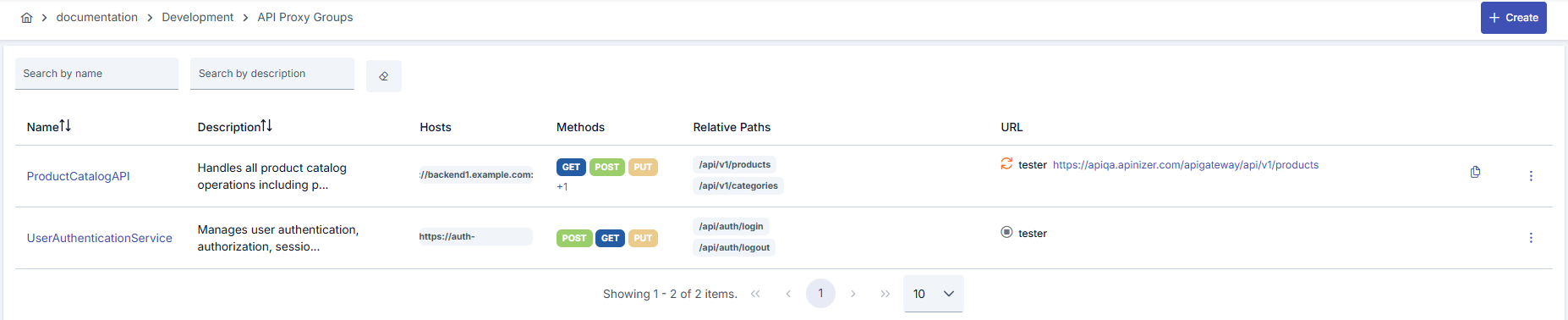
Creating API Proxy Group
To create a new API Proxy Group, click the (plus) New (Create) button in the upper right corner of the API Proxy Group List interface.
API Proxy Group creation screen:
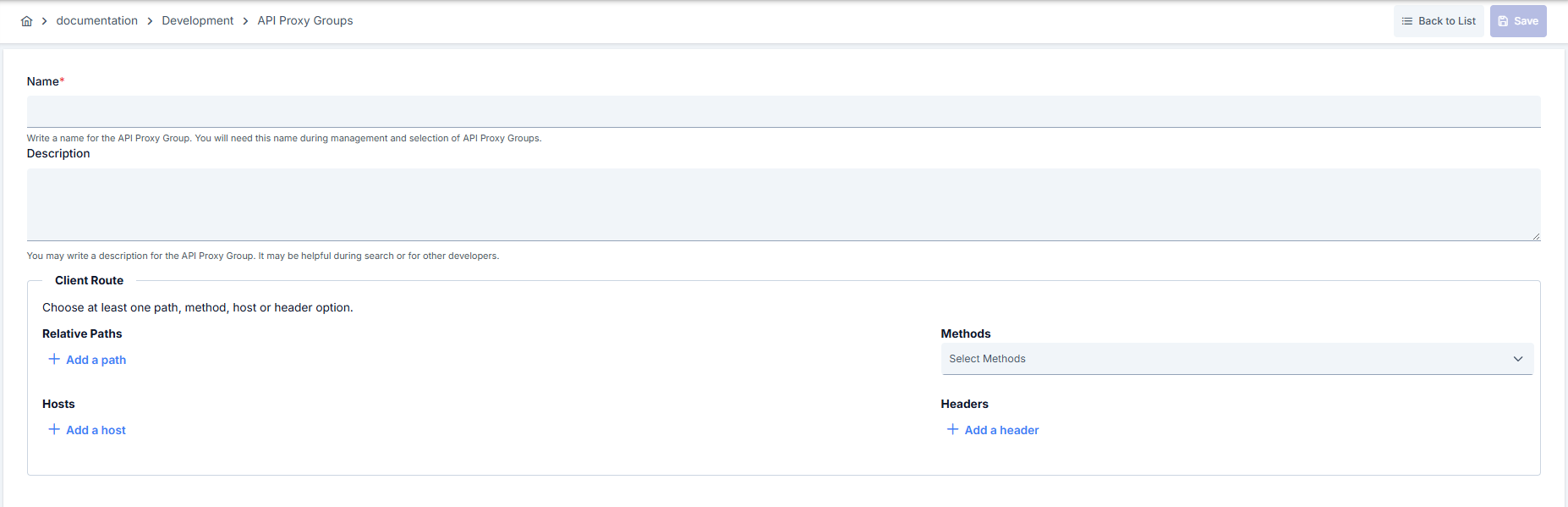
| Field | Description |
|---|---|
| Name | A unique name for the API Proxy Group. Spaces and special characters should not be used, and a meaningful naming should be made for group identification. |
| Description | Optional text field describing the purpose and usage scenario of the API Proxy Group. Used to understand the group's function in management and maintenance processes. |
| Client Route | Routing information that clients will use to access this API Proxy Group. At least one of the path, method, or header-based routing options must be selected.**Relative Paths:**Relative URL paths to be routed to the API Proxy Group. Multiple paths can be defined, each path must start with "/".**Methods:**HTTP methods allowed for this group (GET, POST, PUT, DELETE, PATCH, OPTIONS, HEAD). All methods can be selected by default.**Hosts:**Host addresses of backend services. Multiple hosts can be added.**Headers:**HTTP headers to be added or changed at the API Proxy Group level. Defined as key-value pairs, applied to all requests belonging to this group.For detailed information, see: Client Route Settings |
After saving, the formatting interface of the API Proxy Group opens.
Formatting API Proxy Group
The formatting of the Overview (Overview), Settings (Settings), and Development (Development) tabs is exactly the same as those of API Proxy, except for a few small differences.
Overview Tab (Overview Tab)
The visual containing the Overview Tab is shown below:
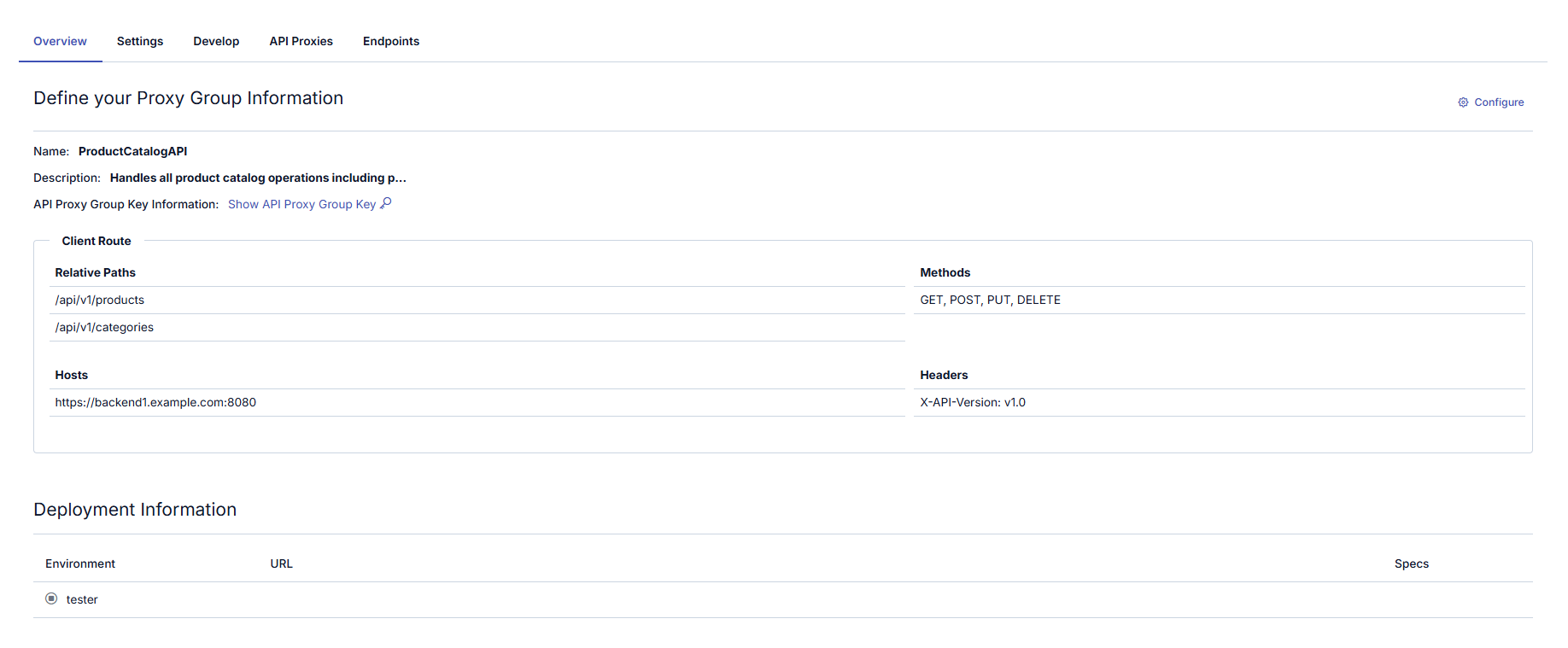
The fields used for the Overview Tab configuration are shown in the table below.
| Field | Description |
|---|---|
| Name(Name) | The name of the API Proxy Group. Required field. |
| Description(Description) | Description/definition information related to the API Proxy Group. Optional. |
| Client Route | Routing information that clients will use to access the API Proxy Group. For detailed information, see: Client Route Settings |
| API Proxy Group Key(API Proxy Group Key) | Section where General and Secret Keys required for JWT or OAuth2 authorization through the API Proxy Group are managed. For detailed information, see how these keys are managed for API Proxy. |
| Deployment Information | Deployment status and environment information of the API Proxy Group. **Environment:**Environment where the API Proxy Group is deployed (Development, Test, Production). **URL:**Full URL address to be used to access the API Proxy Group. **Specs:**OpenAPI/Swagger specification information of the API Proxy Group. |
After a Gateway restart, only the Proxy Groups that are deployed to that environment are loaded there — an undeployed group, or one only ever imported as new without being deployed, does not come back online on its own. This also covers a group that was still answering requests on the Gateway even though its deploy record had already been cleared (for example after an overwrite import followed by a delete on an earlier release): after the restart it is no longer served, and the remedy is to deploy it again.
API Proxy Group Key Section
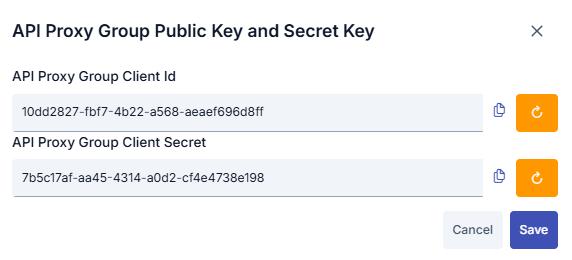
Section where access keys of the API Proxy Group are managed. Access keys are used for OAuth2 Authentication Policy.
Client Id and Client Secret values are automatically generated. Both fields are read-only; the value can be shown with the eye button and copied. To change a key, use the pencil button (Edit Client Id / Edit Client Secret) next to the field and complete the confirmation dialog (type the group name, select Automatic or Manual key generation type, click Edit). The new key is kept as a draft until you click Save and confirm in the key dialog; Cancel discards the draft. If any of the keys are changed for a deployed API Proxy Group, the API Proxy Group must be redeployed for the keys to be valid.
Viewing API Proxy Group in Swagger Interface
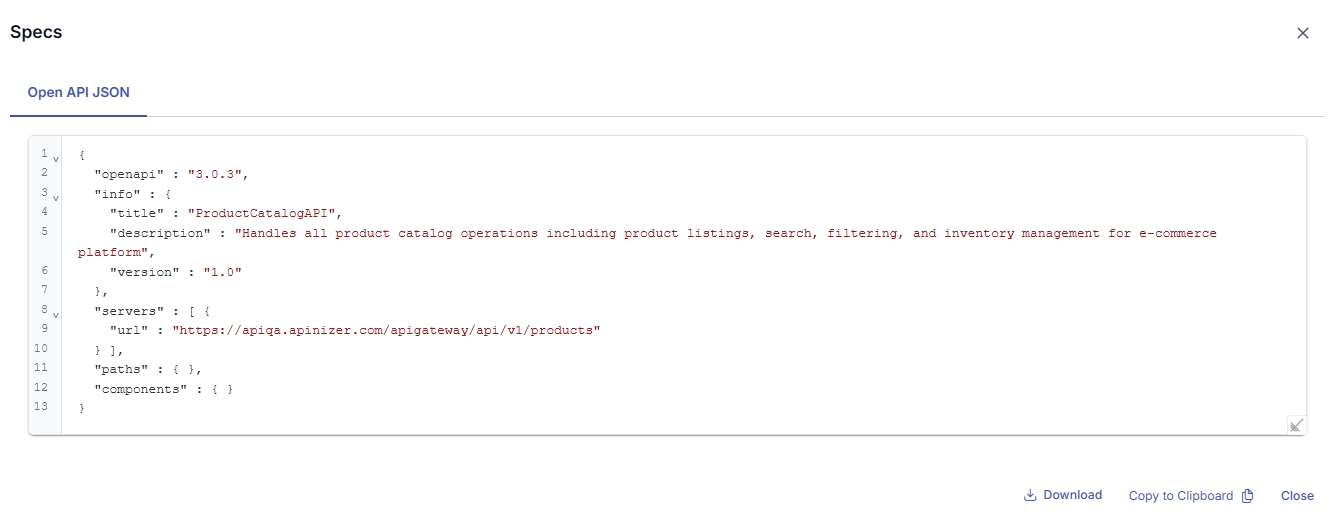
After the API Proxy Group is deployed, the Show (Show) button appears in the Deployment section for the relevant access address. When this button is clicked, the Open API specification information of the API Proxy Group in JSON format is accessed.

The dialog visual containing Spec Info settings is shown below:
Accessing API Definition Files
The content of definition files opens as shown above when the Show link is clicked and can be copied from there. However, this method is for users with roles such as API Developer, API Tester working on the Apinizer platform. Clients cannot access these interfaces.
Clients can use the access address of the Environment where the API Proxy Group is deployed as follows to access definition files:
For example, let the access address of the API Proxy in the Production Environment be https://api.apinizer.com/apigateway/apiProxyGroup.
The following addresses can be used to send requests to access definition files;
Swagger 2.x (JSON)
https://api.apinizer.com/apigateway/apiProxyGroup?swaggerhttps://api.apinizer.com/apigateway/apiProxyGroup?swagger&format=jsonhttps://api.apinizer.com/apigateway/apiProxyGroup?swagger.json
Swagger 2.x (YAML)
https://api.apinizer.com/apigateway/apiProxyGroup?swagger&format=yamlhttps://api.apinizer.com/apigateway/apiProxyGroup?swagger.yaml
OpenAPI 3.x (JSON)
https://api.apinizer.com/apigateway/apiProxyGroup?openapihttps://api.apinizer.com/apigateway/apiProxyGroup?openapi&format=jsonhttps://api.apinizer.com/apigateway/apiProxyGroup?openapi.json
OpenAPI 3.x (YAML)
https://api.apinizer.com/apigateway/apiProxyGroup?openapi&format=yamlhttps://api.apinizer.com/apigateway/apiProxyGroup?openapi.yaml
Settings Tab (Settings Tab)
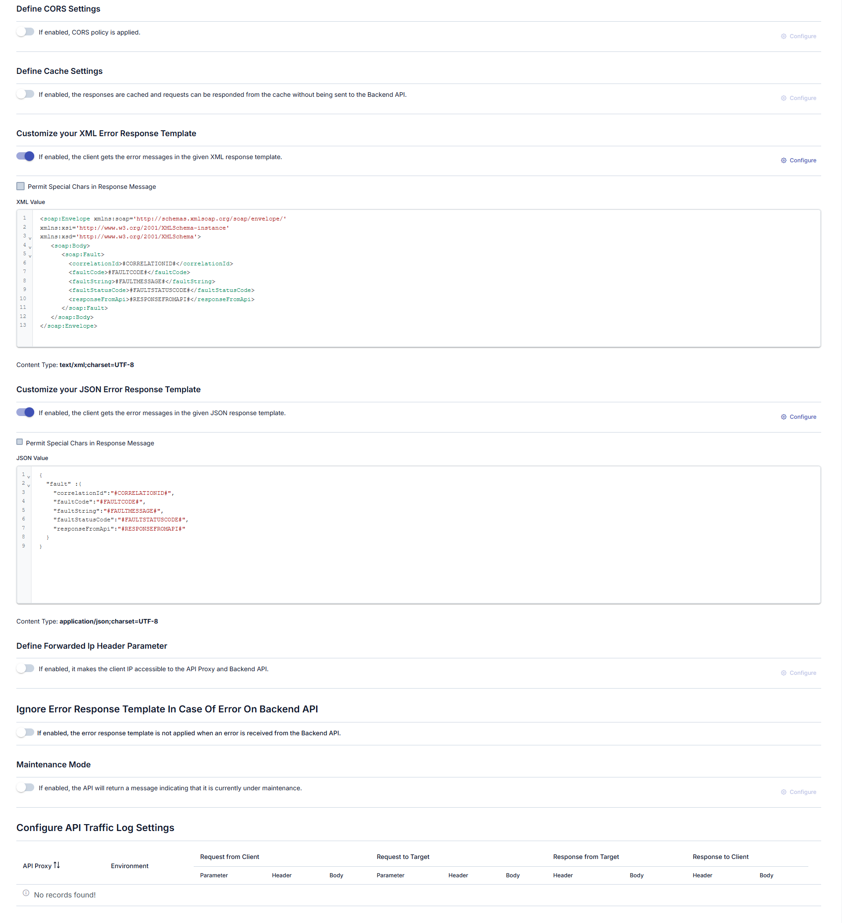
The following settings can be managed for the API Proxy Group through the Settings tab. For details of these settings, see the Settings Tab (Settings Tab) page.
- CORS
- Cache
- Customize XML Error Response Template
- Customize JSON Error Response Template
- Forwarded IP Header Parameters
- Ignore Error Response Template: The setting to ignore the error response template can be configured at the API Proxy Group level.
- API Proxy Traffic Log Settings
The visual containing the Settings Tab is shown below:
Development Tab (Development Tab)
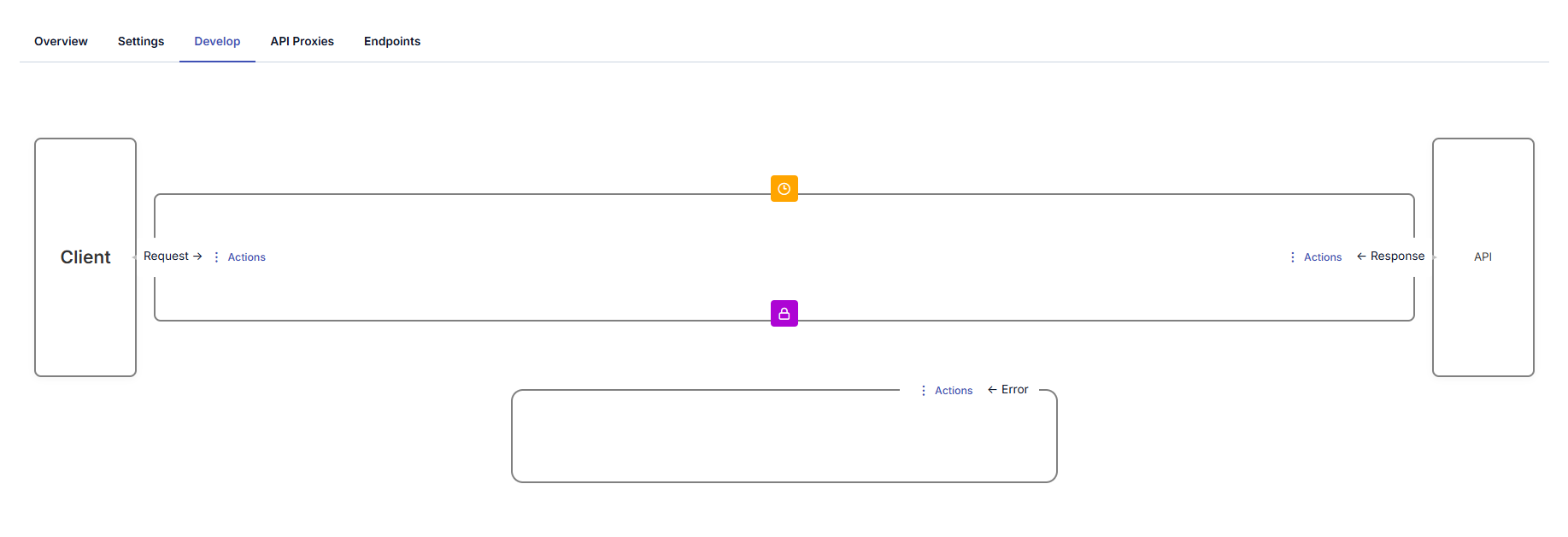
Policies of the API Proxy Group are managed in the Development tab. For detailed information, see the Development Tab (Development Tab) page that explains how policies are managed for API Proxy.
The visual containing the Development Tab is shown below:
API Proxies Tab (API Proxies Tab)
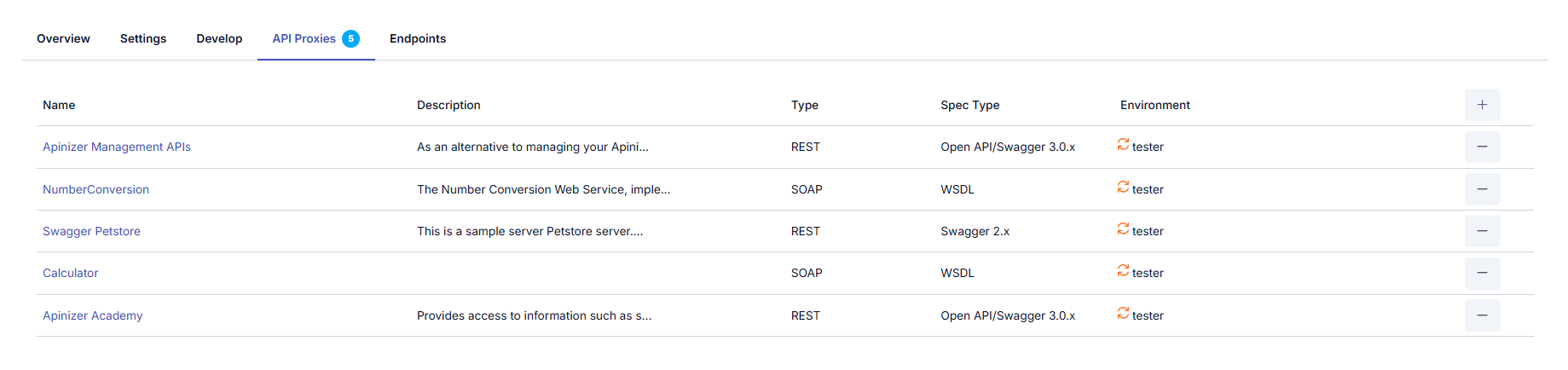
API Proxies within the API Proxy Group and Deployment information are managed from this section.
If the API Proxy Group is not deployed, the URL section appears empty.
The visual containing the API Proxies Tab is shown below:
Endpoints Tab
The visual containing the Endpoints Tab is shown below:
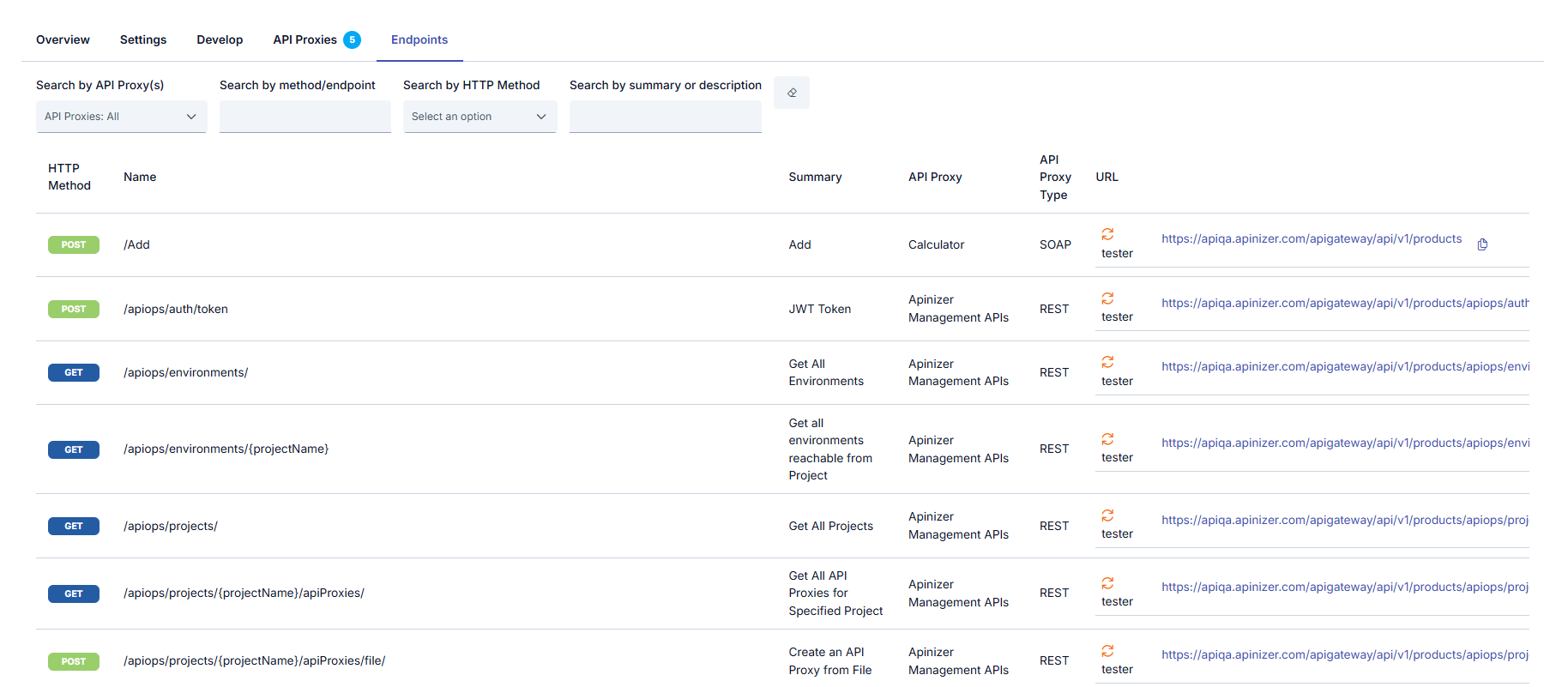
Testing Endpoint
Click the test button to test the endpoint.

Viewing Endpoint Detail
Click the button at the end of the row to view the endpoint detail.

The visual containing the endpoint detail is shown below:
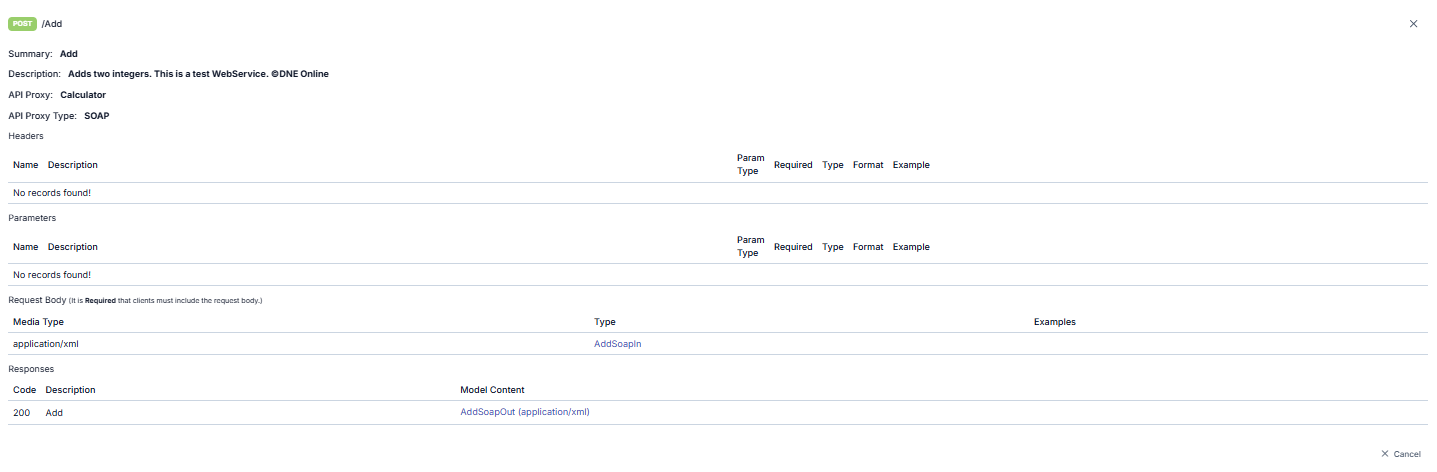
In this screen, if the Type information of the request or the Model Content of the response is found, it can be clicked to view the detail.
Let the addresses to be used in the following examples be:
- Environment's access address:
https://demo.apinizer.com/apigateway - Gateway Address given for API Proxy Group:
/apiProxyGroup1 - Address of API Proxy Group in the environment where it is deployed:
https://demo.apinizer.com/apigateway/apiProxyGroup1 - Gateway Address given for API Proxy:
/petstore - Address of API Proxy in the environment where it is deployed:
https://demo.apinizer.com/apigateway/petstore - Endpoint to be accessed:
/pet/findByStatus - HTTP method value of the endpoint to be accessed: GET
Proxy Group only works on HTTP(S) protocol.
Direct Access to API Proxy
There is no change in direct access to API Proxies added to the API Proxy Group. Clients continue to access API Proxies through the addresses created according to the Environments where they are deployed.
Address where GET request will be sent:
https://demo.apinizer.com/apigateway/petstore/pet/findByStatus?status=pending
Accessing API Proxy Group
Methods/endpoints of API Proxies can be accessed through the address of the API Proxy Group.
Accessing an endpoint of a REST type API Proxy
The access address to be used is found by adding the address of the method/endpoint to be accessed to the gateway address specified for the API Proxy Group. During this process, the API Proxy's own address is not considered.
Address where GET request will be sent:
https://demo.apinizer.com/apigateway/apiProxyGroup1/pet/findByStatus?status=pending
If a method/endpoint is accessed through the API Proxy Group, the address of the API Proxy is not considered. The method/endpoint is treated as if it belongs directly to the API Proxy Group, and the URL for the method/endpoint is created with the address of the API Proxy Group.
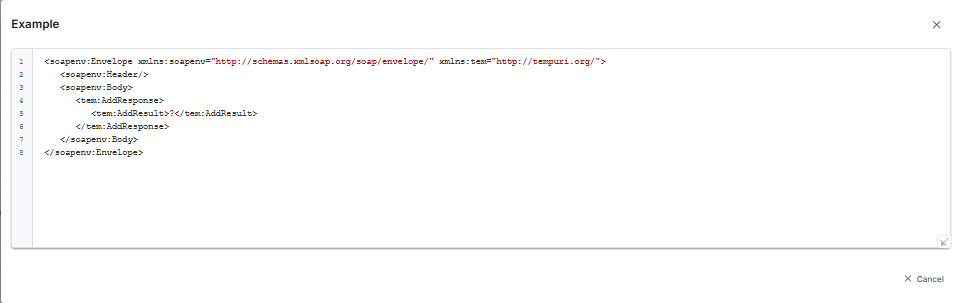
If there are multiple methods/endpoints with the same address and HTTP method among REST type API Proxies in the API Proxy Group, the request goes to the first found method/endpoint.
Some methods/endpoints belonging to other API Proxies in the group may become inaccessible due to a method/endpoint using path parameters belonging to any API Proxy in the API Proxy group.
Accessing a method/endpoint of a SOAP type API Proxy
It is sufficient to send a request with the SOAPAction header of the method to be called and the relevant SOAP message to the access address of the API Proxy Group.
If there are multiple methods with the same method/SOAP Action among SOAP type API Proxies in the API Proxy Group, the request goes to the first found method.