Multiple Schema Port WSDL
Uploading WSDL as File
A common problem in SOAP services is that even though the WSDL is accessible via an https address, the XSD files inside it remain accessible via an http address, which causes file resolution problems.
In cases where such SOAP Services need to be added to Apinizer, especially when there is no option to fix the service definition file, the file upload feature enables us to add the service to Apinizer.
If the method of defining the service to Apinizer with the WSDL file upload option is selected, there are points to be noted that differ from other upload options.
Identifying and Downloading XSD Files
Due to WSDL structure, it can reference different XSD files, and these references also need to be uploaded to the system.
It is necessary to find which XSD files need to be uploaded together with the WSDL.
The contents of these XSD files need to be downloaded as files.
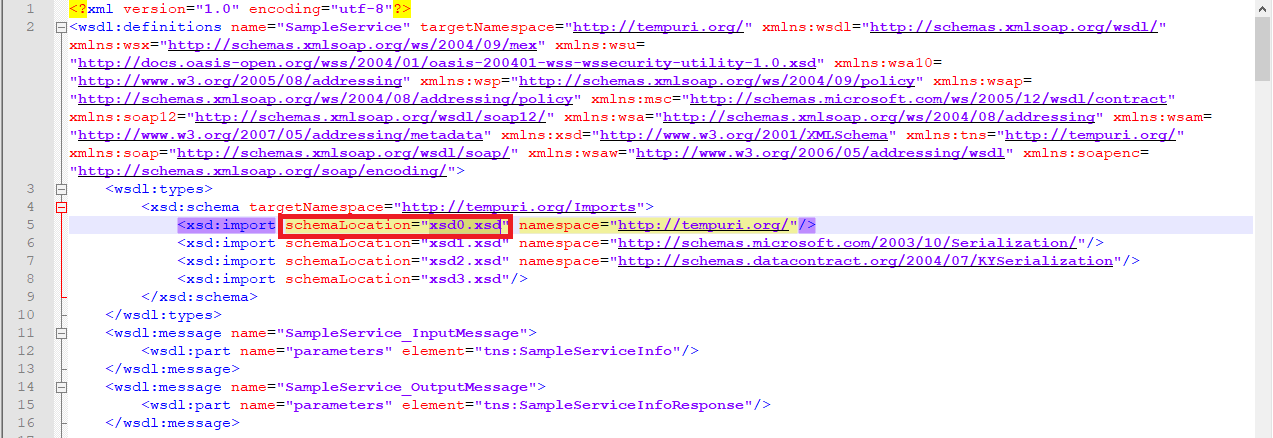
After the files are downloaded, each one's location within the WSDL must be updated.
Updating WSDL alone may not be sufficient, if there are places in XSD that reference another XSD, these must also be updated.
Updating WSDL alone may not be sufficient, if there are places in XSD that reference another XSD, these must also be updated.
Visual showing the updating of locations within WSDL is shown below:
Preparing Files as ZIP
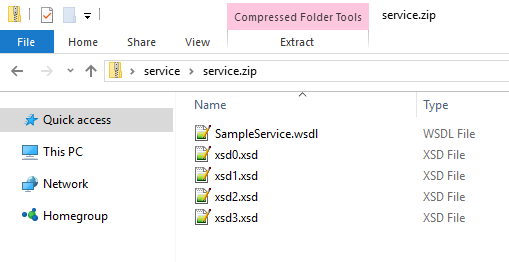
For XSD files shown as references to be uploaded to the system together with the WSDL, Apinizer requires the files to be "zipped" together.
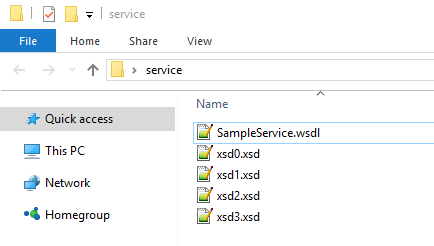
For files to be zipped, all files must be at the same file path level. If files are placed in a folder and the folder is zipped, the WSDL cannot be parsed properly.
Example visual showing file directory paths is shown below:
The visual of these files in zipped form is as follows:
Multiple Ports in SOAP Service
SOAP services can have multiple ports as shown in the following visual.
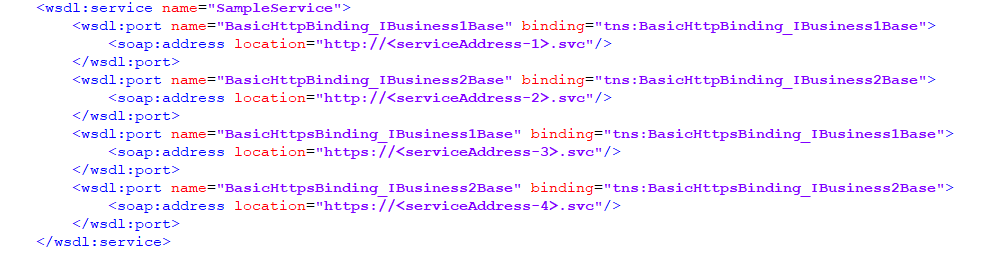
In this case, Apinizer uses the first of these ports.
If API Proxy is also desired to be created for other ports, for each port for which an API Proxy is desired to be created, the service's definition file (WSDL) must be updated so that only the relevant port remains in it and uploaded to Apinizer.
Create a separate WSDL file for each port. Edit the WSDL so that only the relevant port remains in it.
Upload the edited WSDL file to Apinizer.
Create a separate API Proxy for each port.
Reparsing an API Proxy
When the WSDL changes on the backend side (a new port is added, the schema changes, operations are added or removed), the existing API Proxy can be updated with the Reparse feature without recreating it from scratch. This feature can also be used for API Proxies created from Swagger, OpenAPI and WADL sources, in addition to WSDL-based SOAP services.
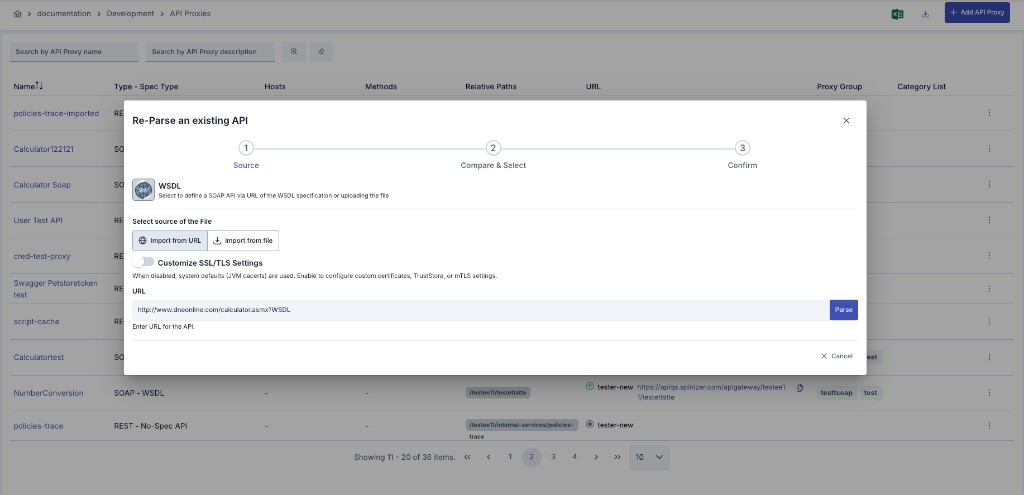
Reparsing is started from the Reparse option in the action menu of the relevant row in the API Proxy list, and is carried out through a step-by-step wizard.
The definition file can be fetched again from the address (URL) used when the API Proxy was first created, or the reparse can be performed by uploading a new file. When fetching from the URL, the SSL/TLS settings (truststore, certificate, skip SSL verification) defined during the initial creation are applied automatically.
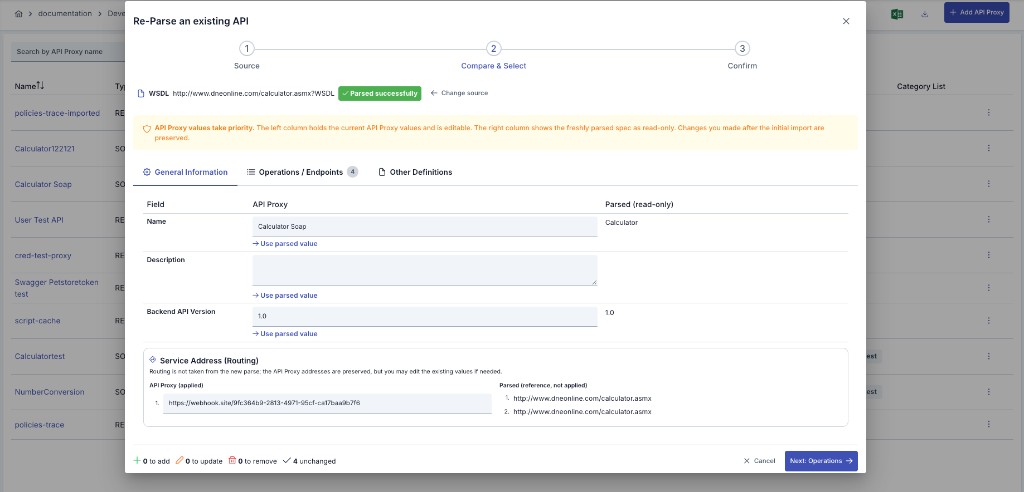
Once parsing is complete, the existing API Proxy is presented side by side with the newly parsed definition. This step has three sections:
General Information: For the name, description and backend API version fields, the current API Proxy value takes priority and is editable; the newly parsed value is shown alongside as a read-only reference. The suggested value can be applied with one click via Use parsed value, and reverted with Revert to API Proxy value.
Service Address (Routing): Service/routing addresses are not taken automatically from the new parse — the existing API Proxy addresses are always preserved and can be edited manually if needed. Addresses found in the new parse are shown only as a read-only reference for comparison and are not applied automatically.
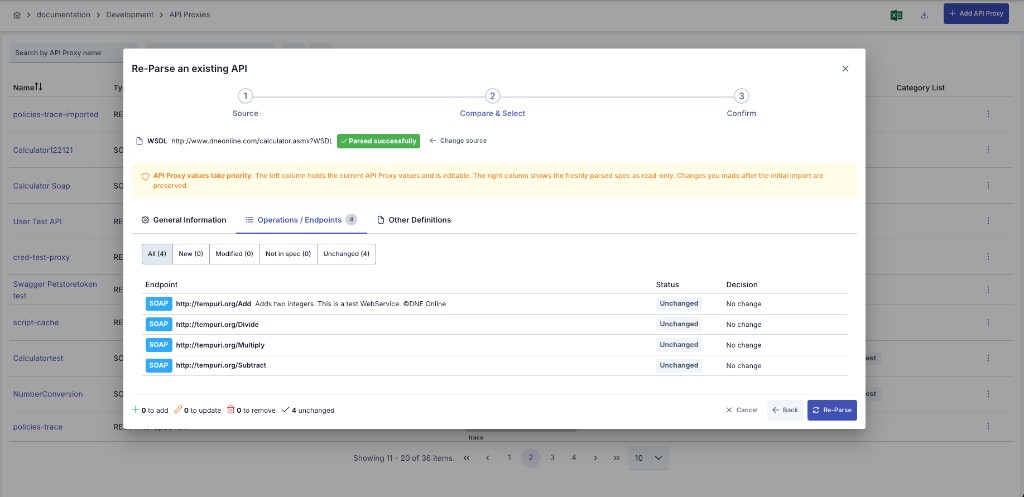
Operations / Endpoints: Each operation is classified as new, modified, not in the definition, or unchanged. For new and modified operations, whether to apply the addition/update can be chosen individually, and for operations removed from the definition, whether to remove them from the API Proxy can be chosen individually. Operations can also be filtered by status to list only a specific group.
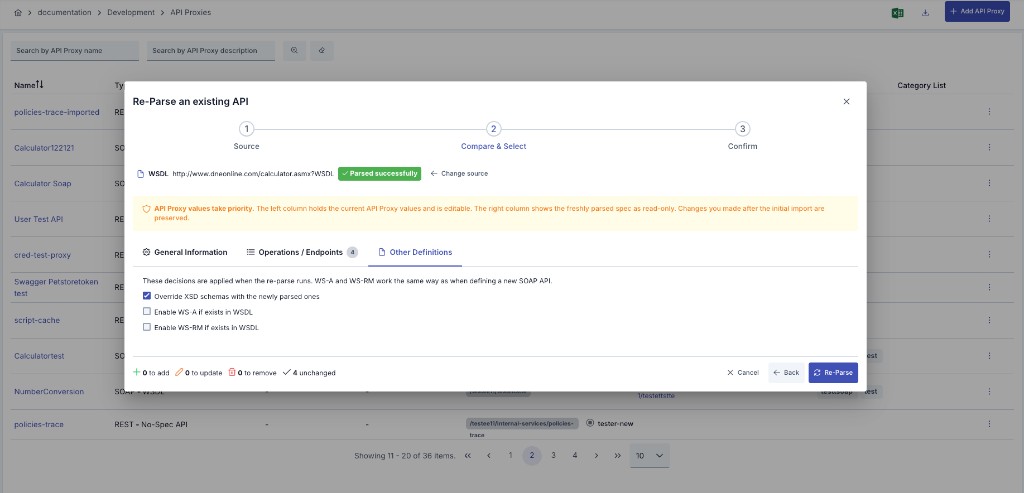
For WSDL-based API Proxies, an additional Other Definitions tab is shown:
| Field | Description |
|---|---|
| Override XSD schemas with the newly parsed ones | When checked (the default), the API Proxy's schema definitions are updated with the ones from the new parse. If unchecked, the existing schema definitions are preserved. |
| Enable WS-A if exists in WSDL | Works the same way as when defining a new SOAP API; if checked, WS-Addressing is enabled on the reparsed operations. |
| Enable WS-RM if exists in WSDL | Works the same way as when defining a new SOAP API; if checked, WS-ReliableMessaging is enabled on the reparsed operations. |
The final step lists a summary of the changes made to the general information, the service address edits, and the number of operations to be added/updated/removed. For operations to be removed, a warning is shown that the policy and authorization settings attached to those operations will also be removed. Once confirmed, the API Proxy is updated.
If an operation should be permanently excluded from all future reparse operations (for example, so that it keeps existing in the API Proxy even if it is removed from the definition file), the Skip for Re-Parse option in that operation's settings can be used. See Endpoint Configuration and SOAP Method Configuration.
During reparsing, the API Proxy's service address is not changed automatically; it is only updated if edited manually. This behavior prevents mistakes such as a production address being accidentally replaced with a test/development address.