Creating Connector Type API Proxy
Converts incoming HTTP requests and delivers them to different protocols and systems such as Kafka, RabbitMQ, ActiveMQ, and Mail.
Select the connector type, configure the connection definition, and create the API Proxy without writing code.
Connectors do not use the variable concept; data received from the client is sent to the external system raw.
Secure and centralized access to the target system is provided through previously defined Connections.
Unlike classic REST/SOAP proxies, a Connector API Proxy does not forward the request to a backend HTTP service. Instead, it routes the request to the selected connector. This enables scenarios such as writing data to a message queue or sending email over HTTP.
Supported Connectors
Main connectors you can use when creating a Connector API Proxy on Apinizer:
Used for ActiveMQ connections.
Used for Elasticsearch connections.
Used for listing files over FTP.
Used for reading files over FTP.
Used for Graylog connections.
Used for Kafka connections.
Used for Logback connections.
Used for sending email.
Used for RabbitMQ connections.
Used for SNMP connections.
Used for Syslog connections.
To create connection definitions, see Connection Management. For connector details, see Connectors.
Creating a New Connector API Proxy
Select Development → API Proxies in the main menu.
Click the +Add API Proxy button at the top right of the opened interface.

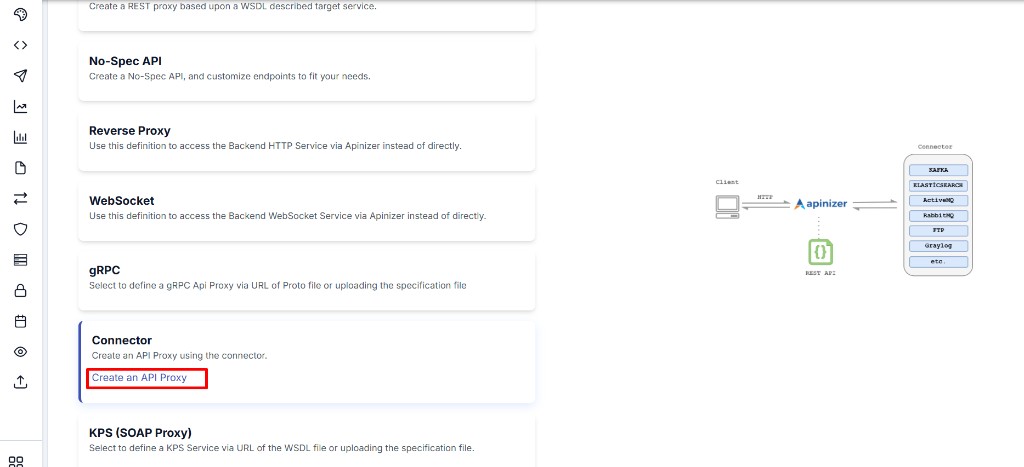
Click the Create an API Proxy link on the Connector card among the API Proxy type options.
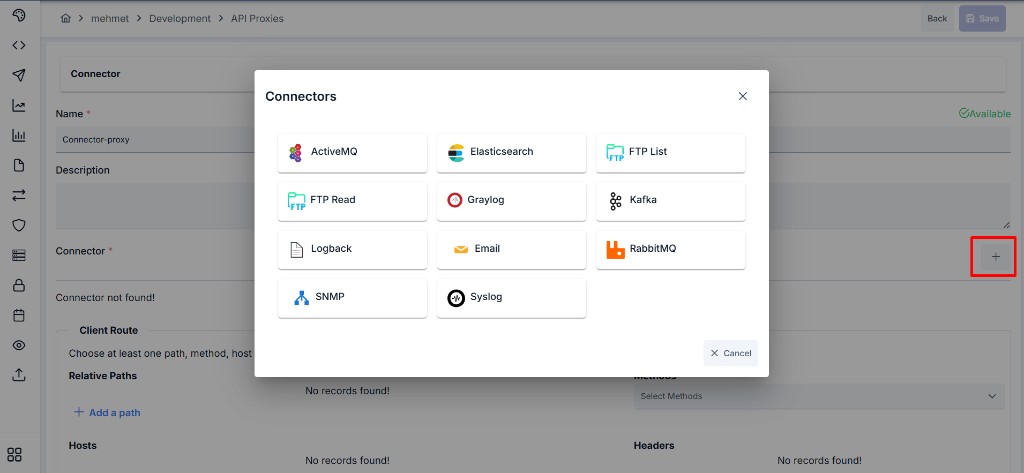
Enter the API Proxy name in the Name field. Click the + button next to the Connector field and select the connector type from the Connectors window. Then fill in the Client Route fields and click Save.
Connector API Proxy Definition Fields
Fields used for the Connector API Proxy definition are shown in the table below.
| Field | Description |
|---|---|
| Name | The name given to the API Proxy by the user. This name appears in interfaces. |
| Connector | The connector type to be used. Selected from the list opened with the + button: ActiveMQ, Elasticsearch, FTP List, FTP Read, Graylog, Kafka, Logback, Email, RabbitMQ, SNMP, Syslog. |
| Relative Paths | Part of the address where the API Proxy is exposed. Must be unique within the project. Example: /order-to-kafka |
| Hosts | Optional host definitions. |
| Methods | HTTP methods allowed for this API Proxy (GET, POST, PUT, DELETE, PATCH, etc.). |
| Headers | HTTP headers to be added or changed at the API Proxy level. |
For details about Client Route fields, see Client Route Settings.
Connector Configuration
After selecting the connector type, connector-specific configuration fields appear on the screen. These fields change according to the selected connector.
Message Queue Connectors (Kafka / RabbitMQ / ActiveMQ)
The body of the HTTP request is delivered to the selected message queue. Typical use cases: producing events and placing messages into an asynchronous work queue.
| Field | Description |
|---|---|
| Connection Definition | Selected from the Kafka, RabbitMQ, or ActiveMQ connection pool. |
| Target / Topic / Queue | Topic or queue information where the message will be written. Naming may vary by connector type. |
Email Connector
When an HTTP request is received, email is sent through the configured connection.
| Field | Description |
|---|---|
| Connection Definition | SMTP / email connection definition is selected. |
| Recipient / Subject / Content | Fields used for email delivery. Fill them according to the fields shown on the connector screen. |
Elasticsearch / FTP / Graylog / Logback / SNMP / Syslog
Depending on the selected connector type, fields such as index, file path, log target, or trap settings appear. For field details, see the related connector page.
Connectors do not use the variable concept. Data received from the client is delivered to the selected target raw. If mapping or transformation is required, relevant policies must be defined separately on the API Proxy.
After Creation
After the save step, what can be done is the same as for other API Proxy types:
- Adding and managing policies
- API traffic log settings
- Deploy / Redeploy / Undeploy
For details, see API Proxy Creation and Deployment and Version Management.
Deploy / Redeploy
After the API Proxy is created, it must be deployed to the relevant environment so that clients can access it. For details, see Deployment and Version Management.
When the connector type or Client Route fields are changed, the API Proxy must be redeployed for the changes to take effect.
Deleting a Connector API Proxy
When a Connector API Proxy is deleted, it is first removed from the environment (undeploy) and then deleted.
The Connection definition is not deleted; only its relationship with this proxy ends. The same connection can continue to be used by other proxies, Task Flows, or log connectors.