Allowed IP List
This document explains the detailed usage of a specific policy. If you are using Apinizer policies for the first time or want to learn the general working principles of policies, we recommend reading the What is Policy? page first.
Overview
What is its Purpose?
- Increase Access Security: Ensures that services provided through API Gateway are accessed only from trusted IP addresses.
- Block Unauthorized Access: Minimizes security vulnerabilities by automatically rejecting requests from sources not on the whitelist.
- Apply Geographic Restrictions: Creates geography-based security policies by accepting or blocking requests from specific countries and cities.
- Centralized IP Management: Makes the same IP sets reusable in different policies using IP groups.
- Variable Support: The client IP address to check can be read from a variable instead of the connection address.
Working Principle
- Request Arrival: For each HTTP/HTTPS request arriving at the API Gateway, the client's source IP address is identified.
- Policy Check: If the IP Whitelist policy is active, the system checks in the following order:
- Is a Condition defined? If so, is the condition met?
- Is the policy active (active=true)?
- Is the client IP taken from the connection or from a variable?
- IP Verification: Two checks are made, and the request must pass both:
- IP check: The client IP address matches an entry in the manually defined IP list or in the selected IP Groups.
- Geolocation check: If Geolocation is enabled and country/city rules are defined, the client location matches one of them.
- Decision Making:
- Passes both checks: Request is forwarded to the next policy step or backend service.
- Fails a check: Request is rejected and customized error message is returned (default: 403 Forbidden).
- Empty IP List: If the policy has no IP address and no IP group address, the IP check allows every address. Geolocation rules, if defined, are still checked.
- Error Handling: Customizable HTTP status code and error message are returned for requests that do not comply with the policy rule.
Features and Capabilities
Basic Features
- Manual IP List Management: Define IPv4 addresses,
*wildcards (e.g., 192.168.1.*), and-ranges (e.g., 192.168.1.4-18). Each IP address can be added separated by commas. - IP Group Integration: Add predefined IP groups to the policy. Ability to select and manage multiple IP groups simultaneously. IP groups are updated centrally and automatically reflected in the policy.
- Global and Local Policy Support: Can be defined globally and used in multiple API Proxies or configured as a local policy for a specific API Proxy.
- Active/Passive Status Control: Easily change the active or passive status of the policy (active/passive toggle). In passive mode, the policy is not applied but its configuration is preserved.
- Condition-Based Application: Determine when the policy will be applied by creating complex conditions with Query Builder (e.g., only for specific endpoints or header values).
Advanced Features
- Geolocation (Geographic Location) Support: IP control by country and city through Geolocation service integration. Accept/block requests from entire country or specific cities. Ability to define multiple country and city combinations.
- Variable Mechanism: Turn off Use Client IP and select a variable. The policy then checks the address the variable holds instead of the connection address.
- Error Message Customization: Customize HTTP status code (default: 403). Define custom JSON or XML error messages. Configure different messages for different error scenarios.
- Export/Import Feature: Export policy configuration as a ZIP file. Import to different environments (Development, Test, Production). Version control and backup capability.
- Policy Group and Proxy Group Support: Manage multiple policies within Policy Group. Bulk policy assignment to Proxy Groups. Centralized update and deploy operations.
- Deploy and Versioning: Deploy policy changes to live environment. See which API Proxies use it (Policy Usage). Proxy Group and Policy Group usage reports.
Usage Scenarios
| Scenario | Status | Solution (Policy Application) | Expected Behavior / Result |
|---|---|---|---|
| Corporate Network Access | Only access from corporate network (192.168.x.x) should be allowed to APIs | Add 192.168.*.* to IP list. Assign policy to relevant API Proxy locally or globally. | Only requests from 192.168.x.x network are accepted. Other IPs return 403 error. |
| Third-Party Integration | Allow requests from specific partner company's fixed IPs (203.0.113.10, 203.0.113.11) | Add 203.0.113.10 and 203.0.113.11 addresses to IP list. Create "Partner IP Group" and reuse if needed. | Only requests from partner IPs are accepted. Integrations work securely. |
| Geographic Restriction | Only accept requests from Turkey (TR) | Enable Geolocation settings. Select Turkey from "Select Country" list and add to policy. | If client IP does not belong to Turkey geography, 403 error is returned. TR IPs are accepted. |
| City-Based Access | Accept requests only from Istanbul and Ankara cities | Select Turkey from Geolocation section. Select Istanbul and Ankara from city list. Click "Add" button. | Only IPs from Istanbul and Ankara cities are accepted. Other cities are rejected. |
| Development/Test Environment | Allow access only from QA team IPs in test environment | Create an IP Group named "QA Team IPs". Add this group to policy. Make global policy specific to test environment. | QA team can access test APIs. Different policy is applied in production environment. |
| Client IP Behind a Proxy | The real client IP arrives in a header or a context value instead of the connection address | Turn off Use Client IP in the policy and select the variable that holds the client IP. | The policy checks the address in the variable instead of the connection address. |
| Emergency Access | Always accept requests from a specific critical IP | Add critical IP to manual IP list. Add emergency header check in condition section (optional). | Critical IP always has access. Policy can be bypassed in emergencies. |
Configuring Policy Parameters
In this step, users can create a new policy or configure existing policy parameters to define access rules. The defined parameters directly affect how the policy works (e.g., which IPs will be allowed, geographical restrictions, conditional activations, etc.). This allows the policy to be customized according to organization-specific requirements while being centrally manageable.
Creating a New Allowed IP List Policy
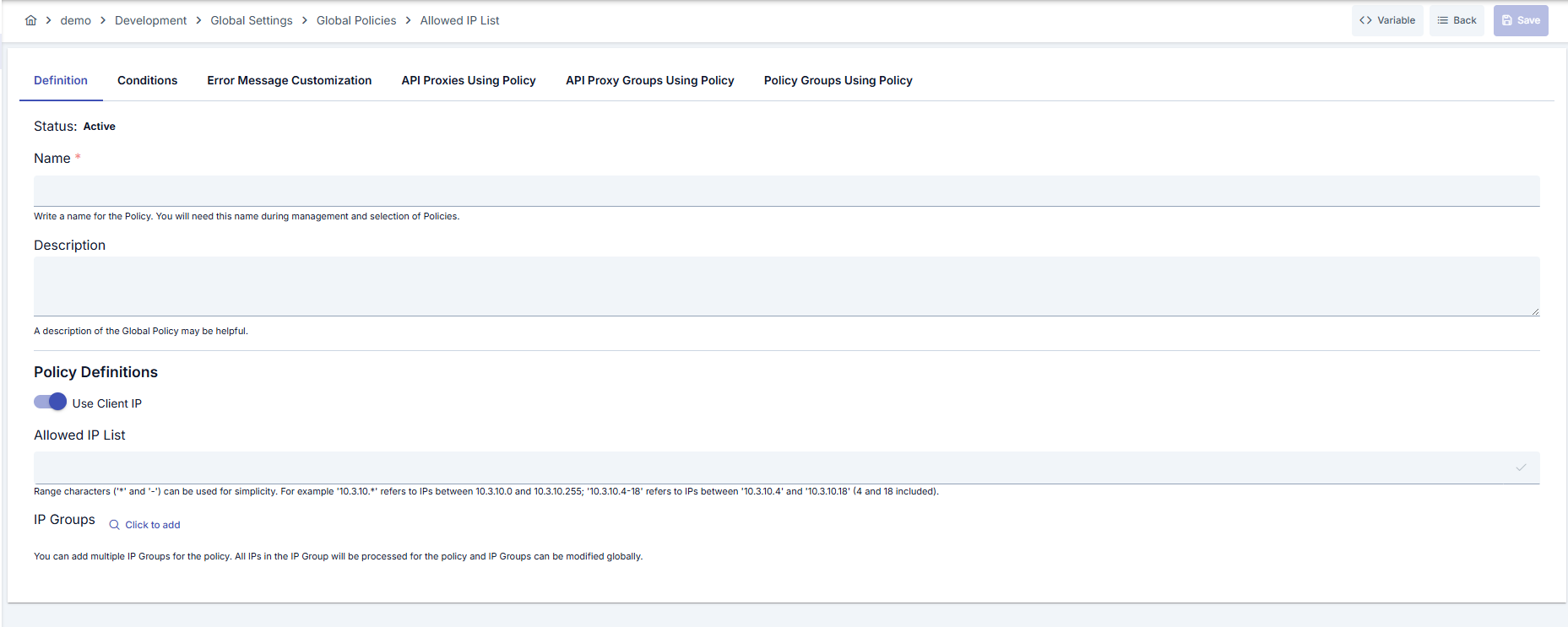
Configuration Steps
| Step | Description / Operation |
|---|---|
| Step 1: Go to Creation Page | - Go to Development → Global Settings → Global Policies → Allowed IP List from the left menu. - Click the [+ Create] button at the top right. |
| Step 2: Enter Basic Information | Policy Status: Shows Active/Passive status. New policies are active by default. Name (Required): Example: Production_IP_Whitelist- Enter a unique name, does not start with space. - System automatically checks: Green checkmark: available Red X: existing name. Description: Example: "Allows requests only from corporate internal and partner systems for Prod environment." - Max. 1000 characters. - Explain the purpose of the policy. |
| Step 3: Variable Usage | - In the action button area at the top of the page, you can use the [<> Variable] button to select dynamic values. - Using context/global variable expressions, you can manage policy parameters with variable-based values instead of fixed values. - This reduces manual update effort when values change and provides operational convenience. - For detailed information, review Dynamic Variables. |
| Step 4: IP List Configuration | Use Client IP: When on, the policy checks the client IP address that the gateway determines. When off, select a variable in the Variable for Client IP field; the policy checks the address that the variable holds. Adding IP: - Single IP: 192.168.1.100 → Added with Enter or ✓.Deleting IP: Click on IP tag or ✕ icon. Characters ( * and -) can be used to specify IP ranges.Examples: - 10.0.0.1 → Single IP- 10.3.10.* value specifies IPs between 10.3.10.0 and 10.3.10.255.- 10.3.10.4-18 value expresses IPs between 10.3.10.4 and 10.3.10.18 (4 and 18 included).- 10.*.*.* → All IPs starting with 10Enter key must be pressed after adding IP. Only IPv4 addresses are matched. CIDR notation (e.g., 192.168.1.0/24) does not match any address; use * and - instead. |
| Step 5: IP Groups Usage (Optional) | - Click "Click to add IP Groups" button. - Existing IP groups appear on left, selected ones on right. Adding: - Select group from left list → [Select]. - Moves to right side. - A group can be used in multiple policies. Removing: - Click 🗑️ icon in right list → returns to left list. Advantage: - Manage IP lists centrally. - Single update reflects to all policies. - Ideal for partner access. |
| Step 6: Geographic Location Filter (Optional) | - Select country from Country dropdown (example: Turkey). - City dropdown becomes active when country is selected (example: Istanbul, Ankara, Izmir). - Added to table with [+ Add]. - Rows can be deleted individually with 🗑️ or in bulk with top 🗑️. Example Scenarios: - Turkey only: Country: Turkey, City: — - Turkey major cities: Istanbul, Ankara, Izmir, Bursa - Multiple countries: Turkey (all), Germany (Berlin, Munich), USA (all) |
| Step 7: Define Condition (Optional) | - Go to Condition tab. - Conditions determine when the policy will be active. Examples: • Environment-based: Header = X-Environment, Operator = Equals, Value = production • API Key-based: Header = X-API-Key, Starts With = PROD- • Endpoint-based: Path = /api/admin/* If no condition is defined, policy is always active. |
| Step 8: Customize Error Message (Optional) | - Go to Error Message Customization tab - Customize the message to be returned when access is denied. Default: { "statusCode": 403, "message": "Access denied: IP not whitelisted" }Custom: { "statusCode": 403, "errorCode": "ACCESS_DENIED", "message": "You do not have permission to access this API.", "details": "Your IP address is not on the allowed list. Please contact support@company.com for access." } |
| Step 9: Save | - Click the [Save] button at the top right. Checklist: - Unique name - Required fields filled - At least one IP or IP group is defined (a policy with no IP address allows every address) Result: - Policy is added to the list. - Can be connected to APIs. - If global policy, automatically applied. |
An Allowed IP List that has no IP address left allows every address. This happens when the policy has no IP address of its own and its IP groups are empty, deleted, or deactivated: the gateway skips a missing or deactivated group and does not reject requests because of it. If you delete or deactivate an IP group, check which policies use it first; the IP Group dialog lists them. See IP Groups.
For descriptions of Conditions and Error Message Customization panels, you can review the Conditions and Error Message Customization sections on the What is Policy? page.
For a complete guide on all layers, priority order and scenario examples of the error message configuration system, see the Error Message Configuration Guide page.
Deleting the Policy
For deletion steps of this policy and operations to be applied when in use, you can refer to the Removing Policy from Flow section on the Policy Management page.
Exporting/Importing the Policy
For export (Export) and import (Import) steps of this policy, you can refer to the Export/Import page.
Connecting the Policy to API
For the process of how this policy will be connected to APIs, you can refer to the Connect Policy to API section on the Policy Management page.
Advanced Features
| Feature | Description and Steps |
|---|---|
| Client IP from a Variable | - First create a Variable (from Variables menu) that holds the client IP address, such as one read from a header. - Turn off the Use Client IP toggle in policy creation/editing page. - Select the variable in the Variable for Client IP field. - Save. The policy now checks the address in the variable for each request. - If the variable has no value, the policy does not reject the request. |
| Centralized Management with IP Group | - Create a new IP Group from IP Group menu (e.g., "Partner IPs"). - Add IPs to IP group (same format as the policy). - Use this group in different IP Whitelist policies. - Update IP Group (add/remove new IP). - Changes automatically reflect to all policies using this group. Advantage: Using one IP set in multiple policies, updating from single point. |
| Country-Based Blocking with Geolocation | Prerequisite: Geolocation service must be activated from Geolocation Settings. - Open country dropdown in "Geolocation" section on policy page. - Select desired country (e.g., Germany). - Click [ Add ] button without selecting city (applies to entire country). - You can add multiple countries. Advantage: Geographic location-based access control without needing IP information |
| City-Based Blocking with Geolocation | - After selecting country, "City" dropdown becomes active. - Select one or multiple cities (supports multi-select). - Click [ Add ] button. - Added cities appear in table format. Example: If "Turkey - Istanbul" and "Turkey - Ankara" are selected, only requests from these two cities are accepted. Note: Accuracy of city data depends on Geolocation provider. |
| Conditional IP Control with Condition | - Go to "Condition" tab on policy editing page. - Create condition in Query Builder (e.g., path='/admin' OR header.X-Admin-Request='true').- IP control is performed when condition is met, policy is skipped if not met. - Save. - Special IP restriction for admin endpoints, no IP control for public APIs. Advantage: Different policy behaviors for different endpoints in the same API Proxy. |
| Error Message Customization | - Go to "Error Message Customization" tab. - Select error type (e.g., "IP Not Whitelisted"). - Change HTTP Status Code (e.g., 401 instead of 403). - Enter custom JSON message: { "error": "Access Denied", "message": "Your IP address is not whitelisted", "code": "IP_NOT_ALLOWED" }- Add language-based messages (TR, EN). - Save. Advantage: More meaningful error messages to users, custom error tracking. |
| Policy Transfer with Export/Import | Export: - Select [ Export ] from "..." menu in policy list. - ZIP file is downloaded (format: DD-MMM-YYYY-policy-[name]-export.zip).Import: - Click [ Import ] button on list page. - Select exported ZIP file. - Configure import settings (override, new name, etc.). - Complete import process. Advantage: Policy transfer between Development → Test → Production environments, backup. |
| Bulk Management with Policy Group | - Create a new group from "Policy Group" menu. - Add multiple policies including IP Whitelist policy to group. - Assign Policy Group to one or multiple API Proxies. - All policies in group are applied in bulk. Advantage: Managing multiple policies as package, bulk deploy. |
Tips and Best Practices
Things to Do and Best Practices
| Category | Description / Recommendations |
|---|---|
| IP Format and Definition | Bad: 192.168.1 (incomplete format)Good: 192.168.1.100 (full IPv4 address)Best: 192.168.1.* or 192.168.1.4-18 (range with a single definition) |
| IP Group Usage | Bad: Manually adding same IP list in each policy Good: Defining IP group once Best: Categorizing and grouping relevant IPs (e.g., "Partner IPs", "Office IPs", "QA Team IPs") |
| Global vs Local Policy Selection | Bad: Creating separate local IP Whitelist policy for each API Proxy Good: Using global policy as common security policy Best: Using global for general rules, local policy for special cases |
| Geolocation Usage | Bad: Manually adding all country IP blocks Good: Activating Geolocation service Best: Providing precise control using country and city combinations |
| Error Message Customization | Bad: Using default 403 error Good: Making detailed explanation with custom JSON message Best: Different messages for different error scenarios, adding log ID |
| Policy Naming | Bad: Ambiguous names like policy1, ipwhiteGood: Descriptive names like IP_White_List_ProductionBest: [ENV]_[Purpose]_IP_White format (e.g., PROD_Partner_API_IP_White) |
| Condition Usage | Bad: Applying same IP restriction to all endpoints Good: Separating public and private endpoints Best: Special IP control for /admin/* paths with Condition, no IP control for /public/* paths |
Security Best Practices
| Security Area | Description / Warnings |
|---|---|
| Least Privilege Principle | Critical: Add only truly necessary IPs to IP Whitelist. Absolutely avoid wide wildcards (e.g., *.*.*.*).Recommendation: Use a single IP or at most a last-octet range (e.g., 192.168.1.*). |
| IP Spoofing and Proxy Security | Warning: If there is a Load Balancer or Reverse Proxy in front of API Gateway, correctly configure X-Forwarded-For or X-Real-IP headers to get real client IP.Risk: Risk of bypassing whitelist with IP spoofing. |
| Geolocation Reliability | Note: Geolocation services are not 100% accurate. Can be bypassed with VPN and Proxy usage. Recommendation: Use Geolocation not alone, but together with other security layers (JWT, API Key, etc.). |
| Variable Security | Security Risk: If the client IP is read from a variable whose value the client can set (for example a request header), the client can choose the address that is checked. Recommendation: Use a variable that only your own infrastructure sets, such as a header added by a trusted load balancer. |
| Error Message Information Leakage | Caution: Do not provide information about system architecture or internal IPs in error messages. Bad: "Your IP 203.0.113.5 is not in whitelist. Allowed range: 192.168.1.*" Good: "Access denied. Your IP address is not authorized." |
| Regular Update and Review | Best Practice: Regularly review IP Whitelist (e.g., monthly). Action: Remove unused, old partner IPs. Update changed IPs. Check audit logs. |
| Multi-Factor Security | Recommendation: Do not use IP Whitelist as single security layer. Best Practice: Use combination of IP control + API Key/JWT + Rate Limiting. |
| Production Environment Isolation | Critical: Create separate global policy for Production environment. Never add Test/Development environment IPs to production policy. Recommendation: Use environment-based Policy Group. |
Things to Avoid
| Category | Description / Warnings |
|---|---|
| Using Wide Ranges | Why to avoid: Wide ranges like 10.*.*.* can cover millions of IPs and increase security risk.Alternative: Use specific ranges (e.g., 10.10.50.*). Add needed IPs one by one or with small ranges. |
| Reading the Client IP from an Unreliable Variable | Why to avoid: If the variable has no value, the policy does not reject the request. Alternative: Use a variable that always has a value, or keep Use Client IP on. |
| Leaving Policy in Passive State | Why to avoid: Passive policy is not applied to traffic, security vulnerability may occur if forgotten. Alternative: Make passive temporarily for short time to test. Activate or delete after test is complete. |
| Providing IP Information in Error Message | Why to avoid: Showing client's or allowed IPs in error message gives information to attackers. Alternative: Use general error messages: "Access denied" or "Unauthorized". Keep detailed logs only on server side. |
| Complicating Management with Local Policy | Why to avoid: Creating separate local IP Whitelist policy for each API Proxy complicates management and creates inconsistency in IP updates. Alternative: Use global policy. Create local policy only for API Proxies with truly different IP requirements. |
| Over-Reliance on Geolocation | Why to avoid: Geographic location can be bypassed with VPN, Tor, Proxy usage. Not sufficient for sensitive operations. Alternative: Use Geolocation as additional security layer. Apply IP + Authentication + MFA combination for critical operations. |
| Not Deploying Policy Updates | Why to avoid: Changes made in global policy do not reflect to live environment without deploy. Alternative: Use Deploy button after policy is updated. Integrate deploy process into CI/CD pipeline. |
| Transitioning to Production Without Testing | Why to avoid: Wrong IP configuration may cause blocking of all users. Alternative: Validate policy in test environment. Deploy first in passive mode, check logs. Then activate. Prepare rollback plan. |
Performance Tips
| Criterion | Recommendation / Impact |
|---|---|
| IP Group Size | Recommendation: Limit IP groups to maximum 100-200 IPs. Create multiple groups if more IPs are needed. Impact: Entire IP list is checked on each request. Very large lists reduce performance (O(n) comparison for each IP). |
| Preferring Ranges | Recommendation: Use * and - ranges for IP ranges as much as possible.Impact: Using 192.168.1.* (1 entry) instead of 254 separate entries keeps the list short and fast to check. |
| Geolocation Performance | Note: Geolocation lookup occurs on each request and creates additional delay (average 1-5ms). Recommendation: Prefer using fixed IP list instead of geolocation in high-traffic APIs. Cache geolocation results (IP → Country/City mapping). |
| Condition Complexity | Recommendation: Write simple and optimized conditions. Avoid unnecessarily complex regex or nested conditions. Impact: Simple condition ( path='/' AND method='GET') < 0.1ms. Complex regex condition > 1-2ms. |
| Policy Ordering | Best Practice: Run IP Whitelist policy first within Policy Group. Logic: If requests from unauthorized IPs are blocked at early stage, other policies (Rate Limiting, JWT, etc.) do not run unnecessarily. |
| Log Level Setting | Production: Keep log level at ERROR or WARN. Development: You can use DEBUG or TRACE. Impact: Excessive logging (logging IP check on each request) can cause disk I/O and performance issues. |
| Deleting Inactive Policies | Recommendation: Regularly delete unused or passive policies. Impact: Keeps database and in-memory policy registry small, reduces policy lookup time. |
Frequently Asked Questions (FAQ)
| Category | Question | Answer |
|---|---|---|
| General | How many IPs does IP Whitelist policy support? | There is no technical limit but 500-1000 IPs are recommended for performance. Use IP groups and * or - ranges for more IPs. |
| General | Are IPv6 addresses supported? | No. Only IPv4 addresses are matched. |
| General | Should API Proxy be deployed even if I make policy passive? | Yes. Every change made in global policies (including active/passive) must be deployed. In local policies, the API Proxy itself must be deployed. |
| Technical | How is IP retrieved from X-Forwarded-For header? | API Gateway automatically checks X-Forwarded-For, X-Real-IP headers. You must activate "Use Forwarded IP" option from Gateway settings. If header does not exist, direct socket IP is used. |
| Technical | How should the Variable for Client IP be formatted? | The variable must resolve to a single client IP address, for example 203.0.113.10. |
| Technical | Is CIDR notation supported? | No. The gateway matches full IPv4 addresses, * wildcards, and - ranges in each octet. An entry such as 192.168.1.0/24 does not match any address. Use 192.168.1.* instead. |
| Technical | Which HTTP headers are added when policy is applied? | No header is added when policy is successful. Custom error message is returned when failed (IP rejected). You can add custom headers like X-Apinizer-Policy-Status: REJECTED for debugging. |
| Usage | If I use both IP list and Geolocation, is the logic AND or OR? | AND logic works. The request must pass both checks: - IP check: The client IP matches any entry in the manual IP list or in the IP Groups. If both are empty, every address passes. - Geolocation check: If Geolocation is enabled and country/city rules are defined, the client location must match one of them. A request that fails either check is rejected. |
| Usage | I updated global policy but it didn't reflect on API, why? | Global policy changes must be deployed. Process steps: - Save the policy. - Click "Deploy" button on policy detail page. - Select environments to deploy (DEV, TEST, PROD). - Confirm deploy process. - Changes reflect to live within 1-2 minutes after deploy. |
| Usage | What happens to policy if I delete or deactivate an IP Group? | Warning: The policy does not become stricter. The gateway skips the deleted or deactivated group, so its addresses are no longer allowed. If the policy has no other IP address or group, its IP list becomes empty, and an empty list allows every address. The policy keeps the group in its selection and shows no error. Before you delete or deactivate a group, check which policies use it; the IP Group dialog lists them and shows the effect on each policy. |
| Usage | How is Geolocation service activated? | - Go to "Geolocation Settings" page from Admin menu. - Select Geolocation provider (e.g., MaxMind GeoIP2). - Enter API Key or license information. - Test connection with "Test Connection". - Open "Enable Geolocation" toggle and save. - Geolocation database must be updated regularly (monthly). |
| Usage | Can I use both global and local IP Whitelist policy in one API Proxy? | Technically yes, but not recommended. If both policies are active, AND logic works (must match both lists). Can lead to complex management and unexpected blockings. Best Practice: Use global policy. If specific case exists, localize global policy and customize. |
| Troubleshooting | My IP entry is accepted but never matches, why? | The screen does not check the entry format. Use a full IPv4 address (192.168.1.100), a wildcard (192.168.1.*), or a range (192.168.1.4-18). An entry in any other form, such as CIDR (192.168.1.0/24), IPv6, or an incomplete address, never matches. |
| Troubleshooting | IP I added to Whitelist still gets 403, what should I do? | Troubleshooting steps: - Check if policy is active (active=true). - Check if global policy is deployed. - See client's real IP in API Gateway logs (X-Forwarded-For if behind Load Balancer). - Is Condition defined? Check if condition is met. - Is the IP entry in a supported format (not CIDR)? - If a variable is used for the client IP, check the variable value. - Clear cache (reload policy cache). If problem persists, send log files to support team. |
| Troubleshooting | Geolocation control is not working, what should I do? | Checklist: - Is service active in Geolocation Settings? - Is Geolocation database current? (Check last update date) - Is client IP a public IP? (Geolocation does not work for private IPs: 192.168.x.x, 10.x.x.x) - VPN or Proxy may be used (hides real location). - Check geolocation lookup result in API Gateway logs (which country/city was detected). - Geolocation provider's API limit may have been reached. |
This document is part of Apinizer product documentation. © 2025 Apinizer - All rights reserved.