Time Restriction
This document explains the detailed usage of a specific policy. If you are using Apinizer policies for the first time or want to learn the general working principles of policies, we recommend reading the What is Policy? page first.
Overview
What is its Purpose?
- Blocks access at unauthorized times by filtering API Proxy traffic according to day and time intervals.
- Automatically manages requests in certain time periods such as maintenance windows or campaign periods.
- Consistently evaluates calls from different time zones with Zone ID setting.
- Reuses same configuration in both allow and block scenarios with Allow/Restrict action modes.
Working Principle
- Request Arrival: For each HTTP/HTTPS request arriving at the API Gateway, the source IP address of the request is identified.
- Policy Check: If the Time Restriction policy is active, the system checks in the following order:
- Is a Condition defined? If so, is the condition met?
- Is the policy active (active=true)?
- Is a Variable used or is Apinizer default used?
- Time Block Evaluation: Defined hourWrapper rules are executed according to day, month and time intervals based on selected Zone ID; in Allow mode, at least one rule match is required, in Restrict mode, matching rule blocks request.
- Decision Making:
- Match Found: In Allow mode, request passes; in Restrict mode, default or customized error code is returned to request.
- No Match: In Allow mode, request is rejected with 403; in Restrict mode, request continues.
- Error Handling: Customizable HTTP status code and error message are returned for requests that do not comply with the policy rule.
Features and Capabilities
Basic Features
- Multiple Time Block Management: Different day and time intervals can be gathered in the same policy by defining unlimited hourWrapper in one policy.
- Dual-Mode Action Type: Same configuration can be applied to both allow and block scenarios with EnumRestrictionType (ALLOW/RESTRICT) support.
- Zone ID-Based Evaluation: Requests are evaluated according to selected time zone independent of default server time thanks to Zone ID field.
- Active/Passive Status Control: Easily change the active or passive status of the policy (active/passive toggle). In passive state, the policy is not applied but its configuration is preserved.
- Condition-Based Application: Determine when the policy will be applied by creating complex conditions with Query Builder (e.g., only for specific endpoints or header values).
Advanced Features
- Custom Day and Month Definitions: Rules such as single day, entire month of certain month, or same day of every month can be created with EnumDayType.CUSTOM selection.
- Full Day Rule: Full-day blocking or allowing is done on day basis without entering time detail with WholeDay option.
- Comprehensive Validation: Mandatory field checks, time interval integrity and name uniqueness are automatically validated with isValid() checks.
- Export/Import Feature: Export policy configuration as a ZIP file. Import to different environments (Development, Test, Production). Version control and backup capability.
- Policy Group and Proxy Group Support: Manage multiple policies within Policy Group. Bulk policy assignment to Proxy Groups. Centralized update and deploy operations.
- Deploy and Versioning: Deploy policy changes to live environment. See which API Proxies use it (Policy Usage). Proxy Group and Policy Group usage reports.
Usage Scenarios
| Scenario | Status | Solution (Policy Application) | Expected Behavior / Result |
|---|---|---|---|
| Business Hours Control | Calls outside 09:00-18:00 on weekdays will be blocked | dayType=WEEK, enumWeekDayList=Monday–Friday, 09:00:00-18:00:00, actionType=ALLOW. | Calls outside business hours return 403, calls during business hours are processed. |
| Weekend Maintenance | Full-day maintenance work on weekends | dayType=WEEK, enumWeekDayList=ALL, wholeDay=true, actionType=RESTRICT. | All requests on Saturday-Sunday are rejected with 403 Maintenance Mode message. |
| Month-End Closing | Access will be closed on last day of each month | dayType=CUSTOM, day=0, month=12 (December) instead day=0, month=0 + wholeDay=false, actionType=RESTRICT. | Requests outside month-end work, access is rejected on month-end days. |
| Campaign Period | Extra rate limit will be applied between 23:00-02:00 on certain dates | dayType=WEEK, enumWeekDayList=ALL, start=23:00:00, end=02:00:00 (boundary-crossing block with two wrappers), actionType=ALLOW. | Requests pass during campaign hours, Rate Limiting activates outside. |
| Regional Timing | Different time zones for different countries | Two separate policies with Zone ID=+03:00 (TR) and Zone ID=+00:00 (UK). | Each user request is evaluated according to their region. |
| Emergency Interruption | All traffic temporarily closed in sudden risk situation | WholeDay=true, enumWeekDayList=ALL, actionType=RESTRICT, active=true. | Instantly blocks all traffic when policy is activated. |
| Holidays Only (optional) | Service will be provided only on official holidays | dayType=CUSTOM, specific day/month combinations, actionType=ALLOW. | Access is provided on holidays, returns 403 on other days. |
Configuring Policy Parameters
In this step, users can create a new policy or configure existing policy parameters to define access rules. The defined parameters directly affect how the policy works (e.g., which IPs will be allowed, geographical restrictions, conditional activations, etc.). This allows the policy to be customized according to organization-specific requirements and managed centrally.
Creating a New Time Restriction Policy
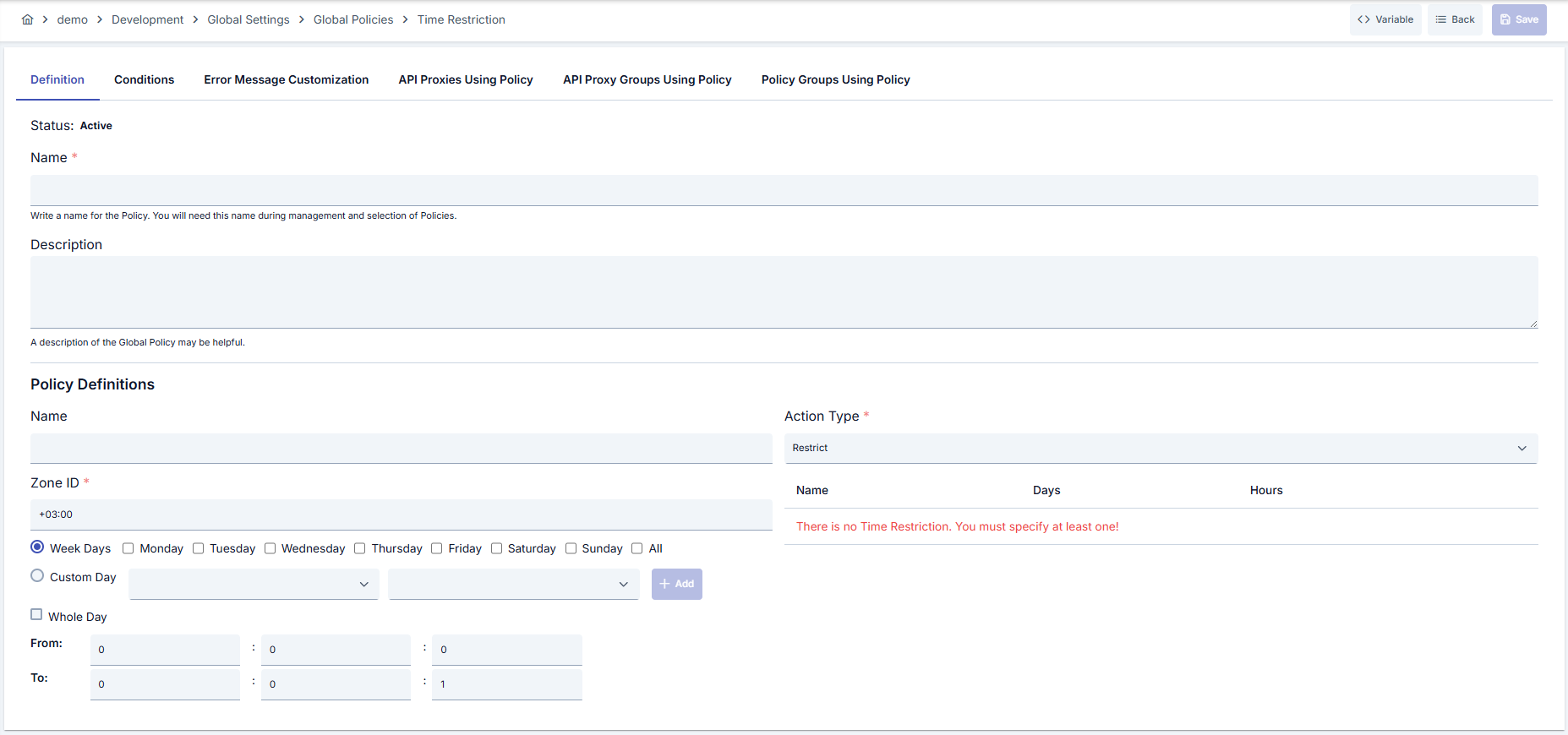
Configuration Steps
| Step | Description / Operation |
|---|---|
| Step 1: Going to Creation Page | - Go to Development → Global Settings → Global Policies → Time Restriction from the left menu. - Click the [+ Create] button at the top right. |
| Step 2: Entering Basic Information | Policy Status (Policy Status): Shows Active/Passive status. New policies are active by default. Name (Name) Required: Example: Production_TimeWindow- Enter a unique name, does not start with space. - System automatically checks. Green checkmark: available. Red X: existing name. Description (Description): Example: "Blocks access outside business hours on weekdays." - Max. 1000 characters. - Explain the purpose of the policy. |
| Step 3: Variable Usage | - In the action button area at the top of the page, you can use the [<> Variable] button to select dynamic values. - Using context/global variable expressions, you can manage policy parameters with variable-based values instead of fixed values. - This reduces manual update effort when values change and provides operational convenience. - For detailed information, review Dynamic Variables. |
| Step 4: Time Block Configuration | - Give a short name defining the rule in Hour Name field.- Select WEEK or CUSTOM in Day Type field.- In WEEK option, mark multiple weekdays or cover all with ALL.- In CUSTOM option, determine custom dates using day and month selections (0 value means "every day/month"). - Whole Day option covers entire day; if closed, enter start and end time in HH:MM:SS format.- Time interval must be smaller from start before adding. |
| Step 5: Determining Action Type | - If you select ALLOW in Action Type field, only requests matching defined blocks are accepted.- If you select RESTRICT, requests matching selected blocks are blocked.- Note: In Restrict mode, overlapping blocks stop all matching requests. |
| Step 6: Zone ID and Rule List Management | - Enter a value in ISO-8601 format (e.g., +03:00 or Europe/Istanbul) in Zone ID field.- It is important to specify correct time zone for different regions; otherwise evaluation will be wrong. - Added hourWrapper records appear in table; delete and re-add to edit. |
| Step 7: Defining Condition (Optional) | - Go to the Condition tab. - Conditions determine when the policy will be active. Examples: - Environment-based: Header = X-Environment, Operator = Equals, Value = production- API Key-based: Header = X-API-Key, Starts With = PROD-- Endpoint-based: Path = /api/admin/*If no condition is defined, the policy is always active |
| Step 8: Error Message Customization (Optional) | - Go to the Error Message Customization tab. - Customize the message to be returned when access is denied. Default: { "statusCode": 403, "message": "[Default error message]" }Custom: { "statusCode": 403, "errorCode": "[CUSTOM_ERROR_CODE]", "message": "[Custom message]" } |
| Step 9: Saving | - Click the [Save] button at the top right. Checklist: Unique name. Required fields filled. At least one hourWrapper exists. Result: - Policy is added to the list. - Can be connected to APIs. - If global policy, automatically applied. |
For the description of Conditions and Error Message Customization panels, you can review the Conditions and Error Message Customization sections on the What is Policy? page.
For a complete guide on all layers, priority order and scenario examples of the error message configuration system, see the Error Message Configuration Guide page.
Deleting the Policy
For the deletion steps of this policy and the operations to be applied while in use, you can refer to the Removing Policy from Flow section on the Policy Management page.
Exporting/Importing the Policy
For the export and import steps of this policy, you can refer to the Export/Import page.
Connecting the Policy to API
For the process of how this policy will be connected to APIs, you can refer to the Connecting Policy to API section on the Policy Management page.
Advanced Features
| Feature | Description and Steps |
|---|---|
| Time Zone Adaptation Engine | - Enter regional value in Zone ID field. - All hourWrapper blocks are calculated according to this time zone. - Copy same policy when needed and run with different Zone IDs. |
| Whole Day Emergency Mode | - Activate Whole Day option. - Open or close entire day access depending on ALLOW or RESTRICT mode. - Use active/passive toggle for temporary situations. |
| Multiple Time Window Chain | - Add multiple hourWrapper. - Determine different day and time combinations for each. - Check list table to detect overlapping windows. |
Best Practices
Things to Do and Best Practices
| Category | Description / Recommendations |
|---|---|
| Business Hours Management | Bad: Selecting Restrict for entire day and leaving time interval. Good: Adding single Restrict hourWrapper for outside business hours. Best: Managing business hours Allow and outside business hours Restrict policies separately and connecting with conditions. |
| Maintenance Windows | Bad: Manually deploying for maintenance. Good: Creating Whole Day Restrict rule. Best: Designing policy that automatically activates by connecting maintenance date with Condition. |
| Multiple Time Zones | Bad: Using same Zone ID value for all countries. Good: Entering appropriate Zone ID for each region. Best: Organizing regional policies under Policy Group and deploying centrally. |
| Naming Strategy | Bad: Leaving random UUID. Good: Naming in environment + purpose format. Best: Using Env_Function_TimeWindow template, specifying scope in description. |
| Action Mode Selection | Bad: Using default RESTRICT mode in every scenario. Good: Selecting ALLOW or RESTRICT according to need. Best: Validating end-user behaviors by testing Allow/Restrict combinations for same API. |
Security Best Practices
| Security Area | Description / Warnings |
|---|---|
| Time Zone Consistency | Requests may be blocked unexpectedly if Zone ID is wrong; use project standard Zone ID list. |
| Whole Day Rules | All traffic is blocked when Whole Day and RESTRICT are used together; verify conditions before activating. |
| Condition-Based Restriction | Prevent unnecessary blocking by using environment, header or endpoint filters with Policy Condition. |
| Error Message Privacy | Do not share internal system information in customized message; use general expressions. |
| Log Traceability | Track PolicyAllowedHoursFailedException logs; quickly detect unexpected blocks. |
Things to Avoid
| Category | Description / Warnings |
|---|---|
| Overlapping Time Intervals | Why avoid: Overlaps cause unexpected permissions in Allow mode. Alternative: Define same time zones in single hourWrapper. |
| Leaving Zone ID Empty | Why avoid: Server assumption makes wrong evaluation in different regions. Alternative: Fill mandatory Zone ID field when creating policy. |
| Name Repetition | Why avoid: Becomes difficult to distinguish in API Proxy selection screens. Alternative: Give unique name containing environment and function information. |
| Global Policy Trial | Why avoid: Causes instant interruption in live APIs. Alternative: Test on local copy first, then apply globally. |
Performance Tips
| Criterion | Recommendation / Impact |
|---|---|
| HourWrapper Count | Recommendation: Combine rules providing same behavior. Impact: Policy evaluation completes faster. |
| Condition Complexity | Recommendation: Do not add unnecessary conditions in Query Builder. Impact: Condition check lightens, delay decreases. |
| Zone ID Value | Recommendation: Use IANA definition instead of fixed offset. Impact: Manual intervention decreases in daylight saving time changes. |
| Whole Day Usage | Recommendation: Zero time fields if full-day blocking is needed. Impact: Processing cost decreases as time comparison is not performed. |
| Policy Sharing | Recommendation: Manage through Policy Group when using same policy in multiple APIs. Impact: Update is done once during deploy. |
Frequently Asked Questions (FAQ)
| Category | Question | Answer |
|---|---|---|
| General | In which scenarios is Time Restriction policy preferred? | Used to manage business hours, maintenance windows, campaign periods or regional time differences. |
| General | Can I add multiple Time Restriction policies to same API? | Yes, multiple policies triggered with different conditions can be added; evaluation order is according to API Gateway policy chain. |
| Technical | What type of values can be entered in Zone ID field? | ISO-8601 offsets (+03:00) or supported IANA definitions (Europe/Istanbul) can be entered; server runtime uses this value. |
| Technical | What is the difference between Allow and Restrict modes? | In Allow mode, only requests matching defined blocks pass; in Restrict mode, matching requests are blocked, others are released. |
| Usage | How does Whole Day option work in scenarios covering midnight? | When Whole Day is selected, time interval is not checked; action type is applied throughout the day. Define two separate hourWrapper for blocks crossing midnight. |
| Usage | Where do I change error message when I get policy error? | You can edit HTTP statusCode, errorCode and message fields from Error Message Customization tab; deploy is required if change is global. |