API Portal ile Claude Desktop MCP Entegrasyonu
Ön Gereksinimler
Resmi Anthropic web sitesinden indirip kurulmalıdır.
MCP sunucuları Node.js üzerinde çalışır. v16.0.0 veya üzeri gereklidir.
Gelişmiş kullanım için global olarak kurulabilir (opsiyonel).
Node.js Kurulum Kontrolü
Kurulumdan sonra terminal/komut istemcisinde aşağıdaki komutla versiyonu kontrol edebilirsiniz:
- node --version
npm --version
Minimum Gereksinimler:
- Node.js v16.0.0 veya üzeri
- npm v8.0.0 veya üzeri
MCP SDK Kurulumu (Opsiyonel)
Gelişmiş kullanım için MCP SDK'yı global olarak kurabilirsiniz:
- npm install -g @modelcontextprotocol/sdk
Model Context Protocol (MCP), AI asistanlarının external toollar ve veri kaynaklarıyla güvenli şekilde iletişim kurmasını sağlayan açık standarttır. Claude Desktop bu protocol sayesinde Apinizer API Portal ile entegre çalışabilir.
Daha fazla bilgi: https://modelcontextprotocol.io/quickstart/user
Apinizer MCP Token Alma
1. Apinizer Management Console Üzerinden MCP Kullanımını Aktifleştirme
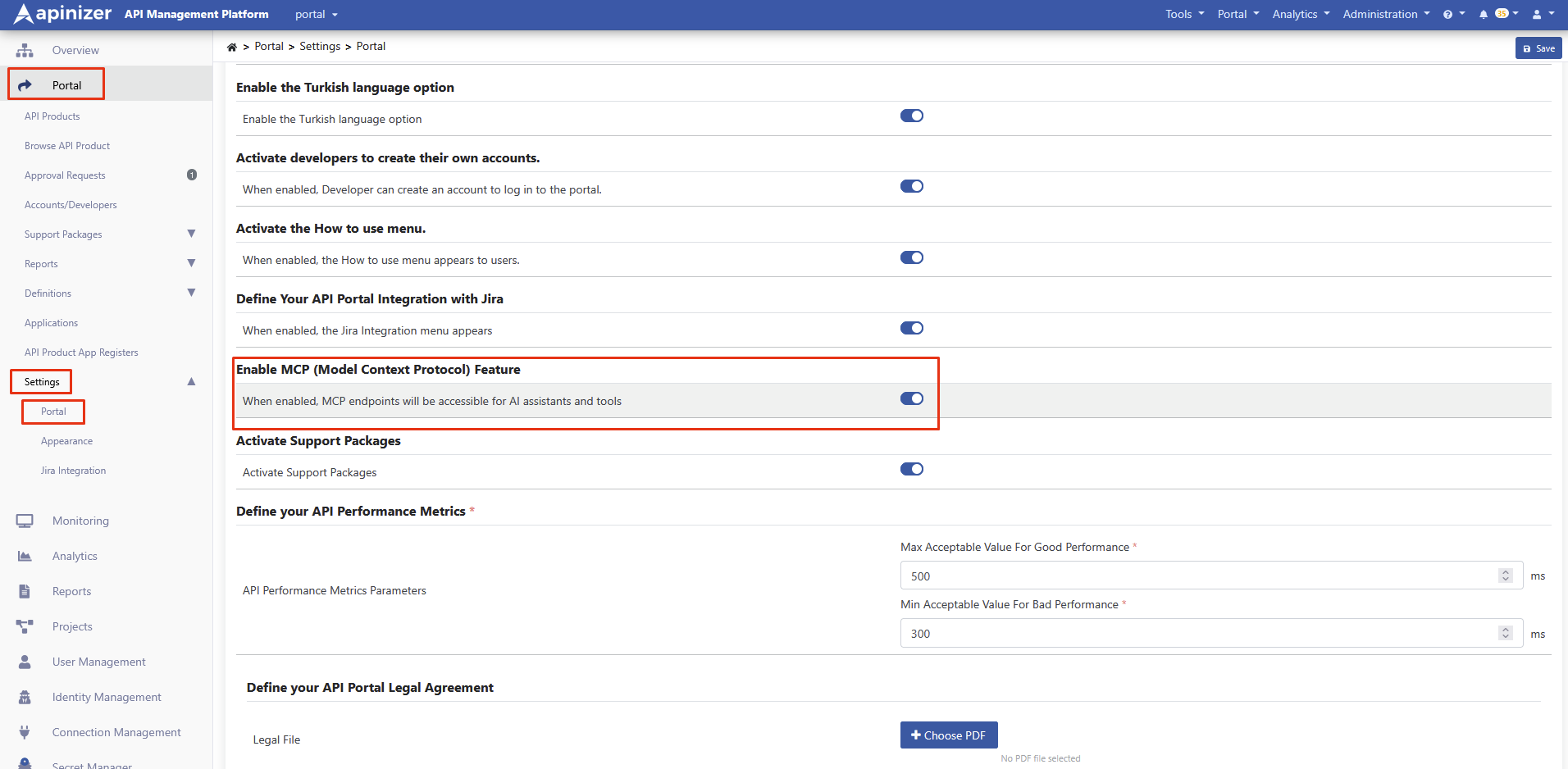
Apinizer araüyüzünde Portal ayarları sayfasına geçilir ve MCP aktifleştirilir.
2. API Portal'e Giriş ve MCP Bağlantısı için Token Oluşturma
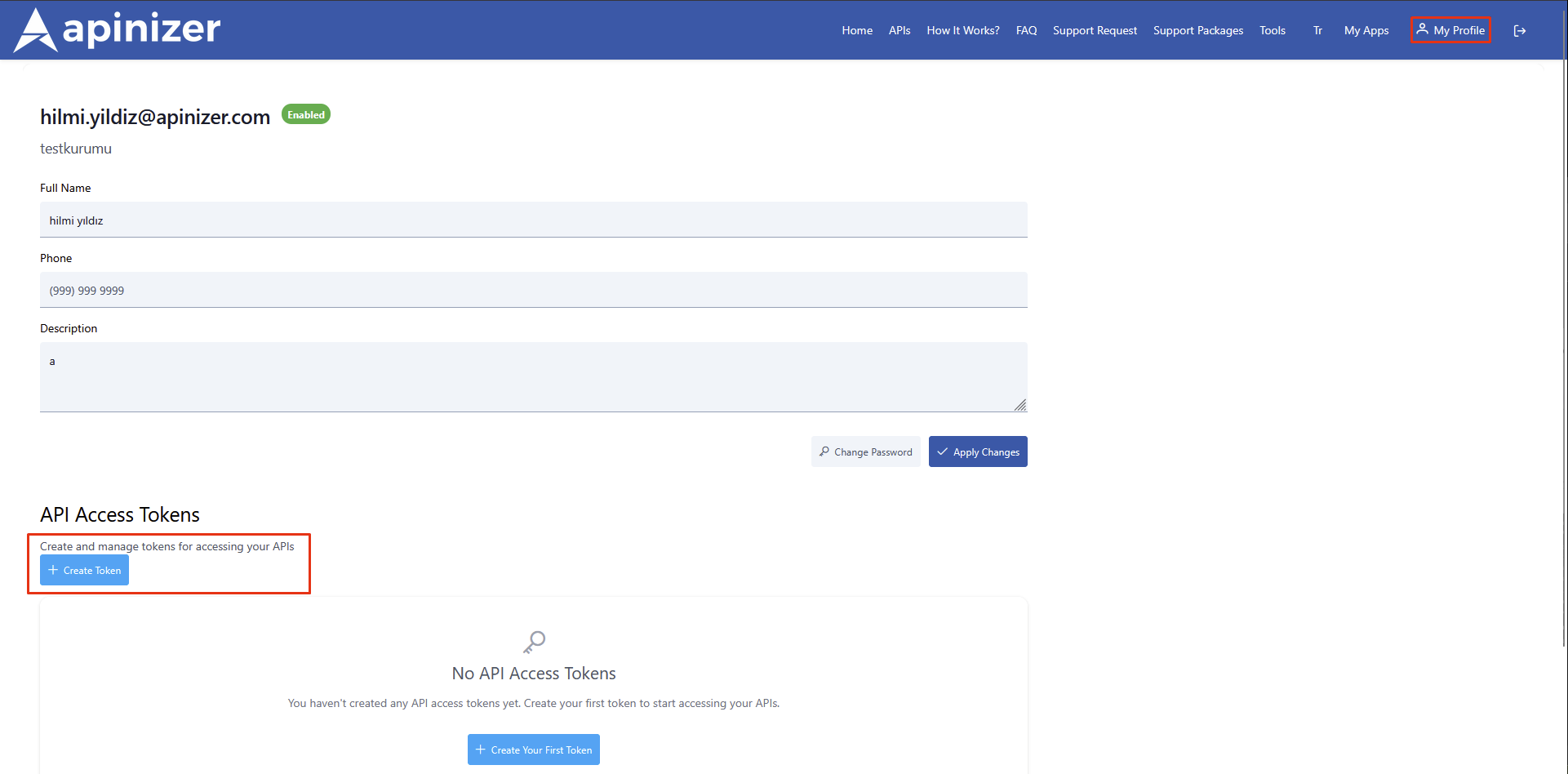
Apinizer API Portal'e giriş yapılır
Profilim sayfasına gidilir
Sayfanın aşağısındaki API Erişim Token'ları bölümüne inilir
Token Oluştur butonuna tıklanır
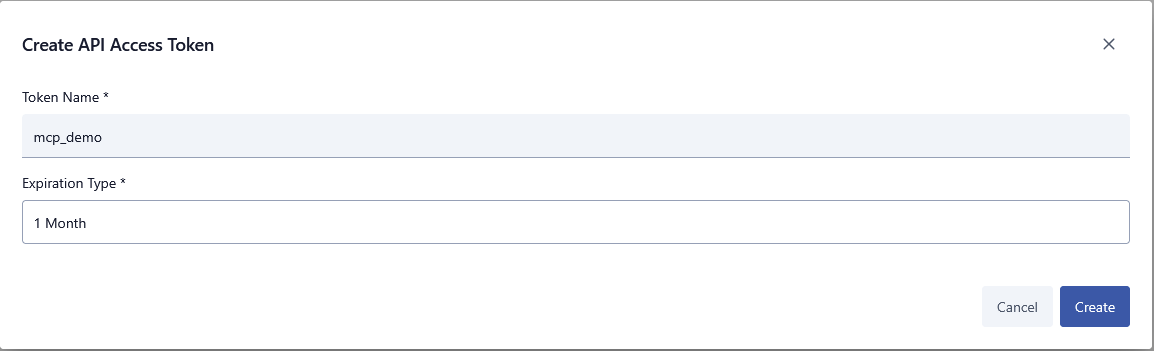
Token'a bir isim verilir, token'ın yaşam süresini belirlenir ve oluşturulur
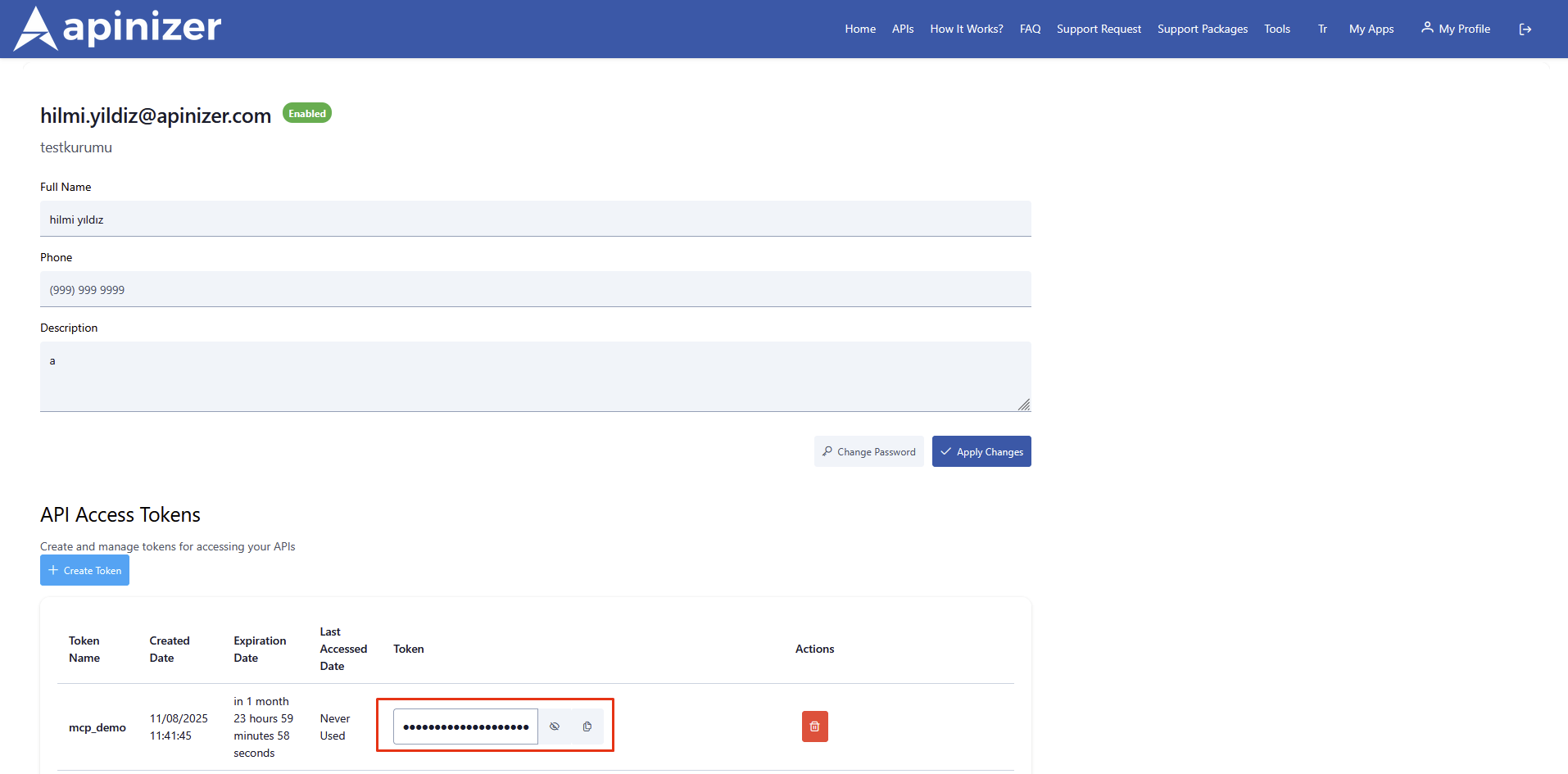
Oluşturulan token'ı güvenli bir yerde saklanır
Claude Desktop MCP Konfigürasyonu
1. Konfigürasyon Dosyasına Erişim
Claude Desktop'ta Settings > Developer > Local MCP Servers sayfasına gidin
Edit Config butonuna tıklayın
Bu işlem aşağıdaki konumlarda bir konfigürasyon dosyası oluşturacaktır:
~/Library/Application Support/Claude/claude_desktop_config.json
%APPDATA%\Claude\claude_desktop_config.json
~/.config/claude/claude_desktop_config.json
2. Proxy Dosyalarının Hazırlanması
Öncelikle MCP proxy dosyalarını sisteminizde bir klasöre kaydetmeniz gerekiyor. Dosyaları aşağıdaki içerikle kaydedin. Dosyalara erişim sırasında Administration yetkilerine sahip olmanızın gerekmediğini teyit edin, gerekirse kayıt ettiğiniz yeri değiştirin.
Önerilen dizin yapısı aşağıdaki gibidir. Windows, macOS ve Linux için farklı dizin yolları kullanılır.
C:\Users\[kullanıcı_adı]\AppData\Local\Claude\mcp\
├── apinizer_http_proxy.js
└── apinizer_ws_proxy.js
~/.claude/mcp/
├── apinizer_http_proxy.js
└── apinizer_ws_proxy.js
HTTP Bağlantı Ayarları (apinizer_http_proxy.js)
Eğer Unix/Linux/macOS sistemlerde iseniz, aşağıdaki ifadeyi oluşturacağınız bu dosyada en başa eklemeniz gereklidir.
#!/usr/bin/env node
const http = require('http');
const https = require('https');
const readline = require('readline');

//// Environment variable'lardan konfigürasyonu al
const MCP_TOKEN = process.env.APINIZER_TOKEN;
const HTTP_HOSTNAME = process.env.HTTP_HOSTNAME;

// APINIZER_TOKEN ve HTTP_HOSTNAME harici olanlar için config dosyasında değer girilmemişse varsayılan değerleri kullan
const HTTP_PORT = parseInt(process.env.HTTP_PORT || '443');
const HTTP_PATH = process.env.HTTP_PATH || '/apiportal/management/mcp/api';
const TOKEN_HEADER = process.env.TOKEN_HEADER || 'APINIZER-TOKEN';
const TIMEOUT = parseInt(process.env.TIMEOUT_AS_MS) || 30000;

// HTTPS konfigürasyonu
const USE_HTTPS = process.env.USE_HTTPS || true;
const VERIFY_CERTIFICATE = process.env.VERIFY_CERTIFICATE !== 'false'; // Default: true

// Protocol seçimi
const PROTOCOL = USE_HTTPS ? 'https' : 'http';
const httpModule = USE_HTTPS ? https : http;

console.error('HTTP/HTTPS Proxy Configuration:');
console.error(`- Endpoint: ${PROTOCOL}://${HTTP_HOSTNAME}:${HTTP_PORT}${HTTP_PATH}`);
console.error(`- Protocol: ${PROTOCOL.toUpperCase()}`);
console.error(`- Method: POST`);
console.error(`- Token Header: ${TOKEN_HEADER}`);
console.error(`- Token: ${MCP_TOKEN.substring(0, 8)}...`);
console.error(`- Certificate Verification: ${USE_HTTPS ? VERIFY_CERTIFICATE : 'N/A'}`);

async function sendHttpRequest(data) {
    return new Promise((resolve, reject) => {
        const postData = JSON.stringify(data);
        const options = {
            hostname: HTTP_HOSTNAME,
            port: HTTP_PORT,
            path: HTTP_PATH,
            method: 'POST',
            headers: {
                'Content-Type': 'application/json',
                'Accept': 'application/json',
                [TOKEN_HEADER]: MCP_TOKEN
            }
        };

        // HTTPS için certificate doğrulama ayarı
        if (USE_HTTPS && !VERIFY_CERTIFICATE) {
            options.rejectUnauthorized = false;
            options.requestCert = false;
            console.error('WARNING: Certificate verification is disabled!');
        }

        const req = httpModule.request(options, (res) => {
            let responseData = '';
            res.on('data', (chunk) => {
                responseData += chunk;
            });
            res.on('end', () => {
                console.error(`Status: ${res.statusCode}`);
                console.error(`Raw Response: ${responseData}`);

                // 401 Unauthorized kontrolü
                if (res.statusCode === 401) {
                    reject(new Error('Unauthorized: Invalid MCP token'));
                    return;
                }

                // 403 Forbidden kontrolü
                if (res.statusCode === 403) {
                    reject(new Error('Forbidden: Access denied'));
                    return;
                }

                // 404 Not Found kontrolü
                if (res.statusCode === 404) {
                    reject(new Error(`Not Found: ${HTTP_PATH}`));
                    return;
                }

                // 500+ Server Error kontrolü
                if (res.statusCode >= 500) {
                    reject(new Error(`Server Error: ${res.statusCode}`));
                    return;
                }

                try {
                    const response = JSON.parse(responseData);

                    // Claude Desktop için ultra güvenli temizlik
                    const cleanResponse = {
                        jsonrpc: response.jsonrpc || "2.0"
                    };

                    // ID kontrolü - null, undefined veya notification durumu
                    if (response.id !== null && response.id !== undefined) {
                        cleanResponse.id = response.id;
                    } else if (data.method && data.method.startsWith('notifications/')) {
                        console.error('Notification detected - skipping ID');
                    } else {
                        cleanResponse.id = data.id || "unknown";
                    }

                    // Result varsa ekle
                    if (response.result !== null && response.result !== undefined) {
                        cleanResponse.result = response.result;
                    }

                    // Error varsa ekle
                    if (response.error !== null && response.error !== undefined) {
                        cleanResponse.error = response.error;
                    }

                    // Notification'lar için özel handling
                    if (data.method && data.method.startsWith('notifications/')) {
                        console.error('Notification acknowledged - no response sent');
                        return;
                    }

                    console.error(`Cleaned Response: ${JSON.stringify(cleanResponse)}`);
                    resolve(cleanResponse);
                } catch (error) {
                    console.error(`Parse Error: ${error.message}`);
                    reject(new Error(`Invalid JSON: ${responseData.substring(0, 100)}`));
                }
            });
        });

        req.on('error', (error) => {
            console.error(`Request Error: ${error.message}`);
            // Certificate hatası kontrolü
            if (error.code === 'UNABLE_TO_VERIFY_LEAF_SIGNATURE' ||
                error.code === 'CERT_HAS_EXPIRED' ||
                error.code === 'DEPTH_ZERO_SELF_SIGNED_CERT' ||
                error.code === 'SELF_SIGNED_CERT_IN_CHAIN') {
                console.error('Certificate Error detected. You can disable verification with VERIFY_CERTIFICATE=false');
            }
            reject(error);
        });

        // Timeout ekle
        req.setTimeout(TIMEOUT, () => {
            req.destroy();
            reject(new Error('Request timeout after ' + TIMEOUT + ' seconds'));
        });

        req.write(postData);
        req.end();
    });
}

const rl = readline.createInterface({
    input: process.stdin,
    output: process.stdout,
    terminal: false
});

rl.on('line', async (line) => {
    try {
        console.error(`Input: ${line}`);
        const request = JSON.parse(line);

        // Notification'lar için özel handling
        if (request.method && request.method.startsWith('notifications/')) {
            console.error('Processing notification...');
            await sendHttpRequest(request);
            return;
        }

        const response = await sendHttpRequest(request);
        if (response) {
            console.log(JSON.stringify(response));
        }
    } catch (error) {
        console.error('Error:', error.message);
        let errorCode = -32603;

        // Hata kodunu belirle
        if (error.message.includes('Unauthorized')) {
            errorCode = -32001;
        } else if (error.message.includes('Forbidden')) {
            errorCode = -32002;
        } else if (error.message.includes('Not Found')) {
            errorCode = -32003;
        } else if (error.message.includes('timeout')) {
            errorCode = -32004;
        } else if (error.message.includes('Invalid JSON')) {
            errorCode = -32700;
        } else if (error.code && error.code.includes('CERT')) {
            errorCode = -32005;
            error.message = `Certificate Error: ${error.code}. Set VERIFY_CERTIFICATE=false to bypass`;
        }

        const errorResponse = {
            jsonrpc: "2.0",
            id: "error",
            error: {
                code: errorCode,
                message: error.message
            }
        };
        console.log(JSON.stringify(errorResponse));
    }
});

// Güvenlik uyarısı
if (USE_HTTPS && !VERIFY_CERTIFICATE) {
    console.error('\nWARNING: Running in INSECURE mode with certificate verification disabled!');
    console.error('This should only be used for development/testing purposes.\n');
}

console.error(`Secure MCP ${PROTOCOL.toUpperCase()} proxy started`);
console.error(`Using token: ${MCP_TOKEN.substring(0, 8)}...`);
WebSocket Bağlantı Ayarları (apinizer_ws_proxy.js)
#!/usr/bin/env node

const connection = require('wss');
const readline = require('readline');

// Token'ı environment variable'dan al
const APINIZER_TOKEN = process.env.APINIZER_TOKEN;
const HTTP_HOSTNAME = process.env.HTTP_HOSTNAME;
const APINIZER_PORT = process.env.APINIZER_PORT;
const WS_URL = 'wss://' + HTTP_HOSTNAME + ':' + APINIZER_PORT + '/apiportal/management/mcp/ws';

let ws;

function cleanMcpResponse(jsonStr) {
    try {
        const response = JSON.parse(jsonStr);

        // Claude Desktop için temiz format oluştur
        const cleanResponse = {
            jsonrpc: response.jsonrpc || "2.0",
            id: response.id
        };

        // Result varsa ekle
        if (response.result !== null && response.result !== undefined) {
            cleanResponse.result = response.result;
        }

        // Error varsa ekle
        if (response.error !== null && response.error !== undefined) {
            cleanResponse.error = response.error;
        }

        return JSON.stringify(cleanResponse);
    } catch (error) {
        console.error('Clean response error:', error.message);
        return jsonStr;
    }
}

function connect() {
    console.error('Connecting to WebSocket server with token...');

    // WebSocket connection options with headers
    const wsOptions = {
        headers: {
            'APINIZER-TOKEN': APINIZER_TOKEN
        }
    };

    ws = new connection(WS_URL, wsOptions);

    ws.on('open', () => {
        console.error(`Connected to MCP WebSocket server with token: ${APINIZER_TOKEN.substring(0, 8)}...`);

        const rl = readline.createInterface({
            input: process.stdin,
            output: process.stdout,
            terminal: false
        });

        rl.on('line', (line) => {
            if (ws.readyState === connection.OPEN) {
                console.error('Sending to WebSocket:', line);
                ws.send(line);
            }
        });

        process.stdin.on('end', () => {
            console.error('Stdin ended, closing connection');
            ws.close();
        });
    });

    ws.on('message', (data) => {
        const message = data.toString().trim();
        console.error('Received from WebSocket:', message);

        try {
            // JSON'u validate et
            const parsed = JSON.parse(message);

            // Response'u temizle
            const cleanedMessage = cleanMcpResponse(message);
            console.error('Cleaned response:', cleanedMessage);

            // Claude Desktop'a gönder
            console.log(cleanedMessage);
        } catch (error) {
            console.error('JSON Parse Error:', error.message);
            console.error('Raw message:', message);

            // Error response gönder
            const errorResponse = {
                jsonrpc: "2.0",
                id: "error",
                error: {
                    code: -32603,
                    message: `WebSocket JSON parse error: ${error.message}`
                }
            };
            console.log(JSON.stringify(errorResponse));
        }
    });

    ws.on('close', (code, reason) => {
        console.error(`WebSocket closed: ${code} ${reason}`);
        if (code === 1002) {
            console.error('WebSocket closed due to protocol error - possibly authentication failed');
        }
        process.exit(0);
    });

    ws.on('error', (error) => {
        console.error('WebSocket error:', error.message);
        if (error.message.includes('401') || error.message.includes('403')) {
            console.error('Authentication failed: Check your MCP token');
        }
        process.exit(1);
    });
}

// Handle process termination
process.on('SIGINT', () => {
    console.error('Received SIGINT, closing connection');
    if (ws) {
        ws.close();
    }
    process.exit(0);
});

process.on('SIGTERM', () => {
    console.error('Received SIGTERM, closing connection');
    if (ws) {
        ws.close();
    }
    process.exit(0);
});

connect();
Dosya İzinlerini Ayarlama (Unix/Linux/macOS) için:
- chmod +x ~/.claude/mcp/apinizer_http_proxy.js
chmod +x ~/.claude/mcp/apinizer_ws_proxy.js
3. Konfigürasyon Dosyasının Düzenlenmesi
claude_desktop_config.json dosyasını aşağıdaki gibi düzenleyin.
Aşağıdaki placeholder değerleri kendi bilgilerinizle değiştirin:
<API_PORTAL_HTTP_ACCESS_CONFIGURATION_FILE>: HTTP proxy dosyasının tam yolu<API_PORTAL_WS_ACCESS_CONFIGURATION_FILE>: WebSocket proxy dosyasının tam yolu<API_PORTAL_ACCESS_TOKEN>: "mcp_" ile başlayan Apinizer API Portal token'ınız<API_PORTAL_MCP_ADDRESS>: Apinizer API Portal erişim adresiniz (örn: "apiportal.apinizer.com")
Dosya Yolu Örnekleri:
"C:\\Users\\[kullanıcı_adı]\\AppData\\Local\\Claude\\mcp\\apinizer_http_proxy.js""C:\\Users\\[kullanıcı_adı]\\AppData\\Local\\Claude\\mcp\\apinizer_ws_proxy.js"
"/Users/[kullanıcı_adı]/.claude/mcp/apinizer_http_proxy.js""/Users/[kullanıcı_adı]/.claude/mcp/apinizer_ws_proxy.js"
Claude Desktop MCP Bağlantı Ayarları (claude_desktop_config.json)
{
  "mcpServers": {
    "apinizer-portal-mcp-http": {
      "command": "node",
      "args": [
        "<API_PORTAL_HTTP_ACCESS_CONFIGURATION_FILE>"
      ],
      "env": {
        "APINIZER_TOKEN": "<API_PORTAL_ACCESS_TOKEN>",
        "HTTP_HOSTNAME": "<API_PORTAL_MCP_ADDRESS>",
        "TIMEOUT_AS_MS": "30000"
      }
    },
    "apinizer-portal-mcp-websocket": {
      "command": "node",
      "args": [
        "<API_PORTAL_WS_ACCESS_CONFIGURATION_FILE>"
      ],
      "env": {
        "APINIZER_TOKEN": "<API_PORTAL_ACCESS_TOKEN>",
        "HTTP_HOSTNAME": "<API_PORTAL_MCP_ADDRESS>",
        "TIMEOUT_AS_MS": "30000"
      }
    }
  }
}
Claude Desktop'ı Yeniden Başlatma
Konfigürasyon değişikliklerinin etkili olması için Claude Desktop'ı tamamen kapatıp yeniden açmanız gerekiyor:
Claude Desktop'ı tamamen kapatın
Windows: Sistem tray'den (sağ alt köşe) de çıkın
macOS: Dock'ta sağ tıklayıp "Quit" seçin
Uygulamayı yeniden açın
Bağlantı Kontrolü
1. Settings Kontrolü
Claude Desktop'ı yeniden açtıktan sonra:
Settings > Developer > Local MCP Servers sayfasına gidin
Apinizer MCP sunucularının listede göründüğünü kontrol edin
Bağlantı durumlarının Connected olarak görüntülendiğini doğrulayın
2. Bağlantı Testi
Bağlantının başarılı olup olmadığını test etmek için Claude'a aşağıdaki gibi sorular sorabilirsiniz:
- -Apinizer API portalimde kaç API var?
-Apinizer API portaline mcp_xxx tokenı ile bağlanabilir misin?
-Apinizer API portaline bağlantım çalışıyor mu?
Sorun Giderme
Server not connected Hatası
Olası Sebepler:
- Token geçersiz veya hatalı
- Network bağlantı sorunu
- Yanlış host/port bilgisi
Çözüm Adımları:
- Token'ı Apinizer Portal'den kontrol edin
- Network bağlantısını test edin (
ping apiportal.apinizer.com) - Konfigürasyondaki host/port bilgilerini doğrulayın
- Yeni token oluşturup deneyin
Command not found Hatası
Sebep: Node.js kurulu değil veya PATH'te tanımlı değil
Çözüm:
- # Node.js kurulumunu kontrol edin
    node --version
    npm --version

    # Kurulu değilse tekrar kurun
    # Windows: nodejs.org'dan indirin
    # macOS: brew install node
    # Linux: sudo apt-get install nodejs npm
File not found Hatası
Sebep: Proxy dosyalarının yolu yanlış
Çözüm:
- Dosya yollarını kontrol edin
- Dosyaların gerçekten o konumda olduğunu doğrulayın
- Absolute path kullanın (relative path yerine)
Permission denied Hatası
Sebep: Dosya izinleri sorunu
macOS/Linux Çözümü:
- chmod +x ~/.claude/mcp/apinizer_http_proxy.js
chmod +x ~/.claude/mcp/apinizer_ws_proxy.js
Windows Çözümü:
- Dosyalara sağ tıklayın
- Properties → Security'de izinleri kontrol edin
- Gerekirse "Run as Administrator" ile Claude Desktop'ı açın
SSL/TLS Bağlantı Hataları
Sebep: Kurumsal firewall veya proxy
Çözüm:
Json dosyasına şu kısmı ekleyin:
- {
      "env": {
        "NODE_TLS_REJECT_UNAUTHORIZED": "0",
        "HTTPS_PROXY": "http://your-proxy:port"
      }
    }
Log Dosyalarını İnceleme
Daha detaylı kontrol için log dosyalarını inceleyin:
%APPDATA%\Claude\logs\
~/Library/Logs/Claude/
~/.config/claude/logs/
Destek
Kurulum sırasında sorun yaşarsanız:
- Bu dokümandaki adımları tekrar gözden geçirin
- Log dosyalarını kontrol edin
- Apinizer destek ekibi ile iletişime geçin
Güvenlik Notları
- Token'ları minimal geçerlilik süresi ile oluşturun (30-90 gün)
- Token'ları güvenli password manager'da saklayın
- Token'ları asla kod repository'sinde saklamayın
- Kullanılmayan token'ları hemen iptal edin
- Düzenli olarak token rotation yapın
- Proxy dosyalarını güvenli dizinde saklayın
- Dosya izinlerini minimum gerekli seviyede tutun
- Konfigürasyon dosyasını backup alın
- Network trafiğini monitör edin
- Bağlantı loglarını düzenli kontrol edin
- Anormal API kullanımlarını takip edin