Accounts/Developers
What Is It For?
- Centrally manages registered person accounts (developers) on the portal
- Links an account to an organization and assigns Owner / Developer / Viewer
- Shows the account’s access surface via Accessible Apps, credentials, and products
- Lists multi-org memberships (role + status + joined) on one view
- Exports the account inventory to Excel
Who Uses It?
- Portal administrators: To open accounts, change status, and assign org roles
- Portal Business / Manager roles: For account operations in their scope
- Support: To verify which orgs and apps a user can reach
Apps belong to an organization, not to a person. An account reaches apps through ACTIVE memberships. Org operations: Portal Organizations. Consumer invite/member management: Portal Membership and Invitation.
Access
- Portal → Accounts/Developers (
/admin/portal-account) - Create:
/new· View:/:id/view· Edit:/:id/edit - Authorities: Admin, Portal Manager, Portal Business
- Scope: active portal (
portalId)
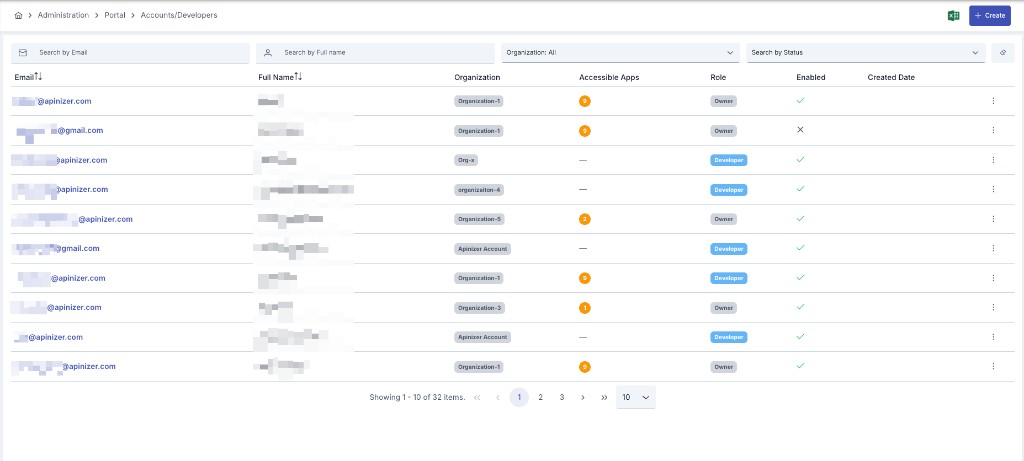
List
Filters
| Filter | Description |
|---|---|
| Search by Email | |
| Search by Full name | Full name |
| Organization | Multi-select orgs |
| Search by Status | Approved / Disabled |
Columns
| Column | Description |
|---|---|
| Link to view; description tooltip | |
| Full Name | |
| Organization | Primary org badge |
| Accessible Apps | App count from list-stats |
| Role | Highest ACTIVE membership role (Owner > Developer > Viewer) |
| Enabled | Approved = on, Disabled = off; a lock icon next to it marks a locked account (see below) — locking is independent of Enabled/Disabled, so an Approved account can still show as locked |
| Created Date | |
| Last Login | Date and time of the account's last successful sign-in; shows a placeholder when the account has never signed in |
Actions
- Export to Excel — export may still include a legacy “Organization Manager” Yes/No column; the UI uses the Role model
- Create
- Row ⋮: View · Edit · Remove · Unlock — only offered on a currently locked account (see Password Policy & Account Lockout)
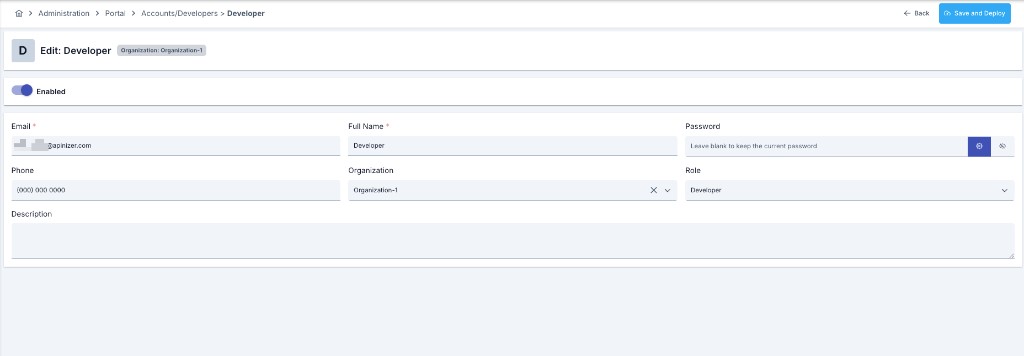
Create / Edit
The legacy Organization Manager boolean is removed from the Manager form; use Role instead.
| Field | Required | Notes |
|---|---|---|
| Enabled | — | APPROVED / DISABLED |
| Yes | Unique; existence check | |
| Full Name | Yes | Max 50 |
| Password | Create: yes; Edit: optional | Min 8 with upper+lower; blank on edit keeps current |
| Phone | No | |
| Organization | Yes | Primary org. An account without one can sign in but cannot create an application, so it is required both in the Manager form and on the server |
| Role | Default Developer | Owner / Developer / Viewer |
| Description | No | Max 1000 |
Save: Save and Deploy → view.
An ACTIVE membership is upserted on the selected primary org. The last ACTIVE Owner cannot be downgraded.
An account registered from the portal signup form also creates its own organization; unless signup mode is open, that organization awaits approval. Approving the account does not approve the organization — until it is approved the account sees a notice on the portal and cannot create an application. Organizations are approved from Approval Requests.
Role capabilities
| Role | Summary |
|---|---|
| Owner | Invite/remove members, change roles, org settings + Developer capabilities |
| Developer | Create/edit apps, credentials (including secrets), subscriptions |
| Viewer | Read-only; never sees client secrets; no writes |
Allow Organization Administrator to Manage their own Accounts in Portal Settings is a separate feature flag, not the same as this page’s Role model.
View
Header
Name / email, Enabled/Disabled, Role badge, Organization badge; Edit / Delete.
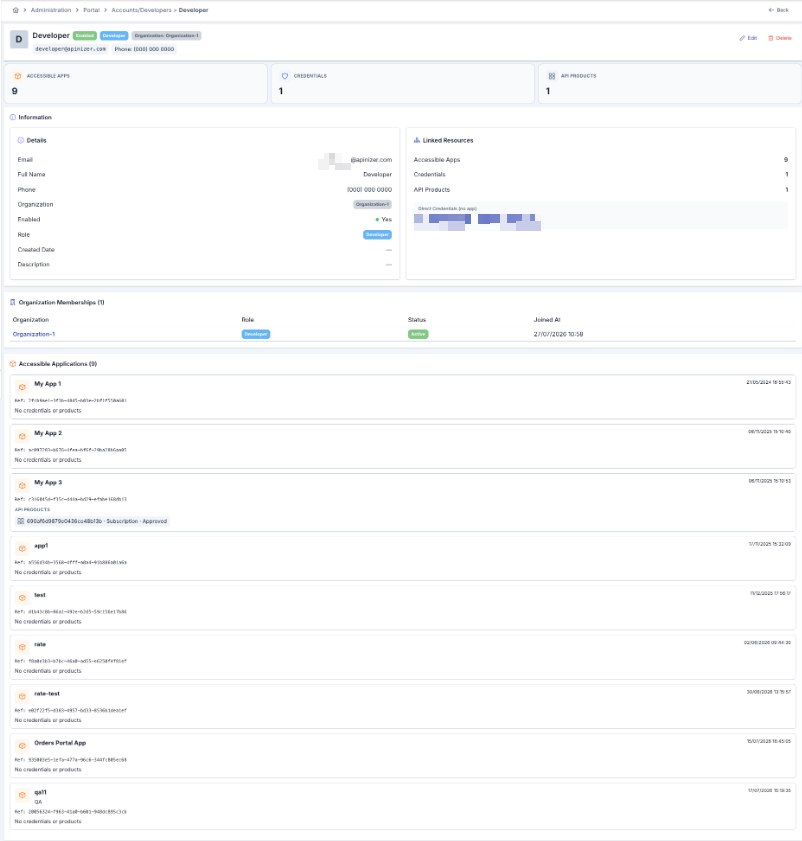
Stat cards
Accessible Apps · Credentials · API Products (/{id}/detail).
Information
- Details: Email, Full Name, Phone, Organization, Enabled, Role, Created Date, Description
- Linked Resources: counts; optional Direct Credentials (no app) badges
Organization Memberships
| Column | Description |
|---|---|
| Organization | Link to org overview |
| Role | Owner / Developer / Viewer |
| Status | Pending / Active |
| Joined At | or Invited time |
Accessible Applications
Apps of orgs with ACTIVE membership: name, description, created, referenceId, credential and product badges.
Developer Portal profile
Consumer Profile is self-service (name, phone, description, change password). Email is not freely changed. Org/role management is via Manager or Portal Membership and Invitation. Consumer UI may still show a legacy “Organization Manager” tag; Manager uses Role.
Account lockout
A lock icon next to the Enabled column marks an account the portal's own sign-in path has locked after too many wrong passwords — hovering it shows either the time the lock opens on its own or, when the portal's Lock Duration is set to unlimited (the default), that only an administrator can reopen it. The lock is independent of Enabled/Disabled: a locked account is still Approved, it simply cannot sign in until the lock clears, so it never needs re-approving the way a Disabled account does.
Row ⋮ → Unlock is offered only while the account is locked. It clears the lock and resets the failed-attempt count immediately, and is recorded as its own PORTAL_ACCOUNT_UNLOCKED row in Login Logs — re-approving a Disabled account clears the same lockout state, but only the explicit Unlock action produces this row. The threshold, the lock duration, and the full password-policy configuration live on Password Policy & Account Lockout.
Session Security
When a developer logs out of the portal, the session token is revoked on the server as well; a copied token is refused from that moment on, even if its own expiry has not been reached. If the server-side revocation cannot be completed during sign-out, the login page shows a warning instead: the local session is always ended, but the previous session token may remain valid until it naturally expires — if in doubt, sign in and sign out again.
Password reset links are valid for 60 minutes; once that window passes, a new reset request must be sent. Account activation link validity is unchanged.
The verification code (captcha) shown at portal login is validated on the server and renewed on every attempt. Each captcha is held in the Manager as a single-use record, so it stays valid across every portal replica and is accepted no matter which replica answers the login. On logout, the session identifier is added to a revocation list; requests using the same token receive a 401 response until the token expires. If the Manager cannot be reached, logout reports 503 instead of silently succeeding; the browser session is cleared regardless, but the token stays valid on the server until it expires or a new sign-in replaces it. Account details can only be viewed by the account itself.
Authorization rules
- Editing your own account changes profile fields only. Full name, description, phone and password are the fields an account can change about itself. Organization, role, status, e-mail and the account's tokens are decided by the organization's owner or by the Manager, and are ignored when they arrive in a self-update request.
- Only an organization owner can add an account to that organization, and only to an organization they own. The new account cannot be created with the Owner role — create it first, then change its role from the member list.
- A Viewer never sees a client secret. The credential list of an application stays visible to a Viewer, but the secret values in it are hidden; Owner and Developer see them as before.