API Portal Login Logs
The API Portal Login Logs page allows portal administrators to view and analyze all user login attempts, successful and failed logins, IP addresses, and error messages in detail. This page is a critical tool for security monitoring, user activity tracking, and system health analysis.
For per-portal database and external connector settings for login logs, see Connector delivery and payload below (Portal Settings → Login Log tab).
These are developer/portal-user sign-in and sign-out records only. Administrator sign-ins to the Management Console have their own, separate screen — see Login Records — and never appear here.
What are API Portal Login Logs?
API Portal Login Logs, is an audit system that maintains detailed records of all login attempts to the API Developer Portal. Through this system, you can:
- User Login Activity: Track when each user logged in and from which IP address
- Security Monitoring: Detect suspicious activities, failed login attempts, and potential security threats
- System Analysis: Analyze portal usage statistics, login trends, and system health
- Compliance: Store and report log records for legal requirements
Importance of Login Logs
Detect brute force attacks, suspicious IP addresses, and unauthorized access attempts
Monitor user activities, identify most active users, and analyze usage patterns
Understand why users cannot log in and quickly provide solutions
Maintain detailed log records to meet legal requirements
Accessing the Page
To access the API Portal Login Logs page, follow these steps:
Log in to Apinizer Manager interface with administrator privileges
Click on Portal tab in the top menu bar
Click on the relevant portal from the portal list or go to Portal → Settings menu
Click on "Login Logs" or "Giriş Kayıtları" option from the left menu or settings page
- Alternatively, you can follow the path: Portal → Accounts/Developers → Login Logs

What Can You Do with Login Logs?
Track when users logged in and from which IP addresses. Analyze login times, frequency, and geographic distribution.
View whether logins were successful or failed. Calculate success rates and track trends.
Review error messages in failed logins in detail. Understand why users cannot log in and resolve issues.
Search and filter by specific user, IP address, or date range to perform detailed analysis.
Detect suspicious activities, brute force attacks, and unauthorized access attempts.
Create and share user activity reports for specific periods.
Filtering and Search Features
The Login Logs page offers various options to filter and search records. These features allow you to quickly access the information you need from thousands of records.
1. Setting Login Date and Time Range
You can set a date range to filter user login or transaction activities within a specific period. This feature is very useful for analyzing activities in a specific period.
Date Range Filtering Features:
| Feature | Description |
|---|---|
| Start Date (From) | Select the start date for filtering. Records before this date are not shown. |
| End Date (To) | Select the end date for filtering. Records after this date are not shown. |
| Date Format | Date format: YYYY-MM-DD (Example: 2025-01-15) |
| Time Support | Time information can also be selected in the date picker (optional) |
Enter the start date you want to filter in the From (Start Date) field or select it from the date picker.
Example: 2025-01-01 - Shows records from January 1, 2025 onwards
Enter the end date you want to filter in the To (End Date) field or select it from the date picker.
Example: 2025-01-31 - Shows records up to January 31, 2025
After selecting the date range, the system automatically applies the filter or click the "Apply" / "Filter" button.
Only records within the specified date range will be displayed in the table. Records outside the date range are hidden.
Performance Tip: When selecting date range, a maximum 90-day period is recommended for performance. Pagination is used for longer periods.
When no date range is selected, the system displays the last 30 days of records by default. This optimizes page load performance.
2. Search by Email Address
You can search by email to examine a specific user's activities. This feature is very useful for seeing a user's complete login history.
email(string)You can search by entering the user's email address in the Search by email field. With this filtering, only records belonging to the relevant user will be listed.
Email Search Features:
| Feature | Description |
|---|---|
| Exact Match | You must enter the complete email address (partial search is not supported) |
| Case Insensitive | Email address is not case sensitive |
| Automatic Filtering | Filtering is automatically applied when email is entered |
Example Usage Scenarios:
User Login History Check
To check a user's last login time and successful/failed login attempts:
- Email:
john.doe@example.com - Date Range: Last 30 days
- Result: All login attempts for the user are listed
Account Lockout Issue Investigation
To understand why a user's account was locked:
- Email:
user@example.com - Status: FAILURE
- Result: Failed login attempts and error messages are displayed
Example Email Addresses:
john.doe@example.comdeveloper@company.comtest.user@apinizer.com
3. Search by IP Address
You can use IP-based search to filter by the IP address from which login was made. This feature is critical for security analysis and suspicious activity detection.
ipAddress(string)Enter the relevant IP address in the Search by IP address field. This displays activities from a specific IP.
IP Address Search Features:
| Feature | Description |
|---|---|
| IP Format | IP address in IPv4 format (Example: 192.168.1.100) |
| Exact Match | You must enter the complete IP address |
| Multiple Results | All login attempts from the same IP are listed |
Security Warning: A large number of failed login attempts from the same IP address in a short time may be a sign of a potential brute force attack. In this case:
- Block the IP address
- Inform the user
- Notify the security team
- Add additional security layers
IP Address Analysis Scenarios:
Suspicious IP Detection
To examine all login attempts from a specific IP address:
- IP Address:
192.168.1.100 - Date Range: Last 7 days
- Result: All login attempts from this IP are listed
If there are many failed attempts from this IP, security measures should be taken.
Geographic Distribution Analysis
To analyze access from different IP addresses:
- Search each IP address separately
- Compare successful and failed login rates
- Detect suspicious locations
Example IP Addresses:
192.168.1.100(Local network)10.0.0.50(Private network)203.0.113.45(Public IP)
Table Columns and Information
The Login Logs table displays the following information. Each column provides different information about the login attempt.
Table Structure
| Column | Description | Format | Example |
|---|---|---|---|
| Status | Result of the operation (Success/Failed) | Badge | SUCCESS, FAILURE |
| Email address of the user attempting to log in | String | user@example.com | |
| Account Name | User's account name | String | John Doe |
| Date | Date and time when the operation occurred | DateTime | 2025-01-15 14:30:25 |
| Event | The specific session event this row records — sign-in, sign-out, or an account disabled by the inactivity job. See Event Types below. Rows written before this column existed show the event derived from Status (Success → Login Succeeded, Failure → Login Failed). | Translated label | Login Succeeded |
| Reason | For a failed sign-in (and for the inactivity job's disable event), a machine-readable code for why. Empty on a successful sign-in or sign-out. See Reason Codes below. | Translated label | Wrong email or password |
| IP Address | IP address where the operation was performed | String | 192.168.1.100 |
| User Agent | The browser/client User-Agent string sent with the request, capped at 256 characters. Empty on rows written before this column existed. | String | Mozilla/5.0 (Windows NT 10.0; Win64; x64) ... |
| Message | Error message or operation details | String | Authentication failed -> DISABLED |
Status
The Status column in the table indicates the result of the operation. This column shows whether the login attempt was successful or failed.
SUCCESS(badge)Successful: The operation was completed successfully. The user entered the correct email and password and logged into the portal.
When It Appears:
- When user logs in with correct email and password
- When account is active and approved
- When email verification is completed
Message: When Status is SUCCESS, the Message column is usually empty.
FAILURE(badge)Failed: The operation failed. Failed login attempts, authorization errors, or other operation errors appear in this status.
When It Appears:
- When wrong password is entered
- When account is disabled
- When email verification is not done
- While waiting for admin approval
- When account is rejected
Message: When Status is FAILURE, a detailed error message is displayed in the Message column.
Message
Error or warning messages related to failed operations are located in this column. These messages explain why the user could not log in.
Message Column Features:
| Status | Message Content | Description |
|---|---|---|
| SUCCESS | (Empty) | Messages are usually empty for successful logins |
| FAILURE | Error message | Detailed error message is shown for failed logins |
Error messages in the Message column are very important for troubleshooting and user support. By carefully examining these messages, you can quickly resolve user issues.
Email
email(string)Email: The email address of the user on whom the operation was performed. This is the email address the user uses to log into the portal.
Email Column Features:
- Email address is displayed in full
- You can filter all records for that user by clicking on this column
- Email address is used to identify the user
Account Name
accountName(string)Account Name: The user's account name or display name. This is the name defined in the user's profile.
Account Name Column Features:
- User's full name or display name is shown
- Unlike email address, it provides a more readable identity
- May be empty in some cases (if user name is not defined)
Date
date(datetime)Date: The date and time when the operation occurred. This shows the exact time of the login attempt.
Format: YYYY-MM-DD HH:mm:ss
Example: 2025-01-15 14:30:25
Date Column Features:
- Date and time information is displayed in full
- Time information shows the exact time of the login attempt
- Records are listed in date order (newest at top)
IP Address
ipAddress(string)IP Address: The IP address where the operation was performed. This is the IP address of the device or network from which the user logged in.
Format: XXX.XXX.XXX.XXX (IPv4)
Example: 192.168.1.100
IP Address Column Features:
- IP address is shown in IPv4 format
- You can filter all login attempts from that IP by clicking on this column
- Critical information for security analysis
Where this address comes from — and when it can be trusted. The value recorded here is the client address the API Portal resolved for the browser session, read from the X-Forwarded-For header of the request that reached the portal and then forwarded to Apinizer. It is therefore only as trustworthy as the network in front of the portal:
- If the API Portal is published through a reverse proxy or ingress that overwrites
X-Forwarded-Forwith the address of the connection it accepted, this column shows the real client address. - If the portal is reachable directly, or sits behind a proxy that only appends to the header, any client can send an
X-Forwarded-Forof its choosing and that value is what appears here — as well as in the SIEM event (actor.ip) and in anything keyed on it, such as brute-force correlation or a block list.
Run the API Portal behind a proxy that overwrites the header, and do not expose it directly.
Event Types and Reason Codes
Every row carries an Event — which session event this is — and, for a failure or a system-initiated disable, a Reason. Both are also the field names an external SIEM destination sees for this stream; see SIEM & Log Forwarding.
Event types
| Event | Meaning | Status |
|---|---|---|
| Login Succeeded | A developer signed in successfully. | SUCCESS |
| Login Failed | A sign-in attempt was rejected — see the Reason column for why. | FAILURE |
| Logout | A developer signed out. | SUCCESS |
| Account Disabled | The account was disabled — today, only by the inactive-account job (Reason: Account inactive for too long). | SUCCESS |
| Account Locked | The account was locked after too many failed sign-in attempts — see Password Policy & Account Lockout. | FAILURE |
| Account Unlocked | An administrator cleared a lockout from Accounts/Developers — row Unlock. Never written when a lock simply expires on its own, or when re-approving a Disabled account happens to clear the same state; only the explicit Unlock action produces this row. | SUCCESS |
| Password Changed | The account's password was changed — self-service, by an administrator, via a reset link, or because a forced/expired password had to be replaced. See the Reason column for which. | SUCCESS |
| Password Change Required | Written alongside a successful Login Succeeded row whenever the sign-in that just occurred must be followed by a password change before anything else can be done. | SUCCESS |
| Password Reset Requested | A "forgot password" reset e-mail was requested for the account. | SUCCESS |
| Password Policy Violation | A password submitted at registration, self-service change, reset, or an administrator's save did not meet the portal's password policy and was rejected. The password value itself is never recorded — only which rule it broke. | FAILURE |
Reason codes
Shown for Login Failed, Account Locked, Account Unlocked, Password Changed, Password Change Required, Password Policy Violation, and the automatic Account Disabled event; empty for a plain Login Succeeded, Logout, or Password Reset Requested row.
| Event | Reason code | Meaning |
|---|---|---|
| Login Failed | Wrong email or password | The e-mail exists but the password did not match. |
| Login Failed | Account disabled | The account's status is Disabled — by an administrator, or by the inactive-account job. No longer written for a lockout: a locked account rejects the attempt with Account locked below instead. |
| Login Failed | Account not approved | The account exists but has not been approved yet, for a reason other than the two below. |
| Login Failed | Email confirmation needed | The account was registered but its e-mail address has not been confirmed. |
| Login Failed | Waiting for approval | Registration requires administrator approval and it has not happened yet. |
| Login Failed | Account rejected | An administrator rejected the registration. |
| Login Failed | No account with this email | No account exists with the e-mail address that was submitted. |
| Login Failed | Account belongs to another portal | The e-mail and password are valid, but for an account registered on a different portal — portal accounts are isolated per portal. |
| Login Failed | Account locked | The attempt was refused because the account is already locked — the password is never even compared. A burst of these, right after a burst of Wrong email or password, is someone still guessing after the lock took hold. |
| Account Disabled | Account inactive for too long | Written by the inactive-account job, never on a login attempt. |
| Account Locked | Failed-attempt threshold | The configured Max Failed Login Attempts was exceeded. |
| Account Unlocked | Administrator | The only reason code this event produces — it is always an explicit administrator action. |
| Password Changed | Changed by the account holder | Self-service change from the account's own profile/settings screen. |
| Password Changed | Changed by an administrator | An administrator set the password from Accounts/Developers. |
| Password Changed | Changed via a password reset link | Completed through a "forgot password" e-mail link. |
| Password Changed | Changed after a forced expiry | The account signed in with an expired or administrator-forced password and changed it as required, before doing anything else. |
| Password Change Required | Password expired | Password Validity Period has been exceeded. |
| Password Change Required | Reset by an administrator | Force Password Change After Administrator Reset applied the last time an administrator set this account's password. |
| Password Policy Violation | (the violated rule's name) | One of the policy's own field names — minimum/maximum length, a required character class, the minimum number of character classes, or password history reuse. The submitted password is never written anywhere. |
Connector delivery and payload
Every row on this page is always written to the MongoDB portal_login_logs collection, and that cannot be turned off. On top of that, the same events can be forwarded to an external system — Elasticsearch, Kafka, RabbitMQ, ActiveMQ, Webhook, Syslog, Graylog or a JDBC database.
Where it is configured
Portal Management → [Select Portal] → Settings → Login Log tab
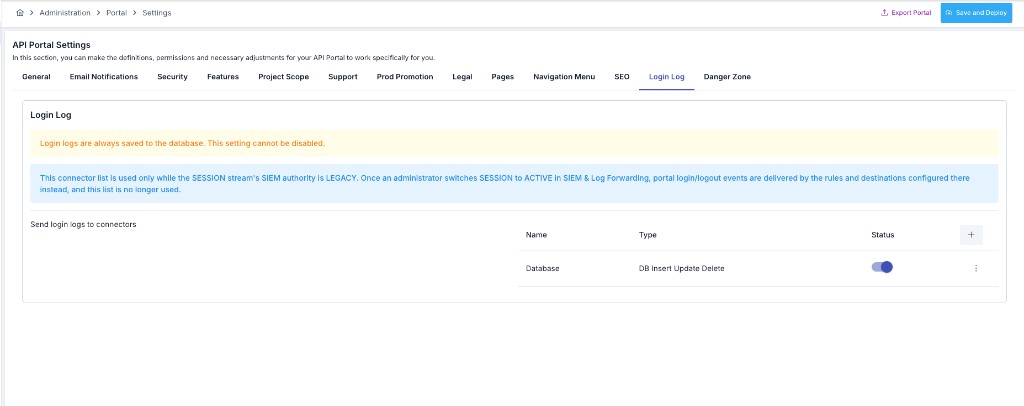
On that tab, click + in the connector table, pick a connection configuration that already exists for the environment, and save. Login log settings are independent per portal — each portal has its own connector list, and each connector can be switched Active or Inactive on its own.
This per-portal list is only used while the Session stream's SIEM authority is Legacy. Once an administrator switches Session to Active on SIEM & Log Forwarding, portal sign-in and sign-out events are delivered by the rules and destinations configured there instead — for every portal at once — and this list stops being used. See Portal sign-in delivery for the cutover.
Event names sent to a connector
The ten events in Event types above are what the screen shows. The eventType a connector receives matches them, with one exception kept for backward compatibility: Login Succeeded and Login Failed are sent as LOGIN_SUCCESS and LOGIN_FAILURE — the same names the Management Console uses — so an existing parser keeps working. Every other type is sent under its own PORTAL_-prefixed name: PORTAL_LOGOUT, PORTAL_ACCOUNT_LOCKED, PORTAL_ACCOUNT_UNLOCKED, PORTAL_ACCOUNT_DISABLED, PORTAL_PASSWORD_CHANGED, PORTAL_PASSWORD_CHANGE_REQUIRED, PORTAL_PASSWORD_RESET_REQUESTED and PORTAL_PASSWORD_POLICY_VIOLATION.
Payload
A portal event reaches a Legacy Raw destination in this shape — portalId and accountId are what distinguish it from a Management Console sign-in:
{
  "source": "API_PORTAL",
  "principal": null,
  "email": "user@example.com",
  "displayName": "Full Name",
  "eventDate": "2026-03-31T10:05:00Z",
  "eventType": "LOGIN_SUCCESS",
  "remoteAddress": "5.6.7.8",
  "message": null,
  "errorType": null,
  "portalId": "portal-abc123",
  "accountId": "account-xyz789"
}
The field list of this profile is frozen. For the canonical envelope, per-field masking and size limits, move the destination to Apinizer JSON v2 on the SIEM page — see Session stream — event types and legacy payload for the Management Console counterpart of this payload and for the Graylog/GELF and database-table details, which are identical for portal events.
API Portal Login Error Messages
Users attempting to log into the API Portal may fail for various reasons. Below, all possible error conditions and their meanings are explained in detail.
1. Waiting for Admin Approval (WAITING_FOR_APPROVEMENT)
When It Appears:
- User has registered on the portal
- Has verified email address
- But admin has not yet approved the account
- Portal Settings → Security → "Auto Approve Account" = PASSIVE
Error Message:
Authentication failed -> WAITING_FOR_APPROVEMENT
Message Shown to User: "Your account is waiting for administrator approval. You will be able to log in after approval."
Solution:
- Portal administrator should approve the user from Portal Management → Developer Accounts section
- Or activate the "Auto Approve Account" feature in Portal Settings → Security
This is part of the manual approval process. Users cannot log into the portal while waiting for admin approval.
2. Email Verification Not Done (CONFIRMATION_NEEDED)
When It Appears:
- User has registered on the portal
- But has not clicked the link in the email to verify email address
- If email verification is required
Error Message:
Authentication failed -> CONFIRMATION_NEEDED
Message Shown to User: "Please verify your email address. You can verify your email address by clicking the link in the registration email."
Solution:
- User should click the verification link in the email received during registration
- If email did not arrive, can use "Resend Email" feature
Users cannot log into the portal without email verification. This is an important step for security.
3. Account Disabled (DISABLED)
When It Appears:
- Manually disabled by an administrator
- Automatically disabled by the inactive-account job after too many days without a sign-in
Error Message:
Authentication failed -> DISABLED
Message Shown to User: "Your account has been disabled. Please contact the administrator."
Solution:
- Portal administrator can re-approve the account from Portal → Accounts/Developers
- User can request account activation by contacting the administrator
Too many wrong passwords in a row no longer disables the account — it locks it instead (see the next entry), which is independent of this Disabled status and does not need an administrator's re-approval unless Lock Duration is set to unlimited.
3b. Account Locked (LOCKED)
When It Appears:
- The account went over the portal's Max Failed Login Attempts (5 by default) in a row
Error Message:
Authentication refused -> the account is locked
Message Shown to User: "Your account has been locked due to too many failed sign-in attempts."
Solution:
- Wait for Lock Duration to pass, if the portal has a non-zero one configured
- Otherwise ask a portal administrator to click Unlock on Accounts/Developers
Automatic lockout is a security measure against brute force attacks, not a punishment for the account holder — a correct password submitted while the account is locked is still refused, without being compared, so it is never counted as a fresh failed attempt. Full configuration: Password Policy & Account Lockout.
4. Application Rejected (REJECTED)
When It Appears:
- User's registration application has been rejected by admin
- Admin has rejected the user from Portal Management → Developer Accounts section
Error Message:
Authentication failed -> REJECTED
Message Shown to User: "Your account application has been rejected. Please contact the administrator for detailed information."
Solution:
- User can make a new application
- Or contact the administrator to get information about the rejection reason
Rejected accounts remain in the system but cannot log into the portal. Administrator can approve the account again if necessary.
5. Account Not Approved (NOT_APPROVED)
When It Appears:
- Account has not passed the approval process
- Email verification is done but admin approval is pending
- Or auto approval feature is passive and admin has not yet approved
Error Message:
Authentication failed -> NOT_APPROVED
Message Shown to User: "Your account has not yet been approved. Please wait for the approval process to complete."
Solution:
- Portal administrator should approve the account
- Or activate the "Auto Approve Account" feature in Portal Settings → Security
6. Wrong Password
When It Appears:
- When user enters wrong password
- Email address is correct but password is wrong
Error Message:
Authentication failed after 1 failed sign-in attempts
Message Shown to User: "Email or password is incorrect."
⚠️ Important Security Mechanism:
Each wrong password increases the account's failed-attempt count by one; a correct password resets it to zero. The attempt that pushes the count past the portal's Max Failed Login Attempts (5 by default, configurable per portal) locks the account immediately — the attempt that only reaches the limit does not lock it. Once locked, every further attempt is refused as Account Locked above without comparing the password at all, so it is not counted as another failed attempt.
Solution:
- User should enter the correct password
- If forgot password, can use "Forgot Password" feature
- If the account is locked, wait for Lock Duration to pass or ask an administrator to Unlock it
Automatic Account Lockout: the exact threshold and lock duration are configured per portal — see Password Policy & Account Lockout.
7. User Not Found (Account Not Found)
When It Appears:
- Entered email address is not registered in the system
- User has not yet registered on the portal
- Email address was entered incorrectly
Error Message:
Authentication failed -> account not found
Message Shown to User: "No user registered with this email address was found. Please check your email address or register."
Solution:
- User should check the email address
- If not registered, should register by clicking "Register" button
- If entered email incorrectly, should enter the correct email address
✅ 8. Successful Login (Success)
When It Appears:
- When email and password are correct
- When account is active and approved
- When email verification is completed
- When admin approval is given (if required)
Error Message: None (message is empty)
Status: SUCCESS
Shown to User: User is redirected to the portal home page and has successfully logged into the portal.
Successful logins are displayed with SUCCESS status in Login Logs. These records are important for user activity tracking.
📋 Error Messages Summary Table
The following table summarizes all error conditions and solutions:
| Status | When | Error Message | Shown to User | Solution |
|---|---|---|---|---|
| WAITING_FOR_APPROVEMENT | Waiting for admin approval | Authentication failed -> WAITING_FOR_APPROVEMENT | "Your account is waiting for administrator approval" | Admin should approve account |
| CONFIRMATION_NEEDED | Email not verified | Authentication failed -> CONFIRMATION_NEEDED | "Please verify your email address" | Click email verification link |
| DISABLED | Manual, or inactivity job | Authentication failed -> DISABLED | "Your account is disabled" | Admin should activate account |
| LOCKED | Too many wrong passwords in a row | Authentication refused -> the account is locked | "Your account has been locked" | Wait for Lock Duration, or admin Unlock |
| REJECTED | Application rejected | Authentication failed -> REJECTED | "Your account application has been rejected" | New application can be made |
| NOT_APPROVED | Not approved | Authentication failed -> NOT_APPROVED | "Your account has not yet been approved" | Admin should approve account |
| Wrong Password | Password wrong | Authentication failed after N failed sign-in attempts | "Email or password is incorrect." | Enter correct password |
| Account Not Found | Email not found | Authentication failed -> account not found | "No user found with this email" | Register or check email |
| Successful | Email+password correct | (empty) | Redirect to home page | - |
Usage Scenarios and Examples
You can perform analysis and troubleshooting in various scenarios using the Login Logs page. Below, the most common usage scenarios are explained in detail.
Scenario 1: User Activity Check
To check a user's login activities and learn their last login time:
Select date range to check a specific user's login activities:
- From:
2025-01-01(Start date) - To:
2025-01-31(End date)
You can use the default date range to see last 30 days of activity.
Enter the user's email address in the Search by email field:
- Example:
john.doe@example.com
The system automatically filters all records for this user.
You can see the following information in the table:
- Last Login Time: Date and time of the last successful login
- Login Frequency: How often the user logs in
- Success/Failure Rate: Percentage of successful ones in total login attempts
- IP Addresses: Which IP addresses the user logged in from
You can easily distinguish successful (SUCCESS) and failed (FAILURE) logins from the Status column.
Analyze the user's activity pattern:
- Which hours are more active?
- Which IP addresses are they logging in from?
- Are there failed login attempts?
- When was the last login?
Scenario 2: Failed Login Analysis and Troubleshooting
To analyze failed login attempts and resolve user issues:
To see only failed logins in the table:
- Look at the Status column and examine records with
FAILUREstatus - Or narrow down failed logins with date range and email filter
Failed logins are marked with a red FAILURE badge.
Analyze failure reasons from the Message column:
Common Error Types:
WAITING_FOR_APPROVEMENT→ Waiting for admin approvalCONFIRMATION_NEEDED→ Email not verifiedDISABLED→ Account disabled (admin, or the inactive-account job)LOCKED→ Account locked by the failed-attempt thresholdWrong Password→ Wrong password
Immediate intervention may be required for accounts in DISABLED or LOCKED status.
Apply appropriate solution according to error type:
Waiting for Admin Approval:
- Go to Portal Management → Developer Accounts section
- Find the user and click [Approve] button
Email Not Verified:
- Tell user to resend email verification link
- Or you can skip email verification as admin
Account Locked:
- Go to Portal Management → Developer Accounts section
- Find the user and activate the account
- You can send password reset link to the user
Wrong Password:
- Recommend user to use "Forgot Password" feature
- Or perform password reset as admin
Analyze failed login trends:
- Are there continuous failed attempts for a specific user?
- Are there many failed attempts from a specific IP address?
- Did the number of failed attempts increase in a specific time period?
This analysis helps you detect security threats and system issues early.
Scenario 3: Security Violation Detection and Prevention
To detect suspicious activities and take security measures:
View all logins from a suspicious IP address:
- Enter IP address in the Search by IP address field
- Example:
192.168.1.100
The system lists all login attempts from this IP.
Check if there are many failed login attempts from the same IP:
Suspicious Activity Indicators:
- 10+ failed attempts in a short time (e.g., within 1 hour)
- Attempts made with different email addresses
- Systematically increasing attempt count
Brute Force Attack Indicator: A large number of failed login attempts from the same IP in a short time may be a sign of a potential brute force attack. In this case, immediate security measures should be taken.
When suspicious activity is detected:
1. Block IP Address:
- Block IP address from firewall or security settings
- Or apply IP restriction at API Gateway level
2. Protect User Accounts:
- Check affected user accounts
- If necessary, make password change mandatory
3. Notify Security Team:
- Inform security team about suspicious activity
- Share log records with security team
4. Additional Security Layers:
- Add CAPTCHA
- Apply rate limiting
- Make two-factor authentication (2FA) mandatory
Document security incidents:
- Record suspicious IP addresses
- Note incident time and details
- Document measures taken
- Create regular security reports
Scenario 4: System Health and Performance Analysis
To analyze portal login statistics and evaluate system health:
Analyze general statistics for a specific period:
- Total Login Attempts: Total number of login attempts made
- Successful Login Rate: Percentage of successful logins
- Failed Login Rate: Percentage of failed logins
- Most Active Users: Users who log in most frequently
Analyze trends over time:
- Daily/weekly/monthly login counts
- Changes in success rate
- Peak hours (busiest login hours)
- Seasonal or periodic changes
Evaluate system performance:
- Average login success rate
- Most common error types
- User satisfaction indicators
Best Practices and Recommendations
Follow these recommendations to use the Login Logs page effectively:
Review Login Logs regularly (daily or weekly). Detect suspicious activities early.
Set up automatic alerts for critical security events (e.g., 10+ failed attempts).
Retain logs for sufficient period for compliance requirements (e.g., 90 days, 1 year).
Create and share regular security and usage reports.
Inform users about secure password usage and login security.
Create and implement security policies (e.g., password complexity, 2FA).
Important Reminders
Repeated Wrong Passwords = Automatic Lockout
An account is automatically locked — not disabled — after too many wrong passwords in a row. The threshold (5 by default) and how long the lock lasts before opening on its own are configured per portal; see Password Policy & Account Lockout. This is a critical security measure against brute force attacks.
Administrator Action:
- Regularly check locked accounts on Accounts/Developers
- Inform users about account lockout
- Unlock the account if necessary — no need to re-approve it, a lock does not touch Enabled/Disabled status
Log Retention
portal_login_logs is not deleted automatically by default — the collection keeps growing until you turn on Portal Login Logs cleanup under Administration → Auditing & Compliance → Application Log Cleanup Tasks (off, and 30 days once enabled, are only the defaults; both are configurable). While the setting stays off, nothing here is ever deleted, regardless of how far back you keep browsing.
Different retention periods may be required for different industries once you do enable it:
- General: 90 days
- Finance: 1 year or longer
- Healthcare: According to legal requirements
- Public: According to legal requirements
Regular Reporting
Create regular reports to track security and usage trends:
- Daily: Critical security events
- Weekly: General activity summary
- Monthly: Detailed analysis and trend report
- Yearly: Annual security and usage report
Conclusion
The API Portal Login Logs page is a powerful tool for monitoring portal security, tracking user activities, and analyzing system health. By using this page regularly, you can:
✅ Detect security threats early
✅ Quickly resolve user issues
✅ Optimize system performance
✅ Meet compliance requirements
✅ Perform detailed analysis and reporting
Track all user login attempts in detail and analyze most active users
Quickly detect suspicious activities and security violations, monitor failed login trends
Report portal login statistics, performance metrics, and system health
Store log records and create regular reports to meet legal requirements
Analyze access from different IP addresses and location-based activities
Ensure security with automatic, per-portal-configurable account lockout after repeated wrong passwords