Appearance and Theme
Basic Settings
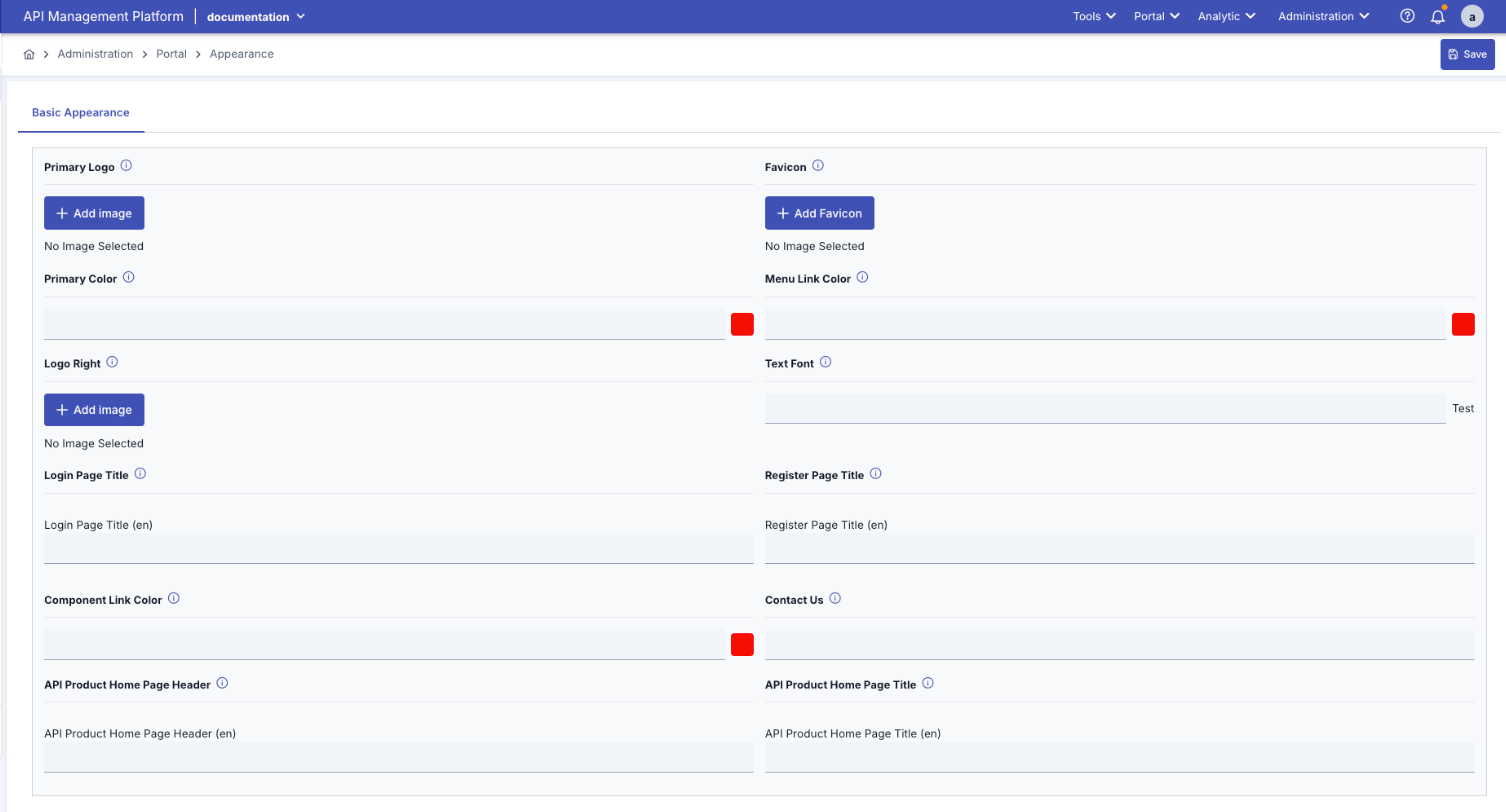
Theme and Appearance settings on the Apinizer API Portal are managed from this screen. Visual identity, color palette, font, and page titles are edited from this screen.
The image containing the Appearance and Theme screen details is provided below:
Impact on API Portal Interface
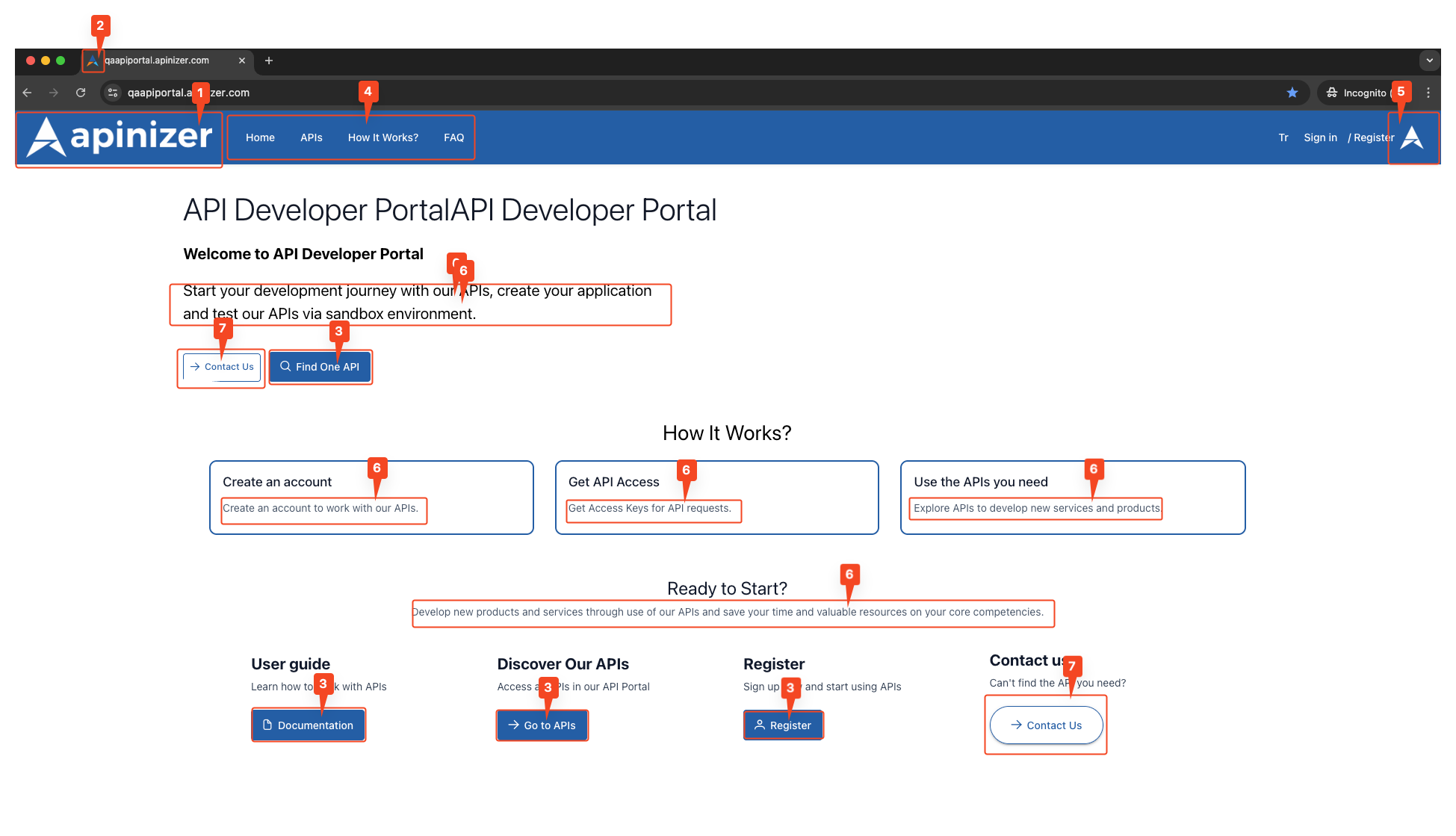
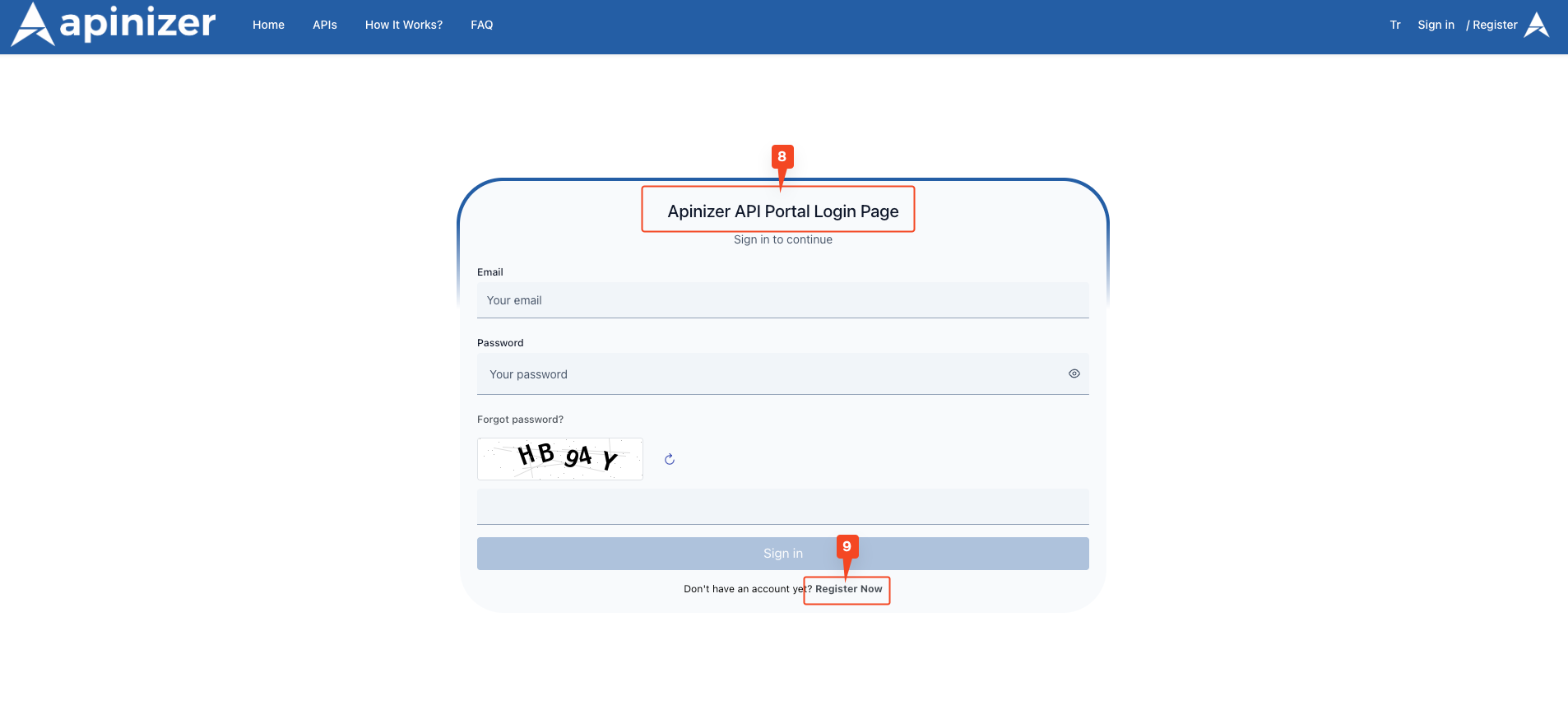
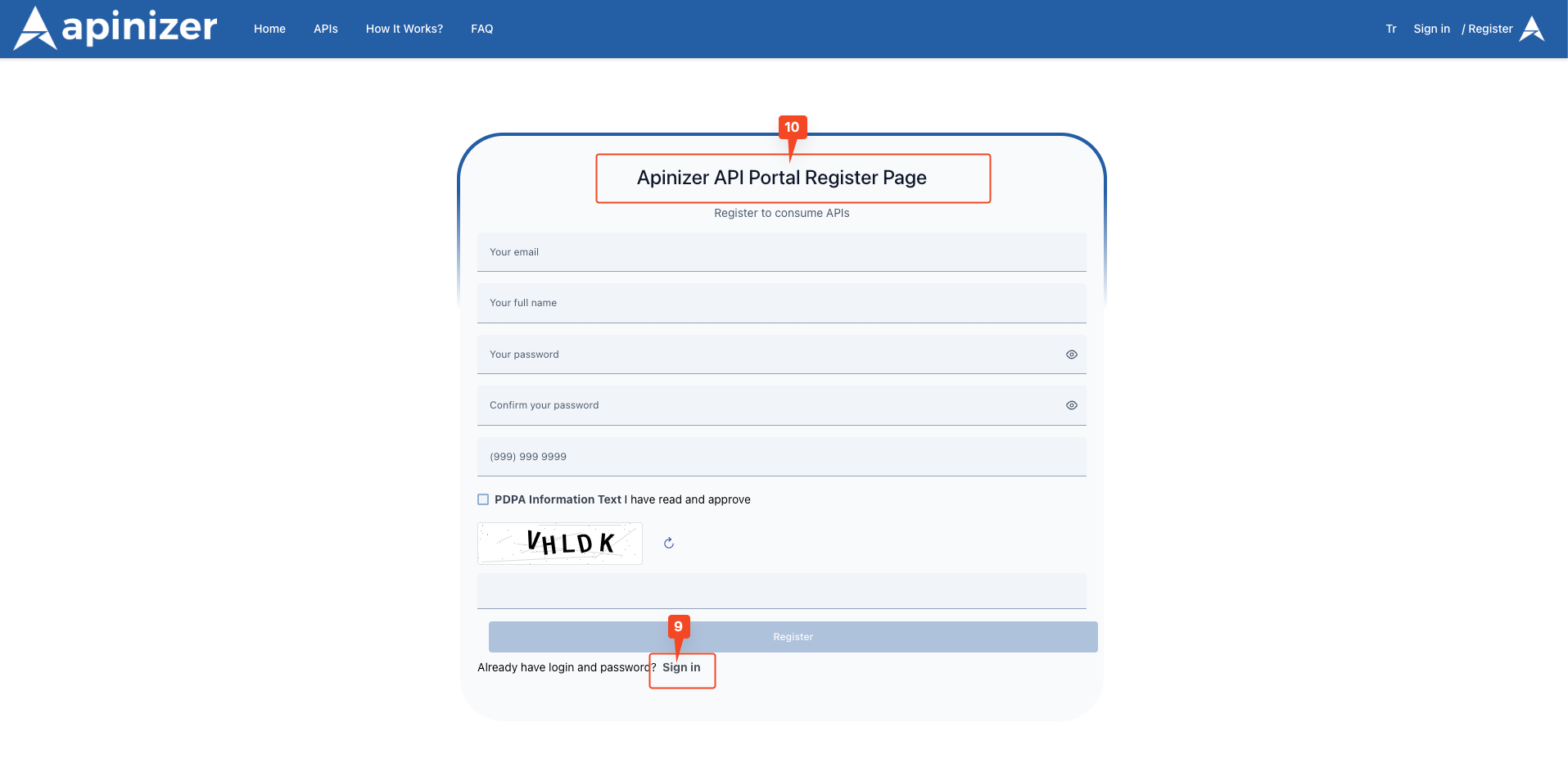
The images below show the Theme and Appearance (Appearance) settings screen of the Apinizer API Portal. The numbers on the images indicate the locations of configurable fields:
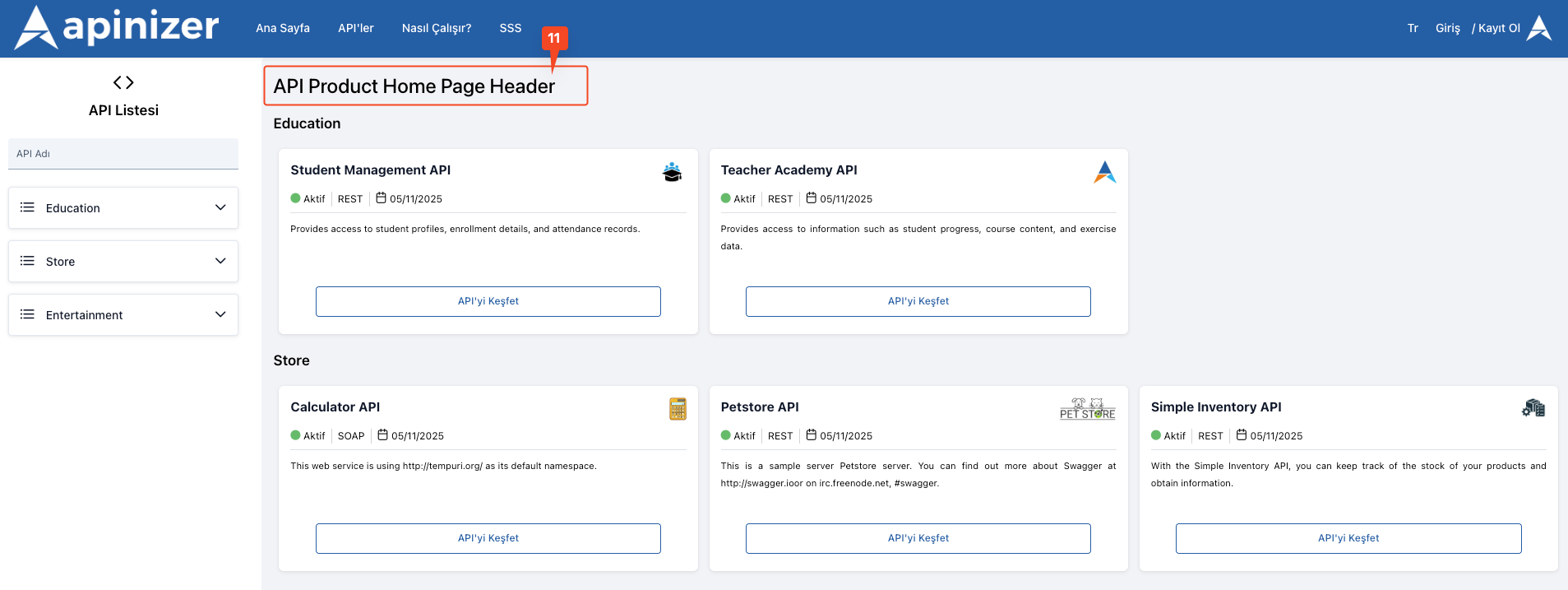
The fields used for theme appearance screen configuration are shown in the table below.
| Field | Description | Technical Details | Appearance |
|---|---|---|---|
| Primary Logo | Logo to be displayed in the header component on the API Portal is added here. Official logos used on an application basis are taken from here. Generally, users return to the homepage by clicking this logo. Represents the main logo appearing at the top left of the portal's topmost menu bar. | Maximum file size: 5MB, Supported formats: .ico, .svg, PNG, JPG, JPEG, Recommended size: Maximum 200px width x 50px height | 2. Corresponds to the area marked with number 1 in the image. |
| Favicon | Favicon to be displayed in the browser tab and throughout the application on the API Portal is added here. Small icon appearing in the browser tab. | Maximum file size: 5MB, Supported formats: .ico, .svg, PNG, Recommended size: 32x32 pixels or 16x16 pixels | 2. Corresponds to the area marked with number 2 in the image. |
| Primary Color | Field where the "Primary Color" information on the API Portal is entered. Main color of blue-toned buttons (e.g., "Find One API", "Register") and highlights on the page. Background color of active menu items. Used to align user experience with brand colors. | Hex color code format (e.g., #245EA5), Can be selected visually with color picker, Can be entered manually as hex code | 2. Corresponds to the area marked with number 3 in the image. |
| Menu Link Color | Field where the "Menu Link Color" appearance information on the API Portal is entered. Determines the text color of menu links such as "Home", "APIs", "How It Works?" located immediately to the right of the logo. | Hex color code format (e.g., #ffffff), Colors that will create contrast with background color should be selected | 2. Corresponds to the area marked with number 4 in the image. |
| Logo Right | This field is used to add a second logo to the right side next to the main logo at the top of the portal. Generally, partner logos of the organization, project collaboration emblems, or logos belonging to sub-brands are displayed in this area. Shows a second logo (example: partner or project logo) to the right of the main logo. | Maximum file size: 5MB, Supported formats: .ico, .svg, PNG, JPG, JPEG, Recommended size: Maximum 150px width x 50px height | 2. Corresponds to the area marked with number 5 in the image. |
| Text Font | Field where the "Text Font" information on the API Portal is entered. Used in all text content on the Portal. Font suitable for corporate identity is used. | Standard web fonts can be used (Arial, Helvetica, Times New Roman, etc.), Google Fonts fonts can be used (Roboto, Open Sans, Lato, etc.), Font family name is entered (e.g., "Roboto, sans-serif") | 2. Corresponds to the area marked with number 6 in the image. |
| Login Page Title | Field where the title information of the "Login" page on the API Portal is entered. You can make separate settings for the page displayed in English and Turkish. Page title of the "Login" screen (example: "Apinizer API Portal Login Page"). | Maximum 255 characters can be entered. | 3. Corresponds to the area marked with number 8 in the image. |
| Register Page Title | Field where the title information of the "Sign Up" page on the API Portal is entered. You can make separate settings for the page displayed in English and Turkish. Page title of the "Register" (Sign Up) screen (example: "Apinizer API Portal Register Page"). | Maximum 255 characters can be entered. | 4. Corresponds to the area marked with number 10 in the image. |
| Component Link Color | Used to determine the color of all links except menu links on the API Portal with the "Link Color" information. Changes the color of links outside the menu. Determines the color of links within cards. Determines the color of clickable items in list items. | Hex color code format is used. Must provide contrast with background for readability. | 3. and 4. Corresponds to the area marked with number 9 in the image. |
| Contact Us | Field where the URL to which the "Contact Us" button on the API Portal is to be redirected is entered. Determines the address the "Contact Us" button will redirect to. | Maximum 500 characters can be entered. Email address or contact URL can be entered. | 2. Corresponds to the area marked with number 7 in the image. |
| API Product Home Page Header | Header of the API Product Home Page on the API Portal. Changes the "Discover Our APIs" header. | Maximum 500 characters can be entered. | 5. Corresponds to the area marked with number 11 in the image. |
| API Product Home Page Header (TR) | Turkish header of the API Product Home Page on the API Portal. | Maximum 500 characters can be entered. | 5. Corresponds to the area marked with number 11 in the image. |
Info
Important: Homepage, "How It Works", and Footer content management have been removed from this page. To manage these contents, you can use the "Portal Content Management" section on the API Portal Settings page.
Saving and Preview
Saving Process
How to Save:
- Click the "Save" button in the top right corner
- All appearance settings are saved
- After successful save, changes are reflected on the portal instantly.
Basic Fields
| Field | Description | Where It Appears on Portal |
|---|---|---|
| Primary Logo | Main logo used in the portal top bar | navbar and index.html |
| Logo Right | Right logo used in the portal top bar | navbar |
| Favicon | Favicon appearing in the browser tab | index.html |
| Primary Color | Theme primary color (e.g., plan cards, buttons) | Entire portal |
| Menu Link Color | Color of menu links | navbar |
| Component Link Color | Color of links outside the menu | Entire portal |
| Text Font | Font used throughout the portal | Entire portal |
| Login Page Title | Login page title | Login page |
| Register Page Title | Register page title | Register page |
| Contact Us | Contact URL | Portal top bar |
| API Product Home Page Header | API Product homepage header | API Product list page |
Frequently Encountered Issues
Why Are Changes Not Visible on Portal?
- Refresh the page (Ctrl+F5 or Cmd+Shift+R)
- Clear browser cache
- Make sure you clicked the Save button
- Try in a different browser
Why is Favicon not updating?
- Completely clear browser cache
- Close and reopen the browser
- Check favicon format and size
Why is HTML Preview Not Working?
- There may be a syntax error in the HTML code
- Check browser console errors (F12)
- Check for unclosed tags
Why are Colors Different Than Expected?
- Check hex code format (#RRGGBB)
- Clear browser cache
- There may be CSS specificity issues
Why are Multilingual Contents Not Visible?
- Make sure both languages are active in Portal Settings
- Make sure you entered content for each language
- Make sure the user selected the correct language
Where can I edit homepage, How It Works, and Footer contents?
- Management of these contents is now done from the "Portal Content Management" section on the API Portal Settings page
- The Appearance and Theme page only contains basic appearance settings such as visual identity, colors, fonts, and page titles