Application Management
What Is It For?
- Centrally manages consumer apps that access API products in the portal
- Ties apps to an organization, separating person (account) from app ownership
- Surfaces credential and API Product subscription counts on the list and detail
- Provides operational control via metadata, key generate/revoke, and unregister
- Closes the lifecycle safely by approving, archiving, or rejecting consumer deletion requests
Who Uses It?
- Portal administrators: To see all apps, edit them, and decide deletion requests
- Portal Developer roles: To manage apps in their authorized scope
- Support / operations: To verify credential and subscription state by org/app
Test → Prod promote, TEST/PROD credentials, and wizards are not on the Manager app pages. See Application Promote and Portal Settings → Prod Promotion. For live quota/traffic see Traffic & Usage.
Access
- Portal → Applications (route:
/admin/applications) — active portal scope. Older/admin/portal-applinks are redirected here. - The Identity menu has no separate Applications entry. Internal applications are managed on the Consumers screen (
?type=application); see Portal Applications - Authorities: Admin, Portal Manager, Portal Developer (Portal menu)
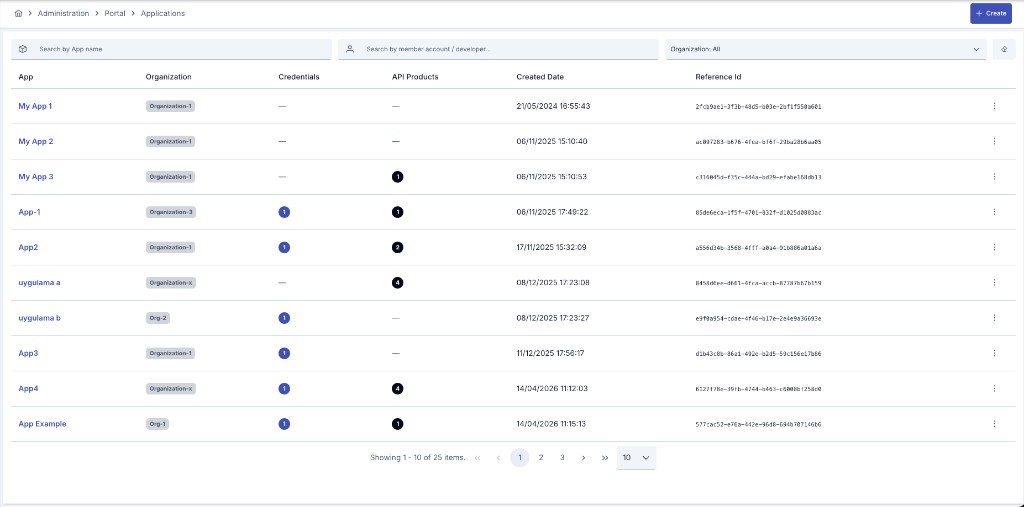
List
Create opens the new-app dialog.
Filters
| Filter | Description |
|---|---|
| Search by App name | Search by name |
| Search by member account / developer | Finds apps via ACTIVE org memberships matched by account email/name |
| Organization | One or more organizations |
| Type: All | Portal / Internal. Nothing selected = both kinds; the Manager list is kind-aware, not kind-filtered |
Columns
| Column | Description |
|---|---|
| App | Click name for view; description in tooltip |
| Type | Portal / Internal badge; an app with no stored type reads as Portal |
| Organization | Badge → org overview |
| Credentials / API Products | Count badges from list-stats |
| Created Date | Created timestamp |
| Reference Id | Unique reference |
Badges on name:
- Deletion requested — consumer deletion request (
PENDING_DELETION) - Archived — archived app
No list badge for ACTIVE / SUSPENDED. Suspend has no Manager UI (backend only).
Row menu (⋮)
- View · Edit · Remove (hard delete; offered for a TEST application only, and it runs only when the application has no related record — the confirmation asks you to type the application name)
- When
PENDING_DELETION: Approve & delete · Approve & archive · Reject
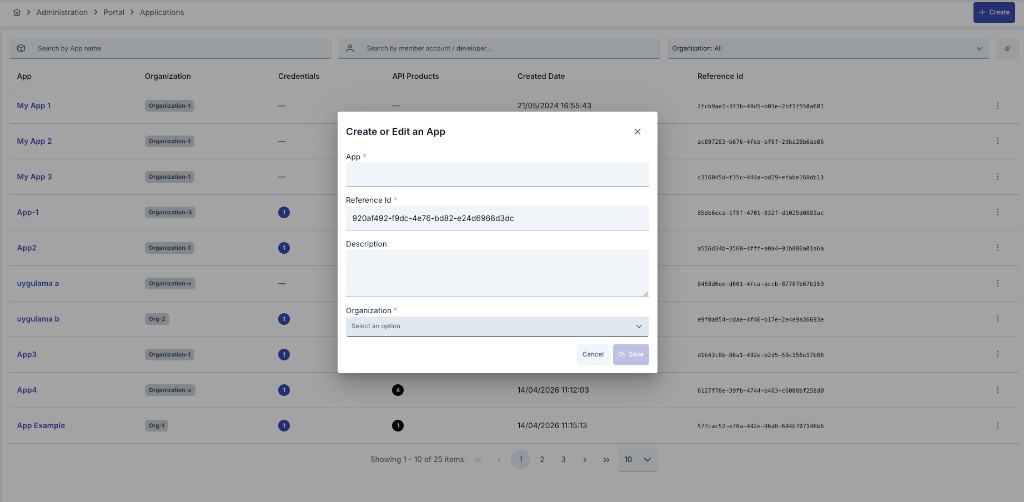
Create
| Field | Required | Notes |
|---|---|---|
| App (Name) | Yes | Max 255 |
| Type | Yes | Portal (default) / Internal — create only; read-only afterwards |
| Reference Id | Yes | Default UUID |
| Description | No | |
| Organization | Yes | There is no Account field |
Metadata, credentials, and product subscriptions are not in the create dialog; they are managed on edit/view. portalId / projectId come from the active portal context — except for an Internal app, which belongs to no portal and is therefore saved with no portalId.
Internal applications
An Internal app is a first-party application created by an administrator; it belongs to the Manager's own surface, not the portal's.
- It is created only here. The portal surface always stamps Portal on what it creates, whatever the request asks for
- It is never returned by portal-facing queries: consumer My Apps, the organization's app list, reports, and the Portal Management API
GET /portal-appall exclude it - An update sent for it through the portal surface is refused, and it cannot be promoted to production
- It does not consume the organization's
maxAppCountquota — that limit governs Portal apps only
View
Header: name, Organization badge, Created Date, Suspended badge while the application is suspended; Edit / Suspend (or Resume) / Transfer / Delete.
Suspend pauses the application: its consumers and API clients stop authenticating at the gateway, and no record is deleted. Resume puts it back to ACTIVE. Both ask for confirmation first, and both are offered to system administrators and portal managers only.
Stat cards: Credentials count, API Products count (products hidden in Identity mode).
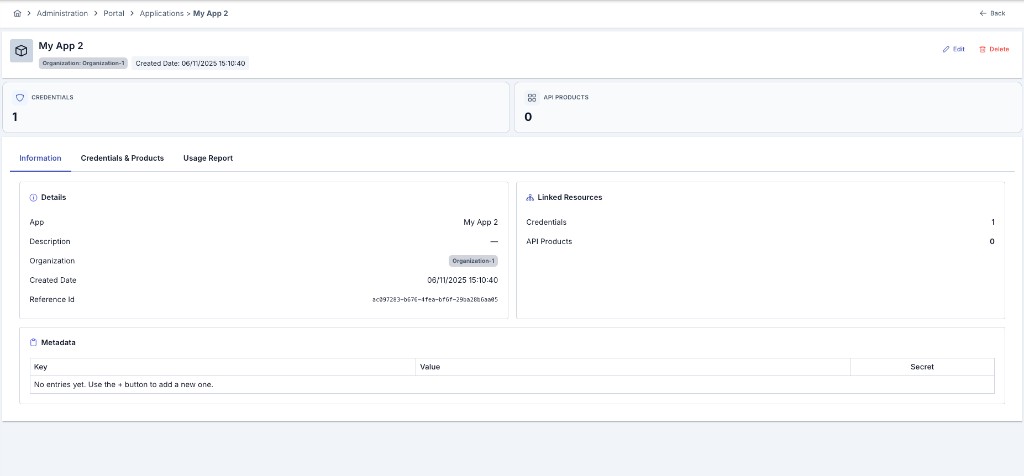
Information
- Details: name, type, application key (with copy), description, organization, created, referenceId (project in Identity), Do not log traffic (badge when on, "No" otherwise)
- Linked Resources: credential / product counts
- Metadata (read-only): Key, Value (secrets as
••••••••), Secret yes/no
Subscribed Products
One card per subscribed API product (the tab is hidden in Identity mode):
- Product name and subscription status badge (Waiting / Approved / Rejected)
- Plan badge
- The limit the gateway enforces:
Rate limit profile: <profile>(and the AI token budget profile when the plan has one), or the plan's own numbers for a plan that carries no profile — for example50 calls/min · 10,000 calls/day · Blocked (429) when exceeded - Quota consumption of the last 24 hours:
Usage: consumed / limit · %percentwith a bar - Unregister on the right: asks for confirmation, then ends that subscription. The application stops calling the APIs of that product.
Consumers are not listed here. Machine identities live on the API Clients tab, which is where they are created, edited and revoked.
Usage Report
App-scoped summary metrics panel (product filter + date range; successful / blocked / error / timing). For platform-wide views see API Traffic Report and Traffic & Usage.
Edit
Saved with Save and Deploy.
| Area | Editable? |
|---|---|
| Name, Description | Yes |
| Organization, Reference Id | No (read-only strip) |
| Type, Application Key | No (read-only strip; the server restores the stored value and answers 400 to a payload that carries a different one) |
| Do not log traffic | Yes — can be turned on/off after the app already exists, not only at creation. Saving redeploys the application's consumers automatically; no manual redeploy is needed |
| Metadata | Add/remove rows; key required and unique; value; secret + show/hide |
| API Clients | The same tab the View page shows: create, edit, suspend, rotate the secret, revoke. Available once the application is saved |
| API Products | Plan/status visible; Unregister → UNSUBSCRIBED (new subscribe is not started here) |
Stops this application's consumers' API traffic from being written to traffic log connectors. Trace records, OpenTelemetry spans, metrics, and security/access events are not affected. Shown on View as a "Traffic log off" badge when on, or "No" when off.
Generate no longer mints a never-expiring key silently — it opens a small dialog first. Never expires is on by default, so the previous outcome is unchanged unless you turn it off; turning it off reveals a date picker and the new key expires on the chosen date, the same Expire Date field a Consumer's own key already uses.
Lifecycle
| State | How it appears | Manager actions |
|---|---|---|
| ACTIVE | Default / after Reject | Create, edit, direct Remove |
| PENDING_DELETION | Consumer deletion request (credentials disabled) | Approve & delete / Approve & archive / Reject |
| ARCHIVED | Approve & archive | Data kept; subscriptions unsubscribed |
| SUSPENDED | Suspend on the application header | Resume; edit and delete stay available |
Remove opens a confirmation that states what the deletion covers. The product subscriptions, the legacy credentials and the application record are deleted for good; the API clients of the application are only disabled, never deleted. The dialog shows the count of each one. Type the application name to arm the Delete button. When the application still holds a subscription, a credential or a live API client, the delete is refused: the dialog reports it and the button stays disabled. Archive the application instead — Approve & archive on the deletion request.
Approve & delete permanently removes the app, credentials, ACLs, subscriptions, and gateway undeploy. Prefer archive to keep data.
Developer Portal
Consumer My Apps (create wizard, add subscription, Test only / Promote, deletion request) is documented on Application Promote. Manager does not approve promote on this page.
- An application always belongs to an organization. If an account without an organization tries to create one, the portal refuses with a readable message before anything is saved (the portal API on the Manager side enforces the same rule).
- An account whose organization is still awaiting approval sees a persistent notice on My Apps; the New application button stays disabled until the organization is approved.
- An action the account is not allowed to perform (for example a Viewer attempting a write, or access to another organization's application) no longer ends the session; the user only sees "You are not allowed to perform this action." and stays signed in.
When an app, API client, or subscription/plan action fails a business rule — for example a plan that no longer matches the product, a retired plan, an organization still awaiting approval, or a role without the required permission — the developer portal now shows the reason as a readable, translated sentence in the consumer's selected language instead of raw technical text. Generic server errors and "server unreachable" messages are unchanged.